Get 20% OFF All Premium 3D & STL Models!

“`html
For 3D printing enthusiasts, especially those passionate about meticulously crafted car models like the ones available on 88cars3d.com, mastering STL file editing is a crucial skill. The STL (Stereolithography) file format is the bedrock of 3D printing, representing the surface geometry of a 3D object as a collection of triangles. However, raw STL files often require modifications – fixing errors, optimizing meshes, or adding custom details – before they’re ready for the printer. This guide will explore the best free and paid software options available to help you perfect your STL files, ensuring flawless prints every time. We’ll delve into the capabilities of each software, focusing on their strengths and weaknesses, and providing practical tips to streamline your workflow.
Before diving into the software options, it’s important to understand why editing STL files is necessary. Raw STL files, especially those sourced from various online repositories, can contain errors such as non-manifold geometry (gaps or overlaps in the mesh), inverted normals (surfaces facing the wrong direction), or excessive triangle counts that can bog down your 3D printer. These issues can lead to print failures, poor surface finish, and wasted filament. Editing allows you to:
Fortunately, a range of powerful and free software options are available for editing STL files. These tools offer a great starting point for beginners and even provide advanced features for experienced users.
Autodesk’s MeshMixer is a popular choice for its intuitive interface and a wide array of features. It excels at mesh repair, optimization, and modification, making it a valuable tool for any 3D printing enthusiast. MeshMixer is particularly strong at automatically detecting and repairing mesh errors, a feature that saves significant time and effort.
Workflow Example: To repair an STL file in MeshMixer, simply import the file, navigate to “Edit” > “Make Solid,” and adjust the settings for “Solid Type” and “Accuracy.” Click “Update” to see the changes, and then “Accept” to apply the repair. For models from platforms like 88cars3d.com, this process can ensure a smoother printing experience by correcting any minor imperfections that might exist in the original file.
Blender is a free and open-source 3D creation suite that offers a comprehensive set of tools for modeling, sculpting, and editing STL files. While Blender has a steeper learning curve than MeshMixer, its capabilities are virtually limitless. It’s a professional-grade tool used in animation, visual effects, and game development, making it an excellent choice for users who want to master advanced 3D editing techniques.
Workflow Example: In Blender, you can use the “Remesh” modifier to rebuild the mesh with a uniform density, which can improve print quality. Select the object, add a “Remesh” modifier, and adjust the “Octree Depth” or “Voxel Size” to control the mesh density. Apply the modifier to make the changes permanent. Blender can be especially useful for modifying car models, allowing you to add custom body kits, spoilers, or other modifications.
For users who require more advanced features, specialized tools, or a streamlined workflow, several paid STL editing software options are available. These programs typically offer more robust mesh repair tools, advanced sculpting capabilities, and integration with other CAD/CAM software.
Autodesk Netfabb is a comprehensive software solution for additive manufacturing, offering a wide range of tools for STL file preparation, optimization, and simulation. Netfabb is widely used in professional settings due to its advanced features and ability to handle complex models. It excels at optimizing models for specific 3D printing processes, ensuring efficient and reliable printing.
Workflow Example: Netfabb can optimize the orientation of your car model to minimize support structures. Import the STL file, use the “Arrange” tool to find the optimal orientation, and then use the “Support Generation” tool to create efficient support structures. This can significantly reduce material waste and improve the surface finish of your print.
Pixologic ZBrush is a powerful digital sculpting tool widely used in the film, game, and animation industries. While not strictly an STL editor, ZBrush is excellent for adding intricate details and organic shapes to 3D models. It uses a unique sculpting workflow that allows artists to create highly detailed models with millions of polygons.
Workflow Example: In ZBrush, you can use the “Decimation Master” tool to reduce the polygon count of a highly detailed model before 3D printing. This tool preserves the overall shape and detail of the model while significantly reducing the file size, making it easier to handle by your 3D printer. This is beneficial when downloading complex models from marketplaces such as 88cars3d.com.
After editing your STL file, the next step is to prepare it for 3D printing using slicing software. Slicing software converts the 3D model into a series of layers that the 3D printer can understand. The slicing settings you choose will have a significant impact on the print quality, strength, and printing time.
Practical Tip: Experiment with different slicing settings to find the optimal balance between print quality, strength, and printing time for your specific 3D printer and material. Keep a log of your settings and results to track your progress.
The choice of material significantly impacts the final result. Each material has its own set of properties, advantages, and disadvantages. Here’s a brief overview of common 3D printing materials:
For 3D printing car models, PLA is a good starting point for beginners due to its ease of use and low warping. PETG offers a good balance of strength and ease of printing, while ABS is suitable for more experienced users who require higher strength and heat resistance. Resin is the best choice for highly detailed models with smooth surfaces.
Even with careful preparation and the best software, 3D printing can still present challenges. Here are some common issues and how to address them:
Tip: When troubleshooting, start by making small adjustments to one parameter at a time. This will help you identify the root cause of the issue and avoid making things worse.
Mastering STL file editing is essential for achieving high-quality 3D prints, especially when working with detailed models like those found on 88cars3d.com. By understanding the strengths and weaknesses of different software options, from free tools like MeshMixer and Blender to paid programs like Netfabb and ZBrush, you can optimize your workflow and produce stunning results. Remember to pay close attention to slicing parameters, material selection, and troubleshooting techniques to overcome common printing challenges.
Take the time to experiment with different software and settings to find what works best for your specific 3D printer and modeling needs. With practice and patience, you’ll be well on your way to creating impressive 3D printed car models that showcase your skills and passion for automotive design. Start by exploring the models on 88cars3d.com and applying the techniques discussed in this guide to bring your favorite cars to life in 3D.
“`

Texture: Yes | Material: Yes
Download the highly detailed, game-ready Toyota Camry 2018 3D Model. Features an aggressive aerodynamic body, distinct LED lighting signature, and precise interior detailing. Includes .blend, .fbx, .obj, .glb, .stl, .ply, .unreal, and .max formats for game development, AR/VR, and rendering.
Price: $19.99
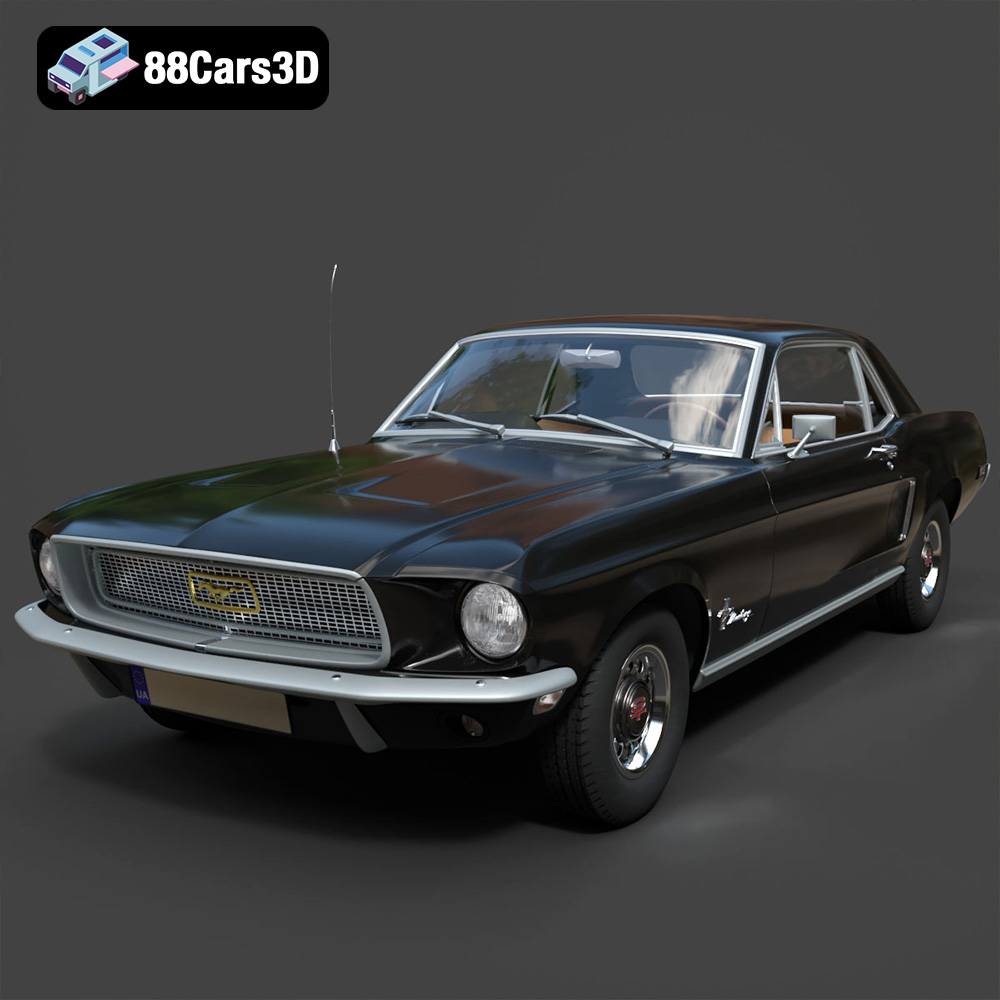
Texture: Yes | Material: Yes
Download the highly detailed, game-ready Ford Mustang Hardtop 1968 3D Model. Features the iconic galloping pony grille, signature tri-bar taillights, and an authentic vintage interior. Includes .blend, .fbx, .obj, .glb, .stl, .ply, .unreal, and .max formats for game development, AR/VR, and rendering.
Price: $19.99
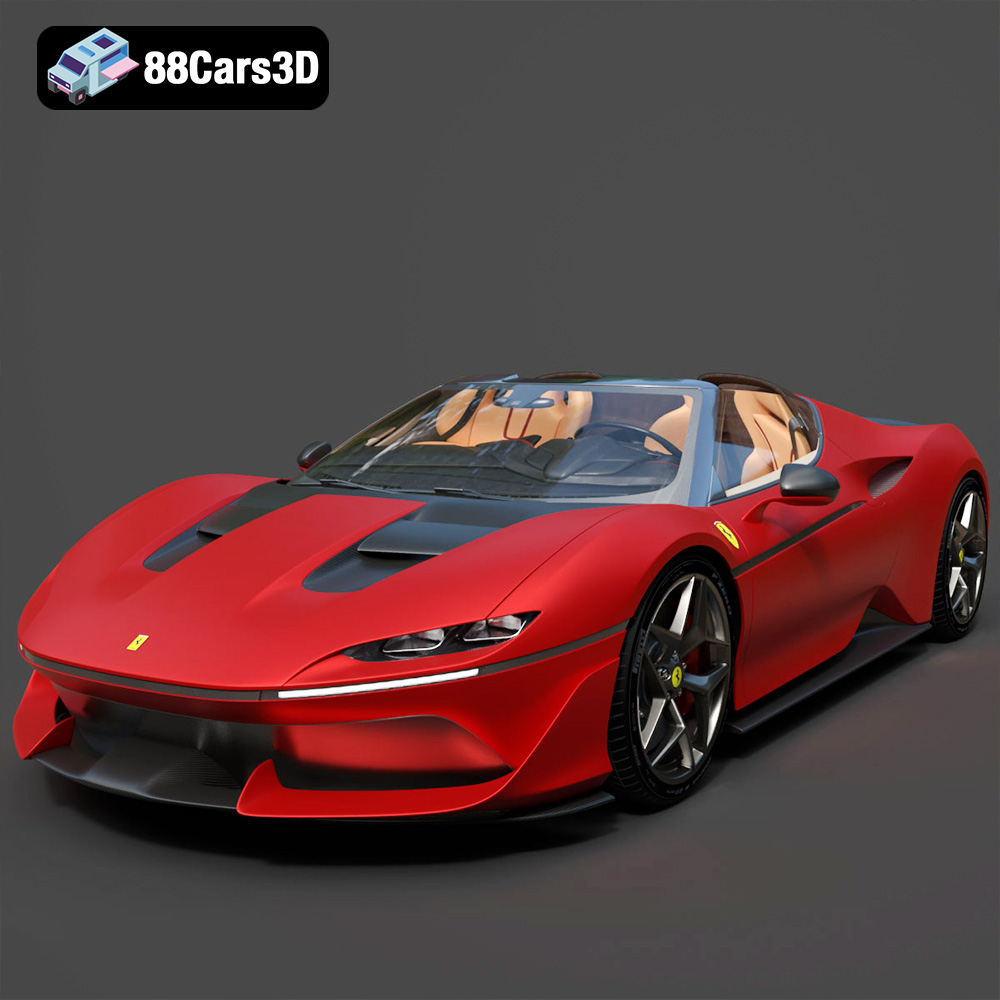
Texture: Yes | Material: Yes
Download the highly detailed, game-ready Ferrari J50 2017 3D Model. Features aggressive aerodynamic styling, twin-turbo V8 engine details, and targa top design. Includes .blend, .fbx, .obj, .glb, .stl, .ply, .unreal, and .max formats for game development, AR/VR, and rendering.
Price: $19.99
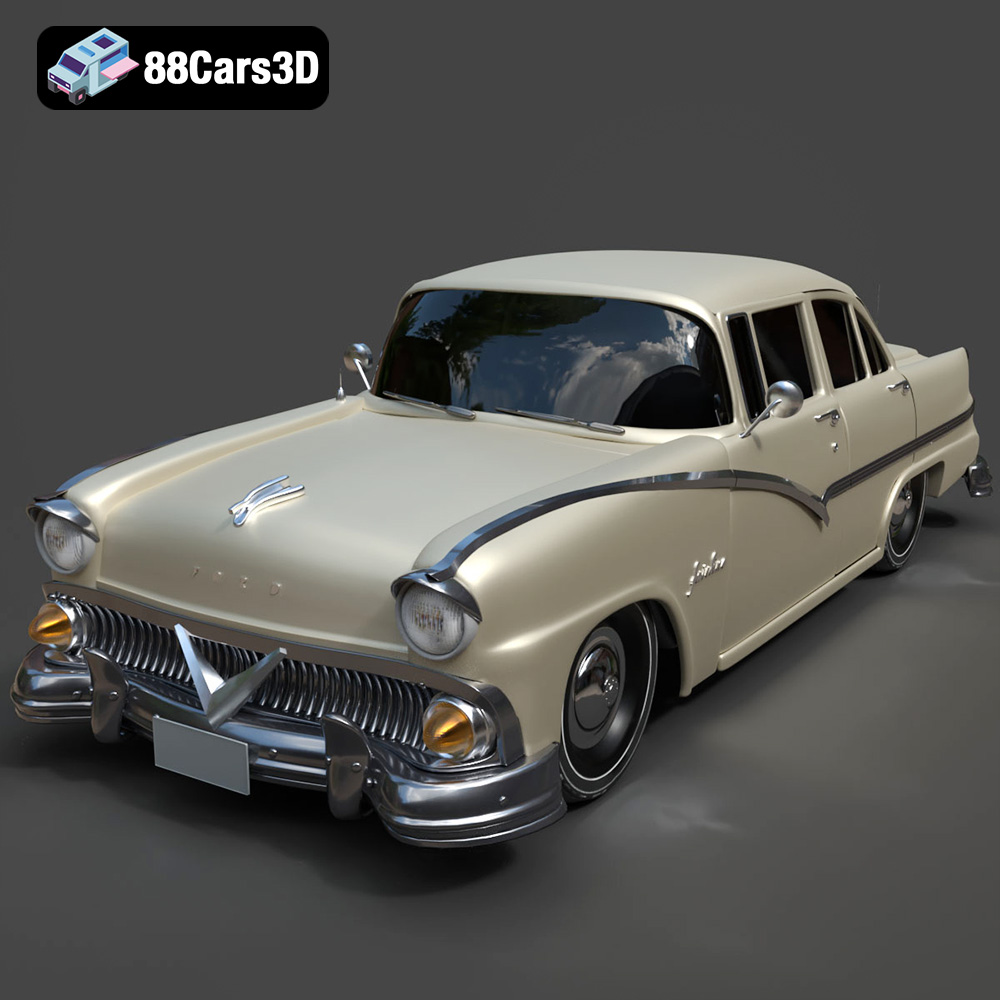
Texture: Yes | Material: Yes
Download the highly detailed, game-ready Ford Fairlin 3D Model. Features iconic classic styling, sweeping bodylines, and an accurate vintage interior. Includes .blend, .fbx, .obj, .glb, .stl, .ply, .unreal, and .max formats for game development, AR/VR, and rendering.
Price: $19.99
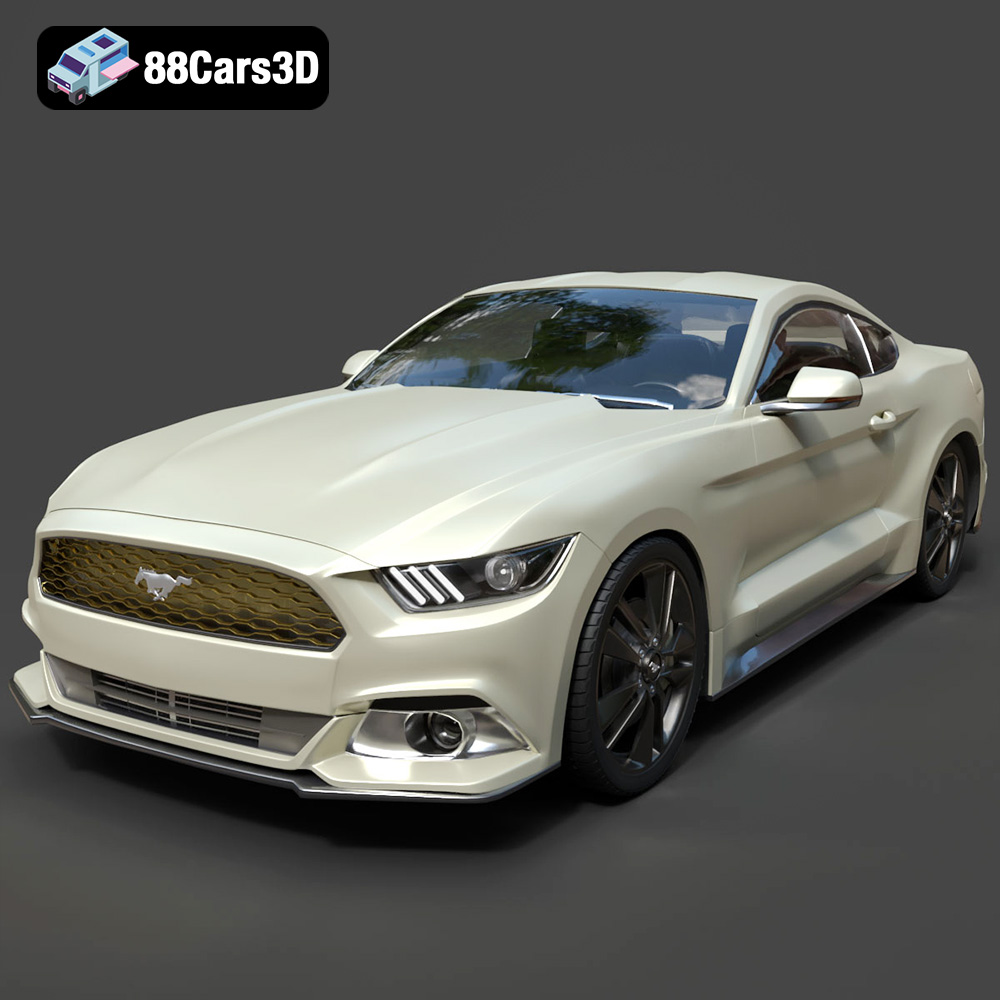
Texture: Yes | Material: Yes
Download the highly detailed, game-ready Ford Mustang GT 3D Model. Features aggressive muscle car styling, a highly detailed V8 engine bay, and accurate interior cockpit. Includes .blend, .fbx, .obj, .glb, .stl, .ply, .unreal, and .max formats for game development, AR/VR, and rendering.
Price: $19.99

Texture: Yes | Material: Yes
Download the highly detailed, game-ready Renault Megane CC 2011 3D Model. Features an accurately modeled folding glass roof, sleek aerodynamic body lines, and a detailed interior. Includes .blend, .fbx, .obj, .glb, .stl, .ply, .unreal, and .max formats for game development, AR/VR, and rendering.
Price: $19.99
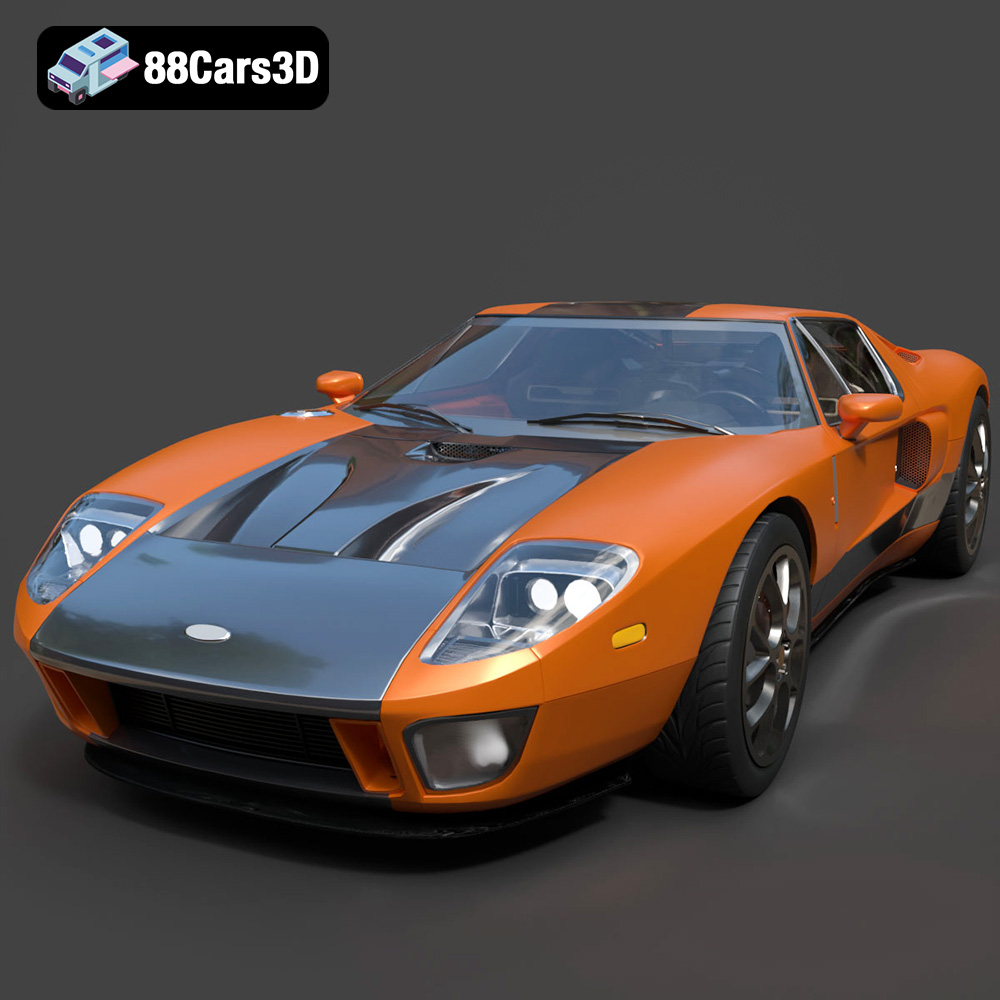
Texture: Yes | Material: Yes
Download the highly detailed, game-ready Ford GT 2005 3D Model. Features signature aerodynamic bodylines, mid-mounted supercharged V8 detailing, and iconic racing stripes. Includes .blend, .fbx, .obj, .glb, .stl, .ply, .unreal, and .max formats for game development, AR/VR, and rendering.
Price: $19.99

Texture: Yes | Material: Yes
Download the highly detailed, game-ready Yamaha YZF-R125 EU 3D Model. Features an aggressive aerodynamic fairing, twin LED headlights, and a detailed 125cc engine block. Includes .blend, .fbx, .obj, .glb, .stl, .ply, .unreal, and .max formats for game development, AR/VR, and rendering.
Price: $19.99

Texture: Yes | Material: Yes
Download the highly detailed, game-ready Yamaha R1 3D Model. Features aggressive aerodynamic fairings, a detailed crossplane inline-4 engine, and track-focused suspension geometry. Includes .blend, .fbx, .obj, .glb, .stl, .ply, .unreal, and .max formats for game development, AR/VR, and rendering.
Price: $19.99

Texture: Yes | Material: Yes
Download the highly detailed, game-ready Yamaha XV950 Racer 3D Model. Features an aggressive cafe-racer front cowl, detailed air-cooled V-twin engine, and classic retro styling. Includes .blend, .fbx, .obj, .glb, .stl, .ply, .unreal, and .max formats for game development, AR/VR, and rendering.
Price: $19.99

