Get 20% OFF All Premium 3D & STL Models!

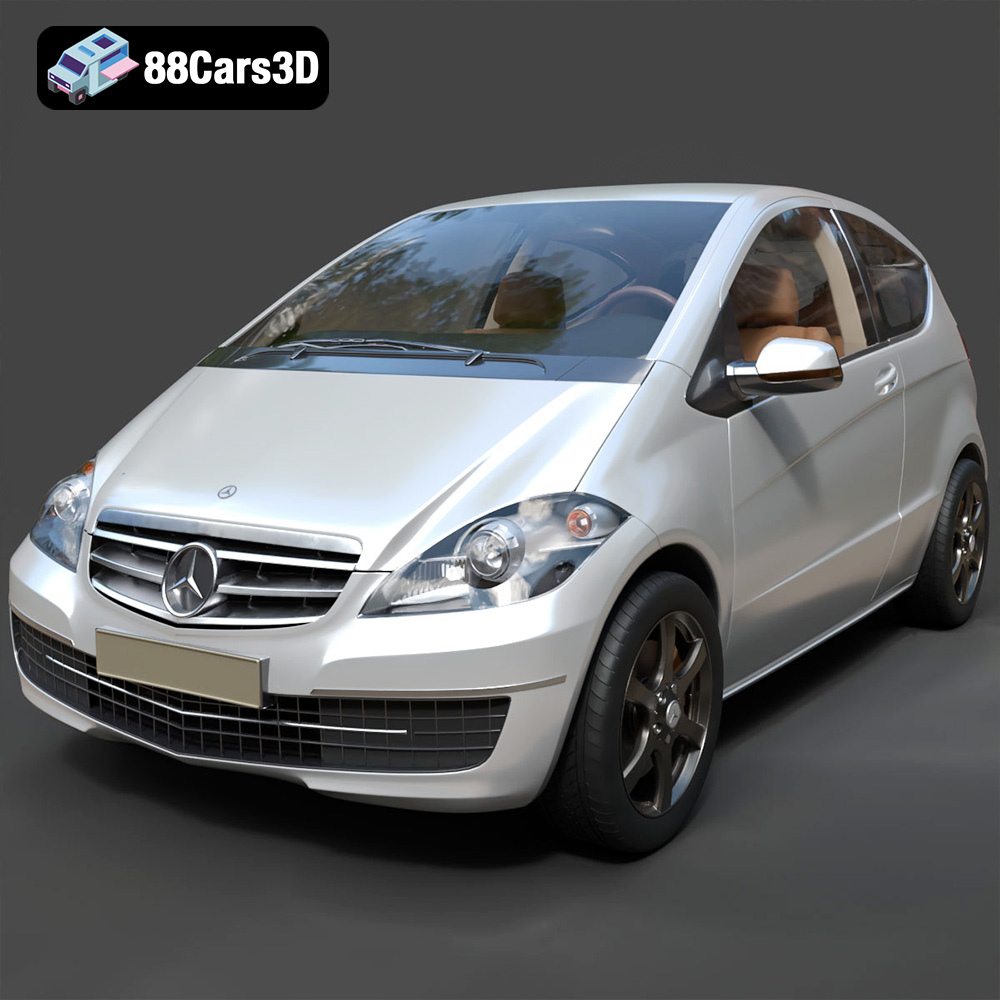
The Mercedes-Benz A-Class 3-Door 2010, a symbol of compact luxury and German engineering, is now within your reach through the magic of 3D printing. Thanks to 88cars3d.com, you can bring this iconic hatchback to life as a detailed scale model. This comprehensive guide will walk you through every step, from selecting the right STL files to applying the finishing touches that make your 3D printed A-Class a true masterpiece. Whether you’re a seasoned 3D printing enthusiast or just starting your journey, this guide will provide the technical knowledge and practical advice you need to succeed. Get ready to transform digital blueprints into a tangible tribute to automotive excellence.
Before diving into the specifics of 3D printing the Mercedes-Benz A-Class, it’s crucial to understand the different file formats available and how they impact the printing process. The product page lists several formats, each with its own strengths and weaknesses, but some formats are much better suited to 3D printing than others.
The STL (Stereolithography) format is the undisputed king of 3D printing. It represents the surface geometry of a 3D object using a mesh of triangles. This simplicity is what makes it so universally compatible with slicing software and 3D printers. When you download the Mercedes-Benz A-Class model from 88cars3d.com for 3D printing, the STL file is your primary resource.
Key advantages of STL include widespread support, relatively small file sizes (depending on mesh density), and ease of use in slicing programs. However, STL files only contain geometric data; they do not store color, texture, or material information. This means your 3D printed model will be a single color, requiring post-processing for a more realistic finish.
When working with STL files, pay close attention to the mesh quality. A low-resolution mesh will result in a blocky, faceted print, while an excessively high-resolution mesh can lead to enormous file sizes and slow down the slicing process. The STL files from 88cars3d.com are optimized to strike a balance between detail and printability, but it’s always a good idea to inspect the mesh in your slicing software before printing. You should be looking for any obvious holes or non-manifold edges which could cause printing issues.
OBJ files are more versatile than STL, supporting both geometry and texture information. This makes them suitable for applications where color is important, such as rendering or game development. However, most desktop 3D printers do not support multi-material printing in full color, so the texture information in an OBJ file is typically not directly used for 3D printing. It could be used as a guide when painting the model.
PLY (Polygon File Format) is another mesh-based format, often used for storing data acquired from 3D scanners. It can store color and texture information, and is known for its ability to represent complex geometries with high precision. Similar to OBJ, the color and texture capabilities are not typically utilized in standard 3D printing workflows.
The BLEND format is the native file format for Blender, a popular open-source 3D modeling software. This is extremely useful for users who want to modify the Mercedes-Benz A-Class model before printing. You can use Blender to add custom details, split the model into smaller parts for easier printing, or optimize the mesh for specific printing requirements. Before printing you would need to export from Blender in STL format.
FBX (Filmbox) is a proprietary format developed by Autodesk, commonly used for exchanging 3D data between different software applications. It supports geometry, textures, materials, and animations. While some advanced slicing software might be able to import FBX files, it’s generally recommended to convert them to STL for 3D printing, as the material and animation data are not relevant.
GLB (GL Transmission Format Binary) is a binary file format that represents 3D models in a compact and efficient way. It’s often used for displaying 3D models in web browsers and augmented reality (AR) applications. You can use a GLB file to preview the Mercedes-Benz A-Class model on your smartphone or tablet before printing, to get a better sense of its size and appearance.
Similar to .blend, the .max format is the native format for Autodesk 3ds Max, another popular professional 3D modeling software. This format offers extensive editing capabilities for experienced 3D modelers. Before 3D printing, the model needs to be exported to an STL file.
In summary, for 3D printing the Mercedes-Benz A-Class 3-Door 2010 model, the STL format is your primary choice. The .blend and .max formats are excellent for customization if you have the relevant software skills.
The success of your 3D printed Mercedes-Benz A-Class hinges on selecting the appropriate 3D printing technology and materials. Each option offers distinct advantages and disadvantages, impacting the final quality, cost, and complexity of the project.
FDM is the most common 3D printing technology, known for its affordability and ease of use. It works by extruding a thermoplastic filament, layer by layer, to build the 3D object.
* **Material Recommendations:** PLA (Polylactic Acid) is an excellent starting point for FDM printing. It’s biodegradable, easy to print, and comes in a wide range of colors. PETG (Polyethylene Terephthalate Glycol-modified) offers improved strength and temperature resistance compared to PLA. ABS (Acrylonitrile Butadiene Styrene) is another option, known for its durability, but it requires a heated bed and good ventilation due to the fumes it emits during printing.
* **Printer Settings:**
* Layer height: 0.1-0.2mm. Lower layer heights will produce finer details but increase print time.
* Infill: 15-25% is sufficient for a display model. Use rectilinear or gyroid infill patterns for optimal strength and print time.
* Supports: Essential for overhanging features like the side mirrors and parts of the chassis. Use tree supports for easy removal and minimal surface damage.
* Print Speed: 40-60 mm/s is a good range for most FDM printers.
Resin printing technologies use light to cure liquid resin, creating highly detailed and accurate parts. This method is ideal for capturing the fine details of the Mercedes-Benz A-Class, such as the emblems, grilles, and interior components.
* **Material Recommendations:** Standard resin is a good starting point, offering a balance of strength and detail. ABS-like resin provides increased durability and impact resistance. Flexible resin can be used for tires or other parts that require some give.
* **Printer Settings:**
* Layer height: 0.025-0.05mm. Resin printing excels at fine details, so using a lower layer height is recommended.
* Exposure Time: Consult your resin manufacturer’s recommendations for optimal exposure times.
* Supports: Crucial for all resin prints. Use a combination of light, medium, and heavy supports to ensure proper adhesion and prevent warping.
* Hollowing: Hollow out the model to reduce resin consumption and prevent cracking during curing.
* FDM printing is generally more cost-effective than resin printing, as filament is cheaper than resin. A typical PLA print of the Mercedes-Benz A-Class model at 1:24 scale might cost between $5 and $10.
* Resin printing can be more expensive due to the higher cost of resin and the need for additional equipment like a UV curing station. A similar print in resin might cost between $15 and $30.
* Print time depends on the size of the model, layer height, and infill settings. FDM prints can take anywhere from 8 to 24 hours, while resin prints can be completed in 4 to 12 hours.
Before sending your Mercedes-Benz A-Class model to the printer, you need to prepare it using slicing software. This involves converting the 3D model into a series of instructions that the printer can understand, as well as optimizing the model for successful printing.
* **Popular Slicers:** Cura, PrusaSlicer, Simplify3D, and Chitubox (for resin printers) are excellent choices. Most are free or offer free trials.
* **Importing and Orienting the Model:** Import the STL file into your slicing software. Carefully consider the orientation of the model on the build plate. Angling the chassis at 45 degrees can improve structural integrity and reduce the need for supports on the roof. Print the wheels separately for better detail.
* **Support Generation:** Enable support generation and customize the support settings to suit your printer and material. For FDM, use tree supports with a low density for easy removal. For resin, use a combination of light, medium, and heavy supports, and consider using a raft for better adhesion.
* **Scaling:** The product description suggests scales of 1:12, 1:18, or 1:24. Choose a scale that suits your printer’s build volume and your desired level of detail.
* **Mesh Analysis:** Use the slicing software’s mesh analysis tools to identify and repair any errors in the STL file, such as holes, non-manifold edges, or self-intersecting faces.
* **Hollowing (Resin Printing):** If you’re using a resin printer, hollow out the model to reduce resin consumption and prevent cracking. Leave a small hole for the resin to drain during printing.
* **Seam Placement:** Experiment with seam placement settings to minimize visible seams on the finished print.
* Before printing, use the slicing software to estimate the print time and material usage. This will help you plan your printing schedule and ensure that you have enough material on hand.
* Adjust the print settings (layer height, infill, supports) to optimize the print time and material usage while maintaining acceptable print quality.
Achieving a high-quality 3D print of the Mercedes-Benz A-Class requires fine-tuning your printer settings based on the technology and materials you’ve chosen. Here’s a breakdown of recommended settings for both FDM and resin printing:
* **Layer Height:** 0.1mm for detailed surfaces, 0.2mm for faster prints.
* **Infill Density:** 20% for the main body, 50% for wheels for added strength.
* **Print Speed:** 50mm/s for outer walls, 70mm/s for infill.
* **Temperature:**
* PLA: 200-220°C nozzle, 60°C bed.
* PETG: 230-250°C nozzle, 70-80°C bed.
* **Supports:** Tree supports, 45° overhang angle, 5% density.
* **Adhesion:** Brim or raft for better bed adhesion, especially with ABS.
* **Layer Height:** 0.025 – 0.05mm for maximum detail.
* **Exposure Time:** Varies with resin. Start with manufacturer’s recommendation, adjust by +/- 0.5s until details are sharp.
* **Lift Speed:** 60-80 mm/min to prevent suction issues.
* **Supports:** Manually placed supports, light and medium density, with a raft.
* **Hollowing:** Hollow the main body to 2mm thickness, with drain holes.
* **Wheels:** Print wheels separately, oriented vertically for best detail on the rims. Use a higher infill percentage for durability.
* **Windows:** Consider printing windows with clear or transparent filament/resin. Alternatively, leave the window areas open and use clear acetate sheets.
* **Mirrors:** Print side mirrors separately and glue them on to allow for optimal support placement.
* **Exhaust System:** Print the exhaust system separately with high supports to ensure a clean print, or consider using a metallic filament or resin for an authentic look.
Post-processing is essential to transform your raw 3D print into a polished and realistic model. This involves removing supports, sanding the surface, painting the details, and assembling the various parts.
* **Support Removal:** Carefully remove the supports using pliers, tweezers, or a sharp knife. Take your time to avoid damaging the model.
* **Sanding:** Start with coarse sandpaper (200-400 grit) to remove any large imperfections, then move to finer grits (600-800 grit) for a smooth finish. Wet sanding can help prevent clogging and produce a smoother surface.
* **Priming:** Apply a thin coat of primer to the model to fill in any remaining imperfections and provide a better surface for painting.
* **Color Selection:** Research the factory colors available for the 2010 Mercedes-Benz A-Class to achieve an authentic look.
* **Masking:** Use masking tape to protect areas that you don’t want to paint, such as the windows or trim.
* **Painting Techniques:** Apply multiple thin coats of paint for a smooth and even finish. Use an airbrush for the best results, but spray cans or brush painting can also work.
* **Detailing:** Use fine brushes and acrylic paints to add details like the emblems, lights, and interior components. Consider using metallic paints or chrome markers for the trim and wheels.
* **Clear Coat:** Apply a clear coat to protect the paint and add a glossy finish.
* **Gluing:** Use super glue or epoxy to attach the wheels, mirrors, and other separate parts to the main body.
* **Finishing Touches:** Add any remaining details, such as decals or license plates, to complete the model.
Even with careful planning and preparation, 3D printing can sometimes present challenges. Here are some common issues and their solutions:
* **Cause:** Uneven cooling or poor bed adhesion.
* **Solution:** Use a heated bed, apply a bed adhesive (e.g., glue stick or hairspray), and enclose the printer to maintain a consistent temperature.
* **Cause:** Filament oozing from the nozzle during travel moves.
* **Solution:** Reduce the printing temperature, increase retraction distance and speed, and enable coasting or wipe settings.
* **Cause:** Loose belts, stepper motor issues, or vibrations.
* **Solution:** Tighten the belts, check the stepper motor drivers, and ensure that the printer is placed on a stable surface.
* **Cause:** The first layer being too squished.
* **Solution:** Increase the Z offset, lower the bed temperature, and ensure that the bed is properly leveled.
* **Cause:** Build plate not level, incorrect Z offset, dirty build plate.
* **Solution:** Re-level the build plate, adjust the Z offset so the nozzle is closer to the bed, clean the build plate with isopropyl alcohol.
By understanding these common issues and their solutions, you’ll be well-equipped to troubleshoot any problems that may arise during the 3D printing process. The 3D model of the Mercedes-Benz A-Class 3-Door 2010, available at 88cars3d.com, is designed for optimal printability.
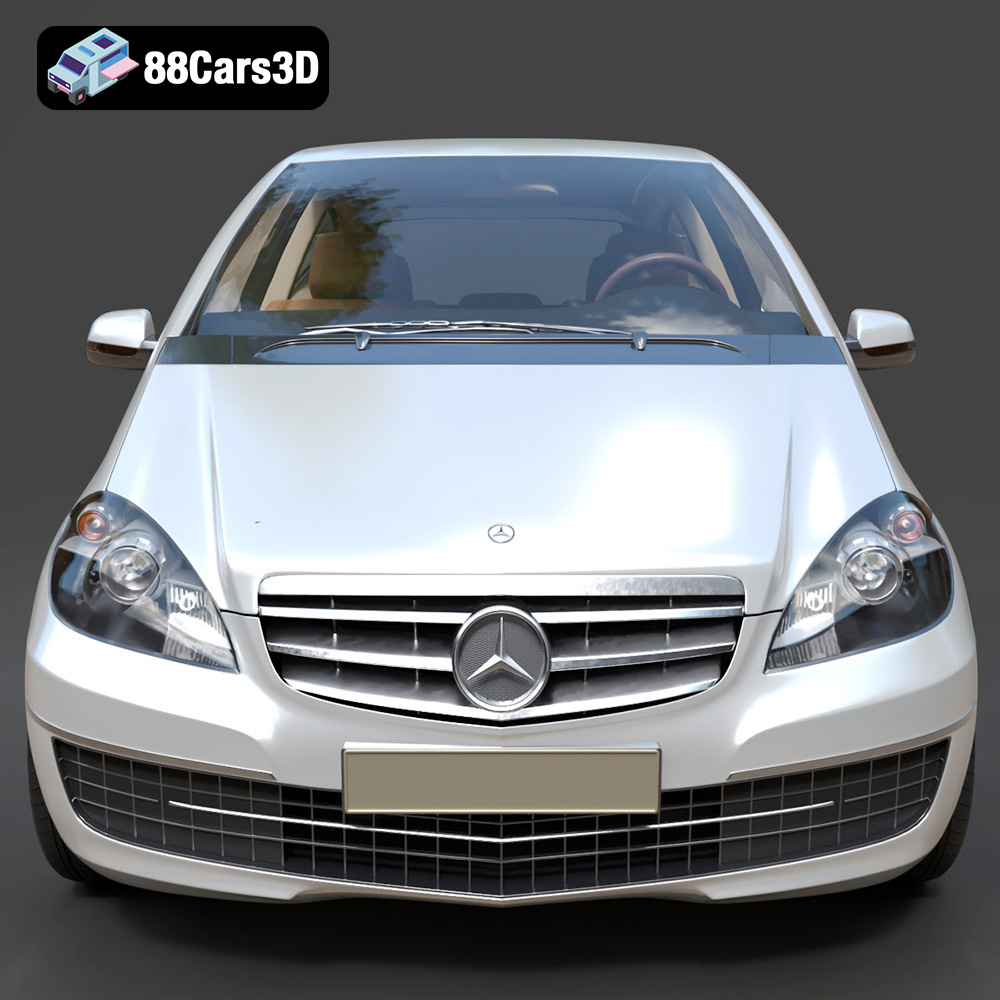
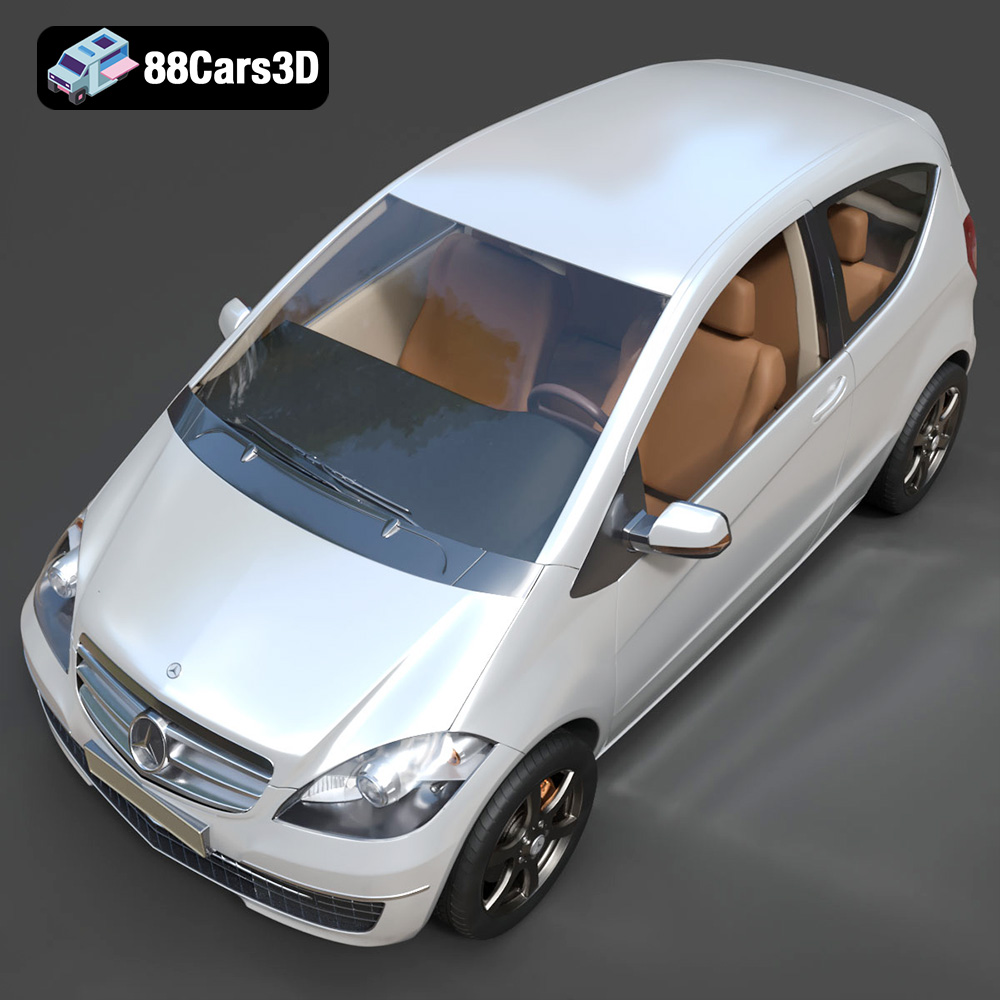
The Mercedes-Benz A-Class 3-Door (2010) represents a defining era of compact luxury, blending urban practicality with premium German engineering. This 3D model captures the distinctive wedge-shaped silhouette, prominent front grille with the iconic three-pointed star, and the sleek 3-door configuration that gives it a sportier edge over its 5-door sibling. Expertly crafted with game-ready optimization, this model features a highly efficient topology while maintaining exceptional visual fidelity.
$39.99
.2010
.blend
.fbx
.glb
.hatchback
.max
.obj
.ply
.rendering
.stl
.unreal
3-door
a-class
car-3d-model
compact-car
game asset
game-ready
low-poly
mercedes-benz
optimized
VR/AR