Get 20% OFF All Premium 3D & STL Models!

“`html
The world of 3D printing has exploded in recent years, becoming more accessible and affordable than ever before. For beginners eager to dive into this exciting technology and start printing high-quality STL files from sources like 88cars3d.com, selecting the right budget-friendly 3D printer is crucial. This comprehensive guide will explore some of the top budget 3D printers on the market, focusing on their features, capabilities, and how to optimize them for printing stunning car models. We’ll delve into the technical aspects, from understanding STL file structure to mastering slicing parameters and troubleshooting common printing issues. By the end of this article, you’ll have the knowledge and confidence to choose the perfect budget 3D printer and start bringing your favorite automotive designs to life.
Before even considering a 3D printer, it’s vital to grasp the fundamentals of STL files – the language 3D printers understand. STL, or Stereolithography, represents a 3D object as a collection of interconnected triangles. The quality of the original STL file significantly impacts the final print. Files from platforms like 88cars3d.com are often optimized, but understanding the underlying structure helps in troubleshooting potential issues.
A well-formed STL file has a “manifold” mesh, meaning it’s a closed surface without holes or self-intersections. Non-manifold geometry can lead to slicing errors and failed prints. Software like Meshmixer, Netfabb Basic, or Blender can be used to identify and repair these issues. For example, Meshmixer offers tools like “Make Solid” which can automatically fill holes and create a watertight mesh. Another common issue is flipped normals, where the triangles are facing the wrong way. Most slicing software can detect and correct this, but it’s good practice to check in a mesh editing program beforehand.
The number of triangles used to represent the object determines its resolution. Higher resolution means smoother curves and more detail, but also larger file sizes and potentially longer print times. Balancing resolution with printability is key, especially on budget printers. When downloading models from marketplaces such as 88cars3d.com, consider the intended print size. A small model doesn’t necessarily need an extremely high-resolution STL file. You can reduce the polygon count using decimation tools in Meshmixer to optimize the file for printing without sacrificing too much detail. Experiment with different decimation ratios to find the sweet spot.
The two main types of 3D printers suitable for beginners are Fused Deposition Modeling (FDM) and Resin printers. FDM printers extrude molten plastic layer by layer, while resin printers use light to cure liquid resin. Each technology has its advantages and disadvantages, particularly concerning budget options.
FDM printers are generally more affordable and versatile. They can print with a wider range of materials, including PLA, PETG, and ABS. PLA is the most common choice for beginners due to its ease of use and biodegradability. Popular budget FDM printers include the Creality Ender 3 series (e.g., Ender 3 V2, Ender 3 S1) and the Anycubic Mega series. These printers often require some assembly and calibration, but they offer a great learning experience and excellent value for money. Key specifications to look for include a heated bed (for better adhesion), a sturdy frame (for stability), and a decent build volume (at least 200x200x200mm). Typical print settings for PLA on an Ender 3 V2 are 200-210°C nozzle temperature, 60°C bed temperature, and a print speed of 50-60 mm/s.
Resin printers excel at producing highly detailed prints, making them ideal for intricate car models from 88cars3d.com. However, they generally have a smaller build volume and require more post-processing (washing and curing). Popular budget resin printers include the Elegoo Mars series and the Anycubic Photon series. Resin printing involves handling potentially hazardous chemicals, so proper safety precautions are essential (gloves, eye protection, and good ventilation). Layer heights on resin printers can be incredibly fine, often down to 0.025mm, resulting in very smooth surfaces. Initial layer exposure times are critical for bed adhesion – typically around 30-40 seconds, while subsequent layers may only need 2-3 seconds exposure.
Slicing software converts the 3D model into a set of instructions for the printer. Popular choices include Cura, PrusaSlicer, and Simplify3D. These programs allow you to adjust various parameters that significantly impact print quality, speed, and material usage. Mastering these parameters is crucial for getting the best results from your budget 3D printer.
Layer height is a critical parameter. Lower layer heights (e.g., 0.1mm) result in smoother surfaces and finer details but increase print time. Higher layer heights (e.g., 0.2mm) print faster but can result in more visible layer lines. For car models, a layer height of 0.12mm to 0.16mm is a good compromise between detail and speed. Print speed also affects quality. Slower speeds generally produce better results, especially for intricate details. Start with a moderate speed (50-60mm/s for PLA) and adjust based on the results. Pay attention to the “travel speed” setting, which controls the speed at which the print head moves between print locations. A high travel speed can reduce stringing.
Infill refers to the internal structure of the print. Higher infill density makes the print stronger but also increases material usage and print time. For car models, a moderate infill density (15-25%) is usually sufficient, unless you need significant strength. The infill pattern also matters. Common patterns include grid, lines, and gyroid. Gyroid infill offers a good balance of strength and material efficiency. Concentric infill is a great option for top and bottom layers to create a smooth, aesthetically pleasing surface. Consider using different infill percentages for various parts of the model, for example, a higher infill for the chassis of a car model and a lower infill for the body panels.
Support structures are essential for printing overhangs and complex geometries. They provide a temporary base for the printer to build on. Choosing the right support settings and removal techniques is crucial for achieving clean and accurate prints of the printable car models.
Slicing software automatically generates support structures, but you often need to adjust their placement and density. For FDM printing, consider using tree supports, which are more material-efficient and easier to remove than linear supports. For resin printing, use light supports to minimize damage to the print surface. The support overhang angle determines at what angle supports are generated. A lower angle (e.g., 45 degrees) results in more supports but provides better support for shallow overhangs. Support density affects the strength and removability of the supports. A higher density makes the supports stronger but also harder to remove. Experiment with different settings to find the optimal balance.
Removing supports can be tricky, especially for delicate models. Use appropriate tools like pliers, cutters, and knives. For FDM prints, heating the supports slightly with a heat gun or hair dryer can make them easier to remove. For resin prints, soaking the print in warm water can soften the supports. Take your time and be careful not to damage the model. After removing the supports, use sandpaper or a file to smooth any remaining bumps or imperfections. Water-soluble support materials (PVA for FDM, specific resins for resin printers) are an excellent option, as they dissolve in water, leaving a clean surface.
The choice of material and proper printer calibration are critical for achieving successful prints. Understanding the properties of different materials and how to calibrate your printer will help you get the best results from your budget 3D printer. A poorly calibrated printer can lead to various printing issues, regardless of the chosen material.
PLA is the most beginner-friendly material, known for its ease of use and low printing temperature. PETG offers better strength and temperature resistance than PLA. ABS is a more durable material but requires higher printing temperatures and an enclosed build chamber to prevent warping. For printable car models from 88cars3d.com, PLA is a good starting point. For parts that require higher strength or heat resistance (e.g., wheels or engine components), consider PETG or ABS. When printing with ABS, ensure your printer has a heated bed and an enclosed build chamber to prevent warping. Increasing the bed temperature to 100-110°C and the nozzle temperature to 230-240°C is generally recommended for ABS.
Proper bed leveling is crucial for first-layer adhesion. Most printers have manual or automatic bed leveling systems. Follow the manufacturer’s instructions to level the bed correctly. Temperature calibration involves finding the optimal nozzle and bed temperatures for the chosen material. Use temperature towers to test different temperatures and identify the best settings. A temperature tower is a 3D model specifically designed to test print quality at varying temperatures. Observe the bridging, stringing, and layer adhesion at each temperature to determine the ideal settings. Ensure that the nozzle is clean and free from any residue before starting a print. Clogged nozzles can cause extrusion issues and failed prints.
Even with the best settings and materials, 3D printing can be prone to problems. Recognizing and addressing common issues is crucial for a successful printing experience. This section covers some typical problems and their solutions, enabling you to overcome hurdles and achieve high-quality prints.
Warping occurs when the print detaches from the bed, usually due to temperature differences or poor adhesion. Ensure the bed is properly leveled and heated, and use a bed adhesive like glue stick or hairspray. Stringing is the formation of thin strands of plastic between print locations, caused by excessive nozzle temperature or retraction settings. Reduce the nozzle temperature and increase the retraction distance. Layer adhesion issues arise when layers don’t bond properly, resulting in weak prints. Increase the nozzle temperature and reduce the print speed. Ensure that the first layer is properly squished onto the bed to promote good adhesion. Increase the flow rate for the first layer to ensure sufficient material is being extruded.
Clogging occurs when the nozzle becomes blocked, preventing the flow of plastic. Use a nozzle cleaning needle to clear the blockage. Under-extrusion occurs when insufficient plastic is extruded, resulting in weak prints. Increase the flow rate and check for any obstructions in the filament path. Over-extrusion occurs when too much plastic is extruded, resulting in blobby prints. Reduce the flow rate and calibrate the extruder steps per millimeter (E-steps). Regularly clean and maintain your 3D printer to prevent these issues. This includes cleaning the nozzle, lubricating moving parts, and checking for loose connections.
Choosing the right budget 3D printer and mastering the essential printing techniques are key to bringing your favorite car models from 88cars3d.com to life. By understanding STL file structure, optimizing slicing parameters, selecting appropriate materials, and troubleshooting common issues, you can achieve stunning prints without breaking the bank. Remember to experiment with different settings and materials to find what works best for your printer and your specific models. The world of 3D printing is a continuous learning journey, so don’t be afraid to try new things and push the boundaries of what’s possible. With patience and perseverance, you’ll be creating amazing car models in no time.
“`

Texture: Yes | Material: Yes
Download the highly detailed, game-ready Toyota Camry 2018 3D Model. Features an aggressive aerodynamic body, distinct LED lighting signature, and precise interior detailing. Includes .blend, .fbx, .obj, .glb, .stl, .ply, .unreal, and .max formats for game development, AR/VR, and rendering.
Price: $19.99
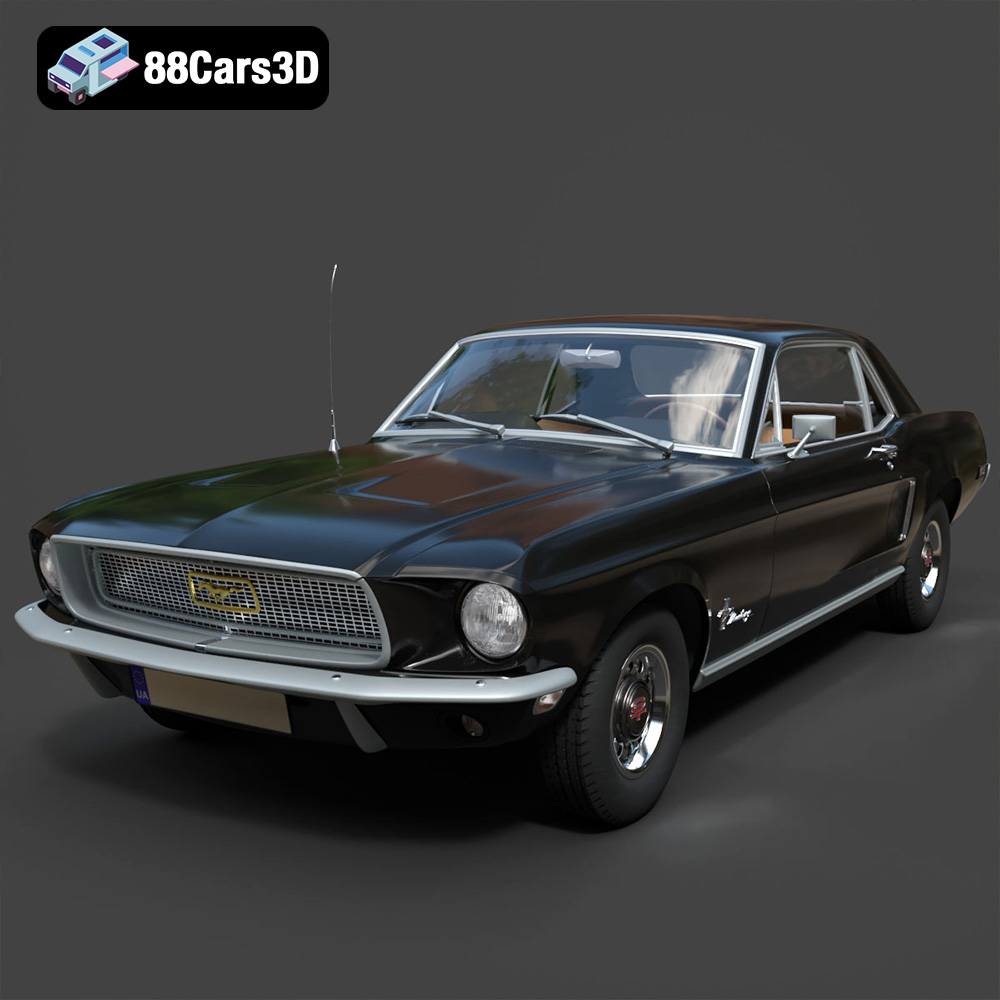
Texture: Yes | Material: Yes
Download the highly detailed, game-ready Ford Mustang Hardtop 1968 3D Model. Features the iconic galloping pony grille, signature tri-bar taillights, and an authentic vintage interior. Includes .blend, .fbx, .obj, .glb, .stl, .ply, .unreal, and .max formats for game development, AR/VR, and rendering.
Price: $19.99
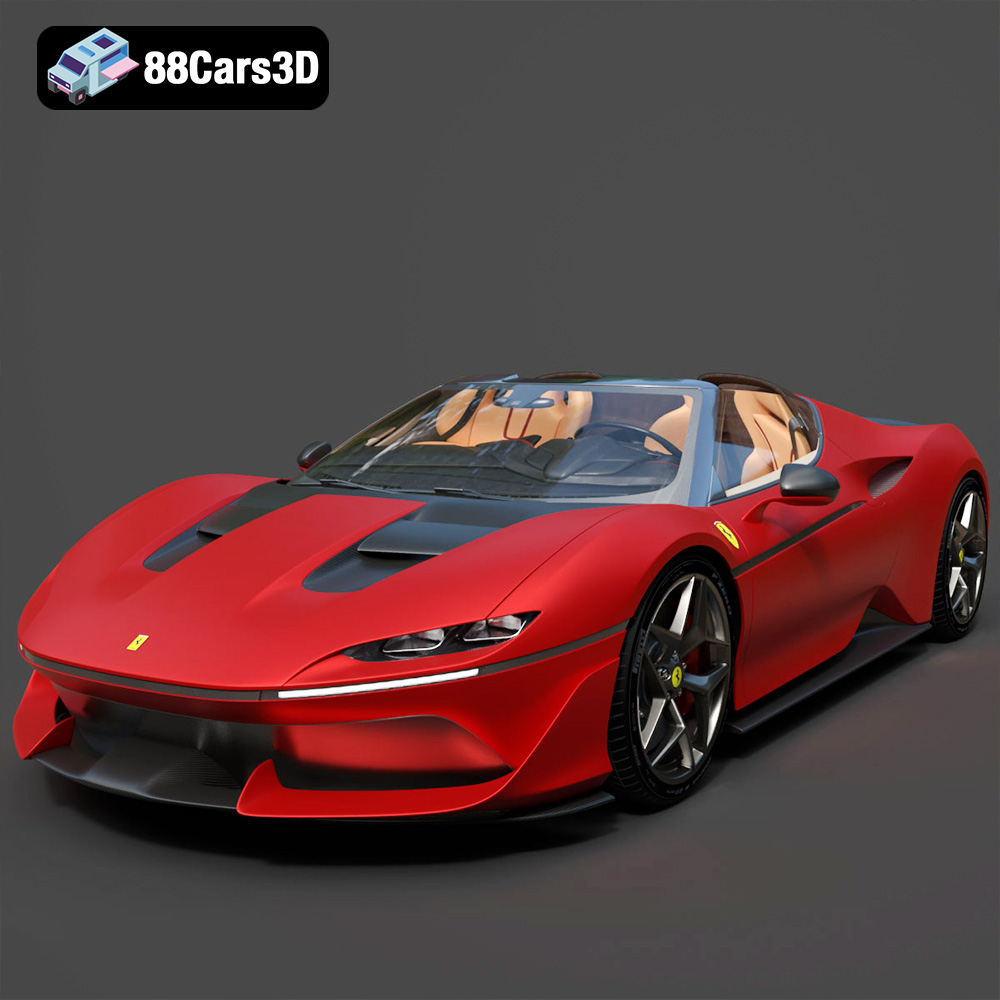
Texture: Yes | Material: Yes
Download the highly detailed, game-ready Ferrari J50 2017 3D Model. Features aggressive aerodynamic styling, twin-turbo V8 engine details, and targa top design. Includes .blend, .fbx, .obj, .glb, .stl, .ply, .unreal, and .max formats for game development, AR/VR, and rendering.
Price: $19.99
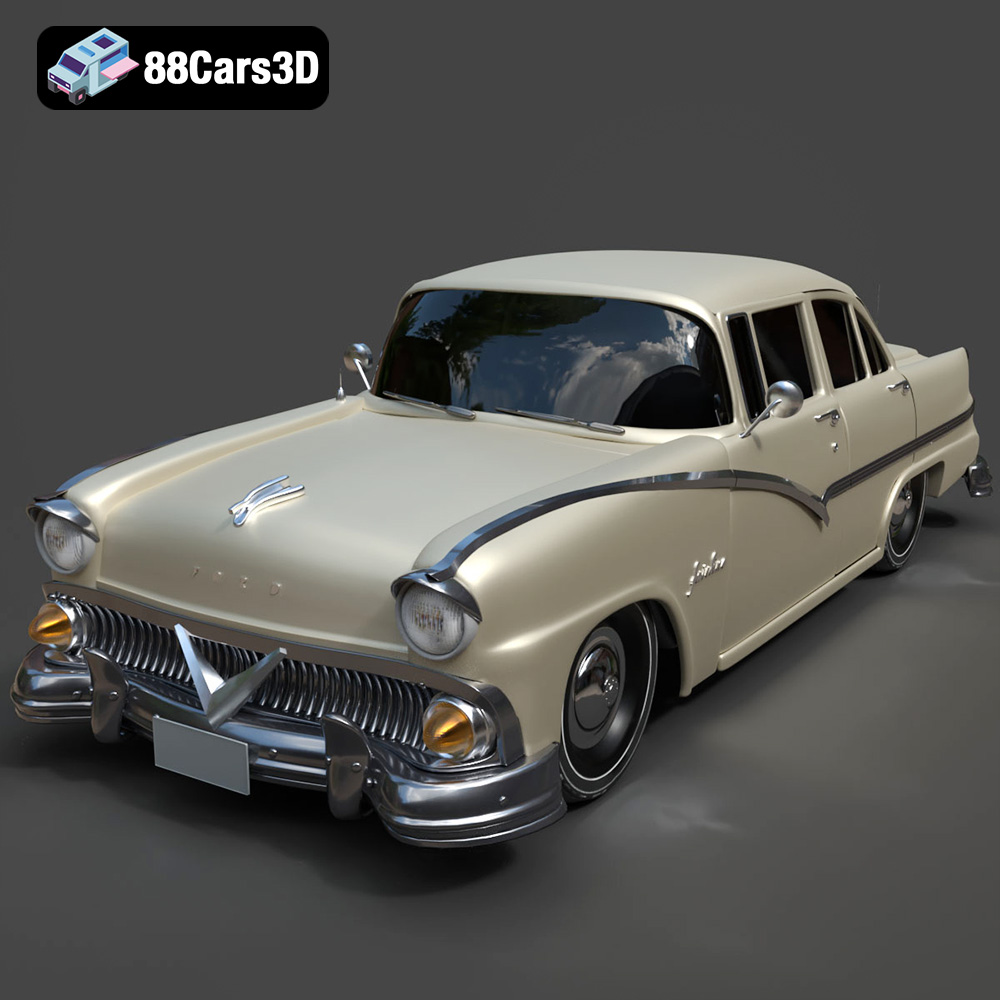
Texture: Yes | Material: Yes
Download the highly detailed, game-ready Ford Fairlin 3D Model. Features iconic classic styling, sweeping bodylines, and an accurate vintage interior. Includes .blend, .fbx, .obj, .glb, .stl, .ply, .unreal, and .max formats for game development, AR/VR, and rendering.
Price: $19.99
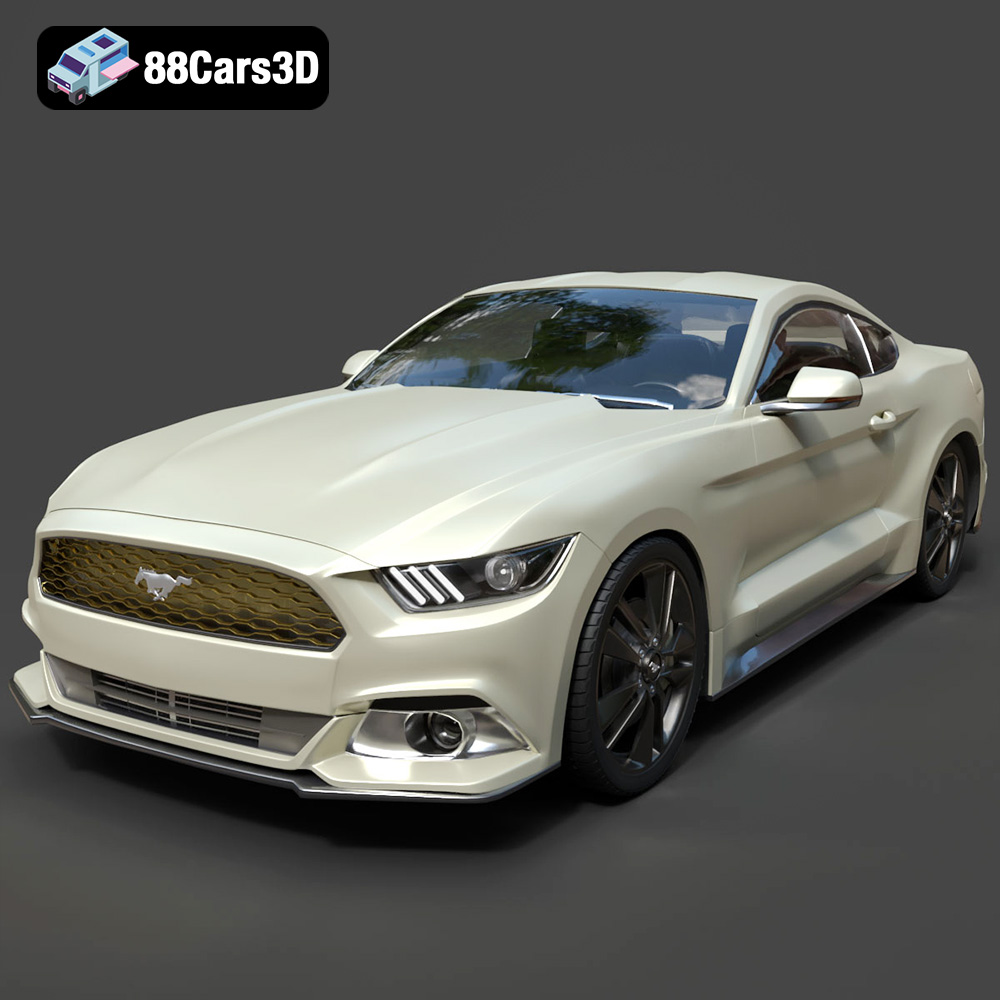
Texture: Yes | Material: Yes
Download the highly detailed, game-ready Ford Mustang GT 3D Model. Features aggressive muscle car styling, a highly detailed V8 engine bay, and accurate interior cockpit. Includes .blend, .fbx, .obj, .glb, .stl, .ply, .unreal, and .max formats for game development, AR/VR, and rendering.
Price: $19.99

Texture: Yes | Material: Yes
Download the highly detailed, game-ready Renault Megane CC 2011 3D Model. Features an accurately modeled folding glass roof, sleek aerodynamic body lines, and a detailed interior. Includes .blend, .fbx, .obj, .glb, .stl, .ply, .unreal, and .max formats for game development, AR/VR, and rendering.
Price: $19.99
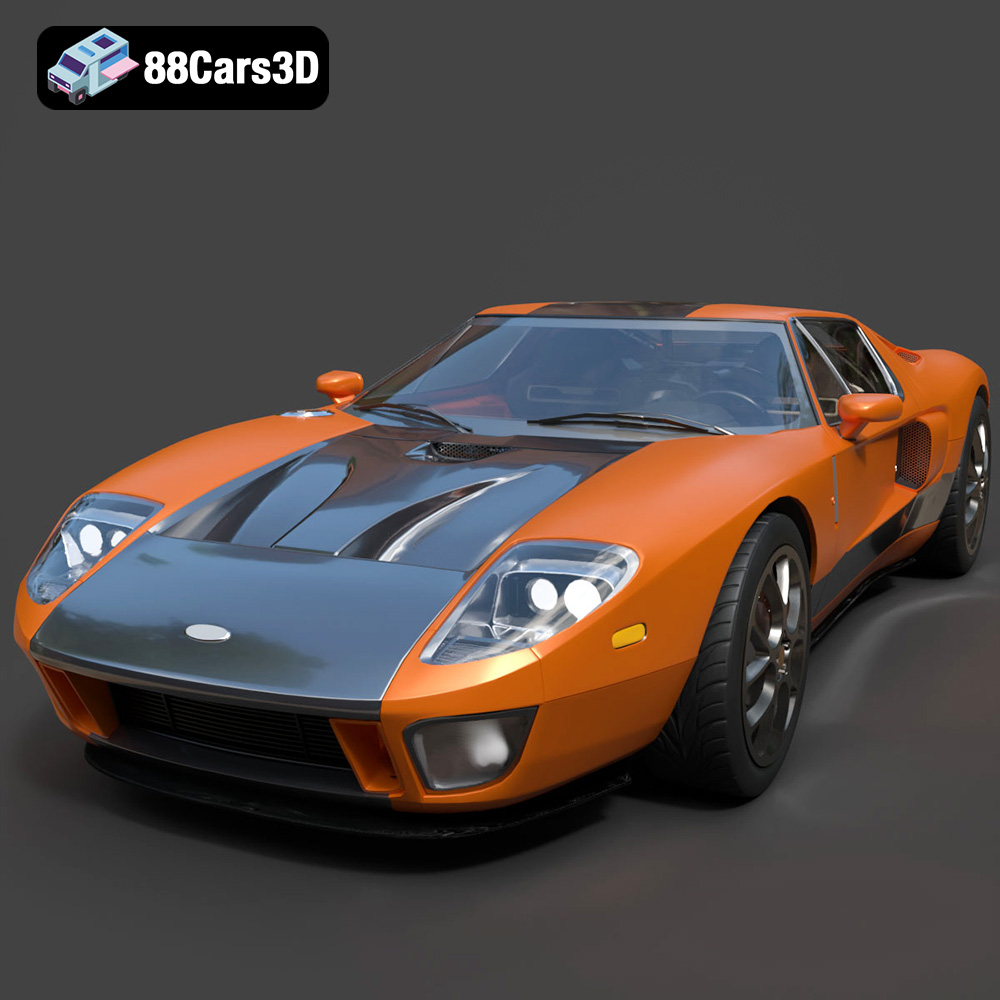
Texture: Yes | Material: Yes
Download the highly detailed, game-ready Ford GT 2005 3D Model. Features signature aerodynamic bodylines, mid-mounted supercharged V8 detailing, and iconic racing stripes. Includes .blend, .fbx, .obj, .glb, .stl, .ply, .unreal, and .max formats for game development, AR/VR, and rendering.
Price: $19.99

Texture: Yes | Material: Yes
Download the highly detailed, game-ready Yamaha YZF-R125 EU 3D Model. Features an aggressive aerodynamic fairing, twin LED headlights, and a detailed 125cc engine block. Includes .blend, .fbx, .obj, .glb, .stl, .ply, .unreal, and .max formats for game development, AR/VR, and rendering.
Price: $19.99

Texture: Yes | Material: Yes
Download the highly detailed, game-ready Yamaha R1 3D Model. Features aggressive aerodynamic fairings, a detailed crossplane inline-4 engine, and track-focused suspension geometry. Includes .blend, .fbx, .obj, .glb, .stl, .ply, .unreal, and .max formats for game development, AR/VR, and rendering.
Price: $19.99

Texture: Yes | Material: Yes
Download the highly detailed, game-ready Yamaha XV950 Racer 3D Model. Features an aggressive cafe-racer front cowl, detailed air-cooled V-twin engine, and classic retro styling. Includes .blend, .fbx, .obj, .glb, .stl, .ply, .unreal, and .max formats for game development, AR/VR, and rendering.
Price: $19.99

