Get 20% OFF All Premium 3D & STL Models!

“`html
The world of 3D printing offers incredible opportunities for automotive enthusiasts, hobbyists, and engineers alike. Platforms like 88cars3d.com provide a vast library of printable car models in STL format, ready to be brought to life on your 3D printer. However, sometimes, those STL files aren’t perfect. They might contain errors, gaps, or non-manifold edges, leading to failed prints or undesirable results. Fortunately, powerful software tools like Meshmixer and Netfabb offer robust solutions for repairing these broken meshes. This comprehensive guide will walk you through the process of identifying and fixing common STL mesh issues, ensuring your 3D printed car models are as flawless as the digital designs.
In this article, we will explore common STL file problems, introduce Meshmixer and Netfabb, and provide step-by-step instructions on how to use them for mesh repair. We will cover various techniques for fixing errors, optimizing meshes for 3D printing, and ensuring your models are watertight and ready for slicing. Whether you’re a beginner or an experienced 3D printing enthusiast, this guide will equip you with the knowledge and skills to tackle even the most challenging STL repair tasks and unlock the full potential of your 3D printer.
Before diving into the repair process, it’s crucial to understand the fundamental structure of an STL file and the types of errors that can occur. STL (Stereolithography) is a file format that represents 3D surfaces as a collection of connected triangles. Each triangle is defined by three vertices and a normal vector, indicating its orientation.
An STL file essentially stores a large list of these triangles. The accuracy of the representation depends on the number of triangles used. A higher triangle count results in a smoother, more detailed model but also increases file size and processing time. The orientation of the normal vectors is critical; they determine the inside and outside of the surface. Incorrectly oriented normals can lead to printing problems.
Several types of errors can plague STL files, including:
These errors can arise during the modeling process, file conversion, or data transfer. Identifying and correcting them is vital for successful 3D printing.
Meshmixer, a free software from Autodesk, is a powerful and user-friendly tool for manipulating and repairing 3D meshes. It offers a wide range of features, including mesh analysis, automated repair tools, sculpting capabilities, and support structure generation. Its intuitive interface and robust algorithms make it an excellent choice for both beginners and experienced users.
The first step is to import your STL file into Meshmixer. Once loaded, use the “Analysis” tool to identify potential errors. Meshmixer will highlight problematic areas in different colors, indicating the type of error. For example, non-manifold edges might be shown in red, while holes might be marked in blue. The analysis tool allows you to visually assess the severity of the mesh issues.
Meshmixer offers several automated repair tools that can quickly fix common STL errors. The “Make Solid” tool is particularly effective for closing small gaps and creating a watertight mesh. You can adjust the “Solid Type” settings to fine-tune the repair process. The “Separate Shells” tool can be used to identify and separate disconnected parts of the model, allowing you to repair them individually. Furthermore, the “Inspector” tool can automatically detect and fix a variety of errors with a single click, attempting to resolve holes, non-manifold edges, and other issues. While automated tools are convenient, manual inspection is often necessary to ensure the repair quality.
Netfabb, now part of Autodesk, is a professional-grade software solution for additive manufacturing. It provides a comprehensive suite of tools for mesh repair, optimization, build preparation, and simulation. While Netfabb offers more advanced features than Meshmixer, it can be more complex to learn. However, its superior algorithms and precise control make it ideal for demanding applications, especially when dealing with intricate automotive models.
Netfabb’s analysis tools offer a more detailed and precise assessment of mesh errors compared to Meshmixer. It can identify even the smallest gaps, self-intersections, and other issues that might be missed by other software. The “Repair” tab provides access to a range of advanced repair functions, including “Close All Holes,” “Remove Duplicate Triangles,” and “Stitch Triangles.” You can manually select specific areas to repair or use the automated repair scripts for a more streamlined process.
Beyond basic repair, Netfabb allows for advanced mesh optimization. This includes reducing the triangle count to decrease file size and processing time without sacrificing significant detail. The “Reduce Mesh” tool allows you to specify a target triangle count or a percentage reduction. Netfabb also offers tools for smoothing the mesh surface, which can improve the appearance of the final print. When working with printable car models downloaded from platforms such as 88cars3d.com, optimizing the mesh can result in faster slicing times and improved print quality, especially on less powerful computers.
Let’s walk through a practical example of repairing a broken STL file using Meshmixer. Assume you’ve downloaded a car model from 88cars3d.com and discovered it has a small hole in the bumper.
Open Meshmixer and import the STL file. Navigate to “Analysis” and click “Inspector.” Meshmixer will highlight the hole in the bumper, likely in blue.
Click the highlighted area. Meshmixer will attempt to automatically close the hole. If the automatic repair is successful, the blue highlight will disappear. If the hole is too large or complex, Meshmixer might not be able to fix it completely.
If the automated repair fails, use the “Edit” -> “Make Solid” tool. Adjust the “Solid Type” to “Sharp Edge” or “Smooth Transition” depending on the desired aesthetic. This tool will attempt to fill the hole by creating new triangles. Adjust the “Solid Accuracy” slider to fine-tune the results. This setting controls the density of the new mesh.
After filling the hole, the repaired area might have a slightly different texture than the surrounding surface. Use the “Sculpt” tools, particularly the “Smooth” brush, to blend the repaired area seamlessly with the rest of the bumper. Gently brush over the area to even out any irregularities.
Perform a final visual inspection to ensure the repair is satisfactory. Export the repaired model as an STL file. Before exporting, consider using the “Reduce” tool in the “Edit” menu to lower the polygon count and improve slicer performance. A reduction of 10-20% is often acceptable for printable car models without significant detail loss. Save the repaired file with a new name to avoid overwriting the original.
Repairing the STL file is only half the battle. You also need to optimize it for 3D printing. This involves choosing the right slicing parameters, generating appropriate support structures, and considering the model’s orientation on the build plate.
Slicing software, such as Cura or PrusaSlicer, converts the STL file into a series of layers that the 3D printer can understand. Key slicing parameters include:
Many car models have overhanging features, such as spoilers, mirrors, and wheel arches, that require support structures. These structures provide a temporary foundation for the overhanging layers. Slicing software can automatically generate support structures, but you can also manually add or modify them to optimize material usage and print quality. Consider the type of support structure (e.g., tree supports, linear supports) and the support density. Experiment with different support settings to find the optimal balance between support strength and ease of removal. Pay close attention to the support interface layer, which directly contacts the model surface. A thinner interface layer can improve surface finish but may make support removal more difficult.
The choice of material significantly impacts the appearance, strength, and durability of your 3D printed car model. Popular materials include PLA, PETG, ABS, and resin.
PLA (Polylactic Acid) is a biodegradable thermoplastic that is easy to print and produces good results for aesthetic models. It has low warping and is suitable for beginners. PETG (Polyethylene Terephthalate Glycol) is more durable and heat-resistant than PLA, making it a good choice for functional parts. ABS (Acrylonitrile Butadiene Styrene) is a strong and impact-resistant thermoplastic commonly used in automotive applications. However, it requires a heated bed and good ventilation due to its tendency to warp and emit fumes.
Resin printing offers significantly higher resolution and detail than FDM printing, making it ideal for intricate car models. However, resin printers are more expensive, and resin materials are generally more brittle than FDM filaments. Resin prints also require post-processing, including washing and curing, to achieve their final properties.
Regardless of the printing method, post-processing can significantly enhance the appearance of your 3D printed car model. Common post-processing techniques include:
Repairing broken STL meshes is an essential skill for any 3D printing enthusiast. By understanding the structure of STL files, identifying common errors, and utilizing powerful software tools like Meshmixer and Netfabb, you can ensure your 3D printed car models are flawless and ready for display. From fixing non-manifold edges and closing holes to optimizing mesh density and generating support structures, the techniques outlined in this guide will empower you to tackle even the most challenging STL repair tasks. Remember to carefully select your printing materials and apply appropriate post-processing techniques to achieve a professional finish.
Now that you have a comprehensive understanding of STL repair, explore the vast collection of printable car models available on platforms like 88cars3d.com. Download your favorite designs, apply the techniques you’ve learned, and bring your automotive dreams to life with the power of 3D printing. Don’t be afraid to experiment with different settings and techniques to find what works best for your printer and your desired results. Happy printing!
“`

Texture: Yes | Material: Yes
Download the highly detailed, game-ready Audi RS6 3D Model. Features aggressive RS bodywork, detailed alloy wheels, and signature LED lighting. Includes .blend, .fbx, .obj, .glb, .stl, .ply, .unreal, and .max formats for game development, AR/VR, and rendering.
Price: $19.99

Texture: Yes | Material: Yes
Download the highly detailed, game-ready Toyota Camry 2018 3D Model. Features an aggressive aerodynamic body, distinct LED lighting signature, and precise interior detailing. Includes .blend, .fbx, .obj, .glb, .stl, .ply, .unreal, and .max formats for game development, AR/VR, and rendering.
Price: $19.99

Texture: Yes | Material: Yes
Download the highly detailed, game-ready Ford Mustang Hardtop 1968 3D Model. Features the iconic galloping pony grille, signature tri-bar taillights, and an authentic vintage interior. Includes .blend, .fbx, .obj, .glb, .stl, .ply, .unreal, and .max formats for game development, AR/VR, and rendering.
Price: $19.99

Texture: Yes | Material: Yes
Download the highly detailed, game-ready Ferrari J50 2017 3D Model. Features aggressive aerodynamic styling, twin-turbo V8 engine details, and targa top design. Includes .blend, .fbx, .obj, .glb, .stl, .ply, .unreal, and .max formats for game development, AR/VR, and rendering.
Price: $19.99
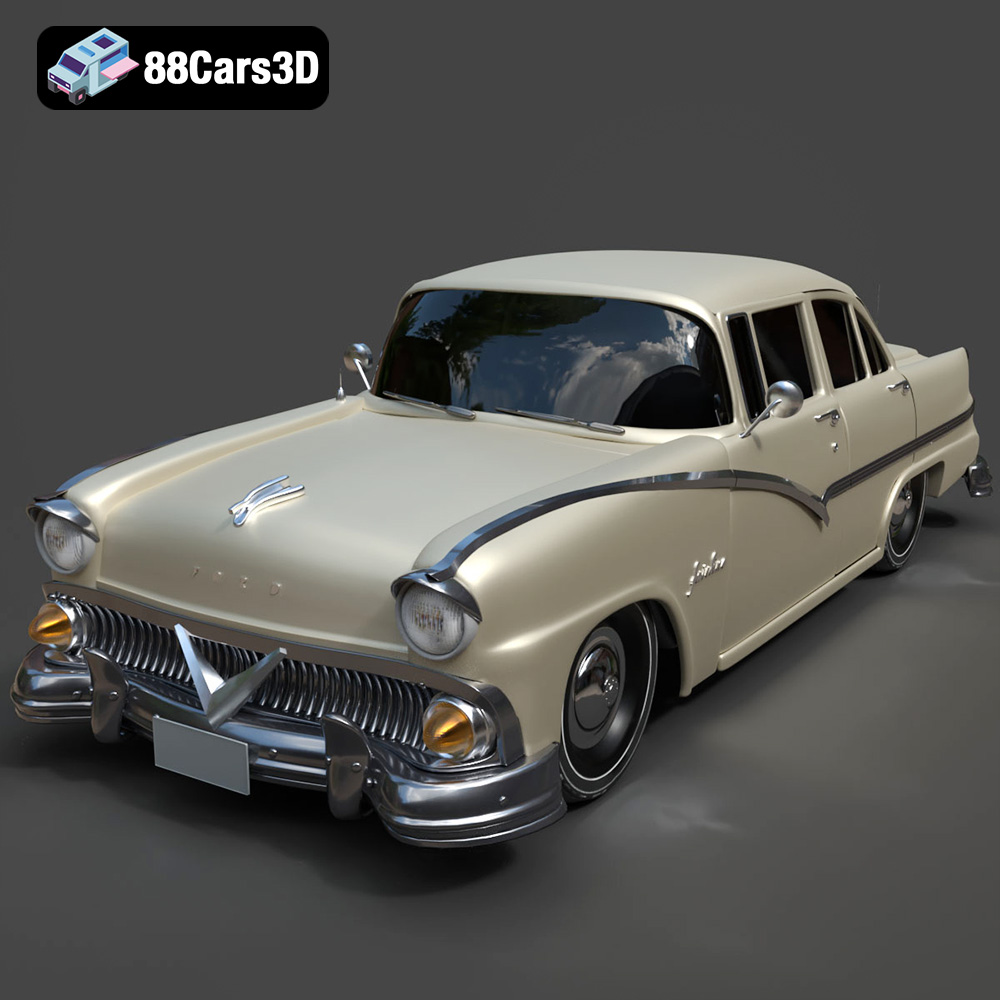
Texture: Yes | Material: Yes
Download the highly detailed, game-ready Ford Fairlin 3D Model. Features iconic classic styling, sweeping bodylines, and an accurate vintage interior. Includes .blend, .fbx, .obj, .glb, .stl, .ply, .unreal, and .max formats for game development, AR/VR, and rendering.
Price: $19.99
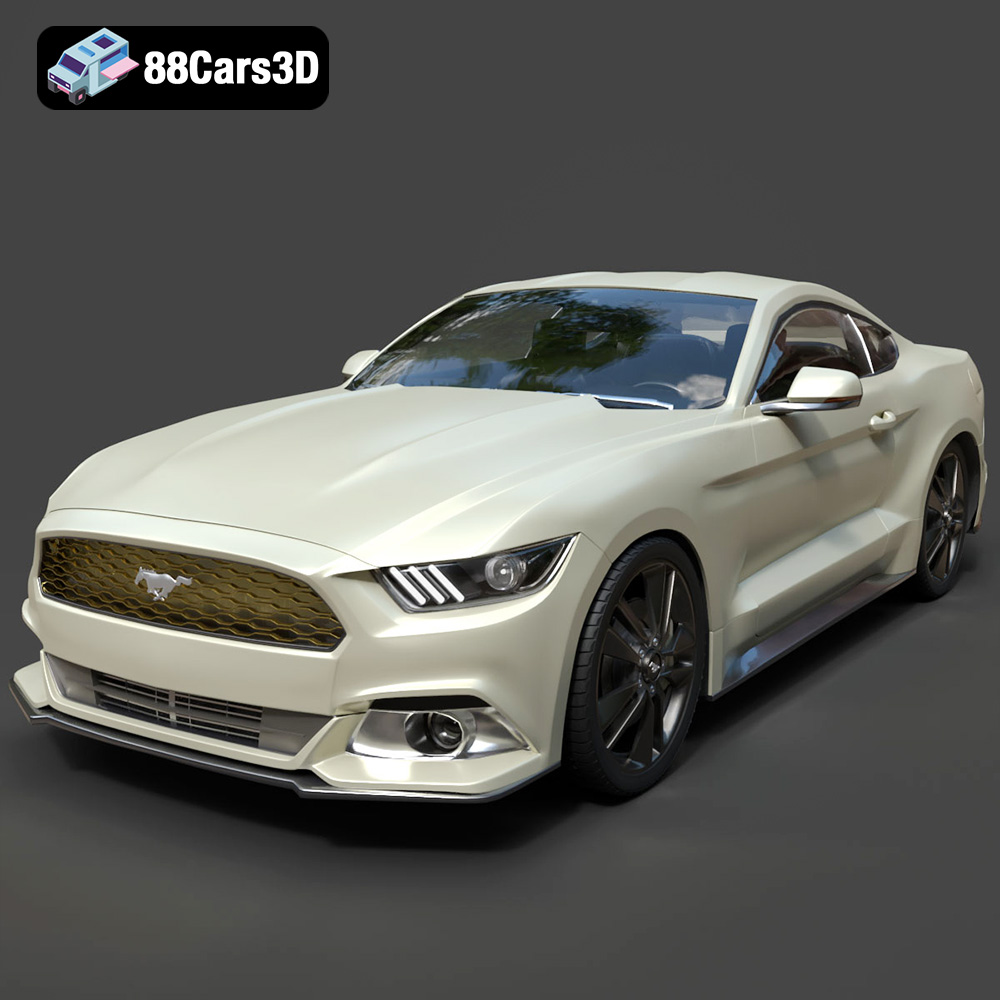
Texture: Yes | Material: Yes
Download the highly detailed, game-ready Ford Mustang GT 3D Model. Features aggressive muscle car styling, a highly detailed V8 engine bay, and accurate interior cockpit. Includes .blend, .fbx, .obj, .glb, .stl, .ply, .unreal, and .max formats for game development, AR/VR, and rendering.
Price: $19.99

Texture: Yes | Material: Yes
Download the highly detailed, game-ready Renault Megane CC 2011 3D Model. Features an accurately modeled folding glass roof, sleek aerodynamic body lines, and a detailed interior. Includes .blend, .fbx, .obj, .glb, .stl, .ply, .unreal, and .max formats for game development, AR/VR, and rendering.
Price: $19.99

Texture: Yes | Material: Yes
Download the highly detailed, game-ready Ford GT 2005 3D Model. Features signature aerodynamic bodylines, mid-mounted supercharged V8 detailing, and iconic racing stripes. Includes .blend, .fbx, .obj, .glb, .stl, .ply, .unreal, and .max formats for game development, AR/VR, and rendering.
Price: $19.99

Texture: Yes | Material: Yes
Download the highly detailed, game-ready Yamaha YZF-R125 EU 3D Model. Features an aggressive aerodynamic fairing, twin LED headlights, and a detailed 125cc engine block. Includes .blend, .fbx, .obj, .glb, .stl, .ply, .unreal, and .max formats for game development, AR/VR, and rendering.
Price: $19.99

Texture: Yes | Material: Yes
Download the highly detailed, game-ready Yamaha R1 3D Model. Features aggressive aerodynamic fairings, a detailed crossplane inline-4 engine, and track-focused suspension geometry. Includes .blend, .fbx, .obj, .glb, .stl, .ply, .unreal, and .max formats for game development, AR/VR, and rendering.
Price: $19.99

