Get 20% OFF All Premium 3D & STL Models!

“`html
So, you’ve got your hands on a fantastic STL file, perhaps a detailed car model from platforms like 88cars3d.com, ready to bring it to life with your 3D printer. But what if you need to tweak it first? Maybe you want to add a personalized touch, fix a minor imperfection, or optimize it for printing. That’s where STL editing software comes in. This comprehensive guide will explore the best free and paid options available, delving into their features, strengths, and weaknesses. We’ll cover everything from basic modifications to advanced mesh editing, ensuring you have the knowledge to choose the right tool for your specific needs and unlock the full potential of your 3D printing projects.
Whether you’re a seasoned 3D printing enthusiast or just starting your journey, understanding STL editing software is crucial. We’ll examine the nuances of each program, providing insights into workflows, best practices, and common troubleshooting scenarios. Get ready to dive deep into the world of STL editing and transform your digital designs into tangible masterpieces.
The world of free STL editing software is surprisingly robust, offering powerful tools for a wide range of tasks. These programs are perfect for hobbyists, beginners, and anyone on a budget. While they might lack some of the advanced features of their paid counterparts, they provide a solid foundation for learning and executing essential STL editing operations.
Autodesk MeshMixer is a free, powerful, and versatile tool that has become a staple in the 3D printing community. It excels at mesh manipulation, support structure generation, and basic sculpting. MeshMixer allows you to easily combine multiple STL files, smooth surfaces, add details, and even perform boolean operations. For those working with printable car models, MeshMixer’s “Make Solid” tool is invaluable for ensuring watertight models, critical for successful 3D printing.
Blender is a professional-grade, open-source 3D creation suite that goes far beyond STL editing. However, its powerful modeling tools and extensive feature set make it a viable option for advanced STL manipulation. Blender’s steep learning curve can be intimidating for beginners, but the rewards are substantial. It offers unparalleled control over mesh geometry, allowing for complex modifications and intricate designs. For printable car models with complex curves and details, Blender’s sculpting and mesh editing tools can be invaluable for achieving optimal results.
Paid STL editing software offers advanced features, enhanced workflows, and dedicated support, making them ideal for professionals and serious hobbyists. These programs often provide more precise control over mesh geometry, advanced repair tools, and specialized features for specific applications. While they come with a price tag, the investment can be worthwhile for those seeking optimal results and streamlined workflows.
Autodesk Netfabb is a comprehensive software solution for additive manufacturing, offering advanced tools for STL editing, repair, optimization, and build preparation. Netfabb is widely used in the industry due to its robust capabilities and seamless integration with various 3D printing technologies. It excels at identifying and correcting mesh errors, optimizing models for printing, and generating efficient support structures.
Pixologic ZBrush is a digital sculpting software renowned for its ability to create highly detailed and organic models. While not strictly an STL editor, ZBrush can import and export STL files, allowing you to add intricate details and modify existing meshes with incredible precision. It’s particularly useful for adding realistic textures, surface imperfections, and artistic flourishes to your 3D printed car models.
Geomagic Design X is a reverse engineering software that allows you to create CAD models from 3D scan data. While not directly an STL editor, it’s a valuable tool for modifying and optimizing existing STL files, especially those derived from scanned objects. It allows you to convert scanned meshes into parametric CAD models, enabling precise modifications and feature-based editing. This is useful for creating variations of existing car models or for improving the accuracy of scanned data before 3D printing.
Regardless of the software you choose, optimizing your STL files for 3D printing is paramount to achieving successful results. This involves checking for errors, ensuring watertightness, and preparing the model for slicing. Neglecting these steps can lead to printing failures, poor surface quality, and wasted materials.
STL files can often contain errors such as holes, non-manifold edges, and self-intersections. These errors can cause problems during slicing and printing. Most STL editing software includes tools for automatically detecting and repairing these issues. Netfabb, in particular, excels at advanced mesh repair, but even free tools like MeshMixer offer basic repair functionalities.
The orientation of your model on the build plate and the placement of support structures play a critical role in the final print quality. Choosing the right orientation can minimize the need for supports, improve surface finish, and reduce printing time. Support structures provide necessary support for overhanging features and prevent the model from collapsing during printing. Tools like Cura and PrusaSlicer offer sophisticated support generation algorithms that can be customized to your specific needs. Consider the angle of overhangs and choose an orientation that minimizes the amount of support needed. For intricate car models, strategically placed supports are essential for preserving fine details and preventing deformation.
Slicing software takes your optimized STL file and converts it into G-code, the language that 3D printers understand. Slicing parameters such as layer height, infill density, print speed, and temperature significantly impact the print quality, strength, and printing time. Popular slicing software options include Cura, PrusaSlicer, Simplify3D, and Chitubox (for resin printing).
Cura and PrusaSlicer are two of the most popular and user-friendly slicing software options available. Both offer a wide range of customizable settings and features, making them suitable for both beginners and experienced users. They also provide excellent support for various 3D printers and materials. Cura’s “Tree Support” option is particularly useful for generating efficient and easily removable support structures for complex geometries.
The choice of material significantly impacts the strength, durability, and appearance of your 3D printed car models. Common FDM printing materials include PLA, PETG, and ABS, while resin printing utilizes various types of photopolymer resins. Each material has its own unique properties and is suitable for different applications.
When selecting a material, consider the intended use of the car model. If it’s primarily for display, PLA might be sufficient. If it needs to withstand some stress or heat, PETG or ABS would be better choices. For resin printing, consider the required strength, flexibility, and ease of post-processing.
Post-processing is the final stage in the 3D printing process, involving removing support structures, sanding surfaces, painting, and assembling multiple parts. It’s essential for achieving a professional-looking finish and enhancing the overall appearance of your 3D printed car models. Downloaded models from marketplaces such as 88cars3d.com, with their inherent complexity and detailing, will really benefit from this.
Carefully remove support structures using pliers, cutters, or specialized support removal tools. Sand the surfaces with progressively finer grits of sandpaper to remove layer lines and achieve a smooth finish. Start with a coarse grit (e.g., 220) and gradually move to finer grits (e.g., 400, 600, 800) for a polished look. For hard to reach areas, consider using sanding sponges or rotary tools with sanding attachments.
Prime the model with a primer to improve paint adhesion and create a uniform surface. Apply multiple thin coats of paint using spray paint or an airbrush. Consider using masking tape to create intricate paint schemes. Assemble multiple parts using glue, screws, or other fasteners. For car models, consider using automotive paints and clear coats for a realistic finish.
Mastering STL editing is an essential skill for anyone serious about 3D printing. By understanding the capabilities of different software options, optimizing your files, and mastering post-processing techniques, you can unlock the full potential of your 3D printer and create stunning, professional-quality car models and other designs. Remember to experiment with different software, settings, and materials to find what works best for your specific needs and printer.
From free tools like MeshMixer and Blender to paid software like Netfabb and ZBrush, the options are vast and varied. Choosing the right tool depends on your skill level, budget, and the complexity of your projects. Whether you’re tweaking existing models or creating entirely new designs from scratch, the knowledge and techniques outlined in this guide will empower you to achieve outstanding results. Platforms like 88cars3d.com offer a wealth of inspiration and high-quality STL files to fuel your 3D printing endeavors. Now, armed with this knowledge, go forth and create!
“`
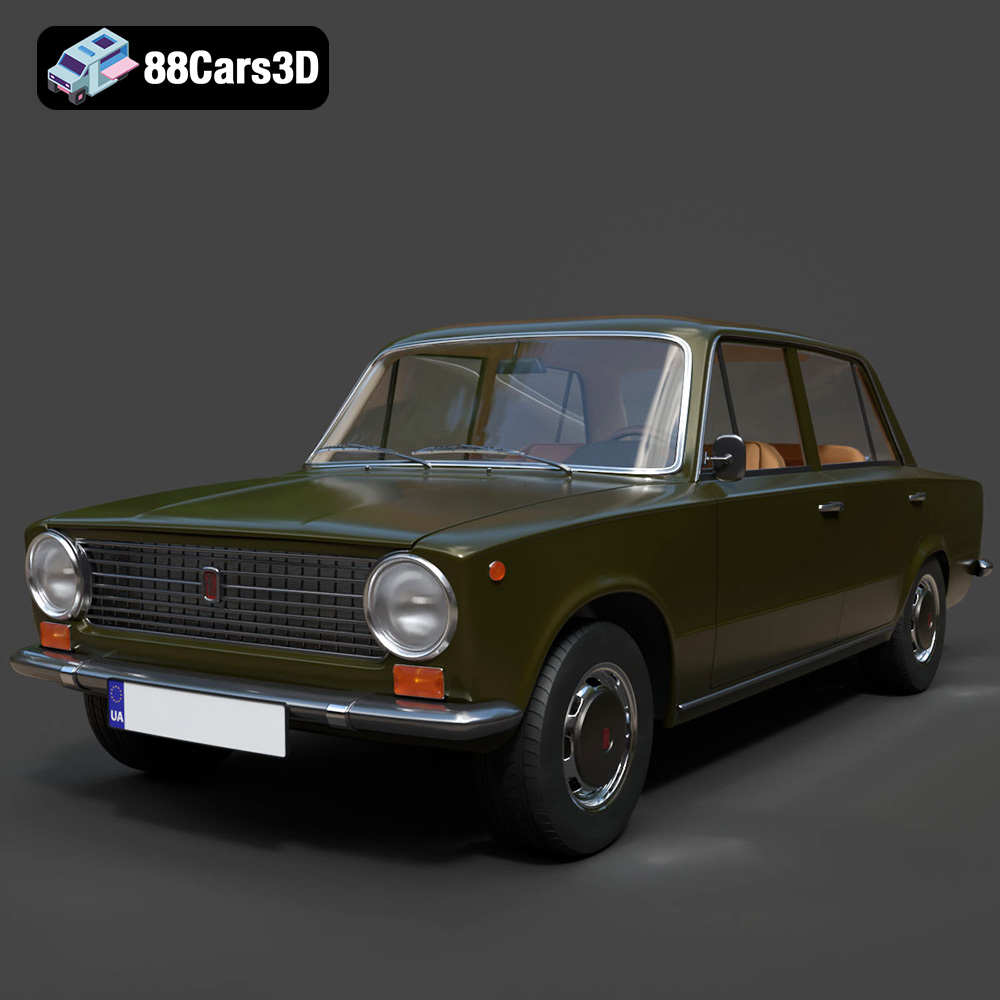
Texture: Yes | Material: Yes
Download the highly detailed, game-ready Fiat 124 Mk1 1966 3D Model. Features classic round headlights, authentic sedan bodywork, and detailed chrome hubcaps. Includes .blend, .fbx, .obj, .glb, .stl, .ply, .unreal, and .max formats for game development, AR/VR, and rendering.
Price: $19.99
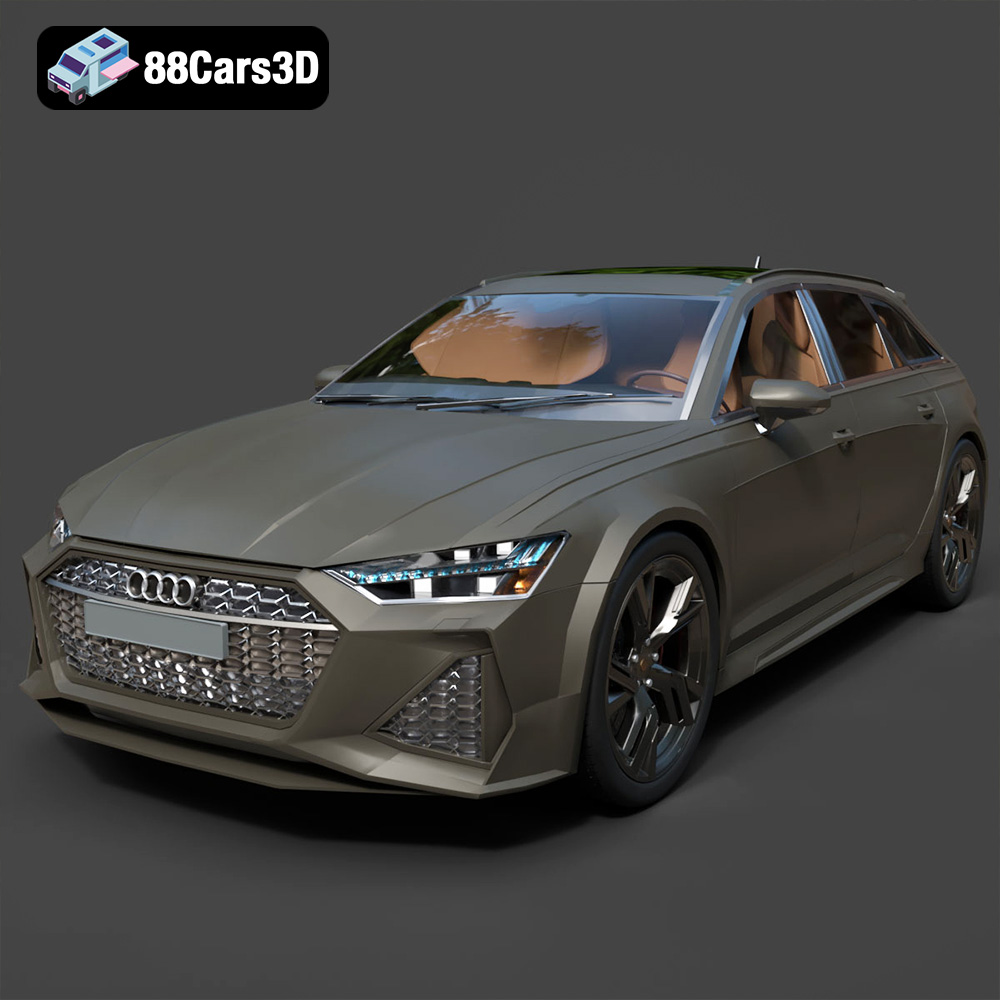
Texture: Yes | Material: Yes
Download the highly detailed, game-ready Audi RS6 3D Model. Features aggressive RS bodywork, detailed alloy wheels, and signature LED lighting. Includes .blend, .fbx, .obj, .glb, .stl, .ply, .unreal, and .max formats for game development, AR/VR, and rendering.
Price: $19.99

Texture: Yes | Material: Yes
Download the highly detailed, game-ready Toyota Camry 2018 3D Model. Features an aggressive aerodynamic body, distinct LED lighting signature, and precise interior detailing. Includes .blend, .fbx, .obj, .glb, .stl, .ply, .unreal, and .max formats for game development, AR/VR, and rendering.
Price: $19.99
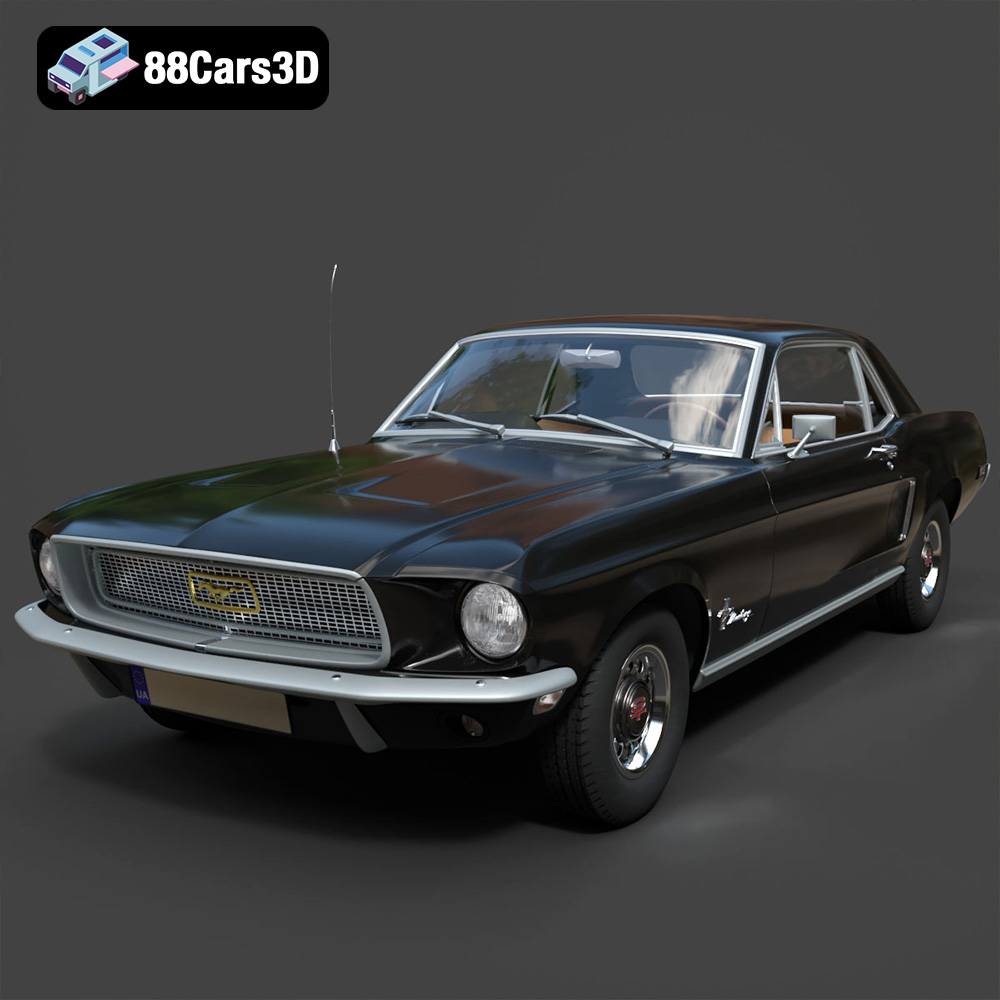
Texture: Yes | Material: Yes
Download the highly detailed, game-ready Ford Mustang Hardtop 1968 3D Model. Features the iconic galloping pony grille, signature tri-bar taillights, and an authentic vintage interior. Includes .blend, .fbx, .obj, .glb, .stl, .ply, .unreal, and .max formats for game development, AR/VR, and rendering.
Price: $19.99
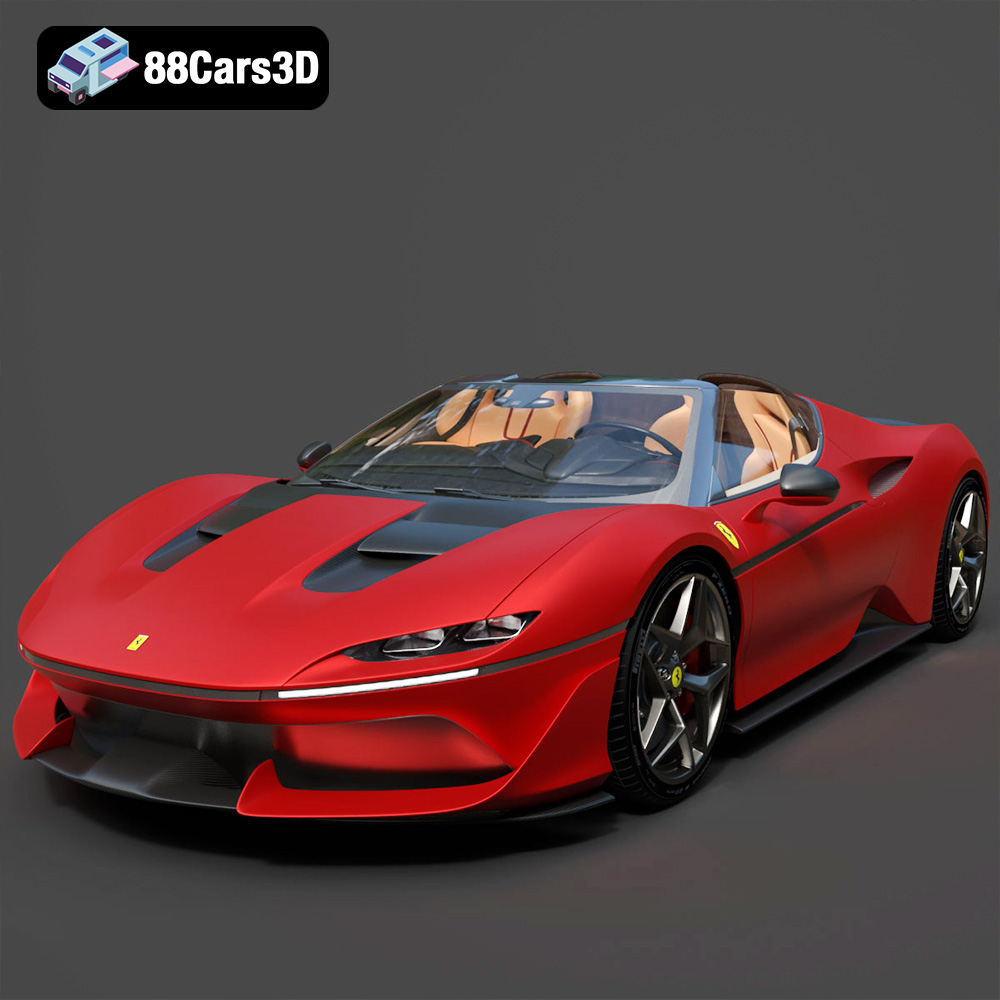
Texture: Yes | Material: Yes
Download the highly detailed, game-ready Ferrari J50 2017 3D Model. Features aggressive aerodynamic styling, twin-turbo V8 engine details, and targa top design. Includes .blend, .fbx, .obj, .glb, .stl, .ply, .unreal, and .max formats for game development, AR/VR, and rendering.
Price: $19.99
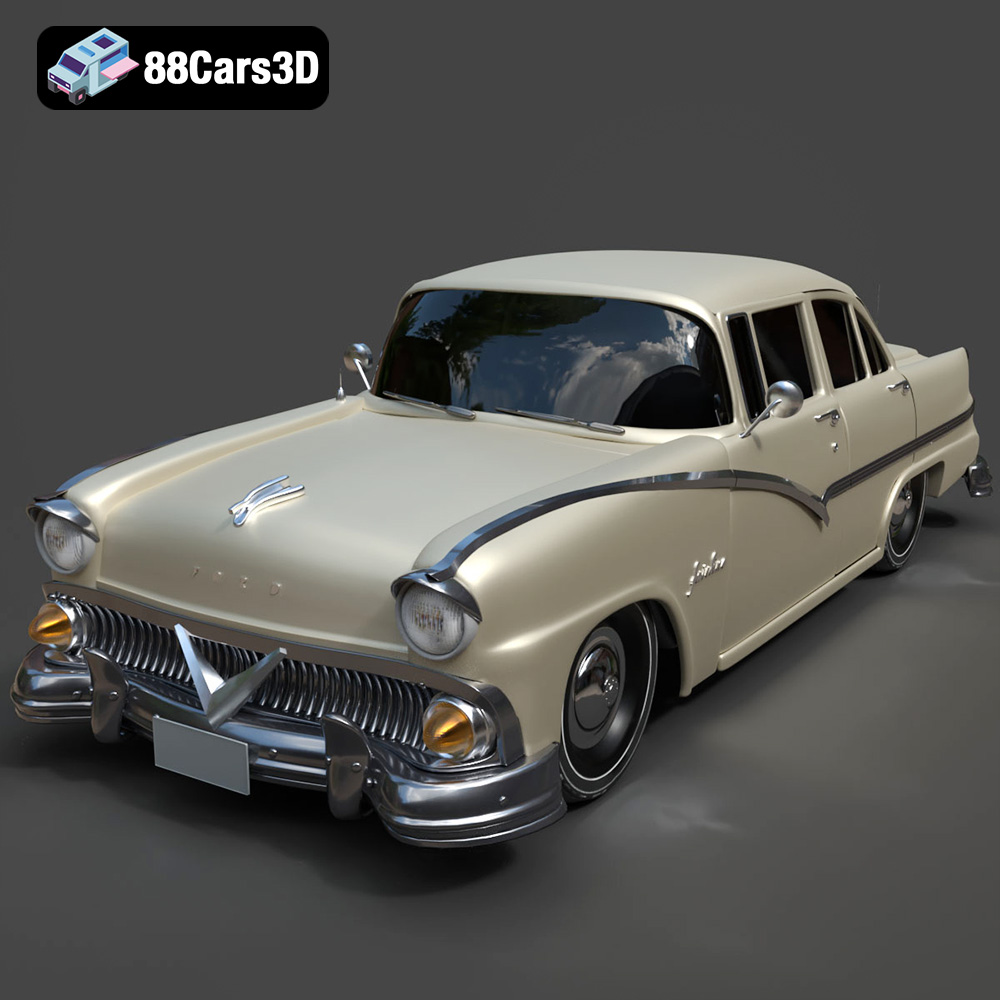
Texture: Yes | Material: Yes
Download the highly detailed, game-ready Ford Fairlin 3D Model. Features iconic classic styling, sweeping bodylines, and an accurate vintage interior. Includes .blend, .fbx, .obj, .glb, .stl, .ply, .unreal, and .max formats for game development, AR/VR, and rendering.
Price: $19.99
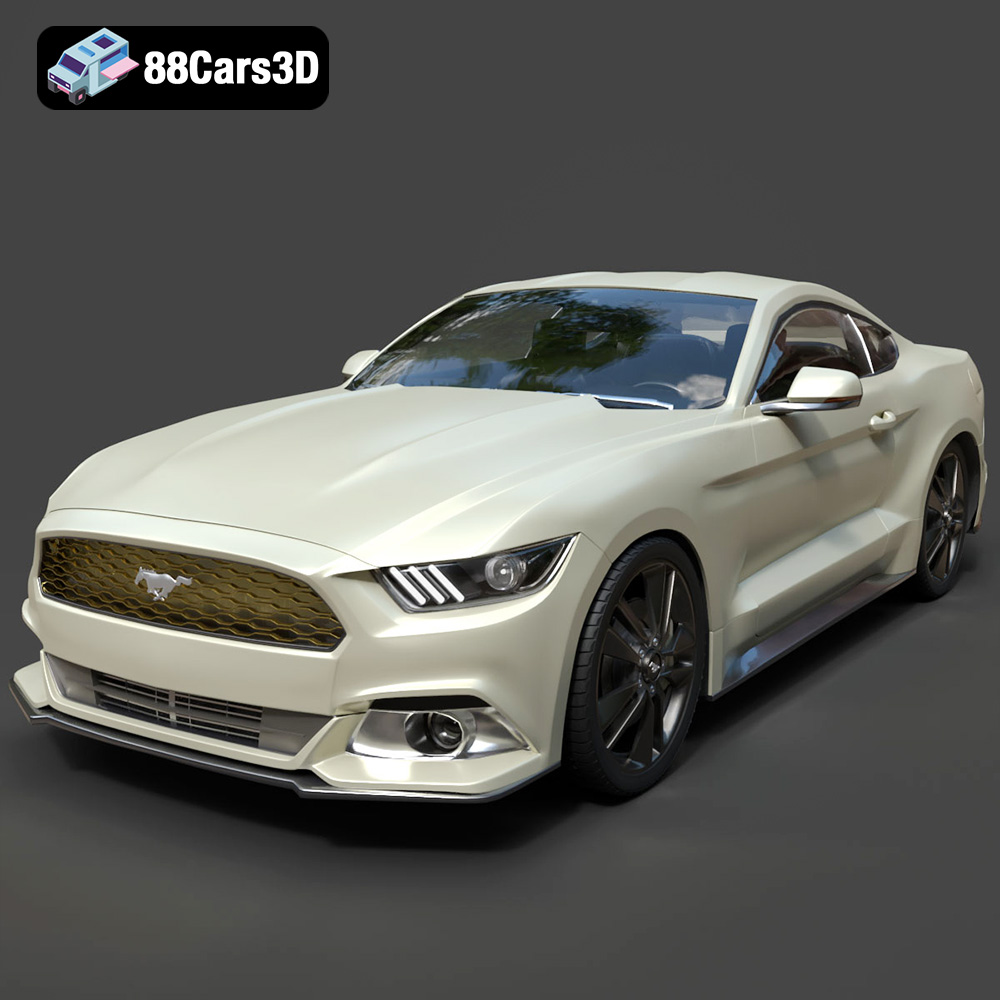
Texture: Yes | Material: Yes
Download the highly detailed, game-ready Ford Mustang GT 3D Model. Features aggressive muscle car styling, a highly detailed V8 engine bay, and accurate interior cockpit. Includes .blend, .fbx, .obj, .glb, .stl, .ply, .unreal, and .max formats for game development, AR/VR, and rendering.
Price: $19.99

Texture: Yes | Material: Yes
Download the highly detailed, game-ready Renault Megane CC 2011 3D Model. Features an accurately modeled folding glass roof, sleek aerodynamic body lines, and a detailed interior. Includes .blend, .fbx, .obj, .glb, .stl, .ply, .unreal, and .max formats for game development, AR/VR, and rendering.
Price: $19.99
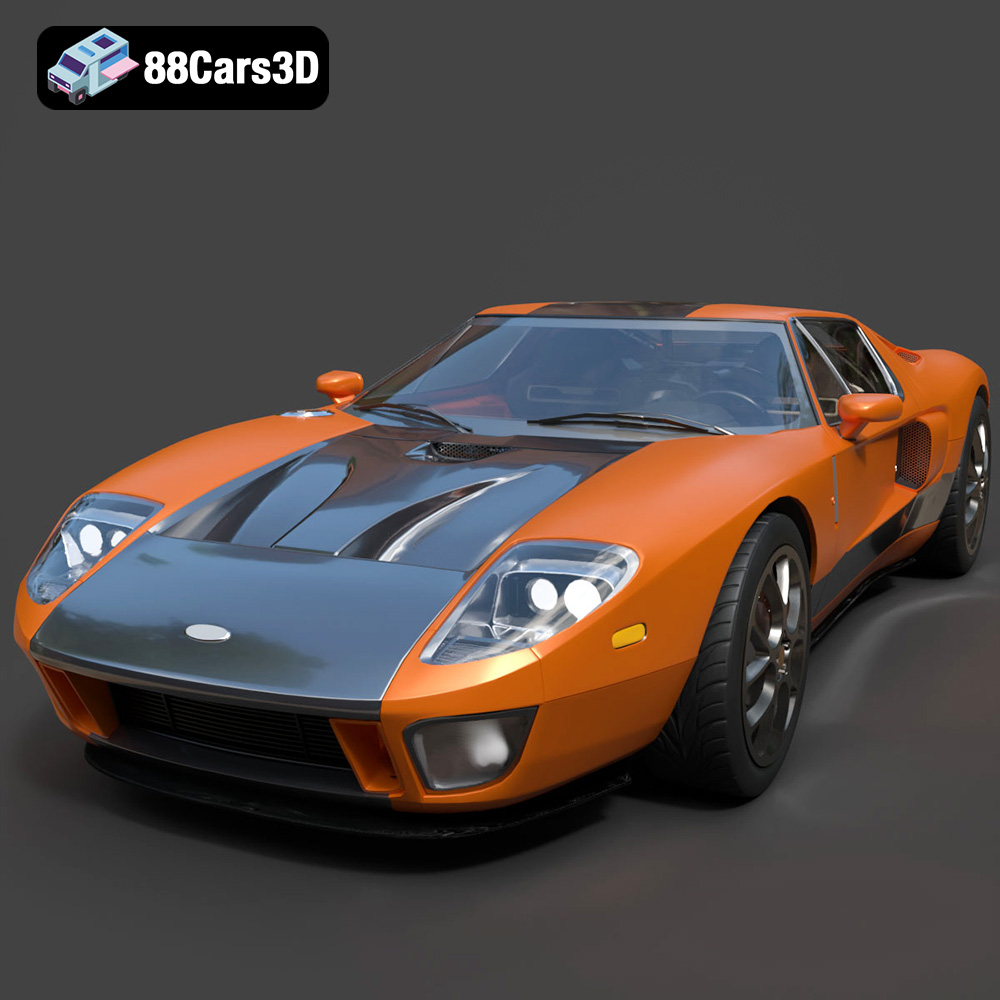
Texture: Yes | Material: Yes
Download the highly detailed, game-ready Ford GT 2005 3D Model. Features signature aerodynamic bodylines, mid-mounted supercharged V8 detailing, and iconic racing stripes. Includes .blend, .fbx, .obj, .glb, .stl, .ply, .unreal, and .max formats for game development, AR/VR, and rendering.
Price: $19.99

Texture: Yes | Material: Yes
Download the highly detailed, game-ready Yamaha YZF-R125 EU 3D Model. Features an aggressive aerodynamic fairing, twin LED headlights, and a detailed 125cc engine block. Includes .blend, .fbx, .obj, .glb, .stl, .ply, .unreal, and .max formats for game development, AR/VR, and rendering.
Price: $19.99

