Get 20% OFF All Premium 3D & STL Models!

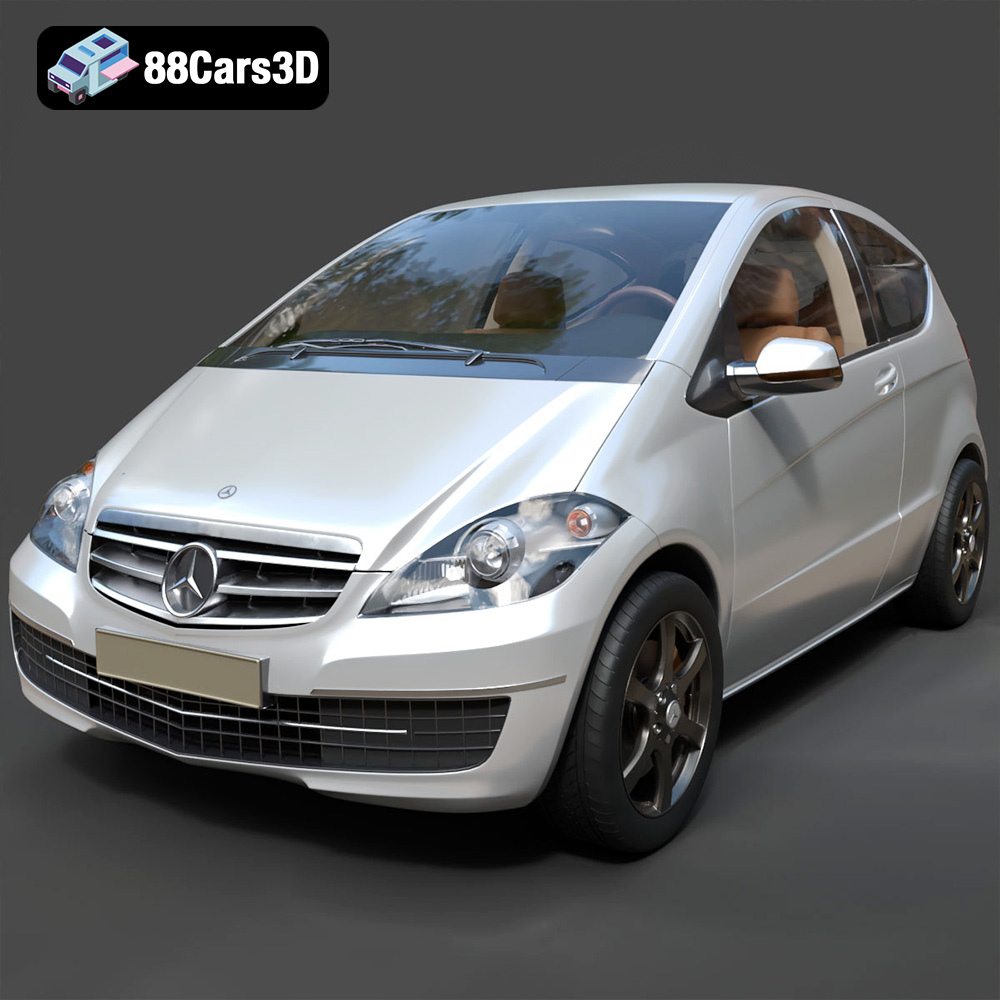
The Mercedes-Benz A-Class 3-Door (2010) is a stylish and recognizable compact car. Now, thanks to 88cars3d.com, you can bring this iconic vehicle to life with the power of 3D printing. This guide will provide you with a detailed walkthrough of the entire 3D printing process, from initial model preparation to final finishing touches, ensuring you create a stunning replica. We’ll cover everything you need to know to successfully 3D print the available STL files for this model.
The Mercedes-Benz A-Class 3-Door 2010 model from 88cars3d.com can be successfully printed using both Fused Deposition Modeling (FDM) and Stereolithography (SLA) printers. However, the best choice depends on your desired level of detail and budget.
* **Pros:** FDM printers are generally more affordable and accessible. They are ideal for larger parts of the model, such as the main body.
* **Cons:** FDM printers may struggle with the finer details of the model, such as the intricate grille, lights, and interior components. Layer lines will also be more visible, requiring more post-processing.
* **Recommendations:** If using an FDM printer, consider a smaller nozzle size (0.4mm or smaller) and lower layer heights (0.1mm – 0.2mm) to improve detail resolution.
* **Pros:** SLA or resin printers offer superior detail resolution, capturing the fine lines and curves of the Mercedes-Benz A-Class with exceptional accuracy. They are perfect for smaller, intricate parts and achieving a smooth surface finish.
* **Cons:** Resin printers can be more expensive, and the resin itself can be more costly than FDM filament. Resin printing also requires more careful handling and post-processing, including washing and curing.
* **Recommendations:** If using a resin printer, opt for a high-resolution resin and fine-tune your settings to minimize support marks.
Before diving into the printing process, it’s crucial to understand the different file formats included with the Mercedes-Benz A-Class 3-Door (2010) 3D model. These formats serve various purposes, from editing and rendering to the actual 3D printing process.
The .stl (Stereolithography) format is the workhorse of 3D printing. It represents the 3D model’s surface geometry using a mesh of triangles. This format is universally compatible with slicing software, which prepares the model for printing by converting it into a series of instructions for the 3D printer. However, .stl files only contain information about the shape of the model; they don’t include color, texture, or material properties. For 3D printing, the .stl format is typically the go-to choice because of its simplicity and widespread support. When preparing your .stl file, ensure the mesh quality is adequate for your desired print resolution. A higher triangle count will result in a smoother surface but will also increase the file size and processing time. Repairing any mesh errors, such as holes or self-intersections, is also crucial for a successful print.
The .obj (Wavefront Object) format is a more versatile format than .stl. It can store not only the geometry of the model but also color and texture information. This makes it suitable for colored 3D printing, where available, or for rendering purposes. However, .obj files can be larger and more complex than .stl files, and not all slicing software fully supports .obj with textures.
The .ply (Polygon File Format) is designed for storing 3D data acquired from 3D scanners. It can represent geometry, color, and other properties with high precision. While .ply is capable of representing very detailed models, it’s less commonly used for 3D printing than .stl, as some slicing software may not fully support it or may require conversion to .stl.
The .blend format is the native file format for Blender, a popular open-source 3D creation suite. This format allows you to fully edit and customize the Mercedes-Benz A-Class model before exporting it to a printable format like .stl. Using Blender, you can make modifications to the geometry, add details, or separate parts for easier printing and assembly.
The .fbx (Filmbox) format is a proprietary file format developed by Autodesk. It’s widely used in the gaming and animation industries and supports complex data such as animations, materials, and textures. While you can sometimes import .fbx files directly into slicing software, they are more often used for transferring models between different 3D applications. For 3D printing, you’ll generally want to export the model from the .fbx file to an .stl file.
The .glb (GL Transmission Format Binary) is a relatively new format designed for efficient transmission and loading of 3D models, particularly in web and AR/VR applications. It’s a binary format, meaning it’s more compact than text-based formats like .obj. The .glb format is excellent for previewing the Mercedes-Benz A-Class model in augmented reality before printing, allowing you to visualize it in your physical space.
The .max format is the native file format for Autodesk 3ds Max, another industry-leading 3D modeling and animation software. Similar to .blend, the .max format allows for extensive editing and customization of the model before exporting for 3D printing.
For 3D printing the Mercedes-Benz A-Class 3-Door (2010) model, the **.stl format will be your primary file.** It’s essential to ensure the .stl file is properly prepared with a suitable mesh density and free of errors before importing it into your slicing software. If you wish to modify the model, you can use the .blend or .max files in their respective software and then export as .stl.
Before sending the Mercedes-Benz A-Class 3-Door (2010) 3D model to your printer, you’ll need to prepare it using slicing software. This software converts the 3D model into a series of layers that the printer can understand.
Popular slicing software options include:
* **Cura:** Free and user-friendly, suitable for beginners.
* **PrusaSlicer:** Another free option with advanced features and excellent support for Prusa printers.
* **Simplify3D:** A paid option with advanced customization and control.
* ** Chitubox:** Common with resin printers.
Select a slicing software that suits your experience level and the capabilities of your 3D printer.
* **Orientation:** Experiment with different orientations to minimize the need for supports and reduce print time. Consider printing the main body angled to improve structural integrity and surface finish. Separately print wheels and other smaller components.
* **Supports:** Carefully place supports to ensure proper overhang support without damaging the model’s surface. Focus on areas like the exhaust system, mirrors, and steering components. Use support blockers to avoid supports in areas that don’t need them.
* **Infill:** A 20-30% infill density is generally sufficient for this model, balancing strength and print time. Consider using a gyroid infill pattern for optimal strength-to-weight ratio.
* **Layer Height:** A layer height of 0.1mm-0.2mm is suitable for FDM printing, while resin printing can achieve much finer layer heights (0.04mm-0.12mm) for greater detail.
The choice of material significantly impacts the final appearance and properties of your 3D printed Mercedes-Benz A-Class 3-Door (2010) model.
* **Pros:** PLA is a biodegradable thermoplastic that’s easy to print with and readily available in a wide range of colors. It’s a good choice for beginners.
* **Cons:** PLA is not as strong or heat-resistant as other materials.
* **Pros:** PETG offers a good balance of strength, durability, and ease of printing. It’s more heat-resistant than PLA and less prone to warping.
* **Cons:** PETG can be slightly more challenging to print than PLA, requiring careful temperature and speed settings.
* **Pros:** ABS is a strong and heat-resistant plastic commonly used in automotive applications.
* **Cons:** ABS is more difficult to print than PLA and PETG, requiring a heated bed and enclosure to prevent warping and cracking.
* **Pros:** Resin allows for incredibly detailed prints with a smooth surface finish. It’s ideal for intricate parts and achieving a realistic appearance.
* **Cons:** Resin is more expensive than filament and requires careful handling and post-processing.
Achieving a high-quality 3D print of the Mercedes-Benz A-Class 3-Door (2010) requires careful tuning of your printer settings. Here are some recommended parameters:
* **Nozzle Temperature (PLA):** 200-220°C
* **Bed Temperature (PLA):** 60-70°C
* **Nozzle Temperature (PETG):** 230-250°C
* **Bed Temperature (PETG):** 70-80°C
* **Print Speed:** 40-60 mm/s (adjust based on your printer and material)
* **Retraction Distance:** 4-6 mm (adjust to minimize stringing)
* **Retraction Speed:** 25-40 mm/s
* **Layer Height:** 0.1mm-0.2mm (FDM), 0.04mm-0.12mm (Resin)
* **Infill Density:** 20-30%
* **Support Structure:** Tree or linear supports, depending on the model’s geometry.
These parameters are starting points; you may need to adjust them based on your specific printer, material, and desired print quality.
Once the 3D printing is complete, post-processing is essential to achieve a professional-looking result.
* Carefully remove all support structures using pliers or a sharp knife.
* Sand the model to remove any remaining support marks and smooth the surface. Start with coarse sandpaper (150-220 grit) and gradually move to finer grits (400-600 grit) for a smooth finish.
* Apply a primer coat to prepare the surface for painting and improve paint adhesion.
* Paint the model using automotive-grade paints to achieve a realistic finish. Consider using masking tape to create clean lines and separate different colored areas. Add details like the Mercedes-Benz emblem and other trim pieces for added realism.
* Consider metallic paints for a more realistic finish.
* Assemble the various parts of the model, such as the wheels, doors, and interior components, using super glue or epoxy.
* Ensure all parts are aligned correctly and securely attached.
Even with careful preparation, 3D printing can sometimes present challenges. Here are some common issues and their solutions:
* **Warping:** Ensure your bed is properly leveled and heated. Use a brim or raft to improve bed adhesion.
* **Stringing:** Adjust retraction settings to minimize stringing between parts.
* **Layer Shifting:** Check for loose belts or wobbly printer components. Reduce print speed.
* **Under-Extrusion:** Increase nozzle temperature or reduce print speed. Check for clogs in the nozzle.
* **Support Failure:** Increase support density or adjust support placement.
By understanding these common issues and their solutions, you can overcome challenges and achieve a successful 3D print of your Mercedes-Benz A-Class 3-Door (2010) model. Remember, 88cars3d.com provides excellent models optimized for printing, so you’re already a step ahead!
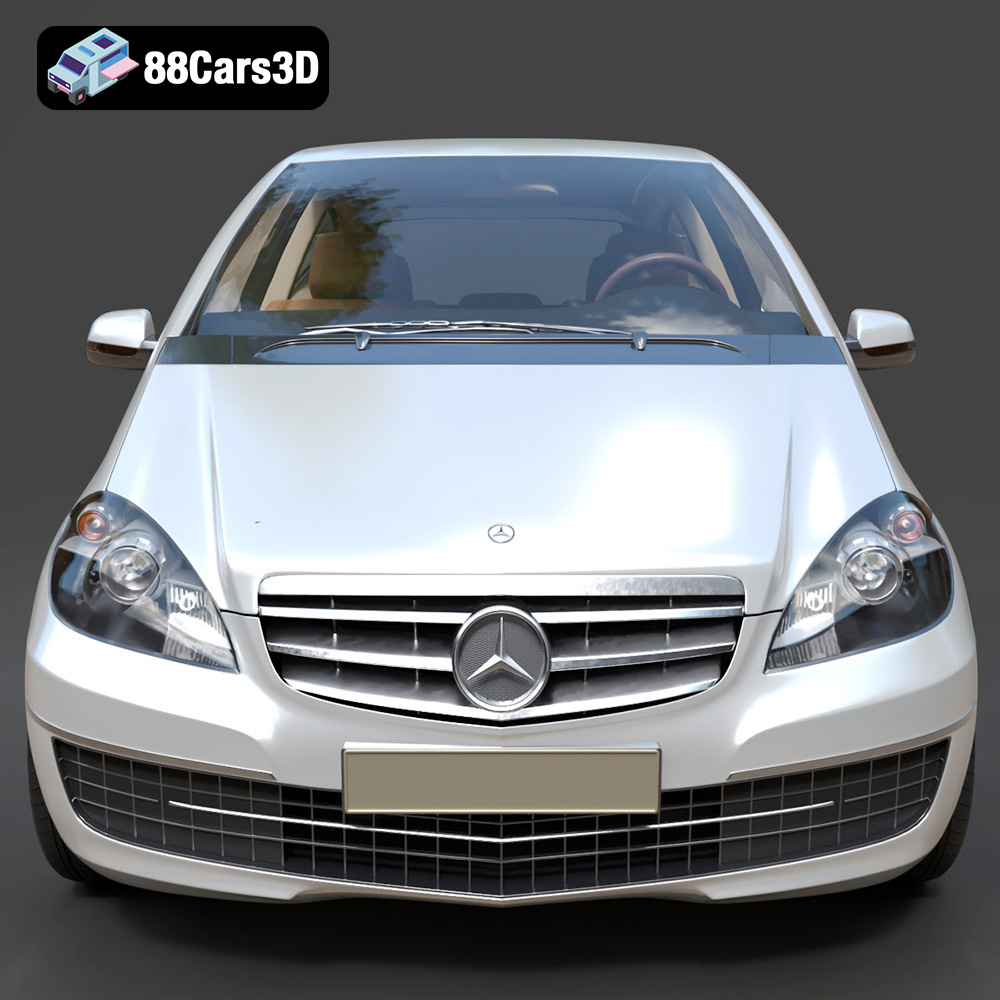
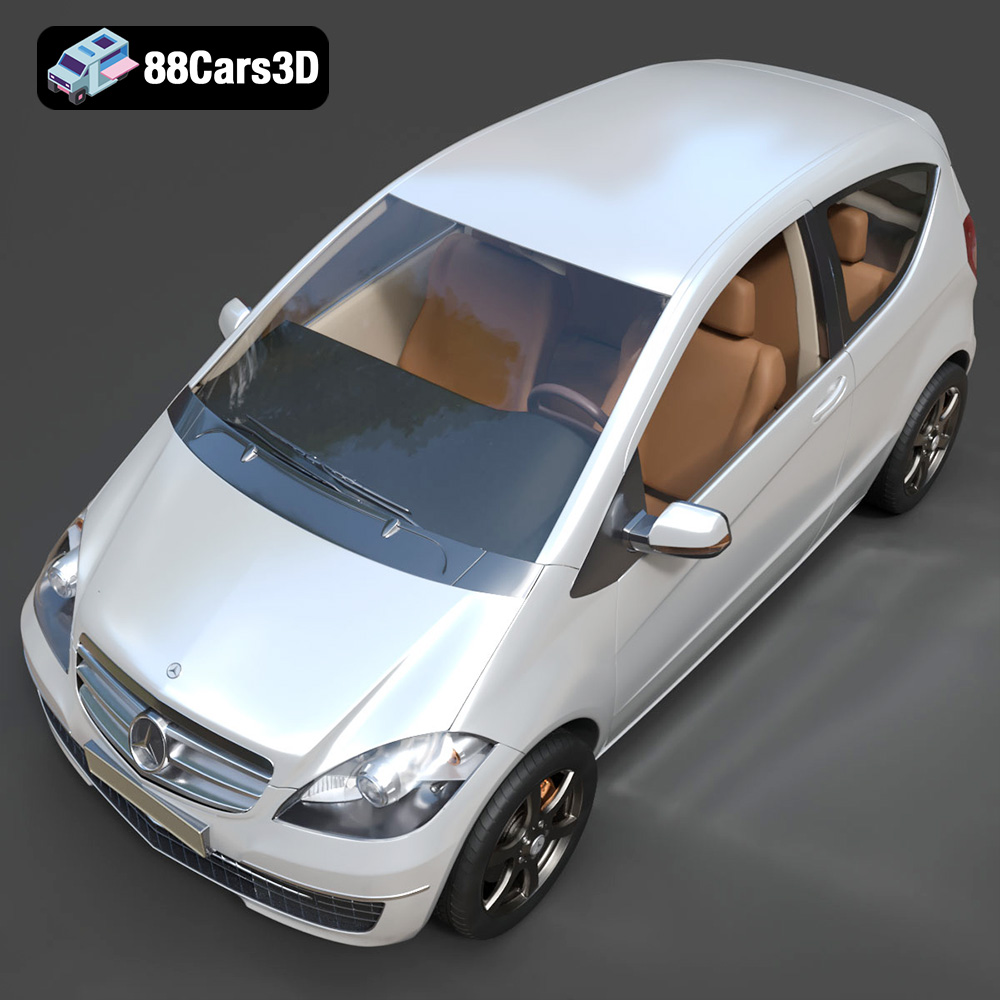
The Mercedes-Benz A-Class 3-Door (2010) represents a defining era of compact luxury, blending urban practicality with premium German engineering. This 3D model captures the distinctive wedge-shaped silhouette, prominent front grille with the iconic three-pointed star, and the sleek 3-door configuration that gives it a sportier edge over its 5-door sibling. Expertly crafted with game-ready optimization, this model features a highly efficient topology while maintaining exceptional visual fidelity.
$39.99
.2010
.blend
.fbx
.glb
.hatchback
.max
.obj
.ply
.rendering
.stl
.unreal
3-door
a-class
car-3d-model
compact-car
game asset
game-ready
low-poly
mercedes-benz
optimized
VR/AR