Get 20% OFF All Premium 3D & STL Models!

“`html
The journey from a captivating 3D model on your screen to a tangible object in your hands is a thrilling one, and at the heart of it lies the STL (Stereolithography) file format. Whether you’re a seasoned 3D printing enthusiast, a hobbyist eager to bring your digital creations to life, or an automotive fan looking to print stunning car models from platforms like 88cars3d.com, understanding how to convert polygon models to STL is crucial. This article dives deep into the technical aspects of this conversion process, equipping you with the knowledge and skills to optimize your models for 3D printing success. We’ll explore different software options, best practices for mesh preparation, and strategies for achieving high-quality prints. From understanding the intricacies of STL file structure to troubleshooting common conversion issues, this guide will serve as your comprehensive resource for mastering polygon-to-STL conversion.
In this guide, you will learn:
The STL file format is the industry standard for 3D printing, essentially acting as the bridge between your digital design and the physical world. Unlike CAD formats that store design history and parametric information, STL files represent a 3D object as a collection of connected triangles, approximating the surface geometry. This simplicity makes it universally compatible with 3D printers and slicing software, but it also necessitates careful consideration of the underlying mesh topology.
At its core, an STL file consists of a list of facets, each defined by three vertices that form a triangle. The more triangles used to represent a surface, the higher the resolution and accuracy of the final print. However, a dense mesh also translates to larger file sizes and increased processing time for the slicer. The process of converting a curved surface into a series of triangles is known as tessellation, and the level of detail in this tessellation directly impacts the quality of the printed object. When downloading models from marketplaces such as 88cars3d.com, you’ll often find variations in mesh density, designed to balance detail with printability.
Each triangle in an STL file also has a normal vector, which indicates the direction the triangle is facing. This is crucial for determining the inside and outside of the object. Incorrectly oriented normals can lead to flipped surfaces, causing slicing errors and ultimately, a failed print. Most 3D modeling software can automatically calculate and correct normal orientations, but it’s always a good practice to visually inspect the mesh before exporting to STL. Tools like MeshLab and Netfabb can be used to identify and repair inverted normals.
STL files can be saved in two formats: ASCII and Binary. ASCII STL files are human-readable text files, while Binary STL files are more compact and efficient for storage and processing. For larger and more complex models, Binary STL is generally preferred due to its smaller file size. The structure of a Binary STL file includes a header, the number of triangles, and then a list of triangles, each with its vertex coordinates and normal vector. While ASCII files are easier to debug manually, their larger size makes them less practical for everyday use.
A plethora of software options are available for converting polygon models (e.g., OBJ, FBX, 3DS) to STL. The choice depends on your existing workflow, budget, and the complexity of the model. Here, we’ll explore some popular options and their respective strengths.
Blender is a powerful and free open-source 3D creation suite that excels at both modeling and file conversion. To export an STL from Blender, simply import your polygon model (OBJ, FBX, etc.) and navigate to File > Export > Stl (.stl). Blender offers options to control the export scale, apply modifiers, and include only selected objects. Before exporting, ensure that your model is manifold (watertight) and free of self-intersections. Blender’s sculpting tools can be used to refine the mesh and correct minor imperfections before conversion.
MeshLab is a dedicated mesh processing software designed for cleaning, repairing, and converting 3D models. It’s particularly useful for handling complex and problematic meshes. Import your model into MeshLab, and then use the File > Export Mesh As… option to save it as an STL file. MeshLab offers a wide range of filtering and repair tools, including functions for closing holes, simplifying meshes, and correcting normal orientations. These features make it an invaluable tool for preparing models for 3D printing, especially those sourced from online repositories.
Meshmixer, another free tool from Autodesk, is known for its intuitive interface and powerful mesh editing capabilities. It’s particularly well-suited for adding supports, hollowing models, and repairing mesh errors. Import your model into Meshmixer, and then use the File > Export option to save it as an STL file. Meshmixer’s “Make Solid” tool is especially useful for converting non-manifold meshes into printable solids. It also offers advanced support generation features, allowing you to customize support structures for optimal print quality.
The quality of your STL file directly impacts the success of your 3D print. Therefore, meticulous mesh preparation is paramount. This involves ensuring your model is manifold, free of errors, and optimized for the intended printing process. Let’s delve into the key aspects of mesh preparation.
A manifold mesh is one that is closed, without any holes or self-intersections. Think of it as a watertight container – if you were to fill it with water, no water would leak out. Non-manifold geometry can cause severe problems during slicing, leading to missing sections, incorrect infill, and ultimately, a failed print. Tools like MeshLab and Netfabb offer functions to automatically detect and repair non-manifold edges and faces. Look for options like “Close Holes,” “Fill Holes,” and “Remove Duplicate Faces.”
Common mesh errors include flipped normals, degenerate faces (triangles with zero area), and overlapping triangles. Flipped normals can be corrected using MeshLab’s “Flip Normals” filter. Degenerate faces can be removed using the “Remove Zero Area Faces” filter. Overlapping triangles often require manual editing in a 3D modeling software like Blender. Regularly inspect your mesh for these errors, especially after performing boolean operations or mesh simplification.
While a high-resolution mesh can capture intricate details, it also increases file size and slicing time. Optimizing mesh density involves finding the right balance between detail and performance. Mesh simplification algorithms, available in MeshLab and Meshmixer, can reduce the number of triangles in a mesh while preserving its overall shape. Experiment with different simplification levels to find the optimal setting for your model and printer. For car models downloaded from 88cars3d.com, the mesh density is already optimized for general use, but it’s a good idea to simplify it further if you are printing at a very small scale.
Once you have your STL file, the next crucial step is slicing – the process of converting the 3D model into a series of 2D layers that your 3D printer can understand. Slicing software like Cura, PrusaSlicer, and Simplify3D offer a wide range of parameters that control the printing process. Understanding these settings is key to achieving high-quality prints.
Layer height is arguably the most important slicing parameter. It determines the thickness of each printed layer. Lower layer heights result in smoother surfaces and finer details, but also increase print time. Typical layer heights for FDM printing range from 0.1mm to 0.3mm. For resin printing, layer heights can be even smaller, often in the range of 0.025mm to 0.05mm. Experiment with different layer heights to find the optimal balance between print quality and speed.
Infill refers to the internal structure of the 3D printed object. It provides strength and support while minimizing material usage. Infill density is expressed as a percentage, with 0% being completely hollow and 100% being completely solid. Typical infill densities range from 15% to 50%, depending on the desired strength and weight of the object. Common infill patterns include grid, honeycomb, and gyroid, each offering different strength and flexibility characteristics.
Print speed and temperature are crucial for material adhesion and preventing warping. Print speed determines how fast the print head moves during printing. Slower speeds generally result in better layer adhesion and fewer defects. Temperature settings control the temperature of the nozzle and the heated bed (if applicable). The optimal temperature depends on the material being used. PLA typically prints at around 200-220°C, while ABS requires higher temperatures, around 230-250°C, and a heated bed to prevent warping.
Even with careful preparation and the right settings, 3D printing can sometimes present challenges. Understanding common issues and their solutions is essential for a smooth printing experience. Let’s examine some typical problems and how to address them.
Gaps and holes in the printed model can be caused by several factors, including non-manifold geometry in the STL file, insufficient infill, or slicing errors. To resolve this, first, ensure that your STL file is watertight and free of errors using tools like MeshLab or Netfabb. Increase the infill density to provide better support for the outer layers. Check your slicing settings for any gaps between walls or missing sections. If the problem persists, try re-slicing the model with different settings.
Warping occurs when the corners of the printed object lift off the print bed due to uneven cooling. This is particularly common with materials like ABS. To prevent warping, ensure that your print bed is level and clean. Use a heated bed to maintain a consistent temperature throughout the printing process. Apply an adhesive like glue stick or hairspray to improve bed adhesion. Enclosing the printer in an enclosure can also help to maintain a stable temperature and reduce warping. Another trick is to add a brim to the model in your slicing software; this increases the surface area in contact with the bed and helps to keep the corners down.
Stringing and blobs are caused by excess material oozing from the nozzle during travel moves. This can be addressed by adjusting the retraction settings in your slicing software. Increase the retraction distance and speed to pull the filament back into the nozzle more effectively. Lowering the printing temperature can also help to reduce oozing. Make sure that “coasting” is disabled, as this feature can sometimes cause blobs.
After the printing process is complete, post-processing techniques can enhance the appearance and functionality of your 3D printed objects. These techniques range from simple sanding and painting to more complex assembly and finishing processes.
Support structures are often necessary to print overhanging features, but they need to be removed after printing. Carefully break away the supports using pliers or a sharp knife. For more delicate areas, consider using a dissolving support material like HIPS (for ABS) or PVA (for PLA). Once the supports are removed, sand the surface with progressively finer grit sandpaper to smooth out any imperfections. Start with a coarse grit (e.g., 220 grit) and gradually move to finer grits (e.g., 400, 600, 800 grit) to achieve a smooth finish.
Painting can transform a raw 3D print into a visually appealing object. Start by applying a primer to the surface to improve paint adhesion. Use acrylic paints or spray paints designed for plastic. Apply multiple thin coats of paint, allowing each coat to dry completely before applying the next. Consider using stencils or masking tape to create intricate designs. Finally, apply a clear coat to protect the paint and add a glossy or matte finish.
Many 3D printed projects involve multiple parts that need to be assembled. Use glue, screws, or snap-fit joints to connect the parts. For functional parts, consider integrating hardware components like bearings, gears, or electronic components. Design your models with appropriate tolerances and clearances to ensure a proper fit. Consider using threaded inserts to create strong and durable connections.
Mastering the conversion of polygon 3D models to STL is an essential skill for anyone involved in 3D printing. By understanding the intricacies of STL file structure, preparing your meshes carefully, and optimizing your slicing parameters, you can unlock the full potential of your 3D printer. Platforms like 88cars3d.com offer a treasure trove of printable car models, but knowing how to properly convert and prepare these files is key to achieving stunning results. Remember to always prioritize mesh integrity, optimize for your specific printer and material, and don’t hesitate to experiment with different settings to find what works best for you.
Your next steps should be:
With consistent practice and a dedication to learning, you’ll be well on your way to creating beautiful and functional 3D printed objects. Happy printing!
“`

Texture: Yes | Material: Yes
Download the highly detailed, game-ready Tesla Model S Plaid 2021 3D Model. Features sleek aerodynamic styling, signature LED lighting, and the revolutionary Yoke steering interior. Includes .blend, .fbx, .obj, .glb, .stl, .ply, .unreal, and .max formats for game development, AR/VR, and rendering.
Price: $19.99

Texture: Yes | Material: Yes
Download the highly detailed, game-ready Rolls-Royce Ghost EWB 2018 3D Model. Features the iconic Pantheon grille, elongated luxury chassis, and elegant exterior lines. Includes .blend, .fbx, .obj, .glb, .stl, .ply, .unreal, and .max formats for game development, AR/VR, and rendering.
Price: $19.99
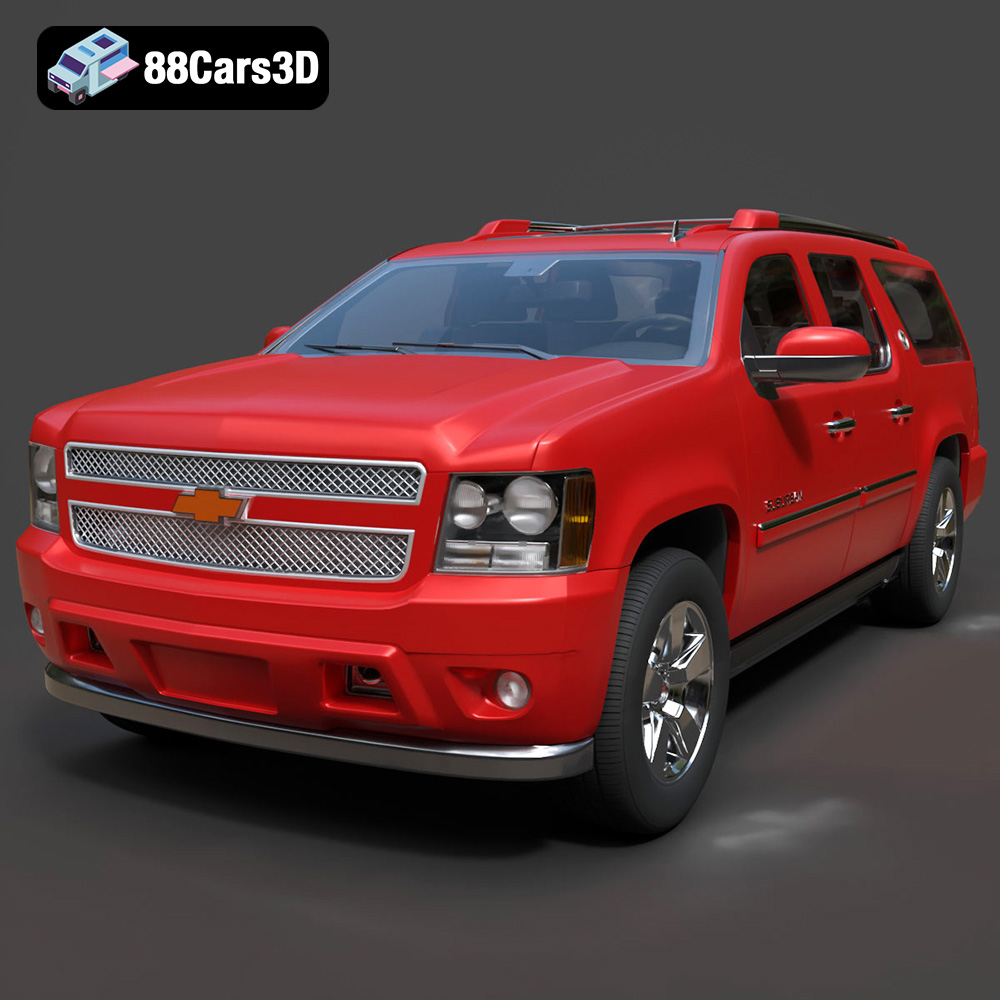
Texture: Yes | Material: Yes
Download the highly detailed, game-ready Chevrolet Suburban 75th Diamond 3D Model. Features the iconic Diamond Edition styling, detailed interior, and accurate full-size SUV proportions. Includes .blend, .fbx, .obj, .glb, .stl, .ply, .unreal, and .max formats for game development, AR/VR, and rendering.
Price: $19.99

Texture: Yes | Material: Yes
Download the highly detailed, game-ready Lamborghini Terzo Millenio 2017 3D Model. Features glowing Y-shaped LED signatures, extreme aerodynamic channels, and an aggressive hypercar stance. Includes .blend, .fbx, .obj, .glb, .stl, .ply, .unreal, and .max formats for game development, AR/VR, and rendering.
Price: $19.99

Texture: Yes | Material: Yes
Download the highly detailed, game-ready Mazda CX-5 2011 3D Model. Features the signature Kodo design exterior, detailed alloy wheels, and a fully modeled interior cabin. Includes .blend, .fbx, .obj, .glb, .stl, .ply, .unreal, and .max formats for game development, AR/VR, and rendering.
Price: $19.99

Texture: Yes | Material: Yes
Download the highly detailed, game-ready Toyota FJ Cruiser 2010 3D Model. Features a retro-inspired rugged exterior, iconic white roof, and an ultra-detailed HQ interior. Includes .blend, .fbx, .obj, .glb, .stl, .ply, .unreal, and .max formats for game development, AR/VR, and rendering.
Price: $19.99
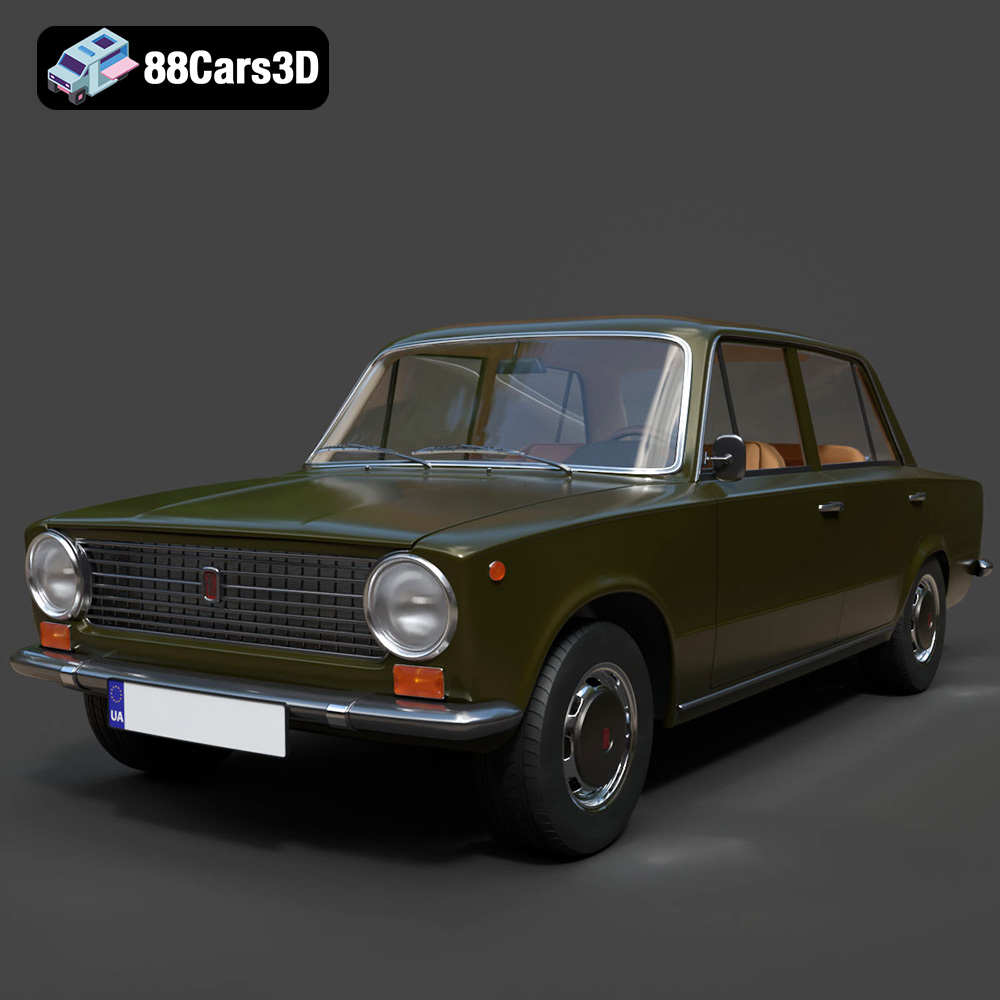
Texture: Yes | Material: Yes
Download the highly detailed, game-ready Fiat 124 Mk1 1966 3D Model. Features classic round headlights, authentic sedan bodywork, and detailed chrome hubcaps. Includes .blend, .fbx, .obj, .glb, .stl, .ply, .unreal, and .max formats for game development, AR/VR, and rendering.
Price: $19.99
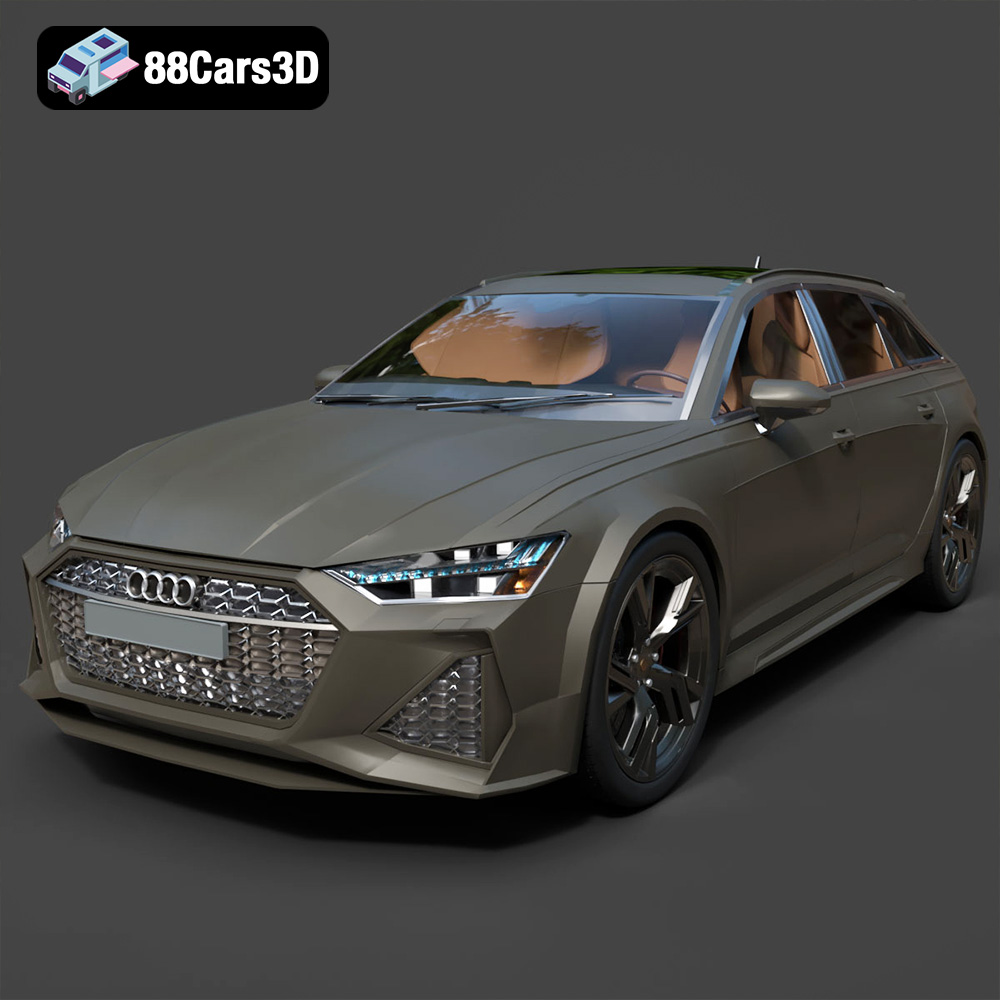
Texture: Yes | Material: Yes
Download the highly detailed, game-ready Audi RS6 3D Model. Features aggressive RS bodywork, detailed alloy wheels, and signature LED lighting. Includes .blend, .fbx, .obj, .glb, .stl, .ply, .unreal, and .max formats for game development, AR/VR, and rendering.
Price: $19.99

Texture: Yes | Material: Yes
Download the highly detailed, game-ready Toyota Camry 2018 3D Model. Features an aggressive aerodynamic body, distinct LED lighting signature, and precise interior detailing. Includes .blend, .fbx, .obj, .glb, .stl, .ply, .unreal, and .max formats for game development, AR/VR, and rendering.
Price: $19.99
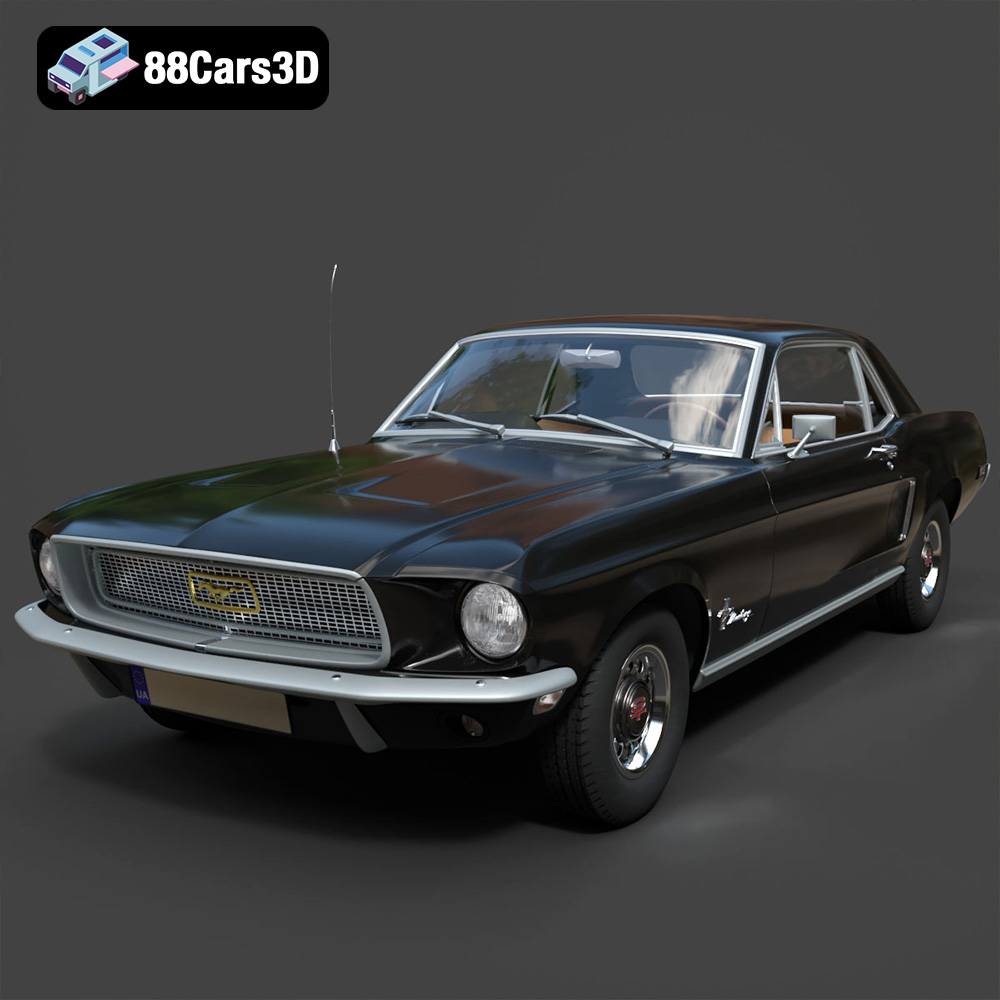
Texture: Yes | Material: Yes
Download the highly detailed, game-ready Ford Mustang Hardtop 1968 3D Model. Features the iconic galloping pony grille, signature tri-bar taillights, and an authentic vintage interior. Includes .blend, .fbx, .obj, .glb, .stl, .ply, .unreal, and .max formats for game development, AR/VR, and rendering.
Price: $19.99

