Get 20% OFF All Premium 3D & STL Models!

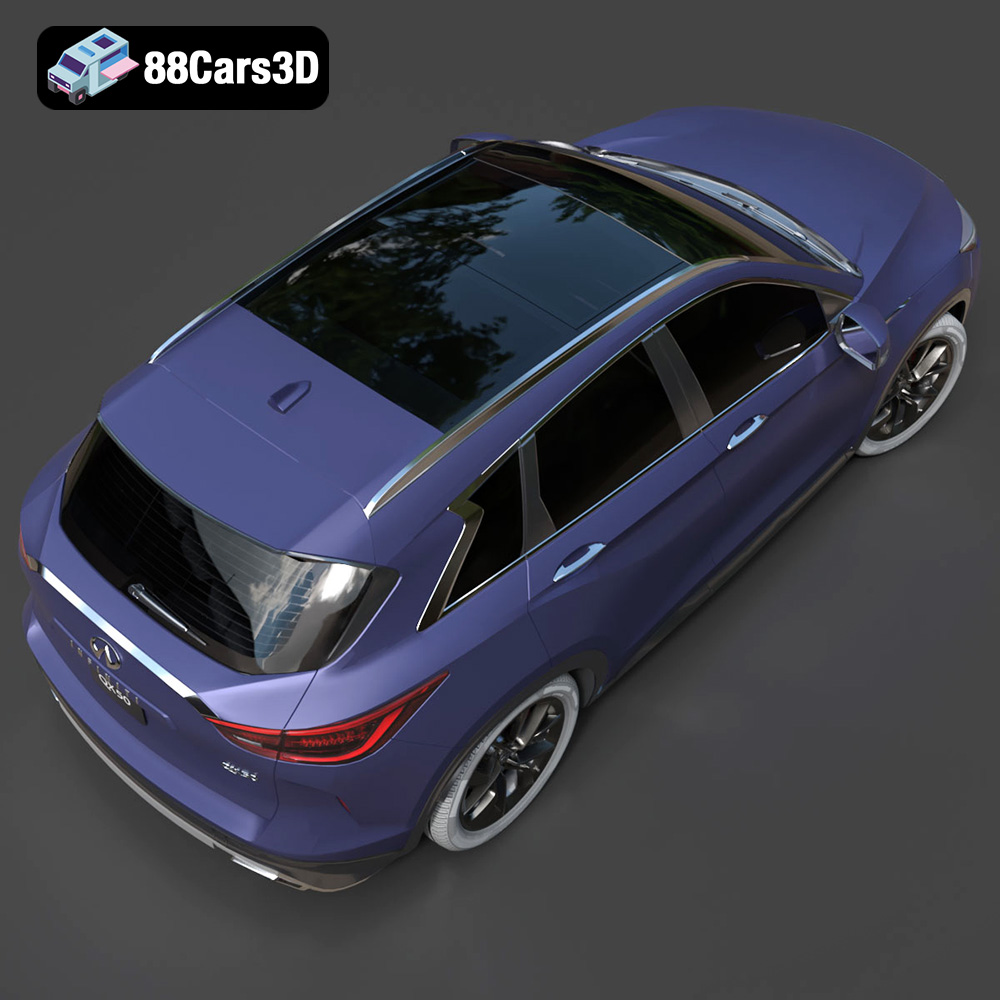
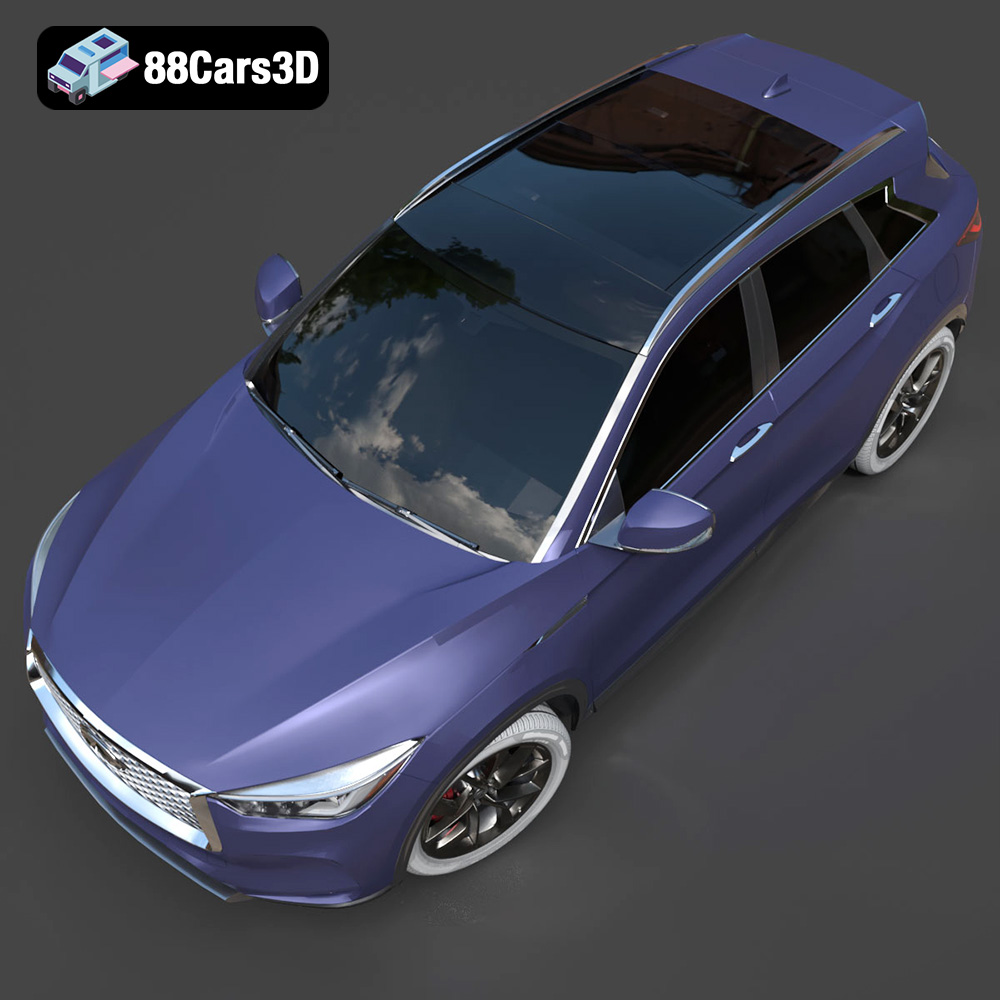
The Infiniti QX50 2019 3D model, available on 88cars3d.com, is a stunning representation of the luxury crossover SUV. Its intricate design and accurate details make it a fantastic project for 3D printing enthusiasts. This guide provides a detailed walkthrough on how to successfully 3D print this model, covering everything from pre-print preparation to post-processing. Whether you are a seasoned 3D printing expert or just starting out, this article will equip you with the knowledge you need to bring this digital masterpiece to life.
The Infiniti QX50 2019 3D model from 88cars3d.com is designed with versatility in mind. Before diving into printing, it’s essential to understand its structure and the different file formats available. This understanding will inform your choices regarding slicing, material selection, and print settings.
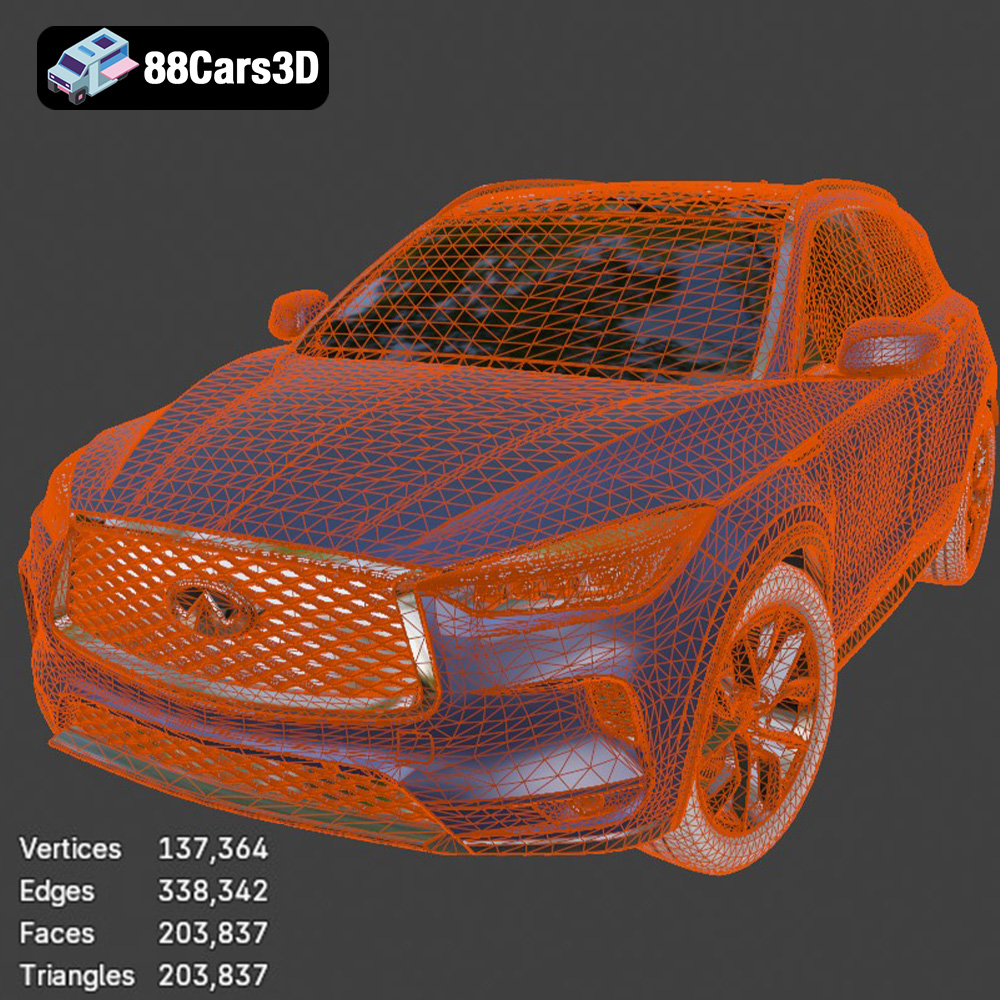
The QX50 model boasts clean geometry and detailed topology. This means it features smooth curves, well-defined edges, and a manageable polygon count, making it suitable for both high-resolution rendering and 3D printing. Pay close attention to overhangs, thin walls, and small details like the grille and side mirrors, as these areas will require careful consideration when setting up your print parameters.
Consider whether you want to print the model as a single piece or in multiple parts. Printing it as a single piece will preserve the overall aesthetic but will necessitate significant support structures, potentially leading to more post-processing. Printing in multiple parts simplifies support removal and can be advantageous for multi-material printing, where you might want to use different materials for the interior and exterior. The interior, though fully modeled, might not be visible depending on your print scale, which influences the need for printing it in high detail.
Choosing the right file format is a crucial first step in 3D printing. Different formats offer varying levels of compatibility with slicing software, and some are better suited for specific applications. The Infiniti QX50 2019 3D model from 88cars3d.com is provided in several formats, but some are better suited for 3D printing than others.
The .stl (stereolithography) file format is the de facto standard for 3D printing. It represents the surface geometry of a 3D object as a collection of triangles. It’s a mesh-only format, meaning it doesn’t contain color, texture, or material information. Most slicing software packages readily accept .stl files, making it the most straightforward choice for 3D printing. The .stl format is simple and efficient, which makes it a reliable choice for transferring 3D models between different software applications. Ensure the STL file is of high quality, with a fine mesh resolution to capture the details of the Infiniti QX50 accurately. A low-resolution STL will result in a blocky, less detailed print.
While .stl is the primary choice for 3D printing, it’s helpful to understand the other formats provided:
* **.obj:** A more universal format that can store color and texture information, making it suitable for colored 3D prints (though these are less common).
* **.ply:** Another polygon file format, often used for storing 3D data acquired from 3D scanners. It can handle color and texture information and can represent models with high precision.
* **.blend:** This is the native file format for Blender, a popular open-source 3D modeling software. It contains the entire Blender scene, including the model, materials, lighting, and modifiers. It is ideal for further customization of the Infiniti QX50 model before exporting to a 3D printable format.
* **.fbx:** A common format for game engines like Unity and Unreal Engine. It supports animations, textures, and materials. It’s generally not used directly for 3D printing but is useful if you plan to integrate the model into a game or interactive application.
* **.glb:** A binary file format that is optimized for AR/VR applications and web-based visualization. It is efficient for transmitting 3D models over the internet.
* **.max:** This is the native file format for 3ds Max, another professional 3D modeling and rendering software.
Regardless of the initial file format, the model will need to be processed by slicing software before printing. Popular slicing software packages include Cura, PrusaSlicer, Simplify3D, and others. These programs convert the 3D model into a series of instructions (G-code) that the 3D printer can understand. When importing the Infiniti QX50 model into your chosen slicing software, pay attention to any warnings about mesh errors. Non-manifold geometry (holes or self-intersections) can cause printing problems. Many slicing programs have built-in tools to repair minor mesh errors automatically. For more complex issues, you might need to use a dedicated mesh editing program like MeshMixer or Blender to fix the model before slicing. Ensure the mesh quality is high enough to capture the details of the Infiniti QX50, but not so high that it creates excessively large files or increases processing time unnecessarily.
Proper pre-print preparation is key to a successful 3D print. This involves selecting the right orientation for the model, generating appropriate support structures, and configuring the slicing parameters correctly.
The print orientation significantly impacts the print quality, the amount of support material required, and the overall print time. For the Infiniti QX50, consider printing it with the body tilted at an angle. This reduces the number of supports needed for the roof and minimizes visible layer lines on the curved surfaces. Experiment with different orientations in your slicing software to visualize the support structures and identify the orientation that offers the best balance between print quality and support material usage. Orienting the model with the undercarriage facing down can reduce the amount of supports on the top surfaces, but may require more support structure overall.
Support structures are crucial for printing overhangs and bridging gaps. Use your slicing software to automatically generate support structures. Experiment with different support patterns (e.g., tree supports, linear supports) and densities to find the optimal settings. Tree supports are often a good choice for complex models like the Infiniti QX50, as they use less material and are easier to remove than linear supports. Pay particular attention to the support settings around delicate areas like the side mirrors and the grille. Increase support density in these areas to ensure they print correctly. Consider using a support interface layer (a dense layer of material between the support structure and the model) to improve the surface finish of the printed part.
The slicing parameters determine how the model is printed layer by layer. Key parameters to consider include layer height, infill density, print speed, and temperature. Lower layer heights (e.g., 0.1mm to 0.15mm) will produce smoother surfaces and capture finer details, but will also increase the print time. A moderate infill density (e.g., 15% to 25%) is usually sufficient for models like the Infiniti QX50, providing a good balance between strength and material usage. Adjust the print speed and temperature according to the material you are using.
Selecting the right material and configuring the printer settings appropriately are critical for achieving a high-quality 3D print of the Infiniti QX50.
Several materials are suitable for printing the Infiniti QX50 model, each with its own advantages and disadvantages:
* **PLA (Polylactic Acid):** PLA is a biodegradable thermoplastic that is easy to print and produces good results. It is a good choice for beginners. However, PLA is not very heat-resistant and can warp in high temperatures.
* **PETG (Polyethylene Terephthalate Glycol):** PETG is a stronger and more heat-resistant material than PLA. It is also more flexible, making it less prone to cracking. PETG is a good all-around choice for 3D printing models that need to withstand some stress.
* **ABS (Acrylonitrile Butadiene Styrene):** ABS is a strong and durable plastic that is often used for automotive parts. It is more difficult to print than PLA and PETG, as it requires a heated bed and a well-ventilated enclosure to prevent warping and fumes.
* **Resin:** Resin printing (SLA or DLP) can produce extremely detailed and high-resolution prints. Resin printers are more expensive than filament printers, and the resin materials are often more brittle. Resin printing is a good choice for printing small, highly detailed models where surface finish is paramount.
Here are some general printer settings that you can use as a starting point:
* **Layer Height:** 0.1mm to 0.2mm (lower for finer details)
* **Infill Density:** 15% to 25% (adjust based on desired strength)
* **Print Speed:** 40mm/s to 60mm/s (adjust based on material and printer)
* **Nozzle Temperature:** Refer to the material manufacturer’s recommendations
* **Bed Temperature:** Refer to the material manufacturer’s recommendations
* **Support Type:** Tree supports or linear supports with a support interface layer
* **Adhesion:** Brim or raft (if necessary)
After the initial print, you might need to fine-tune the settings to achieve the best possible results. If you are experiencing warping, try increasing the bed temperature or using a brim or raft. If you are seeing stringing (thin strands of plastic between parts), try lowering the nozzle temperature or increasing retraction settings. If you are experiencing layer adhesion issues, try increasing the nozzle temperature or decreasing the print speed. Experimentation is key to finding the optimal settings for your printer and material.
Post-processing is an essential step in transforming a raw 3D print into a polished, visually appealing model.
Carefully remove the support structures using pliers, cutters, or a sharp knife. Take your time and avoid damaging the model. For difficult-to-reach areas, consider using specialized support removal tools. If you used a support interface layer, it should peel away relatively easily, leaving a smooth surface behind.
Sanding is crucial for removing layer lines and imperfections. Start with a coarse grit sandpaper (e.g., 220 grit) and gradually move to finer grits (e.g., 400 grit, 600 grit, 800 grit) to achieve a smooth surface. Wet sanding (using water with the sandpaper) can help to reduce dust and improve the surface finish. For areas that are difficult to reach, consider using small sanding sponges or rotary tools with sanding attachments.
Apply a primer to the model to create a smooth, uniform surface for painting. Use multiple thin coats of primer rather than one thick coat to avoid runs and drips. After the primer has dried, sand it lightly with fine-grit sandpaper to remove any imperfections. Choose paints that are suitable for the material you are using. Acrylic paints are a good choice for PLA and PETG. Apply the paint in thin, even coats using an airbrush or spray paint. Mask off areas that you don’t want to paint using masking tape. Consider using clear coat to protect the paint and add a glossy finish.
If you printed the model in multiple parts, carefully assemble them using glue or adhesive. Ensure the parts are aligned correctly before the glue dries. Use clamps or tape to hold the parts together while the glue sets. Consider using epoxy resin for a strong and durable bond.
Even with careful preparation, you might encounter some common 3D printing issues. Here are some tips for troubleshooting them:
Warping occurs when the corners of the print lift off the build plate. This is often caused by poor bed adhesion or uneven cooling. To prevent warping, ensure the bed is properly leveled and clean. Use a bed adhesive (e.g., glue stick, hairspray) to improve adhesion. Control the temperature in the printing environment to minimize uneven cooling.
Stringing is the formation of thin strands of plastic between parts of the print. This is often caused by excessive nozzle temperature or insufficient retraction. To prevent stringing, lower the nozzle temperature and increase the retraction settings. Make sure the filament is dry.
Layer adhesion issues occur when the layers of the print do not bond properly together. This can be caused by insufficient nozzle temperature, excessive print speed, or poor filament quality. To improve layer adhesion, increase the nozzle temperature, decrease the print speed, and use high-quality filament.
Support structure problems can include supports that are too weak, supports that are difficult to remove, or supports that damage the model. To address support structure problems, experiment with different support patterns and densities. Consider using tree supports or a support interface layer. Carefully remove the supports using appropriate tools and techniques.
The print time and material cost for the Infiniti QX50 2019 3D model will vary depending on the size of the model, the layer height, the infill density, and the material you are using. As a general estimate, a model printed at 0.15mm layer height, 20% infill, and a size of approximately 20cm in length might take 15-20 hours to print and consume around 200-300 grams of filament. Use your slicing software to get a more accurate estimate of the print time and material cost based on your specific settings.
Discover the exceptional realism and precision of the Infiniti QX50 2019 3D Model. Crafted with meticulous attention to detail, this premium digital asset accurately reflects the stunning aesthetics and sophisticated design of the renowned luxury crossover SUV.
$39.99
.2019
.arvr
.blend
.car3dmodel
.crossover
.fbx
.gameasset
.glb
.infiniti
.max
.obj
.ply
.qx50
.rendering
.simulation
.stl
.unreal
SUV