Get 20% OFF All Premium 3D & STL Models!

“`html
3D printing has revolutionized the world of model making, allowing enthusiasts and professionals alike to create intricate and detailed car models. However, achieving a truly smooth surface finish on these prints can be a challenge. The tell-tale layer lines of FDM (Fused Deposition Modeling) printing, or the subtle imperfections of resin-based processes, can detract from the realism and overall quality of your creation. This comprehensive guide will delve into the techniques, tips, and best practices for achieving flawlessly smooth surfaces on your 3D printed car models, transforming them from recognizable prints into stunning replicas. Whether you’re using STL files from platforms like 88cars3d.com or designing your own, mastering these techniques is crucial for achieving professional-quality results. We’ll cover everything from file preparation and optimal printer settings to post-processing methods, ensuring your next 3D printed car model is a true masterpiece.
The journey to a smooth 3D printed car model begins long before the printing process itself. It starts with the STL file and its underlying mesh structure. An STL (Stereolithography) file represents a 3D object as a collection of interconnected triangles. The density and arrangement of these triangles directly impact the smoothness of the final print. A poorly optimized mesh can lead to visible facets and imperfections, even with the best printer settings.
The number of triangles used to represent a curved surface determines its smoothness. A higher triangle count results in a finer tessellation, more accurately capturing the curves and contours of the car model. However, excessively high triangle counts can lead to unnecessarily large file sizes and increased processing time during slicing. The key is to find a balance. Aim for a triangle density that accurately represents the model’s features without overwhelming your system. For car models with intricate details, a higher triangle count is generally preferred. Software like Meshmixer or Blender allows you to remesh and refine the STL file, optimizing the triangle density in specific areas for smoother results.
Before printing, it’s essential to inspect the STL file for any errors that could compromise the surface finish. Common issues include non-manifold edges, holes in the mesh, and self-intersecting faces. These errors can lead to printing artifacts and visible imperfections. Software like Netfabb or Meshmixer can automatically detect and repair these issues. Netfabb, in particular, is known for its robust mesh repair capabilities, ensuring a watertight and printable STL file. Correcting these errors ensures a clean and consistent surface upon which to build your perfect print.
The slicer software translates the STL file into a series of instructions for your 3D printer. Choosing the right slicing parameters is crucial for minimizing layer lines and achieving a smooth surface finish. Several key settings directly impact the final print quality. These settings often include the layer height, print speed, wall thickness and infill density.
Layer height is arguably the most important setting for surface smoothness. A smaller layer height results in finer details and less visible layer lines. However, decreasing the layer height also increases the print time. A common starting point for FDM printing is 0.1mm to 0.2mm layer height. For resin printing, layer heights can be as low as 0.025mm for exceptional detail. Print speed also plays a significant role. Lowering the print speed allows the printer to deposit the material more accurately, reducing imperfections and improving surface finish. Experimentation is key; try reducing the print speed in 5-10mm/s increments to find the optimal balance between print quality and time.
While infill primarily affects the internal structure and strength of the print, it can indirectly impact the surface finish. A higher infill density provides more support for the outer layers, preventing warping and improving surface consistency. The choice of infill pattern can also make a difference. Concentric or gyroid infill patterns tend to provide more uniform support than rectilinear patterns. Wall thickness, also known as shell thickness, refers to the number of outer layers printed. Increasing the wall thickness can improve the smoothness and strength of the surface. Aim for at least 2-3 walls for optimal results. Many advanced slicers offer options for variable layer heights, allowing you to use finer layers for the visible outer surfaces and coarser layers for the infill, saving both time and material. When downloading models from marketplaces such as 88cars3d.com, ensure the models have sufficient wall thickness to start with.
The type of material you choose and its proper calibration within your 3D printer significantly influences the smoothness of the final printed car model. Different materials possess varying characteristics in terms of melting point, viscosity, and shrinkage, all of which can affect surface finish. Selecting the appropriate material and calibrating your printer to handle it optimally is vital.
PLA (Polylactic Acid) is a popular choice for beginners due to its ease of use and low printing temperature. It generally produces smoother surfaces than ABS, but is less heat resistant and more brittle. PETG (Polyethylene Terephthalate Glycol) offers a good balance between strength, flexibility, and ease of printing. It is also more heat resistant than PLA. ABS (Acrylonitrile Butadiene Styrene) is known for its strength and durability, but it requires higher printing temperatures and is more prone to warping. For achieving the smoothest surface, PETG is often preferred, but PLA can work well with careful calibration. Consider using high-quality filaments from reputable manufacturers for consistent results. For more advanced users, experimenting with specialized filaments designed for smoother finishes, such as silk PLA, can be a good choice.
Proper temperature tuning is crucial for achieving a smooth surface. Printing at the optimal temperature for your chosen material ensures proper layer adhesion and minimizes warping. Too high a temperature can lead to stringing and overheating, while too low a temperature can result in poor layer adhesion and rough surfaces. Use a temperature tower test to determine the optimal printing temperature for your specific filament. Flow rate, also known as extrusion multiplier, determines the amount of material extruded by the printer. Adjusting the flow rate can help to eliminate over- or under-extrusion, which can negatively impact surface finish. Calibrate your extruder using a simple calibration cube and adjust the flow rate until the walls are smooth and consistent. Also consider investing in an enclosure, especially when printing with ABS, to maintain a consistent temperature and prevent warping.
Support structures are essential for printing complex car models with overhangs and intricate details. However, they can also leave behind blemishes and imperfections on the surface of the print. Careful consideration must be given to the placement and type of support structures, as well as the techniques used for their removal.
The placement of support structures can significantly impact the surface finish of your car model. Orient the model in a way that minimizes the need for supports on visible surfaces. If supports are unavoidable, try to place them on less conspicuous areas. Use slicer software features to manually adjust support placement and density. Reduce the support density in areas where surface finish is critical. Consider using tree supports, which offer better support with less material and are easier to remove than traditional linear supports. Also, ensure that the “support interface” settings are properly configured. A dense and well-connected support interface will provide better support but may be more difficult to remove.
Removing support structures carefully is crucial to avoid damaging the surface of your car model. Use sharp tools, such as hobby knives or flush cutters, to carefully detach the supports. Avoid pulling or tearing the supports, as this can leave behind unwanted marks. After removing the supports, use sandpaper or a deburring tool to smooth out any remaining blemishes. Start with a coarse grit sandpaper (e.g., 220 grit) and gradually work your way up to finer grits (e.g., 400 grit, 600 grit) for a smooth finish. For particularly challenging areas, consider using a specialized support removal tool or a rotary tool with a small sanding attachment.
Even with optimal printing settings and careful support removal, some post-processing is often necessary to achieve a truly smooth and professional finish on your 3D printed car model. This involves refining the surface of the model to eliminate any remaining imperfections and enhance its overall appearance. Post-processing can include sanding, filling, priming, and painting, transforming your print into a show-stopping piece.
Sanding is a fundamental post-processing technique for smoothing out layer lines and imperfections. Start with a coarse grit sandpaper to remove larger blemishes and gradually work your way up to finer grits for a smooth finish. Wet sanding can help to reduce dust and improve the smoothness of the surface. For larger imperfections, use a filler, such as Bondo or spot putty, to fill in gaps and cracks. Apply the filler in thin layers and allow it to dry completely before sanding. Once the surface is smooth, apply a primer to create a uniform and receptive surface for painting. Choose a primer that is compatible with your chosen paint and apply it in thin, even coats. Sand the primer lightly with fine-grit sandpaper before painting.
Painting is the final step in achieving a professional finish on your 3D printed car model. Use high-quality automotive paints for a durable and realistic finish. Apply the paint in thin, even coats, allowing each coat to dry completely before applying the next. Consider using an airbrush for a smoother and more consistent finish. For a glossy finish, apply a clear coat after the paint has dried. Wet sand the clear coat with fine-grit sandpaper (e.g., 2000 grit) and then polish it with a polishing compound for a mirror-like shine. When assembling multiple parts, ensure proper adhesion by using suitable adhesives designed for plastics. Check online for professional modelling forums that offer step-by-step guides for replicating complex automotive paint schemes.
The quality and consistency of your 3D prints are heavily dependent on the proper calibration and maintenance of your 3D printer. Regular calibration ensures that your printer is accurately depositing material, while preventative maintenance keeps it running smoothly and reliably. Over time, printers can drift out of calibration, resulting in poor surface finish, dimensional inaccuracies, and other issues. Platforms like 88cars3d.com offer print-ready STL files, but even the best files will suffer from a poorly calibrated printer.
Proper bed leveling is crucial for ensuring that the first layer of your print adheres properly to the build plate. An uneven bed can lead to warping, poor adhesion, and inconsistent surface finish. Use the automatic bed leveling feature on your printer or manually adjust the bed leveling screws to ensure that the nozzle is the correct distance from the bed across the entire surface. Z-offset refers to the distance between the nozzle and the bed when the printer is homed. Adjusting the Z-offset can fine-tune the first layer adhesion and prevent the nozzle from dragging on the bed, which can negatively impact surface finish. A good starting point for Z-offset adjustment is to print a single-layer square and observe the quality of the first layer. If the lines are too squished together, increase the Z-offset. If the lines are not adhering properly, decrease the Z-offset. For models with a large base area, consider using a brim or raft to improve bed adhesion and prevent warping.
Regular cleaning and lubrication are essential for maintaining the performance of your 3D printer. Clean the nozzle regularly to remove any accumulated filament debris. Use a nozzle cleaning tool or a small wire brush to remove any buildup. Lubricate the moving parts of your printer, such as the lead screws and bearings, with a suitable lubricant. This will help to reduce friction and improve the smoothness of the printer’s movements. Check the belts and pulleys regularly for wear and tear. Replace any worn or damaged parts to ensure proper tension and prevent slippage. Clean the build plate with isopropyl alcohol or a specialized bed cleaning solution to remove any grease or residue. By keeping your printer clean and well-maintained, you can ensure consistent and reliable printing results, leading to smoother and more detailed car models.
Achieving smooth surfaces on 3D printed car models is a multi-faceted process that requires careful attention to detail at every stage, from STL file preparation to post-processing. By understanding the importance of mesh optimization, slicing strategies, material selection, support structure management, and printer calibration, you can significantly improve the quality of your prints. Remember that experimentation is key; don’t be afraid to try different settings and techniques to find what works best for your printer and materials. The combination of these practices will turn your 3D printed car models into masterpieces, showcasing stunning levels of detail and realism. Start by focusing on one or two techniques, such as optimizing layer height or improving support removal, and gradually incorporate more advanced techniques as you gain experience. With practice and patience, you’ll be able to consistently produce flawlessly smooth 3D printed car models that rival the quality of commercially manufactured products. Now, go forth and create!
“`
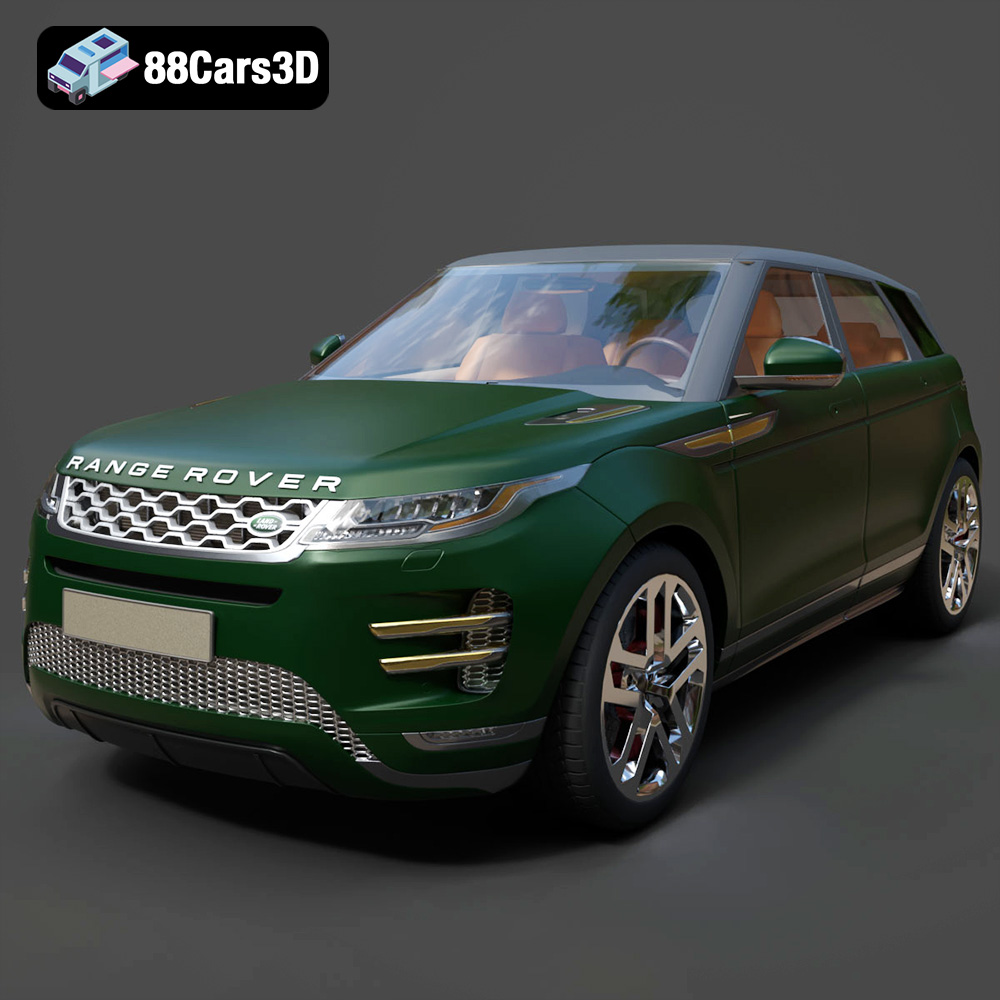
Texture: Yes | Material: Yes
Download the highly detailed, game-ready Range Rover Evoque R-Dynamic 2019 3D Model. Features flush deployable door handles, Matrix LED headlights, and R-Dynamic styling. Includes .blend, .fbx, .obj, .glb, .stl, .ply, .unreal, and .max formats for game development, AR/VR, and rendering.
Price: $19.99

Texture: Yes | Material: Yes
Download the highly detailed, game-ready Ford Mustang Mach 40 3D Model. Features aggressive custom widebody styling, a mid-mounted V8 engine, and classic retro-futuristic design. Includes .blend, .fbx, .obj, .glb, .stl, .ply, .unreal, and .max formats for game development, AR/VR, and rendering.
Price: $19.99
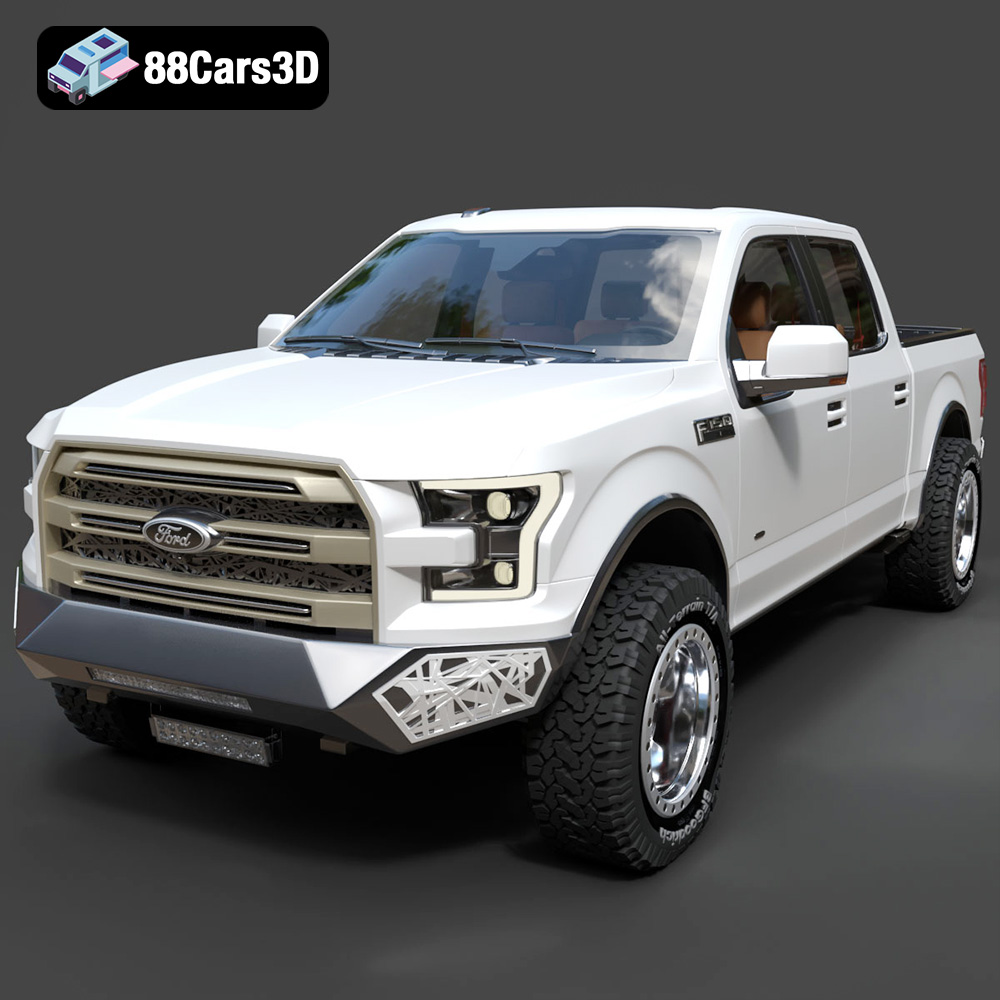
Texture: Yes | Material: Yes
Download the highly detailed, game-ready Ford F150 Raptor With Tuning From ARE 3D Model. Features custom ARE tuning accessories, aggressive off-road suspension, and rugged beadlock wheels. Includes .blend, .fbx, .obj, .glb, .stl, .ply, .unreal, and .max formats for game development, AR/VR, and rendering.
Price: $19.99

Texture: Yes | Material: Yes
Download the highly detailed, game-ready Mercedes-Benz AMG GLE 63 2021 3D Model. Features the iconic Panamericana grille, aggressive aerodynamic body styling, and a meticulously detailed luxurious interior. Includes .blend, .fbx, .obj, .glb, .stl, .ply, .unreal, and .max formats for game development, AR/VR, and rendering.
Price: $19.99
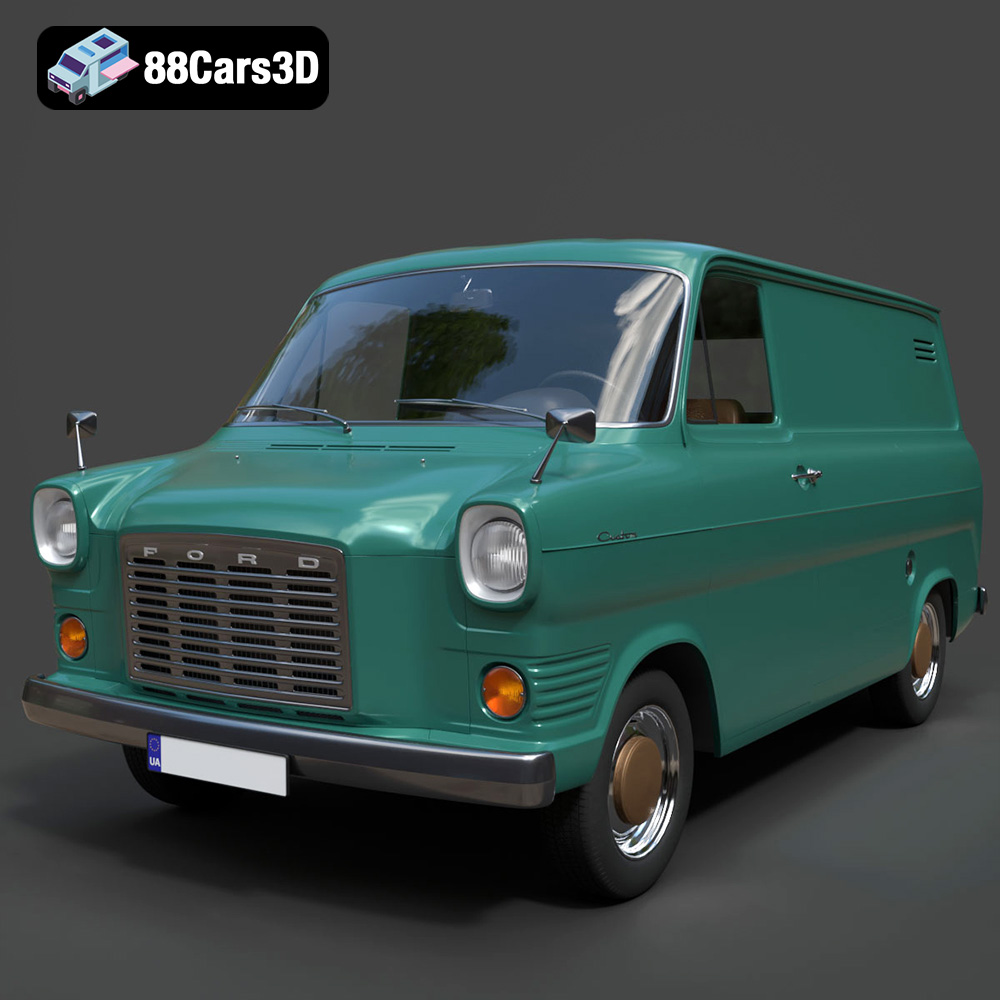
Texture: Yes | Material: Yes
Download the highly detailed, game-ready Ford Transit Mk1 Panel Van 1965 3D Model. Features iconic flat-front styling, vintage steel wheels, and a period-correct cargo bay. Includes .blend, .fbx, .obj, .glb, .stl, .ply, .unreal, and .max formats for game development, AR/VR, and rendering.
Price: $19.99

Texture: Yes | Material: Yes
Download the highly detailed, game-ready BMW X3 2024 3D Model. Features the iconic kidney grille, dynamic SUV proportions, and precise lighting elements. Includes .blend, .fbx, .obj, .glb, .stl, .ply, .unreal, and .max formats for game development, AR/VR, and rendering.
Price: $19.99

Texture: Yes | Material: Yes
Download the highly detailed, game-ready Tesla Model S Plaid 2021 3D Model. Features sleek aerodynamic styling, signature LED lighting, and the revolutionary Yoke steering interior. Includes .blend, .fbx, .obj, .glb, .stl, .ply, .unreal, and .max formats for game development, AR/VR, and rendering.
Price: $19.99

Texture: Yes | Material: Yes
Download the highly detailed, game-ready Rolls-Royce Ghost EWB 2018 3D Model. Features the iconic Pantheon grille, elongated luxury chassis, and elegant exterior lines. Includes .blend, .fbx, .obj, .glb, .stl, .ply, .unreal, and .max formats for game development, AR/VR, and rendering.
Price: $19.99
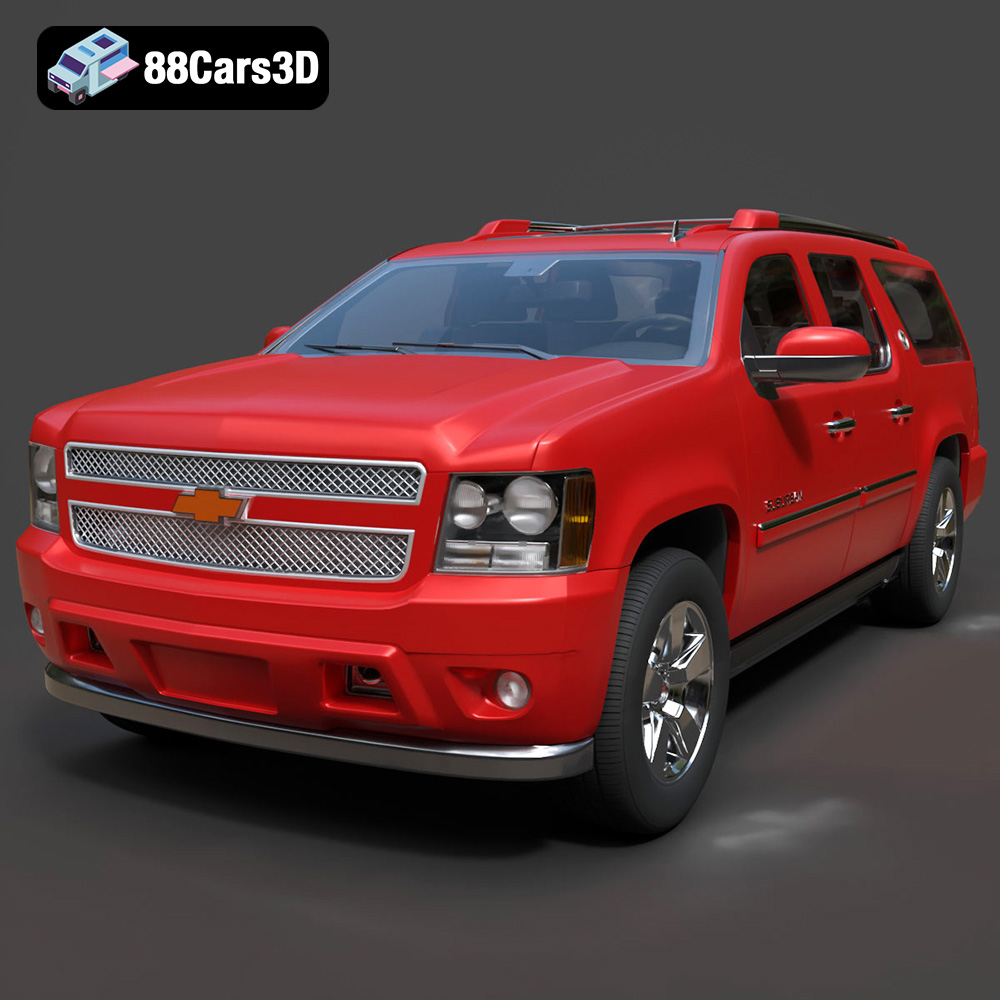
Texture: Yes | Material: Yes
Download the highly detailed, game-ready Chevrolet Suburban 75th Diamond 3D Model. Features the iconic Diamond Edition styling, detailed interior, and accurate full-size SUV proportions. Includes .blend, .fbx, .obj, .glb, .stl, .ply, .unreal, and .max formats for game development, AR/VR, and rendering.
Price: $19.99

Texture: Yes | Material: Yes
Download the highly detailed, game-ready Lamborghini Terzo Millenio 2017 3D Model. Features glowing Y-shaped LED signatures, extreme aerodynamic channels, and an aggressive hypercar stance. Includes .blend, .fbx, .obj, .glb, .stl, .ply, .unreal, and .max formats for game development, AR/VR, and rendering.
Price: $19.99

