Get 20% OFF All Premium 3D & STL Models!

“`html
3D printing offers incredible possibilities, from creating functional prototypes to bringing your favorite car models to life. However, achieving optimal print speed and material efficiency requires careful preparation of your STL files. Scaling for size, hollowing out the interior, and optimizing the mesh are crucial steps in this process. This comprehensive guide will walk you through the techniques and best practices to prepare your STL models, focusing on printable car models often found on platforms like 88cars3d.com, ensuring faster print times, reduced material consumption, and ultimately, more successful 3D printing projects.
Whether you’re using FDM or resin printing, mastering these techniques will significantly improve your workflow and the quality of your final prints. We’ll cover everything from understanding STL file structure to advanced slicing parameters, providing actionable tips and tricks that will benefit both beginners and experienced 3D printing enthusiasts.
The STL (Stereolithography) file format is the industry standard for 3D printing. It represents the surface geometry of a 3D object using a collection of triangles. Understanding its structure and limitations is vital for successful printing. A well-structured STL file has a closed, manifold mesh, meaning it has no holes, self-intersections, or non-manifold edges. These imperfections can lead to slicing errors and failed prints. Platforms like 88cars3d.com often provide pre-verified STL files, but it’s always wise to double-check.
The number of triangles in an STL file directly affects its size and the level of detail it can represent. A higher triangle count results in a smoother surface but also a larger file size, which can slow down slicing and printing. For car models, especially those with complex curves, finding the right balance between detail and file size is crucial. Aim for a triangle count that captures the essential features without being excessively high. A range of 300,000 to 800,000 triangles is often sufficient for a detailed car model.
A manifold mesh is a fundamental requirement for 3D printing. Non-manifold edges (edges shared by more than two triangles) and holes in the mesh can cause serious problems during slicing. Use mesh repair software like Meshmixer, Netfabb Basic (Autodesk), or the built-in repair tools in your slicer (Cura, PrusaSlicer) to identify and fix these errors. These tools can automatically close gaps, remove overlapping triangles, and ensure the mesh is watertight. Inspecting the model visually for any obvious defects before slicing is also a good practice.
Scaling your STL model is often the first step in preparing it for printing. The desired size of the final print will dictate the scaling factor. Whether you want a miniature replica or a larger display model, scaling is straightforward using your slicer software. However, it’s not just about making the model bigger or smaller; it’s also about considering the limitations of your 3D printer and the desired level of detail. For printable car models, scaling can affect the visibility of fine details, the strength of small parts, and the overall stability of the print.
Most slicers allow you to scale models by a percentage or by specifying the desired dimensions in millimeters, inches, or other units. Ensure you understand the units your model was originally designed in to avoid unexpected size changes. For example, if a model is designed in inches and your slicer is set to millimeters, you’ll need to convert accordingly. A scale factor of 1.0 represents the original size, 0.5 represents half the size, and 2.0 represents twice the size. When downloading models from marketplaces such as 88cars3d.com, the product description usually specifies the model’s dimensions.
Scaling a model down can make small features too thin to print reliably. Conversely, scaling it up may require more support structures and increase the risk of warping. Before scaling, carefully consider the smallest details of your model. If you’re scaling down significantly, you might need to simplify the design or adjust the wall thickness to ensure those details are printable. For FDM printing, a minimum wall thickness of 0.8mm is generally recommended for structural integrity. For resin printing, you can often get away with thinner walls (0.4mm – 0.6mm) due to the higher resolution.
Hollowing out STL models is a crucial technique for reducing material consumption, especially when printing large objects or resin models. A solid model can use a significant amount of material and increase print time considerably. Hollowing involves removing the interior of the model, leaving only a thin shell. This not only saves material but also reduces the weight of the print, making it easier to handle and less prone to warping. The process typically involves using software like Meshmixer or the hollowing tools available in some slicers.
Meshmixer provides robust hollowing tools. To hollow a model, import the STL file into Meshmixer, select “Edit,” then “Hollow.” You can specify the wall thickness (typically 1.5mm to 2.5mm for FDM and 0.8mm to 1.5mm for resin) and the resolution of the hollowed interior. It’s essential to add drainage holes to allow resin to escape during printing and cleaning (for resin printing). Place these holes strategically in hidden areas, such as the underside of the model. A diameter of 3-5mm is usually sufficient. Consider the orientation of the model during printing when positioning these holes.
While hollowing benefits both FDM and resin printing, there are key differences. Resin printing requires drainage holes to prevent resin from being trapped inside the hollowed model. Trapped resin can cause cracking and warping during curing. FDM printing doesn’t require drainage holes, but it’s still beneficial to consider internal support structures within the hollowed area to prevent the shell from collapsing, especially for large prints. Use slicer settings like infill to add internal support if needed, a low infill percentage (5-10%) is often sufficient. Also, ensure the external shell has sufficient thickness (at least 3-4 perimeters) for rigidity.
Optimizing your print settings is a critical step in achieving faster print times without sacrificing quality. This involves carefully adjusting parameters such as layer height, infill density, print speed, and support settings. The ideal settings will depend on your printer, the material you’re using, and the specific requirements of the model. For printable car models, balancing speed and detail is essential to capture the intricate design while keeping print times reasonable.
Layer height significantly impacts both print speed and resolution. A larger layer height (e.g., 0.2mm to 0.3mm) will print faster but result in a less smooth surface. A smaller layer height (e.g., 0.05mm to 0.1mm) will produce a smoother surface but increase print time. Experiment with different layer heights to find the optimal balance for your model. For car models, consider using adaptive layer height, where the slicer automatically adjusts the layer height based on the curvature of the model. This allows you to print fine details with smaller layers and flat surfaces with larger layers.
Infill density determines the amount of material used inside the model. A higher infill density (e.g., 50-100%) will result in a stronger but heavier print. A lower infill density (e.g., 10-20%) will save material and reduce print time but may compromise strength. For car models that are primarily for display, a low infill density is often sufficient. Experiment with different infill patterns, such as gyroid, honeycomb, or grid, to find the best combination of strength and speed. Gyroid infill offers excellent strength in all directions with minimal material usage. Infill speeds are also often independent of the print speed, increasing this can drastically reduce print time.
Support structures are essential for printing models with overhangs or complex geometries. However, they also add to print time and material consumption. Optimizing support structures is crucial for efficient printing. This involves carefully considering the support type, density, and placement to minimize their impact on print time and surface finish. When dealing with intricate printable car models, smart support placement is key to preserving fine details.
There are various types of support structures, including tree supports, linear supports, and hybrid supports. Tree supports are generally more efficient in terms of material usage and are easier to remove. Linear supports provide stronger support but can be more difficult to remove and may leave marks on the surface. Experiment with different support types to find the best option for your model. Cura offers “tree support” which is good for models like cars.
Reducing support density can significantly decrease print time and material consumption. Experiment with different support densities and overhang angles to find the optimal balance. Avoid placing supports on critical surfaces that need to be smooth. Instead, try to orient the model so that overhangs are minimized or supported by less visible areas. For car models, this might involve tilting the model at an angle to reduce the number of supports needed on the body. Support blockers in slicers help avoid supports in specific areas. Setting “support interface” layers can help make support removal cleaner and easier but adds print time and material.
Post-processing is often necessary to achieve the desired finish for your 3D printed models. This can involve sanding to remove layer lines, painting to add color and detail, and assembly to join multiple parts together. For car models, careful post-processing is essential to create a realistic and visually appealing final product. Smooth surfaces and accurate colors can elevate the model’s overall appearance.
Sanding is a crucial step in removing layer lines and creating a smooth surface. Start with coarse sandpaper (e.g., 180 grit) to remove larger imperfections, then gradually move to finer grits (e.g., 400, 600, 800 grit) to achieve a smooth finish. Wet sanding can help reduce dust and improve the smoothness of the surface. For car models, pay particular attention to curved surfaces and edges. Apply primer after sanding to prepare the surface for painting.
Painting is an art form in itself. Use high-quality acrylic paints and apply multiple thin coats for the best results. Masking tape can be used to create clean lines and separate different colors. Consider using an airbrush for a smoother and more even finish. For car models, pay attention to details such as trim, lights, and badges. Applying decals and weathering techniques can add realism to the final product.
Scaling, hollowing, and optimizing STL models are essential skills for any 3D printing enthusiast, especially when printing detailed models such as printable car models. By understanding STL file structure, mastering scaling techniques, hollowing out models for material savings, optimizing print settings for speed and quality, and carefully planning support structures, you can significantly improve your printing workflow and achieve stunning results. Remember that each model and printer setup is unique, so experimentation and fine-tuning are key. Resources like 88cars3d.com provide a great starting point with high-quality models, but mastering these techniques will unlock the full potential of your 3D printer.
Your next steps should involve practicing these techniques with a simple model before tackling more complex projects. Download a free STL file, experiment with different scaling factors and hollowing techniques, and fine-tune your print settings to optimize for speed and quality. By applying these principles consistently, you’ll not only save time and material but also elevate the quality of your 3D printed creations. Happy printing!
“`

Texture: Yes | Material: Yes
Download the highly detailed, game-ready Ducati 1299 Panigale S 2017 3D Model. Features signature aerodynamic fairings, detailed Superquadro engine components, and aggressive Italian styling. Includes .blend, .fbx, .obj, .glb, .stl, .ply, .unreal, and .max formats for game development, AR/VR, and rendering.
Price: $19.99
Texture: Yes | Material: Yes
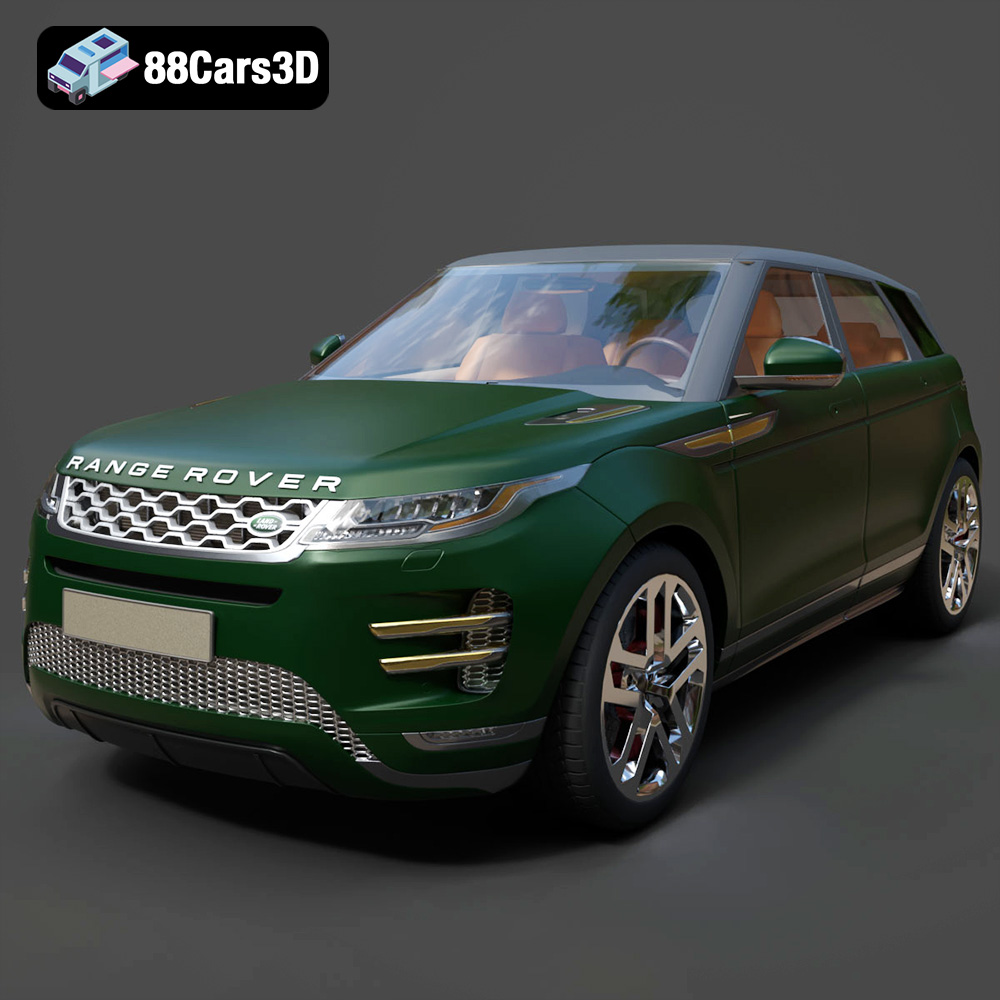
Download the highly detailed, game-ready Range Rover Evoque R-Dynamic 2019 3D Model. Features flush deployable door handles, Matrix LED headlights, and R-Dynamic styling. Includes .blend, .fbx, .obj, .glb, .stl, .ply, .unreal, and .max formats for game development, AR/VR, and rendering.
Price: $19.99

Texture: Yes | Material: Yes
Download the highly detailed, game-ready Ford Mustang Mach 40 3D Model. Features aggressive custom widebody styling, a mid-mounted V8 engine, and classic retro-futuristic design. Includes .blend, .fbx, .obj, .glb, .stl, .ply, .unreal, and .max formats for game development, AR/VR, and rendering.
Price: $19.99
Texture: Yes | Material: Yes
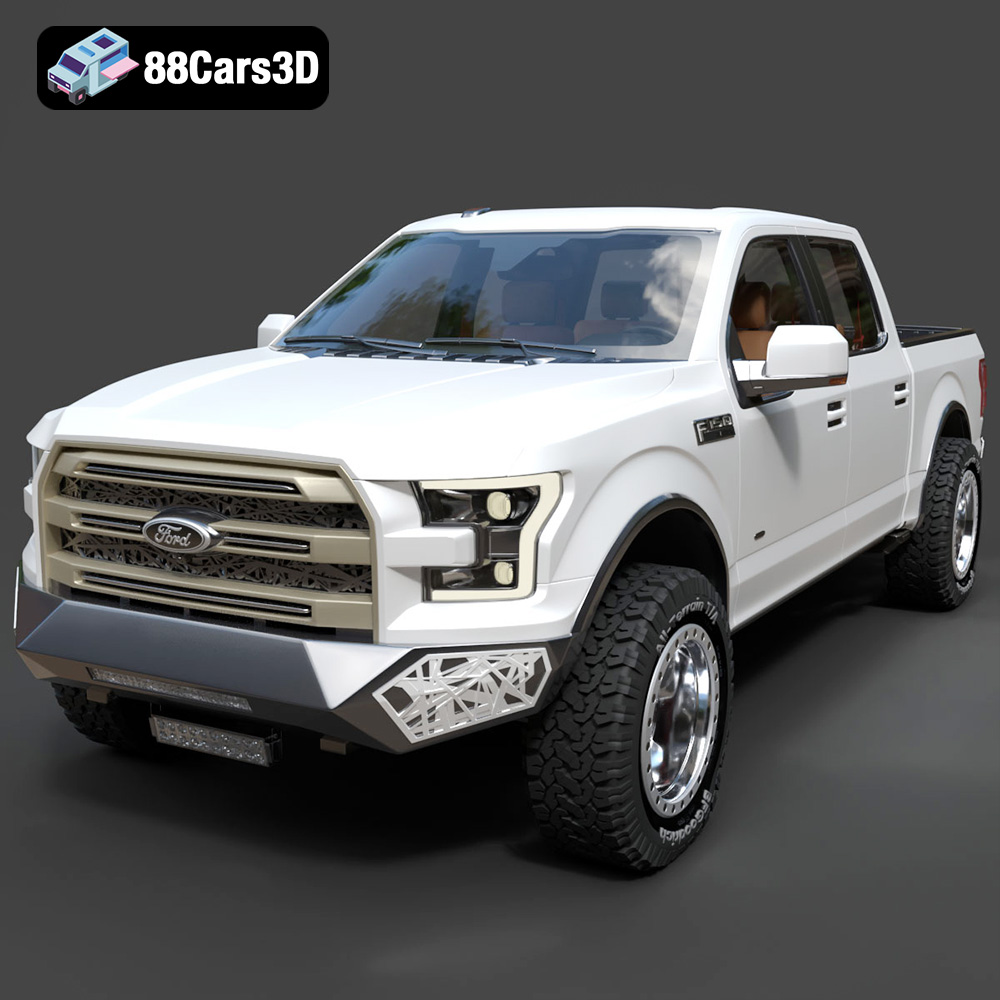
Download the highly detailed, game-ready Ford F150 Raptor With Tuning From ARE 3D Model. Features custom ARE tuning accessories, aggressive off-road suspension, and rugged beadlock wheels. Includes .blend, .fbx, .obj, .glb, .stl, .ply, .unreal, and .max formats for game development, AR/VR, and rendering.
Price: $19.99

Texture: Yes | Material: Yes
Download the highly detailed, game-ready Mercedes-Benz AMG GLE 63 2021 3D Model. Features the iconic Panamericana grille, aggressive aerodynamic body styling, and a meticulously detailed luxurious interior. Includes .blend, .fbx, .obj, .glb, .stl, .ply, .unreal, and .max formats for game development, AR/VR, and rendering.
Price: $19.99
Texture: Yes | Material: Yes
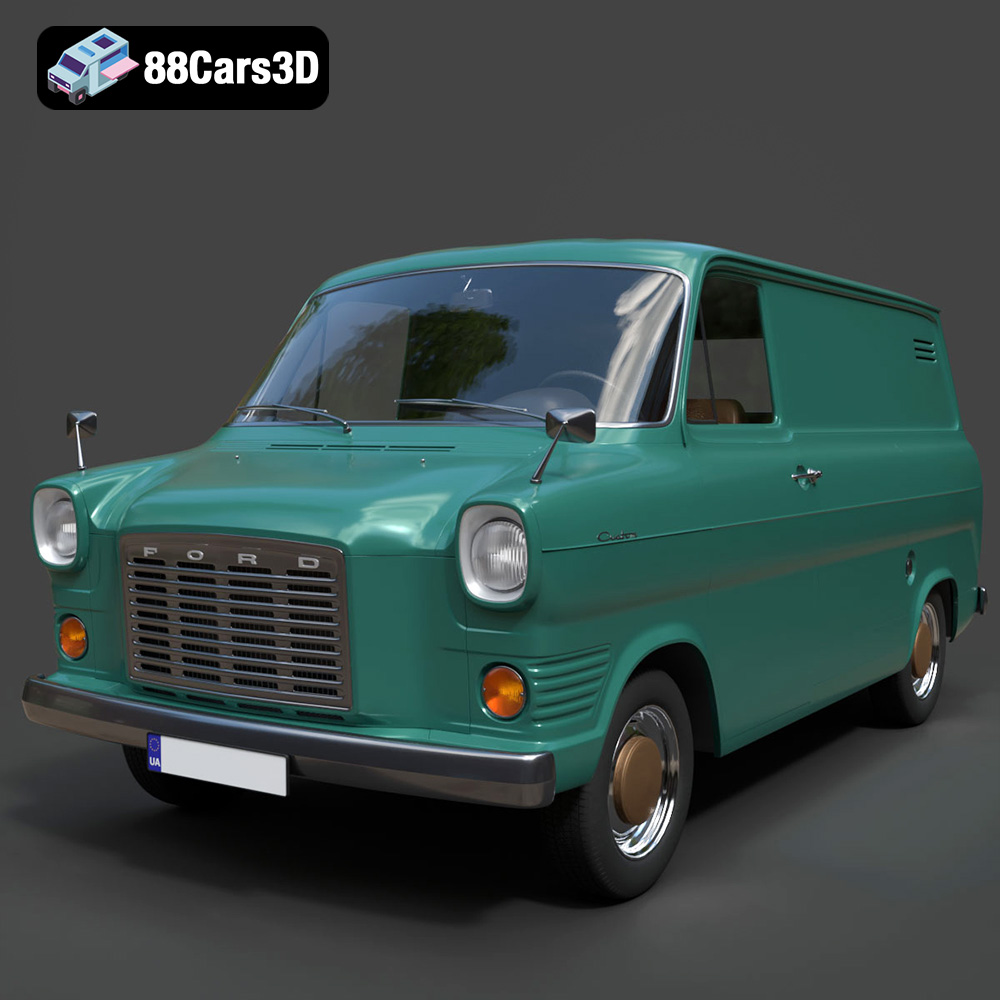
Download the highly detailed, game-ready Ford Transit Mk1 Panel Van 1965 3D Model. Features iconic flat-front styling, vintage steel wheels, and a period-correct cargo bay. Includes .blend, .fbx, .obj, .glb, .stl, .ply, .unreal, and .max formats for game development, AR/VR, and rendering.
Price: $19.99

Texture: Yes | Material: Yes
Download the highly detailed, game-ready BMW X3 2024 3D Model. Features the iconic kidney grille, dynamic SUV proportions, and precise lighting elements. Includes .blend, .fbx, .obj, .glb, .stl, .ply, .unreal, and .max formats for game development, AR/VR, and rendering.
Price: $19.99

Texture: Yes | Material: Yes
Download the highly detailed, game-ready Tesla Model S Plaid 2021 3D Model. Features sleek aerodynamic styling, signature LED lighting, and the revolutionary Yoke steering interior. Includes .blend, .fbx, .obj, .glb, .stl, .ply, .unreal, and .max formats for game development, AR/VR, and rendering.
Price: $19.99

Texture: Yes | Material: Yes
Download the highly detailed, game-ready Rolls-Royce Ghost EWB 2018 3D Model. Features the iconic Pantheon grille, elongated luxury chassis, and elegant exterior lines. Includes .blend, .fbx, .obj, .glb, .stl, .ply, .unreal, and .max formats for game development, AR/VR, and rendering.
Price: $19.99
Texture: Yes | Material: Yes
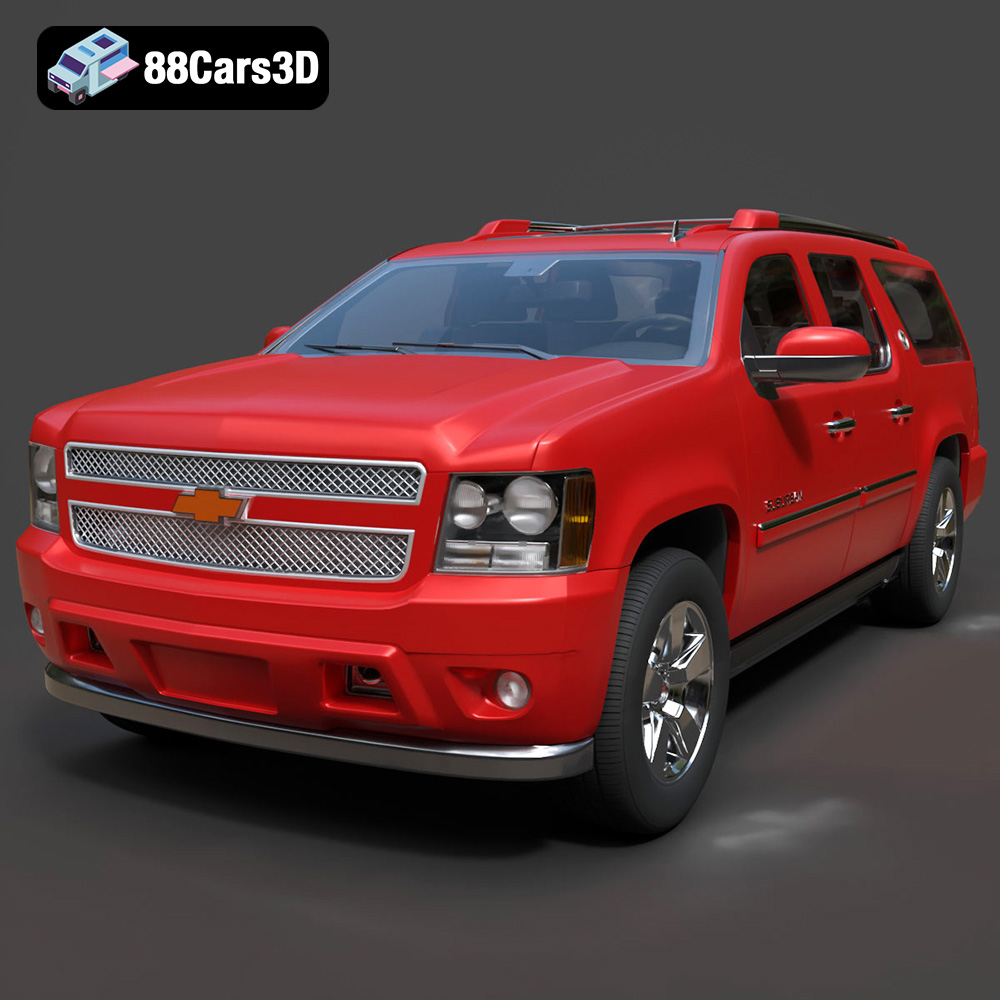
Download the highly detailed, game-ready Chevrolet Suburban 75th Diamond 3D Model. Features the iconic Diamond Edition styling, detailed interior, and accurate full-size SUV proportions. Includes .blend, .fbx, .obj, .glb, .stl, .ply, .unreal, and .max formats for game development, AR/VR, and rendering.
Price: $19.99

