Get 20% OFF All Premium 3D & STL Models!

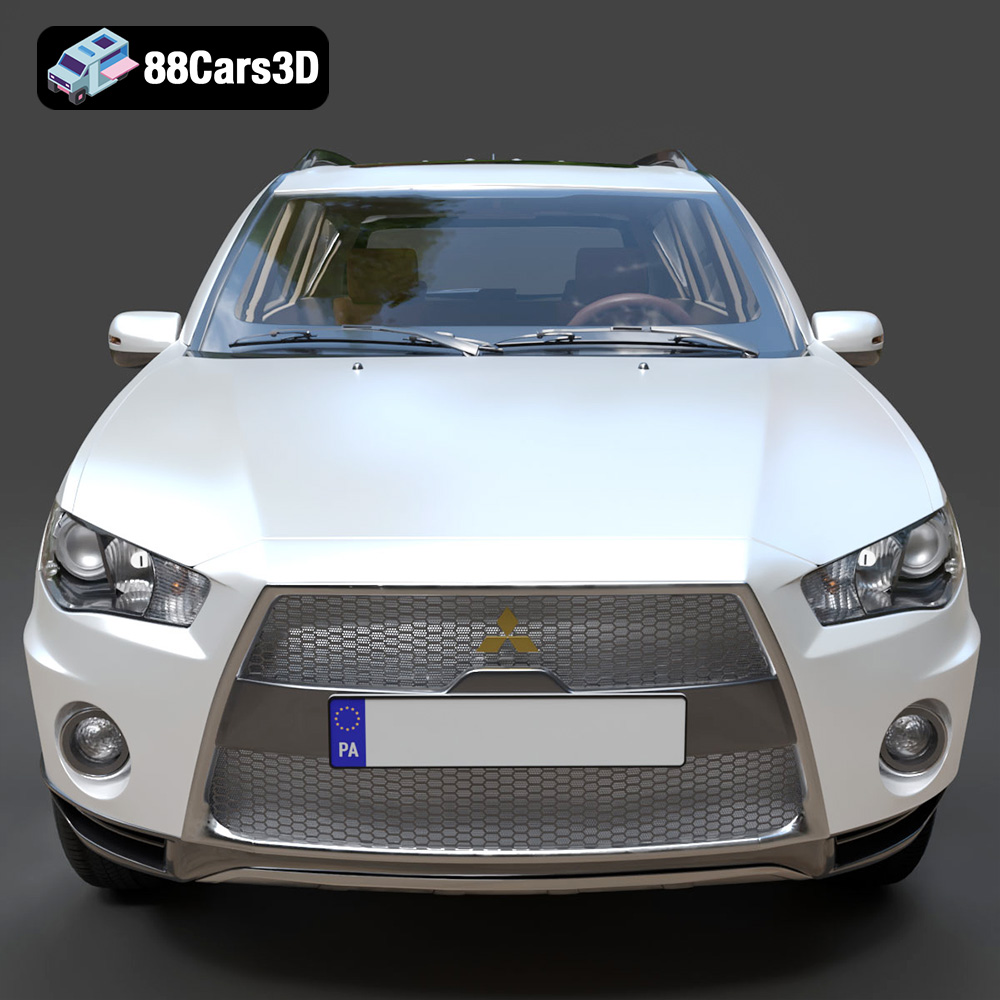
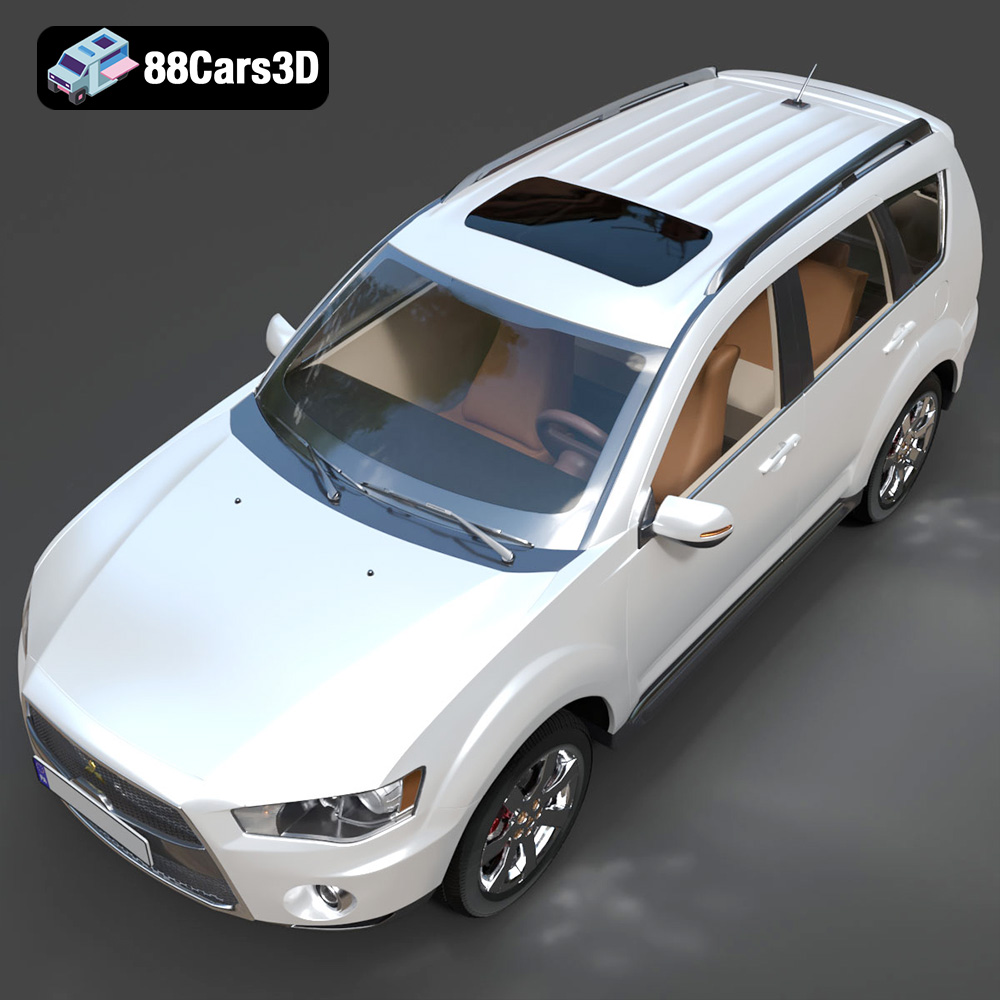
The Mitsubishi Outlander GT 2010, a crossover SUV known for its sporty design and advanced features, can be brought to life through the magic of 3D printing. This blog post serves as a detailed guide on how to successfully 3D print the Mitsubishi Outlander GT 2010 model available on 88cars3d.com, covering everything from printer settings and material selection to pre-print preparation and post-processing techniques. Whether you’re a seasoned 3D printing enthusiast or a beginner, this guide will provide you with the knowledge and tips to create a stunning replica of this iconic vehicle.
The choice of 3D printing technology significantly impacts the final result. While both Fused Deposition Modeling (FDM) and Stereolithography (SLA) are viable options, each has its strengths and weaknesses.
* Pros: FDM printers are generally more affordable and offer a wider range of materials, including PLA, PETG, and ABS. These materials provide decent strength and durability, making them suitable for larger-scale models.
* Cons: FDM printing often results in visible layer lines and may struggle to capture the intricate details of the Outlander GT, such as the complex front grille or fine lines of the taillights. Post-processing, such as sanding and filling, is usually required to achieve a smooth finish.
* Pros: SLA, or resin printing, excels at producing highly detailed and smooth parts. This makes it ideal for replicating the Outlander GT’s complex features, such as the detailed wheels, intricate interior, and precise body lines.
* Cons: Resin printers tend to have smaller build volumes compared to FDM printers, potentially requiring the model to be printed in multiple parts. Resins can also be more brittle than FDM filaments, and post-processing involves washing and curing, which can be more involved. Resin materials also can come at a higher cost.
Selecting the right file format is crucial for a smooth 3D printing process. The Mitsubishi Outlander GT 2010 model from 88cars3d.com includes multiple file formats, each suited for different purposes. Understanding their nuances will help you choose the best option for your needs.
The STL (Stereolithography) file format is the workhorse of 3D printing. It represents the 3D model’s surface geometry as a mesh of triangles. The denser the mesh (more triangles), the higher the resolution and detail captured in the file. However, a very dense mesh can increase file size and processing time. For the Outlander GT model, the STL file is the most direct path to 3D printing. Ensure that the STL file is properly manifold (watertight) to avoid errors during slicing. Slicing software readily accepts STL files, allowing you to configure print settings like layer height, infill, and supports. The quality of the 3D print heavily relies on the mesh quality of the STL file. Look for an STL file that balances detail with a manageable file size for optimal printing performance.
OBJ files are more versatile than STL files, as they can store color and texture information in addition to the geometry. While STL files only define the shape of an object, OBJ files can define how it looks. This is advantageous if you intend to paint or apply textures to the 3D printed Outlander GT model. However, not all slicing software fully supports OBJ files with textures. Also, note that while the file format supports textures, 3D printers are typically single-color devices. Therefore, if you intend to 3D print the OBJ file with color information, it would need to be done using a full-color 3D printer, which can be a more expensive and specialized process. For the vast majority of hobbyist 3D printers, you will want to work with the STL file.
The PLY (Polygon File Format) is another format that can store 3D data, including color and texture information. PLY files are known for their ability to represent highly detailed meshes, making them suitable for models with complex geometries like the Outlander GT. However, PLY files are not as widely supported by slicing software as STL files. Before using a PLY file, ensure your slicing software is compatible.
BLEND files are native to Blender, a popular open-source 3D modeling software. This format contains the complete Blender scene, including the model, textures, lighting, and camera settings. If you are familiar with Blender, you can use the BLEND file to customize the Outlander GT model before exporting it to a 3D printable format like STL. This allows you to modify the design, add details, or optimize it for printing.
FBX (Filmbox) is a widely used format for exchanging 3D data between different software applications. FBX files can store geometry, textures, materials, and animations. While not primarily a 3D printing format, some advanced slicing software can import FBX files, allowing you to retain material information for visualization purposes. However, the material information might not directly translate into 3D printing parameters and will usually be ignored by the printer itself.
GLB (GL Transmission Format Binary) is a binary file format that represents 3D models in a compact and efficient way. GLB files are often used for displaying 3D models in web browsers, augmented reality (AR) applications, and other real-time applications. While not directly used for 3D printing, GLB files can be helpful for previewing the Outlander GT model in AR before printing to get a sense of its size and appearance in the real world.
.max files are the native format for Autodesk 3ds Max, a professional 3D modeling, animation, and rendering software. Similar to the Blender (.blend) file, the .max file contains the complete project data, allowing advanced users to make intricate modifications to the Outlander GT model. If you possess the expertise and access to 3ds Max, this format allows you to refine the model specifically for 3D printing before exporting it as an STL file.
Once you’ve chosen your printing technology and file format (ideally STL), the next step is preparing the model for printing using slicing software. This software converts the 3D model into a series of instructions that the printer can understand.
Popular slicing software options include:
* Cura: A free and user-friendly slicer with a wide range of customizable settings.
* Simplify3D: A paid slicer offering advanced features and precise control over print parameters.
* PrusaSlicer: Another free and open-source option known for its integration with Prusa printers but compatible with many other brands.
* ChiTuBox: A popular choice for SLA/resin printing, offering tools for support generation and hollowing.
The orientation of the model on the print bed significantly impacts print quality, strength, and the need for supports. For the Outlander GT, consider these factors:
* FDM Printing: Orient the chassis at an angle (e.g., 45 degrees) to minimize the need for supports on the curved surfaces and improve layer adhesion. Print the wheels separately, oriented vertically to minimize supports and ensure a round profile.
* Resin Printing: Angle the chassis to minimize suction forces during printing and reduce the risk of warping. Hollow out the model to save resin and reduce print time, ensuring to add drain holes to prevent resin from being trapped inside. Orient the wheels to minimize the number of supports needed on the visible surfaces.
Supports are often necessary to hold up overhanging features during printing.
* FDM Printing: Use tree-like supports for easier removal and to minimize scarring on the model’s surface. Adjust support density and placement to adequately support critical areas like the exhaust system, mirrors, and complex body curves.
* Resin Printing: Use fine-tipped supports to minimize the impact on the surface finish. Position supports strategically to avoid placing them on visible areas. Ensure adequate support density to prevent the model from detaching from the build plate during printing.
Choosing the right material and configuring the appropriate printer settings are critical for a successful 3D print.
* PLA (Polylactic Acid): A biodegradable and easy-to-print filament suitable for beginners. Offers good detail and strength for display models.
* PETG (Polyethylene Terephthalate Glycol): A more durable and heat-resistant alternative to PLA. Provides better impact resistance and is suitable for functional parts.
* ABS (Acrylonitrile Butadiene Styrene): A strong and heat-resistant plastic commonly used in automotive applications. Requires a heated bed and enclosure to prevent warping. Best for experienced users.
* Resin (Various Types): Offers the highest level of detail and smooth surfaces. Choose a resin that suits your needs, such as standard resin, tough resin, or flexible resin.
* Layer Height: 0.1mm – 0.2mm for FDM, 0.025mm – 0.05mm for Resin (lower layer heights provide finer detail).
* Infill Density: 15-25% for FDM (higher infill increases strength but also print time and material usage).
* Print Speed: 40-60mm/s for FDM (slower speeds improve print quality but increase print time).
* Support Settings: Adjust support density, overhang angle, and support interface settings based on the model and material.
* Bed Temperature: 60-70°C for PLA, 70-80°C for PETG, 100-110°C for ABS (ensure proper bed adhesion).
* Resin Exposure Time: Follow the resin manufacturer’s recommendations (optimize for your specific printer and resin).
The print time and material cost will vary depending on the size of the model, printer settings, and material used.
* Estimated Print Time: 10-30 hours for FDM, 5-15 hours for Resin (for a 1:24 scale model).
* Estimated Material Cost: $10-30 for FDM, $20-50 for Resin (depending on material type and quantity).
After printing, post-processing is essential to refine the model and achieve a professional finish.
Carefully remove the support structures using pliers, cutters, or a hobby knife. Sand down any remaining support marks or imperfections using progressively finer grits of sandpaper.
Sand the entire model to smooth out layer lines and create a uniform surface. For FDM prints, use filler primer to fill in any gaps or imperfections. Sand the primer smooth before painting.
Apply a primer coat to ensure proper paint adhesion. Use automotive-grade paints to replicate the original colors of the Mitsubishi Outlander GT 2010. Consider using masking techniques to achieve accurate color separation. Apply a clear coat for added protection and a glossy finish.
If the model was printed in multiple parts, carefully assemble the components using glue or other suitable adhesives. Ensure proper alignment and secure connections.
Even with careful preparation, 3D printing can sometimes present challenges. Here are some common issues and their solutions:
* Warping: Ensure proper bed adhesion by using a heated bed, applying adhesive (e.g., glue stick, hairspray), and leveling the bed correctly.
* Layer Delamination: Increase the printing temperature and reduce the printing speed to improve layer adhesion.
* Stringing: Reduce the retraction distance and speed, and ensure the filament is dry.
* Support Failure: Increase support density and adjust support placement to adequately support overhanging features.
* Resin Print Failure: Increase exposure time, check the resin vat for debris, and ensure the build plate is properly leveled.
The Mitsubishi Outlander GT 2010 3D model available at 88cars3d.com offers an excellent starting point for your 3D printing journey. 88cars3d.com is a great online resource that offers a wide selection of high-quality 3D car models, optimized for 3D printing and various other applications. The detailed design and multiple file formats available make it easy to customize and print the model to your exact specifications.
Discover the dynamic and versatile 2010 Mitsubishi Outlander GT, a highly acclaimed crossover SUV known for its aggressive Lancer Evolution-inspired ‘Jet Fighter’ front grille and advanced S-AWC all-wheel-drive system. Our meticulously crafted 3D model perfectly captures the vehicle’s sporty aesthetic, featuring accurate exterior lines, a robust V6 engine profile, and its signature dual exhaust setup.
$39.99
.2010
.blend
.crossover
.fbx
.glb
.max
.mitsubishi
.obj
.outlander
.ply
.rendering
.stl
.unreal
car-3d-model
game asset
game-ready
low-poly
optimized
outlander-gt
SUV
VR/AR