Get 20% OFF All Premium 3D & STL Models!

“`html
3D printing has revolutionized prototyping, hobbyist projects, and even manufacturing. But let’s face it: print times can be agonizingly slow, especially when dealing with larger models like the stunning printable car models available on platforms like 88cars3d.com. The good news is that by strategically scaling, hollowing, and optimizing your STL files, you can dramatically reduce print times without sacrificing structural integrity or visual appeal. In this comprehensive guide, we’ll dive deep into the techniques and best practices for achieving lightning-fast 3D prints, covering everything from initial file preparation to advanced slicing strategies. We’ll explore software tools, printer settings, and material considerations to equip you with the knowledge to conquer even the most challenging print projects. Prepare to unlock the full potential of your 3D printer and bring your visions to life faster than ever before.
Before diving into the specifics, it’s crucial to understand why optimization is so important. A dense, fully solid model consumes a vast amount of filament and requires significantly more time to print than a hollowed version. Scaling can exacerbate this issue, making optimization even more critical for larger prints. Properly optimized models not only save time and materials but also reduce the risk of warping and other printing defects. This optimization process is particularly beneficial when working with detailed models, like the printable car models available from 88cars3d.com, ensuring you get the best possible results in a reasonable timeframe.
Scaling your STL model can significantly impact print time, material usage, and the level of detail you can achieve. While a larger model showcases finer details, it also increases the amount of filament required and the overall print duration. Conversely, a smaller model prints faster and uses less material, but it may sacrifice some intricate details. The key is to find the sweet spot that balances your desired level of detail with practical print considerations. If you are planning on printing a complex model such as a car, optimizing the scaling can reduce printing time and the possibility of failed prints. When choosing a scale, think about the intended purpose of the model – is it a display piece, a functional prototype, or a toy? This will help guide your decision-making process.
The ideal scale factor depends on several factors, including the model’s complexity, the printer’s resolution, and the intended use of the printed object. For highly detailed models, scaling up might be necessary to capture all the intricate features. However, remember that larger models require more support structures and are more prone to warping. A good starting point is to experiment with different scale factors and print small test sections to evaluate the level of detail and the overall print quality. Many slicing programs like Cura or PrusaSlicer provide real-time estimations of print time and material usage as you adjust the scale, allowing you to make informed decisions. Furthermore, consider the build volume of your printer. Ensure that the scaled model fits comfortably within the printer’s dimensions to avoid any issues during printing.
Most slicing software, such as Cura, PrusaSlicer, and Simplify3D, offer straightforward scaling tools. Simply import your STL file, locate the scaling settings (usually under the “Scale” or “Transform” menu), and enter the desired scaling factor. You can scale uniformly along all axes or scale independently on the X, Y, and Z axes to adjust proportions. Ensure the “Uniform Scaling” option is enabled if you want to maintain the original aspect ratio. After scaling, visually inspect the model in the slicer to check for any potential issues, such as intersecting parts or areas that may require additional support. Remember that some features might become too thin or fragile after scaling down, so carefully evaluate the model’s geometry before proceeding. For example, when printing a scaled-down car model, thin sections like mirrors or spoilers might need to be thickened in a 3D modeling program before scaling to ensure they print successfully. Experimentation is key to finding the perfect balance.
Hollowing your 3D model is arguably one of the most effective ways to drastically reduce print time and material usage. By creating an empty interior, you significantly decrease the volume of material required, which translates directly to faster print speeds and lower costs. Hollowing is especially advantageous for large models, where the material savings can be substantial. However, hollowing also introduces new challenges, such as ensuring adequate structural support and creating escape holes for resin drainage (in resin printing) or trapped filament (in FDM printing). When downloading models from marketplaces such as 88cars3d.com, consider if a hollow version is available or if you’ll need to perform the hollowing yourself.
Meshmixer is a free and powerful tool from Autodesk that is ideally suited for hollowing STL models. To hollow a model in Meshmixer, import your STL file and select “Edit” followed by “Hollow.” Adjust the “Offset Distance” to control the wall thickness of the hollowed model; a value of 2-3mm is generally recommended for FDM printing with PLA or PETG, while 1-2mm is suitable for resin printing. The “Solid Accuracy” setting affects the quality of the hollowed mesh; higher values result in a smoother surface but increase processing time. After hollowing, use the “Generate Support” feature to add internal supports to prevent the model from collapsing during printing. Finally, create escape holes by using the “Sphere” or “Cylinder” tool to cut openings in the model. Position these holes strategically in areas that will be hidden after printing, such as the bottom of the model or along internal surfaces. These holes are crucial for draining resin or filament during printing and preventing pressure buildup. Export the modified model as an STL file, ready for slicing.
3D Builder, another free tool available on Windows, offers a simpler hollowing function. Import your model and select the “Edit” tab, then choose “Hollow.” The software will automatically hollow the model with default settings, but you can adjust the wall thickness and hole diameter to suit your needs. While 3D Builder is less flexible than Meshmixer, it is a quick and easy option for basic hollowing tasks. Remember to carefully inspect the hollowed model to ensure the wall thickness is sufficient and that the holes are properly placed for drainage. For more complex models or those requiring custom internal supports, Meshmixer remains the preferred choice. After hollowing, you can add custom supports within 3D Builder or use your slicer to generate them.
Infill is the internal structure of a 3D printed object that provides strength and support. The infill pattern and density significantly impact print time, material usage, and the overall structural integrity of the printed part. A higher infill density results in a stronger, more rigid object but also increases print time and material consumption. Conversely, a lower infill density reduces print time and material usage but may compromise the object’s strength and stability. The key is to choose an infill pattern and density that strikes the right balance between these factors. For models where structural integrity is paramount, such as functional parts or load-bearing components, a higher infill density is recommended. For purely aesthetic models, a lower infill density can suffice. Infill plays an important role to ensure a high-quality product, especially when printing car models in STL format.
Slicing software offers a variety of infill patterns, each with its own unique characteristics. Common infill patterns include:
The best infill pattern for your project depends on the specific requirements of the printed object. For models requiring high strength and rigidity, such as functional prototypes, consider using cubic or gyroid infill. For models where flexibility is desired, concentric infill is a good choice. For purely aesthetic models, grid or triangles infill can often suffice.
Infill density is typically expressed as a percentage, ranging from 0% (completely hollow) to 100% (completely solid). For most applications, an infill density of 15-25% provides a good balance between strength and print time. For models requiring higher strength, increase the infill density to 30-50%. For purely aesthetic models, you can often reduce the infill density to 5-10% without significantly compromising the object’s appearance. Remember to adjust the number of top and bottom layers to ensure a smooth and solid surface, regardless of the infill density. Experiment with different infill densities and patterns to find the optimal settings for your specific project. When testing, focus on key areas of stress or potential failure to ensure the chosen infill provides adequate support. For example, when printing a car chassis, pay close attention to the areas where the wheels attach, as these are likely to experience the most stress. Optimize these areas by increasing local infill density for extra strength.
Slicing parameters play a crucial role in determining the print time, quality, and structural integrity of your 3D printed objects. Optimizing these parameters can significantly reduce print times without sacrificing the desired level of detail or strength. Key slicing parameters to consider include layer height, print speed, travel speed, and temperature settings. Understanding how these parameters interact and affect the printing process is essential for achieving optimal results. This is especially true when working with detailed models from platforms like 88cars3d.com, where fine details are crucial.
Layer height directly impacts print time and the level of detail captured in the Z-axis. A lower layer height results in smoother surfaces and finer details but also increases print time. Conversely, a higher layer height reduces print time but may result in more noticeable layer lines and a loss of detail. A good starting point is to use a layer height that is approximately half the nozzle diameter; for example, a 0.4mm nozzle typically works well with a 0.2mm layer height. Once you have a good starting layer height, you can begin to experiment with the print speed. Generally, a slower print speed will result in better quality, but will increase the print time. A common recommendation is to start with a speed around 50mm/s and adjust from there. Many modern printers can achieve speeds of up to 80-100mm/s without a major quality loss. You will want to adjust this depending on the filament you are using. These numbers are a good starting point for PLA or PETG.
Temperature settings are crucial for proper filament adhesion and layer bonding. Printing at the correct temperature ensures that the filament melts and flows smoothly, resulting in strong and durable prints. The ideal temperature depends on the type of filament being used; PLA typically prints at 190-220°C, while ABS requires higher temperatures of 220-250°C. Refer to the filament manufacturer’s recommendations for the optimal temperature range. Travel speed refers to the speed at which the print head moves between different printing locations. Increasing the travel speed can reduce print time but may also lead to stringing and other artifacts. Experiment with different travel speeds to find the optimal balance between speed and quality. A good starting point is to use a travel speed of 150-200mm/s. Retraction settings also play a crucial role in minimizing stringing; increasing the retraction distance and speed can help prevent filament from oozing out of the nozzle during travel moves.
Support structures are essential for printing models with overhangs or intricate geometries. However, they also add to print time and material consumption. Optimizing support structures involves minimizing the amount of support material required while still ensuring that the model is properly supported during printing. Efficient support generation is critical for complex models, especially the detailed printable car models often found on platforms like 88cars3d.com.
Slicing software offers different types of support structures, including:
The best support type depends on the geometry of the model. For simple overhangs, linear supports may suffice. For more complex overhangs and intricate details, tree supports are often a better choice. Hybrid supports can be useful for models with both simple and complex overhangs. Experiment with different support types to find the optimal configuration for your specific project.
Support density refers to the spacing between support structures. A higher support density provides more support but also increases print time and material consumption. A lower support density reduces print time and material usage but may compromise the model’s stability. The optimal support density depends on the size and complexity of the overhangs. For small overhangs, a lower support density may suffice. For larger overhangs, a higher support density is recommended. Support placement is also crucial for efficient printing. Position supports strategically to provide maximum support with minimal material usage. Avoid placing supports in areas that are difficult to access or remove. Consider using manual support placement tools to fine-tune the support configuration. Many slicing programs offer customizable support structures which allows you to reduce the amount of supports used. For instance, you can adjust the angle required before supports are generated. You can set this to start at 60 degrees, meaning anything with less than a 60 degree overhang will not receive support.
The choice of material significantly affects print speed, print quality, and the overall properties of the printed object. Different materials have different melting points, flow rates, and cooling characteristics, which directly impact the optimal printing parameters. Selecting the right material for your project is crucial for achieving the desired results in a timely manner. For example, when printing a car model, the choice of material will depend on whether you want a decorative piece or a functional prototype that can withstand stress.
Some common 3D printing materials and their impact on print speed:
Each material requires specific print settings to achieve optimal results. For PLA, use a printing temperature of 190-220°C, a bed temperature of 50-60°C, and a print speed of 50-70mm/s. For PETG, use a printing temperature of 220-250°C, a bed temperature of 70-80°C, and a print speed of 40-60mm/s. For ABS, use a printing temperature of 220-250°C, a bed temperature of 80-110°C, and a print speed of 30-50mm/s. Remember to adjust these settings based on the specific filament manufacturer’s recommendations. When printing with resin, follow the manufacturer’s instructions for exposure time, layer height, and other parameters. Experiment with different settings to find the optimal configuration for your specific material and printer. Always perform test prints before embarking on large projects to ensure that the material is printing correctly. Consider adhesion, printing speed, layer quality, and overall build integrity when choosing your material.
Optimizing STL models for faster 3D printing is a multi-faceted process that involves strategic scaling, hollowing, infill adjustments, slicing parameter fine-tuning, and efficient support structure design. By mastering these techniques, you can significantly reduce print times, conserve material, and unlock the full potential of your 3D printer. Remember to experiment with different settings and materials to find the optimal configuration for your specific project. Whether you’re printing intricate car models from 88cars3d.com or functional prototypes, the principles outlined in this guide will empower you to achieve blazing-fast print speeds without sacrificing quality or structural integrity. Now it’s time to put your knowledge to the test and embark on your next 3D printing adventure.
Start by downloading a model from 88cars3d.com and applying these tips to see the difference!
“`

Texture: Yes | Material: Yes
Download the highly detailed, game-ready Ducati 1299 Panigale S 2017 3D Model. Features signature aerodynamic fairings, detailed Superquadro engine components, and aggressive Italian styling. Includes .blend, .fbx, .obj, .glb, .stl, .ply, .unreal, and .max formats for game development, AR/VR, and rendering.
Price: $19.99
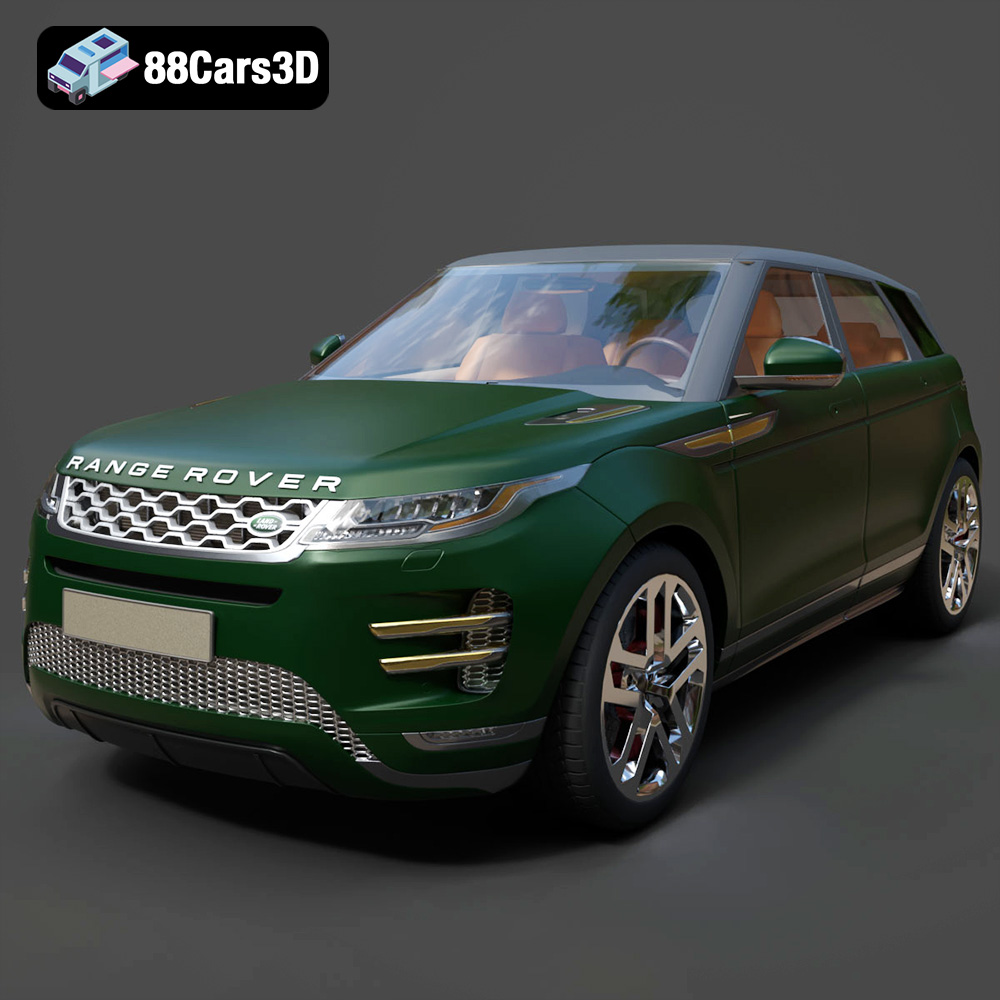
Texture: Yes | Material: Yes
Download the highly detailed, game-ready Range Rover Evoque R-Dynamic 2019 3D Model. Features flush deployable door handles, Matrix LED headlights, and R-Dynamic styling. Includes .blend, .fbx, .obj, .glb, .stl, .ply, .unreal, and .max formats for game development, AR/VR, and rendering.
Price: $19.99

Texture: Yes | Material: Yes
Download the highly detailed, game-ready Ford Mustang Mach 40 3D Model. Features aggressive custom widebody styling, a mid-mounted V8 engine, and classic retro-futuristic design. Includes .blend, .fbx, .obj, .glb, .stl, .ply, .unreal, and .max formats for game development, AR/VR, and rendering.
Price: $19.99
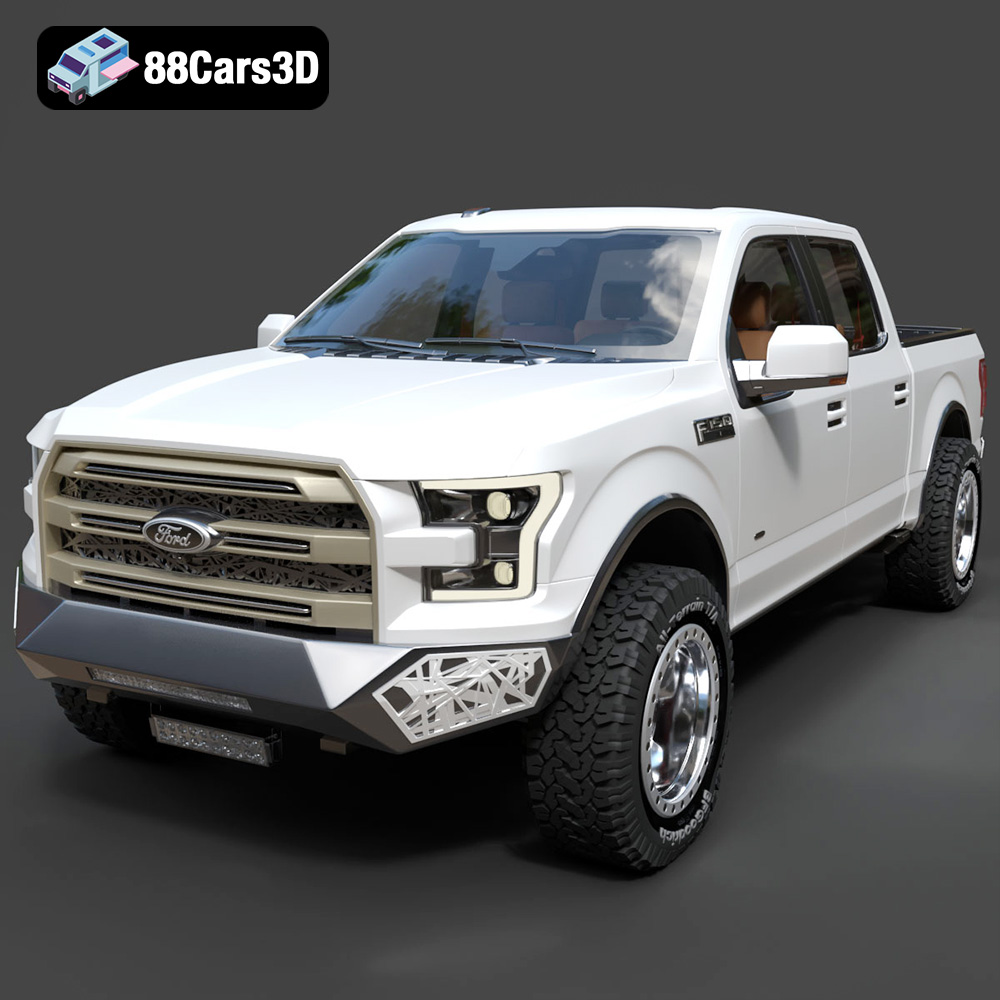
Texture: Yes | Material: Yes
Download the highly detailed, game-ready Ford F150 Raptor With Tuning From ARE 3D Model. Features custom ARE tuning accessories, aggressive off-road suspension, and rugged beadlock wheels. Includes .blend, .fbx, .obj, .glb, .stl, .ply, .unreal, and .max formats for game development, AR/VR, and rendering.
Price: $19.99

Texture: Yes | Material: Yes
Download the highly detailed, game-ready Mercedes-Benz AMG GLE 63 2021 3D Model. Features the iconic Panamericana grille, aggressive aerodynamic body styling, and a meticulously detailed luxurious interior. Includes .blend, .fbx, .obj, .glb, .stl, .ply, .unreal, and .max formats for game development, AR/VR, and rendering.
Price: $19.99
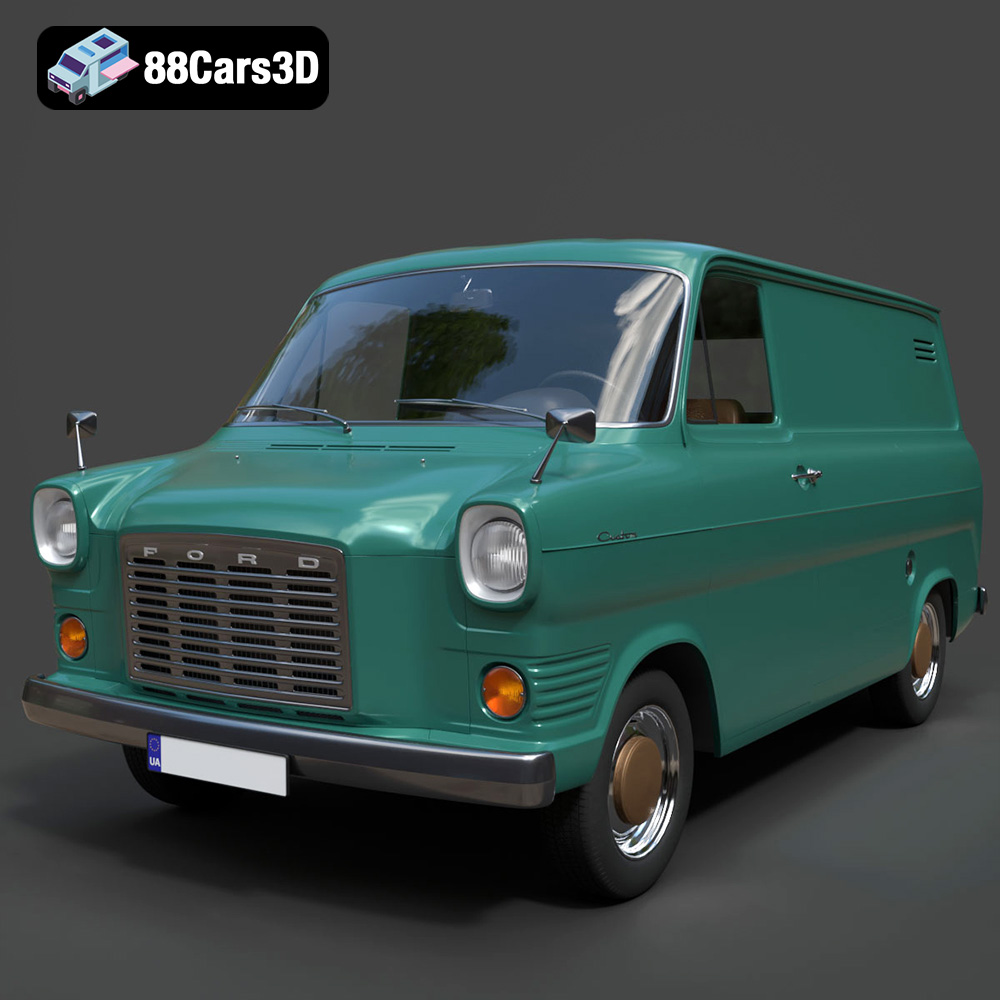
Texture: Yes | Material: Yes
Download the highly detailed, game-ready Ford Transit Mk1 Panel Van 1965 3D Model. Features iconic flat-front styling, vintage steel wheels, and a period-correct cargo bay. Includes .blend, .fbx, .obj, .glb, .stl, .ply, .unreal, and .max formats for game development, AR/VR, and rendering.
Price: $19.99

Texture: Yes | Material: Yes
Download the highly detailed, game-ready BMW X3 2024 3D Model. Features the iconic kidney grille, dynamic SUV proportions, and precise lighting elements. Includes .blend, .fbx, .obj, .glb, .stl, .ply, .unreal, and .max formats for game development, AR/VR, and rendering.
Price: $19.99

Texture: Yes | Material: Yes
Download the highly detailed, game-ready Tesla Model S Plaid 2021 3D Model. Features sleek aerodynamic styling, signature LED lighting, and the revolutionary Yoke steering interior. Includes .blend, .fbx, .obj, .glb, .stl, .ply, .unreal, and .max formats for game development, AR/VR, and rendering.
Price: $19.99

Texture: Yes | Material: Yes
Download the highly detailed, game-ready Rolls-Royce Ghost EWB 2018 3D Model. Features the iconic Pantheon grille, elongated luxury chassis, and elegant exterior lines. Includes .blend, .fbx, .obj, .glb, .stl, .ply, .unreal, and .max formats for game development, AR/VR, and rendering.
Price: $19.99
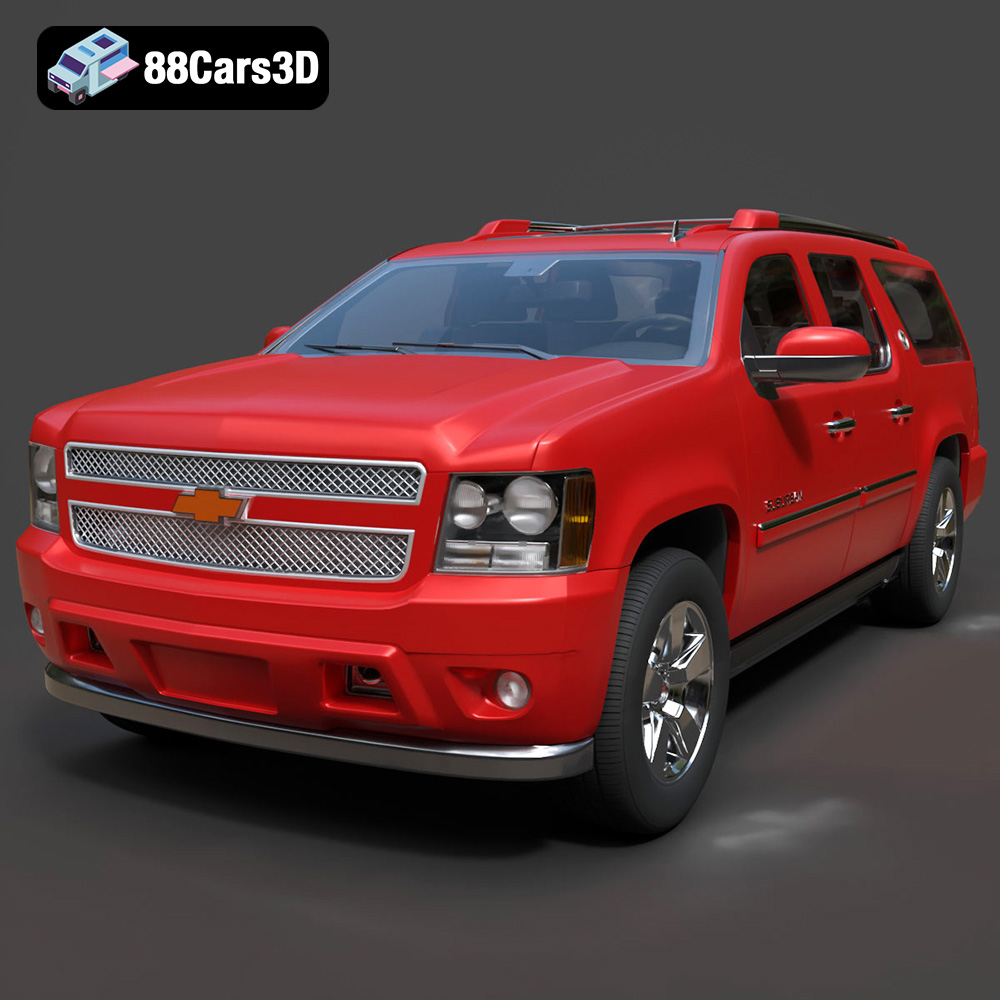
Texture: Yes | Material: Yes
Download the highly detailed, game-ready Chevrolet Suburban 75th Diamond 3D Model. Features the iconic Diamond Edition styling, detailed interior, and accurate full-size SUV proportions. Includes .blend, .fbx, .obj, .glb, .stl, .ply, .unreal, and .max formats for game development, AR/VR, and rendering.
Price: $19.99

