Get 20% OFF All Premium 3D & STL Models!

“`html
The world of 3D printing relies heavily on the STL (Stereolithography) file format. While many 3D models are created using polygon-based modeling techniques in software like Blender, Maya, or 3ds Max, these models need to be converted to STL before they can be understood by a 3D printer’s slicing software. This conversion process, while seemingly simple, involves crucial considerations that impact the final print quality, structural integrity, and overall success. This guide will delve into the intricacies of converting polygon models to STL, covering everything from file preparation and mesh optimization to choosing the right export settings and troubleshooting common issues. Whether you’re a seasoned 3D printing enthusiast or just starting, understanding this process is essential for bringing your digital creations to life. We’ll explore the nuances of polygon modeling, the structure of STL files, and provide step-by-step instructions, ensuring your journey from digital design to physical object is as smooth as possible.
Before diving into the conversion process, it’s crucial to understand why STL is so prevalent in 3D printing. STL files represent the surface geometry of a 3D object using a collection of triangles. Unlike polygon models, which store information about curves, surfaces, and control points, STL focuses solely on the outer shell. This simplification makes it easier for slicing software to interpret the model and generate instructions for the 3D printer. The slicing software then divides the STL model into layers and creates a G-code file containing the precise movements for the printer’s extruder or laser.
Polygon models are created using vertices, edges, and faces to define the shape of an object. The density of the polygon mesh (the number of polygons used to represent the model) significantly impacts the smoothness and detail of the final print. A low-poly model will appear blocky and faceted, while a high-poly model will capture finer details but may result in larger file sizes and increased processing time. Finding the right balance between detail and file size is a crucial aspect of preparing your model for conversion.
The conversion process itself is relatively straightforward, but the devil is in the details. Here’s a step-by-step guide to converting your polygon model to STL, along with tips and considerations for each step.
Before exporting to STL, ensure your model is properly prepared. This involves checking for non-manifold geometry, intersecting faces, and other errors that can cause problems during printing. Non-manifold geometry refers to edges that are shared by more than two faces or faces that don’t form a closed volume. These errors can lead to gaps or holes in the printed object. Many 3D modeling programs have built-in tools for identifying and fixing these issues.
When exporting to STL, several settings can affect the quality of the resulting file. One of the most important is the export resolution or tolerance. This setting determines how accurately the STL file represents the original polygon model. A higher resolution will result in a more accurate representation but will also increase the file size. A lower resolution will result in a smaller file size but may sacrifice detail. It’s crucial to experiment with different settings to find the optimal balance for your specific model and printer.
The exact steps for exporting to STL vary slightly depending on the software you’re using. Here’s a brief overview of the process in some popular 3D modeling programs:
Once you’ve converted your model to STL, there are several steps you can take to optimize it for 3D printing. This includes checking for errors, repairing the mesh, and optimizing the file size.
Even after careful preparation, STL files can sometimes contain errors that can cause problems during printing. These errors can include holes, gaps, intersecting faces, and flipped normals. Fortunately, several software tools are available for repairing these issues. Netfabb Basic is a free and powerful tool for mesh repair. Meshmixer, also free, offers a range of tools for fixing errors and optimizing meshes. Online services like MakePrintable can also automatically repair STL files.
Large STL files can be slow to load and process, especially on older computers or 3D printers with limited memory. Reducing the file size without sacrificing too much detail can improve the printing experience. Mesh decimation algorithms can reduce the number of triangles in the mesh while preserving the overall shape of the object. Meshmixer, Blender, and other 3D modeling programs offer decimation tools. Experiment with different decimation settings to find the right balance between file size and detail.
The slicing software is a crucial link between the STL file and the 3D printer. It translates the 3D model into a set of instructions (G-code) that the printer can understand. The settings used in the slicing software have a significant impact on the quality, strength, and printing time of the final object. Understanding these settings and how they interact is essential for successful 3D printing.
Layer height is the thickness of each layer of the printed object. Smaller layer heights result in smoother surfaces but increase printing time. Larger layer heights result in faster printing but may sacrifice surface quality. Infill is the internal structure of the printed object. Infill density and pattern affect the strength, weight, and printing time. Higher infill densities result in stronger objects but increase printing time and material usage. Print speed affects the overall printing time and can also impact the quality of the print. Faster print speeds can lead to reduced print quality, while slower print speeds can improve detail and accuracy.
Support structures are used to support overhanging features and prevent them from collapsing during printing. The type and placement of support structures can significantly impact the print quality and the amount of post-processing required. Bed adhesion refers to how well the first layer of the print sticks to the build plate. Poor bed adhesion can cause the print to warp or detach from the plate during printing. Several techniques can improve bed adhesion, including using a heated bed, applying adhesive to the bed, and adjusting the nozzle height.
The choice of material significantly impacts the final printed product’s strength, appearance, and functionality. For 3D-printed car models from sources like 88cars3d.com, the material choice depends heavily on the intended use.
FDM (Fused Deposition Modeling) printing utilizes filaments, and the most common materials are PLA, ABS, and PETG. PLA is biodegradable, easy to print, and provides good detail, making it suitable for aesthetic models. ABS is stronger and more heat-resistant but requires a heated bed and good ventilation. PETG combines the best of both worlds, offering good strength, flexibility, and ease of printing.
Resin printing, using SLA (Stereolithography) or DLP (Digital Light Processing) technologies, offers exceptional detail and smooth surfaces. Standard resins are suitable for prototypes, while tougher resins offer higher impact resistance. Flexible resins can be used for parts that need to bend or flex. Resin printing often requires more post-processing, including washing and curing.
Even with careful preparation, 3D printing can sometimes present challenges. Here are some common issues and how to troubleshoot them:
Warping occurs when the printed object pulls away from the build plate, often due to temperature differences between the print and the environment. To prevent warping, ensure a heated bed is properly calibrated, use a bed adhesive like glue stick or hairspray, and enclose the printer to maintain a consistent temperature. Ensure the first layer is properly calibrated and the nozzle is close enough to the bed.
Layer shifting occurs when the printer’s axes move unexpectedly, resulting in misaligned layers. This can be caused by loose belts, stepper motor issues, or obstructions on the print bed. To prevent layer shifting, check and tighten the belts, lubricate the lead screws, and ensure the print bed is clean and free of obstructions. A sudden power outage can also cause print failures, so consider using a UPS (Uninterruptible Power Supply).
Converting polygon models to STL for 3D printing is a critical step in the additive manufacturing process. By understanding the nuances of mesh preparation, export settings, slicing parameters, and material selection, you can significantly improve the quality and success of your 3D prints. Remember to optimize your STL files for error correction and file size reduction, choose appropriate slicing settings, and select the right material for your application. Platforms like 88cars3d.com provide high-quality STL files, but knowing how to prepare and optimize them ensures the best possible results.
The journey from digital design to tangible object relies on a deep understanding of these principles. By mastering these techniques, you’ll unlock the full potential of your 3D printer and bring your creative visions to life with precision and finesse. Take the time to experiment with different settings and materials, and don’t be afraid to troubleshoot when things go wrong. The more you practice, the better you’ll become at 3D printing, and the more rewarding the experience will be.
“`

Texture: Yes | Material: Yes
Download the highly detailed, game-ready Ducati 1299 Panigale S 2017 3D Model. Features signature aerodynamic fairings, detailed Superquadro engine components, and aggressive Italian styling. Includes .blend, .fbx, .obj, .glb, .stl, .ply, .unreal, and .max formats for game development, AR/VR, and rendering.
Price: $19.99
Texture: Yes | Material: Yes
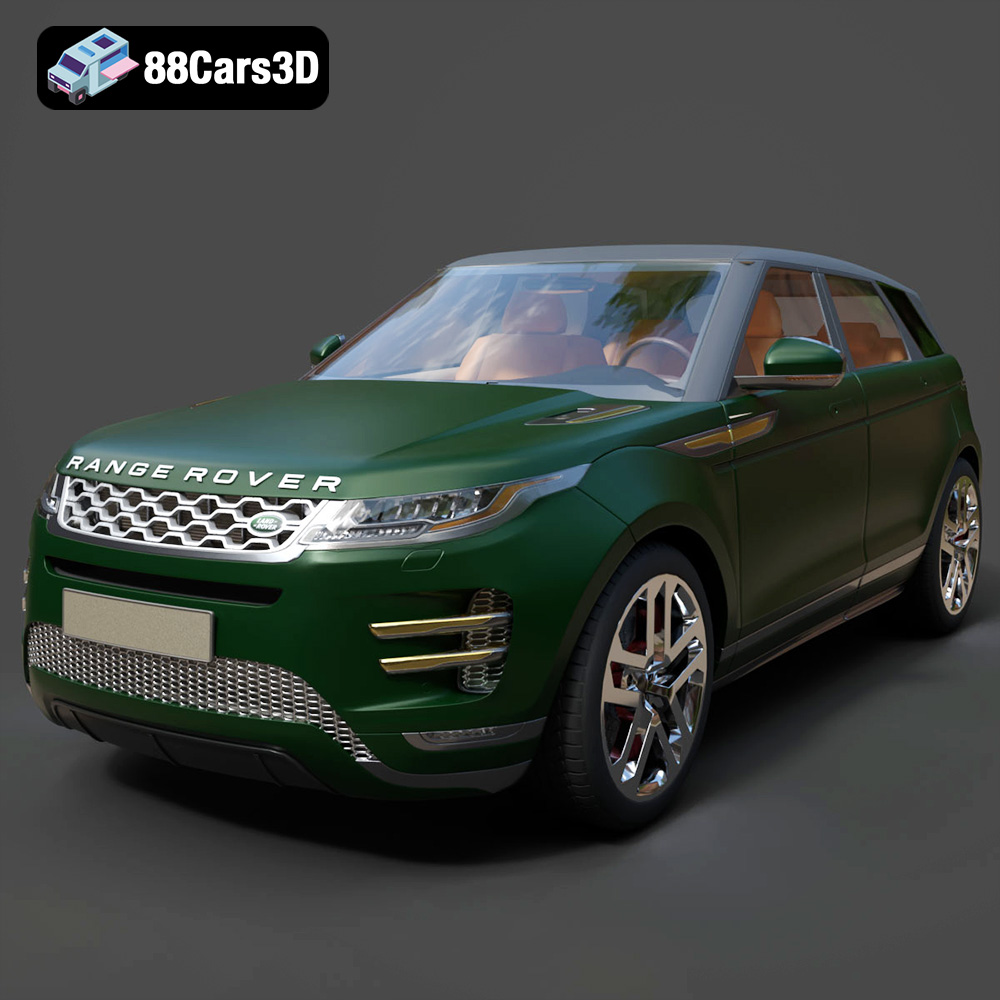
Download the highly detailed, game-ready Range Rover Evoque R-Dynamic 2019 3D Model. Features flush deployable door handles, Matrix LED headlights, and R-Dynamic styling. Includes .blend, .fbx, .obj, .glb, .stl, .ply, .unreal, and .max formats for game development, AR/VR, and rendering.
Price: $19.99

Texture: Yes | Material: Yes
Download the highly detailed, game-ready Ford Mustang Mach 40 3D Model. Features aggressive custom widebody styling, a mid-mounted V8 engine, and classic retro-futuristic design. Includes .blend, .fbx, .obj, .glb, .stl, .ply, .unreal, and .max formats for game development, AR/VR, and rendering.
Price: $19.99
Texture: Yes | Material: Yes
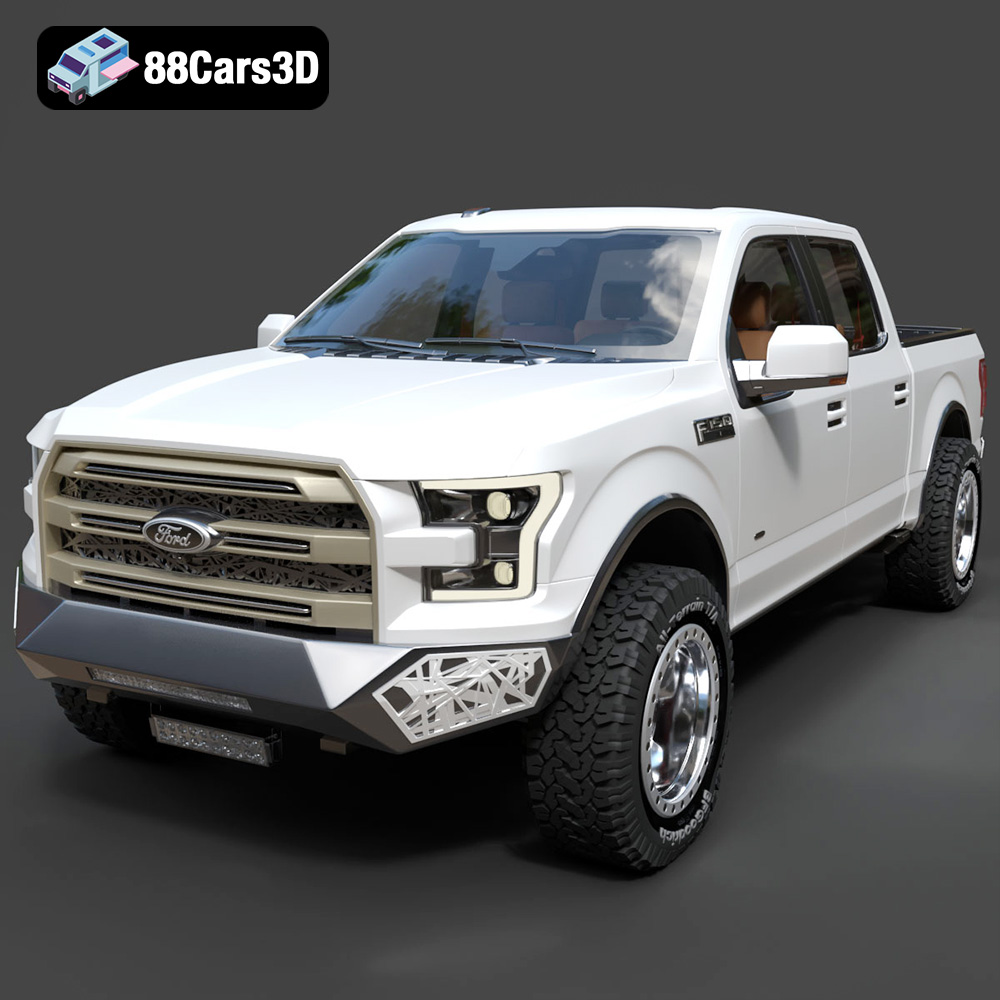
Download the highly detailed, game-ready Ford F150 Raptor With Tuning From ARE 3D Model. Features custom ARE tuning accessories, aggressive off-road suspension, and rugged beadlock wheels. Includes .blend, .fbx, .obj, .glb, .stl, .ply, .unreal, and .max formats for game development, AR/VR, and rendering.
Price: $19.99

Texture: Yes | Material: Yes
Download the highly detailed, game-ready Mercedes-Benz AMG GLE 63 2021 3D Model. Features the iconic Panamericana grille, aggressive aerodynamic body styling, and a meticulously detailed luxurious interior. Includes .blend, .fbx, .obj, .glb, .stl, .ply, .unreal, and .max formats for game development, AR/VR, and rendering.
Price: $19.99
Texture: Yes | Material: Yes
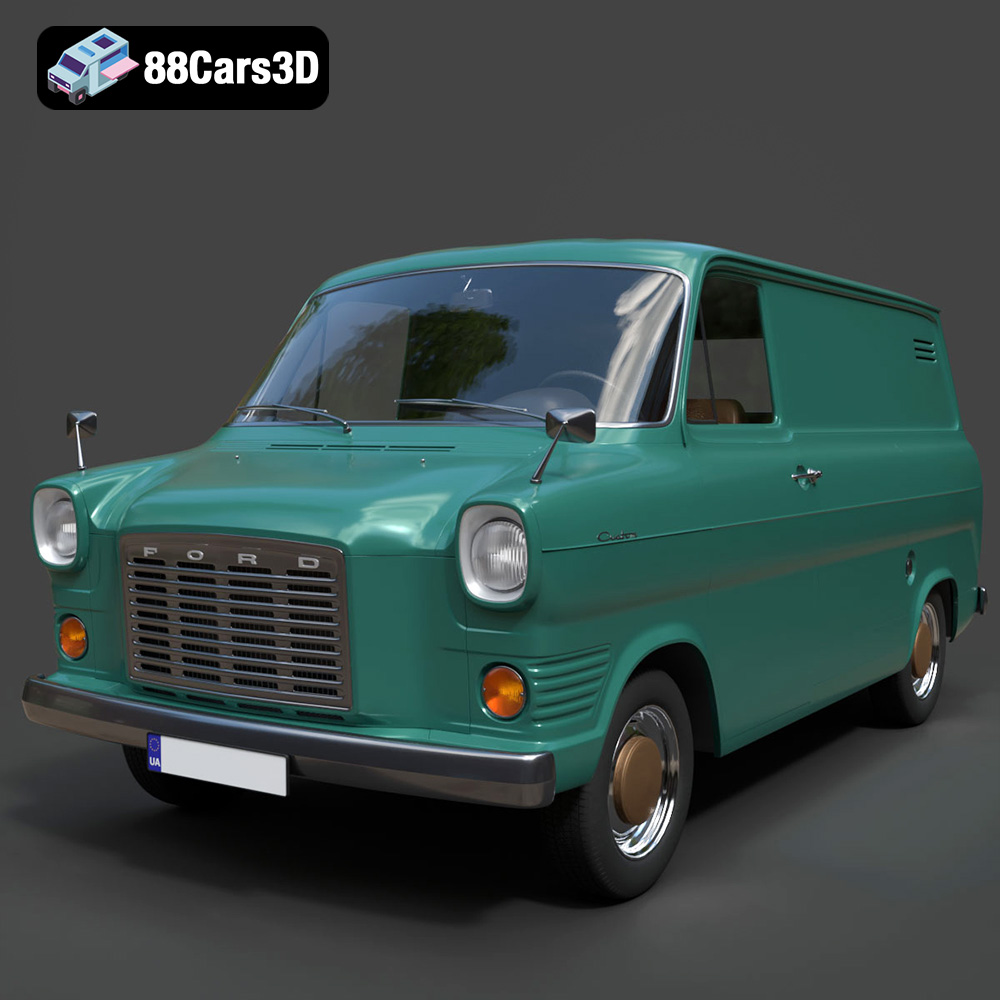
Download the highly detailed, game-ready Ford Transit Mk1 Panel Van 1965 3D Model. Features iconic flat-front styling, vintage steel wheels, and a period-correct cargo bay. Includes .blend, .fbx, .obj, .glb, .stl, .ply, .unreal, and .max formats for game development, AR/VR, and rendering.
Price: $19.99

Texture: Yes | Material: Yes
Download the highly detailed, game-ready BMW X3 2024 3D Model. Features the iconic kidney grille, dynamic SUV proportions, and precise lighting elements. Includes .blend, .fbx, .obj, .glb, .stl, .ply, .unreal, and .max formats for game development, AR/VR, and rendering.
Price: $19.99

Texture: Yes | Material: Yes
Download the highly detailed, game-ready Tesla Model S Plaid 2021 3D Model. Features sleek aerodynamic styling, signature LED lighting, and the revolutionary Yoke steering interior. Includes .blend, .fbx, .obj, .glb, .stl, .ply, .unreal, and .max formats for game development, AR/VR, and rendering.
Price: $19.99

Texture: Yes | Material: Yes
Download the highly detailed, game-ready Rolls-Royce Ghost EWB 2018 3D Model. Features the iconic Pantheon grille, elongated luxury chassis, and elegant exterior lines. Includes .blend, .fbx, .obj, .glb, .stl, .ply, .unreal, and .max formats for game development, AR/VR, and rendering.
Price: $19.99
Texture: Yes | Material: Yes
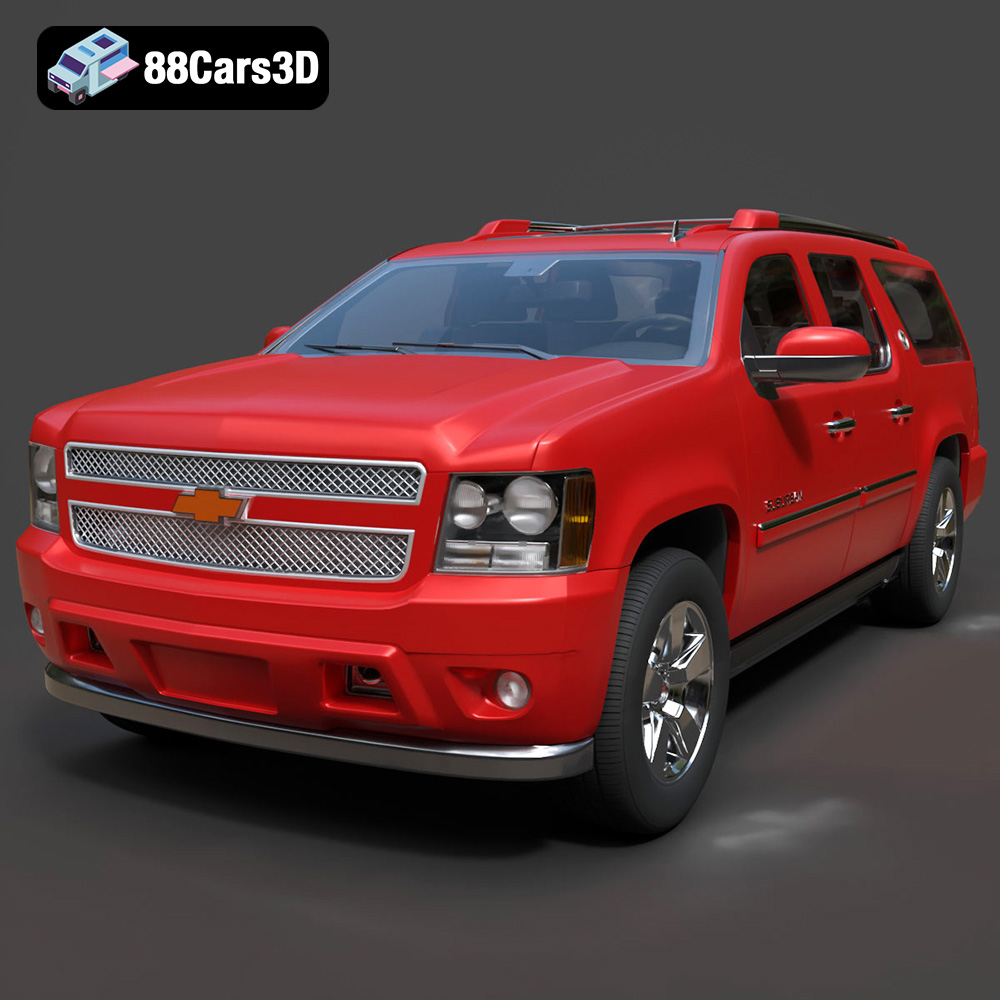
Download the highly detailed, game-ready Chevrolet Suburban 75th Diamond 3D Model. Features the iconic Diamond Edition styling, detailed interior, and accurate full-size SUV proportions. Includes .blend, .fbx, .obj, .glb, .stl, .ply, .unreal, and .max formats for game development, AR/VR, and rendering.
Price: $19.99

