Get 20% OFF All Premium 3D & STL Models!

“`html
The journey from a stunning 3D model on your screen to a tangible object in your hand relies heavily on the STL file format. Whether you’re downloading printable car models from platforms like 88cars3d.com, creating your own designs from scratch, or sourcing models from various online repositories, understanding the conversion process to STL is crucial for successful 3D printing. This article will provide a comprehensive guide to converting polygon-based 3D models into STL files optimized for both FDM and resin printing, covering everything from mesh topology to slicing parameters and troubleshooting common issues.
We’ll delve into the technical aspects of STL files, explore various software options for conversion, and provide actionable tips to ensure your models are print-ready. Whether you’re a seasoned 3D printing enthusiast or just starting your journey, this guide will equip you with the knowledge and skills to bring your digital designs to life with exceptional results.
Before diving into the conversion process, it’s essential to grasp the fundamental differences between polygon meshes and STL files. Polygon meshes, commonly found in formats like OBJ and FBX, represent 3D objects using a network of vertices, edges, and faces. These formats can store color, texture, and other complex data, making them ideal for rendering and animation. STL (Stereolithography) files, on the other hand, are a simplified representation of the surface geometry, primarily using triangles. They essentially describe the outer shell of the model, neglecting color or material information. This simplicity makes STL files efficient for 3D printers to process.
The quality of your STL file directly depends on the topology of the original polygon mesh. A good mesh should be manifold (watertight, without holes) and have consistent face orientations. Non-manifold meshes, characterized by edges shared by more than two faces or intersecting faces, are a common source of printing errors. Imagine trying to fill a bucket with a hole in it – your printer will struggle to build a solid object from a flawed digital blueprint.
STL files come in two variations: ASCII and binary. The ASCII format is human-readable but significantly larger in file size. The binary format is more compact and efficient for large models. Regardless of the format, an STL file essentially lists all the triangles that make up the model’s surface. Each triangle is defined by the coordinates of its three vertices and a normal vector, which indicates the triangle’s orientation. The normal vector is crucial for ensuring the correct face direction during printing. If normals are flipped (pointing inwards instead of outwards), the printer may interpret the model as hollow or attempt to print the inside-out.
Numerous software options are available for converting polygon models to STL, ranging from free open-source tools to professional-grade CAD packages. The best choice depends on your budget, skill level, and the complexity of your models.
MeshMixer: A versatile tool from Autodesk, MeshMixer is excellent for repairing and modifying meshes before conversion. It offers features like automatic hole filling, mesh smoothing, and support structure generation. You can import various file formats (OBJ, STL, PLY) and export to STL after making necessary repairs or modifications. Key features include: “Make Solid” for creating manifold meshes, “Remesh” for optimizing triangle count, and “Inspector” for identifying errors.
Blender: A powerful open-source 3D creation suite, Blender can handle complex models and offers extensive control over the conversion process. While Blender has a steeper learning curve, it’s worth learning for advanced users. To export an STL in Blender, select your object, go to “File” -> “Export” -> “Stl (.stl)”. You can adjust settings like “Apply Modifiers” to ensure your model is exported with all applied changes.
SolidWorks, Fusion 360, AutoCAD: These professional CAD packages offer precise control over model creation and conversion. They are particularly useful for engineering parts and models requiring high accuracy. Fusion 360, for example, has a direct export to STL option with options for refinement. The level of refinement (deviation and angle) affects the triangle count and the accuracy of the STL representation. Lower deviation and angle values result in more triangles and a more accurate representation but lead to larger file sizes.
Once you have your STL file, the next step is slicing – converting the 3D model into a series of layers that the 3D printer can understand. Slicing software (like Cura, PrusaSlicer, Simplify3D) takes the STL file as input and generates G-code, the language of 3D printers. Optimizing slicing parameters is crucial for achieving high-quality prints.
Layer height is the thickness of each layer deposited by the 3D printer. Lower layer heights (e.g., 0.1mm) result in smoother surfaces and finer details, but also increase print time. Higher layer heights (e.g., 0.3mm) print faster but sacrifice surface finish. A good starting point for FDM printing is 0.2mm, but you should adjust this based on the specific model and your desired level of detail. For resin printing, layer heights are typically much lower (e.g., 0.05mm or even 0.025mm) due to the higher resolution of the technology.
Infill is the internal structure of the 3D printed object. Infill density, expressed as a percentage, determines how solid the object is. A higher infill density (e.g., 100%) results in a stronger and heavier object but also consumes more material and increases print time. A lower infill density (e.g., 15%) is suitable for decorative models or parts that don’t require high strength. Common infill patterns include grid, honeycomb, gyroid, and rectilinear. Gyroid infill provides excellent strength-to-weight ratio and is often preferred for functional parts. For printable car models, an infill density of 20-25% is often a good compromise between strength and material usage.
Support structures are temporary scaffolding that supports overhanging parts of the model during printing. Without supports, these overhanging areas would simply collapse. Proper support generation and removal are critical for achieving clean and successful prints.
For FDM printing, support structures are typically made of the same material as the model. Slicing software offers various support settings, including support density, support pattern, and support placement. Tree supports are often preferred for their minimal contact with the model and ease of removal. The support interface, the layer where the support touches the model, is crucial. Reducing the interface density and using a smaller air gap can make support removal easier without compromising support integrity. A common strategy is to use a “support interface thickness” of 0.2mm with a “support density” of 20%.
Resin printing also requires supports, but the support structures are typically more delicate than those used in FDM printing. Resin printing software like Chitubox or Lychee Slicer allows for precise control over support placement, thickness, and density. Angling the model during slicing can significantly reduce the need for supports. Using different support types (light, medium, heavy) based on the size and weight of the overhanging features is also recommended. Post-curing is crucial after removing supports from resin prints to ensure the material is fully hardened.
Even with careful preparation, you may encounter issues during the 3D printing process. Identifying the cause of these issues and implementing corrective measures is key to successful printing.
Warping occurs when the printed object lifts from the build plate, usually due to uneven cooling or poor bed adhesion. To prevent warping, ensure the build plate is clean and level. Applying a bed adhesion aid like glue stick or hairspray can also help. Increasing the bed temperature and using a brim or raft can further improve bed adhesion, especially for materials like ABS that are prone to warping. For instance, printing ABS at a bed temperature of 100-110°C with a brim is a common practice.
Stringing (thin strands of plastic between printed parts) and blobs (excess material deposited on the surface) are common issues in FDM printing. These are often caused by incorrect temperature settings, retraction settings, or travel speed. Lowering the printing temperature, increasing retraction distance and speed, and enabling “combing” (avoiding crossing open spaces) can help mitigate these issues. For example, increasing retraction distance from 4mm to 6mm and retraction speed from 40mm/s to 60mm/s can often resolve stringing issues.
As mentioned earlier, non-manifold meshes can lead to printing errors. If you encounter errors during slicing, the STL file may need repair. Software like MeshMixer and Netfabb offer tools for automatically repairing mesh errors, such as filling holes, stitching edges, and removing self-intersections. Always run a mesh repair check before slicing to ensure a smooth and error-free printing process. Netfabb’s “Automatic Repair” function is a powerful tool for resolving various mesh issues.
Post-processing involves finishing steps applied to the 3D printed object after it’s removed from the printer. These techniques can significantly enhance the appearance and functionality of the print.
Sanding is used to remove layer lines and imperfections from the surface of the print. Start with coarse grit sandpaper (e.g., 120 grit) and gradually move to finer grits (e.g., 400 grit, 600 grit) for a smooth finish. Wet sanding (using sandpaper with water) can further improve the surface finish and reduce dust. For best results, use a sanding block to maintain a flat surface.
Painting can add color and detail to your 3D printed models. Priming the surface before painting is crucial for ensuring proper adhesion and a smooth finish. Use acrylic paints or spray paints specifically designed for plastics. Apply multiple thin coats rather than one thick coat to avoid drips and runs. Clear coating can protect the paint and add a glossy or matte finish. When downloading models from marketplaces such as 88cars3d.com, consider how the model will be painted and finished after printing.
Many 3D printed models consist of multiple parts that need to be assembled. Super glue (cyanoacrylate) is commonly used for joining 3D printed parts. Ensure the surfaces are clean and dry before applying glue. Clamping the parts together during the gluing process can ensure a strong and accurate bond. For larger assemblies, consider using epoxy or other specialized adhesives. For example, when assembling a printable car model, you might glue the wheels, chassis, and body separately after painting them individually.
Converting polygon models to STL files for 3D printing involves a multifaceted process, requiring attention to detail and a solid understanding of the underlying principles. From ensuring manifold meshes to optimizing slicing parameters and mastering post-processing techniques, each step plays a crucial role in achieving high-quality prints. By carefully selecting the right software, adjusting printer settings, and troubleshooting common issues, you can transform your digital designs into tangible creations. Platforms like 88cars3d.com offer print-ready STL files, but knowing how to optimize them further will yield even better results.
Now that you have a comprehensive understanding of the STL conversion and printing process, experiment with different settings, materials, and techniques. Don’t be afraid to iterate and learn from your experiences. With practice and dedication, you’ll be able to create stunning 3D printed models that showcase your creativity and technical skills. So, fire up your 3D printer, load up your favorite STL file, and embark on a rewarding journey of additive manufacturing!
“`

Texture: Yes | Material: Yes
Download the highly detailed, game-ready Ducati 1299 Panigale S 2017 3D Model. Features signature aerodynamic fairings, detailed Superquadro engine components, and aggressive Italian styling. Includes .blend, .fbx, .obj, .glb, .stl, .ply, .unreal, and .max formats for game development, AR/VR, and rendering.
Price: $19.99
Texture: Yes | Material: Yes
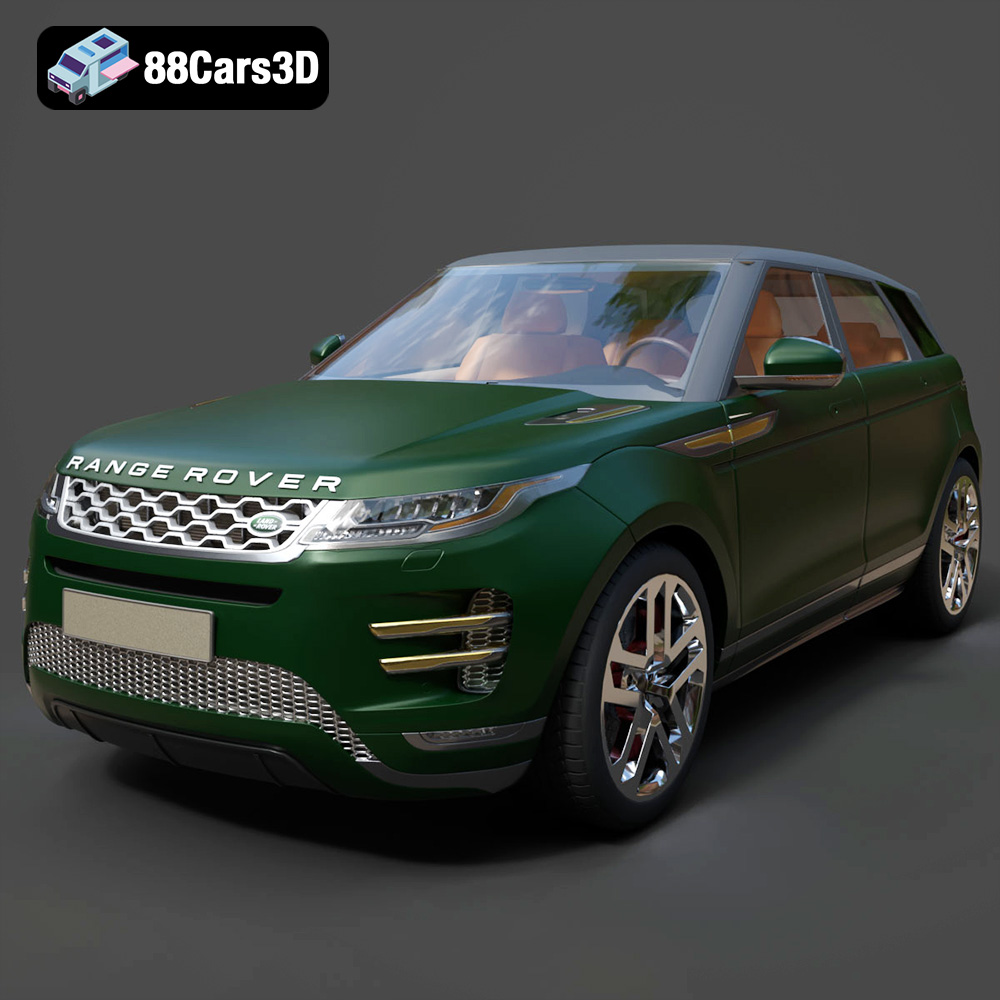
Download the highly detailed, game-ready Range Rover Evoque R-Dynamic 2019 3D Model. Features flush deployable door handles, Matrix LED headlights, and R-Dynamic styling. Includes .blend, .fbx, .obj, .glb, .stl, .ply, .unreal, and .max formats for game development, AR/VR, and rendering.
Price: $19.99

Texture: Yes | Material: Yes
Download the highly detailed, game-ready Ford Mustang Mach 40 3D Model. Features aggressive custom widebody styling, a mid-mounted V8 engine, and classic retro-futuristic design. Includes .blend, .fbx, .obj, .glb, .stl, .ply, .unreal, and .max formats for game development, AR/VR, and rendering.
Price: $19.99
Texture: Yes | Material: Yes
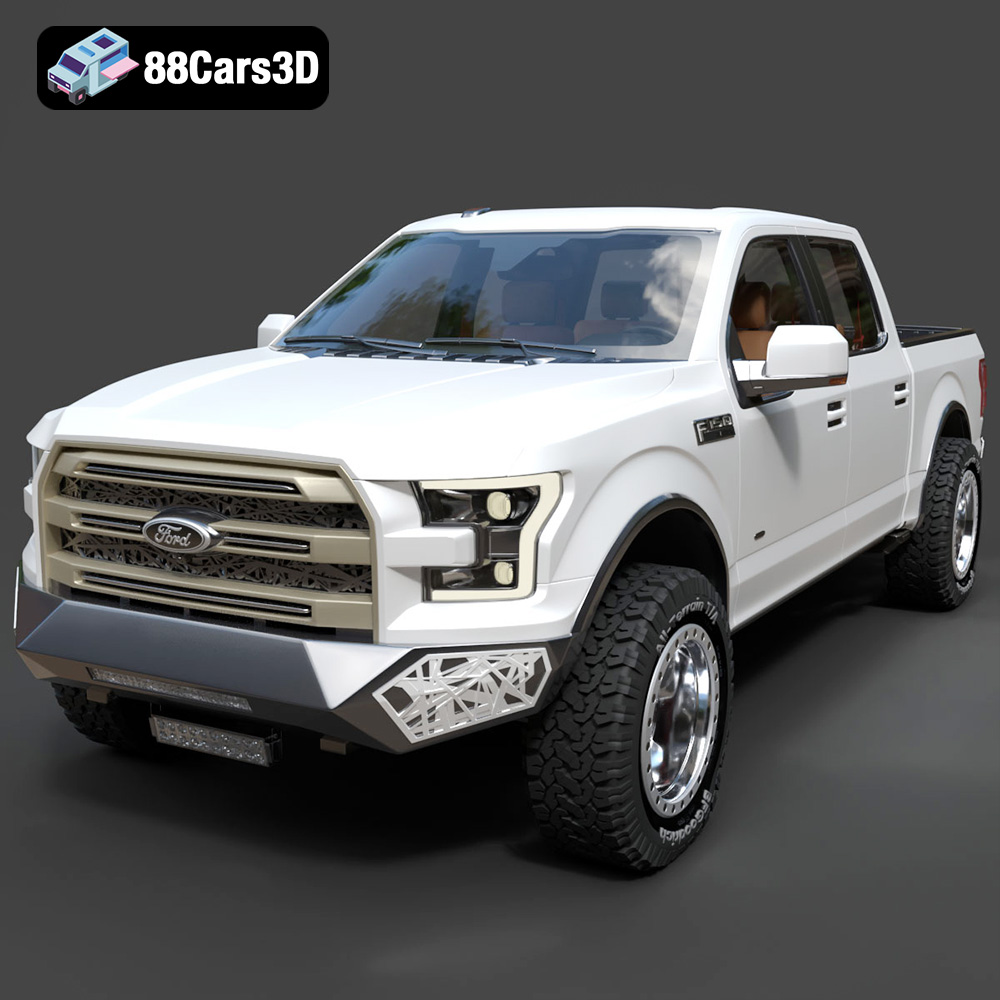
Download the highly detailed, game-ready Ford F150 Raptor With Tuning From ARE 3D Model. Features custom ARE tuning accessories, aggressive off-road suspension, and rugged beadlock wheels. Includes .blend, .fbx, .obj, .glb, .stl, .ply, .unreal, and .max formats for game development, AR/VR, and rendering.
Price: $19.99

Texture: Yes | Material: Yes
Download the highly detailed, game-ready Mercedes-Benz AMG GLE 63 2021 3D Model. Features the iconic Panamericana grille, aggressive aerodynamic body styling, and a meticulously detailed luxurious interior. Includes .blend, .fbx, .obj, .glb, .stl, .ply, .unreal, and .max formats for game development, AR/VR, and rendering.
Price: $19.99
Texture: Yes | Material: Yes
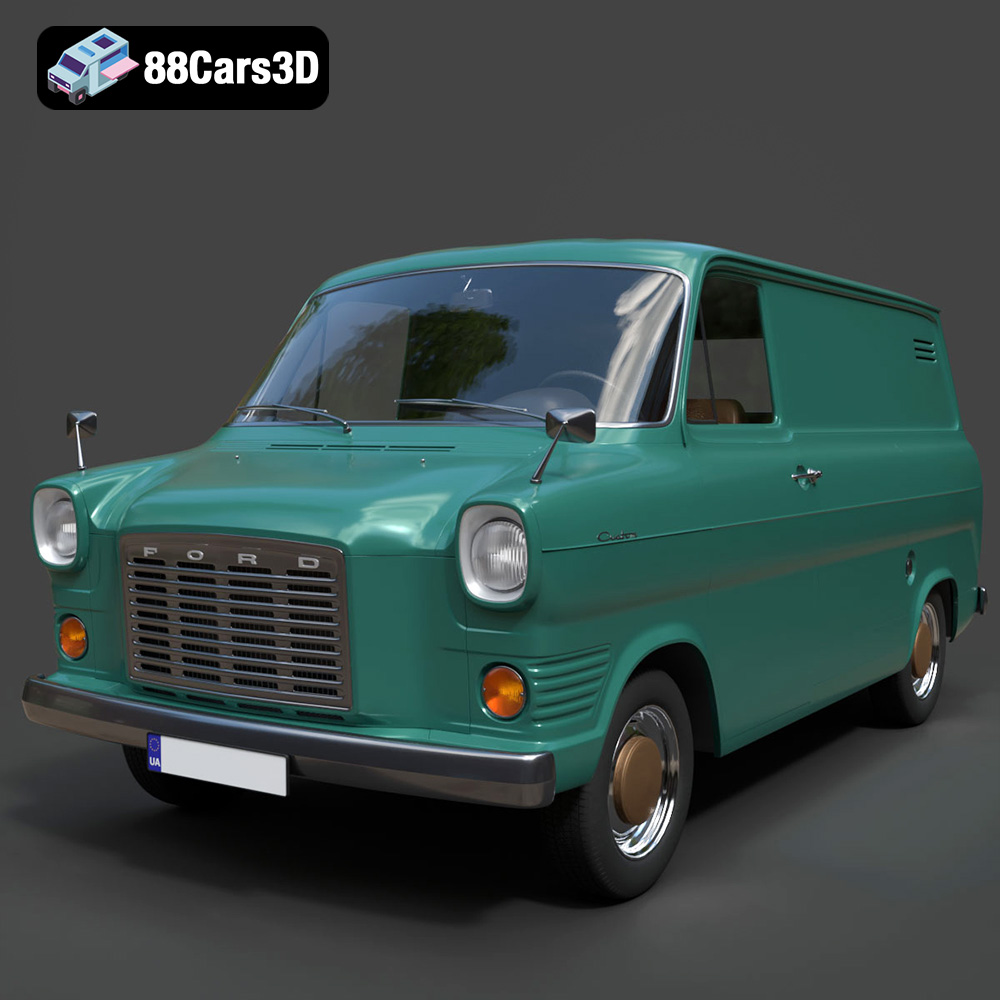
Download the highly detailed, game-ready Ford Transit Mk1 Panel Van 1965 3D Model. Features iconic flat-front styling, vintage steel wheels, and a period-correct cargo bay. Includes .blend, .fbx, .obj, .glb, .stl, .ply, .unreal, and .max formats for game development, AR/VR, and rendering.
Price: $19.99

Texture: Yes | Material: Yes
Download the highly detailed, game-ready BMW X3 2024 3D Model. Features the iconic kidney grille, dynamic SUV proportions, and precise lighting elements. Includes .blend, .fbx, .obj, .glb, .stl, .ply, .unreal, and .max formats for game development, AR/VR, and rendering.
Price: $19.99

Texture: Yes | Material: Yes
Download the highly detailed, game-ready Tesla Model S Plaid 2021 3D Model. Features sleek aerodynamic styling, signature LED lighting, and the revolutionary Yoke steering interior. Includes .blend, .fbx, .obj, .glb, .stl, .ply, .unreal, and .max formats for game development, AR/VR, and rendering.
Price: $19.99

Texture: Yes | Material: Yes
Download the highly detailed, game-ready Rolls-Royce Ghost EWB 2018 3D Model. Features the iconic Pantheon grille, elongated luxury chassis, and elegant exterior lines. Includes .blend, .fbx, .obj, .glb, .stl, .ply, .unreal, and .max formats for game development, AR/VR, and rendering.
Price: $19.99
Texture: Yes | Material: Yes
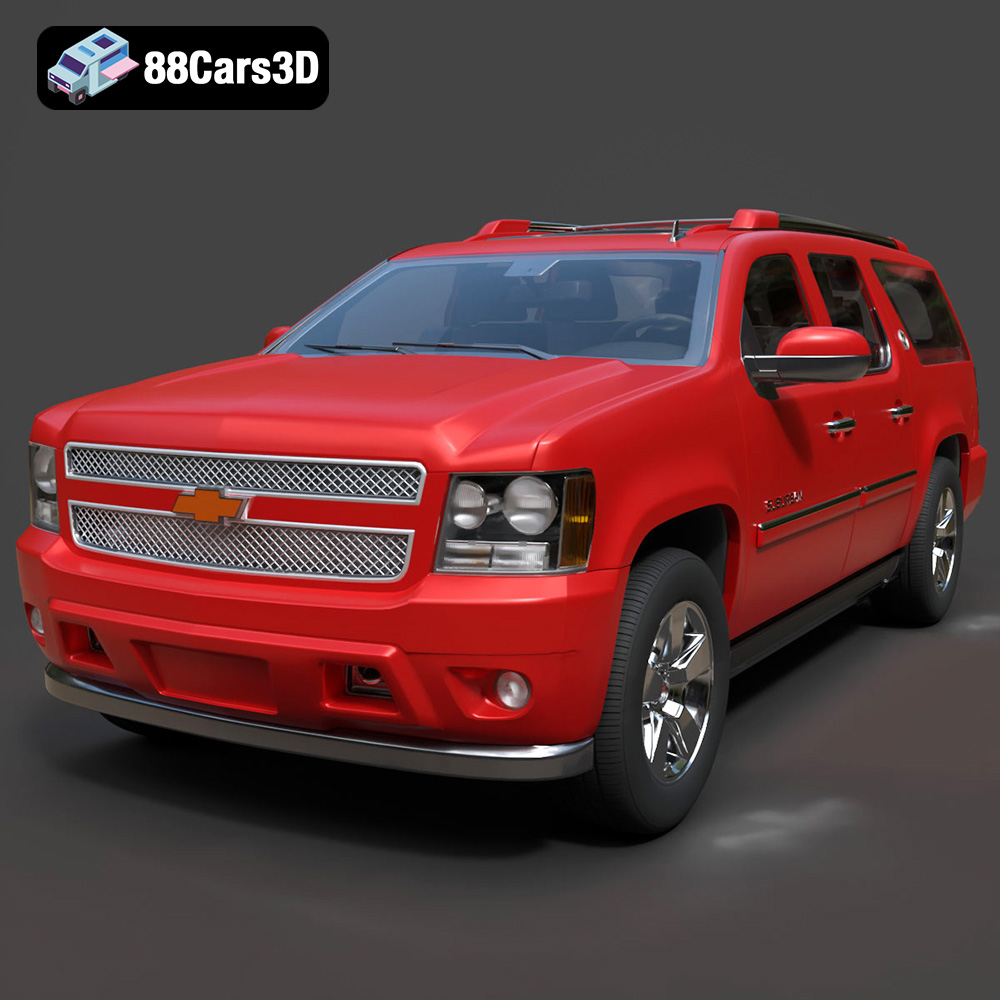
Download the highly detailed, game-ready Chevrolet Suburban 75th Diamond 3D Model. Features the iconic Diamond Edition styling, detailed interior, and accurate full-size SUV proportions. Includes .blend, .fbx, .obj, .glb, .stl, .ply, .unreal, and .max formats for game development, AR/VR, and rendering.
Price: $19.99

