
From Design Studio to Game Engine: The Core Challenge of Automotive Assets

The roar of a finely tuned engine, the gleam of polished chrome, the luxurious texture of leather interiors – imagining these details in a real-time, interactive environment used to be a dream. Today, with the advent of Unreal Engine 5, that dream is a vivid reality for automotive enthusiasts and game developers alike. Yet, translating the incredibly intricate, multi-million polygon models from design studios into performant, photorealistic game assets presents a unique set of challenges. This isn’t just about importing a model; it’s about a sophisticated transformation that balances visual fidelity with optimal real-time rendering performance.
This masterclass is your guide to navigating the complexities of bringing high-fidelity automotive models into Unreal Engine 5. We’ll delve into advanced techniques for optimization, material creation, and integration, ensuring your virtual vehicles not only look stunning but also run smoothly. From poly count optimization to leveraging the groundbreaking Unreal Engine Nanite, prepare to elevate your automotive visualization to unprecedented levels of game-ready photorealism.
From Design Studio to Game Engine: The Core Challenge of Automotive Assets
Automotive design models are masterpieces of engineering and aesthetics, often created in CAD software like CATIA, Alias, or SolidWorks. These models prioritize absolute precision and detail, resulting in extraordinarily dense meshes with millions, sometimes hundreds of millions, of polygons. While perfect for manufacturing and high-end pre-rendered visualizations, such polygon counts are catastrophic for real-time applications.
Understanding the Discrepancy: CAD vs. Game Mesh
CAD models typically use NURBS (Non-Uniform Rational B-Splines) or high-density tessellated meshes to define surfaces. This approach allows for perfectly smooth curves and exact tolerances. A single car body panel might consist of hundreds of thousands of polygons, which, when aggregated across an entire vehicle, quickly exceeds the capacity of even the most powerful gaming hardware.
Game engines, by contrast, require models optimized for efficient rendering. Every polygon contributes to the computational load, impacting frame rates and overall performance. The goal for a game-ready asset is to achieve visual quality comparable to the design model but with a significantly reduced poly count, maintaining crucial details and silhouette integrity.
The Performance Imperative: Why Optimization is Crucial
Without meticulous optimization, importing a raw design-studio model into Unreal Engine 5 would lead to crippling frame rates, long loading times, and an unacceptable user experience. The challenge lies in intelligently reducing the polygon count while preserving the car’s distinctive lines, subtle curvatures, and intricate details. This delicate balance is at the heart of an effective game asset pipeline.
Optimization extends beyond just geometry; it encompasses materials, textures, and the overall scene setup. Every element must be carefully considered to ensure that the final product runs flawlessly, delivering an immersive and responsive experience for the end-user. This is where strategic decisions regarding everything from PBR materials to UV mapping strategies come into play.
Mastering Poly Count Optimization for Automotive Models
Reducing the polygon count without sacrificing visual quality is an art form. It requires a deep understanding of mesh topology, rendering principles, and the specific demands of a real-time environment. Traditional methods focus on intelligent decimation and retopology, carefully stripping away redundant polygons while maintaining the integrity of the model’s form.
Strategic Decimation and Retopology
Decimation involves algorithmically reducing the number of polygons in a mesh, often with options to prioritize certain areas or preserve hard edges. Tools like ZBrush’s ZRemesher, Maya’s Quad Draw, or Blender’s Retopoflow add-on offer powerful capabilities for this process. The key is to achieve a balance: reducing polygons significantly in flat areas and less so in areas of high curvature or critical detail like body lines and vents.
Retopology, on the other hand, is the process of creating a new, optimized mesh on top of a high-resolution source. This allows for clean, quad-based topology that is easier to UV map, animate, and deform. For automotive models, careful manual retopology around critical seams, door gaps, and wheel wells ensures that these areas look crisp and geometrically accurate, even at lower polygon counts.
Leveraging Mesh Simplification Techniques
Many 3D software packages offer mesh simplification modifiers that can be applied non-destructively. These tools often use algorithms to collapse edges or vertices, progressively reducing the poly count. While automated, careful oversight is necessary to prevent undesirable deformations or the loss of crucial silhouette information.
For internal components that are rarely seen or are small details, aggressive poly count optimization can be applied. External surfaces, however, demand more nuanced treatment. Focusing on preserving the overall shape and major contours is paramount, allowing for efficient UV mapping strategies and compelling PBR materials later in the pipeline.
Unleashing Unreal Engine Nanite: A Paradigm Shift for High-Fidelity Geometry
Unreal Engine 5’s Nanite virtualized micropolygon geometry system is a game-changer for handling extremely high-fidelity assets. It fundamentally alters the traditional game asset pipeline, allowing artists to import film-quality source art directly into the engine without extensive manual decimation.
What is Nanite and How it Works
Nanite intelligently streams and processes only the necessary detail for what’s visible on screen, at a per-pixel level. Instead of loading an entire mesh, it works with micropolygons, which are tiny, self-contained geometric units. As the camera moves closer, more detail is streamed in; as it moves away, detail is culled, all seamlessly and automatically. This vastly improves real-time rendering performance for complex scenes.
The beauty of Unreal Engine Nanite is that it virtually eliminates the need for manual Levels of Detail (LODs) for static meshes. Artists can focus on creating highly detailed models, knowing that Nanite will handle the optimization dynamically. This shifts the focus from managing polygon budgets to creating visually rich content.
Implementing Nanite for Automotive Assets
For automotive models, enabling Nanite for the car body, interior panels, and other high-detail components is transformative. It means that the subtle curvature of a fender or the intricate grilles can be represented with geometric fidelity that was previously impossible in real-time. Simply import your high-polygon mesh and enable Nanite in the static mesh editor.
However, it’s important to understand Nanite’s limitations. It currently doesn’t support skeletal meshes (animated parts), meshes with transparent materials, or meshes with certain types of deformations. For elements like opening doors, spinning wheels, or windows, traditional optimization methods and manual Levels of Detail (LODs) are still required. A hybrid approach, where the main body is Nanite-enabled and dynamic parts are traditionally optimized, is often the most effective.
Intelligent UV Mapping Strategies and Crafting Photorealistic PBR Materials
Beyond geometry, the realism of an automotive model hinges on its materials and textures. Physically Based Rendering (PBR) materials, combined with well-executed UV mapping strategies, are essential for achieving that coveted photorealistic look.
Principles of Effective UV Mapping for Vehicles
UV mapping is the process of flattening a 3D mesh into a 2D space, allowing textures to be applied accurately. For vehicles, key principles include:
- Uniform Texel Density: Ensure that the texture resolution is consistent across the entire model. Areas that are viewed up close, like door handles or badges, might need slightly higher density, but generally, uniformity prevents blurry or pixelated textures.
- Minimizing Seams: While seams are inevitable, place them in less visible areas, such as along edges, under trim pieces, or in crevices. Clean seams prevent visible texture breaks.
- Avoiding Stretching: Distorted UVs lead to stretched textures. Unfold UVs carefully to maintain aspect ratios and minimize distortion, especially on large, curved surfaces like the car body.
- Efficient UV Space Utilization: Pack your UV islands tightly to maximize the use of texture space. This is crucial for optimizing texture memory and reducing the number of texture maps needed.
- Material ID Separation: Create separate UV sets or material IDs for different material types (e.g., car paint, glass, rubber, chrome). This allows for easier material assignments and dedicated texture sets.
Effective UV mapping strategies are the foundation upon which believable textures are built. Without them, even the most exquisite PBR materials will fall short.
Deep Dive into PBR Materials for Automotive Surfaces
PBR materials accurately simulate how light interacts with surfaces in the real world, based on physical properties rather than subjective artistic interpretation. For automotive applications, this is critical:
- Car Paint: Modern car paint is complex, often involving a base color, metallic flakes, and a clear coat. In Unreal Engine, this translates to sophisticated shader graphs utilizing multiple layers. The clear coat effect, achieved by layering a transparent, reflective material over the base, is paramount for that distinctive automotive sheen.
- Glass: Realistic glass requires proper transparency, refraction, and reflectivity. Using a separate, dedicated PBR material for windows and lights allows for precise control over these properties, including subtle dirt or tint maps.
- Rubber & Plastics: These materials have distinct roughness and specular properties. Tires, seals, and interior plastics should exhibit a softer, less reflective quality compared to metal, with varying degrees of roughness.
- Metals (Chrome, Aluminum): Highly reflective, low-roughness metallic materials are essential for chrome trim, badges, and wheels. PBR’s metallic workflow makes simulating these materials straightforward and physically accurate.
Utilizing high-quality texture maps (Albedo/Base Color, Metallic, Roughness, Normal, Ambient Occlusion) is key. Resources like 88cars3d.com often provide models with pre-optimized UVs and meticulously crafted PBR textures, significantly streamlining this part of the game asset pipeline.
Dynamic Levels of Detail (LODs) and Streamlining Performance
While Nanite handles geometry for static meshes at an unprecedented scale, Levels of Detail (LODs) remain crucial for animated or non-Nanite-compatible parts, and for ensuring broad platform compatibility. LODs are simplified versions of a mesh that are swapped in dynamically based on the camera’s distance, maintaining real-time rendering performance without perceptible visual loss.
Manual vs. Automated LOD Generation
Manual LOD Generation: This involves creating simplified versions of your mesh by hand. You might manually delete edge loops, collapse vertices, or use targeted decimation. This method offers the most control, ensuring critical details are preserved, but is time-consuming. It’s often preferred for LOD0 (the highest detail) and critical components.
Automated LOD Generation: Most 3D software and game engines (including Unreal Engine) offer automated LOD generation tools. These algorithms can quickly create multiple LOD levels with varying polygon counts. While faster, they may require tweaking to prevent artifacting or the loss of important silhouette details. Unreal Engine’s built-in LOD generation for static meshes is robust, but careful review is always recommended.
Integrating LODs within Unreal Engine
Once you have your LOD meshes, integrating them into Unreal Engine 5 is straightforward:
- Import LODs: Import your base mesh (LOD0) first. Then, for each subsequent LOD, import it and assign it to the correct LOD slot within the Static Mesh Editor.
- Set Screen Size: In the Static Mesh Editor, define the “Screen Size” for each LOD. This value determines at what percentage of the screen space the LOD will swap. For example, LOD0 might be visible at 1.0 screen size, LOD1 at 0.5, LOD2 at 0.25, and so on.
- Adjust Hysteresis: This setting controls the transition smoothness between LODs. A small hysteresis value can prevent rapid flickering when the camera hovers at a LOD transition point.
- Skeletal Mesh LODs: For animated components like wheels or doors, skeletal mesh LODs work similarly but also manage bone count and animation complexity, further enhancing real-time rendering performance.
Even with Unreal Engine Nanite handling the main body, using traditional Levels of Detail (LODs) for interactive elements and ensuring a robust fallback for systems that don’t support Nanite (e.g., mobile or very low settings) is a best practice. This comprehensive approach ensures your automotive experience is accessible and performant across a wide range of hardware configurations.
The Optimized Game Asset Pipeline: From Import to Interactive Experience
The final step in our masterclass is to integrate the optimized automotive model into Unreal Engine 5 and validate its performance. This involves a series of crucial steps to ensure the vehicle not only looks good but is also fully functional and interactive within a real-time environment.
Pre-Import Checklist and Data Preparation
Before importing your model into Unreal Engine, meticulous preparation in your 3D software is vital:
- Scale and Units: Ensure your model is built to real-world scale (e.g., centimeters in Maya/Blender for Unreal’s default). Incorrect scaling can lead to physics issues and visual inconsistencies.
- Pivot Points: Set appropriate pivot points for all individual mesh components. For example, wheel pivots should be at their rotation axis, and door pivots at their hinge points.
- Naming Conventions: Use clear, consistent naming conventions for all meshes and materials (e.g., “SM_Car_Body,” “M_Car_Paint”). This improves organization within Unreal Engine and facilitates scripting.
- Mesh Orientation: Ensure all normals are facing outwards. Inverted normals lead to rendering issues.
- Scene Cleanup: Remove any unused objects, cameras, or lights from your export scene.
- Separate Components: Export the car as distinct components (body, doors, wheels, interior, etc.) to allow for individual material assignments, animations, and Levels of Detail (LODs).
This careful preparation is a cornerstone of an efficient game asset pipeline, preventing countless headaches down the line.
Importing and Initial Setup in Unreal Engine 5
Once your model is prepared, the import process into Unreal Engine is critical:
- Import Settings: When importing an FBX file, pay attention to options like “Combine Meshes” (usually unchecked for cars), “Generate Missing Collisions,” “Import Materials,” and “Import Textures.” For Nanite-ready meshes, ensure “Build Nanite” is enabled.
- Material Assignment: Assign your meticulously crafted PBR materials to the corresponding mesh elements. Fine-tune parameters like roughness, metallic, and normal map intensity within the Material Editor.
- Collision Setup: For non-Nanite components, generate or custom-create collision meshes. Simple box or capsule collisions are often sufficient for basic interactions, while more complex shapes might be needed for realistic driving physics.
- Blueprint Integration: Assemble the various car components into an Unreal Blueprint. This allows you to add functionality for opening doors, steering wheels, working lights, and other interactive elements. You might also set up the vehicle as a physics asset using Unreal’s Chaos Vehicle system.
The initial setup lays the groundwork for the interactive experience. Leveraging the modularity of Unreal’s Blueprint system empowers developers to bring their vehicles to life with robust functionality.
Performance Validation and Profiling
After importing and setting up your automotive asset, rigorous testing and profiling are essential to ensure optimal real-time rendering performance:
- Stat Commands: Use Unreal Engine’s console commands like
Stat GPU,Stat RHI, andStat Engineto monitor rendering performance, draw calls, triangle counts, and memory usage. - Profiling Tools: Utilize the in-engine Profiler (accessible via Ctrl+Shift+Comma) to identify performance bottlenecks in your scene. This can pinpoint issues with materials, excessive geometry, overdraw, or expensive post-processing effects.
- Scalability Settings: Test your asset across various scalability settings (Low, Medium, High, Epic, Cinematic) to ensure it performs well on different hardware configurations. Adjust material complexity and LODs accordingly.
- Lighting and Reflections: Optimize lighting, especially complex global illumination and reflections. Lumen and Reflections can be demanding; ensure your settings strike a balance between visual quality and performance.
An iterative approach to optimization is best. Identify bottlenecks, implement solutions (e.g., further poly count optimization, simpler UV mapping strategies, or refined PBR materials), and then re-profile. This continuous refinement ensures your high-fidelity automotive models achieve true game-ready photorealism.
Conclusion: Drive Towards Unrivaled Realism
Bringing high-fidelity automotive models into Unreal Engine 5 for real-time applications is a sophisticated journey, blending artistic vision with technical precision. We’ve explored the critical steps, from understanding the fundamental differences between design-studio models and game assets to mastering poly count optimization, leveraging the revolutionary power of Unreal Engine Nanite, and meticulously crafting PBR materials and UV mapping strategies.
The intelligent application of Levels of Detail (LODs) and a streamlined game asset pipeline are vital for achieving breathtaking visuals without compromising real-time rendering performance. Unreal Engine 5 provides the tools; this masterclass empowers you with the knowledge to wield them effectively.
Ready to put these techniques into practice and create your next automotive masterpiece? Explore the extensive library of high-quality, pre-optimized 3D models available at 88cars3d.com. Whether you need a vintage classic or a cutting-edge supercar, 88cars3d.com offers exceptional assets to jumpstart your projects and achieve unparalleled photorealism. Elevate your automotive visualization today and drive towards unrivaled realism.
Featured 3D Car Models

Suzuki SX4-002 3D Model
Texture: Yes
Material: Yes
Download the Suzuki SX4-002 3D Model featuring clean geometry, realistic detailing, and a fully modeled interior. Includes .blend, .fbx, .obj, .glb, .stl, .ply, .unreal, and .max formats for rendering, simulation, and game development.
Price: $10

Tesla Model S 2024 3D Model
Texture: Yes
Material: Yes
Download the Tesla Model S 2024 3D Model featuring clean geometry, realistic detailing, and a fully modeled interior. Includes .blend, .fbx, .obj, .glb, .stl, .ply, .unreal, and .max formats for rendering, simulation, and game development.
Price: $10

Subaru Impreza WRX STi-002 3D Model
Texture: Yes
Material: Yes
Download the Subaru Impreza WRX STi-002 3D Model featuring clean geometry, realistic detailing, and a fully modeled interior. Includes .blend, .fbx, .obj, .glb, .stl, .ply, .unreal, and .max formats for rendering, simulation, and game development.
Price: $10

Toyota Mark II (X100) 1998 3D Model
Texture: Yes
Material: Yes
Download the Toyota Mark II (X100) 3D Model featuring clean geometry, realistic detailing, and a fully modeled interior. Includes .blend, .fbx, .obj, .glb, .stl, .ply, .unreal, and .max formats for rendering, simulation, and game development.
Price: $10

Toyota Corona 1985 3D Model
Texture: Yes
Material: Yes
Download the Toyota Corona 1985 3D Model featuring clean geometry, realistic detailing, and a fully modeled interior. Includes .blend, .fbx, .obj, .glb, .stl, .ply, .unreal, and .max formats for rendering, simulation, and game development.
Price: $10

Toyota Mark II X81 1990 3D Model
Texture: Yes
Material: Yes
Download the Toyota Mark II X81 1990 3D Model featuring clean geometry, realistic detailing, and a fully modeled interior. Includes .blend, .fbx, .obj, .glb, .stl, .ply, .unreal, and .max formats for rendering, simulation, and game development.
Price: $10

Toyota iQ EV 2012 3D Model
Texture: Yes
Material: Yes
Download the Toyota iQ EV 2012 3D Model featuring clean geometry, realistic detailing, and a fully modeled interior. Includes .blend, .fbx, .obj, .glb, .stl, .ply, .unreal, and .max formats for rendering, simulation, and game development.
Price: $10

Toyota Aygo 2013 3D Model
Texture: Yes
Material: Yes
Download the Toyota Aygo 2013 3D Model featuring clean geometry, realistic detailing, and a fully modeled interior. Includes .blend, .fbx, .obj, .glb, .stl, .ply, .unreal, and .max formats for rendering, simulation, and game development.
Price: $10

Toyota Crown S180 2005 3D Model
Texture: Yes
Material: Yes
Download the Toyota Crown S180 2005 3D Model featuring clean geometry, realistic detailing, and a fully modeled interior. Includes .blend, .fbx, .obj, .glb, .stl, .ply, .unreal, and .max formats for rendering, simulation, and game development.
Price: $10

Toyota Celica 2004 3D Model
Texture: Yes
Material: Yes
Download the Toyota Celica 2004 3D Model featuring clean geometry, realistic detailing, and a fully modeled interior. Includes .blend, .fbx, .obj, .glb, .stl, .ply, .unreal, and .max formats for rendering, simulation, and game development.
Price: $10

Toyota Corolla AE100 1992 3D Model
Texture: Yes
Material: Yes
Download the Toyota Corolla AE100 1992 3D Model featuring clean geometry, realistic detailing, and a fully modeled interior. Includes .blend, .fbx, .obj, .glb, .stl, .ply, .unreal, and .max formats for rendering, simulation, and game development.
Price: $10

Toyota Mark II X110 2000 3D Model
Texture: Yes
Material: Yes
Download the Toyota Mark II X110 2000 3D Model featuring clean geometry, realistic detailing, and a fully modeled interior. Includes .blend, .fbx, .obj, .glb, .stl, .ply, .unreal, and .max formats for rendering, simulation, and game development.
Price: $10

Toyota Corolla 2020 3D Model
Texture: Yes
Material: Yes
Download the Toyota Corolla 2020 3D Model featuring clean geometry, realistic detailing, and a fully modeled interior. Includes .blend, .fbx, .obj, .glb, .stl, .ply, .unreal, and .max formats for rendering, simulation, and game development.
Price: $10

Toyota Yaris 2020 3D Model
Texture: Yes
Material: Yes
Download the Toyota Yaris 2020 3D Model featuring clean geometry, realistic detailing, and a fully modeled interior. Includes .blend, .fbx, .obj, .glb, .stl, .ply, .unreal, and .max formats for rendering, simulation, and game development.
Price: $9.9

Volkswagen Beetle 2012 3D Model
Texture: Yes
Material: Yes
Download the Volkswagen Beetle 2012 3D Model featuring clean geometry, realistic detailing, and a fully modeled interior. Includes .blend, .fbx, .obj, .glb, .stl, .ply, .unreal, and .max formats for rendering, simulation, and game development.
Price: $9.9

Toyota Matrix 2005 3D Model
Texture: Yes
Material: Yes
Download the Toyota Matrix 2005 3D Model featuring clean geometry, realistic detailing, and a fully modeled interior. Includes .blend, .fbx, .obj, .glb, .stl, .ply, .unreal, and .max formats for rendering, simulation, and game development.
Price: $9.9

Toyota Yaris Sedan 3D Model
Texture: Yes
Material: Yes
Download the Toyota Yaris Sedan 3D Model featuring clean geometry, realistic detailing, and a fully modeled interior. Includes .blend, .fbx, .obj, .glb, .stl, .ply, .unreal, and .max formats for rendering, simulation, and game development.
Price: $9.9

Volkswagen Golf R-004 2024 3D Model
Texture: Yes
Material: Yes
Download the Volkswagen Golf R-004 2024 3D Model featuring clean geometry, realistic detailing, and a fully modeled interior. Includes .blend, .fbx, .obj, .glb, .stl, .ply, .unreal, and .max formats for rendering, simulation, and game development.
Price: $9.9

Volkswagen Golf 5 Door 2010 3D Model
Texture: Yes
Material: Yes
Download the Volkswagen Golf 5 Door 2010 3D Model featuring clean geometry, realistic detailing, and a fully modeled interior. Includes .blend, .fbx, .obj, .glb, .stl, .ply, .unreal, and .max formats for rendering, simulation, and game development.
Price: $9.9

Toyota Premio 2010 3D Model
Texture: Yes
Material: Yes
Download the Toyota Premio 2010 3D Model featuring clean geometry, realistic detailing, and a fully modeled interior. Includes .blend, .fbx, .obj, .glb, .stl, .ply, .unreal, and .max formats for rendering, simulation, and game development.
Price: $9.9

Toyota Opa 2000 3D Model
Texture: Yes
Material: Yes
Download the Toyota Opa 2000 3D Model featuring clean geometry, realistic detailing, and a fully modeled interior. Includes .blend, .fbx, .obj, .glb, .stl, .ply, .unreal, and .max formats for rendering, simulation, and game development.
Price: $9.9

Volkswagen Polo 5 Door 2010 3D Model
Texture: Yes
Material: Yes
Download the Volkswagen Polo 5 Door 2010 3D Model featuring clean geometry, realistic detailing, and a fully modeled interior. Includes .blend, .fbx, .obj, .glb, .stl, .ply, .unreal, and .max formats for rendering, simulation, and game development.
Price: $9.9

Toyota Prius 2024 3D Model
Texture: Yes
Material: Yes
Download the Toyota Prius 2024 3D Model featuring clean geometry, realistic detailing, and a fully modeled interior. Includes .blend, .fbx, .obj, .glb, .stl, .ply, .unreal, and .max formats for rendering, simulation, and game development.
Price: $9.9

Toyota Yaris 1999 3D Model
Texture: Yes
Material: Yes
Download the Toyota Yaris 1999 3D Model featuring clean geometry, realistic detailing, and a fully modeled interior. Includes .blend, .fbx, .obj, .glb, .stl, .ply, .unreal, and .max formats for rendering, simulation, and game development.
Price: $9.9

Toyota Supra 2020 3D Model
Texture: Yes
Material: Yes
Download the Toyota Supra 2020 3D Model featuring clean geometry, realistic detailing, and a fully modeled interior. Includes .blend, .fbx, .obj, .glb, .stl, .ply, .unreal, and .max formats for rendering, simulation, and game development.
Price: $9.9

Volkswagen New Beetle 2000 3D Model
Texture: Yes
Material: Yes
Download the Volkswagen New Beetle 2000 3D Model featuring clean geometry, realistic detailing, and a fully modeled interior. Includes .blend, .fbx, .obj, .glb, .stl, .ply, .unreal, and .max formats for rendering, simulation, and game development.
Price: $14.99

Volkswagen Jetta 2005 3D Model
Texture: Yes
Material: Yes
Download the Volkswagen Jetta 2005 3D Model featuring clean geometry, realistic detailing, and a fully modeled interior. Includes .blend, .fbx, .obj, .glb, .stl, .ply, .unreal, and .max formats for rendering, simulation, and game development.
Price: $18.99

Volkswagen Golf 3-Door 3D Model
Texture: Yes
Material: Yes
Download the Volkswagen Golf 3-Door 3D Model featuring clean geometry, realistic detailing, and a fully modeled interior. Includes .blend, .fbx, .obj, .glb, .stl, .ply, .unreal, and .max formats for rendering, simulation, and game development.
Price: $14.99

Volvo V70 2005 3D Model
Texture: Yes
Material: Yes
Download the Volvo V70 2005 3D Model featuring clean geometry, realistic detailing, and a fully modeled interior. Includes .blend, .fbx, .obj, .glb, .stl, .ply, .unreal, and .max formats for rendering, simulation, and game development.
Price: $14.99

Volkswagen Bora 2004 3D Model
Texture: Yes
Material: Yes
Download the Volkswagen Bora 2004 3D Model featuring clean geometry, realistic detailing, and a fully modeled interior. Includes .blend, .fbx, .obj, .glb, .stl, .ply, .unreal, and .max formats for rendering, simulation, and game development.
Price: $14.99

Volkswagen Lupo 3D Model
Texture: Yes
Material: Yes
Download the Volkswagen Lupo 3D Model featuring clean geometry, realistic detailing, and a fully modeled interior. Includes .blend, .fbx, .obj, .glb, .stl, .ply, .unreal, and .max formats for rendering, simulation, and game development.
Price: $19.99

Volkswagen Passat B5 2000 3D Model
Texture: Yes
Material: Yes
Download the Volkswagen Passat B5 2000 3D Model featuring clean geometry, realistic detailing, and a fully modeled interior. Includes .blend, .fbx, .obj, .glb, .stl, .ply, .unreal, and .max formats for rendering, simulation, and game development.
Price: $19.99

Volkswagen Passat CC 3D Model
Texture: Yes
Material: Yes
Download the Volkswagen Passat CC 3D Model featuring clean geometry, realistic detailing, and a fully modeled interior. Includes .blend, .fbx, .obj, .glb, .stl, .ply, .unreal, and .max formats for rendering, simulation, and game development.
Price: $19.99

Volkswagen Golf V 2006 3D Model
Texture: Yes
Material: Yes
Download the Volkswagen Golf V 2006 3D Model featuring clean geometry, realistic detailing, and a fully modeled interior. Includes .blend, .fbx, .obj, .glb, .stl, .ply, .unreal, and .max formats for rendering, simulation, and game development.
Price: $19.99

Volvo S60 R-Design 2024 3D Model
Texture: Yes
Material: Yes
Download the Volvo S60 R-Design 3D Model featuring clean geometry, realistic detailing, and a fully modeled interior. Includes .blend, .fbx, .obj, .glb, .stl, .ply, .unreal, and .max formats for rendering, simulation, and game development.
Price: $19.99

Volkswagen Passat 2025 3D Model
Texture: Yes
Material: Yes
Download the Volkswagen Passat 2025 3D Model featuring clean geometry, realistic detailing, and a fully modeled interior. Includes .blend, .fbx, .obj, .glb, .stl, .ply, .unreal, and .max formats for rendering, simulation, and game development.
Price: $25.99

Volkswagen Passat Variant B6 2005 3D Model
Texture: Yes
Material: Yes
Download the Volkswagen Passat Variant B6 2005 3D Model featuring clean geometry, realistic detailing, and a fully modeled interior. Includes .blend, .fbx, .obj, .glb, .stl, .ply, .unreal, and .max formats for rendering, simulation, and game development.
Price: $25.99

Volkswagen Phaeton W12 2004 3D Model
Texture: Yes
Material: Yes
Download the Volkswagen Phaeton W12 2004 3D Model featuring clean geometry, realistic detailing, and a fully modeled interior. Includes .blend, .fbx, .obj, .glb, .stl, .ply, .unreal, and .max formats for rendering, simulation, and game development.
Price: $25.99

Volkswagen Scirocco 2015 3D Model
Texture: Yes
Material: Yes
Download the Volkswagen Scirocco 2015 3D Model featuring clean geometry, realistic detailing, and a fully modeled interior. Includes .blend, .fbx, .obj, .glb, .stl, .ply, .unreal, and .max formats for rendering, simulation, and game development.
Price: $25.99

Volvo S60 2024 3D Model
Texture: Yes
Material: Yes
Download the Volvo S60 2024 3D Model featuring clean geometry, realistic detailing, and a fully modeled interior. Includes .blend, .fbx, .obj, .glb, .stl, .ply, .unreal, and .max formats for rendering, simulation, and game development.
Price: $25.99

Volkswagen Polo 3D Model
Texture: Yes
Material: Yes
Download the Volkswagen Polo 3D Model featuring clean geometry, realistic detailing, and a fully modeled interior. Includes .blend, .fbx, .obj, .glb, .stl, .ply, .unreal, and .max formats for rendering, simulation, and game development.
Price: $25.99

Volkswagen Golf 5-Doors 2018 3D Model
Texture: Yes
Material: Yes
Download the Volkswagen Golf 5-Doors 3D Model featuring clean geometry, realistic detailing, and a fully modeled interior. Includes .blend, .fbx, .obj, .glb, .stl, .ply, .unreal, and .max formats for rendering, simulation, and game development.
Price: $25.99

Volvo C70 T5 2000 3D Model
Texture: Yes
Material: Yes
Download the Volvo C70 T5 2000 3D Model featuring clean geometry, realistic detailing, and a fully modeled interior. Includes .blend, .fbx, .obj, .glb, .stl, .ply, .unreal, and .max formats for rendering, simulation, and game development.
Price: $23.99

Volvo S40 Sedan 2004 3D Model
Texture: Yes
Material: Yes
Download the Volvo S40 Sedan 2004 3D Model featuring clean geometry, realistic detailing, and a fully modeled interior. Includes .blend, .fbx, .obj, .glb, .stl, .ply, .unreal, and .max formats for rendering, simulation, and game development.
Price: $23.99

Volvo C30 BEV 2012 3D Model
Texture: Yes
Material: Yes
Download the Volvo C30 BEV 2012 3D Model featuring clean geometry, realistic detailing, and a fully modeled interior. Includes .blend, .fbx, .obj, .glb, .stl, .ply, .unreal, and .max formats for rendering, simulation, and game development.
Price: $23.99

Volvo C70 1998 3D Model
Texture: Yes
Material: Yes
Download the Volvo C70 1998 3D Model featuring clean geometry, realistic detailing, and a fully modeled interior. Includes .blend, .fbx, .obj, .glb, .stl, .ply, .unreal, and .max formats for rendering, simulation, and game development.
Price: $23.99

Mazda B-Series 3D Model
Texture: Yes
Material: Yes
Download the Mazda B-Series 3D Model featuring clean geometry, realistic detailing, and a fully modeled interior. Includes .blend, .fbx, .obj, .glb, .stl, .ply, .unreal, and .max formats for rendering, simulation, and game development.
Price: $23.99

Mercsedes Benz Z3-006 3D Model
Texture: Yes
Material: Yes
Download the Mercsedes Benz Z3-006 3D Model featuring clean geometry, realistic detailing, and a fully modeled interior. Includes .blend, .fbx, .obj, .glb, .stl, .ply, .unreal, and .max formats for rendering, simulation, and game development.
Price: $23.99

Mazda RX-7 3D Model
Texture: Yes
Material: Yes
Download the Mazda RX-7 3D Model featuring clean geometry, realistic detailing, and a fully modeled interior. Includes .blend, .fbx, .obj, .glb, .stl, .ply, .unreal, and .max formats for rendering, simulation, and game development.
Price: $23.99

Volvo VCC-003 3D Model
Texture: Yes
Material: Yes
Download the Volvo VCC-003 3D Model featuring clean geometry, realistic detailing, and a fully modeled interior. Includes .blend, .fbx, .obj, .glb, .stl, .ply, .unreal, and .max formats for rendering, simulation, and game development.
Price: $23.99

Mercedes-Benz SLR McLaren 2005 3D Model
Texture: Yes
Material: Yes
Download the Mercedes-Benz SLR McLaren 2005 3D Model featuring clean geometry, realistic detailing, and a fully modeled interior. Includes .blend, .fbx, .obj, .glb, .stl, .ply, .unreal, and .max formats for rendering, simulation, and game development.
Price: $23.99

GAZ 3110 Pickup 2000 3D Model
Texture: Yes
Material: Yes
Download the GAZ 3110 Pickup 3D Model featuring clean geometry, realistic detailing, and a fully modeled interior. Includes .blend, .fbx, .obj, .glb, .stl, .ply, .unreal, and .max formats for rendering, simulation, and game development.
Price: $23.99

Mazda 626 GF 1997 3D Model
Texture: Yes
Material: Yes
Download the Mazda 626 GF 1997 3D Model featuring clean geometry, realistic detailing, and a fully modeled interior. Includes .blend, .fbx, .obj, .glb, .stl, .ply, .unreal, and .max formats for rendering, simulation, and game development.
Price: $23.99

Volvo S80 2011 3D Model
Texture: Yes
Material: Yes
Download the Volvo S80 2011 3D Model featuring clean geometry, realistic detailing, and a fully modeled interior. Includes .blend, .fbx, .obj, .glb, .stl, .ply, .unreal, and .max formats for rendering, simulation, and game development.
Price: $23.99

Volkswagen Touran restyle-006 3D Model
Texture: Yes
Material: Yes
Download the Volkswagen Touran restyle-006 3D Model featuring clean geometry, realistic detailing, and a fully modeled interior. Includes .blend, .fbx, .obj, .glb, .stl, .ply, .unreal, and .max formats for rendering, simulation, and game development.
Price: $23.99

Skoda Octavia Scout 3D Model
Texture: Yes
Material: Yes
Download the Skoda Octavia Scout 3D Model featuring clean geometry, realistic detailing, and a fully modeled interior. Includes .blend, .fbx, .obj, .glb, .stl, .ply, .unreal, and .max formats for rendering, simulation, and game development.
Price: $23.99

Volkswagen Golf V 2006 3D Model
Texture: Yes
Material: Yes
Download the Volkswagen Golf V 2006 3D Model featuring clean geometry, realistic detailing, and a fully modeled interior. Includes .blend, .fbx, .obj, .glb, .stl, .ply, .unreal, and .max formats for rendering, simulation, and game development.
Price: $23.99

Mazda CX-7 3D Model
Texture: Yes
Material: Yes
Download the Mazda CX-7 3D Model featuring clean geometry, realistic detailing, and a fully modeled interior. Includes .blend, .fbx, .obj, .glb, .stl, .ply, .unreal, and .max formats for rendering, simulation, and game development.
Price: $23.99

Mazda Familia 3D Model
Texture: Yes
Material: Yes
Download the Mazda Familia 3D Model featuring clean geometry, realistic detailing, and a fully modeled interior. Includes .blend, .fbx, .obj, .glb, .stl, .ply, .unreal, and .max formats for rendering, simulation, and game development.
Price: $23.99

GAS 21 3D Model
Texture: Yes
Material: Yes
Download the GAS 21 3D Model featuring clean geometry, realistic detailing, and a fully modeled interior. Includes .blend, .fbx, .obj, .glb, .stl, .ply, .unreal, and .max formats for rendering, simulation, and game development.
Price: $23.99

Mercedes-Benz SL500 AMG (R129) 3D Model
Texture: Yes
Material: Yes
Download the Mercedes-Benz SL500 AMG (R129) 3D Model featuring clean geometry, realistic detailing, and a fully modeled interior. Includes .blend, .fbx, .obj, .glb, .stl, .ply, .unreal, and .max formats for rendering, simulation, and game development.
Price: $23.99

Mercedes-Benz S-Class W221 2005 3D Model
Texture: Yes
Material: Yes
Download the Mercedes-Benz S-Class W221 2005 3D Model featuring clean geometry, realistic detailing, and a fully modeled interior. Includes .blend, .fbx, .obj, .glb, .stl, .ply, .unreal, and .max formats for rendering, simulation, and game development.
Price: $23.99

Mercedes-Benz E-Class W212 2009 3D Model
Texture: Yes
Material: Yes
Download the Mercedes-Benz E-Class W212 2009 3D Model featuring clean geometry, realistic detailing, and a fully modeled interior. Includes .blend, .fbx, .obj, .glb, .stl, .ply, .unreal, and .max formats for rendering, simulation, and game development.
Price: $23.99

Mercedes-Benz E-class Estate S212 2009 3D Model
Texture: Yes
Material: Yes
Download the Mercedes-Benz E-class Estate S212 2009 3D Model featuring clean geometry, realistic detailing, and a fully modeled interior. Includes .blend, .fbx, .obj, .glb, .stl, .ply, .unreal, and .max formats for rendering, simulation, and game development.
Price: $23.99

Mercedes-Benz 190 W201 3D Model
Texture: Yes
Material: Yes
Download the Mercedes-Benz 190 W201 3D Model featuring clean geometry, realistic detailing, and a fully modeled interior. Includes .blend, .fbx, .obj, .glb, .stl, .ply, .unreal, and .max formats for rendering, simulation, and game development.
Price: $23.99

Mercedes-Benz C230 SportCoupé 2005 3D Model
Texture: Yes
Material: Yes
Download the Mercedes-Benz C230 SportCoupé 2005 3D Model featuring clean geometry, realistic detailing, and a fully modeled interior. Includes .blend, .fbx, .obj, .glb, .stl, .ply, .unreal, and .max formats for rendering, simulation, and game development.
Price: $23.99

Mercedes-Benz SLK 3D Model
Texture: Yes
Material: Yes
Download the Mercedes-Benz SLK 3D Model featuring clean geometry, realistic detailing, and a fully modeled interior. Includes .blend, .fbx, .obj, .glb, .stl, .ply, .unreal, and .max formats for rendering, simulation, and game development.
Price: $23.99

Mercedes 600 SEC W140 1992 3D Model
Texture: Yes
Material: Yes
Download the Mercedes 600 SEC W140 1992 3D Model featuring clean geometry, realistic detailing, and a fully modeled interior. Includes .blend, .fbx, .obj, .glb, .stl, .ply, .unreal, and .max formats for rendering, simulation, and game development.
Price: $23.99

Mercedes S-Class 2010 3D Model
Texture: Yes
Material: Yes
Download the Mercedes S-Class 2010 3D Model featuring clean geometry, realistic detailing, and a fully modeled interior. Includes .blend, .fbx, .obj, .glb, .stl, .ply, .unreal, and .max formats for rendering, simulation, and game development.
Price: $23.99

McLaren MP4-12C-001 3D Model
Texture: Yes
Material: Yes
Download the McLaren MP4-12C-001 3D Model featuring clean geometry, realistic detailing, and a fully modeled interior. Includes .blend, .fbx, .obj, .glb, .stl, .ply, .unreal, and .max formats for rendering, simulation, and game development.
Price: $23.99

Mercedes-Benz SLK 350 2005 3D Model
Texture: Yes
Material: Yes
Download the Mercedes-Benz SLK 350 2005 3D Model featuring clean geometry, realistic detailing, and a fully modeled interior. Includes .blend, .fbx, .obj, .glb, .stl, .ply, .unreal, and .max formats for rendering, simulation, and game development.
Price: $23.99

Mercedes-Benz SL 65 AMG 3D Model
Texture: Yes
Material: Yes
Download the Mercedes-Benz SL 65 AMG 3D Model featuring clean geometry, realistic detailing, and a fully modeled interior. Includes .blend, .fbx, .obj, .glb, .stl, .ply, .unreal, and .max formats for rendering, simulation, and game development.
Price: $23.99

Mercedes-Benz S500 3D Model
Texture: Yes
Material: Yes
Download the Mercedes-Benz S500 3D Model featuring clean geometry, realistic detailing, and a fully modeled interior. Includes .blend, .fbx, .obj, .glb, .stl, .ply, .unreal, and .max formats for rendering, simulation, and game development.
Price: $23.99

Mercedes-Benz S55 W220 AMG 1999 3D Model
Texture: Yes
Material: Yes
Download the Mercedes-Benz S55 W220 AMG 1999 3D Model featuring clean geometry, realistic detailing, and a fully modeled interior. Includes .blend, .fbx, .obj, .glb, .stl, .ply, .unreal, and .max formats for rendering, simulation, and game development.
Price: $23.99

Mercedes-Benz CLA45 AMG 2017 3D Model
Texture: Yes
Material: Yes
Download the Mercedes-Benz CLA45 AMG 2017 3D Model featuring clean geometry, realistic detailing, and a fully modeled interior. Includes .blend, .fbx, .obj, .glb, .stl, .ply, .unreal, and .max formats for rendering, simulation, and game development.
Price: $38.99

Mercedes-Benz CL65 C215 AMG 3D Model
Texture: Yes
Material: Yes
Download the Mercedes-Benz CL65 C215 AMG 3D Model featuring clean geometry, realistic detailing, and a fully modeled interior. Includes .blend, .fbx, .obj, .glb, .stl, .ply, .unreal, and .max formats for rendering, simulation, and game development.
Price: $23.99

Mercedes-Benz A45 2021 3D Model
Texture: Yes
Material: Yes
Download the Mercedes-Benz A45 2021 3D Model featuring clean geometry, realistic detailing, and a fully modeled interior. Includes .blend, .fbx, .obj, .glb, .stl, .ply, .unreal, and .max formats for rendering, simulation, and game development.
Price: $23.99

Mercedes-Benz 300SL 1955 3D Model
Texture: Yes
Material: Yes
Download the Mercedes-Benz 300SL 1955 3D Model featuring clean geometry, realistic detailing, and a fully modeled interior. Includes .blend, .fbx, .obj, .glb, .stl, .ply, .unreal, and .max formats for rendering, simulation, and game development.
Price: $23.99

Mercedes-Benz 190SL 1955 3D Model
Texture: Yes
Material: Yes
Download the Mercedes-Benz 190SL 1955 3D Model featuring clean geometry, realistic detailing, and a fully modeled interior. Includes .blend, .fbx, .obj, .glb, .stl, .ply, .unreal, and .max formats for rendering, simulation, and game development.
Price: $23.99

Mercedes-Benz W124 Brabus V12 3D Model
Texture: Yes
Material: Yes
Download the Mercedes-Benz W124 Brabus V12 3D Model featuring clean geometry, realistic detailing, and a fully modeled interior. Includes .blend, .fbx, .obj, .glb, .stl, .ply, .unreal, and .max formats for rendering, simulation, and game development.
Price: $23.99

Mercedes-Benz SLS AMG GT3-002 3D Model
Texture: Yes
Material: Yes
Download the Mercedes-Benz SLS AMG GT3-002 3D Model featuring clean geometry, realistic detailing, and a fully modeled interior. Includes .blend, .fbx, .obj, .glb, .stl, .ply, .unreal, and .max formats for rendering, simulation, and game development.
Price: $38.99

Mercedes-Benz C-Class-001 3D Model
Texture: Yes
Material: Yes
Download the Mercedes-Benz C-Class-001 3D Model featuring clean geometry, realistic detailing, and a fully modeled interior. Includes .blend, .fbx, .obj, .glb, .stl, .ply, .unreal, and .max formats for rendering, simulation, and game development.
Price: $38.99

Mercedes-Benz B-Klasse 2023 3D Model
Texture: Yes
Material: Yes
Download the Mercedes-Benz B-Klasse 2023 3D Model featuring clean geometry, realistic detailing, and a fully modeled interior. Includes .blend, .fbx, .obj, .glb, .stl, .ply, .unreal, and .max formats for rendering, simulation, and game development.
Price: $38.99

Mercedes-Benz A-Klasse W168 3D Model
Texture: Yes
Material: Yes
Download the Mercedes-Benz A-Klasse W168 3D Model featuring clean geometry, realistic detailing, and a fully modeled interior. Includes .blend, .fbx, .obj, .glb, .stl, .ply, .unreal, and .max formats for rendering, simulation, and game development.
Price: $38.99

Mercedes-Benz 500SL 2000 3D Model
Texture: Yes
Material: Yes
Download the Mercedes-Benz 500SL 2000 3D Model featuring clean geometry, realistic detailing, and a fully modeled interior. Includes .blend, .fbx, .obj, .glb, .stl, .ply, .unreal, and .max formats for rendering, simulation, and game development.
Price: $38.99

Mercedes-Benz 500SEC 3D Model
Texture: Yes
Material: Yes
Download the Mercedes-Benz 500SEC 3D Model featuring clean geometry, realistic detailing, and a fully modeled interior. Includes .blend, .fbx, .obj, .glb, .stl, .ply, .unreal, and .max formats for rendering, simulation, and game development.
Price: $38.99

Mercedes-Benz Citan 2025 3D Model
Texture: Yes
Material: Yes
Download the Mercedes-Benz Citan 2025 3D Model featuring clean geometry, realistic detailing, and a fully modeled interior. Includes .blend, .fbx, .obj, .glb, .stl, .ply, .unreal, and .max formats for rendering, simulation, and game development.
Price: $38.99

Mercedes-Benz C63 AMG 2012 3D Model
Texture: Yes
Material: Yes
Download the Mercedes-Benz C63 AMG 2012 3D Model featuring clean geometry, realistic detailing, and a fully modeled interior. Includes .blend, .fbx, .obj, .glb, .stl, .ply, .unreal, and .max formats for rendering, simulation, and game development.
Price: $38.99

Mercedes-Benz E-Class S211 3D Model
Texture: Yes
Material: Yes
Download the Mercedes-Benz E-Class S211 3D Model featuring clean geometry, realistic detailing, and a fully modeled interior. Includes .blend, .fbx, .obj, .glb, .stl, .ply, .unreal, and .max formats for rendering, simulation, and game development.
Price: $38.99

Mercedes-Benz CLS63 AMG (C218) 2014 3D Model
Texture: Yes
Material: Yes
Download the Mercedes-Benz CLS63 AMG (C218) 2014 3D Model featuring clean geometry, realistic detailing, and a fully modeled interior. Includes .blend, .fbx, .obj, .glb, .stl, .ply, .unreal, and .max formats for rendering, simulation, and game development.
Price: $38.99

Mercedes-Benz CLS-Klasse 3D Model
Texture: Yes
Material: Yes
Download the Mercedes-Benz CLS-Klasse 3D Model featuring clean geometry, realistic detailing, and a fully modeled interior. Includes .blend, .fbx, .obj, .glb, .stl, .ply, .unreal, and .max formats for rendering, simulation, and game development.
Price: $38.99

Mercedes-Benz CLS 500 3D Model
Texture: Yes
Material: Yes
Download the Mercedes-Benz CLS 500 3D Model featuring clean geometry, realistic detailing, and a fully modeled interior. Includes .blend, .fbx, .obj, .glb, .stl, .ply, .unreal, and .max formats for rendering, simulation, and game development.
Price: $38.99

Mercedes-Benz CL-Klasse 2001 3D Model
Texture: Yes
Material: Yes
Download the Mercedes-Benz CL-Klasse 2001 3D Model featuring clean geometry, realistic detailing, and a fully modeled interior. Includes .blend, .fbx, .obj, .glb, .stl, .ply, .unreal, and .max formats for rendering, simulation, and game development.
Price: $38.99
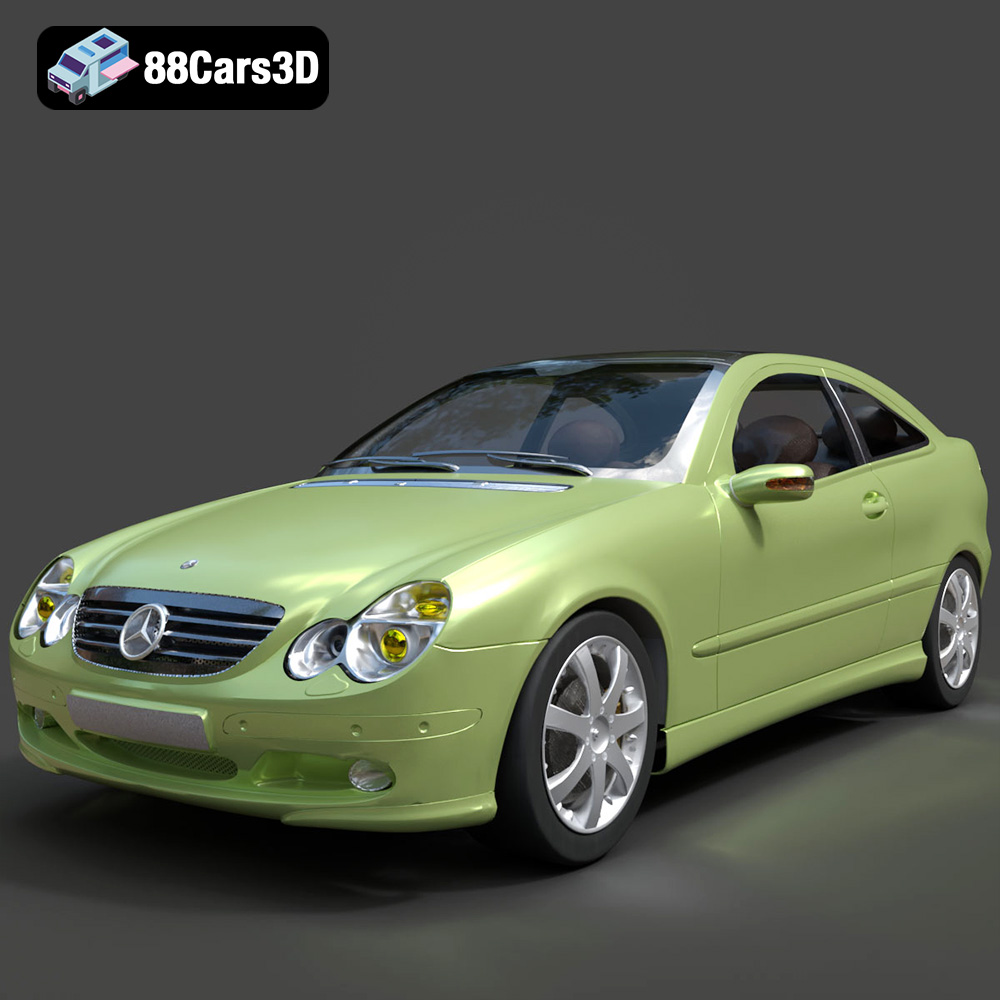
Mercedes-Benz C-Klasse Sportcoupe 2000 3D Model
Texture: Yes
Material: Yes
Download the Mercedes-Benz C-Klasse Sportcoupe 2000 3D Model featuring clean geometry, realistic detailing, and a fully modeled interior. Includes .blend, .fbx, .obj, .glb, .stl, .ply, .unreal, and .max formats for rendering, simulation, and game development.
Price: $38.99
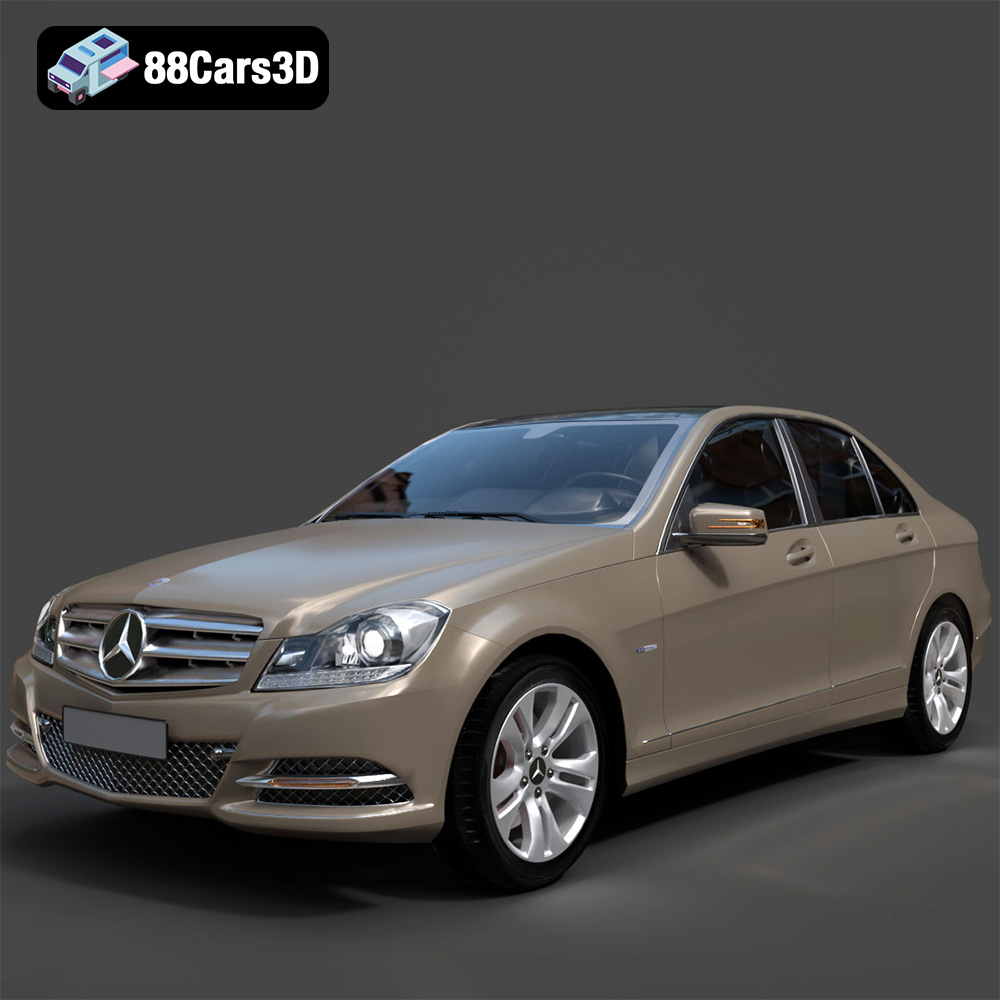
Mercedes-Benz C-Klasse 204 2011 3D Model
Texture: Yes
Material: Yes
Download the Mercedes-Benz C-Klasse 204 2011 3D Model featuring clean geometry, realistic detailing, and a fully modeled interior. Includes .blend, .fbx, .obj, .glb, .stl, .ply, .unreal, and .max formats for rendering, simulation, and game development.
Price: $38.99
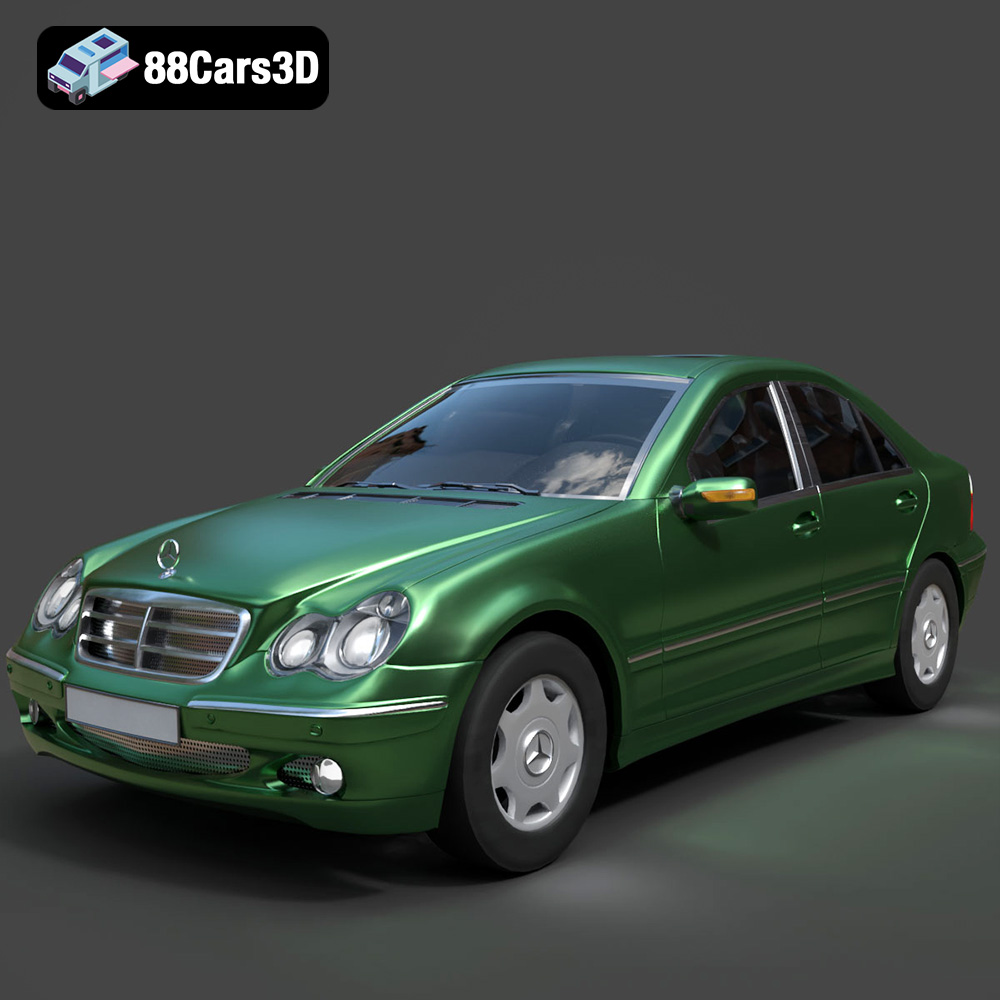
Mercedes-Benz C-Class Sedan 2000 3D Model
Texture: Yes
Material: Yes
Download the Mercedes-Benz C-Class Sedan 3D Model featuring clean geometry, realistic detailing, and a fully modeled interior. Includes .blend, .fbx, .obj, .glb, .stl, .ply, .unreal, and .max formats for rendering, simulation, and game development.
Price: $38.99

Mercedes E-Class w124 Kombi 3D Model
Texture: Yes
Material: Yes
Download the Mercedes E-Class w124 Kombi 3D Model featuring clean geometry, realistic detailing, and a fully modeled interior. Includes .blend, .fbx, .obj, .glb, .stl, .ply, .unreal, and .max formats for rendering, simulation, and game development.
Price: $38.99

Mercedes-Benz CL6540-005 3D Model
Texture: Yes
Material: Yes
Download the Mercedes-Benz CL6540-005 3D Model featuring clean geometry, realistic detailing, and a fully modeled interior. Includes .blend, .fbx, .obj, .glb, .stl, .ply, .unreal, and .max formats for rendering, simulation, and game development.
Price: $38.99
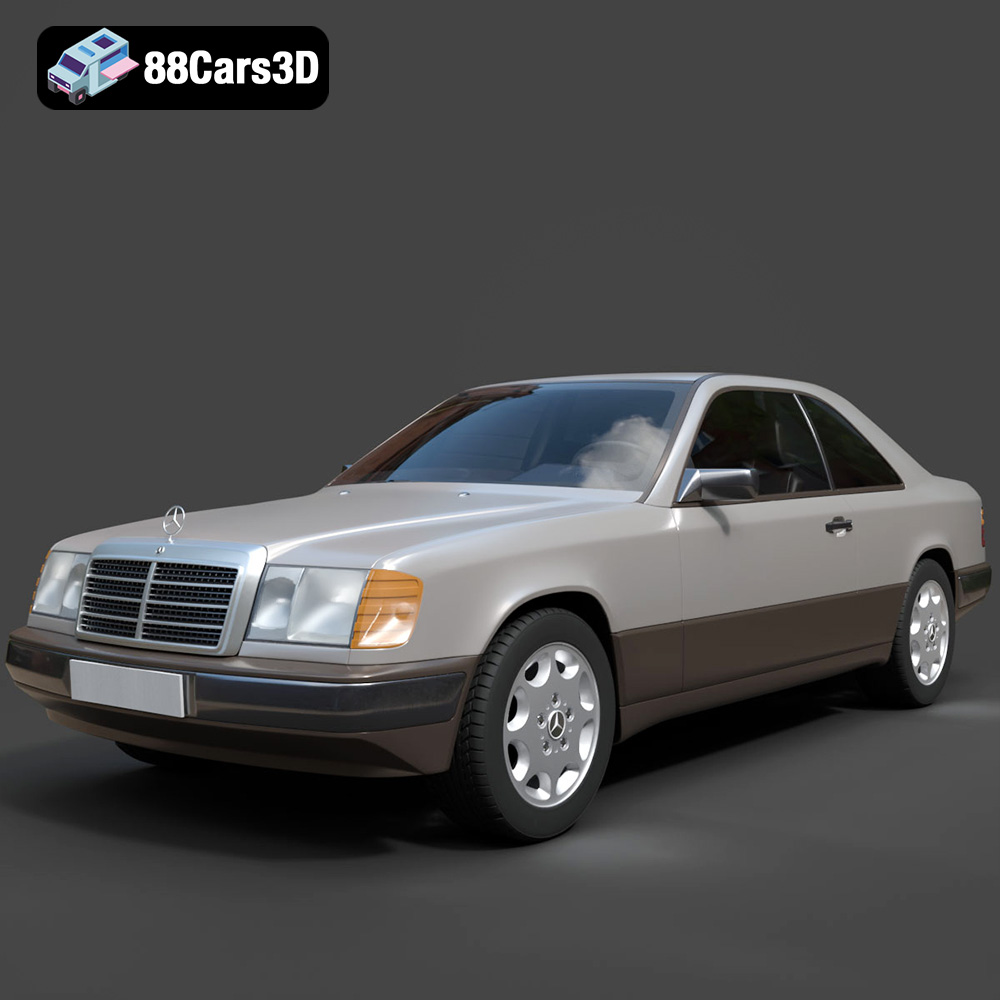
Mercedes E-Class w124 Coupe 3D Model
Texture: Yes
Material: Yes
Download the Mercedes E-Class w124 Coupe 3D Model featuring clean geometry, realistic detailing, and a fully modeled interior. Includes .blend, .fbx, .obj, .glb, .stl, .ply, .unreal, and .max formats for rendering, simulation, and game development.
Price: $38.99
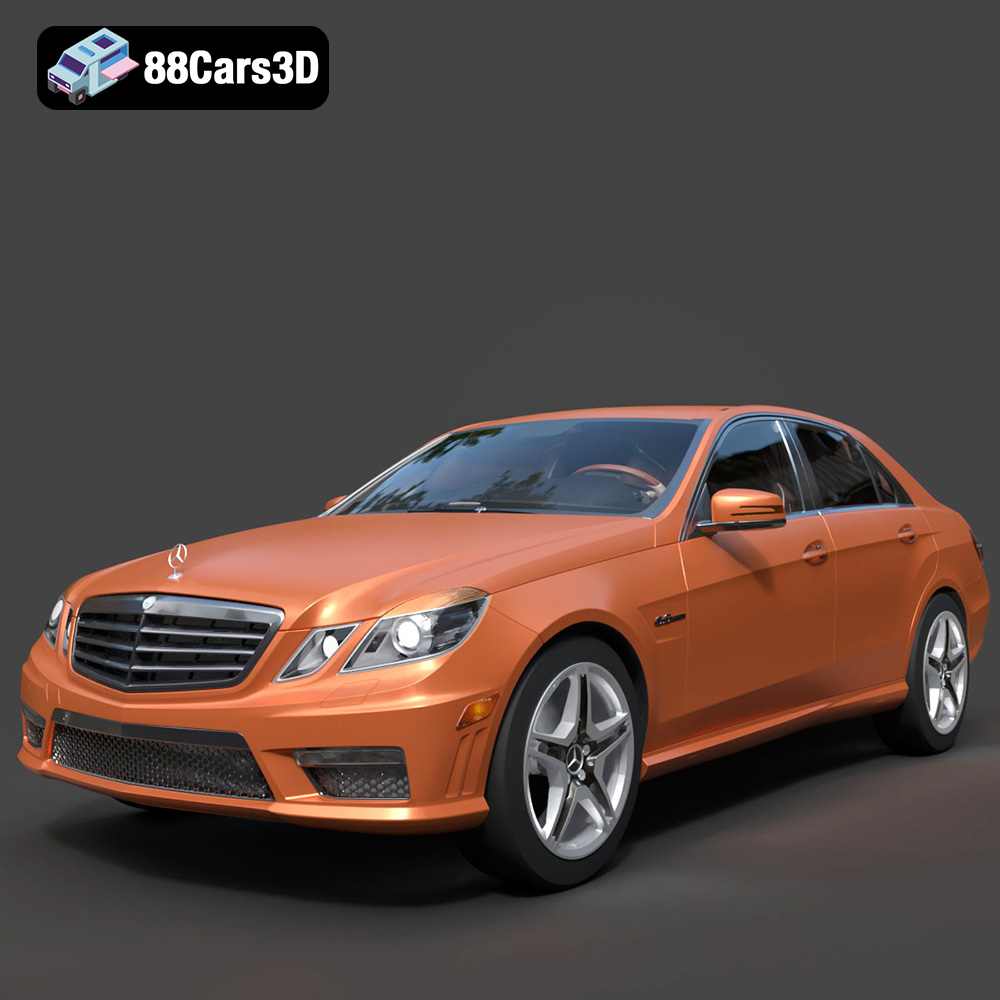
Mercedes-Benz E-Klasse 63 AMG 3D Model
Texture: Yes
Material: Yes
Download the Mercedes-Benz E-Klasse 63 AMG 3D Model featuring clean geometry, realistic detailing, and a fully modeled interior. Includes .blend, .fbx, .obj, .glb, .stl, .ply, .unreal, and .max formats for rendering, simulation, and game development.
Price: $38.99
