Get 50% OFF All Premium 3D & STL Models!
In the demanding world of automotive visualization and real-time rendering, achieving breathtaking visual fidelity without sacrificing performance is the ultimate challenge. Modern 3D car models, with their intricate details, pristine paint finishes, and high-resolution textures, push the boundaries of what real-time engines can handle. This is where Unreal Engine’s advanced texture management systems – Texture Streaming and Virtual Texturing – become indispensable tools for game developers, automotive designers, and visualization professionals alike. They allow you to render incredibly detailed vehicles and environments, from showroom-quality renders to fully interactive experiences, all while maintaining smooth frame rates and efficient memory usage.
This comprehensive guide will delve deep into the technical intricacies of Texture Streaming and Virtual Texturing within Unreal Engine, explaining how they work, how to implement them effectively, and how to optimize them specifically for your high-quality 3D car models. We’ll explore practical workflows, discuss performance considerations, and provide actionable tips to help you maximize visual realism and interactivity in your projects. By the end of this article, you’ll be equipped with the knowledge to craft stunning automotive visualizations that not only look incredible but also perform flawlessly in Unreal Engine.
At the heart of Unreal Engine’s efficiency lies its robust Texture Streaming system. This crucial feature is designed to manage the enormous amount of texture data required by modern real-time applications, especially those featuring high-fidelity assets like realistic 3D car models. Instead of loading every mipmap of every texture into video memory (VRAM) at once, Texture Streaming intelligently loads only the mipmaps (different resolution versions of a texture) that are currently needed based on the camera’s distance to the object, screen space coverage, and other factors. This dynamic loading dramatically reduces VRAM consumption and improves overall performance, making it possible to work with vast, detailed environments and incredibly high-resolution assets.
For automotive visualization, where every panel, decal, and material often demands pixel-perfect detail, efficient texture management is paramount. A single high-resolution 3D car model can easily incorporate dozens of 4K or 8K textures for its body, interior, tires, and various components. Without texture streaming, the cumulative VRAM footprint would be astronomical, leading to stuttering, crashes, or an inability to load the scene altogether. Unreal Engine’s streaming system ensures that only the relevant details are present in VRAM at any given moment, allowing artists to maintain their visual standards without constant compromises. Understanding and properly configuring this system is the first step towards achieving optimized, high-quality automotive projects.
Texture Streaming operates by using mipmaps, which are pre-generated, progressively smaller versions of a texture. When a texture is imported into Unreal Engine, it automatically generates a mipmap chain. During runtime, the engine continuously monitors the screen size of objects and their textures, determining which mipmap level is most appropriate. If a car model is far from the camera, only lower-resolution mipmaps of its textures are loaded. As the camera gets closer, higher-resolution mipmaps are streamed in seamlessly. This process is governed by a global texture streaming pool, which is a dedicated portion of VRAM. Textures compete for space within this pool based on their priority, which is influenced by factors like screen size, importance (e.g., UI elements vs. distant environment), and manual adjustments.
The engine’s texture streamer uses a complex algorithm to calculate each texture’s priority. This calculation considers the texture’s resolution, its on-screen size, and a user-defined “Stream Mip Bias.” A positive bias forces the engine to use lower-resolution mipmaps, saving memory, while a negative bias encourages higher-resolution mipmaps for increased detail, but at the cost of more VRAM. This intricate balance is key to optimal performance. For a deeper dive into Unreal Engine’s texture streaming system, refer to the official documentation at https://dev.epicgames.com/community/unreal-engine/learning.
The advantages of Texture Streaming for high-fidelity 3D car models and their environments are substantial. Firstly, it drastically reduces the overall VRAM footprint, allowing developers to incorporate a greater number of detailed vehicles and expansive scenes without exceeding hardware limits. This is crucial for interactive configurators or open-world driving simulations where multiple car models and complex environments need to coexist. Secondly, it leads to faster loading times, as the engine only needs to load a fraction of the total texture data initially. This improves user experience, especially in applications like VR or AR automotive showcases where immediate responsiveness is key.
Furthermore, Texture Streaming helps prevent performance bottlenecks and visual hitches. By dynamically adjusting texture quality, it ensures that the GPU isn’t overwhelmed with unnecessary high-resolution data for objects that are far away or barely visible. This allows more processing power to be allocated to other critical aspects like real-time lighting (Lumen), physics simulations, and complex material shaders, all of which are vital for bringing automotive designs to life with unparalleled realism. Platforms like 88cars3d.com offer optimized 3D car models specifically designed to leverage these streaming capabilities, ensuring that your projects start with a strong foundation.
While Texture Streaming works largely automatically, effective implementation and optimization require a hands-on approach, especially when dealing with the demanding assets found in automotive visualization. Proper configuration at both the project and individual texture levels can significantly impact performance and visual quality. The goal is to strike a balance: ensure enough detail is present where it matters most, without over-allocating VRAM for elements that don’t require it.
For a highly detailed 3D car model, such as those used for cinematic renders or interactive showrooms, texture resolution is critical. However, not every part of the car needs the absolute highest resolution all the time. The underside of a vehicle, for instance, might not require the same texture fidelity as the body paint or interior dashboard. By strategically adjusting streaming settings, you can prioritize resources, ensuring that the most visible and important elements always look their best, while less critical components consume minimal VRAM. This granular control is essential for crafting a truly polished automotive experience.
Optimizing Texture Streaming begins with your project settings. Navigate to Edit > Project Settings > Engine > Streaming. Here, you’ll find options to control the global texture streaming pool size. The most critical setting is r.Streaming.PoolSize, which defines the maximum amount of VRAM (in MB) dedicated to streaming textures. While Unreal Engine attempts to autodetect an appropriate size, for high-end automotive projects, you might need to manually increase this, especially if you’re targeting specific hardware. You can also enforce a minimum pool size to guarantee a baseline level of texture quality.
On an individual texture basis, the most important settings are found within the Texture Editor:
To truly optimize Texture Streaming, you need to monitor its behavior and debug any issues. Unreal Engine provides excellent tools for this. The primary tool is the Texture Streaming Debugger, accessible via the console command r.Streaming.TextureGroup.Show 1 (or similar, check current documentation) or through the “Show > Visualize > Texture Streaming Accuracy” option in the viewport. This visualizes textures based on their streaming status: green means perfectly streamed, yellow indicates slightly under-streamed, and red signifies heavily under-streamed textures (often resulting in blurriness or pop-in).
Further console commands are invaluable:
stat streaming: Provides real-time statistics on streaming pool usage, budget, and pending requests.r.Streaming.PoolSize: Displays or sets the current streaming pool size.r.Streaming.LimitPoolSizeToVRAM: (True/False) When true, the engine attempts to limit the pool size based on detected VRAM. Set to false if you want to manually manage the pool size strictly.r.Streaming.AmortizeCPUOverTime: (True/False) Controls whether texture streaming updates are spread out over multiple frames or processed instantly, impacting hitches.By continuously monitoring these metrics and visualizing streaming accuracy while navigating your automotive scene, you can pinpoint textures that are under-streaming and adjust their individual settings (like Stream Mip Bias) or increase the global pool size. This iterative process is key to achieving optimal visual quality and performance for your 88cars3d.com assets.
While standard Texture Streaming is excellent for managing individual texture assets, Unreal Engine’s Runtime Virtual Texturing (RVT) offers a more advanced solution for very specific, large-scale texturing challenges. RVT isn’t a replacement for standard streaming; rather, it’s a complementary system designed to handle unique scenarios like blending disparate material types across large surfaces, efficiently rendering complex decals, and providing a highly optimized way to manage enormous texture details without individual texture assets. It excels in situations where you need to sample texture data from a virtual, contiguous texture space rather than from many individual textures.
In the context of automotive visualization, RVT is particularly powerful for creating highly realistic ground surfaces, roads, and environmental elements that interact seamlessly with your 3D car models. Imagine a car driving over a blend of asphalt, dirt, and gravel, where the transitions are smooth and the material properties accurately reflect the underlying surfaces. RVT makes this possible by storing combined material attributes (diffuse, normal, roughness, etc.) in a single virtual texture, which can then be sampled by any material in the scene. This reduces draw calls, simplifies material setups, and provides a highly optimized way to manage vast, detailed environments around your vehicles.
Runtime Virtual Texturing (RVT) essentially creates a large, virtual texture that acts as a cache for material properties over a specified area. Instead of having separate textures for a landscape’s diffuse, normal, and roughness maps, RVT can consolidate these into one or more virtual textures. Materials then sample from this virtual texture using a special RVT Sampler node, effectively getting all the necessary data in a single lookup. The engine then streams only the required “pages” (tiles) of this virtual texture into memory based on camera position and object visibility, similar to how standard texture streaming works for individual assets.
The core components of RVT are:
This system is especially beneficial for large-scale environments, as it allows for incredibly detailed, blended surfaces with far fewer draw calls and material complexity compared to traditional multi-layered materials. It’s an advanced technique that, when used correctly, can elevate the realism of your automotive scenes dramatically.
Implementing RVT for environmental elements around your 3D car models involves several steps within Unreal Engine. First, create a new Runtime Virtual Texture asset (Right Click in Content Browser > Materials & Textures > Runtime Virtual Texture). Configure its size and format based on your needs; for a detailed environment, a large resolution (e.g., 8192×8192 or higher) might be necessary. Next, place a Runtime Virtual Texture Volume actor into your scene. Position and scale this volume to encompass the entire area you want to be covered by the virtual texture (e.g., your entire road network or a large terrain surrounding your car showroom).
Now, you need to populate this virtual texture. Create or modify your ground materials (e.g., asphalt, dirt, gravel) to include an “Output to Virtual Texture” node. Connect the Base Color, Normal, Roughness, and any other desired material properties to this output node. Ensure the RVT Volume actor references your newly created Virtual Texture asset. Any mesh that uses a material with the “Output to Virtual Texture” node will now “bake” its material data into the RVT. Finally, for materials that need to sample this virtual texture (e.g., your car tire material for blending with the ground, or a decal material), use an “RV TSample” node. Connect this node to the desired inputs of your material (e.g., Base Color, Normal) and specify which RVT asset to sample from. This sophisticated setup allows for highly optimized and realistic blending, ensuring your car models sit naturally within their environment.
Beyond large-scale environment blending, Runtime Virtual Texturing offers unique capabilities for enhancing the specific materials and details of your 3D car models themselves. While it’s not typically used for the primary car paint (standard PBR textures and Lumen are usually preferred here), RVT can be incredibly powerful for subtle but impactful details like tire deformation blending, realistic mud or dirt accumulation, and specific decals that interact with the underlying surface properties. The ability to sample consolidated material data from a virtual texture opens up new avenues for dynamic and interactive material effects, pushing the boundaries of realism for your automotive projects.
Consider a scenario where your virtual car drives through varying terrains. Instead of complex, per-pixel projection shaders or numerous render targets, RVT allows you to sample the ground material’s properties (normal, roughness, base color) and subtly blend them into the car’s tires. This creates a highly convincing effect of the tires taking on the characteristics of the surface they are on, enhancing immersion significantly. Furthermore, this approach can be highly optimized, as the engine only streams the necessary virtual texture pages, making it suitable for real-time applications, including AR/VR experiences, where every frame counts.
Integrating RVT into your PBR materials for automotive details primarily involves using the RVT Sample node. For instance, to create a tire material that intelligently blends with the ground:
This technique is far more performant and visually cohesive than trying to project individual textures onto the tire dynamically. It leverages the pre-baked and streamed nature of the virtual texture, making it an excellent choice for achieving subtle, high-quality interaction between your car models and their environment, vital for professional automotive visualization.
While incredibly powerful, Runtime Virtual Texturing is not without its performance considerations. The primary impact comes from shader complexity and the cost of generating and sampling the virtual texture.
Monitoring GPU performance with tools like Unreal Engine’s GPU profiler (stat gpu) is crucial when working with RVT. Pay attention to the “Virtual Texture Update” and “Virtual Texture Sampling” sections to identify potential bottlenecks. By carefully optimizing the contributing materials and balancing virtual texture resolutions, you can harness the power of RVT to create stunning automotive scenes without compromising real-time performance.
The advent of Nanite in Unreal Engine 5 has fundamentally changed how we approach geometric detail, enabling truly cinematic asset quality in real-time. Paired with Texture Streaming and especially Runtime Virtual Texturing, Nanite allows for a future where virtually limitless geometric and textual detail can coexist. This synergy is particularly impactful for automotive visualization, where vehicle models can easily contain millions of polygons and require extremely high-resolution textures to capture every minute imperfection and reflective property. Nanite handles the geometry, ensuring only relevant triangles are rendered, while Texture Streaming and Virtual Texturing manage the corresponding pixel data efficiently.
The concept of “mega textures” – single, enormous textures covering vast areas or complex objects – becomes truly viable with these technologies. Instead of painstakingly tiling smaller textures or managing dozens of individual texture assets per material, artists can now leverage massive, highly detailed texture maps, knowing that Unreal Engine will intelligently stream only the necessary portions. This workflow not only streamlines content creation but also unlocks unprecedented levels of visual fidelity, bringing photorealism closer than ever to real-time automotive experiences. For sourcing such high-fidelity automotive assets, marketplaces such as 88cars3d.com provide models already designed to push these boundaries.
Nanite and Virtual Texturing are powerful allies in the quest for extreme detail. Nanite’s virtualized geometry system streams only the necessary triangle data for any given view, allowing for incredibly dense meshes without traditional polygon budgets. However, high-poly geometry still requires high-resolution textures to truly shine. This is where Virtual Texturing steps in.
This synergy allows automotive designers to bring their CAD models directly into Unreal Engine with minimal decimation, maintaining intricate details that would have been impossible to render in real-time just a few years ago. It truly represents a paradigm shift for high-fidelity content creation.
When working with extremely detailed car models, especially those originating from CAD software, a robust workflow involving USD (Universal Scene Description) and high-resolution textures is crucial.
This workflow capitalizes on the strengths of Nanite for geometry and Texture Streaming/Virtual Texturing for surface details, creating a holistic approach to real-time photorealism that is essential for cutting-edge automotive visualization, virtual production, and high-end game development.
Even with the sophisticated tools of Texture Streaming and Virtual Texturing, challenges can arise in complex automotive projects. Issues like texture pop-in, streaming hitches, or excessive memory consumption can detract from the visual experience. Addressing these requires a deeper understanding of the engine’s internal workings and the application of advanced optimization techniques. The goal is to ensure a consistently smooth and visually stunning experience, especially crucial for interactive applications like automotive configurators or immersive VR/AR showcases.
Successful optimization isn’t a one-time task; it’s an iterative process of profiling, identifying bottlenecks, and applying targeted solutions. For automotive visualization, where client expectations for realism are exceptionally high, meticulous attention to texture performance is non-negotiable. This involves not only configuring basic streaming settings but also exploring more advanced concepts like effective culling, distance field optimizations, and strategic asset management to keep your projects running efficiently and looking spectacular.
Texture pop-in (where a blurry texture suddenly snaps to a higher resolution) and streaming hitches (momentary freezes as textures are loaded) are common issues that can break immersion.
r.Streaming.PoolSize in your project settings or console. A larger pool means more textures (or higher mip levels) can reside in VRAM, reducing the need for constant streaming. Be mindful of hardware limits.r.Streaming.MinTextureResidentMipCount controls the minimum number of mipmaps that must remain resident in memory. Increasing this can prevent textures from being completely unloaded too quickly, reducing the impact of pop-in when the object becomes visible again.r.Streaming.AmortizeCPUOverTime 1 can smooth out streaming operations, spreading the CPU cost over multiple frames instead of having a single spike, which can reduce hitches.Beyond direct streaming settings, intelligent culling and distance field techniques can further optimize texture performance:
These advanced strategies, when combined with proper Texture Streaming and Virtual Texturing setup, create a highly optimized and performant automotive visualization experience. Remember to always profile your project on target hardware to identify and address specific bottlenecks.
The mastery of Texture Streaming and Virtual Texturing extends far beyond mere technical configuration; it directly impacts the success and quality of real-world automotive projects. From interactive car configurators to high-end virtual production, these technologies are the bedrock for delivering stunning, performant, and engaging experiences. The ability to manage immense visual data efficiently is what allows developers to push the boundaries of realism, making virtual vehicles indistinguishable from their physical counterparts.
Whether you’re crafting an AR experience that overlays a new car model onto a real-world driveway or generating photo-realistic renders for a marketing campaign, the principles of optimized texture management remain consistent. Adhering to best practices ensures not only visual excellence but also project scalability and maintainability, crucial factors in fast-paced production environments. Leveraging high-quality assets from sources like 88cars3d.com, which are often pre-optimized for Unreal Engine, further simplifies this process, allowing teams to focus on creative execution.
For interactive car configurators, where users can customize a vehicle in real-time, Texture Streaming and Virtual Texturing are essential. Configurators often involve multiple texture sets for different paint finishes, interior materials, wheel designs, and optional features.
Stream Mip Bias and texture groups ensures the appropriate detail is streamed dynamically.These applications demand not just visual quality, but also absolute responsiveness, which these texture management systems are uniquely equipped to provide.
In virtual production, where real-time engines drive LED walls or provide virtual camera environments, the quality of 3D car models is paramount. Unreal Engine’s Sequencer tool, combined with highly optimized assets, allows for cinematic-grade output.
By leveraging Unreal Engine’s texture management capabilities, automotive studios can achieve unparalleled realism and efficiency across all stages of their production pipeline.
The journey to master high-fidelity automotive visualization in Unreal Engine is paved with intelligent resource management, and at its core lie the powerful systems of Texture Streaming and Virtual Texturing. As we’ve explored, these technologies are not just optional features but indispensable tools for navigating the complex balance between stunning visual realism and robust real-time performance. From meticulously optimized 3D car models to expansive, seamlessly blended environments, understanding and effectively implementing these systems ensures that your projects not only look incredible but also perform flawlessly across a diverse range of applications, from interactive configurators to cinematic virtual productions.
By leveraging Texture Streaming, you gain granular control over VRAM usage, preventing bottlenecks and ensuring that only the necessary texture data is loaded when and where it’s needed. Runtime Virtual Texturing takes this a step further, enabling highly optimized blending for large-scale surfaces and complex material interactions, which is crucial for grounded realism in automotive scenes. Paired with advancements like Nanite, these systems unlock unprecedented levels of detail, allowing artists and developers to realize their most ambitious visions without compromise. The future of real-time automotive rendering is here, and it’s built on efficient texture management.
We encourage you to experiment with the settings and techniques discussed, continuously profiling your projects to fine-tune performance and visual quality. The commitment to mastering these aspects of Unreal Engine will undoubtedly elevate your automotive visualization projects to new heights. For a head start with meticulously crafted, Unreal Engine-ready assets, explore the vast library of high-quality 3D car models available on 88cars3d.com, each designed to seamlessly integrate into your optimized workflows.
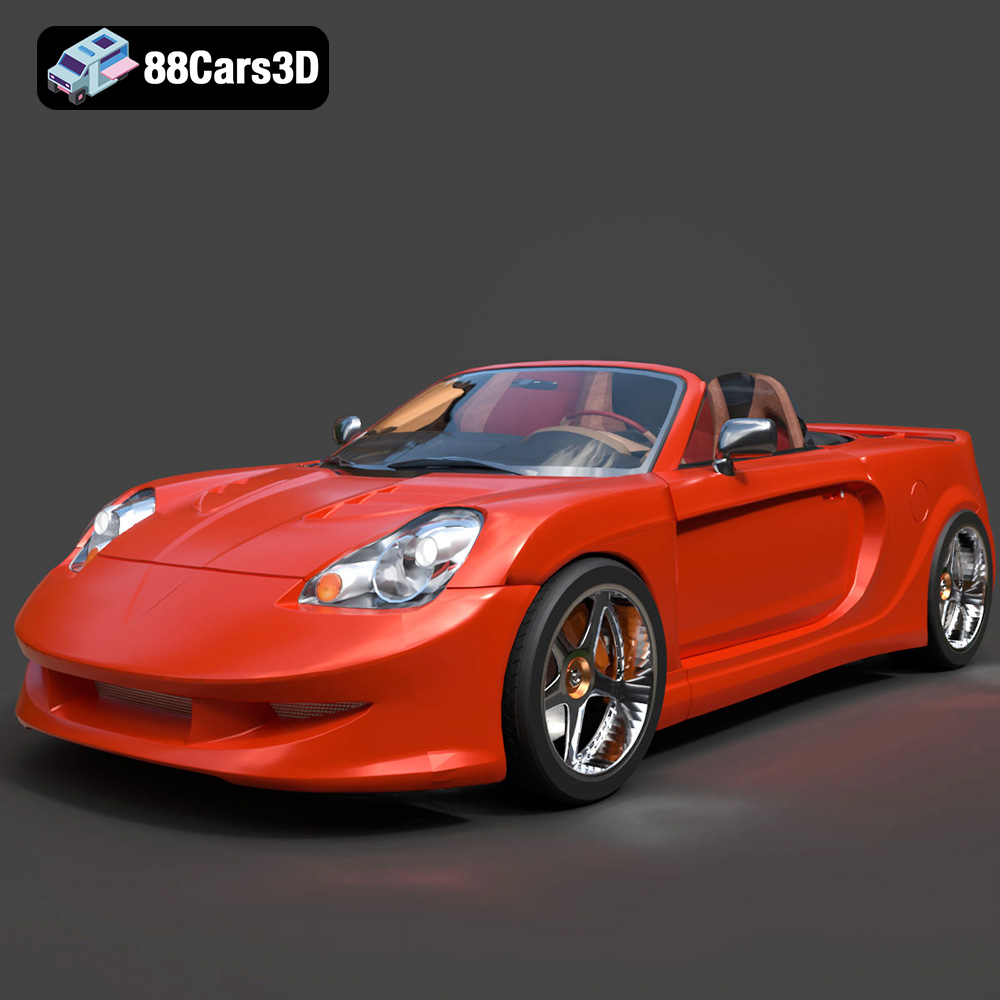
Texture: Yes
Material: Yes
Download the Toyota MRS-007 3D Model featuring clean geometry, realistic detailing, and a fully modeled interior. Includes .blend, .fbx, .obj, .glb, .stl, .ply, .unreal, and .max formats for rendering, simulation, and game development.
Price: $10

Texture: Yes
Material: Yes
Download the Porsche 911 Turbo S 2024 3D Model featuring clean geometry, realistic detailing, and a fully modeled interior. Includes .blend, .fbx, .obj, .glb, .stl, .ply, .unreal, and .max formats for rendering, simulation, and game development.
Price: $20

Texture: Yes
Material: Yes
Download the Pontiac Solstice 2009 3D Model featuring clean geometry, realistic detailing, and a fully modeled interior. Includes .blend, .fbx, .obj, .glb, .stl, .ply, .unreal, and .max formats for rendering, simulation, and game development.
Price: $10

Texture: Yes
Material: Yes
Download the Mini Cooper Countryman 2025 3D Model featuring clean geometry, realistic detailing, and a fully modeled interior. Includes .blend, .fbx, .obj, .glb, .stl, .ply, .unreal, and .max formats for rendering, simulation, and game development.
Price: $29.9
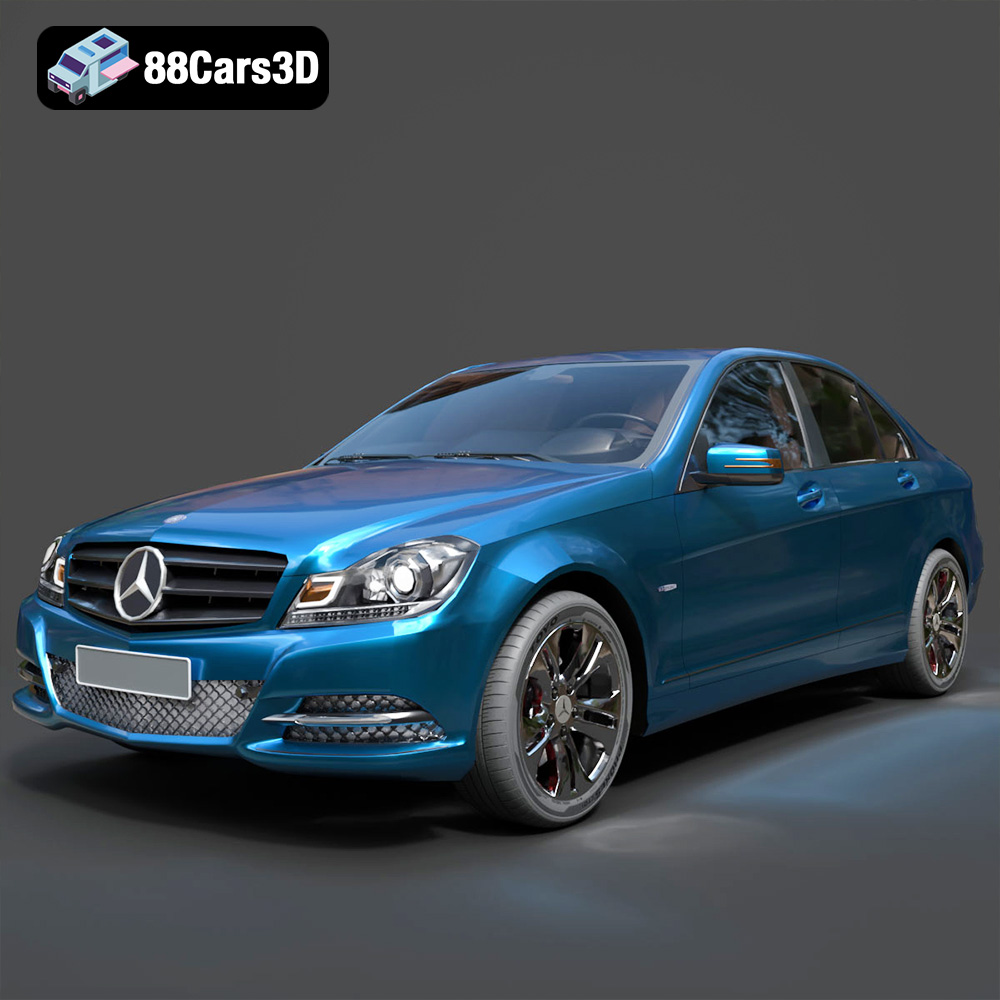
Texture: Yes
Material: Yes
Download the Mercedes C Classe 2012 3D Model featuring clean geometry, realistic detailing, and a fully modeled interior. Includes .blend, .fbx, .obj, .glb, .stl, .ply, .unreal, and .max formats for rendering, simulation, and game development.
Price: $19.9
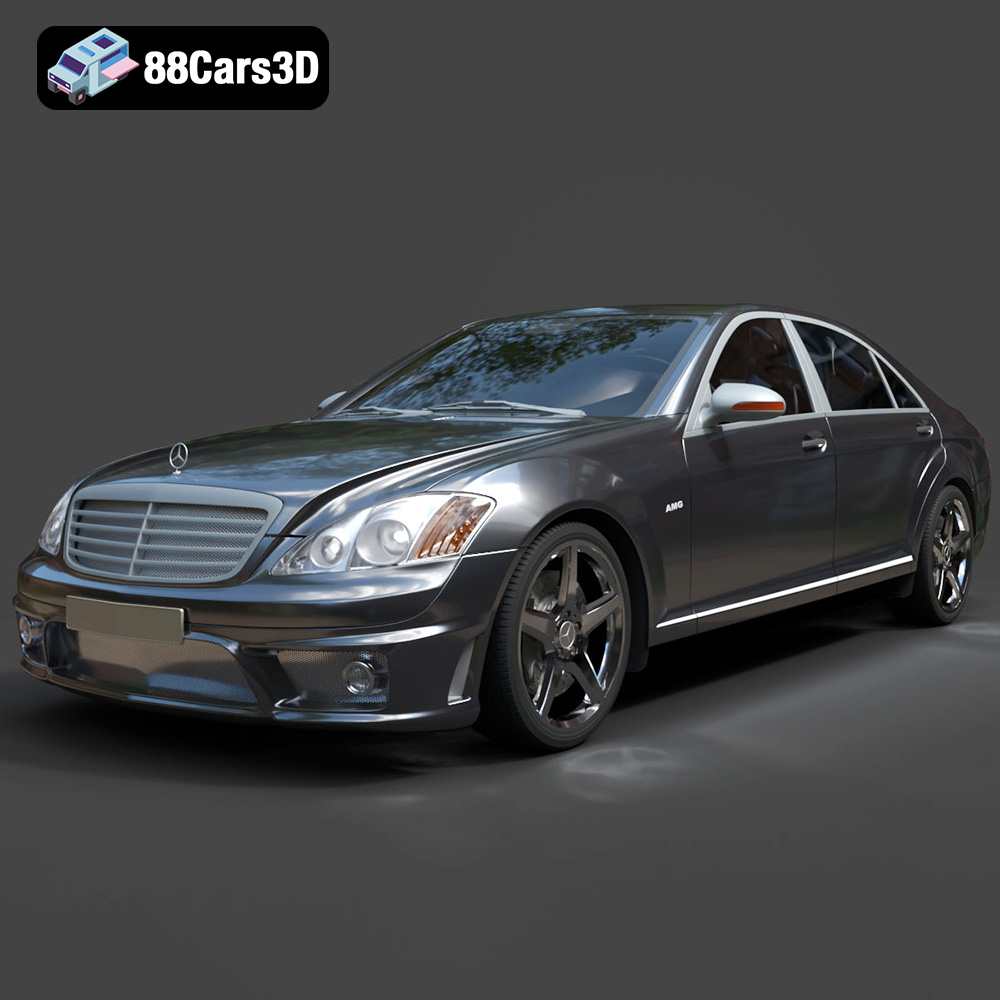
Texture: Yes
Material: Yes
Download the Mercedes-Benz S65 AMG 2018 3D Model featuring clean geometry, realistic detailing, and a fully modeled interior. Includes .blend, .fbx, .obj, .glb, .stl, .ply, .unreal, and .max formats for rendering, simulation, and game development.
Price: $19.9
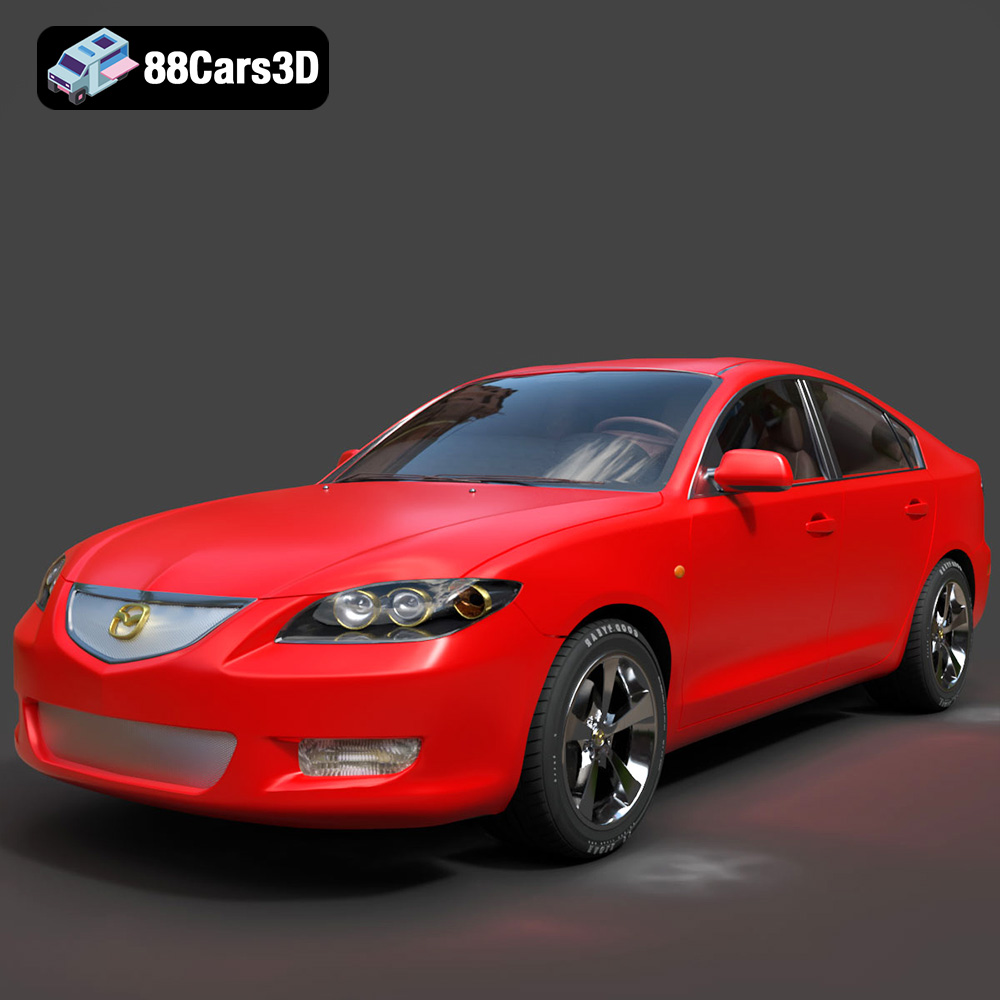
Texture: Yes
Material: Yes
Download the Mazda 3 Sedan 2004 3D Model featuring clean geometry, realistic detailing, and a fully modeled interior. Includes .blend, .fbx, .obj, .glb, .stl, .ply, .unreal, and .max formats for rendering, simulation, and game development.
Price: $10

Texture: Yes
Material: Yes
Download the Martin Rapide 2011 3D Model featuring clean geometry, realistic detailing, and a fully modeled interior. Includes .blend, .fbx, .obj, .glb, .stl, .ply, .unreal, and .max formats for rendering, simulation, and game development.
Price: $20.9
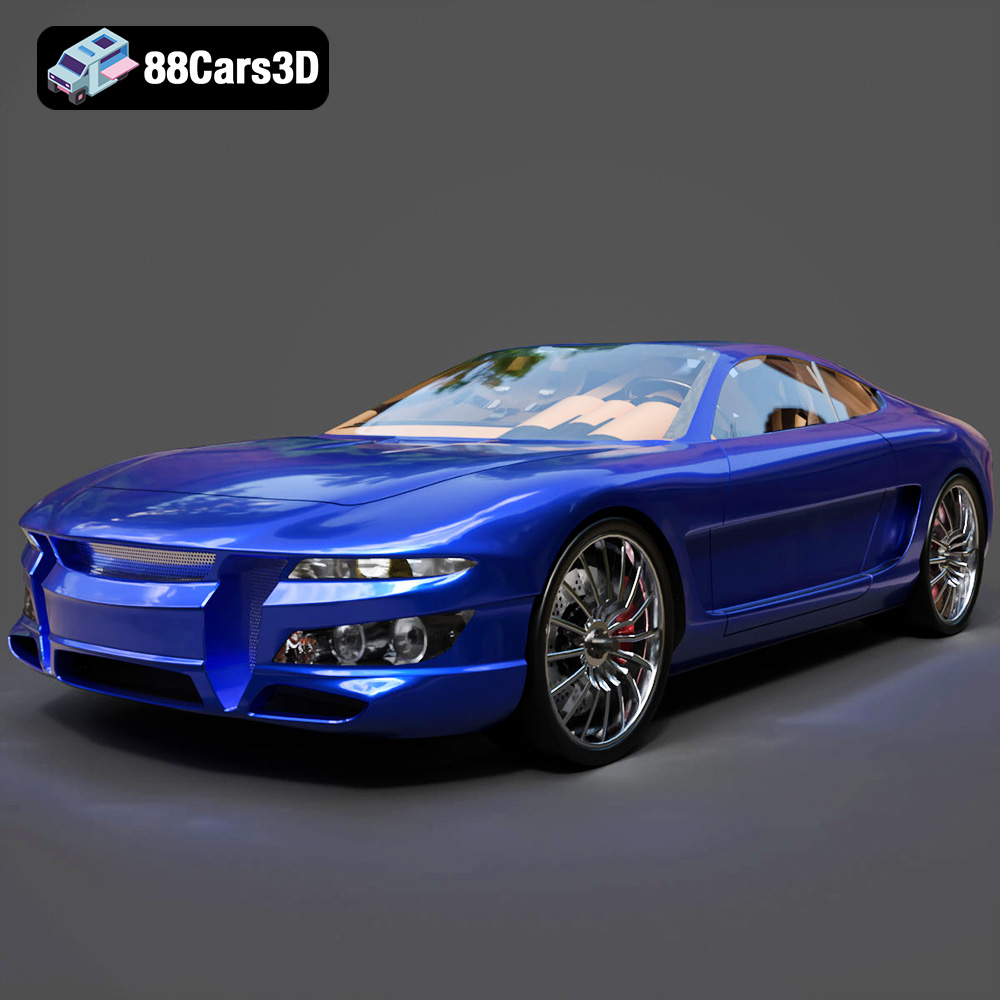
Texture: Yes
Material: Yes
Download the Car Tasergal 005 3D Model featuring clean geometry, realistic detailing, and a fully modeled interior. Includes .blend, .fbx, .obj, .glb, .stl, .ply, .unreal, and .max formats for rendering, simulation, and game development.
Price: $10
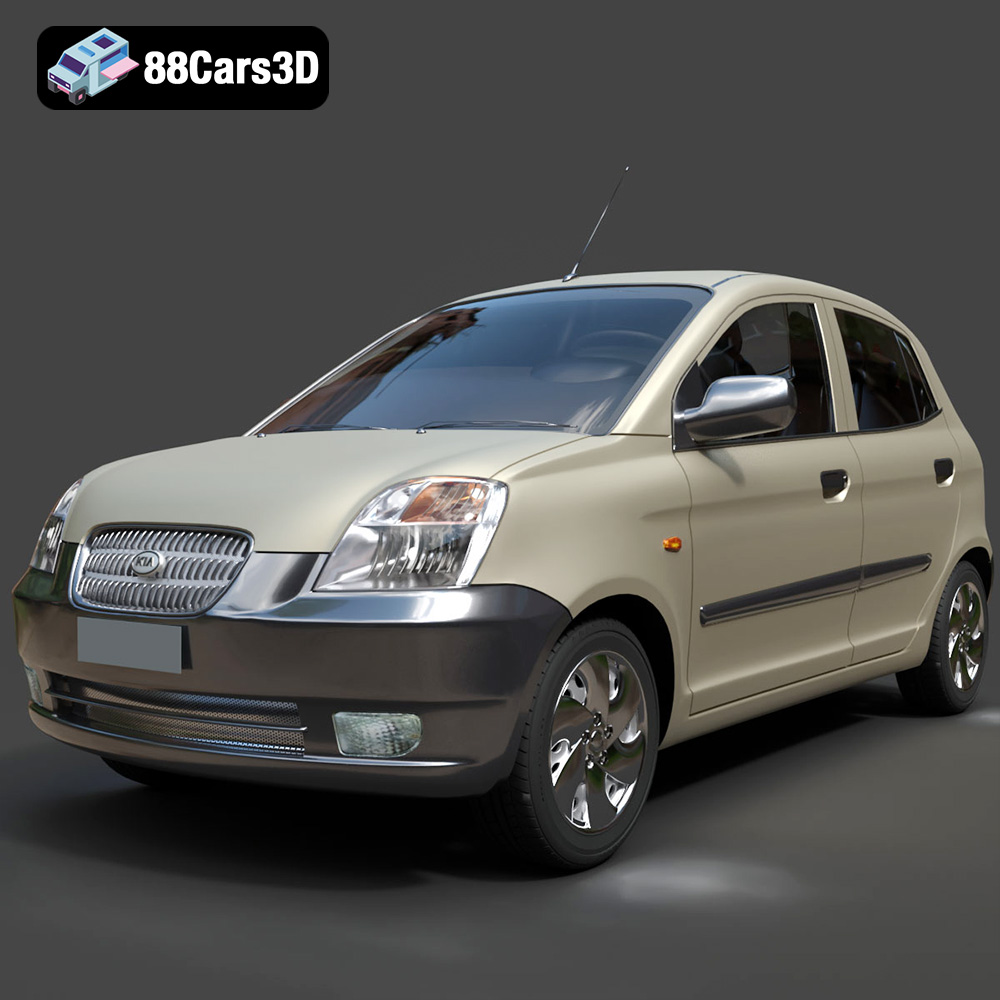
Texture: Yes
Material: Yes
Download the Kia Picanto 2024 3D Model featuring clean geometry, realistic detailing, and a fully modeled interior. Includes .blend, .fbx, .obj, .glb, .stl, .ply, .unreal, and .max formats for rendering, simulation, and game development.
Price: $15.99

