Get 20% OFF All Premium 3D & STL Models!
In the vibrant world of real-time rendering and immersive experiences, visual fidelity often takes center stage. Yet, the true power of immersion often lies in a meticulously crafted soundscape. For automotive visualization, game development, and interactive applications featuring vehicles, sound is not merely an afterthought; it is the heartbeat that brings a static 3D model to life. The roar of an engine, the subtle squeal of tires, the distant hum of traffic – these auditory cues are paramount in conveying realism, emotion, and crucial feedback to the user.
Unreal Engine, with its robust and ever-evolving audio system, offers an unparalleled toolkit for achieving this level of sonic excellence. From fundamental sound asset management to advanced spatialization and dynamic mixing, mastering Unreal Engine’s audio capabilities is essential for creating truly believable automotive experiences. This comprehensive guide will delve deep into the technical intricacies of Unreal Engine’s audio system, focusing on spatial sound, advanced mixing techniques, and performance optimization. We’ll explore how to transform high-quality 3D car models, such as those found on 88cars3d.com, into living, breathing entities through the power of sound. By the end, you’ll have a clear roadmap to design and implement audio that elevates your projects from visually stunning to truly immersive.
Before we dive into advanced spatialization and mixing, it’s crucial to grasp the foundational elements of audio in Unreal Engine. Every sound you hear in your project begins as a raw audio file, typically a WAV, which is then imported and processed within the engine. These raw assets, known as Sound Waves, are the building blocks. A Sound Wave represents a single audio file and can be configured with basic properties like looping, volume, and pitch. While a Sound Wave is simple, it forms the basis for more complex audio behaviors.
The true power emerges with Sound Cues, which act as a visual scripting environment for audio. Sound Cues allow you to layer multiple Sound Waves, apply basic effects, introduce randomization, and control playback logic, all within a node-based interface. For instance, an engine sound might consist of several Sound Waves: an idle loop, an acceleration layer, and a deceleration layer. A Sound Cue can seamlessly blend these, adding subtle modulations to pitch or volume to prevent repetition and enhance realism. This modular approach ensures that even complex automotive sounds, like a nuanced engine sound with distinct RPM stages, can be managed and refined effectively.
When you acquire high-quality 3D car models from platforms like 88cars3d.com, they provide an exceptional visual foundation. Marrying these detailed models with a sophisticated audio system elevates the user’s perception of realism, making them feel truly present within the scene.
The journey of sound in Unreal Engine begins with importing your audio files. Unreal Engine primarily supports uncompressed WAV files, though it can convert other formats upon import. For professional-grade projects, aiming for 44.1 kHz or 48 kHz sample rates and 16-bit or 24-bit depth is standard. Higher bit depths offer greater dynamic range, crucial for sounds like engine roars that vary significantly in loudness. Once imported, each WAV file becomes a Sound Wave asset in your Content Browser. It’s vital to organize these assets logically, perhaps in folders like ‘Audio/Vehicles/Engine’ or ‘Audio/SFX/Tires’, to maintain a clean project structure, especially as your project scales.
Upon import, you can adjust initial settings for each Sound Wave. Key settings include enabling ‘Looping’ for continuous sounds like engine idle, and adjusting ‘Compression Settings’. While Unreal Engine automatically compresses audio to OGG Vorbis for efficient streaming and smaller file sizes, you can override this for specific sounds requiring higher fidelity. Be mindful that excessive compression can introduce artifacts, so balance file size with perceived audio quality. For specific details on audio import settings, refer to the official Unreal Engine documentation at dev.epicgames.com/community/unreal-engine/learning.
Sound Cues are where individual Sound Waves coalesce into cohesive audio events. Consider a basic car engine sound. You might have three Sound Wave assets: Engine_Idle_Loop.wav, Engine_Accel_Loop.wav, and Engine_Decel_Loop.wav. In a Sound Cue, you can combine these using nodes. A common setup involves a `Looping` node for the idle sound, and `Mixer` or `Crossfade` nodes to blend between idle, acceleration, and deceleration based on a vehicle’s RPM parameter driven by Blueprint. The `Modulator` node can subtly vary pitch and volume to prevent audible looping artifacts, making the engine sound feel more organic and less repetitive. A `Random` node can be used for variations of small clicks or mechanical noises, triggered intermittently.
For tire sounds, a Sound Cue might combine a `Looping` Sound Wave for rolling, and separate, non-looping Sound Waves for squeals, skids, and gravel crunches, triggered by collision events or specific physics states. By connecting these Sound Cues to your vehicle’s Blueprint, you can dynamically control their playback, volume, and pitch based on real-time vehicle data, such as speed, throttle input, or surface material. This fundamental approach allows for rich and reactive audio responses that directly reflect the vehicle’s state and interaction within the environment.
One of the most powerful tools for realism in Unreal Engine’s audio system is Spatialization, which allows sounds to emanate from a specific point in 3D space, interacting realistically with the listener’s position. At the heart of spatialization are Attenuation Settings, which dictate how a sound’s volume, spatial properties, and other characteristics change based on its distance and orientation relative to the listener. Without proper attenuation, all sounds would seem to originate from the same spot, or be equally loud regardless of distance, shattering any sense of immersion.
Attenuation settings are defined in a separate asset that can be applied to Sound Cues, MetaSounds, or even directly to Sound Waves. Key properties include falloff curves (how volume decreases with distance), spatialization methods (determining the perception of directionality), and advanced features like listener focus, occlusion, and obstruction. For a car engine sound, for example, attenuation ensures that the engine is loudest when the camera is close to the engine block, fades realistically as the camera moves away, and sounds appropriately muffled when an object like a building is between the car and the listener. This meticulous control over sound propagation is crucial for creating a believable and engaging automotive experience, whether you’re designing a racing game or an architectural visualization where vehicle sounds provide environmental context.
Effective attenuation starts with defining Min and Max distances. The Min Distance is the radius within which a sound plays at full volume, while the Max Distance is the point at which the sound is no longer audible. Between these two points, the volume falloff is determined by the `Distance Model`, which can be linear, logarithmic, or custom. For a car engine, you might set a small Min Distance (e.g., 500 units) to ensure full loudness when nearby, and a Max Distance (e.g., 5000 units) to allow it to be heard from a significant distance. Tire squeals might have a much shorter Max Distance, while a car horn could carry further.
Beyond volume, `Spatialization` is critical. Unreal Engine offers options like ‘Panning’ (basic left/right stereo), ‘HRTF’ (Head-Related Transfer Function for more realistic 3D positional audio, especially with headphones), and ‘Binaural’. HRTF provides a much more convincing sense of elevation and front/back positioning, crucial for discerning precisely where a vehicle is located around the player. You can also customize the ‘Spatialization Algorithm’ and ‘Spread’ to control how widely a sound is perceived to spread in space. For example, a single engine sound could have a wide spread to simulate the large sound source of a car, while a single tire sound might have a tighter spread.
To truly immerse the listener, sound needs to interact with the environment. Occlusion and Obstruction are advanced attenuation features that simulate how sound waves are blocked or filtered by geometry. Occlusion happens when a listener is completely hidden from the sound source by an object, resulting in a muffled or attenuated sound. Obstruction occurs when there’s an object between the listener and the sound source, partially blocking it, which typically results in volume reduction and low-pass filtering. Unreal Engine handles this through ray-casting. You can enable ‘Enable Occlusion’ and ‘Enable Obstruction’ within your attenuation settings.
When enabled, the engine performs ray-casts from the sound source to the listener, detecting geometry in between. Parameters like `Occlusion Volume Attenuation` and `Occlusion Low Pass Filter Frequency` allow you to fine-tune the effect. For instance, a car driving behind a building should not only become quieter but also sound muffled, losing its high frequencies. This greatly enhances realism, making the environment feel physically present. While powerful, be mindful of performance; extensive use of ray-casting for every sound can be computationally intensive, so use it judiciously for critical sounds that benefit most from environmental interaction, such as primary vehicle sounds and key ambient effects.
While Sound Cues offer a robust framework for basic audio logic, Unreal Engine’s MetaSounds system takes dynamic and procedural audio to an entirely new level. Introduced to provide unparalleled flexibility and expressive control, MetaSounds are a node-based, high-performance audio synthesis system that allows developers to create complex audio behaviors directly within the engine. Think of them as the visual scripting equivalent of a modular synthesizer or a digital audio workstation, but deeply integrated into Unreal Engine’s real-time environment. This system moves beyond simply playing back pre-recorded samples; it allows for the generation, manipulation, and real-time modification of sound itself.
For automotive applications, MetaSounds are revolutionary. Instead of blending several static Sound Waves in a Sound Cue, you can design an entire engine sound dynamically, driven by live game parameters like RPM, throttle position, and engine load. This allows for incredibly nuanced and responsive audio that genuinely reacts to the vehicle’s physics and player input. MetaSounds expose inputs and outputs, allowing them to receive data from Blueprints or other engine systems and output audio or other signals. Their graph-based interface, packed with oscillators, filters, envelopes, effects, and logic gates, enables truly generative audio experiences. When paired with the meticulously detailed 3D car models from marketplaces like 88cars3d.com, MetaSounds ensure that the auditory experience matches the visual fidelity, providing an unparalleled level of realism and immersion.
Creating a truly dynamic engine sound is a prime application for MetaSounds. Instead of merely crossfading between a few engine loops, you can construct a procedural engine sound from the ground up. This often involves layering multiple engine samples or even synthesizing parts of the sound. For example, you might have separate samples for different RPM ranges (low, mid, high), and use a `Crossfade` or `Sample Player` node in MetaSounds to blend between them based on a `Float` input parameter representing the engine’s current RPM. The magic comes from also modulating the pitch of these samples based on RPM, using an `Envelope Follower` or `LFO` to add subtle variations, and applying filters to simulate exhaust characteristics.
A typical MetaSound for an engine might take RPM as a normalized float (0-1) from a vehicle Blueprint. This float could drive the pitch of a `Granular Synth` playing an engine sample, control the blend amount between different `Sample Players` representing engine states, and influence the cutoff frequency of a `Low-Pass Filter` to simulate how an engine’s timbre changes at higher RPMs. You can also incorporate other elements like turbo whine or gear shifts, triggered by specific Blueprint events. This level of dynamic control is vastly superior to traditional Sound Cues for complex, interactive sounds, providing a richer, more believable auditory experience.
The true power of MetaSounds lies in their ability to respond to real-time game data. Any exposed input parameter in a MetaSound (e.g., ‘RPM’, ‘ThrottleInput’, ‘Speed’, ‘GearShift’) can be dynamically controlled via Blueprint. This allows you to create highly reactive and data-driven audio. For instance, you can use the vehicle’s current speed to drive the volume and pitch of tire squeals, or trigger specific tire skid sounds based on the friction coefficient and wheel slip. Damage states could alter an engine’s MetaSound, adding a sputtering sound or a metallic clang.
To implement this, you’d create a MetaSound parameter, for example, named `Engine_RPM`. In your vehicle’s Blueprint, you would use an `Execute MetaSound Parameter` node, targeting the appropriate MetaSound component, and pass the current engine RPM value from your vehicle physics simulation. This direct communication between game logic and the audio engine opens up a world of possibilities for immersive sound design. Imagine environmental factors also influencing sounds: rain could make tire sounds distinct, or driving over different surface types (as detected by physics materials) could trigger different MetaSound variations for tire noise. This granular control allows designers to sculpt an audio experience that is intimately tied to the player’s actions and the dynamic game world.
Even with perfectly spatialized and dynamically reactive sounds, a project can fall flat if the overall audio mix is poorly managed. A clear, impactful, and balanced mix is crucial for ensuring that all auditory elements – from the powerful roar of a car engine to subtle UI feedback – are heard distinctly and contribute harmoniously to the immersive experience. In Unreal Engine, Submixes are the primary tool for structuring your audio signal flow and applying global effects to groups of sounds. They act like virtual buses in a traditional mixing console, allowing you to route multiple individual sounds through a shared processing chain before they reach the final master output.
Submixes are essential for separating different categories of sounds, such as vehicle engines, tire sounds, ambient audio, music, and UI elements. This segregation allows you to apply specific effects (like reverb, EQ, or compression) to entire groups of sounds, maintaining consistency and improving clarity across your project. Without submixes, you’d have to apply effects individually to every single Sound Cue or MetaSound, leading to inconsistent results and a chaotic mix. By leveraging Unreal Engine’s powerful audio effects chain within submixes, you can sculpt a professional-grade mix that enhances the realism and impact of your automotive visualizations and interactive experiences.
A well-organized submix hierarchy is the backbone of a professional audio mix. For an automotive project, you might start with a `Master Submix`, which all other submixes feed into. Beneath this, you could create several child submixes:
Each Sound Cue or MetaSound can be easily routed to its appropriate submix within its properties. For example, all engine Sound Cues would point to the ‘Vehicle Engine Submix’. This structure allows you to control the overall volume of all engine sounds with a single fader on the ‘Vehicle Engine Submix’, or apply a common reverb to all environmental sounds to make them feel like they exist in the same space. This hierarchical routing is fundamental for creating a cohesive and manageable mix, especially in projects featuring multiple vehicles or complex environments.
Unreal Engine provides a suite of real-time audio effects that can be applied directly to submixes, offering powerful tools for shaping your sound.
Unreal Engine also offers other effects like Chorus, Delay, and Flanger. Each effect can be added to a submix and configured with various parameters. Using these effects judiciously and professionally can dramatically enhance the perceived quality and realism of your audio mix, providing a polished and impactful auditory experience for your automotive content.
While developing rich and immersive soundscapes, it’s easy to overlook performance. In real-time applications like games or interactive automotive configurators, an unoptimized audio system can consume valuable CPU resources, leading to framerate drops and a degraded user experience. Unreal Engine offers robust tools for managing audio performance, particularly through Concurrency Settings and `Sound Class` prioritization. These features ensure that your complex soundscape remains efficient and responsive, even with numerous active sound sources.
Furthermore, Unreal Engine continues to evolve its audio capabilities, catering to cutting-edge applications such as virtual production, AR/VR experiences, and high-fidelity cinematics. Understanding how to leverage these advanced features, from specialized spatialization techniques for VR to precise synchronization with Sequencer, is crucial for professionals pushing the boundaries of real-time automotive visualization. By carefully managing resource allocation and utilizing the engine’s full suite of audio tools, you can ensure that your stunning 3D car models, perhaps sourced from 88cars3d.com, are accompanied by an equally exceptional and performant audio experience.
In a bustling scene with multiple vehicles, environmental sounds, and UI elements, many sounds might attempt to play simultaneously. If left unchecked, this can overload the audio mixer and negatively impact performance. Concurrency Settings address this by defining rules for how sounds behave when too many instances try to play. For individual Sound Cues or MetaSounds, you can specify `Max Concurrent Instances`, limiting how many copies of that sound can play at once (e.g., only one instance of a specific engine starting sound). The `Resolution Rule` then dictates what happens when the limit is reached:
For an automotive game, you might want distant engine sounds to fade out to prioritize closer, more relevant sounds. `Sound Classes` further enhance prioritization by allowing you to group similar sounds (e.g., ‘Engine Sounds’, ‘UI Sounds’, ‘Music’). Each Sound Class can have a `Priority` value, ensuring that more critical sounds (like your own car’s engine) are always heard over less critical ones (like distant ambient traffic), even when concurrency limits are reached. This intelligent management of audio resources is vital for maintaining a clean and performant mix.
Unreal Engine’s audio system seamlessly integrates into various high-end production pipelines. For Virtual Production and LED wall workflows, accurate spatial audio contributes significantly to the on-set realism, helping actors and crew react authentically to the virtual environment. Sound objects can be precisely placed and attenuated to match the virtual camera’s perspective, enhancing the illusion for both the live action and the digital background. Real-time audio processing ensures that any changes to the virtual world are immediately reflected in the soundscape.
In AR/VR automotive applications, spatial audio becomes even more critical. HRTF spatialization, in particular, is essential for VR, as it provides a highly convincing 3D sound field that matches the visual immersion. Low-latency audio is paramount to prevent simulator sickness and maintain presence. Developers often need to be extra vigilant with polyphony and CPU usage for VR audio to ensure smooth framerates. For creating compelling cinematic sequences with your 3D car models, Unreal Engine’s Sequencer offers powerful audio track capabilities. You can precisely place, edit, and animate audio clips, apply fades, and even automate submix parameters directly within Sequencer. This allows for film-quality sound design that is perfectly synchronized with your visual narrative, enhancing the emotional impact and storytelling of your automotive cinematals. The `Audio Mixer` provides advanced monitoring and debugging tools to ensure all these complex systems are working in harmony.
The journey through Unreal Engine’s audio system, from basic Sound Waves to the intricate dynamics of MetaSounds and the precision of submix mixing, reveals a powerful truth: sound is not just an additive element but a fundamental pillar of immersive experience. For automotive visualization and interactive applications, a meticulously crafted soundscape transforms static 3D models into living, breathing entities, eliciting emotional responses and providing critical feedback that visuals alone cannot achieve. Mastering spatial audio through attenuation, harnessing the procedural power of MetaSounds, and orchestrating a clear mix with submixes are indispensable skills for any developer or artist striving for unparalleled realism.
We’ve explored how to import and manage audio assets, construct dynamic Sound Cues, achieve convincing spatialization with attenuation, and build interactive soundscapes with MetaSounds. Furthermore, we’ve delved into professional mixing techniques using submixes, EQ, and compression, alongside vital performance optimization strategies. By integrating these techniques, you can ensure that the stunning visual assets you acquire, like the high-quality 3D car models from 88cars3d.com, are matched by an equally impressive and performant auditory experience.
The world of real-time audio in Unreal Engine is vast and continuously evolving. We encourage you to experiment, push the boundaries of sound design, and continuously refine your skills. Dive deeper into the official Unreal Engine documentation at dev.epicgames.com/community/unreal-engine/learning for more in-depth technical specifications and tutorials. By prioritizing sound alongside visuals, you are not just building scenes; you are crafting truly unforgettable, multi-sensory experiences.

Meta Description:
Texture: Yes
Material: Yes
Download the Cadillac CTS-V Coupe 3D Model featuring detailed exterior styling and realistic interior structure. Includes .blend, .fbx, .obj, .glb, .stl, .ply, .unreal, and .max formats for rendering, simulation, AR VR, and game development.
Price: $13.9

Texture: Yes
Material: Yes
Download the Cadillac Fleetwood Brougham 3D Model featuring its iconic classic luxury design and detailed exterior and interior. Includes .blend, .fbx, .obj, .glb, .stl, .ply, .unreal, and .max formats for rendering, simulation, and game development.
Price: $10.79

Texture: Yes
Material: Yes
Download the Cadillac Eldorado 1968 3D Model featuring its iconic elongated body, distinctive chrome accents, and luxurious interior. Includes .blend, .fbx, .obj, .glb, .stl, .ply, .unreal, and .max formats for rendering, simulation, and game development.
Price: $20.79

Texture: Yes
Material: Yes
Download the Cadillac CTS SW 2010 3D Model featuring a detailed exterior, functional interior elements, and realistic materials. Includes .blend, .fbx, .obj, .glb, .stl, .ply, .unreal, and .max formats for rendering, simulation, and game development.
Price: $10.79

Texture: Yes
Material: Yes
Download the Cadillac Fleetwood Brougham 1985 3D Model featuring its iconic classic luxury design and detailed craftsmanship. Includes .blend, .fbx, .obj, .glb, .stl, .ply, .unreal, and .max formats for rendering, simulation, and game development.
Price: $10.79

Texture: Yes
Material: Yes
Download the Cadillac Eldorado 1978 3D Model featuring accurately modeled exterior, detailed interior, and period-correct aesthetics. Includes .blend, .fbx, .obj, .glb, .stl, .ply, .unreal, and .max formats for rendering, simulation, and game development.
Price: $10.79
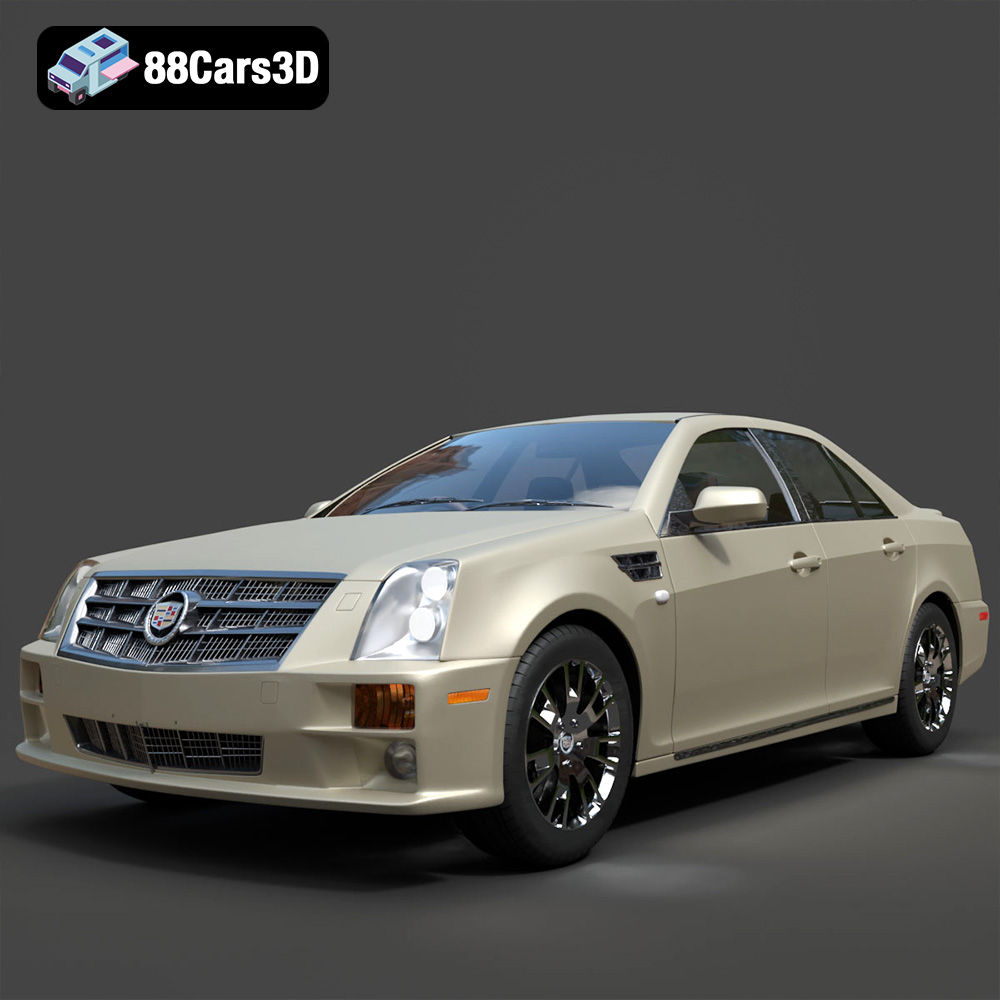
Texture: Yes
Material: Yes
Download the Cadillac STS-005 3D Model featuring a detailed exterior and interior. Includes .blend, .fbx, .obj, .glb, .stl, .ply, .unreal, and .max formats for rendering, simulation, and game development.
Price: $22.79

Texture: Yes
Material: Yes
Download the Cadillac Eldorado Convertible (1959) 3D Model featuring iconic fins, luxurious chrome details, and a classic vintage design. Includes .blend, .fbx, .obj, .glb, .stl, .ply, .unreal, and .max formats for rendering, simulation, and game development.
Price: $20.79

Texture: Yes
Material: Yes
Download the Cadillac DTS-005 3D Model featuring its iconic luxury design, detailed interior, and realistic exterior. Includes .blend, .fbx, .obj, .glb, .stl, .ply, .unreal, and .max formats for rendering, simulation, and game development.
Price: $10.79

Texture: Yes
Material: Yes
Download the Buick LeSabre 1998 3D Model featuring a classic American full-size sedan design. Includes .blend, .fbx, .obj, .glb, .stl, .ply, .unreal, and .max formats for rendering, simulation, and game development.
Price: $10.79

