Mastering Lumen Global Illumination in Unreal Engine: A Deep Dive for Automotive Visualization and Real-Time Rendering
The pursuit of photorealism in real-time rendering has long been the holy grail for 3D artists and developers. For the automotive industry, where every curve, reflection, and material finish matters, achieving this level of visual fidelity in interactive experiences is paramount. Enter Unreal Engine’s Lumen Global Illumination and Reflections system – a game-changer that has redefined what’s possible in real-time lighting. No longer confined to pre-baked lightmaps or expensive ray tracing, Lumen delivers dynamic, fully diffuse global illumination and reflections that adapt instantly to changes in lighting or geometry.
For professionals working with high-quality 3D car models – be it for product configurators, marketing visualizations, game development, or virtual production – understanding and mastering Lumen is essential. This comprehensive guide will take you on a technical deep dive into Lumen, exploring its core principles, setup, optimization strategies, and real-world applications within Unreal Engine. We’ll uncover how to leverage this powerful system to transform your automotive projects, breathing life into every render and interaction. From scene setup to advanced material properties and performance tuning, you’ll gain the knowledge to unlock stunning visual fidelity and immersive experiences that captivate your audience.
Understanding Lumen’s Core Principles and Architecture
Lumen represents a paradigm shift in real-time global illumination, moving away from static, pre-calculated lighting. At its heart, Lumen is a dynamic solution designed to provide infinite bounce indirect lighting and reflections for dynamic scenes. It eliminates the need for baking lightmaps, which are time-consuming and unsuitable for interactive experiences where lights, materials, or geometry change frequently. This makes it particularly powerful for automotive visualization, where interactive customization and dynamic showcases are increasingly common.
Instead of a single, monolithic approach, Lumen employs a hybrid strategy, combining multiple techniques to achieve its stunning results. This adaptability allows it to scale effectively across various hardware configurations while maintaining impressive visual quality. Understanding these underlying components is key to optimizing your automotive scenes and troubleshooting any visual anomalies. For more in-depth technical details on Lumen’s architecture, refer to the official Unreal Engine documentation at https://dev.epicgames.com/community/unreal-engine/learning.
How Lumen Differs from Traditional GI Solutions
Historically, real-time global illumination in game engines relied heavily on baked lightmaps or simpler, less accurate methods like Screen Space Global Illumination (SSGI). Baked lightmaps, while providing high fidelity, are static; any change to a light, mesh, or material requires a complete re-bake, which is impractical for dynamic content. SSGI, on the other hand, is fast but limited to what’s visible on screen, leading to light leaking and disappearing GI around corners.
Lumen transcends these limitations by offering a fully dynamic solution. It operates entirely at runtime, meaning light bounces and reflections are calculated on the fly. This enables instant feedback when adjusting lights, moving objects, or changing materials – a crucial feature for automotive configurators where users can instantly switch paint colors or environments. Unlike ray tracing, which can be computationally intensive, Lumen is designed for wider hardware compatibility, making it more accessible for a broad range of real-time applications, including games, architectural visualization, and interactive automotive demos. Its primary strength lies in its ability to simulate multiple diffuse bounces and realistic specular reflections without the performance hit traditionally associated with fully ray-traced solutions.
Components of Lumen: Screen Traces, Mesh Distance Fields, and Software Ray Tracing
Lumen’s magic comes from its clever combination of different techniques:
- Screen Traces: For immediate, high-quality GI and reflections for objects visible on screen, Lumen uses screen traces. This is the fastest component, providing quick results for directly visible surfaces.
- Mesh Distance Fields (MDFs): For off-screen geometry and more robust GI, Lumen relies on Mesh Distance Fields. These are low-resolution representations of your scene’s geometry, generated automatically for static meshes. Lumen then performs software ray tracing against these MDFs to calculate indirect lighting and reflections. This is especially important for complex automotive models, where the shape of the car dictates how light bounces around it and onto the environment. When sourcing high-quality 3D car models from platforms like 88cars3d.com, ensure they have clean topology to facilitate accurate MDF generation, which directly impacts Lumen’s quality.
- Software Ray Tracing: This is the workhorse for calculating multi-bounce GI and reflections against the MDFs. It traces rays through the scene’s distance field representation, simulating light interaction more accurately than screen-space methods alone. For scenes with many light sources or complex geometry, such as an intricately designed car showroom, the software ray tracing component ensures that light from all angles contributes to the overall illumination, creating soft shadows and realistic color bleeding.
These components work in tandem, providing a robust and flexible system for real-time global illumination that is both performant and visually stunning.
Setting Up Lumen for Automotive Projects
Integrating Lumen into your Unreal Engine automotive project is a straightforward process, but getting the optimal results requires careful attention to project settings and asset preparation. The goal is to maximize Lumen’s fidelity while maintaining smooth real-time performance, which is particularly critical for interactive experiences and virtual production scenarios. High-quality 3D car models, such as those found on 88cars3d.com, are often pre-optimized, streamlining this setup process significantly by providing clean geometry and proper UVs from the start.
Proper project configuration ensures that Lumen can leverage all available hardware and accurately interpret your scene’s geometry and lighting. Without correct settings, you might encounter visual artifacts, poor performance, or simply not achieve the photorealistic quality Lumen is capable of delivering. We’ll walk through the essential steps, from enabling Lumen to preparing your precious car models for its advanced lighting calculations.
Enabling Lumen and Project Settings Configuration
To enable Lumen in your Unreal Engine 5 project:
- Navigate to Edit > Project Settings > Engine > Rendering.
- Under the Global Illumination section, set Dynamic Global Illumination Method to Lumen.
- Similarly, under the Reflections section, set Reflection Method to Lumen.
Once enabled, consider these crucial project settings for optimal Lumen performance and quality:
- Hardware Ray Tracing: While Lumen is primarily a software ray tracing solution, enabling hardware ray tracing (under Project Settings > Engine > Rendering > Hardware Ray Tracing) can significantly improve Lumen’s quality and performance on compatible GPUs, especially for reflections. This will allow Lumen to use hardware ray tracing for high-quality Lumen reflections.
- Generate Mesh Distance Fields: This setting, found under Project Settings > Engine > Rendering, must be enabled. Lumen heavily relies on Mesh Distance Fields for its global illumination calculations. Without them, Lumen cannot function correctly. Ensure this is checked before adding complex geometry.
- Virtual Shadow Maps (VSM): For optimal visual consistency, especially with dynamic lights, it’s recommended to use Virtual Shadow Maps. Enable them under Project Settings > Engine > Rendering > Shadows by setting Shadow Map Method to Virtual Shadow Maps (Beta). VSMs provide highly detailed, performant shadows that complement Lumen’s dynamic GI.
After adjusting these settings, restart the Unreal Engine editor to ensure they take full effect. You should immediately notice the dynamic global illumination and reflections in your scene.
Optimizing Car Models for Lumen: Mesh Distance Fields and UVs
The quality of your 3D car models directly impacts Lumen’s output. While Lumen is robust, poorly optimized meshes can lead to artifacts or reduced fidelity.
- Clean Topology for Mesh Distance Fields: Lumen generates Mesh Distance Fields from your static meshes. Models with extremely dense, noisy, or non-manifold geometry can result in inaccurate MDFs, leading to artifacts like light leaking or incorrect indirect shadows. When acquiring 3D car models, like the high-fidelity assets from 88cars3d.com, prioritize those with clean, optimized topology. If you’re creating models, ensure proper modeling practices.
- Distance Field Resolution: For individual meshes, you can control the accuracy of their Mesh Distance Fields. Select a static mesh asset in the Content Browser, open it, and adjust the Distance Field Resolution Scale. For critical assets like your primary car model, a value of 1.0 or higher might be necessary for accurate indirect shadowing and reflection, while less important background objects can use lower values for performance.
- Lumen-specific UVs (Optional but Recommended): While Lumen doesn’t strictly require dedicated UV sets like traditional lightmaps, having clean, non-overlapping UVs (UV Channel 0 or 1 typically used for textures) is still beneficial for various aspects of rendering, including material application and potential future baking processes. Ensure your automotive models have well-laid-out UVs to avoid stretching or seams in your PBR materials, which can indirectly affect how Lumen interprets surface properties.
- Nanite Integration: For extremely high-poly car models (millions of polygons), Nanite virtualized geometry is a perfect companion for Lumen. Nanite efficiently renders these meshes, and Lumen can use Nanite’s Mesh Distance Fields for its calculations. This allows you to bring in highly detailed CAD data or cinematic-quality models without decimating them for performance, maintaining intricate details that Lumen can then illuminate beautifully. Ensure your high-poly models are Nanite-enabled where appropriate.
Crafting Realistic Materials with PBR for Lumen
While Lumen provides the dynamic lighting foundation, the visual realism of your automotive project ultimately hinges on the quality and accuracy of your PBR (Physically Based Rendering) materials. Lumen thrives on physically accurate material properties, interpreting how light interacts with surfaces based on their base color, metallic, roughness, specular, and emissive values. For automotive visualization, this means meticulously recreating the unique characteristics of car paint, glass, chrome, and rubber to achieve breathtaking fidelity.
A well-defined PBR material allows Lumen to correctly simulate light absorption, reflection, and subsurface scattering, contributing to accurate global illumination and reflections. Conversely, poorly calibrated materials can lead to dull, unrealistic results, regardless of how powerful Lumen is. Understanding how each PBR parameter influences Lumen’s calculations is crucial for creating truly captivating car renders in real-time.
PBR Fundamentals for Automotive Materials (Paint, Glass, Chrome, Tires)
Each component of an automotive model requires specific PBR values to look convincing:
- Car Paint: Modern car paint is complex, often featuring metallic flakes and clear coats.
- Base Color: The primary color of the paint. For metallic paints, this color should be desaturated as the metallic component will add vibrancy.
- Metallic: Set to 1 for metallic flakes, simulating how light reflects directly off microscopic metal particles.
- Roughness: Crucial for gloss. Very low values (0.01-0.05) simulate a highly polished clear coat. Higher values (0.1-0.3) can indicate dust or less polished surfaces.
- Specular: Default 0.5 is usually fine.
- Normal Map: Essential for subtle surface imperfections, orange peel effect, or a faint flake pattern to break up perfect reflections.
- Glass: Car glass needs to be reflective and refractive.
- Blend Mode: Set to “Translucent” in the Material Editor.
- Shading Model: Often “Default Lit” or “Clear Coat” for reflections.
- Opacity: Controls transparency.
- Roughness: Low values (0.01-0.05) for clean glass.
- Refraction: Use an Index of Refraction (IOR) value (e.g., 1.52 for typical glass) to bend light realistically. Note that real-time refraction with Lumen can be performance-intensive; often, simpler techniques or screen-space reflections for glass are used for performance-critical applications.
- Chrome/Metals: Highly reflective and shiny.
- Base Color: Typically a grayscale value, or slightly tinted for different metals (e.g., warm for gold, cool for silver).
- Metallic: Set to 1.
- Roughness: Very low (0.01-0.05) for polished chrome. Higher values for brushed metals.
- Specular: Default 0.5.
- Tires/Rubber: Non-metallic and rough.
- Base Color: Dark gray to black.
- Metallic: Set to 0.
- Roughness: Medium to high (0.6-0.9) to simulate the matte, slightly grippy surface of rubber.
- Normal Map: Essential for tire treads and sidewall details.
When using pre-made materials or assets from marketplaces such as 88cars3d.com, always inspect their PBR values to ensure they are set up correctly for optimal Lumen interaction.
Material Properties Affecting Lumen (Emissive, Metallic, Roughness)
Beyond the fundamental PBR channels, certain material properties have a direct and significant impact on how Lumen calculates global illumination and reflections:
- Emissive Color: Materials with an Emissive Color output act as light sources within Lumen. This is incredibly powerful for simulating illuminated dashboards, headlights, taillights, or ambient interior lighting in a car. Lumen will calculate the indirect light cast by these emissive surfaces onto surrounding geometry, creating realistic light bounces and color bleeding without needing explicit light actors. Be mindful of performance; extremely large or numerous emissive surfaces can increase Lumen’s computational load.
- Metallic: The Metallic input dictates whether a surface reflects light like a metal (specular reflections are tinted by the base color) or a dielectric (specular reflections are untinted white). For Lumen, accurate metallic values are critical for realistic reflections. Metallic surfaces will reflect the environment and other light bounces more directly and intensely than non-metallic surfaces, playing a huge role in the appearance of chrome trims, wheel rims, and metallic car paints.
- Roughness: This parameter defines the microscopic surface irregularities, dictating how sharp or blurry reflections and specular highlights appear. A low roughness value (close to 0) results in mirror-like reflections, while a high roughness value (close to 1) scatters light widely, leading to diffuse reflections and softer highlights. Lumen accurately simulates this, allowing for realistic distinctions between highly polished car finishes, brushed metals, or matte plastics.
- Subsurface Scattering (SSS): While not directly a Lumen input, materials utilizing SSS (e.g., car headlights or some interior plastics) will interact with Lumen’s lighting. Lumen will ensure that indirect light also contributes to the subsurface scattering effect, providing a more integrated and realistic appearance.
By carefully tuning these material properties, you can achieve a sophisticated and photorealistic look for your automotive models within a Lumen-powered scene.
Illuminating Your Scene: Lights, Reflections, and Advanced Lumen Features
With Lumen enabled and your materials accurately defined, the next step is to illuminate your automotive scene effectively. Lumen excels at integrating various light sources, ensuring that every light contribution, direct or indirect, is rendered dynamically and realistically. This section will explore how different light types interact with Lumen, how to achieve stunning reflections, and how to fine-tune Lumen’s behavior for optimal visual impact in your automotive visualization projects.
The beauty of Lumen is its ability to adapt. Whether you’re working with a single directional light simulating sunlight or a complex studio setup with multiple rectangular lights, Lumen ensures that the indirect bounce light from these sources is accurately propagated throughout your scene. This dynamic adaptability is what empowers artists to craft incredibly lifelike environments for their high-quality 3D car models, making every lighting scenario feel natural and immersive.
Types of Lights and Their Interaction with Lumen (Directional, Spot, Rect, Sky Light)
Lumen works seamlessly with all standard Unreal Engine light types:
- Directional Light: Represents distant light sources like the sun. Lumen calculates infinite bounces for directional light, creating soft, realistic ambient illumination and accurate color bleeding across your scene. For outdoor automotive scenes, a well-placed directional light is crucial for setting the overall mood and time of day.
- Spot Light: Emits light from a single point in a cone shape. Lumen handles the indirect bounce light from spot lights, making them ideal for highlighting specific features of a car or creating focused lighting effects in an interior studio setup.
- Point Light: Emits light uniformly in all directions from a single point. Useful for interior lights within a car or small accent lights in a showroom. Lumen accurately simulates the light bouncing off surrounding surfaces.
- Rect Light (Rectangle Light): Simulates area lights, excellent for soft studio lighting, window light, or large diffuse light sources. Rect lights produce incredibly soft and even indirect illumination with Lumen, perfect for showcasing the intricate details and curves of a car model without harsh shadows.
- Sky Light: Captures the ambient light from the distant environment (e.g., from a sky sphere or an HDRI). A Sky Light is indispensable for realistic outdoor or indoor environments, providing uniform ambient illumination and reflections. Lumen enhances the Sky Light’s contribution by processing its indirect bounces, ensuring that global ambient lighting is dynamic and contributes fully to the scene’s illumination.
For all these lights, ensure their Mobility is set to Movable to take full advantage of Lumen’s dynamic capabilities. Static or Stationary lights will still contribute direct lighting, but their indirect lighting will be pre-baked, bypassing Lumen’s real-time features for that component.
Achieving Accurate Reflections with Lumen and Screen-Space Reflections
Lumen also handles reflections dynamically, providing physically accurate specular reflections for all surfaces.
- Lumen Reflections: When Lumen is enabled as the reflection method in Project Settings, it provides infinite bounce reflections for all surfaces, including metals, glass, and polished car paint. These reflections accurately capture the dynamic environment, other objects, and light sources. The quality of Lumen reflections is influenced by the Reflection Method setting in your Post Process Volume and Project Settings. For highest fidelity on supporting hardware, enable hardware ray tracing in Project Settings, which Lumen can utilize for more precise reflections.
- Screen Space Reflections (SSR): SSR can still be used in conjunction with Lumen. It offers a very fast, albeit limited, reflection solution for what’s immediately visible on screen. While Lumen covers off-screen reflections via its distance field tracing, SSR can provide a sharper, higher-resolution reflection for on-screen elements where Lumen’s fidelity might be slightly lower due to its underlying techniques. In your Post Process Volume, you can blend between Lumen and SSR or prioritize one over the other. For performance, especially in AR/VR automotive applications, a careful balance might be needed.
- Reflection Captures: While Lumen largely supersedes the need for traditional Reflection Capture Actors for dynamic GI and reflections, they can still be useful for very specific, static reflections or as a fallback for objects far from the camera or in highly controlled environments. However, for fully dynamic automotive scenes, relying primarily on Lumen and SSR is generally the preferred approach.
To fine-tune Lumen’s reflection quality, explore the Global Illumination and Reflections sections within your Post Process Volume. Parameters like Lumen Scene Detail and Reflections Quality can significantly impact the visual fidelity and performance of reflections. For example, higher Lumen Scene Detail generally leads to more accurate reflections as Lumen builds a more detailed representation of the scene.
Exploring Lumen’s Global Illumination and Reflections Settings (Console Variables, Post Process Volume)
Lumen offers a plethora of settings to control its quality and performance, primarily accessible via the Post Process Volume and console variables.
- Post Process Volume Settings: Within a Post Process Volume, navigate to the Global Illumination and Reflections categories.
- Lumen Scene Lighting Quality: Scales the quality of the indirect lighting solution. Higher values improve fidelity but increase cost.
- Lumen Scene Detail: Controls the resolution of Lumen’s internal scene representation. Crucial for capturing fine details on car models and their interaction with light.
- Lumen Final Gather Quality: Adjusts the final gather pass, which refines the indirect lighting.
- Lumen Reflections Quality: Scales the overall quality of Lumen reflections.
- Max Trace Distance: Controls how far Lumen rays will trace. Useful for optimizing large environments.
- Console Variables (Cvars): For even more granular control and performance tuning, console variables are indispensable. Open the console (tilde key ~) and type:
r.Lumen.Diffuse: Controls the quality of diffuse GI. Default is 1.0. Lowering this can improve performance at the cost of GI quality.r.Lumen.Reflections: Controls the quality of Lumen reflections. Default is 1.0. Similarly, lowering it reduces reflection fidelity for better performance.r.Lumen.HardwareRayTracing: (0 or 1) Forces Lumen to use/not use hardware ray tracing for reflections if enabled in Project Settings.r.Lumen.ScreenProbeGather.RadiusScale: Adjusts the scale of screen probe gather radius. Can impact detail and performance.r.Lumen.Visualize: A powerful command to access various Lumen debug visualizations (e.g., Lumen Scene, Global Illumination, Reflections, Mesh Distance Fields). These visualizations are invaluable for identifying artifacts, understanding Lumen’s data, and optimizing your scene.
Experimentation with these settings is key. Start with default values and gradually adjust them, observing the visual impact and performance metrics to find the sweet spot for your specific automotive project requirements. Always profile your scene to understand the performance cost of each adjustment.
Performance Optimization and Troubleshooting Lumen
While Lumen offers unparalleled real-time photorealism, it is a computationally intensive system. For automotive projects that demand high frame rates (e.g., games, AR/VR, interactive configurators), meticulous performance optimization is not just recommended, it’s essential. Understanding how to profile Lumen’s performance, mitigate bottlenecks, and troubleshoot common visual artifacts will ensure your stunning 3D car models run smoothly in any interactive application.
The key to successful Lumen optimization lies in a proactive approach: from carefully selecting and preparing your assets to fine-tuning engine settings and leveraging advanced features like Nanite. By systematically addressing potential performance drains, you can achieve a perfect balance between visual fidelity and fluid user experience, showcasing your automotive designs in the best possible light.
Identifying and Mitigating Performance Bottlenecks
Optimizing Lumen begins with identifying what’s slowing down your scene. Unreal Engine’s built-in profilers are your best friends here.
- Stat GPU / Stat RHI: These console commands provide immediate feedback on GPU and rendering hardware interface performance. Look for Lumen-related entries, such as “Lumen Global Illumination” or “Lumen Reflections,” to gauge their cost.
- Lumen Visualize Modes: As mentioned,
r.Lumen.Visualize is extremely powerful.
- Lumen Scene: Shows the internal representation of your scene that Lumen traces against. Look for overly dense or sparse areas.
- Global Illumination: Visualizes the GI contribution.
- Reflections: Helps understand how reflections are being calculated.
- Mesh Distance Fields: Crucial for identifying issues with MDFs. Make sure your important car meshes have accurate MDFs, while less critical background elements can have lower resolution ones.
- Common Bottlenecks and Solutions:
- Too many complex lights: While Lumen handles dynamic lights, an excessive number of very detailed area lights can still be costly. Use simpler lights where possible, or combine multiple smaller lights into a single larger one if appropriate for the effect.
- High-resolution textures: Large texture maps for Base Color, Normal, and Roughness increase VRAM usage. Optimize texture resolutions where possible without compromising visual quality.
- Overlapping Mesh Distance Fields: Complex, intersecting geometry can cause artifacts and performance hits due to overlapping MDFs. Ensure your car models (like those from 88cars3d.com) have clean, optimized geometry to begin with.
- Lumen Settings in Post Process Volume: Aggressive settings for Lumen Scene Detail, Lighting Quality, and Reflections Quality can quickly tank performance. Start low and gradually increase, always profiling as you go.
LODs, Nanite, and Lumen Interaction for High-Poly Car Models
Managing geometric complexity is paramount for performance, and Lumen interacts intelligently with Unreal Engine’s solutions for this:
- Nanite Virtualized Geometry: This is a game-changer for high-poly car models. Nanite allows you to import and render assets with millions of polygons without significant performance loss. Crucially, Lumen automatically uses Nanite’s highly detailed Mesh Distance Fields for its calculations. This means you can have incredibly detailed car interiors, intricate engine components, or highly tessellated body panels, and Lumen will use this detail for accurate indirect lighting and reflections, all while Nanite handles the geometry rendering efficiently. Always enable Nanite for your primary car models if they exceed a few hundred thousand polygons.
- Level of Detail (LODs): While Nanite largely reduces the need for manual LODs for mesh rendering, traditional LODs are still important for other systems, and they can influence Lumen indirectly. If you’re not using Nanite, ensure your car models have well-configured LODs. For Lumen, the quality of Mesh Distance Fields generated for each LOD can impact performance. You might consider adjusting the Distance Field Resolution Scale per LOD or for specific assets to reduce the computational burden on Lumen’s MDF tracing.
- Culling and Visibility: Ensure proper culling is happening. Lumen still benefits from objects being culled (not rendered if out of view). For scenes with many hidden elements or complex interiors, using occlusion culling or manual visibility control via Blueprint can reduce the overall scene complexity Lumen needs to consider.
Common Lumen Visual Artifacts and Solutions
Despite its power, Lumen can sometimes produce visual quirks. Here’s how to tackle common issues:
- Light Leaking: Light bleeding through thin walls or corners.
- Solution: Ensure geometry is “water-tight” and has sufficient thickness. Increase Distance Field Resolution Scale for affected meshes. Use the Lumen Scene debug view (
r.Lumen.Visualize 1) to check MDF accuracy.
- Flickering/Temporal Artifacts: Especially noticeable in reflections or on fast-moving objects.
- Solution: Increase Lumen Scene Lighting Quality and Reflections Quality in the Post Process Volume. Adjusting Temporal Sample Count (if available for Lumen in future versions or specific Cvars) can help. Ensure camera motion blur settings are appropriate.
- Inaccurate Reflections: Reflections appearing too blurry, low-resolution, or incorrect.
- Solution: Increase Lumen Reflections Quality and Lumen Scene Detail. Ensure hardware ray tracing is enabled if supported. Check object roughness values; very low roughness requires higher quality settings.
- Shadows too bright/Dark: Indirect shadows not behaving as expected.
- Solution: Check light source intensity and color. Ensure Sky Light is configured correctly. Adjust Lumen Scene Lighting Quality. Check if any emissive materials are unintentionally casting too much or too little light.
- Performance Hitches with Many Dynamic Objects:
- Solution: Reduce complexity of dynamic objects if not using Nanite. Optimize materials. Consider simplifying light setups if many lights are constantly changing.
Regular testing and using Lumen’s visualization tools are crucial for effective troubleshooting. Remember that Unreal Engine is constantly evolving, so always refer to the latest documentation for the most current best practices: https://dev.epicgames.com/community/unreal-engine/learning.
Real-World Applications: Automotive Configurators and Virtual Production
The true power of Lumen extends far beyond just pretty pictures; it enables entirely new workflows and interactive experiences within the automotive sector. Its dynamic nature means that complex lighting scenarios, material changes, and environmental shifts can all happen in real-time, opening doors for innovative applications that were previously impractical or prohibitively expensive. For anyone working with high-quality 3D car models, especially those from optimized sources like 88cars3d.com, Lumen provides the foundational lighting system to bring these visions to life.
From empowering customers to customize their dream car with immediate visual feedback to placing a virtual vehicle in a high-stakes film production, Lumen plays a pivotal role. It ensures that regardless of the interactivity or the surrounding environment, the vehicle always appears grounded, realistically lit, and visually stunning, bridging the gap between digital assets and real-world perception.
Leveraging Lumen for Interactive Automotive Configurators
Automotive configurators are an area where Lumen shines brightest. Imagine a customer interacting with a virtual car, changing paint colors, wheel designs, interior trims, or even opening doors. With Lumen, every one of these changes instantly updates the global illumination and reflections:
- Instant Paint Color Changes: When a user selects a new paint color via a Blueprint widget, Lumen immediately re-calculates how that new color reflects light onto the environment and how the environment’s light bounces back onto the car. This provides an incredibly realistic and satisfying user experience, making the digital car feel tangible.
- Dynamic Environments: Configurators can offer different backdrops – a sunlit showroom, a moody street at dusk, or a modern studio. Lumen ensures that the car is realistically lit within each environment, displaying accurate shadows, reflections, and ambient light, without needing to pre-render or bake lightmaps for each option.
- Interior Customization: As users change interior materials (e.g., leather vs. fabric seats), Lumen adjusts the indirect lighting within the car’s cabin, reflecting the subtle color bounces and material properties, adding to the overall immersion.
- Real-time Accessories and Components: Adding or removing accessories like roof racks, spoilers, or different headlight configurations dynamically impacts the lighting. Lumen provides consistent, accurate illumination for these changes.
Blueprint visual scripting is key to building these interactive elements, allowing artists and designers to create complex customization options without writing a single line of code, all powered by Lumen’s dynamic lighting.
Virtual Production Workflows with Lumen and LED Walls
Virtual Production (VP), particularly with LED walls, is revolutionizing filmmaking and advertising. Lumen is a cornerstone of this revolution for automotive content:
- In-Camera VFX for Cars: When a real car is placed on a stage in front of an LED wall displaying a virtual environment, Lumen ensures that the virtual environment’s lighting accurately extends into the real world. The virtual background, when projected on the LED wall, casts real light onto the physical car, but Lumen ensures that the virtual car (or parts of it) in the scene receives accurate indirect lighting and reflections from that same virtual environment. This seamless integration creates incredibly convincing “in-camera” visual effects.
- Dynamic Lighting for Digital Doubles: For digital car doubles used in cinematic sequences, Lumen handles complex lighting setups that can be controlled and modified in real-time by the director and cinematographer. Changes to virtual lights, time of day, or environmental reflections immediately affect the digital car’s appearance, allowing for creative iteration on set.
- Seamless Integration of CG and Live-Action: Lumen’s dynamic nature allows for incredible flexibility when blending CG cars with live-action footage or performers. It provides the crucial indirect lighting and reflections that help ground the digital assets within the scene, making them feel like a natural part of the environment.
- Performance and Fidelity: For real-time VP, performance is critical. Lumen, especially when paired with Nanite for high-fidelity car models, allows for complex scenes to be rendered at the high frame rates needed for LED wall content, without compromising the photorealistic quality expected in high-end automotive advertisements or films.
By using tools like Sequencer for cinematic camera movements and Niagara for realistic effects (dust, smoke, water splashes interacting with the car), coupled with Lumen’s lighting, automotive virtual productions can achieve unprecedented levels of realism and efficiency.
Conclusion
Lumen Global Illumination and Reflections stands as a monumental achievement in real-time rendering, fundamentally changing how we approach lighting in Unreal Engine projects. For the automotive industry, where precision, aesthetic appeal, and dynamic interaction are paramount, Lumen provides the ultimate toolkit for achieving photorealistic results in real-time. We’ve explored its intricate architecture, walked through the essential setup and optimization steps, and delved into its transformative impact on applications ranging from interactive configurators to cutting-edge virtual production workflows.
By embracing Lumen, you gain the ability to create visually stunning environments that breathe life into your 3D car models, ensuring every curve and material finish is rendered with breathtaking accuracy. The integration of high-quality assets, like those found on 88cars3d.com, combined with meticulous PBR material creation and thoughtful Lumen optimization, unlocks a new era of immersive and interactive automotive visualization. The journey to mastering Lumen is one of continuous learning and experimentation, but the rewards – unparalleled visual fidelity and limitless creative possibilities – are well worth the effort. Dive in, experiment with these techniques, and elevate your Unreal Engine automotive projects to cinematic levels of realism.
Featured 3D Car Models
Texture: Yes
Material: Yes
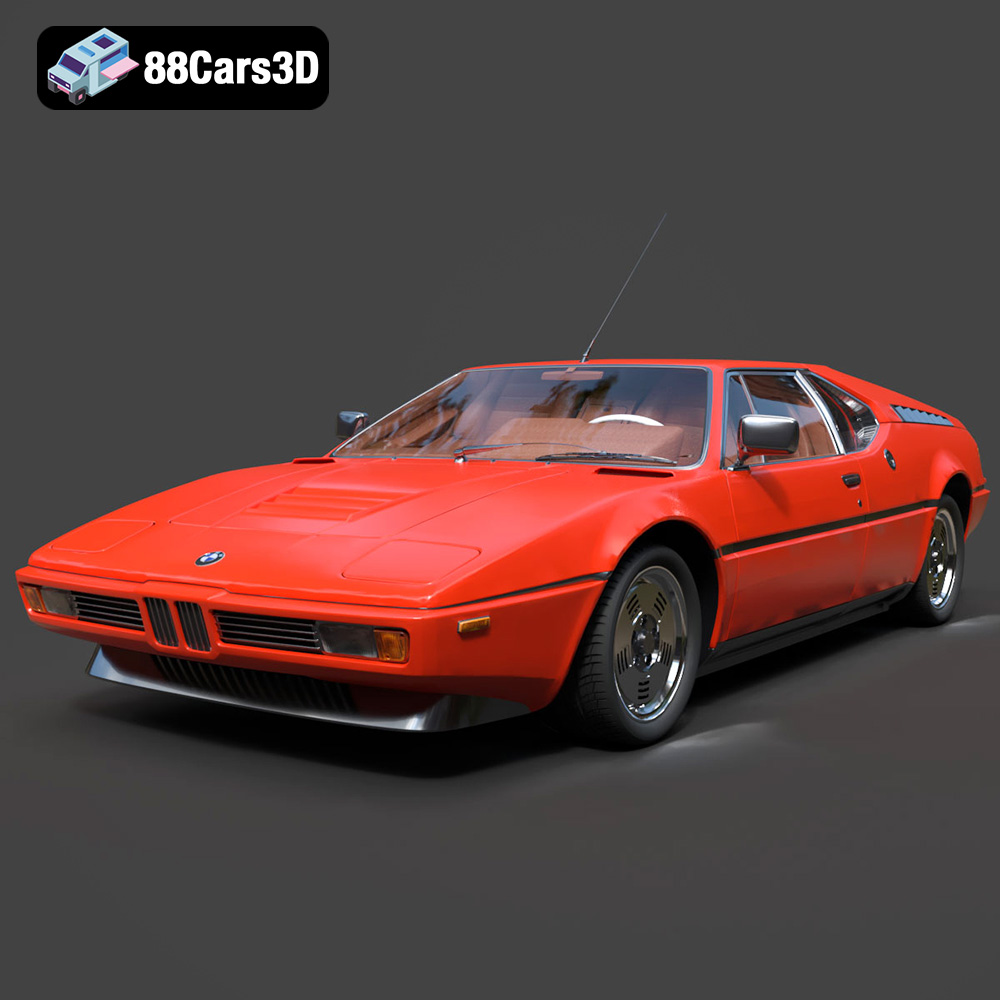
Download the BMW Motorsport M1 E26 1981 3D Model featuring its iconic design, race-bred aerodynamics, and meticulously crafted details. Includes .blend, .fbx, .obj, .glb, .stl, .ply, .unreal, and .max formats for rendering, simulation, and game development.
Price: $20.79
View Product

Meta Description:
Texture: Yes
Material: Yes
Download the Cadillac CTS-V Coupe 3D Model featuring detailed exterior styling and realistic interior structure. Includes .blend, .fbx, .obj, .glb, .stl, .ply, .unreal, and .max formats for rendering, simulation, AR VR, and game development.
Price: $13.9
View Product
Texture: Yes
Material: Yes
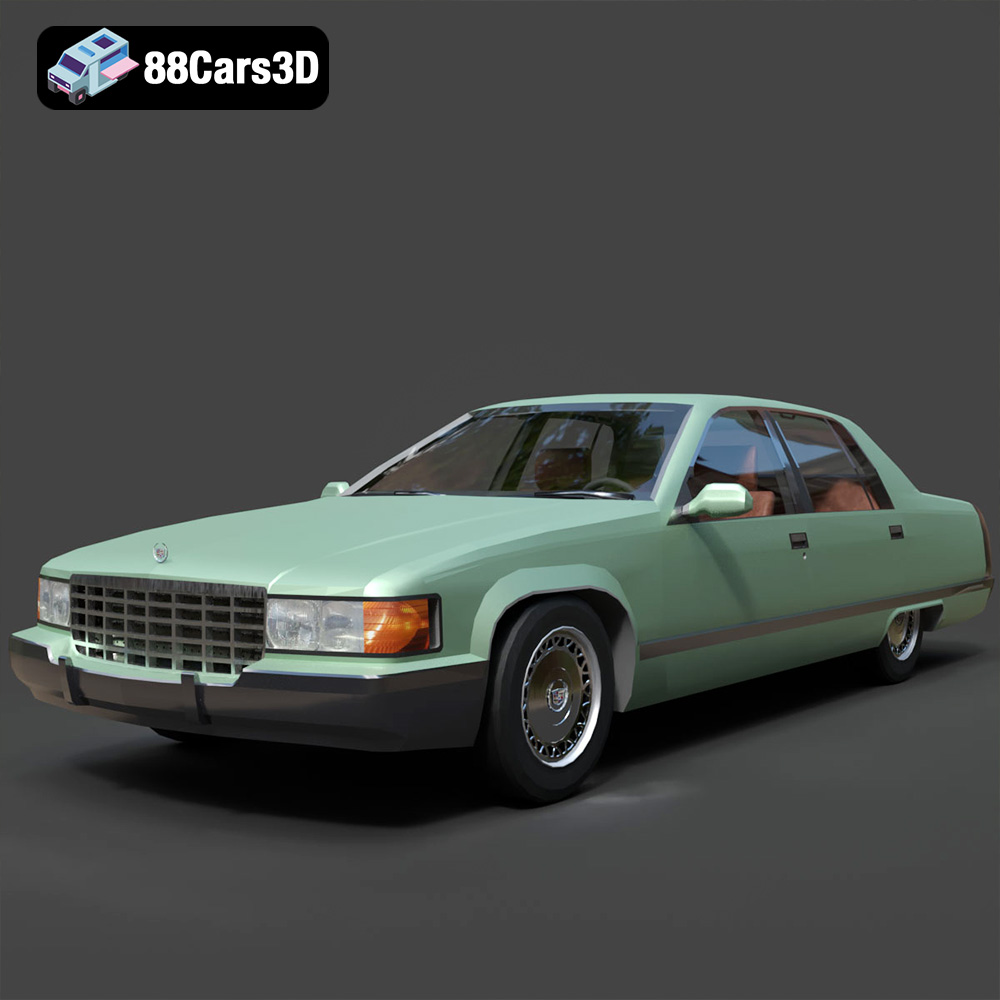
Download the Cadillac Fleetwood Brougham 3D Model featuring its iconic classic luxury design and detailed exterior and interior. Includes .blend, .fbx, .obj, .glb, .stl, .ply, .unreal, and .max formats for rendering, simulation, and game development.
Price: $10.79
View Product
Texture: Yes
Material: Yes
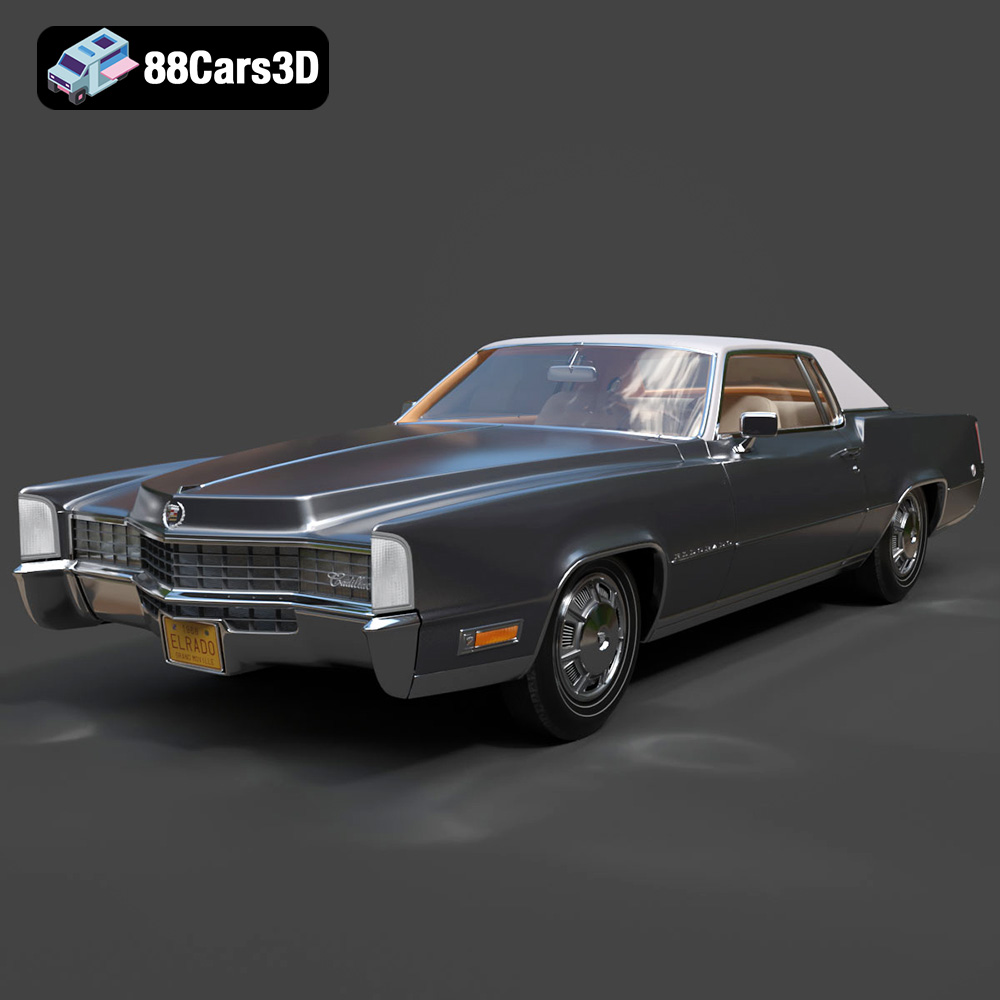
Download the Cadillac Eldorado 1968 3D Model featuring its iconic elongated body, distinctive chrome accents, and luxurious interior. Includes .blend, .fbx, .obj, .glb, .stl, .ply, .unreal, and .max formats for rendering, simulation, and game development.
Price: $20.79
View Product

Texture: Yes
Material: Yes
Download the Cadillac CTS SW 2010 3D Model featuring a detailed exterior, functional interior elements, and realistic materials. Includes .blend, .fbx, .obj, .glb, .stl, .ply, .unreal, and .max formats for rendering, simulation, and game development.
Price: $10.79
View Product
Texture: Yes
Material: Yes
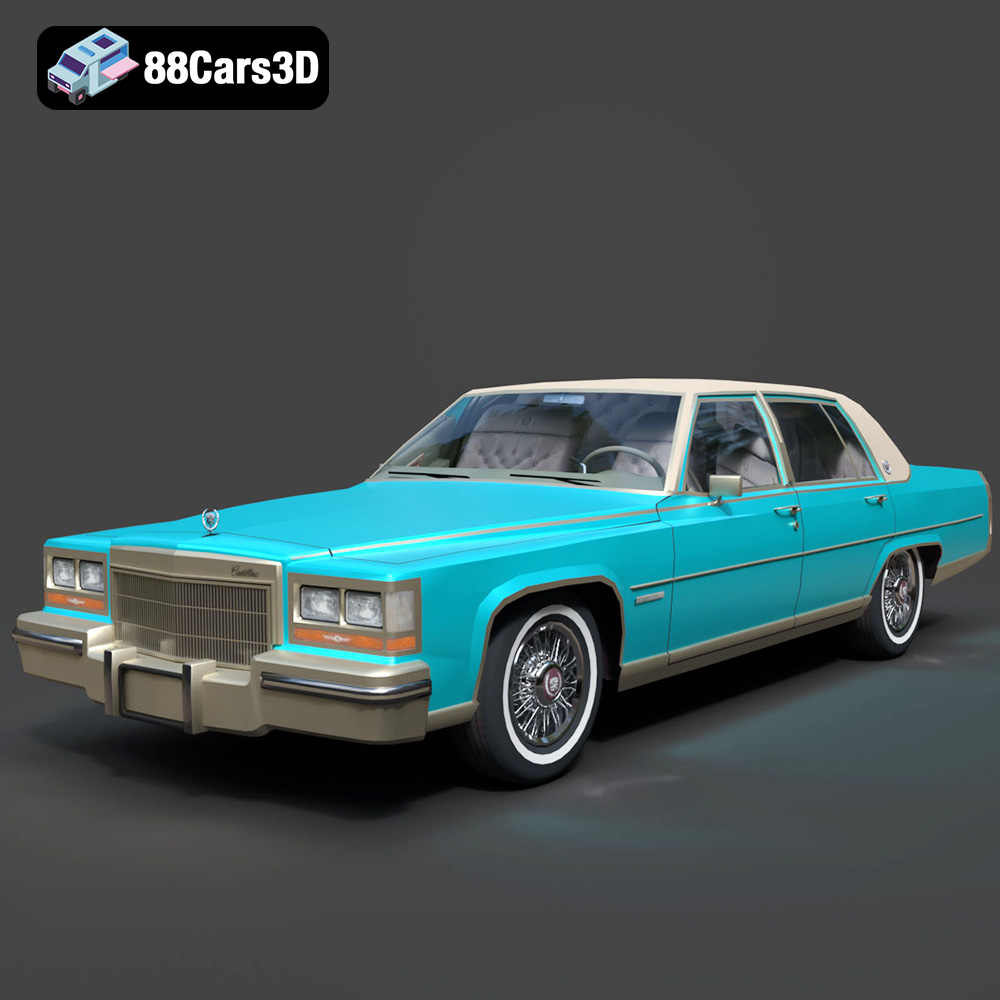
Download the Cadillac Fleetwood Brougham 1985 3D Model featuring its iconic classic luxury design and detailed craftsmanship. Includes .blend, .fbx, .obj, .glb, .stl, .ply, .unreal, and .max formats for rendering, simulation, and game development.
Price: $10.79
View Product
Texture: Yes
Material: Yes
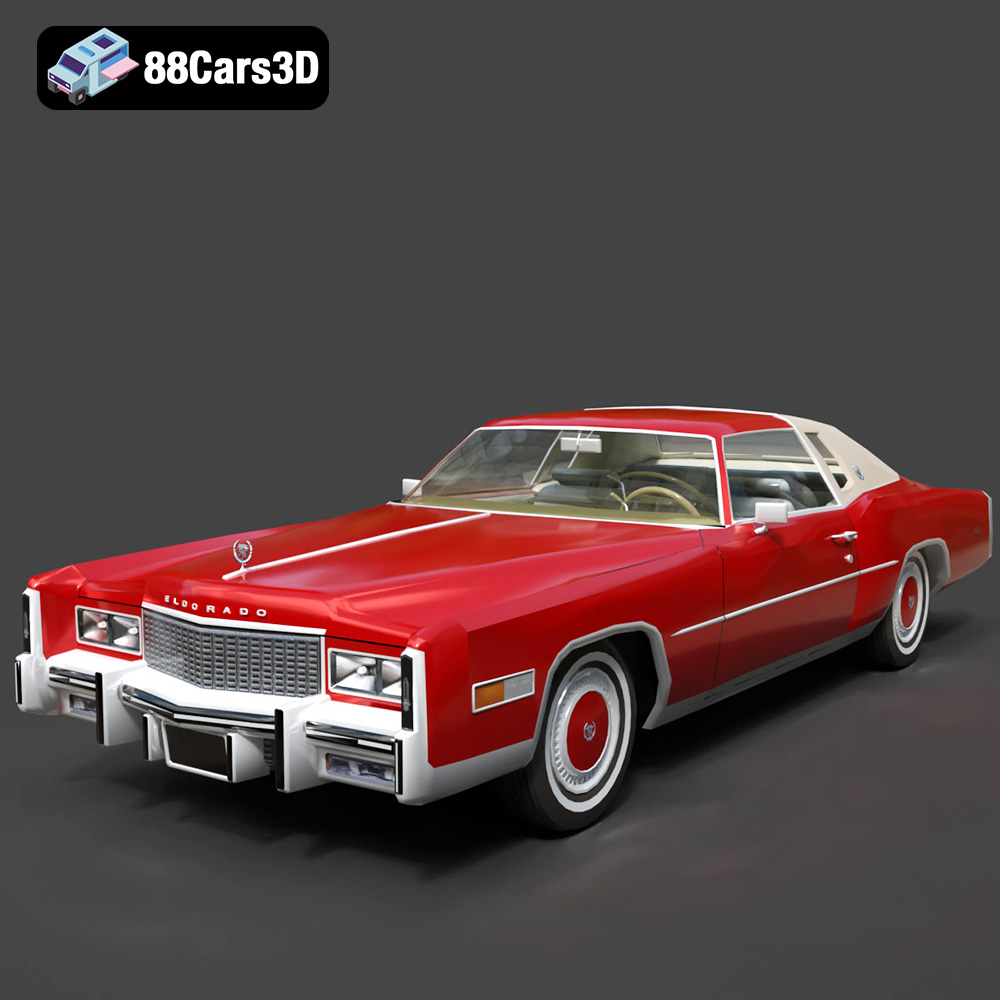
Download the Cadillac Eldorado 1978 3D Model featuring accurately modeled exterior, detailed interior, and period-correct aesthetics. Includes .blend, .fbx, .obj, .glb, .stl, .ply, .unreal, and .max formats for rendering, simulation, and game development.
Price: $10.79
View Product
Texture: Yes
Material: Yes
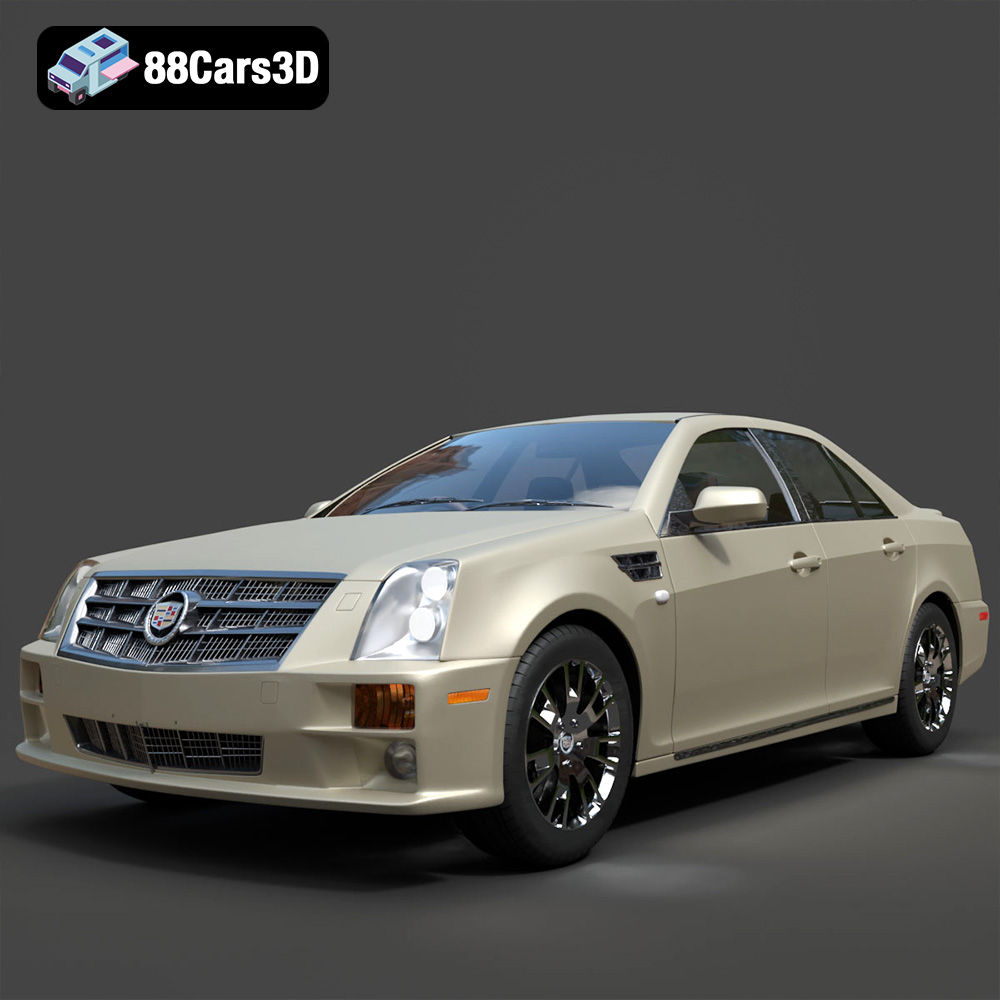
Download the Cadillac STS-005 3D Model featuring a detailed exterior and interior. Includes .blend, .fbx, .obj, .glb, .stl, .ply, .unreal, and .max formats for rendering, simulation, and game development.
Price: $22.79
View Product
Texture: Yes
Material: Yes
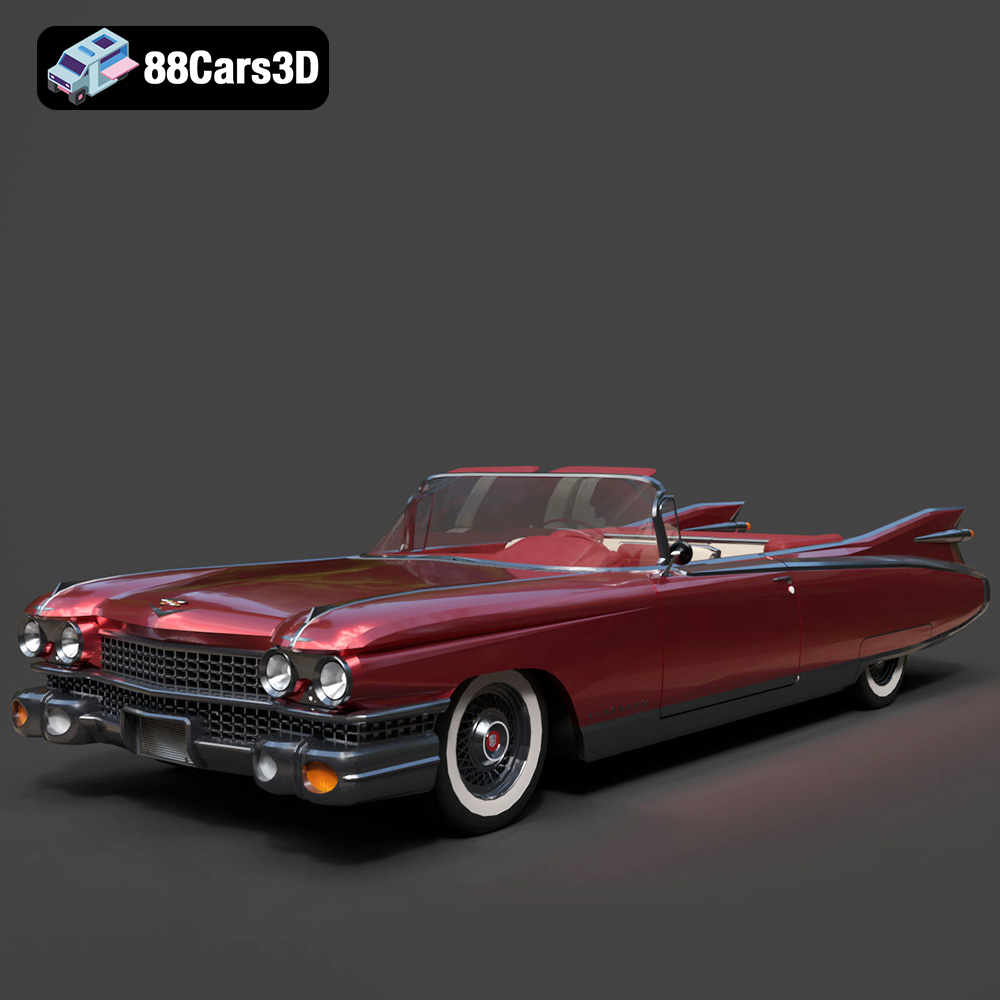
Download the Cadillac Eldorado Convertible (1959) 3D Model featuring iconic fins, luxurious chrome details, and a classic vintage design. Includes .blend, .fbx, .obj, .glb, .stl, .ply, .unreal, and .max formats for rendering, simulation, and game development.
Price: $20.79
View Product

Texture: Yes
Material: Yes
Download the Cadillac DTS-005 3D Model featuring its iconic luxury design, detailed interior, and realistic exterior. Includes .blend, .fbx, .obj, .glb, .stl, .ply, .unreal, and .max formats for rendering, simulation, and game development.
Price: $10.79
View Product