Get 50% OFF All Premium 3D & STL Models!
“`html
The world of 3D modeling is rich and varied, offering a vast array of formats to represent digital objects. For those looking to bring their creations into the physical realm through 3D printing, the STL file format is the undisputed king. Whether you’re a seasoned digital artist, a hobbyist experimenting with CAD software, or a passionate car enthusiast downloading detailed 3D car models, understanding how to convert polygon-based models into watertight, print-ready STLs is a fundamental skill. This guide will demystify the conversion process, explore the underlying principles of STL, and equip you with the knowledge to ensure your digital designs translate into flawless physical objects on your 3D printer. We’ll delve into common pitfalls, best practices for mesh repair, and the specific settings within slicing software that make the difference between a print failure and a showpiece.
At its core, the STL (STereoLithography) file format is a simple yet powerful representation of a 3D object. Unlike complex formats that can store color, texture, and material properties, STL focuses solely on the surface geometry of a model. It achieves this by breaking down the object’s surface into a series of interconnected triangles, also known as facets. Each triangle is defined by its three vertices (corner points) and a normal vector. The normal vector is a crucial piece of information; it points perpendicularly outwards from the surface of the triangle and dictates which side of the triangle is considered the “outside” of the object. This outward-pointing normal is essential for the slicing software to understand the solid volume of your model.
In an STL file, there are two primary representations: ASCII and Binary. The ASCII format is human-readable and lists each triangle’s vertices and normal vector. For example, a single triangle might be represented as:
facet normal 0.0 0.0 1.0
    outer loop
        vertex 0.0 0.0 0.0
        vertex 1.0 0.0 0.0
        vertex 0.0 1.0 0.0
    endloop
endfacet
The Binary format is more compact and efficient, storing the same information using less data. Regardless of the format, the principle remains the same: the object’s surface is approximated by a mesh of triangles.
For a 3D model to be successfully printed, its STL representation must be “watertight” or “manifold.” This means the mesh must form a closed, solid volume with no holes, gaps, or self-intersections. Imagine a 3D model as a container; if there’s a hole, water would leak out. In 3D printing terms, this translates to the slicing software being unable to determine where the inside and outside of the object are, leading to errors during the slicing process. Ensuring your model is watertight is the single most critical step in preparing any 3D model for printing.
Most 3D modeling software, from professional packages like Blender and Maya to CAD tools like Fusion 360 and Tinkercad, work with polygon meshes. When you’ve finished sculpting or designing your object, the next step is to export it into a format that 3D printers can understand. The STL format is the standard export option for this purpose. The conversion process itself is usually straightforward within the modeling software, typically involving an “Export” or “Save As” function where you select STL as the desired output format.
During the export process, you’ll often encounter settings related to resolution or tessellation. This controls how finely the curved surfaces of your model are approximated by triangles. A higher resolution means more triangles, resulting in a smoother surface representation but a larger file size. For highly detailed models, such as intricate automotive parts or collectibles found on platforms like 88cars3d.com, finding the right balance is key. Too low a resolution can lead to visible faceting on curves, while excessively high resolution can create massive files that are difficult to process.
Pay close attention to settings that control normal orientation. Most software allows you to ensure normals point outwards consistently. If your model appears inside-out or has printing issues, incorrect normal orientation is often the culprit. Some software may also offer options to export in ASCII or Binary STL; binary is generally preferred for its smaller file size and faster processing.
Even with well-behaved models, conversion can sometimes introduce minor issues. The most common problem is the creation of non-manifold geometry, such as holes or internal faces. These can arise from modeling errors, gaps between separate mesh components, or sometimes even during the tessellation process. Before sending your STL to the slicer, it’s good practice to perform a quick visual inspection or use a mesh analysis tool.
Many 3D modeling programs have built-in mesh analysis tools that can highlight potential problems like inverted normals, non-manifold edges, or holes. For instance, in Blender, you can enable “3D-Print Toolbox” add-on, which provides an easy way to check for manifold errors and other printability issues. This initial check can save a significant amount of time and material by catching problems early.
No matter how carefully you model or export, mesh errors are an almost inevitable part of the 3D modeling and conversion pipeline. The good news is that powerful software tools are available to identify and fix these problems, ensuring your STL files are perfectly watertight and ready for slicing. The goal is to eliminate all topological errors that would prevent a slicer from correctly interpreting the model as a solid object.
Autodesk Meshmixer is a free and incredibly useful tool for mesh repair. It offers powerful automatic repair functions that can fix many common issues with a single click. The “Inspector” tool is your primary ally here; it automatically detects holes, non-manifold edges, and other errors. Simply select your model, click “Inspector,” and then “Auto Repair All.” For more complex issues or when automatic repair doesn’t fully resolve the problem, Meshmixer provides manual sculpting and editing tools that allow you to bridge holes, smooth surfaces, and correct individual problematic areas.
Another valuable feature in Meshmixer is the ability to easily analyze wall thickness. Many slicers struggle with extremely thin walls that are below the extrusion capability of your nozzle. Meshmixer’s “Thickness Analysis” feature can highlight these areas, allowing you to thicken them before exporting the final STL. This is particularly important when printing detailed models, where scaling down intricate parts can result in walls that are too thin to print reliably.
For professional-level repair and analysis, Autodesk Netfabb is the industry standard. It offers sophisticated algorithms for automated repair, cross-section analysis, and comparison between design and print outcomes. While it has a steeper learning curve than Meshmixer, its capabilities are unparalleled for complex models or production environments. Netfabb can handle self-intersections, overlapping faces, and inconsistencies that other tools might miss.
Blender’s 3D-Print Toolbox, mentioned earlier, is also quite capable for many repair tasks. It provides specific functions to make solid, check manifold, clear loose, and flip normals. Coupled with Blender’s powerful modeling tools, it offers an integrated solution for both creating and preparing models for printing without needing to switch software. Remember to export your repaired model as a new STL file after making corrections.
Once you have a clean, watertight STL file, the next step is to use slicing software. Programs like Cura, PrusaSlicer, Simplify3D, and others take your 3D model and “slice” it into hundreds or thousands of thin horizontal layers. For each layer, the slicer generates a set of instructions, known as G-code, that tells your 3D printer precisely how to move its print head and extrude material to build the object layer by layer.
The settings you choose within your slicer have a profound impact on the final print quality, strength, and speed. When printing detailed objects like those often found on 88cars3d.com, you’ll want to optimize these settings carefully.
The way you orient your STL model on the virtual build plate within your slicer is critical. It affects:
For car models, consider printing them upright to showcase details like the roof and hood, or laying them on their side to minimize supports on the bodywork. Experimentation is key to finding the optimal orientation for each specific model.
Overhangs and bridges are inherent challenges in 3D printing. When a layer has nothing to print on below it, or needs to span a gap, support structures are required. These are temporary structures printed from the same material as the model, designed to hold up these unsupported sections until the print is complete. The STL file itself doesn’t contain support information; this is generated by the slicing software based on your settings.
Most slicers offer various support types:
Key parameters for supports include:
Removing supports can be a delicate process, especially on highly detailed models. Use pliers, hobby knives, or specialized tools to carefully break away the support material. Always start in less visible areas. For challenging removals, or to achieve a perfectly smooth surface, consider using specialized tools like rotary tools with sanding attachments, or applying fillers and sanding techniques. Many enthusiasts find that printing detailed car models from sources like 88cars3d.com requires careful support removal and subsequent sanding and painting to achieve professional-looking results.
After support removal, the next steps often involve sanding to smooth out layer lines and imperfections. Start with coarser grit sandpaper (e.g., 120-220 grit) and gradually move to finer grits (e.g., 400-1000+ grit). For very smooth finishes, wet sanding or using sanding primers can be beneficial. Finally, the model can be painted to bring out its true aesthetic appeal, especially for collectible car models.
The choice of printing material and the calibration of your 3D printer play equally vital roles in the success of your prints, especially when working with complex STL files. Different materials offer distinct properties, and a well-calibrated printer ensures that the slicer’s instructions are translated accurately into physical dimensions.
For FDM printing, the most common materials are:
For resin printing (SLA/DLP/MSLA), the options are:
The level of detail required for many car models often makes resin printing a preferred choice for hobbyists seeking the highest fidelity. However, FDM printers are more accessible and versatile for larger or less intricate parts.
Before printing any complex model, ensure your printer is properly calibrated:
Regular maintenance, such as cleaning the nozzle, lubricating the Z-axis lead screws, and checking belt tension, will also contribute to consistent and high-quality prints. A well-maintained and calibrated printer is essential for reliably converting detailed STL files into accurate physical models.
“`
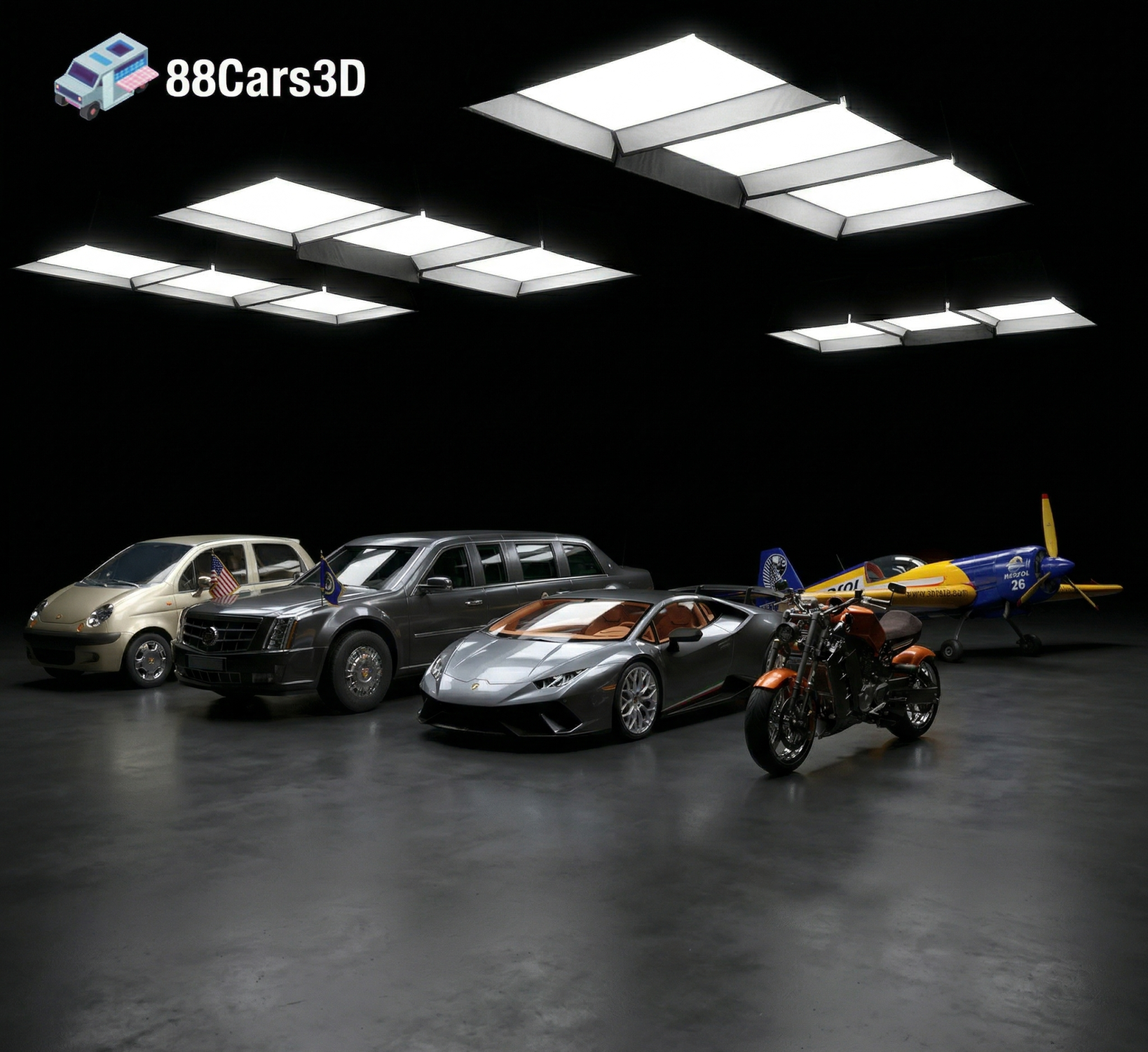
Texture: Yes | Material: Yes | 3D Printable: Yes. Download the Ultimate Creators’ Showcase featuring 5 premium 3D models: Lamborghini Huracan, ZAV Concept Motorcycle, Sukhoi SU-26, Presidential Limousine, and Daewoo Damas. Optimized for 4K CGI rendering and 3D printing. Save massive with this exclusive multi-category bundle!
Price: $99.99

Texture: Yes | Material: Yes | 3D Printable: Yes. Download the Italian Thoroughbreds Bundle featuring 5 iconic 3D models: Lamborghini Huracán Performante, Ferrari 458 Italia, Lamborghini Urus, Diablo SV, and Maserati GT. Optimized for 4K rendering and 3D printing (STL included). Save 50% with this ultimate Italian vehicle collection.
Price: $199.99

Download the Elite Future Mobility Bundle featuring 4 highly optimized 3D models: Tesla Model S, Avatr 11, Li L9, and Zoox Robotaxi. Perfect for ArchViz, Smart City renders, and game dev. Optimized for Unreal Engine and Blender. Includes .fbx, .obj, and .max formats.
Price: $99

🚗 5 Iconic German Cars (BMW M4 G82, M5 CS, X3, 1 Series & Mercedes E-Class). ✅ Optimized for ArchViz: Ready for Corona & V-Ray. 💰 Save €71 with this limited-time collection! 🚀 Instant Download after purchase.
Price: $119
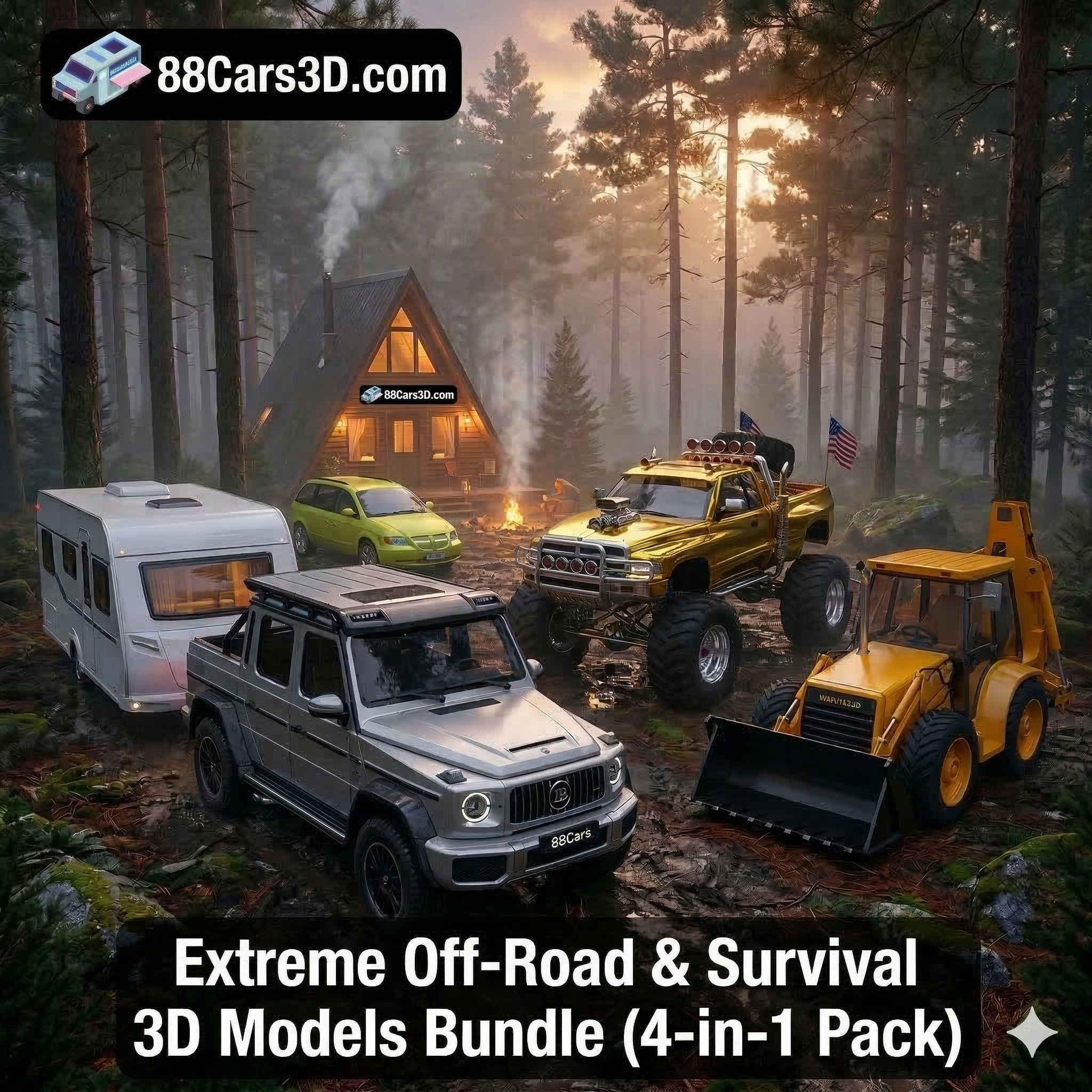
Download the Extreme Off-Road & Survival 3D Models Bundle! Includes the Brabus 800 Adventure, Dodge Ram Bigfoot, Spec Truck, and a Caravan. Save over €210 on this premium 4-in-1 off-grid vehicle pack for ArchViz and game development.
Price: $149.99
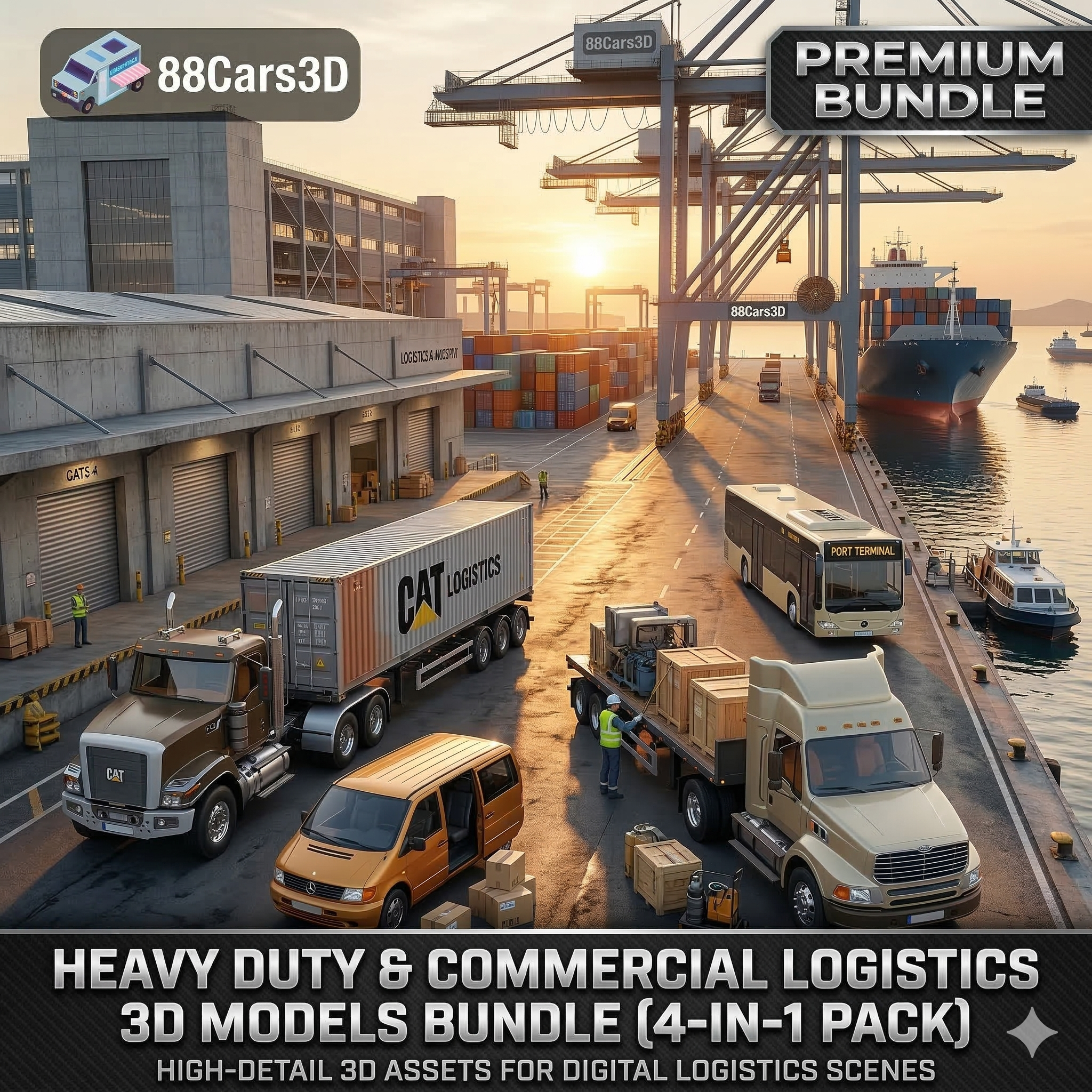
Download the Heavy Duty & Commercial Logistics 3D Models Bundle! Includes the Ford Sterling, Caterpillar CT680, Mercedes Citaro Bus, and Vito Van. Save over €130 on this massive, game-ready 4-in-1 industrial vehicle pack.
Price: $109.99

Download the Ultimate Custom Motorcycles 3D Models Bundle. Includes a Custom Chopper, Ducati 916 Café Fighter, Harley XR1200X, and BMW K100. Perfect premium props for luxury ArchViz garages. Save over €250 today!
Price: $159.99

Download the ultimate JDM Street Racing 3D Models Bundle! Includes the Nissan GT-R, Toyota Supra, Mazda RX-7, Lancer Evo IX, and Honda NSX. Save big on this highly optimized, game-ready 5-in-1 Japanese legend car pack.
Price: $129.99

Download the ultimate American Muscle & Cinematic Classics 3D Models Bundle! Includes the Dodge Charger ’68, Mustang Eleanor GT500, Camaro Z28 ’79, and a custom ’69 Mustang. Save over €240 on this game-ready, premium 4-in-1 pack.
Price: $149.99
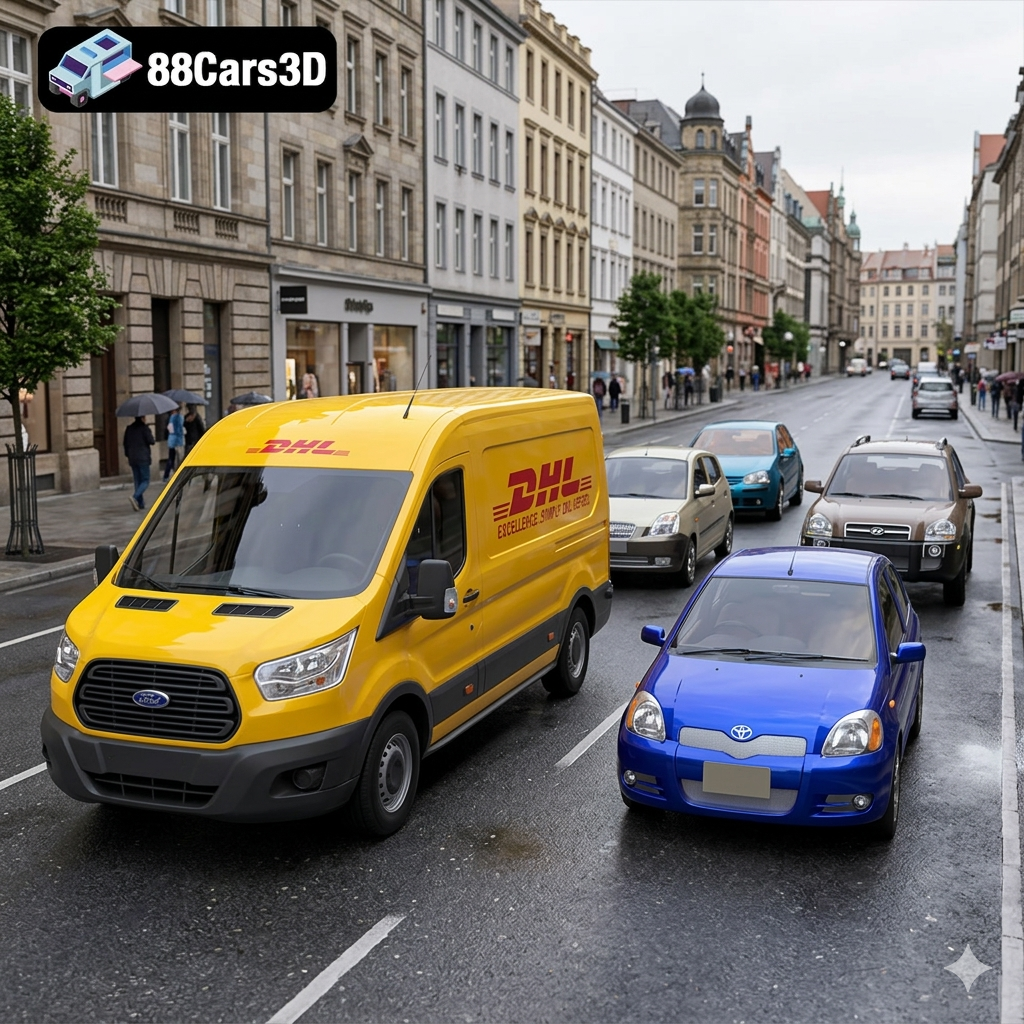
Download the Everyday City Traffic 3D Models Bundle. Includes the VW Golf, Kia Picanto, Hyundai Tucson, Toyota Yaris, and a DHL Ford Transit Van. Save big on this 5-in-1 pack, perfectly optimized for realistic ArchViz streets and game traffic.
Price: $99.99

