Get 50% OFF All Premium 3D & STL Models!

The world of automotive enthusiasm has collided spectacularly with the boundless possibilities of 3D printing. No longer are scale models confined to factory production lines; now, with a 3D printer, a digital file, and a bit of technical know-how, you can bring your favorite vehicles to life right on your workbench. For enthusiasts of precision engineering and iconic design, the opportunity to 3D print a detailed classic like the BMW 1 Series Coupe 2009 3D Model is particularly exciting.
This comprehensive guide will walk you through every step of the process, from preparing the digital file to the final touches of a showroom-quality finish. We’ll delve into the nuances of material selection, optimal print settings, and essential post-processing techniques, ensuring your automotive 3D printing project yields a stunning, accurate representation of this sporty compact coupe. Whether you’re creating a collectible, a display piece, or a component for a larger diorama, mastering the art of 3D printing car models opens up a new realm of customization and creativity. Let’s get started on transforming your digital BMW into a tangible masterpiece.
Before you can embark on your journey to 3D print car models, it’s crucial to understand the digital blueprints that make it all possible. The quality of your final print is heavily influenced by the integrity and suitability of your 3D model’s file format. At 88cars3d.com, models like the BMW 1 Series Coupe 2009 are often provided in multiple formats to cater to various applications, but for 3D printing, a few specific formats stand out as primary contenders.
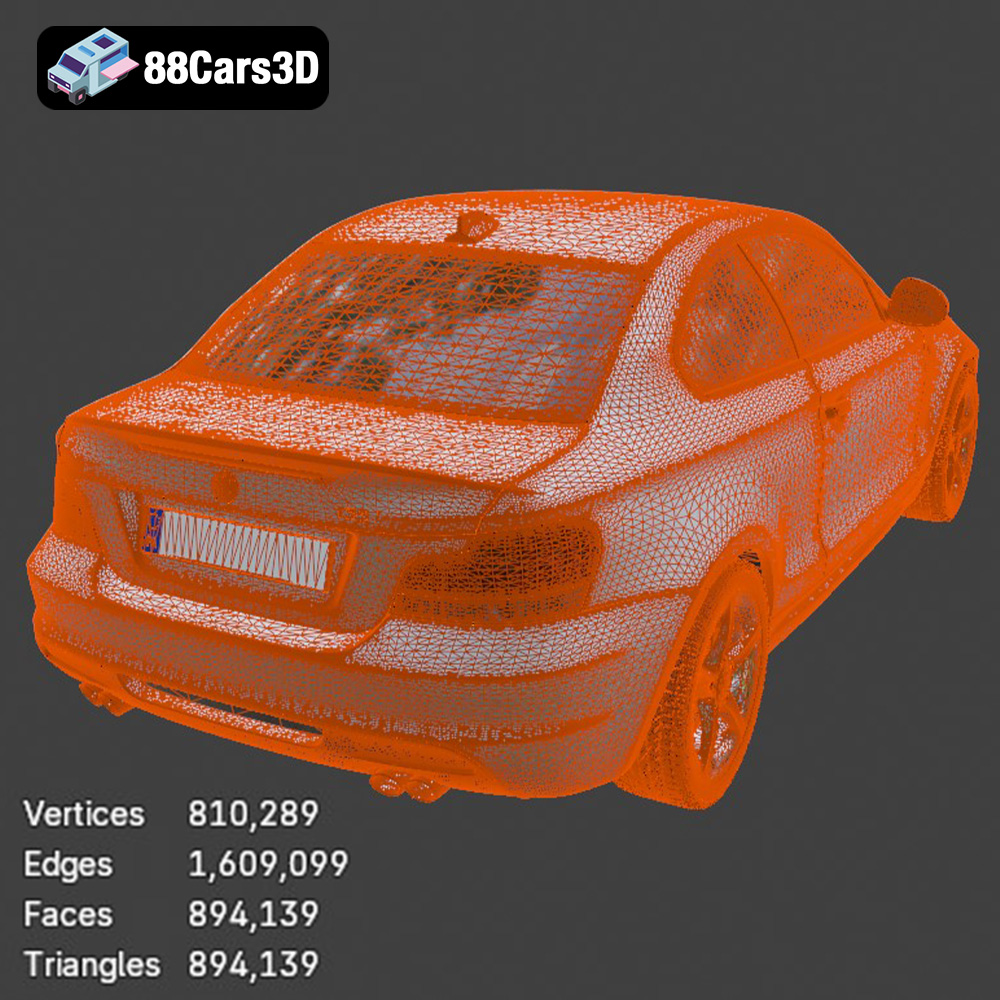
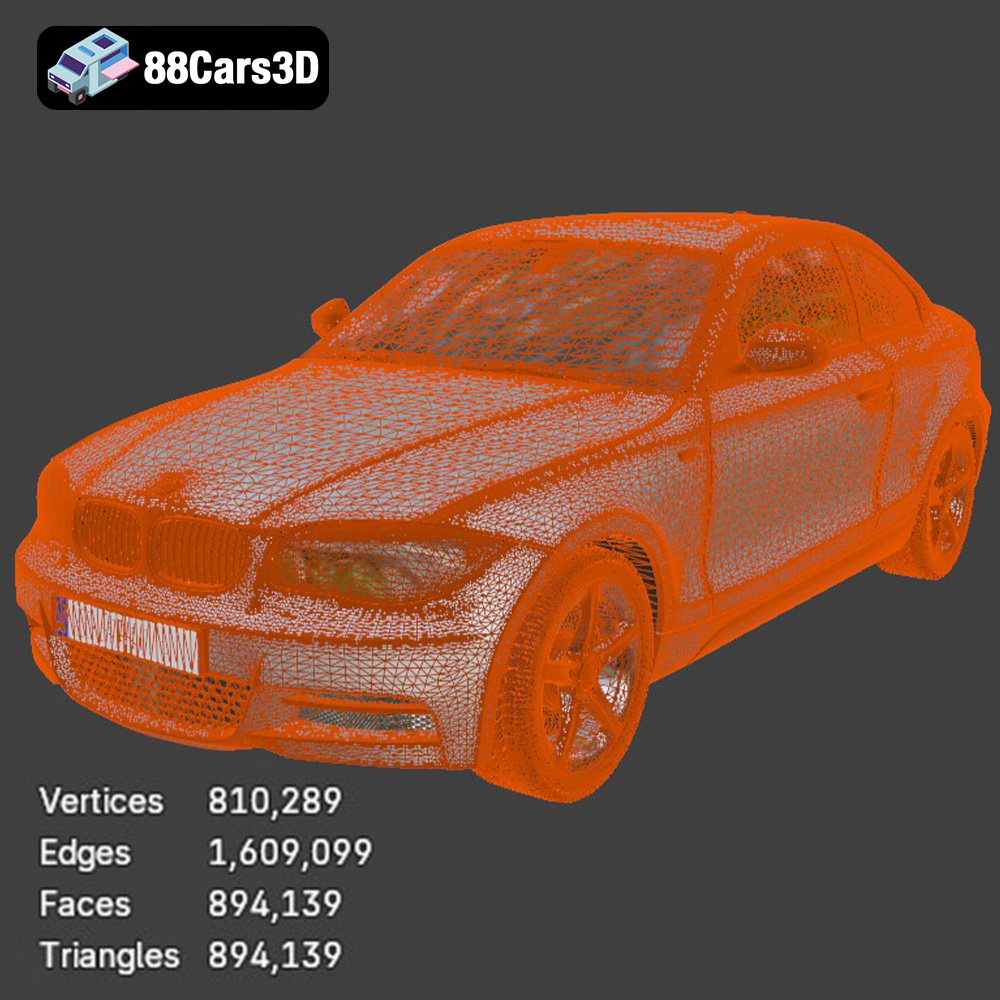
The .stl (stereolithography) format is the undisputed king of 3D printing. It represents a 3D object as a series of connected triangles, forming a mesh that defines the object’s surface geometry. Its simplicity and widespread adoption make it universally compatible with virtually all slicing software and 3D printers. When you purchase an STL file for the BMW 1 Series Coupe 2009, you’re getting a direct representation optimized for physical fabrication. However, because STL files only contain geometric data, they lack information about color, texture, or material properties. For most single-color or post-painted car models, this is perfectly adequate. A critical aspect of STL files for 3D printing is ensuring they are “watertight” – meaning the mesh is closed and without holes, preventing errors in the slicing process that could lead to incomplete or malformed prints. Software like MeshMixer or the repair functions within your slicer (e.g., Cura, PrusaSlicer) can often fix non-watertight models.
While STL is king, other formats offer unique advantages, especially as automotive 3D printing technology evolves.
Regardless of the initial format, preparing your file for optimal 3D printing car models involves several steps. First, always inspect the model in a dedicated 3D viewer or directly in your slicing software. Check for open edges, inverted normals, or self-intersecting geometry, which can lead to print failures. Many slicers have built-in mesh repair tools that can automatically fix minor issues. For more significant problems, dedicated mesh editing software (like Blender, Meshmixer, or Netfabb) can be invaluable for ensuring a “clean” and watertight model.
Another crucial step is ensuring the model’s scale is correct. The BMW 1 Series Coupe 2009 model is recommended at scales of 1:32, 1:24, 1:18, or 1:12. Your slicer will allow you to adjust the scale to your desired output. Remember that smaller scales will demand higher precision from your printer and finer layer heights, while larger scales will be more forgiving but consume more material and print time. Optimizing the mesh quality means finding a balance between sufficient detail and a manageable file size. Excessively dense meshes can slow down slicing and printing, while overly sparse meshes can result in a blocky, low-detail print.
Once you have your desired STL file for the BMW 1 Series Coupe 2009, the next critical step is to load it into a slicing program. Slicers like Ultimaker Cura or PrusaSlicer are essential tools that translate your 3D model into a series of thin layers, generating the G-code instructions your 3D printer understands. This is where you’ll define all the parameters that dictate how your model is built.
Start by importing the BMW 1 Series Coupe 2009 STL file into your chosen slicer. The software will display your model on a virtual print bed. Take a moment to inspect it. Look for any visible gaps, artifacts, or disconnected parts. Most slicers have basic repair functions that can automatically fix minor mesh issues. Pay close attention to the model’s orientation. The product description for the BMW 1 Series Coupe 2009 suggests “Body printed angled for smooth surface finish; wheels printed separately.” This is an expert recommendation that aims to minimize visible layer lines and optimize surface quality on critical areas, while allowing for cleaner wheel prints.
The product offers recommended scales: 1:32, 1:24, 1:18, 1:12. Consider the purpose of your print. For a desk ornament or a miniature collection, 1:32 or 1:24 might be ideal. If you want a more substantial, highly detailed display piece, 1:18 or 1:12 will provide more room for intricate features and post-processing. Use your slicer’s scaling tool to adjust the model to your desired size. Remember that larger scales will increase print time and material consumption significantly, but they also offer greater potential for detail and easier post-processing.
The choice of 3D printer and filament material will profoundly impact the final appearance and durability of your 3D printed car models. For intricate models like the BMW 1 Series Coupe 2009, striking the right balance is key.
Each filament type has its own characteristics, making it suitable for different aspects of your car model:
Once you’ve chosen your printer and material, fine-tuning your slicer settings is paramount to achieving a high-quality 3D printed car model. The provided product settings for the BMW 1 Series Coupe 2009 offer an excellent starting point.
These settings are crucial for FDM printing:
One of the most challenging aspects of 3D printing car models is managing support structures. Overhangs and bridging elements on a complex model like the BMW 1 Series Coupe 2009 require temporary structures to prevent collapse during printing.
The product description specifically notes that “Supports are required for mirrors, bumper overhangs, and underbody details.” These are common problem areas on automotive models. Your slicing software will automatically generate supports, but you often have control over their type, density, and placement. Look for options like:
The recommendation to print the “Body printed angled for smooth surface finish; wheels printed separately” is a professional tip for achieving the best results for automotive 3D printing. Printing the body at an angle (e.g., 30-45 degrees from the print bed) helps to:
Printing wheels separately allows you to optimize their orientation for strength and detail (e.g., printing them flat on the bed or vertically for strong spokes) without compromising the main body print. It also simplifies post-processing and painting, as you can paint the wheels and tires separately before assembly.
After printing, carefully remove supports. For FDM prints, use flush cutters, pliers, or a hobby knife. Always cut away from the model to avoid damaging the surface. For resin prints, supports are often brittle and can be snapped off once the model is post-cured, or carefully cut off before curing while the resin is still slightly flexible. Residual support marks can be carefully sanded or scraped away during post-processing.
The raw 3D print is just the beginning. To transform your BMW 1 Series Coupe 2009 into a showroom-worthy miniature, diligent post-processing is essential. This is where the model truly comes alive, moving from a printed object to a finely crafted collectible.
The first step in post-processing is to refine the surface. Even with optimal print settings, FDM prints will have visible layer lines and support scars. Start with a coarse grit sandpaper (e.g., 200-300 grit) to remove major imperfections and support remnants. Gradually move to finer grits (400, 600, 800, and even 1000-2000 for a truly smooth finish), using water for wet-sanding, which helps to reduce clogging and achieve a smoother surface. For resin prints, less sanding is typically required, perhaps just a light pass with fine grit paper to remove support nubs. Pay close attention to the body panels, hood, and roof, aiming for a perfectly smooth canvas for painting.
Once sanded, clean the model thoroughly to remove any dust or debris. Then, apply a few thin coats of automotive-grade primer. Primer serves several crucial functions:
Between primer coats, lightly sand with very fine grit sandpaper (e.g., 800-1000 grit) to achieve an impeccably smooth base. Two to three thin coats are usually sufficient.
The product description recommends a “gloss automotive paint finish.” This implies using high-quality spray paints designed for models or even automotive touch-up paints. Choose your desired color – perhaps a classic BMW Alpine White, Space Gray Metallic, or a vibrant Le Mans Blue. Apply several thin, even coats, allowing each coat to dry completely according to the paint manufacturer’s instructions. Avoid applying thick coats, as this can lead to drips, runs, and loss of fine detail. For the best results, use a clear coat (gloss varnish) as the final layer to protect the paint, provide a deep shine, and further smooth out any microscopic imperfections. This clear coat is what truly gives it that “showroom finish.”
Since the wheels are printed separately, assemble them once painted. You might need a small amount of super glue or model adhesive. For the BMW 1 Series Coupe 2009, consider adding small details like painting the brake calipers, adding clear material for headlights and taillights (if your model allows), or using fine-tip markers for window trim. The description also mentions “optional sport trim detailing” – this could involve painting certain elements in a contrasting color or applying custom decals for a personalized touch.
Even with meticulous preparation, automotive 3D printing can present challenges. Knowing how to diagnose and fix common issues will save you time and filament.
Warping, where corners of your print lift from the build plate, is a common problem, especially with ABS and PETG.
If your print layers suddenly shift horizontally, creating an offset, it’s usually due to mechanical issues.
Fine strands of plastic appearing between different parts of your model are known as stringing.
If your BMW model lacks the crisp details you expect or has a rough finish despite fine layer height.
The journey of 3D printing car models is a rewarding blend of technical skill and creative passion. From meticulously preparing the digital STL file of your BMW 1 Series Coupe 2009, through the careful selection of materials and precise adjustment of print settings, to the final, transformative stages of post-processing, each step contributes to the realization of a miniature automotive masterpiece. We’ve covered everything from understanding file formats like .stl, .obj, .3mf, and .ply, to crucial decisions like FDM versus resin printing, and the art of support placement and removal. The detailed specifications provided for the BMW 1 Series Coupe 2009 model, such as recommended scales, layer heights, and wall thickness, serve as invaluable guides in achieving an exquisite final product.
Whether you’re aiming for a flawless display piece at 1:12 scale or a detailed collectible at 1:32, the techniques discussed here will empower you to tackle the intricacies of automotive 3D printing with confidence. Remember that patience, experimentation, and a keen eye for detail are your best allies. With the right approach, your 3D printer can become a powerful tool for bringing iconic vehicles like the BMW 1 Series Coupe 2009 to life. Dive into the world of high-quality 3D models available at 88cars3d.com, and start creating your own garage of dreams.
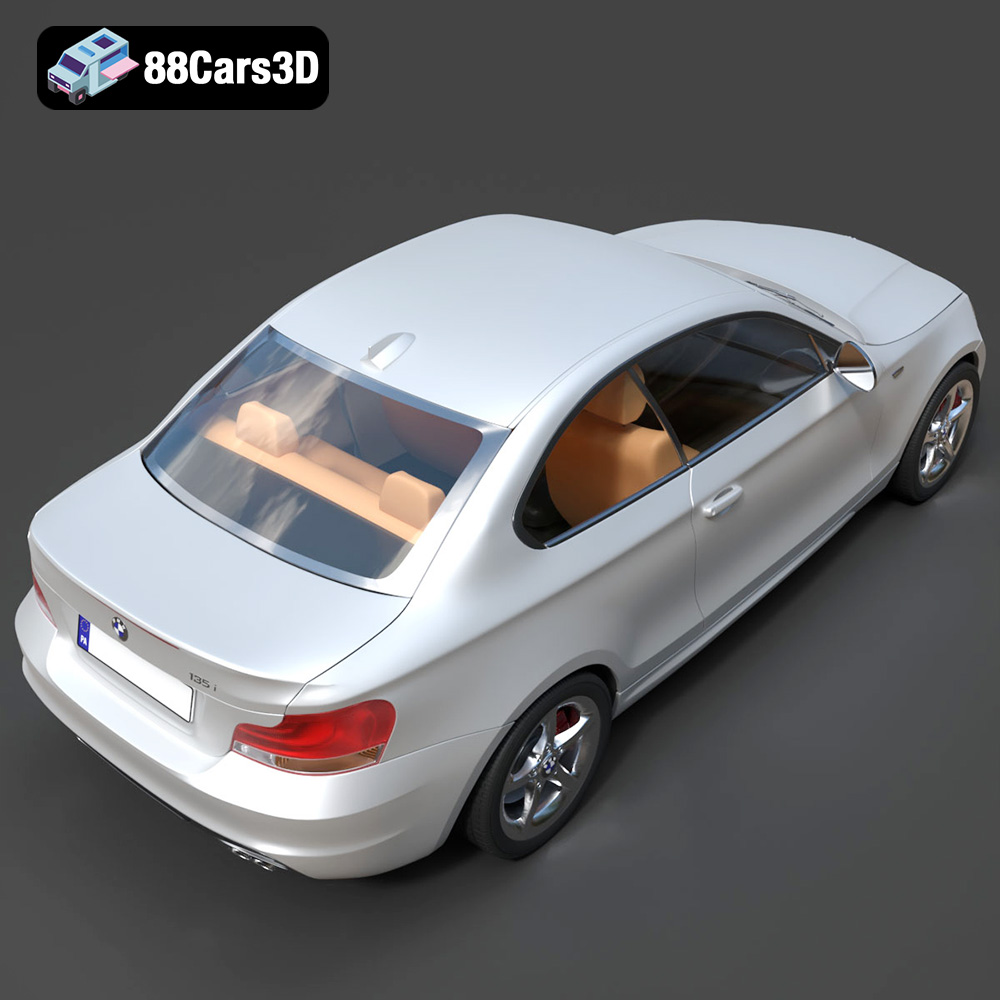
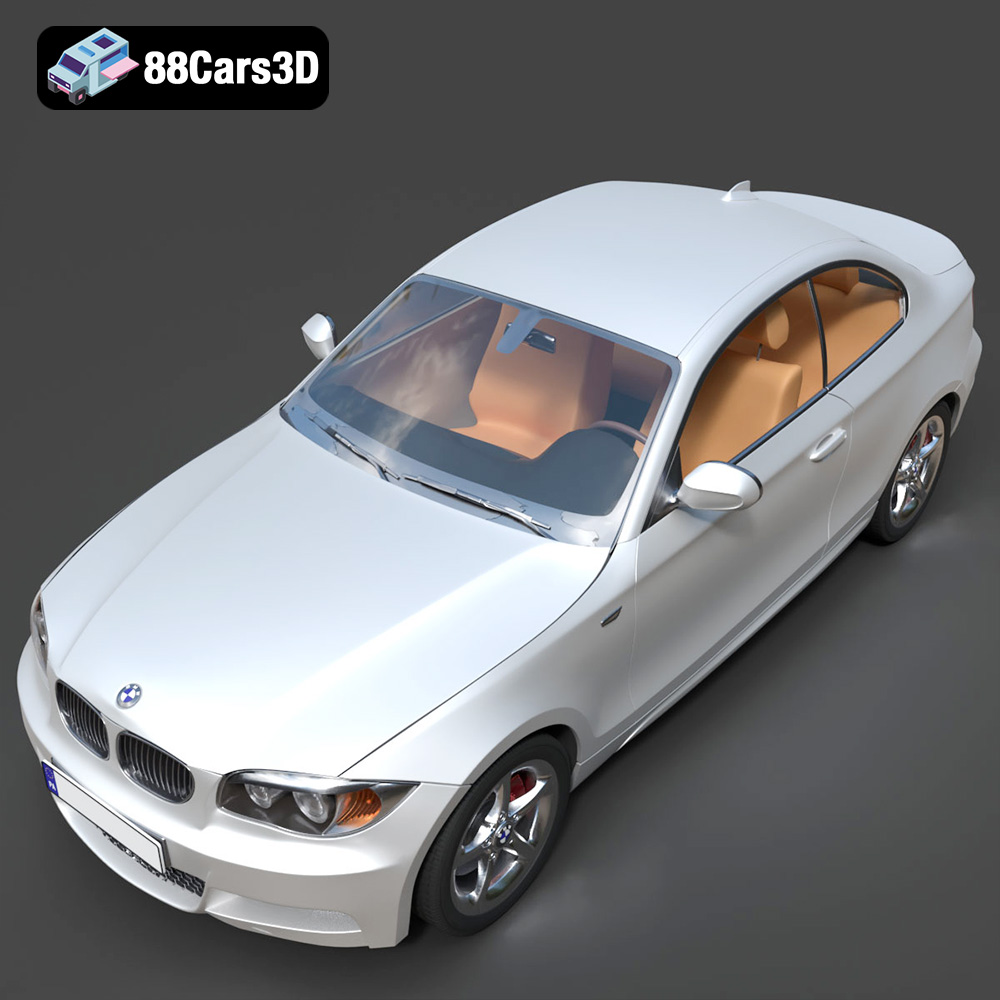
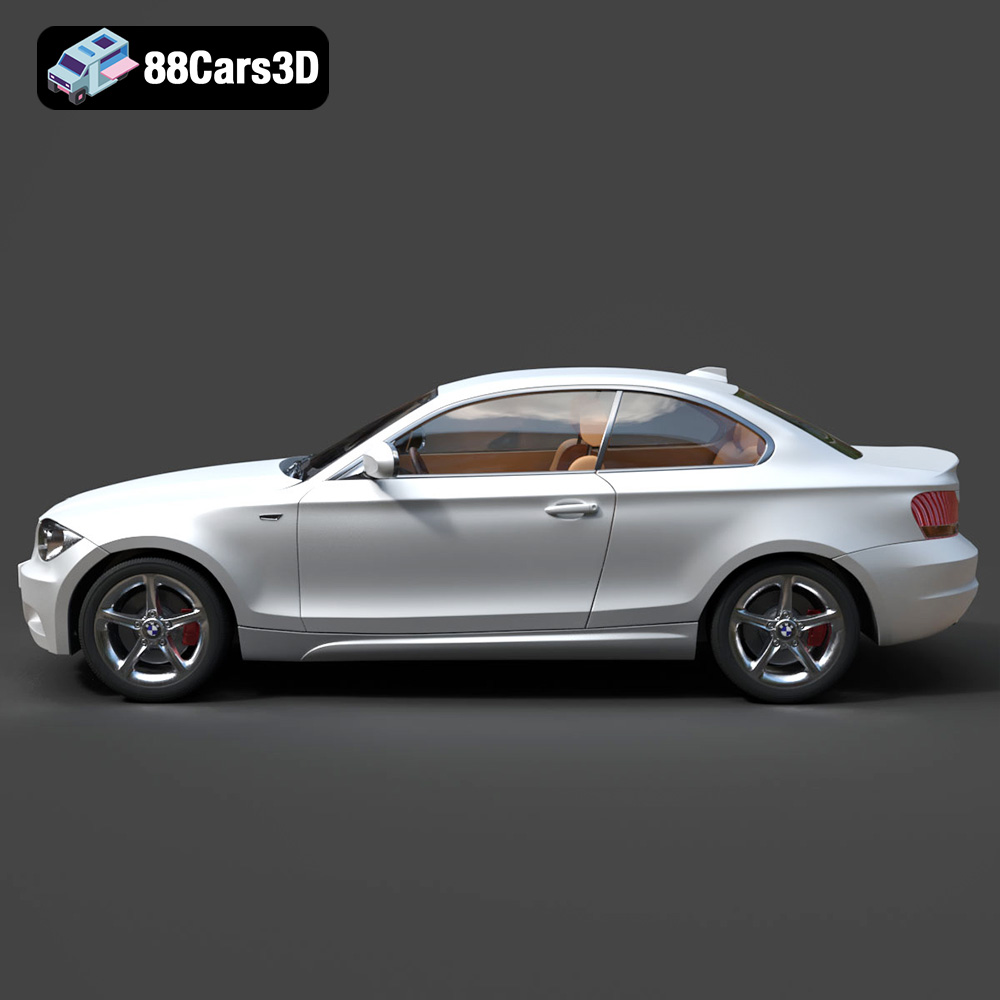
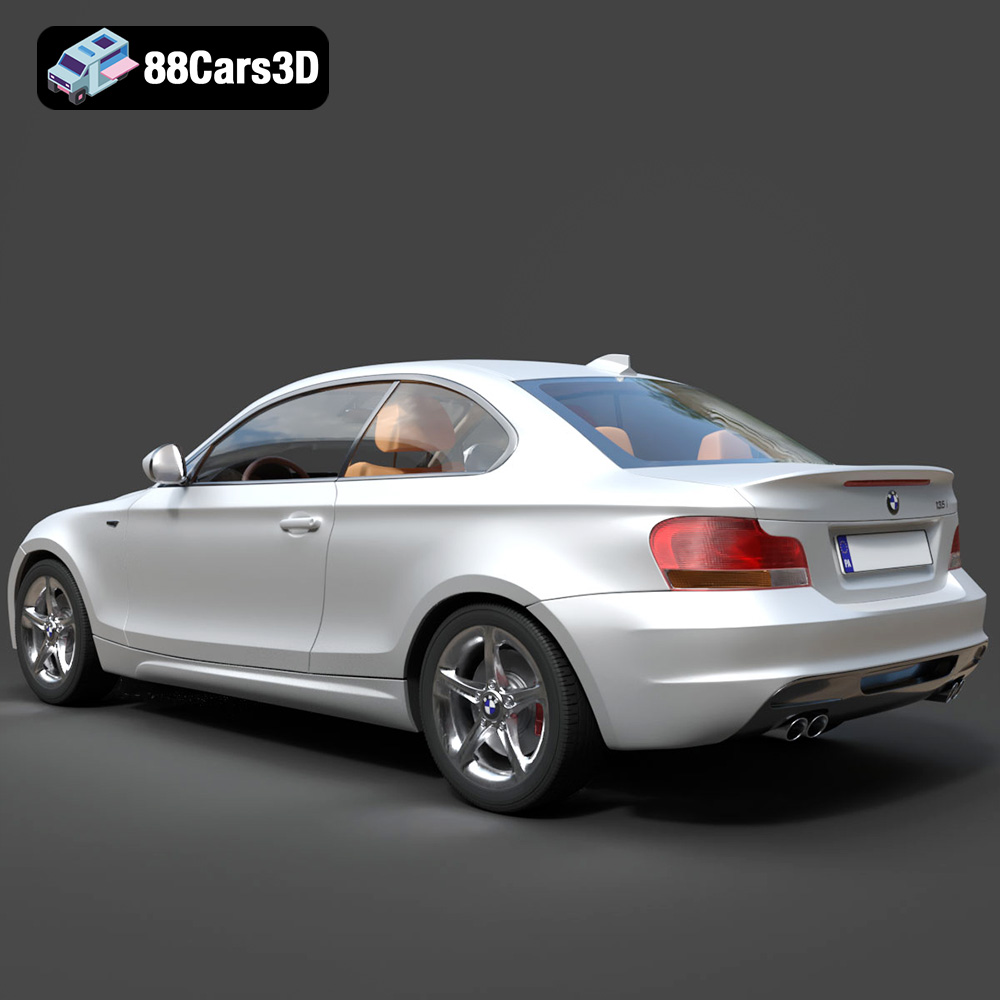
The BMW 1 Series Coupe 2009 3D Model is a high-detail digital recreation of the compact premium sports coupe known for its balanced chassis, rear-wheel-drive dynamics, and distinctive BMW styling. The 2009 1 Series Coupe blends everyday practicality with sporty performance, making it a popular choice among driving enthusiasts. This 3D model accurately represents the signature kidney grille, dual headlight design, sculpted hood lines, compact coupe proportions, sporty side profile, rear trunk layout, and alloy wheel detailing. Built with clean topology and real-world scale accuracy, it is ideal for 3D printing collectible scale coupe models and display miniatures.
$9.99
.1series
.arvr
.automotive
.blend
.bmw
.bmw2009
.car3dmodel
.compactcoupe
.fbx
.gameasset
.glb
.max
.obj
.ply
.rendering
.simulation
.sportcoupe
.stl
.unreal