Get 50% OFF All Premium 3D & STL Models!

The Fuel Tank Trailer 3D Model from 88cars3d.com is a fantastic project for anyone interested in 3D printing detailed scale models. Its intricate design, featuring a cylindrical tank body, reinforced chassis, and safety details, presents both a rewarding challenge and an opportunity to hone your additive manufacturing skills. This guide will walk you through the entire 3D printing process, from preparing the STL files to achieving a professional-looking final product.
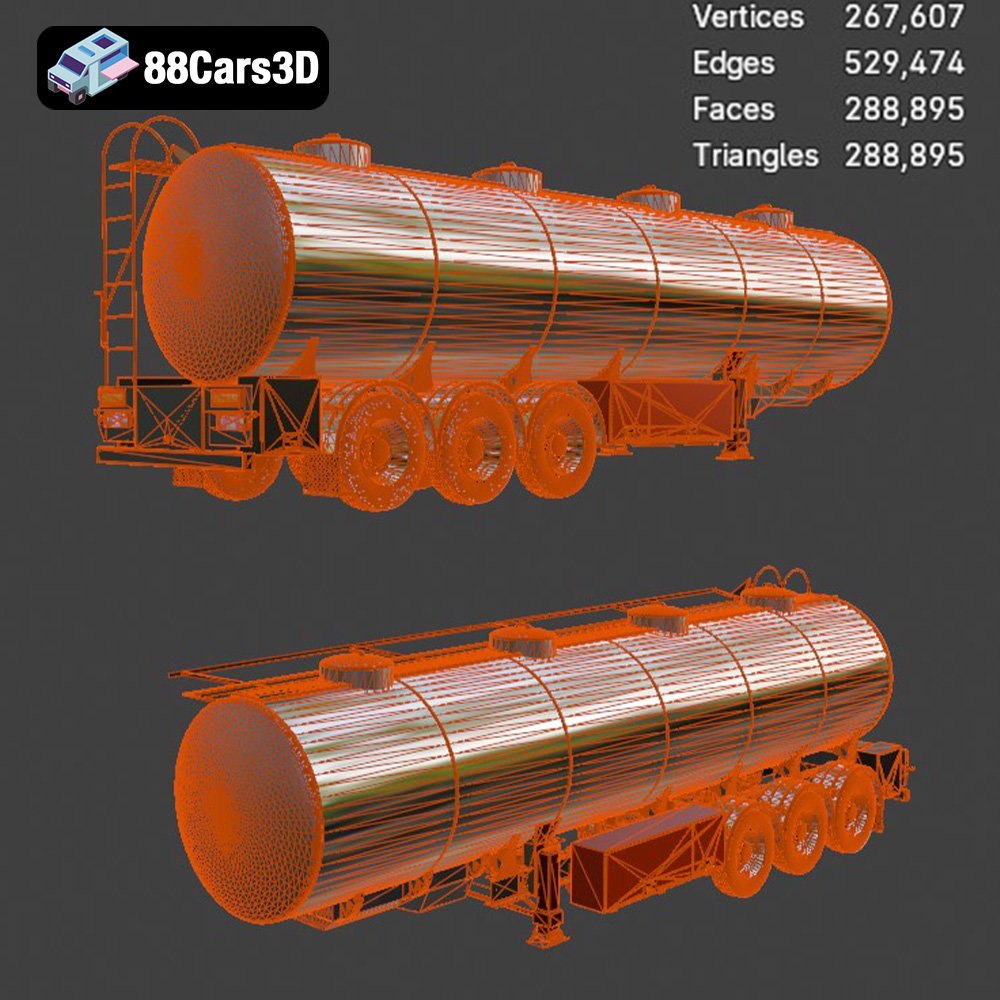
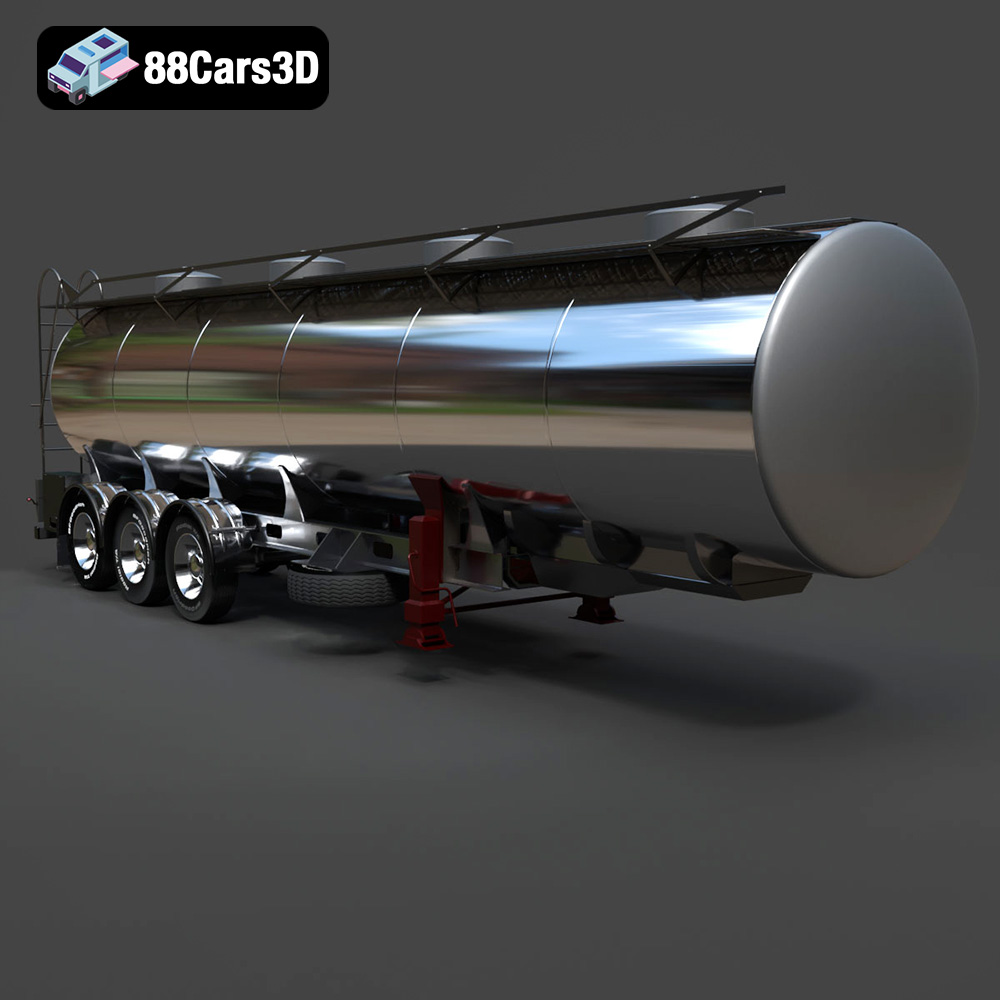
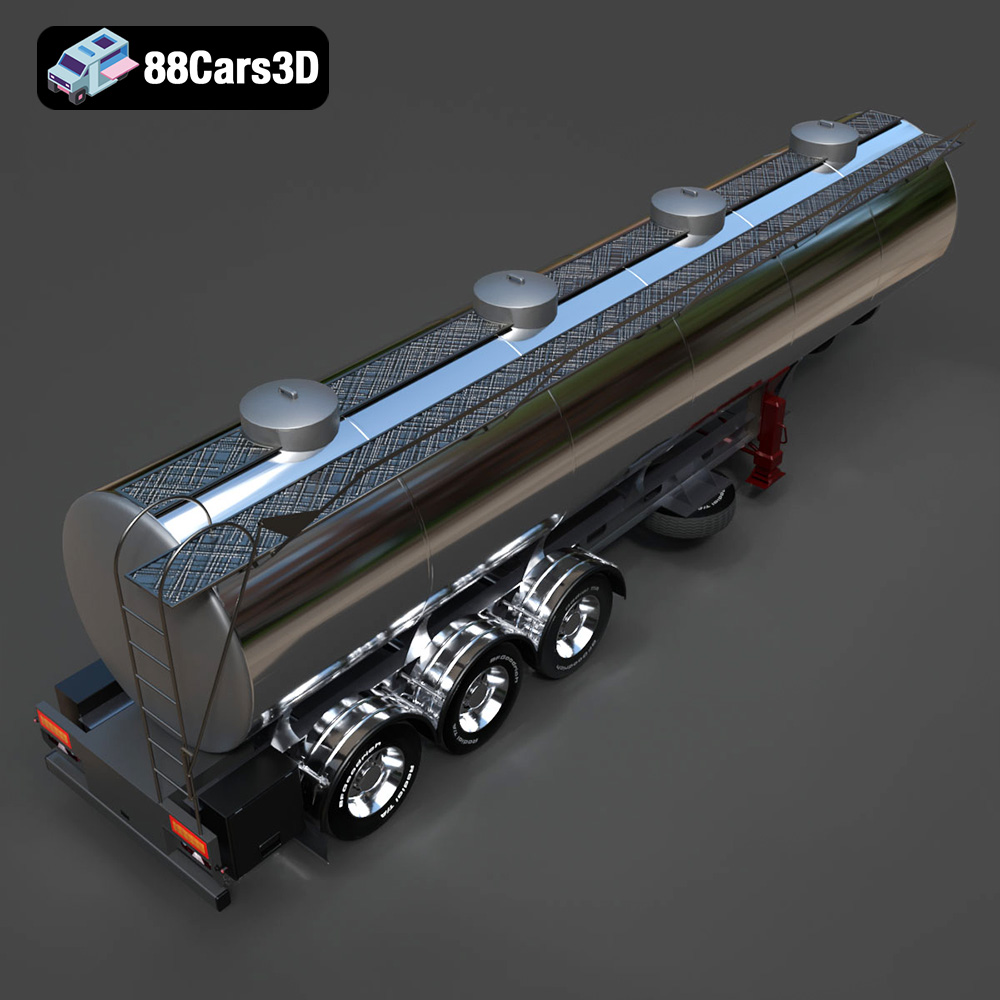
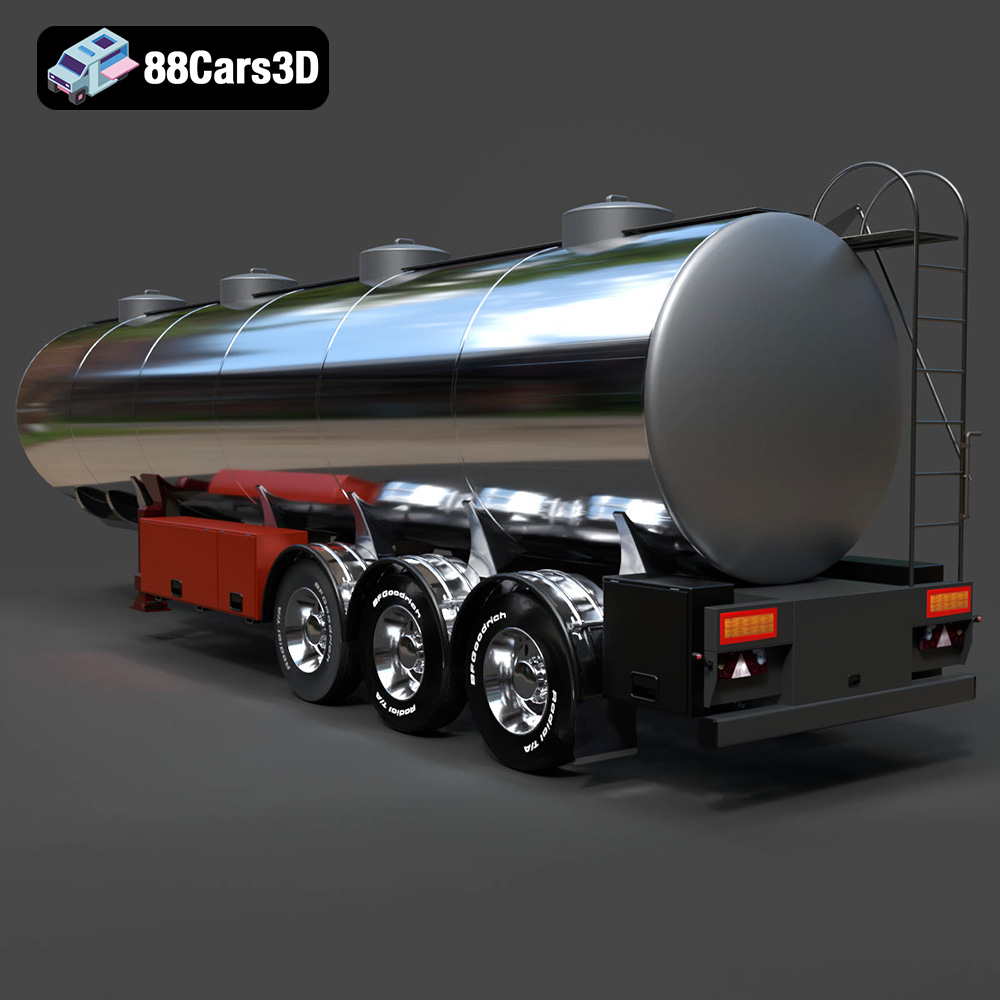
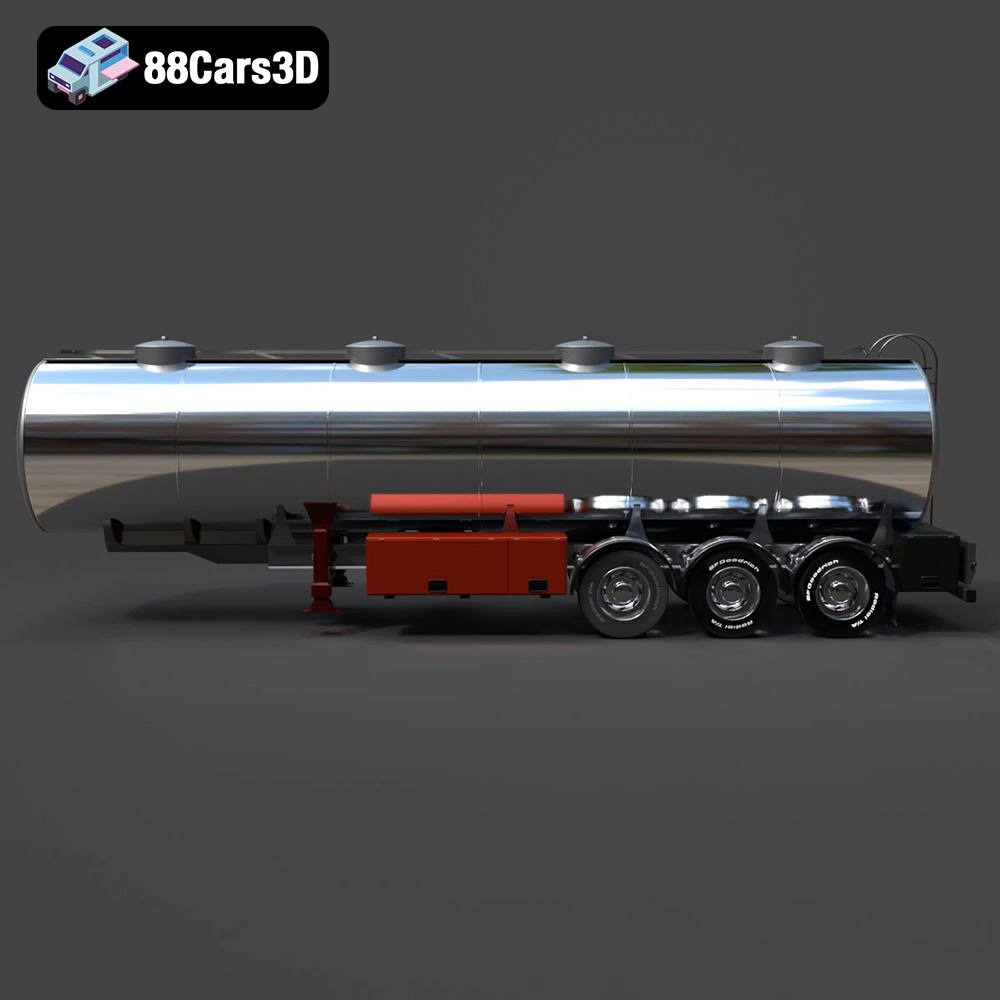
Before diving into the printing process, it’s important to understand the key features of the Fuel Tank Trailer 3D model. As a detailed recreation of a heavy-duty tanker, it accurately represents elements like the tank body, chassis frame, axle system, ladder access, and fuel discharge valves. The model is designed with clean topology and realistic proportions, making it suitable for various applications, including 3D printing. The description specifies several suitable scales for printing, as well as other printing settings, and these will be referenced throughout this guide.
Successfully 3D printing this model hinges on understanding its geometry and planning your approach. Here are some key considerations:
Choosing the right printer and materials is crucial for a successful 3D printing experience. Here are some recommendations:
Choosing the right file format for your 3D printing project is essential for compatibility and optimal results. Several file formats are commonly used in the 3D printing world, each with its own strengths and weaknesses. The Fuel Tank Trailer 3D model from 88cars3d.com includes several formats, but understanding which one to use for 3D printing is key.
The .stl (stereolithography) file format is the workhorse of 3D printing. It represents the surface geometry of a 3D object as a collection of triangles. This simplicity makes it universally compatible with virtually all 3D printers and slicing software. However, the .stl format only stores information about the shape of the object; it doesn’t include color, texture, or material properties.
For 3D printing the Fuel Tank Trailer, the .stl file is your primary choice. Slicing software takes the .stl file and converts it into a series of instructions (G-code) that your 3D printer can understand. These instructions tell the printer where to move, how much material to extrude, and at what temperature to operate.
Mesh quality is paramount when working with .stl files. A higher number of triangles results in a smoother surface but also increases the file size and processing time. Lower triangle counts can lead to faceting, where curved surfaces appear blocky. The .stl file provided by 88cars3d.com should be optimized for a balance between detail and printability. However, it’s always a good idea to inspect the mesh in your slicing software to ensure there are no obvious defects, such as holes or self-intersecting faces.
While .stl is the primary format for 3D printing, other formats can be useful in the design and preparation stages:
Regardless of the file format you start with, your slicing software will ultimately need to convert it into G-code for your 3D printer. Most slicing programs, such as Cura, PrusaSlicer, Simplify3D, and others, have excellent support for .stl files. They can also import other formats like .obj and .ply, although compatibility may vary depending on the specific software and version. When importing the Fuel Tank Trailer model into your slicing software, ensure that the scale is correct and that the model is oriented properly for printing. As noted above, 88cars3d.com recommends an orientation for best results. Use this recommendation as a starting point and then customize for your equipment and preferences.
Once you’ve chosen your printer and material, the next step is to prepare the Fuel Tank Trailer 3D model for printing. This involves using slicing software to convert the STL file into machine-readable G-code and optimizing the model for printability.
Slicing software is essential for preparing any 3D model for printing. Popular options include:
When configuring your slicing software, pay close attention to these settings:
Before slicing, inspect the STL file for any errors, such as non-manifold geometry or flipped normals. These errors can cause printing problems. Repairing the model can be done within some slicing software or with dedicated mesh repair tools like MeshMixer or Netfabb.
The Fuel Tank Trailer model may require supports for overhanging features like the ladder, railings, and valve assemblies. Carefully consider support placement to minimize their impact on the final surface finish. Tree supports or organic supports can be a good option as they tend to be easier to remove and leave fewer marks. Another technique is to manually add customized supports in your 3D modeling program prior to slicing. This gives you ultimate control.
With the model prepared and the slicing software configured, it’s time to start printing. Achieving a successful print requires careful attention to printer settings and best practices.
Based on the product description and general 3D printing knowledge, here are some recommended printer settings for the Fuel Tank Trailer:
The product description suggests printing the tank horizontally and the chassis flat. Here’s a more detailed breakdown of print orientation and support strategies:
After printing, the Fuel Tank Trailer will likely require some post-processing to achieve a professional finish. This may involve removing supports, sanding, priming, and painting.
Carefully remove the supports using pliers, a hobby knife, or other suitable tools. Take your time and avoid damaging the model. After removing the supports, use sandpaper or a file to smooth out any remaining support marks.
Inspect the print for any imperfections, such as stringing, blobs, or layer inconsistencies. Remove these imperfections with a hobby knife, sandpaper, or a deburring tool.
Sanding is essential for achieving a smooth surface finish. Start with coarse-grit sandpaper (e.g., 220 grit) and gradually move to finer grits (e.g., 400, 600, 800 grit). Sand in circular motions and be careful not to remove too much material.
Apply a primer to the model to create a uniform surface for painting. Use a spray primer designed for plastics and apply several thin coats, allowing each coat to dry completely before applying the next.
Paint the model using high-quality acrylic paints or enamel paints. Consider using an airbrush for a smoother and more even finish. Apply several thin coats of paint, allowing each coat to dry completely before applying the next. The product description notes that industrial paint finishes and hazard decals can enhance the realism of the model.
Even with careful planning and execution, you may encounter some issues during the 3D printing process. Here are some common problems and their solutions:
Warping occurs when the corners of the print lift off the build plate. This can be caused by poor bed adhesion, insufficient bed temperature, or drafts. To prevent warping, ensure that your bed is properly leveled and heated, use a bed adhesion agent, and enclose your printer.
Stringing is caused by molten plastic oozing from the nozzle during travel moves. This can be caused by incorrect retraction settings, excessive nozzle temperature, or wet filament. To prevent stringing, adjust your retraction settings, lower your nozzle temperature, and dry your filament.
Layer shifting occurs when the print head suddenly shifts position, resulting in misaligned layers. This can be caused by loose belts, insufficient stepper motor current, or obstructions on the build plate. To prevent layer shifting, tighten your belts, increase stepper motor current, and ensure that your build plate is clean and free of obstructions.
Elephant’s foot is caused by the first layer being too squished, resulting in a flared bottom. This can be caused by an incorrect Z-offset or excessive bed temperature. To prevent elephant’s foot, adjust your Z-offset and lower your bed temperature.
3D printing the Fuel Tank Trailer 3D model from 88cars3d.com is a rewarding project that combines technical skill with creative expression. By carefully selecting your printer and materials, optimizing your slicing settings, and mastering post-processing techniques, you can create a stunning scale model that showcases the intricate details of this industrial vehicle. Remember to pay close attention to the product description’s recommendations for scale, layer height, and support strategies. With patience and persistence, you’ll be able to bring the Fuel Tank Trailer to life in the real world. And remember to check back with 88cars3d.com for more high-quality 3D models perfect for additive manufacturing.
The Fuel Tank Trailer 3D Model is a high-detail digital recreation of a heavy-duty tanker trailer designed for transporting fuel and liquid petroleum products. Engineered for realism and industrial accuracy, this model reflects the structural integrity and cylindrical tank design commonly used in logistics, petroleum distribution, and hazardous material transport operations.
$4.99
.arvr
.blend
.fbx
.fueltanktrailer
.fueltransport
.gameasset
.glb
.industrialvehicle
.logisticsvehicle
.max
.obj
.petroleumtransport
.ply
.rendering
.simulation
.stl
.tankertrailer
.trucktrailer
.unreal