Get 50% OFF All Premium 3D & STL Models!

The Polikarpov Po-2, a legendary Soviet biplane, holds a significant place in aviation history. Its simple yet robust design allowed it to serve in various roles, from training pilots to performing reconnaissance missions during World War II. Now, thanks to advancements in 3D printing technology and the availability of detailed 3D models on platforms like 88cars3d.com, you can create your own miniature replica of this iconic aircraft. This article provides a comprehensive guide to 3D printing the Polikarpov Po-2 3D model, covering everything from pre-print preparation to post-processing techniques. Let’s embark on this exciting additive manufacturing journey!
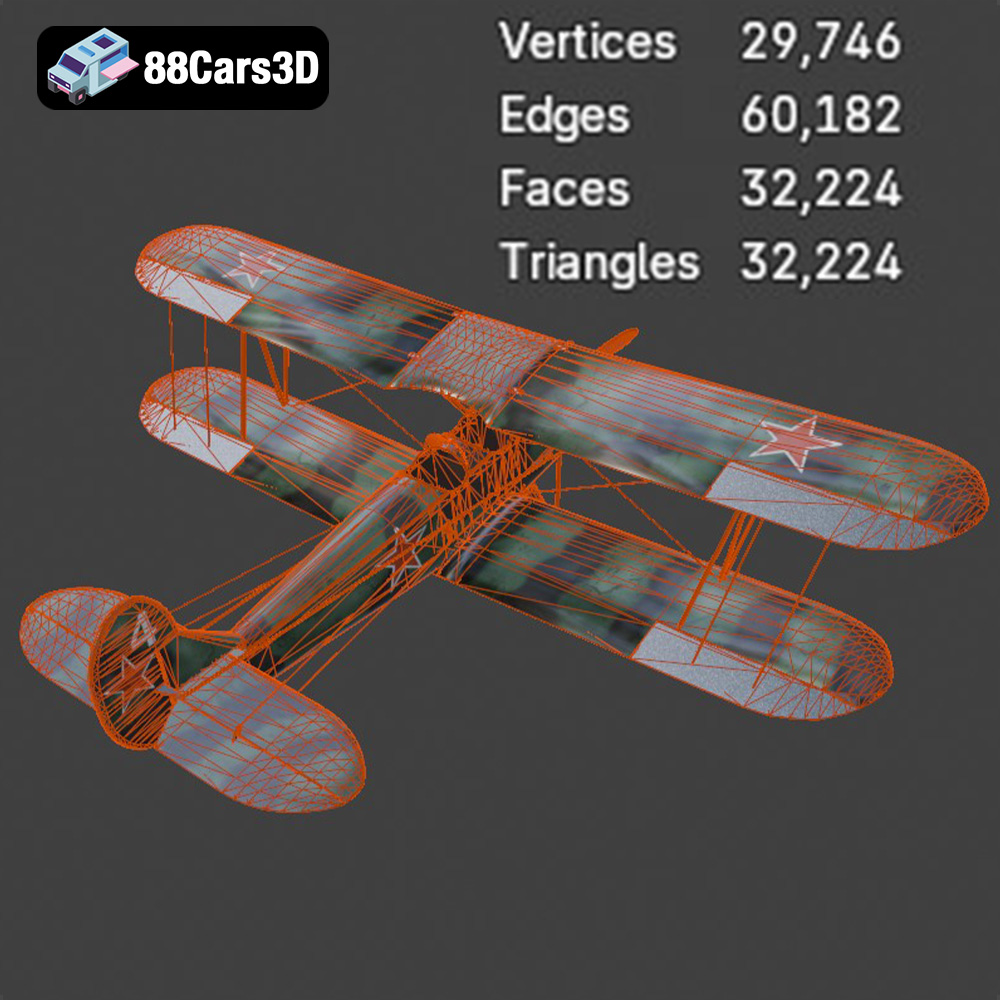
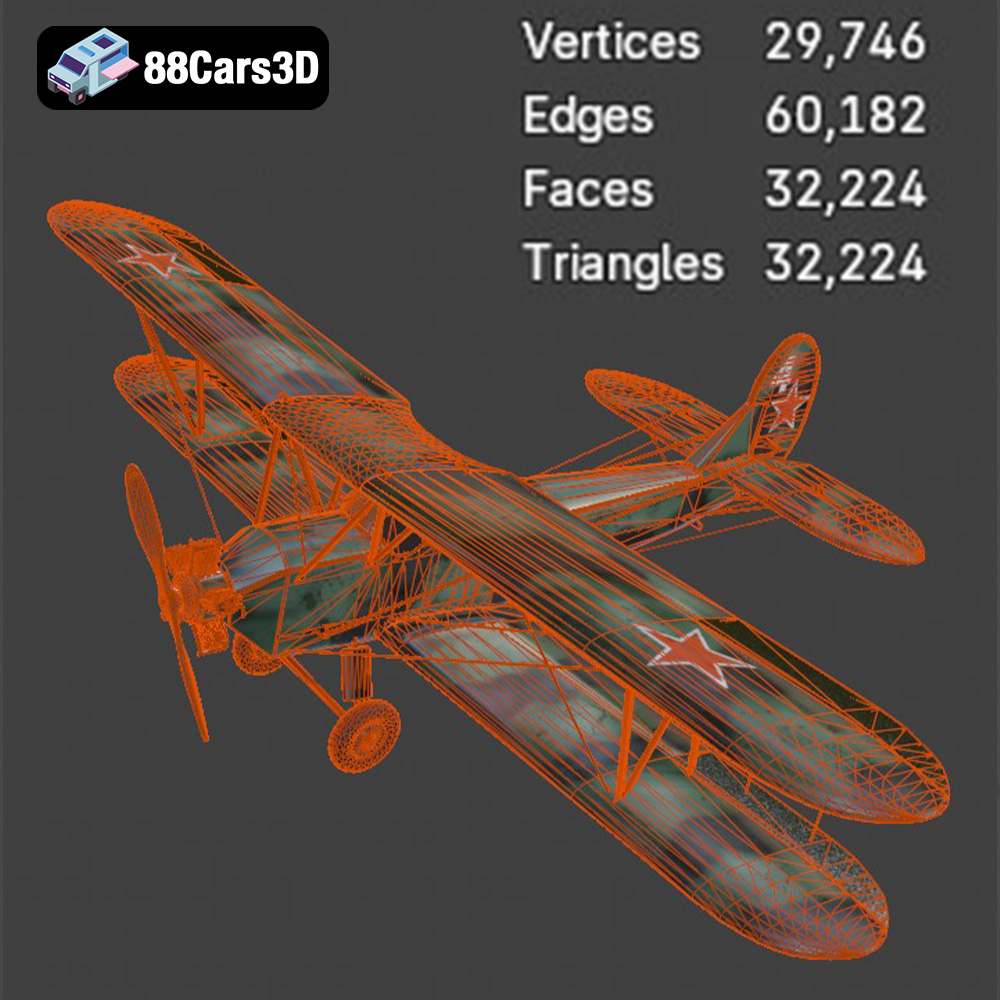
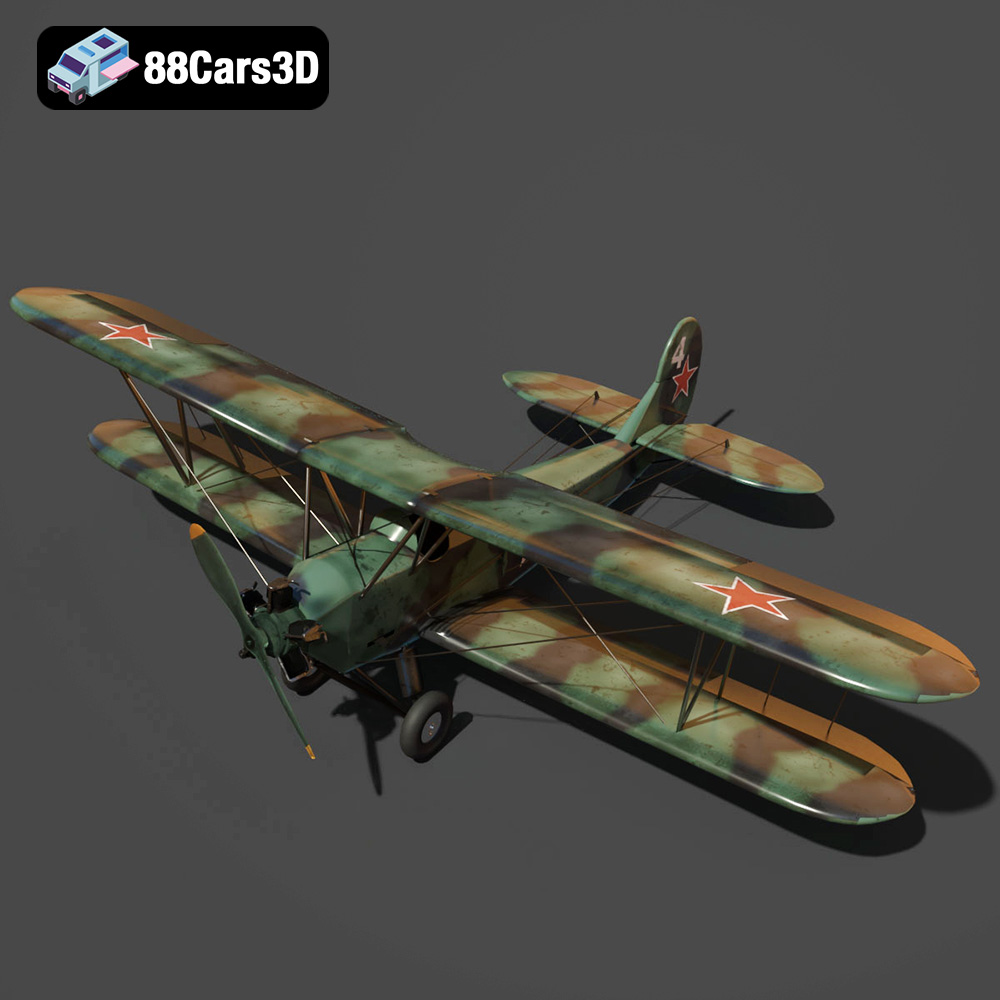
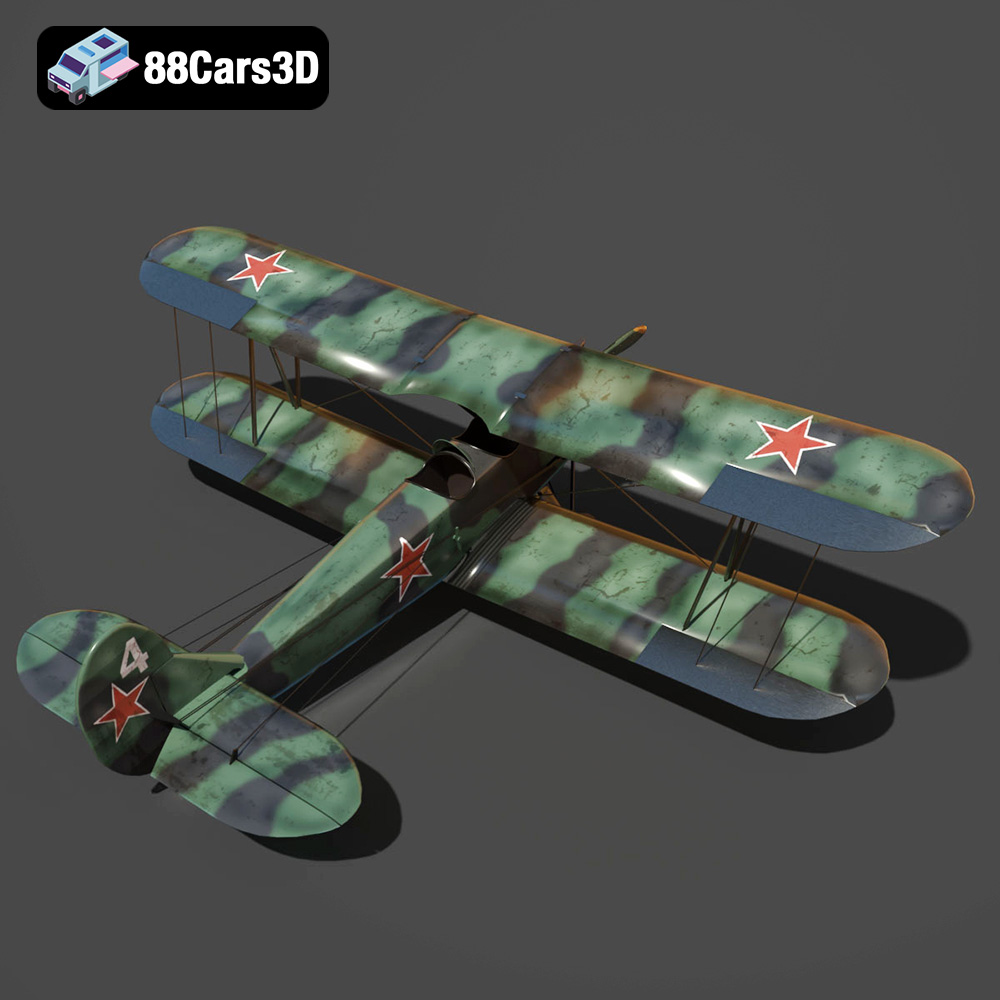
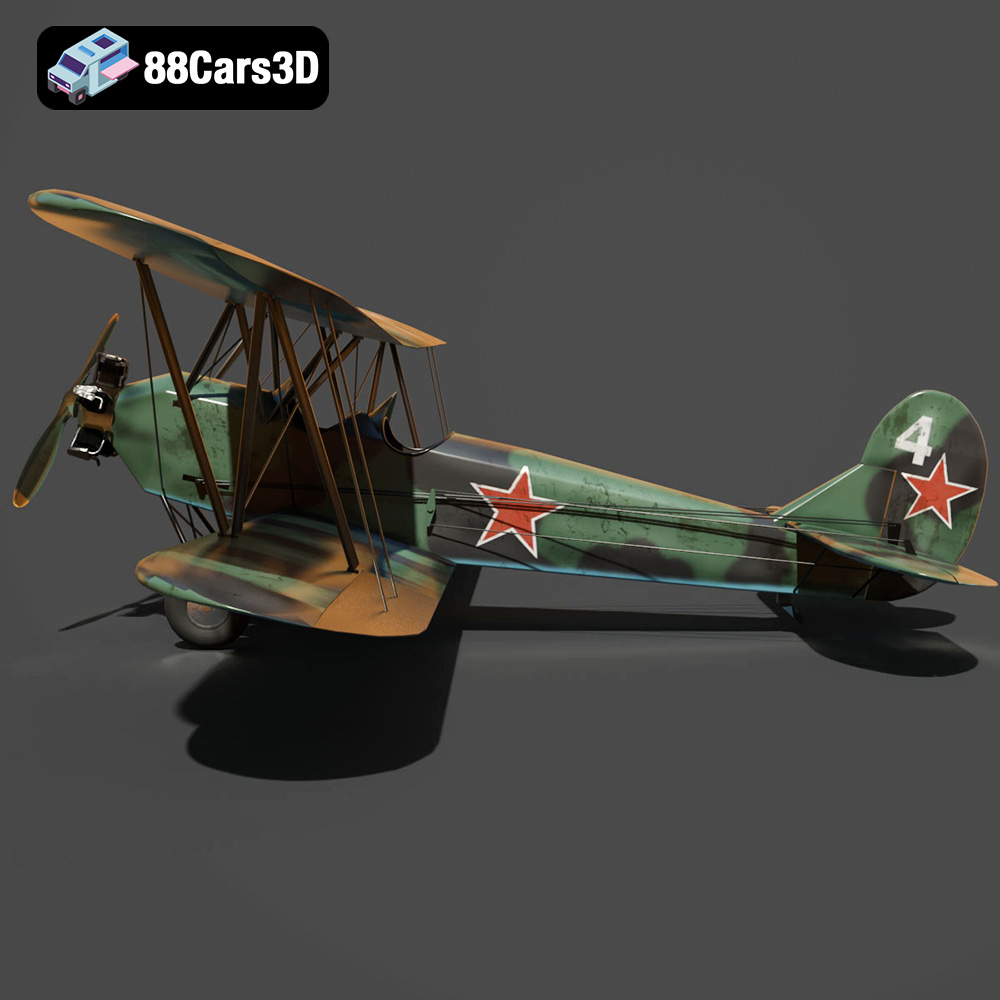
Before diving into the 3D printing process, it’s crucial to understand the intricacies of the Polikarpov Po-2 3D model. This model, available on 88cars3d.com, is designed with a high level of detail, capturing the essence of the original aircraft. From the biplane wing structure and radial engine cowling to the fabric-style control surfaces and open cockpit, every element has been meticulously recreated. The model is intended for various applications, including rendering, game development, and, most importantly, 3D printing. Understanding the model’s features and intended scale is key to a successful print.
The Polikarpov Po-2 model likely consists of multiple parts, such as the fuselage, wings, landing gear, and propeller. Examining the geometry of each part is essential for determining the optimal print orientation and support placement. Complex areas, like the wing struts and engine details, may require more support structures.
The product description recommends scales of 1:72, 1:48, 1:32, and 1:24. Smaller scales (1:72) will be more challenging to print due to the finer details, while larger scales (1:24) will be easier but require more material and print time. Consider your printer’s capabilities and desired level of detail when choosing a scale.
The world of 3D modeling and printing involves various file formats, each with its strengths and weaknesses. Choosing the right file format is crucial for ensuring compatibility with your slicing software and achieving the desired print quality. Here’s a detailed look at some of the most common formats:
The .stl (stereolithography) file format is the workhorse of 3D printing. It represents the surface geometry of a 3D object as a collection of triangles. While simple, this format has become the industry standard due to its widespread compatibility with slicing software and 3D printers. The .stl format focuses solely on the mesh geometry, meaning it doesn’t include color, texture, or material information. For the Polikarpov Po-2, the .stl format is ideal for representing the detailed exterior and interior features of the aircraft. However, the quality of the .stl file depends on the number of triangles used to define the model. A higher triangle count results in a smoother surface but also increases file size and processing time. When exporting to .stl, ensure that you choose a resolution that balances detail and file size. Slicing software readily accepts .stl files, allowing you to prepare the model for printing by setting parameters like layer height, infill density, and support structures.
The .obj (object) file format is another popular choice, offering more versatility than .stl. Unlike .stl, .obj files can store color and texture information, making them suitable for printing multi-colored models (if your printer supports it). However, for the Polikarpov Po-2, which will likely be painted after printing, the texture capabilities of .obj are less critical. .obj files also represent geometry using polygons, similar to .stl. While widely compatible, .obj files can sometimes be larger than their .stl counterparts due to the additional data they store.
The .ply (polygon file format) is designed for capturing high-detail 3D data, often used in 3D scanning and reverse engineering. It can store color, texture, and even surface normals (information about the direction of the surface). While .ply can represent very complex geometry, it is not as universally supported by slicing software and 3D printers as .stl.
The .blend file is the native format for Blender, a popular open-source 3D modeling software. This format contains the entire scene, including the model’s geometry, materials, textures, lighting, and animation data. The .blend file is incredibly useful for customizing the Polikarpov Po-2 before exporting it for printing. You can modify the model’s design, add details, or optimize the mesh for 3D printing. However, .blend files are not directly compatible with slicing software; you need to export the model to a printable format like .stl first.
The .fbx (filmbox) file format is primarily used for exchanging 3D data between different software applications. It can store geometry, textures, materials, animations, and even skeletal rigging. While .fbx is more versatile than .stl, it is not always the best choice for 3D printing. Slicing software may not fully support all the features stored in an .fbx file, potentially leading to errors or unexpected results.
The .glb (GL Transmission Format Binary) is a relatively new format designed for efficient transmission and loading of 3D models, especially in web-based applications and augmented reality (AR) environments. It’s a binary format that combines the geometry, textures, and animations into a single file, making it easy to share and preview 3D models on various platforms. The format supports PBR (Physically Based Rendering) materials, which allows for more realistic rendering of the models. While .glb is excellent for viewing and sharing, it’s not typically used directly for 3D printing.
The .max file is the native format for 3ds Max, a professional 3D modeling, animation, and rendering software. Like .blend, .max files contain the entire scene data, allowing for extensive customization and modification of the Polikarpov Po-2 model. However, .max files are not directly compatible with slicing software and must be exported to a printable format like .stl.
Once you have your Polikarpov Po-2 3D model files, the next step is to prepare them for printing using slicing software. This software converts the 3D model into a set of instructions (G-code) that your 3D printer can understand. Popular slicing software options include Cura, PrusaSlicer, Simplify3D, and others.
Import the .stl file of the Polikarpov Po-2 into your chosen slicing software. The first crucial step is to orient the model correctly on the virtual build plate. As the product description suggests, printing the fuselage horizontally often yields the best results. This orientation minimizes the need for supports on the fuselage’s curved surfaces. Separate components like the wings and landing gear should also be oriented to minimize support requirements and maximize print quality.
Now, let’s configure the print parameters. The optimal settings will depend on your printer, material, and desired level of detail. Here are some general guidelines based on the product description:
* **Layer Height:** Aim for a layer height of 0.08–0.16 mm. Lower layer heights will produce smoother surfaces but increase print time.
* **Wall Thickness:** Set the wall thickness to 1.2–2 mm. This parameter determines the strength of the model’s outer shell.
* **Infill:** Use an infill density of 15–25%. Infill provides internal support and rigidity to the model.
* **Supports:** Enable support structures for overhanging features like wing struts, landing gear, and the propeller. Experiment with different support patterns and densities to find a balance between support strength and ease of removal.
* **Print Speed:** Adjust the print speed based on your printer’s capabilities and material recommendations. Slower speeds generally result in better print quality.
Before slicing, it’s essential to ensure that the 3D model is error-free. Slicing software often includes tools for automatically repairing minor mesh issues. However, for more complex problems, you may need to use a dedicated mesh editing software like MeshMixer or Blender to fix issues such as non-manifold edges or holes in the model. Ensure that the model is manifold (watertight) before proceeding to slicing.
The choice of material significantly impacts the appearance, strength, and overall quality of your 3D printed Polikarpov Po-2. Let’s explore some suitable options:
PLA is a popular, biodegradable thermoplastic known for its ease of printing and wide availability. It’s an excellent choice for beginners and for models that don’t require high strength or temperature resistance. PLA is available in a wide range of colors, making it easy to match the desired historical livery of the Polikarpov Po-2.
PETG combines the ease of printing of PLA with improved strength and temperature resistance. It’s a good all-around choice for models that need to withstand some stress or exposure to heat. PETG also offers better layer adhesion than PLA, resulting in stronger prints.
For highly detailed models and smaller scales, resin printing (SLA or DLP) is the preferred option. Resin printers use liquid resin that is cured by UV light, resulting in extremely high resolution and smooth surfaces. Resin printing is ideal for capturing the intricate details of the Polikarpov Po-2, such as the fabric texture on the control surfaces and the small components in the cockpit. However, resin prints tend to be more brittle than filament prints and may require more post-processing.
With your model prepared and material selected, it’s time to start printing. Here’s a step-by-step guide to ensure a successful print:
Before printing, ensure that your 3D printer is properly calibrated. This includes leveling the build plate, setting the correct Z-offset, and verifying the extruder temperature. A well-calibrated printer is essential for achieving good layer adhesion and dimensional accuracy.
During the printing process, it’s crucial to monitor the first few layers closely. This ensures that the filament or resin is adhering properly to the build plate. If you notice any issues, such as warping or detachment, pause the print and make the necessary adjustments.
Once the print is complete, carefully remove the support structures. Use appropriate tools, such as pliers or cutters, to avoid damaging the model. For PLA and PETG, you can try dissolving the supports in warm water or using a specialized support removal solution. For resin prints, use isopropyl alcohol (IPA) to clean the model and remove any uncured resin.
After printing, post-processing is essential to refine the appearance of the Polikarpov Po-2 model.
Use sandpaper of varying grits to smooth out any imperfections on the surface of the model. Start with a coarser grit (e.g., 220) to remove larger bumps and then gradually move to finer grits (e.g., 400, 600) to achieve a smooth finish. For resin prints, wet sanding is often recommended to prevent dust from clogging the sandpaper.
Apply a coat of primer to the model to create a uniform surface for painting. Primer also helps to fill in any remaining imperfections and improve paint adhesion. Choose a primer that is compatible with your chosen material.
Now comes the fun part: painting the Polikarpov Po-2 in its historical colors. Research the various camouflage schemes and markings used on the aircraft during World War II. Use acrylic paints designed for model making. Apply thin, even coats and allow each coat to dry completely before applying the next. Consider using an airbrush for a smoother and more professional finish.
If the model consists of multiple parts, carefully assemble them using glue or adhesive. Ensure that the parts are aligned correctly and that the glue is applied sparingly to avoid unsightly messes.
3D printing can sometimes be challenging, and you may encounter various issues during the process. Here are some common problems and their solutions:
Warping occurs when the corners of the model lift off the build plate. This is often caused by poor bed adhesion or uneven cooling. To prevent warping, ensure that your build plate is clean and level, use a bed adhesive (e.g., glue stick or hairspray), and adjust the printing temperature.
Stringing refers to thin strands of filament that form between different parts of the model. This is usually caused by excessive retraction or high printing temperature. To reduce stringing, decrease the printing temperature, increase the retraction distance, and adjust the retraction speed.
Layer separation occurs when the layers of the print don’t adhere properly to each other. This can be caused by low printing temperature, insufficient cooling, or poor layer adhesion. To improve layer adhesion, increase the printing temperature, decrease the cooling fan speed, and ensure that the first layer is properly squished onto the build plate.
The cost and time required to 3D print the Polikarpov Po-2 will depend on several factors, including the size of the model, the material used, and the printer settings. As a rough estimate, a 1:48 scale model printed in PLA could take anywhere from 10 to 20 hours and cost between $5 and $10 in material. Resin prints may take less time but can be more expensive due to the higher cost of resin.
3D printing the Polikarpov Po-2 3D model is a rewarding project that allows you to bring a piece of aviation history to life. By following the steps outlined in this guide, you can create a detailed and accurate replica of this iconic aircraft. Remember to carefully prepare the model, choose the right material, optimize the print settings, and take your time with post-processing. Happy printing! And don’t forget to check out 88cars3d.com for more amazing 3D models optimized for printing. They offer a wide selection of high-quality STL files perfect for your next additive manufacturing adventure.
The Polikarpov Po-2 3D Model is a high-detail digital recreation of the legendary Soviet multi-role biplane widely used for training, reconnaissance, and light bombing missions during the mid-20th century. Known for its lightweight wooden structure and fabric-covered wings, the Po-2 became one of the most produced biplanes in aviation history.
$4.99
.aircraft3dmodel
.arvr
.aviation
.biplane
.blend
.fbx
.flightsimulator
.gameasset
.glb
.historicalaircraft
.max
.obj
.ply
.po2
.polikarpov
.rendering
.simulation
.stl
.unreal
.wwiiaircraft