Get 50% OFF All Premium 3D & STL Models!

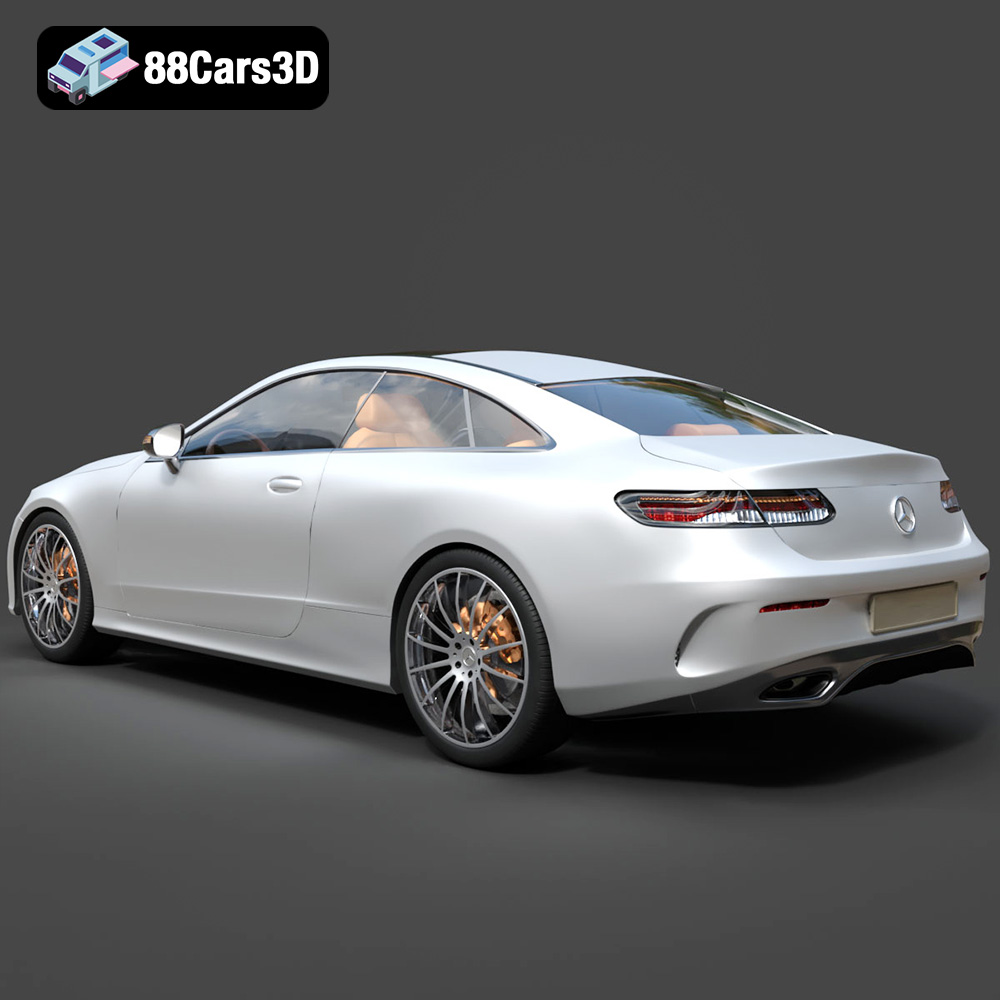
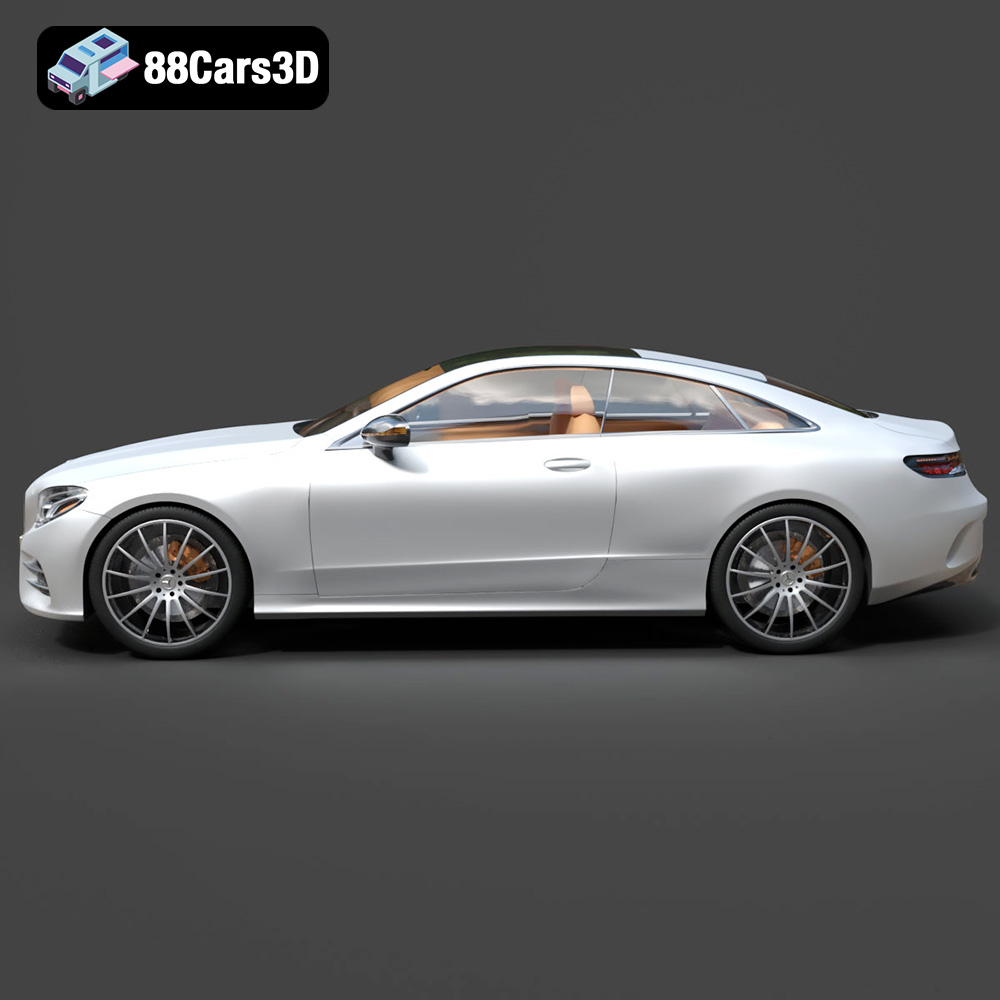
The Mercedes-Benz E-Class C238 is a stunning example of automotive design, blending luxury and performance in a sleek coupe form. Now, thanks to 88cars3d.com, you can bring this iconic vehicle to life with the power of 3D printing. This guide will provide a comprehensive overview of how to successfully 3D print the Mercedes-Benz E-Class C238 3D Model, covering everything from printer settings and material selection to pre-print preparation and post-processing techniques. Whether you’re a seasoned 3D printing enthusiast or just starting out, this article will equip you with the knowledge to create a detailed and impressive replica of this beautiful car.
The level of detail achievable with the Mercedes-Benz E-Class C238 3D Model is impressive, but realizing that potential requires selecting the appropriate 3D printing technology. Both Fused Deposition Modeling (FDM) and Stereolithography (SLA) printers can be used, each with its own set of advantages and considerations.
FDM printers are a popular choice due to their affordability and the wide range of materials available. When printing the E-Class C238 on an FDM printer, consider these points:
* **Nozzle Size:** A smaller nozzle (0.4mm or even 0.25mm) will produce finer details, particularly on the body panels and around the intricate front grille.
* **Layer Height:** Lower layer heights (0.1mm – 0.16mm) are crucial for capturing the smooth curves of the car. Experiment to find the sweet spot between detail and print time.
* **Support Structures:** The C238 has overhangs, especially on the side mirrors and potentially the rear spoiler. Use support structures judiciously to prevent deformation but minimize post-processing effort. Consider using soluble support material for easier removal.
SLA printers, particularly resin-based printers, excel at producing high-resolution prints with smooth surfaces. This makes them ideal for capturing the intricate details of the E-Class C238, especially at smaller scales. Key considerations for SLA printing include:
* **Resin Selection:** Choose a resin with good detail resolution and minimal shrinkage. ABS-like resins are often a good choice due to their strength and durability.
* **Layer Height:** SLA printers can achieve extremely fine layer heights (as low as 0.025mm), allowing for incredible detail. However, balancing detail with print time is important. A layer height of 0.05mm – 0.08mm is a good starting point.
* **Support Structures:** SLA printing also requires supports, but they are often finer and easier to remove than FDM supports. Optimize support placement in your slicing software to minimize scarring on visible surfaces.
When it comes to preparing your 3D model for printing, the file format plays a critical role in ensuring compatibility, quality, and ultimately, the success of your print. The Mercedes-Benz E-Class C238 3D Model from 88cars3d.com is provided in various formats to cater to different applications, but some are more suitable for 3D printing than others.
The STL (stereolithography) file format is the workhorse of 3D printing. It represents the surface geometry of a 3D object as a collection of triangles. This simplicity makes it universally compatible with virtually all 3D printing software and hardware. However, STL files only contain information about the shape of the object, not its color, texture, or material properties.
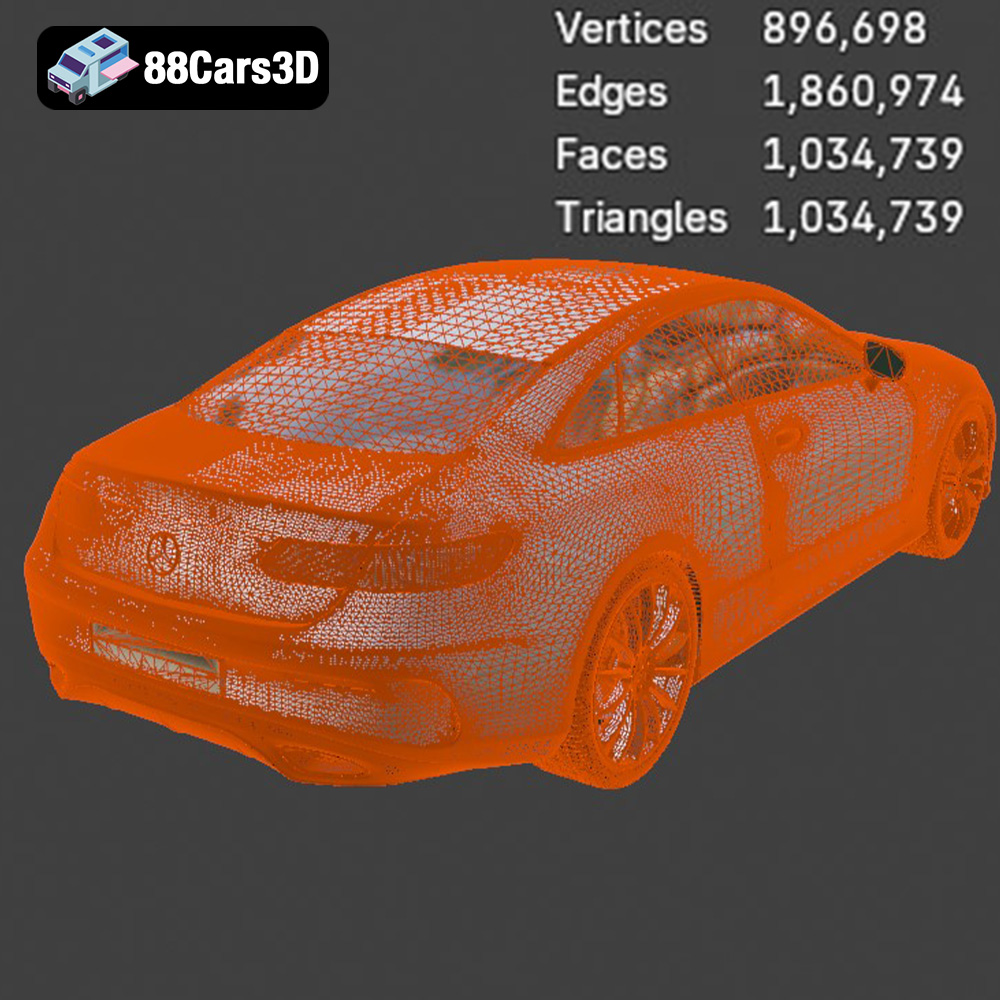
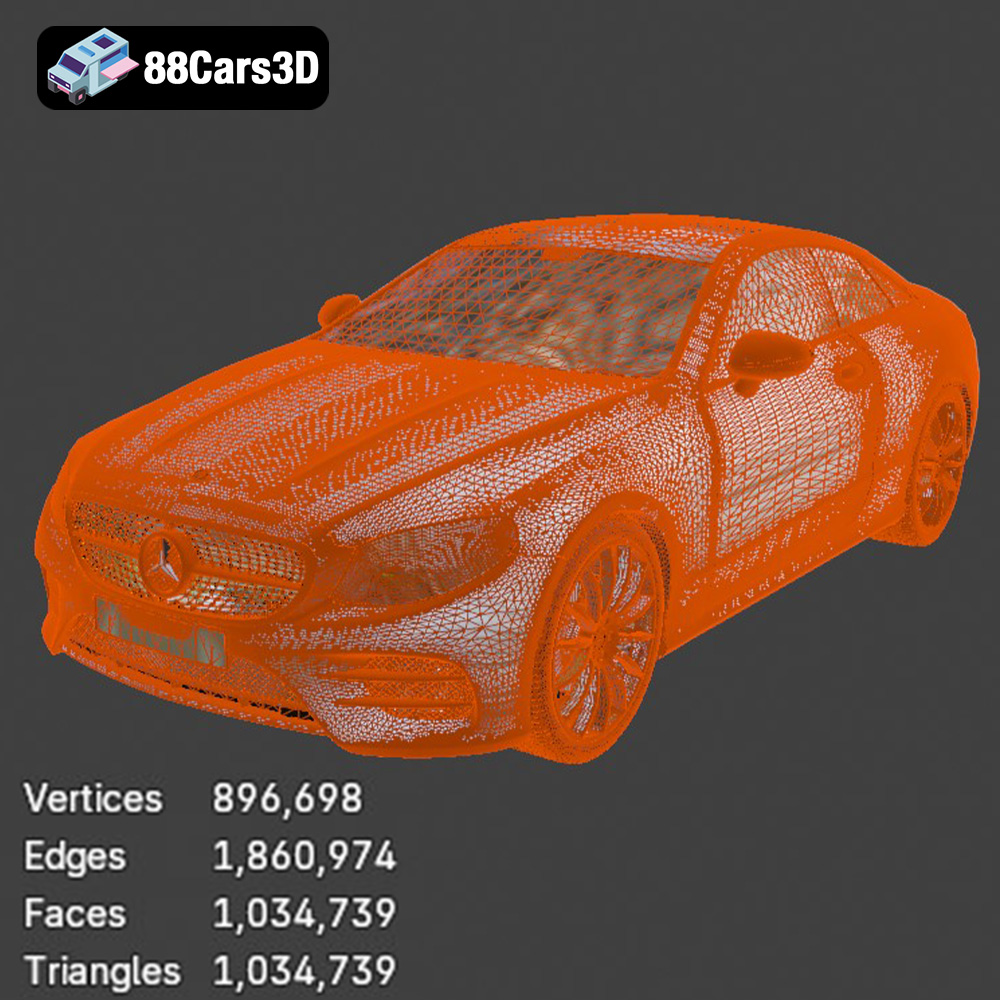
When preparing an STL file for printing the E-Class C238, ensure that the mesh is watertight (i.e., there are no holes or gaps in the surface). Use mesh repair tools in your slicing software or dedicated software like MeshMixer or Netfabb to fix any errors. A high-quality STL file will have a sufficiently dense mesh to capture the smooth curves of the car, but not so dense that it becomes unwieldy to process. Balancing mesh quality and file size is key.
OBJ is another widely used 3D file format that, unlike STL, can store color and texture information along with the geometry. While OBJ files can be used for 3D printing, they are often more complex and may not be as efficiently processed by slicing software as STL files. If you plan to add color or textures to your 3D printed E-Class C238, OBJ might be a suitable format, but it’s generally recommended to convert it to STL after applying the desired colors in a 3D modeling program.
PLY (Polygon File Format) is designed to store 3D data acquired from 3D scanners. It can represent not only the geometry but also other properties such as color, normals, and texture coordinates. PLY files can be useful for capturing highly detailed models, but their complexity can sometimes pose challenges for 3D printing. Like OBJ, converting to STL after any necessary modifications is generally recommended for optimal slicing performance.
The .blend format is the native file format for Blender, a popular open-source 3D modeling software. If you’re comfortable with Blender, having the model in .blend format allows you to make modifications to the design before exporting it for 3D printing. You can adjust the geometry, add details, or even split the model into separate parts for easier printing and assembly. After making your changes, you’ll typically export the model as an STL file for 3D printing.
FBX (Filmbox) is a proprietary file format developed by Autodesk. It’s commonly used for exchanging 3D data between different software applications, including 3D modeling programs, game engines, and animation software. FBX files can store geometry, textures, materials, and animation data. While some advanced slicing software may support importing FBX files, it’s generally best to convert the model to STL for 3D printing, as STL is the most widely supported and optimized format.
GLB (GL Transmission Format Binary) is a file format designed for efficient transmission and loading of 3D scenes and models. It’s often used for displaying 3D content on the web and in augmented reality (AR) applications. While GLB files are great for previewing the Mercedes-Benz E-Class C238 model in AR before printing, they are not directly suitable for 3D printing. You’ll need to convert the model to STL to prepare it for your 3D printer.
Similar to .blend for Blender, the .max format is the native file format for Autodesk 3ds Max, another professional 3D modeling software. If you’re a 3ds Max user, having the model in .max format allows you to fully customize it before exporting for 3D printing. As with Blender, export to STL after modifications for best printing results.
The material you choose for printing your Mercedes-Benz E-Class C238 will significantly impact the final appearance, strength, and durability of the model. Here’s a breakdown of common 3D printing materials and their suitability for this project:
PLA (Polylactic Acid) is a biodegradable thermoplastic derived from renewable resources. It’s easy to print, has low warping, and produces good surface quality, making it an excellent choice for beginners. PLA is suitable for creating display models of the E-Class C238, but it’s not as heat-resistant or durable as other materials.
* **Pros:** Easy to print, low warping, good surface finish, biodegradable.
* **Cons:** Low heat resistance, can be brittle.
PETG (Polyethylene Terephthalate Glycol-modified) combines the ease of printing of PLA with the strength and durability of ABS. It has good impact resistance and is more heat-resistant than PLA. PETG is a great option for creating a more robust E-Class C238 model that can withstand handling.
* **Pros:** Strong, durable, good heat resistance, easy to print.
* **Cons:** Can be stringy during printing, requires good bed adhesion.
ABS (Acrylonitrile Butadiene Styrene) is a strong and heat-resistant thermoplastic commonly used in automotive parts. If you want to create a highly durable E-Class C238 model that can withstand higher temperatures, ABS is a good choice. However, ABS is more challenging to print than PLA or PETG, as it’s prone to warping and requires a heated bed and enclosure.
* **Pros:** Strong, heat-resistant, durable.
* **Cons:** Prone to warping, requires a heated bed and enclosure, releases fumes during printing.
As mentioned earlier, resin is ideal for capturing the finest details of the E-Class C238. Standard resin is suitable for display models, while tougher or ABS-like resins offer improved strength and durability.
* **Pros:** Extremely high detail, smooth surfaces.
* **Cons:** Can be brittle, requires post-curing, messy to work with.
Before you can start printing your Mercedes-Benz E-Class C238, you need to prepare the model using slicing software. This software converts the 3D model into a set of instructions that your printer can understand, including layer height, print speed, temperature, and support structure placement.
The orientation of the model on the print bed can significantly impact the print quality, the amount of support material required, and the overall print time. For the E-Class C238, consider these factors:
* **Body:** Angling the body of the car can help minimize the need for supports on the curved surfaces and improve the surface finish. Experiment with different angles to find the optimal balance.
* **Wheels:** Print the wheels separately to ensure accurate detail and a smooth finish. Orient them vertically to avoid the need for supports on the outer faces.
* **Mirrors and Spoiler:** These parts will almost certainly require supports. Position the model to minimize the visibility of support scars on these delicate features.
Support structures are necessary to hold up overhangs and prevent deformation during printing. However, they can also leave marks on the surface of the model and require extra post-processing.
* **Placement:** Carefully consider where to place supports to provide adequate support without interfering with the aesthetic appearance of the model.
* **Density:** Adjust the density of the supports to provide sufficient strength while minimizing material usage and removal effort.
* **Type:** Experiment with different support types (e.g., tree supports, linear supports) to find the best option for your printer and material.
Your slicing software offers a wide range of settings that can be adjusted to optimize the print quality. Here are some key settings to consider:
* **Layer Height:** As discussed earlier, lower layer heights produce finer details but increase print time.
* **Print Speed:** Adjust the print speed to balance print time and print quality. Slower speeds generally result in better surface finish.
* **Temperature:** Set the temperature according to the material manufacturer’s recommendations.
* **Infill:** Adjust the infill density to control the strength and weight of the model. A higher infill density will result in a stronger but heavier model.
* **Wall Thickness:** Increase the wall thickness to improve the strength and rigidity of the model.
Once the printing is complete, post-processing is essential to achieve a professional-looking finish. This involves removing support structures, sanding, priming, and painting the model.
Carefully remove the support structures using pliers, cutters, or a hobby knife. Take your time to avoid damaging the model. If you used soluble support material, dissolve it in the appropriate solvent.
Sanding is crucial for removing layer lines and smoothing out any imperfections on the surface of the model. Start with a coarse grit sandpaper (e.g., 220 grit) and gradually move to finer grits (e.g., 400, 600, 800 grit) to achieve a smooth finish.
Apply a primer coat to the model to create a smooth, uniform surface for painting. Primer also helps the paint adhere to the plastic.
Use high-quality automotive paint to achieve a realistic finish. Apply multiple thin coats of paint, allowing each coat to dry completely before applying the next. Consider using clear coat for added protection and shine. Chrome detailing can be added for the bumpers, trim, and emblems to enhance the realism.
Even with careful preparation, 3D printing can sometimes present challenges. Here are some common issues and their solutions:
* **Warping:** Warping occurs when the plastic cools unevenly and pulls away from the print bed. Ensure your print bed is properly leveled and heated, and use a brim or raft to improve adhesion.
* **Stringing:** Stringing is caused by molten plastic oozing from the nozzle during travel moves. Adjust your retraction settings and reduce the printing temperature to minimize stringing.
* **Layer Separation:** Layer separation occurs when the layers of plastic don’t adhere properly. Increase the printing temperature and reduce the print speed to improve layer adhesion.
* **Support Structure Issues:** If supports are too weak or difficult to remove, adjust the support density, pattern, and interface settings.
Now that you have a comprehensive understanding of the 3D printing process, you’re well-equipped to bring the Mercedes-Benz E-Class C238 to life. Remember to take your time, experiment with different settings, and don’t be afraid to learn from your mistakes. With patience and practice, you’ll be able to create a stunning replica of this iconic vehicle. And remember to check out 88cars3d.com for more high-quality 3D models optimized for 3D printing!
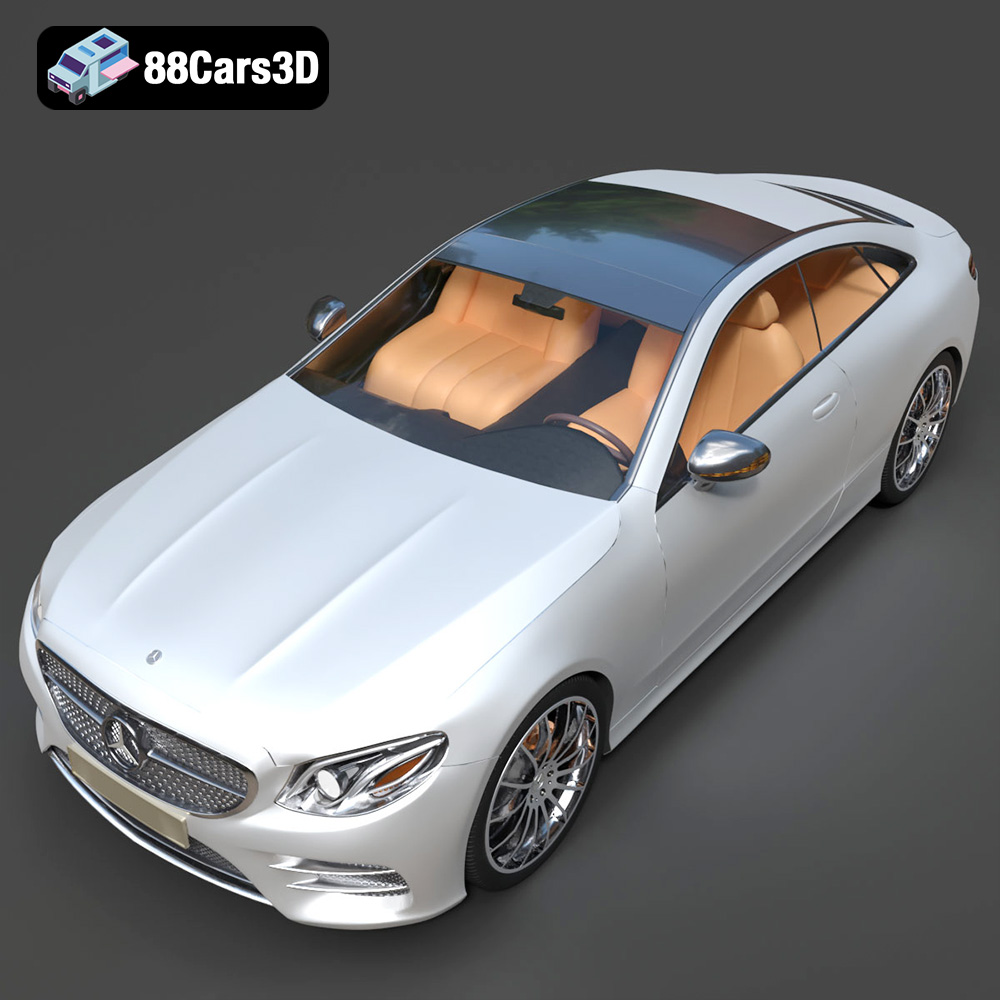
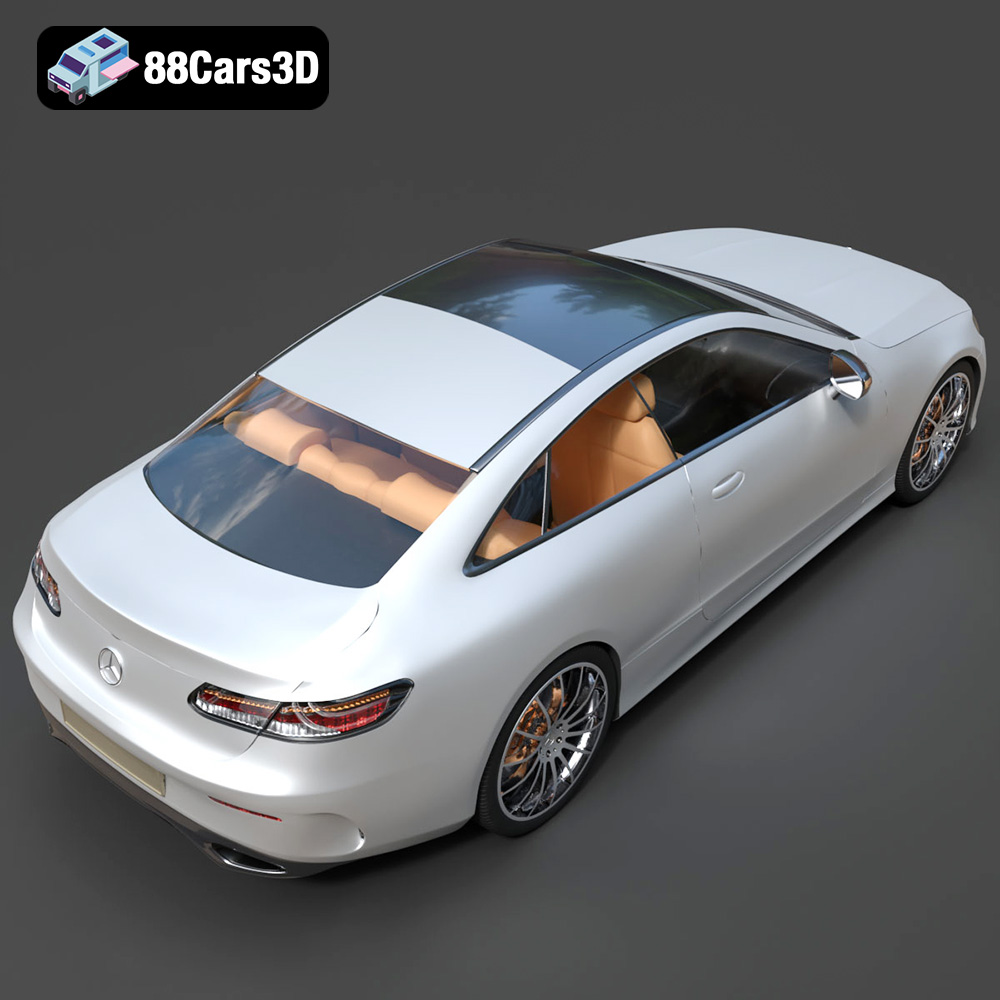
The Mercedes-Benz E-Class C238 3D Model is a high-detail digital recreation of the elegant two-door coupe variant of the E-Class lineup. Combining luxury, performance, and modern design language, the C238 generation features sleek coupe proportions, frameless doors, refined LED lighting, and premium interior craftsmanship. Convert to .stl format for collectible scale coupe models and display miniatures.
$9.99
.arvr
.automotive
.blend
.c238
.car3dmodel
.eclass
.fbx
.gameasset
.glb
.luxurycoupe
.max
.mercedesbenz
.obj
.ply
.premiumcar
.rendering
.simulation
.stl
.unreal