Get 50% OFF All Premium 3D & STL Models!

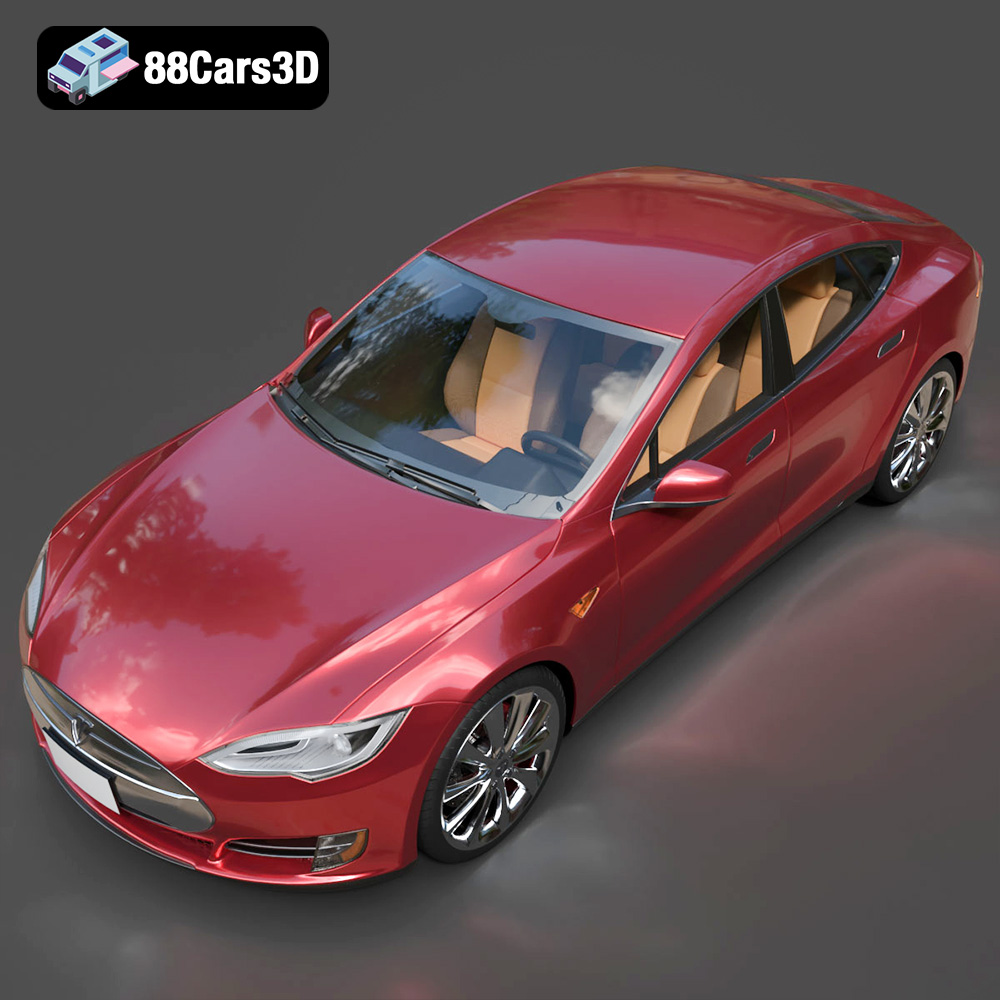
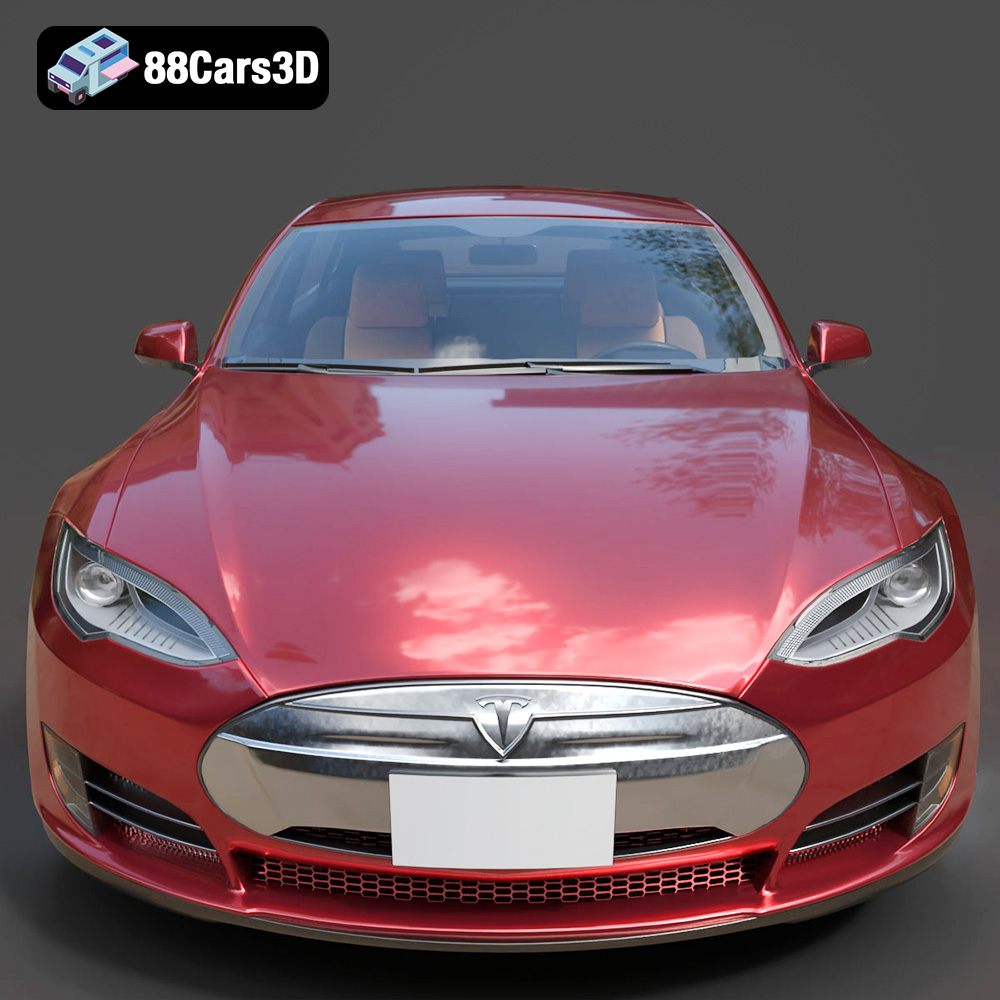
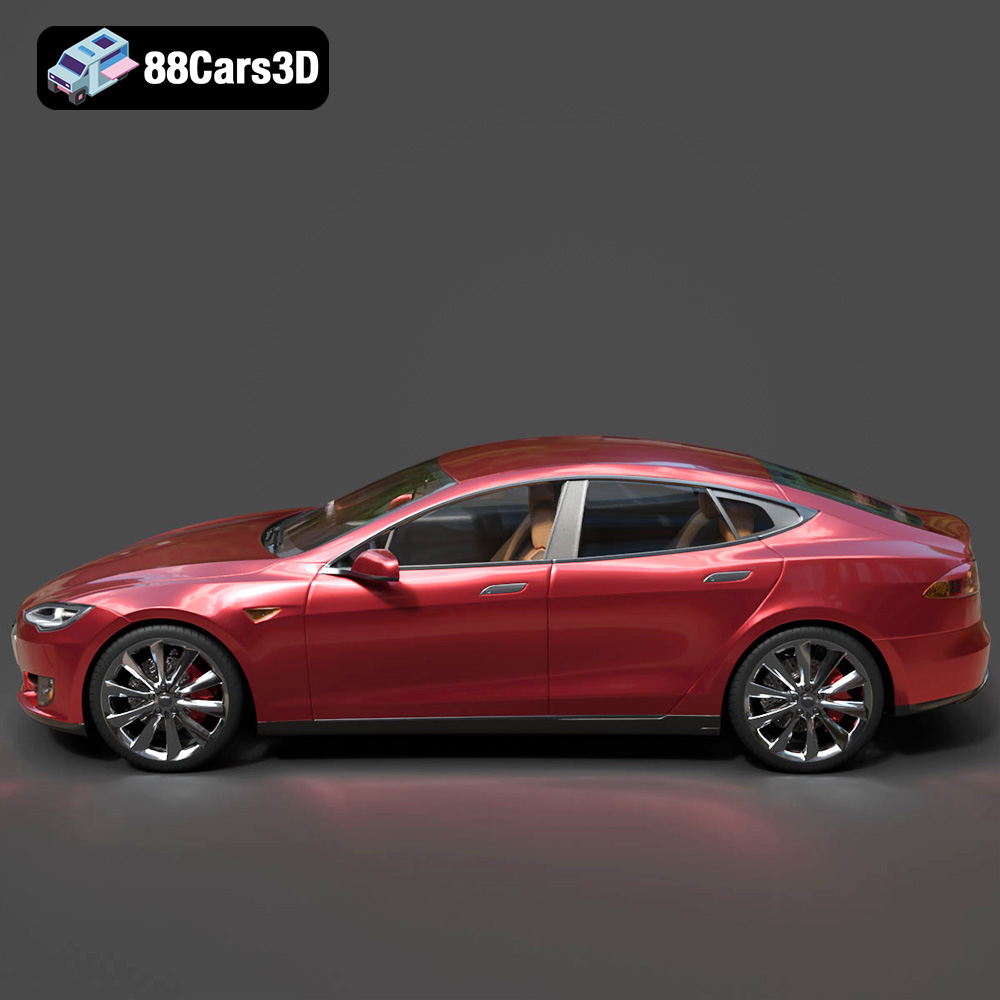
The automotive world is rapidly evolving, and with the Elite Future Mobility Bundle from 88cars3d.com, you can hold a piece of that future in your hands. This collection of four high-end 3D models – the Tesla Model S, Avatr 11, Li L9, and Zoox Robotaxi – offers a fantastic opportunity to explore the world of 3D printing. Whether you’re a seasoned hobbyist or just starting out, this comprehensive guide will walk you through the process of 3D printing these stunning vehicles, from initial preparation to the final, polished product. We’ll cover everything from selecting the right materials and printer settings to post-processing techniques that will bring your miniature EVs and autonomous vehicles to life.
Before diving into the specifics of printing the Elite Future Mobility Bundle, it’s essential to understand the various file formats included in the download and how they relate to 3D printing. The bundle includes a range of formats catering to different applications, but for 3D printing, the STL format reigns supreme.
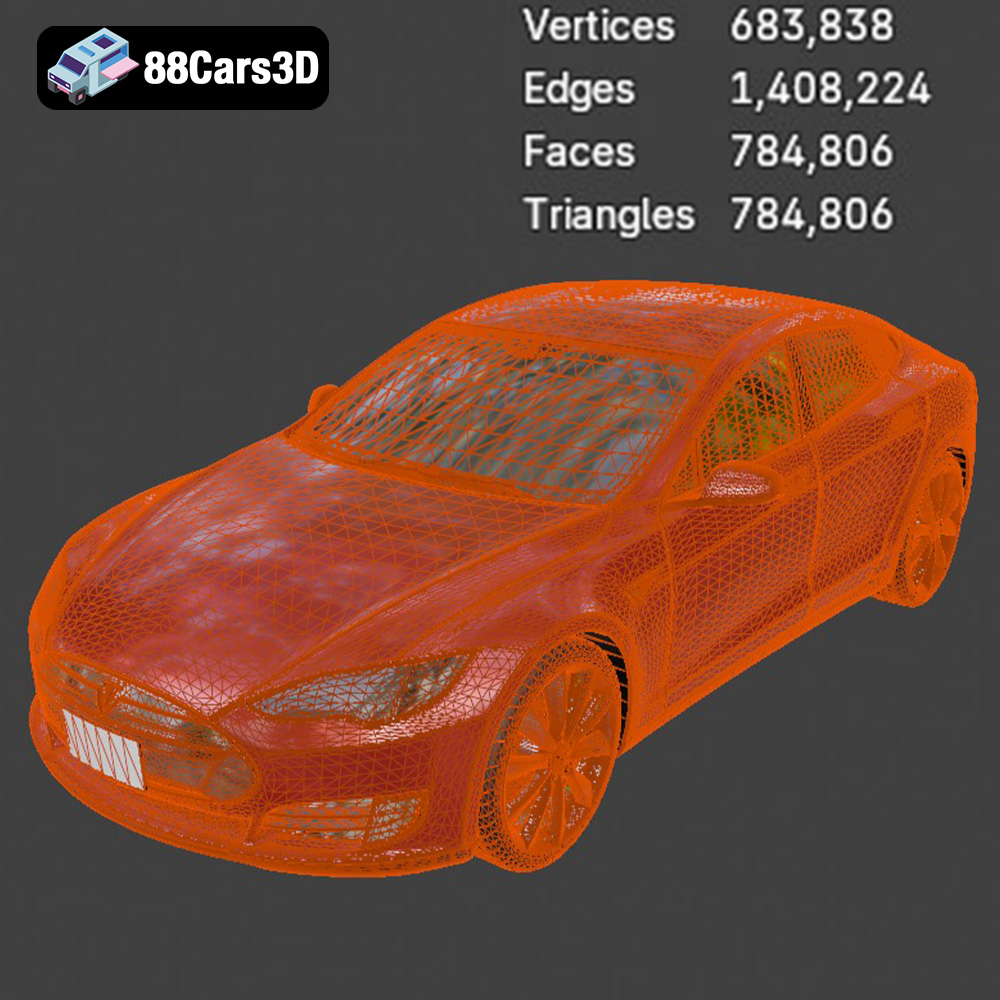
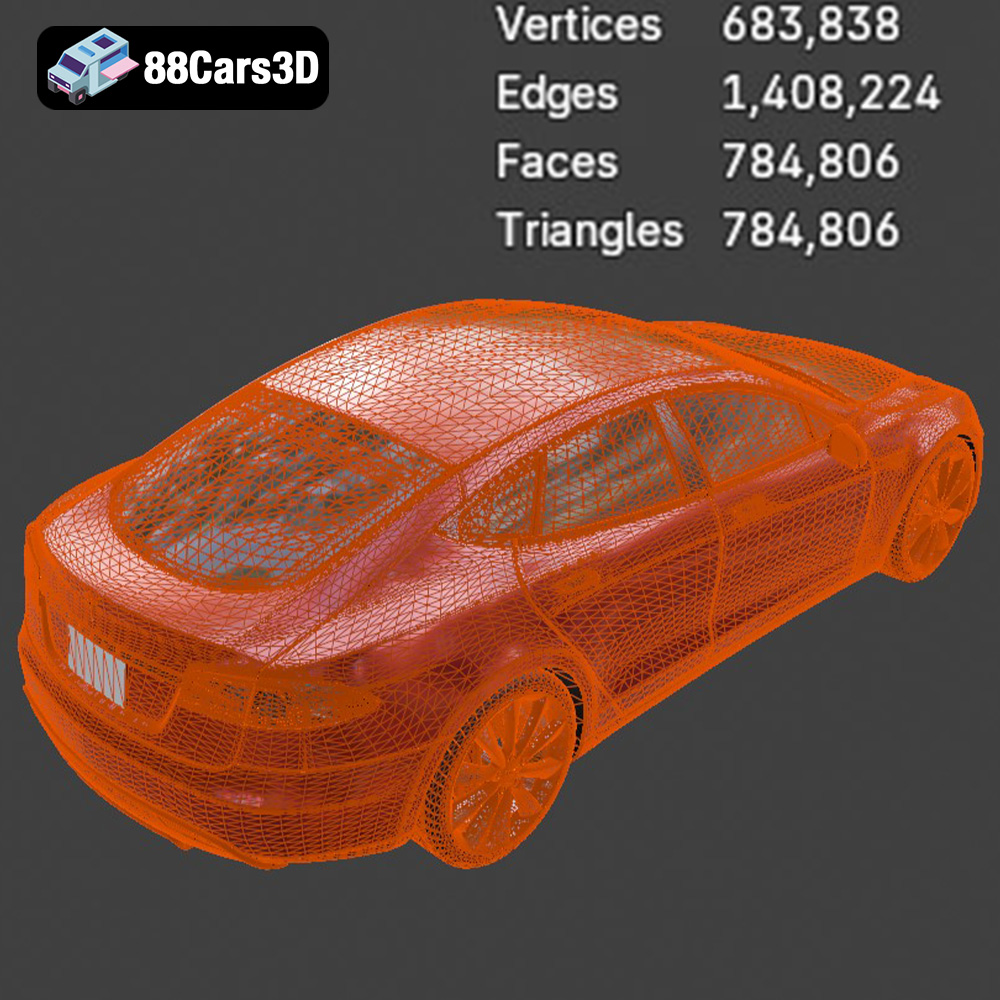
The STL (Stereolithography) file format is the industry standard for 3D printing. It represents the surface geometry of a 3D object as a collection of triangles. While STL files are simple and widely compatible with slicing software, they only contain information about the object’s shape, not its color, texture, or material properties. When working with STL files, it’s crucial to ensure the mesh quality is high enough to capture the details of the Elite Future Mobility models, yet optimized for efficient printing. A balance between detail and file size is key. The models from 88cars3d.com are already optimized with a mid-poly count (300k-500k triangles), making them ideal for printing.
While STL is the primary format for printing, the other included formats can be useful in pre-processing workflows:
* **.obj:** This format supports color and texture information, which is relevant if you plan to paint your 3D printed models after printing.
* **.ply:** Similar to OBJ, PLY can store color and texture data, and is capable of higher detail mesh information.
* **.blend:** The native file format for Blender, a popular open-source 3D modeling software. This allows for advanced customization and editing of the models before exporting to STL.
* **.fbx:** A format commonly used for exchanging 3D models between different software packages. You can import the FBX file into your slicing software, but keep in mind that material information might not always translate perfectly.
* **.glb:** Useful for previewing the models in augmented reality (AR) applications before committing to a print. This can give you a better sense of the model’s size and appearance in the real world.
* **.max:** The native file format for 3ds Max. If you have access to this software, you can make alterations to the models before exporting to STL.
Almost all 3D printing slicing software packages support STL files. Popular options include Cura, Simplify3D, PrusaSlicer, and others. These programs take the STL file and convert it into a series of instructions (G-code) that your 3D printer can understand. Ensure your chosen slicer can handle the polygon count of the Elite Future Mobility models for optimal performance.
The Elite Future Mobility Bundle can be successfully printed using various 3D printing technologies, but the optimal choice depends on the desired level of detail and the scale of the model.
FDM printers are the most common and affordable type of 3D printer. They work by extruding molten plastic filament layer by layer to build the object. For larger scales (1:24 or larger), FDM printing with a well-tuned printer can produce acceptable results.
* **Material Recommendations:** PLA is a good starting point for FDM printing due to its ease of use and wide availability. PETG offers increased strength and temperature resistance, making it suitable for models that might be exposed to heat or stress.
* **Printer Settings:** Layer height should be between 0.1mm and 0.2mm for a good balance of detail and print time. Infill density of 15-25% provides sufficient internal support.
* **Pros:** Affordable, widely accessible, can print larger models.
* **Cons:** Lower resolution compared to resin printing, visible layer lines.
Resin printers use liquid resin that is cured by UV light to create the object. They offer significantly higher resolution and are ideal for smaller, more detailed models like the Elite Future Mobility Bundle, especially at smaller scales (1:32 or 1:43).
* **Material Recommendations:** Standard resin is suitable for most applications. ABS-like resin offers increased strength and impact resistance.
* **Printer Settings:** Layer height should be between 0.04mm and 0.08mm for optimal detail.
* **Pros:** High resolution, excellent detail, smooth surface finish.
* **Cons:** More expensive than FDM printers, requires post-processing (washing and curing), smaller build volume.
* **Tesla Model S:** Due to its streamlined shape, the Tesla Model S is relatively straightforward to print on both FDM and resin printers.
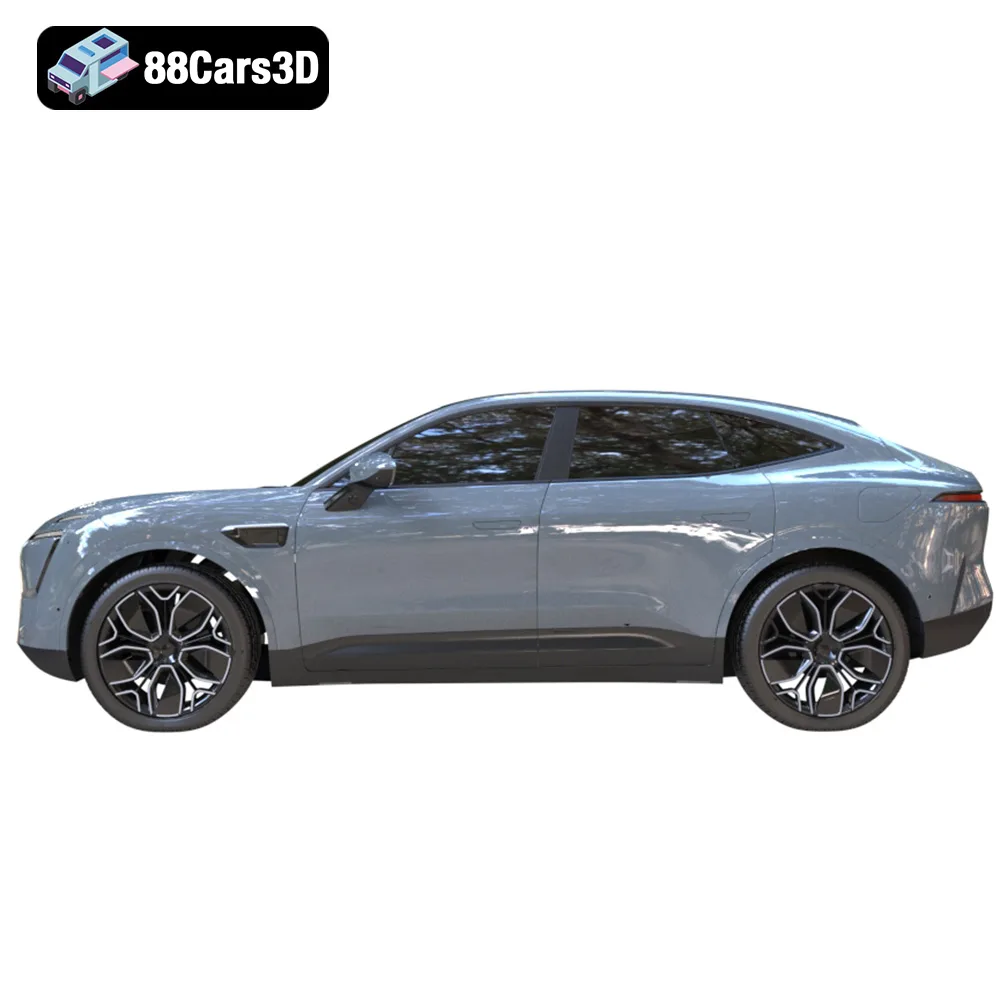
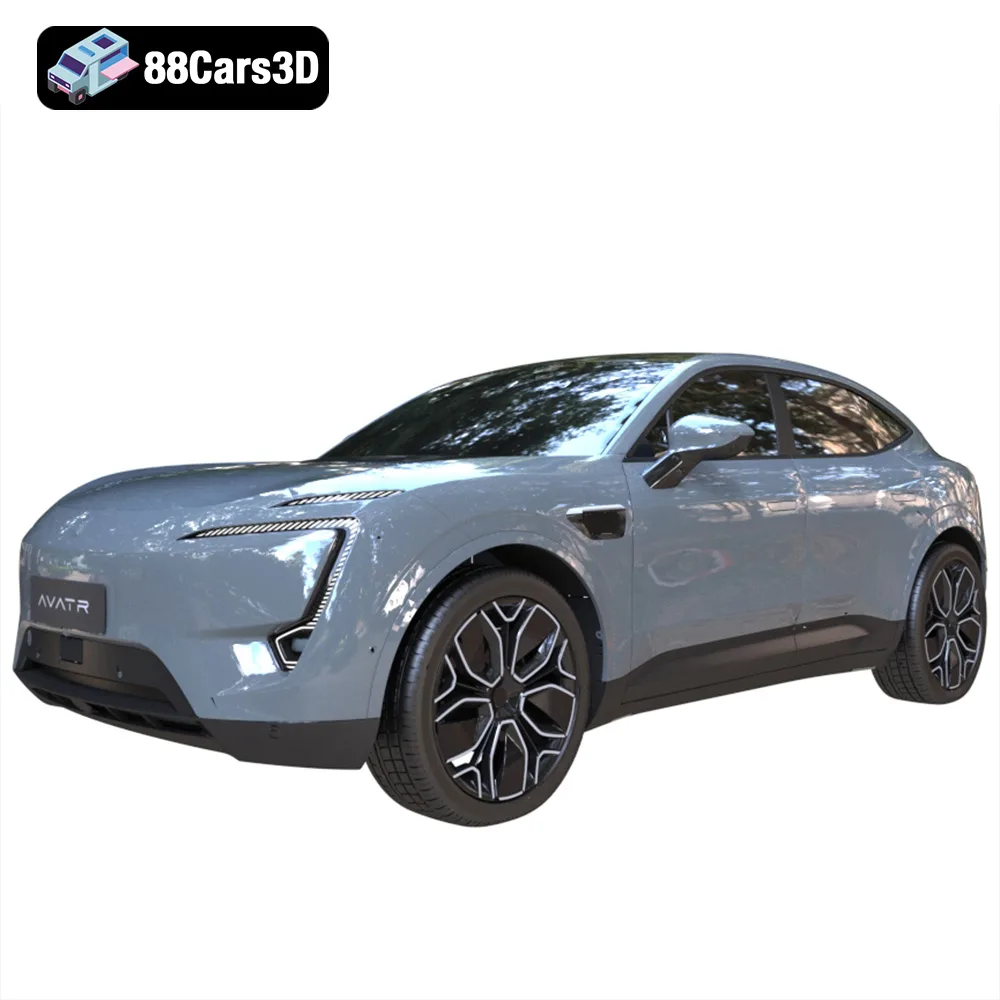
* **Avatr 11:** The Avatr 11’s complex curves and unique rear window-less design require careful support placement, especially with FDM printing. Resin printing is highly recommended.
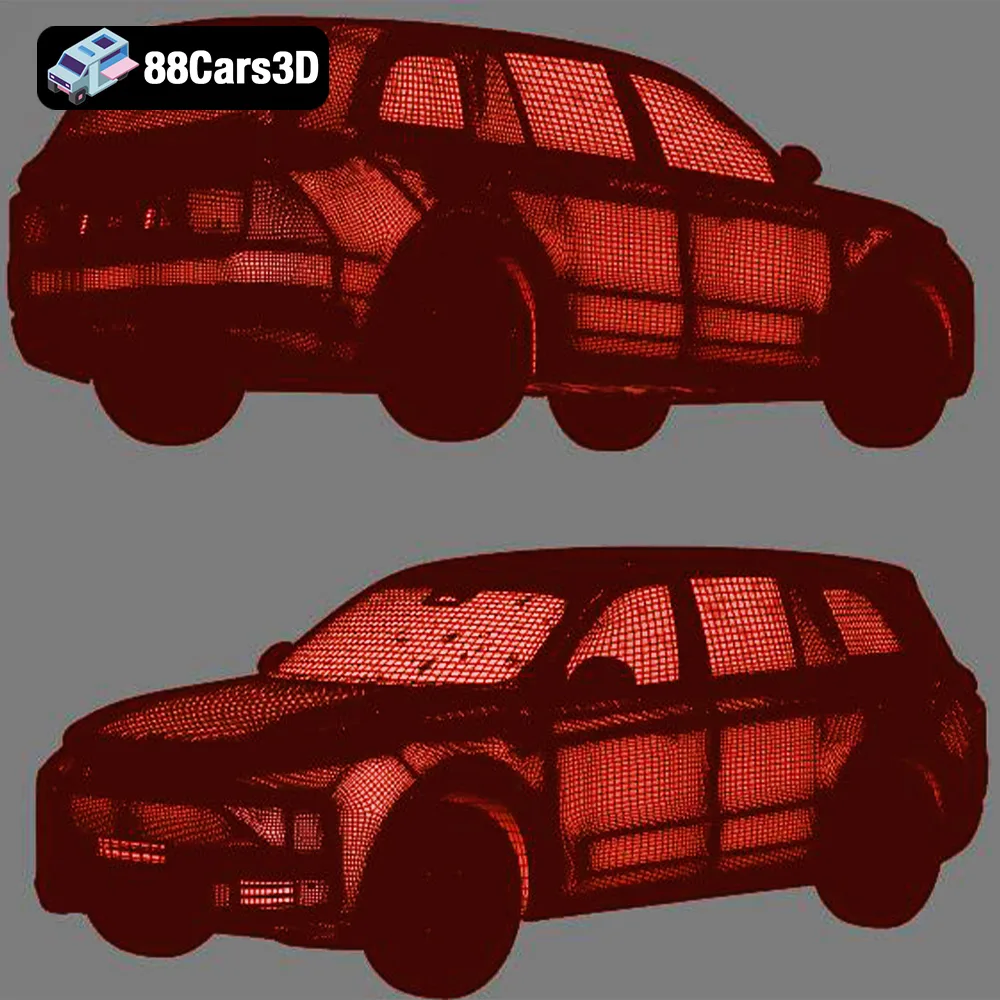
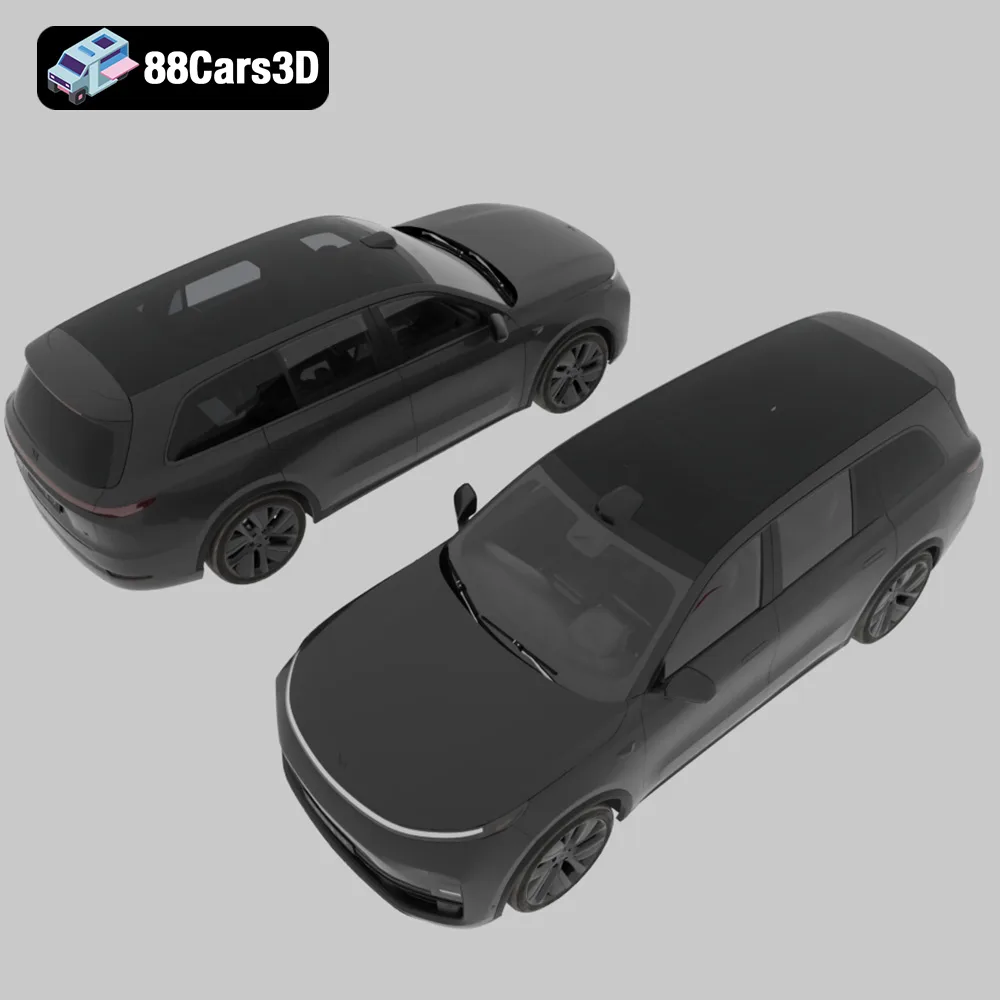
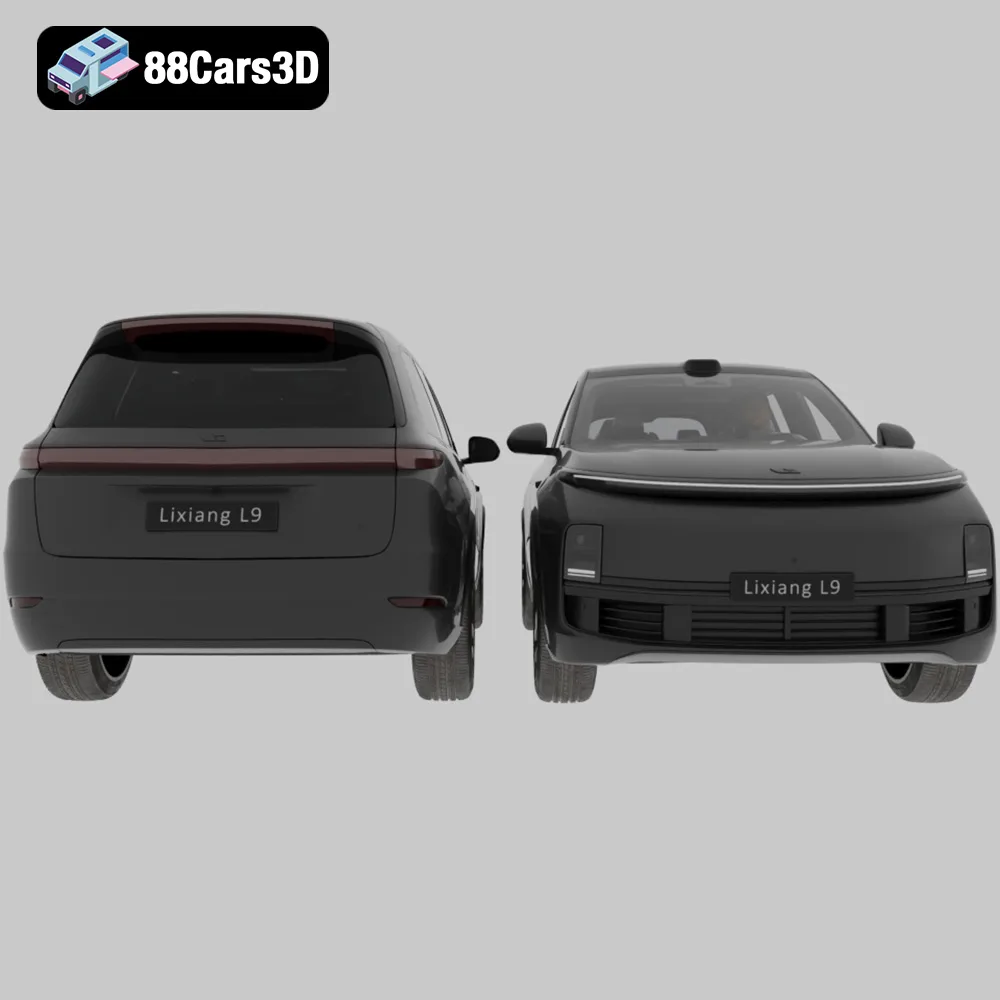
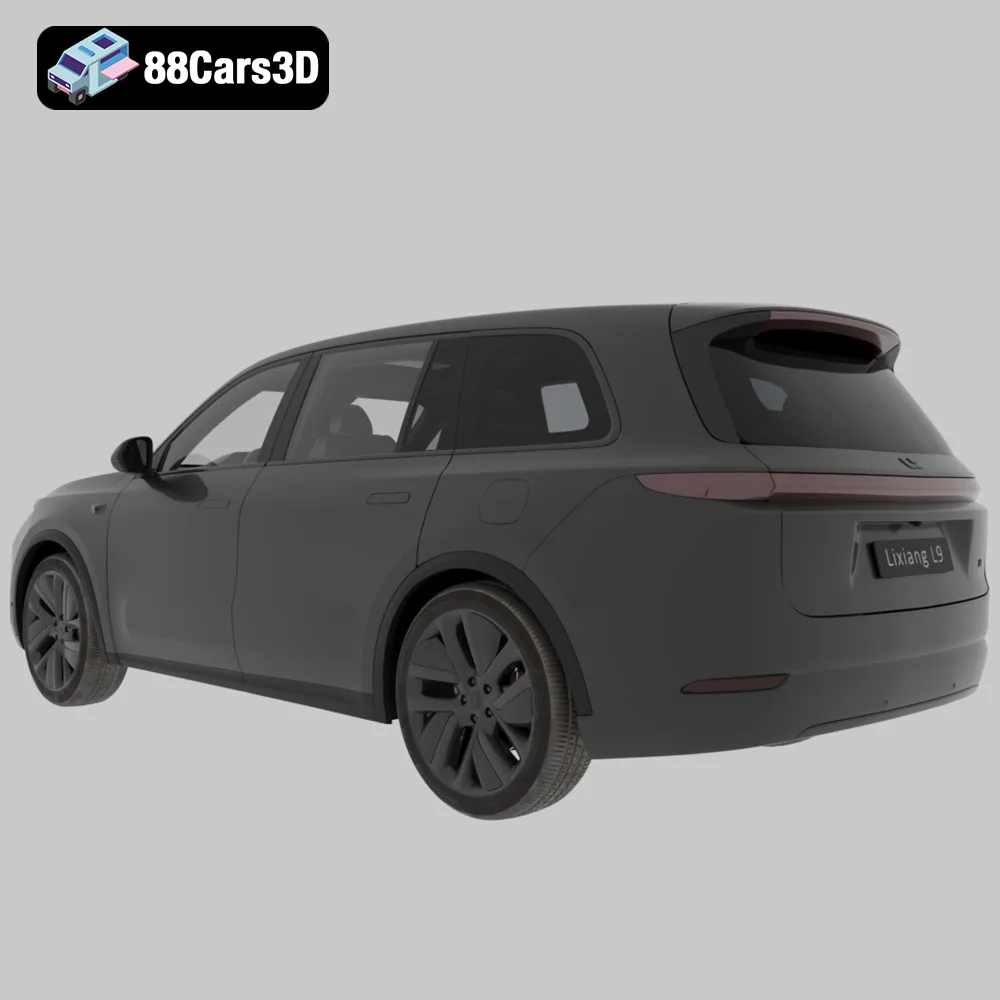
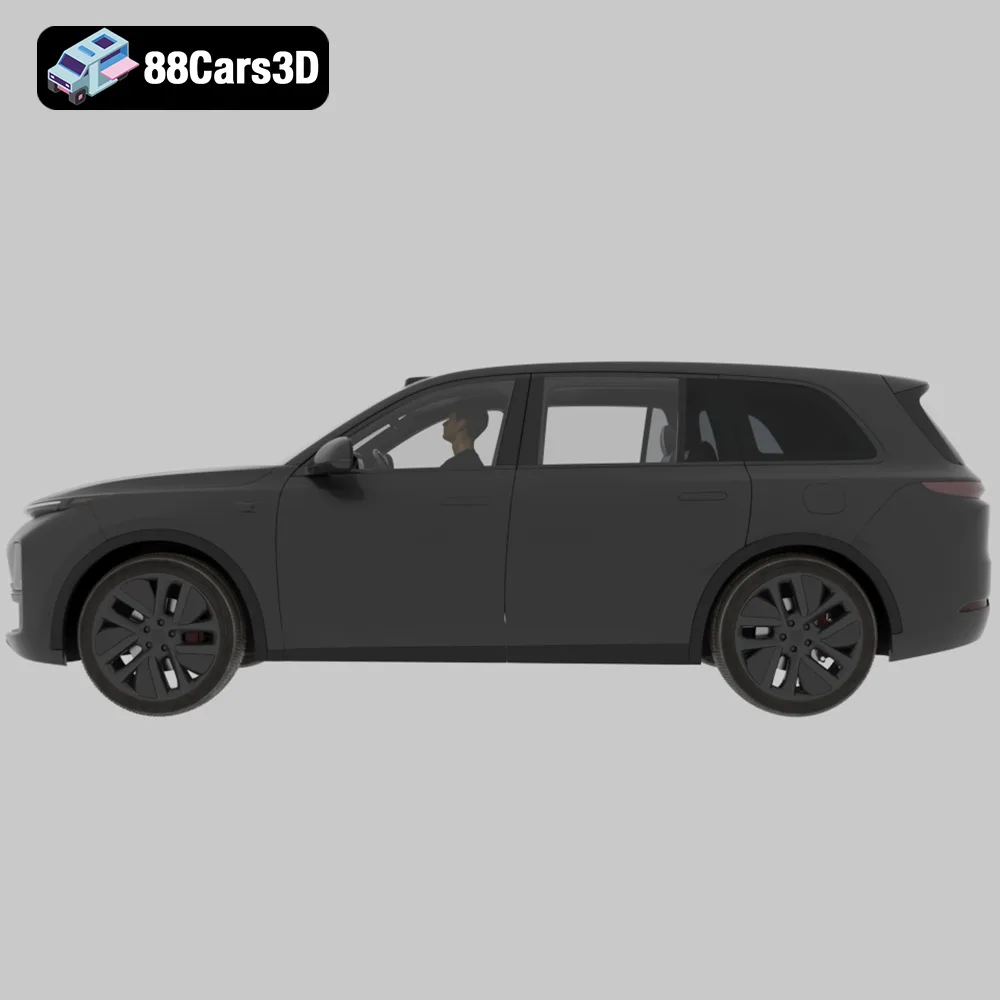
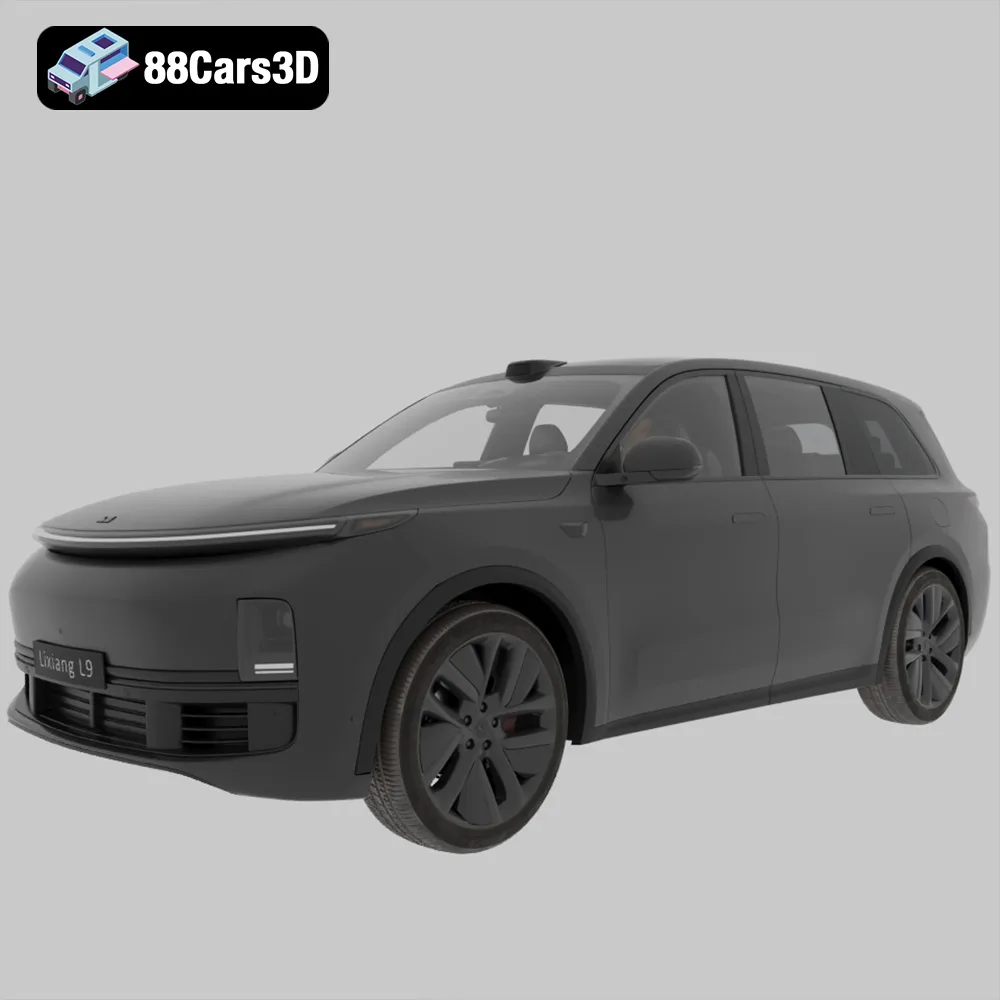
* **Li L9:** The large size of the Li L9 might be challenging for smaller resin printers. Consider splitting the model into multiple parts for printing.
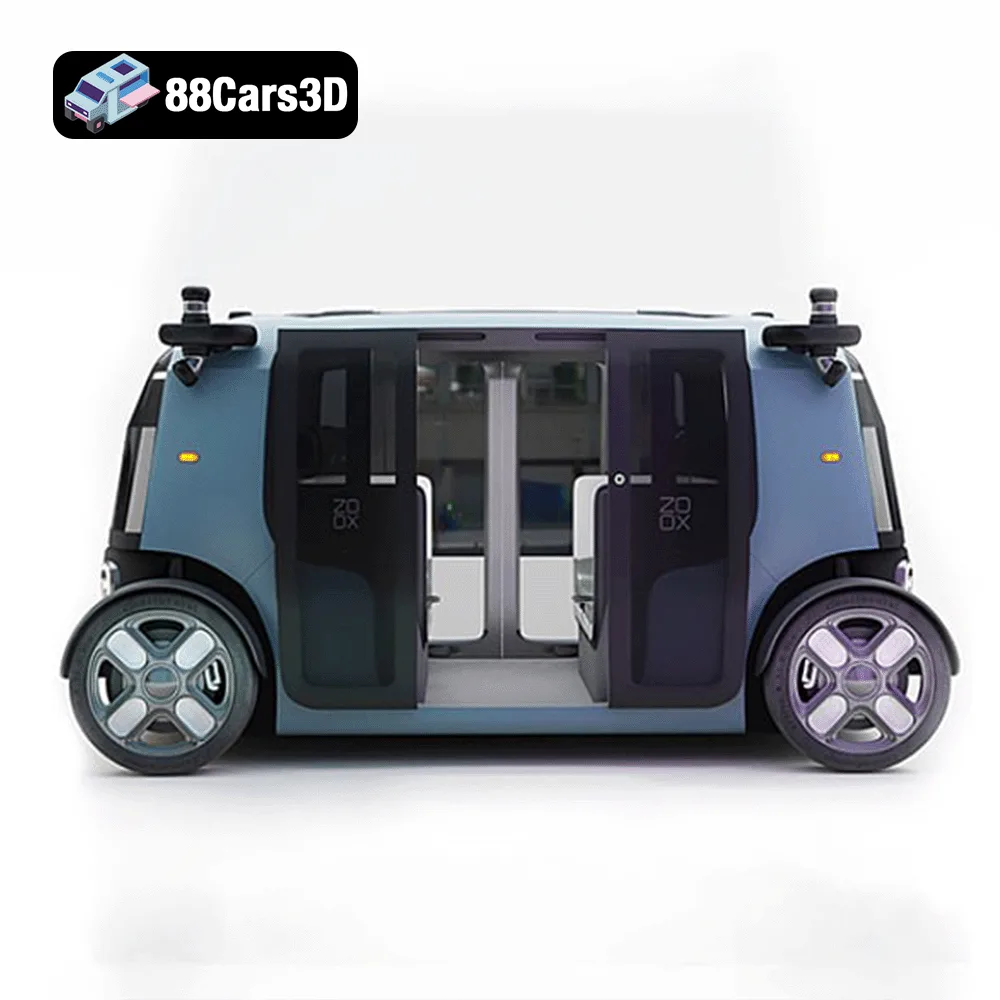
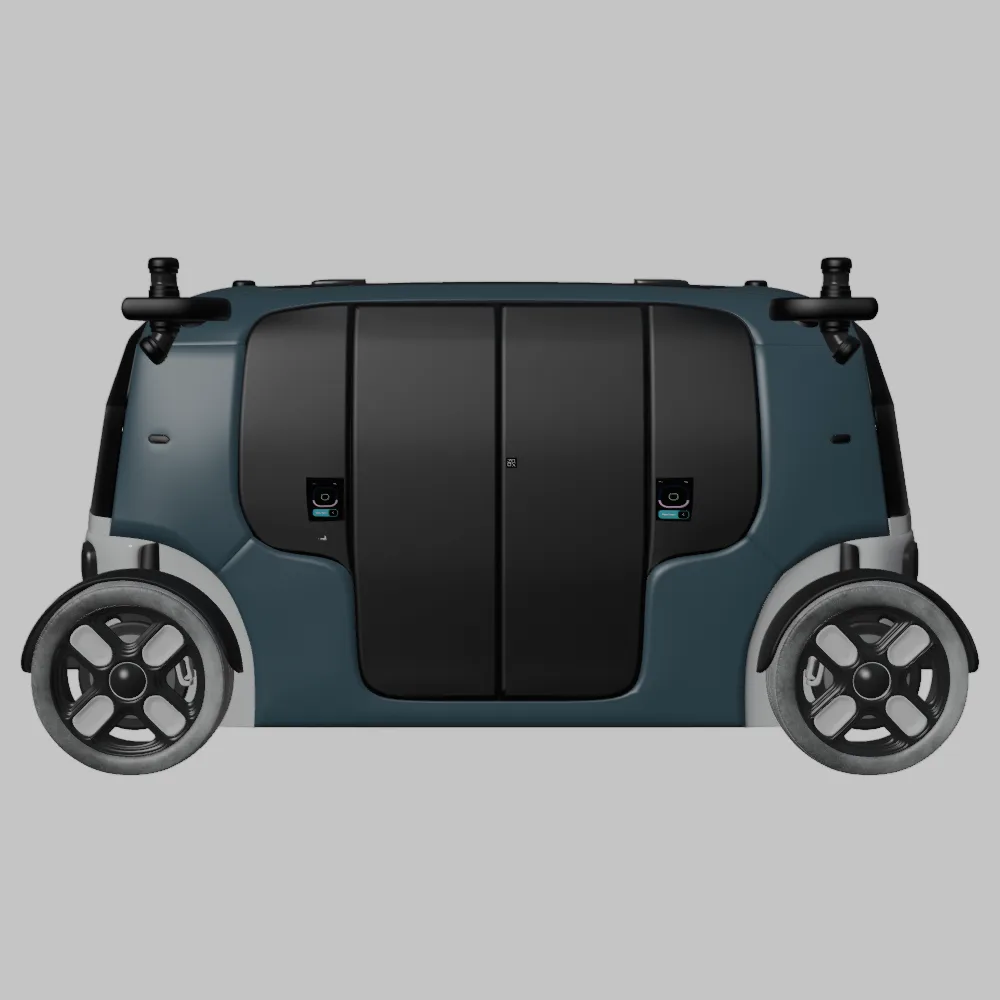
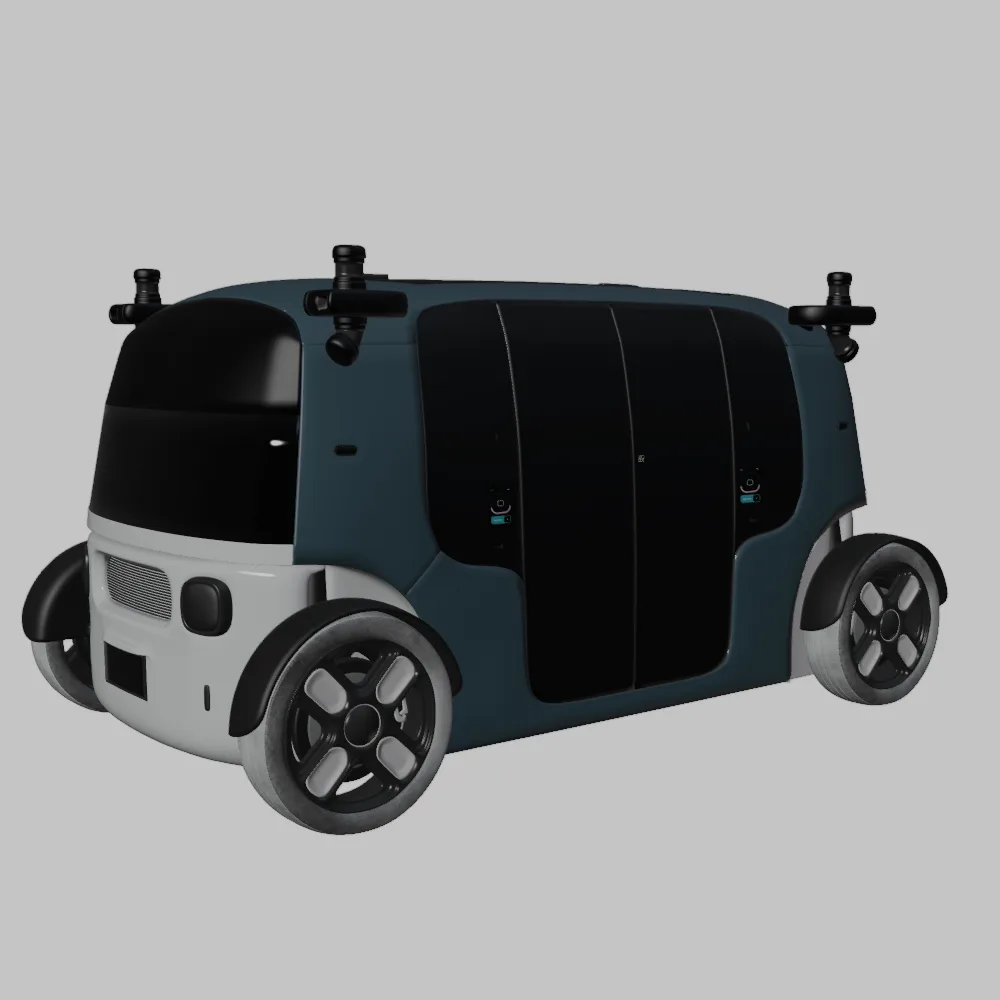
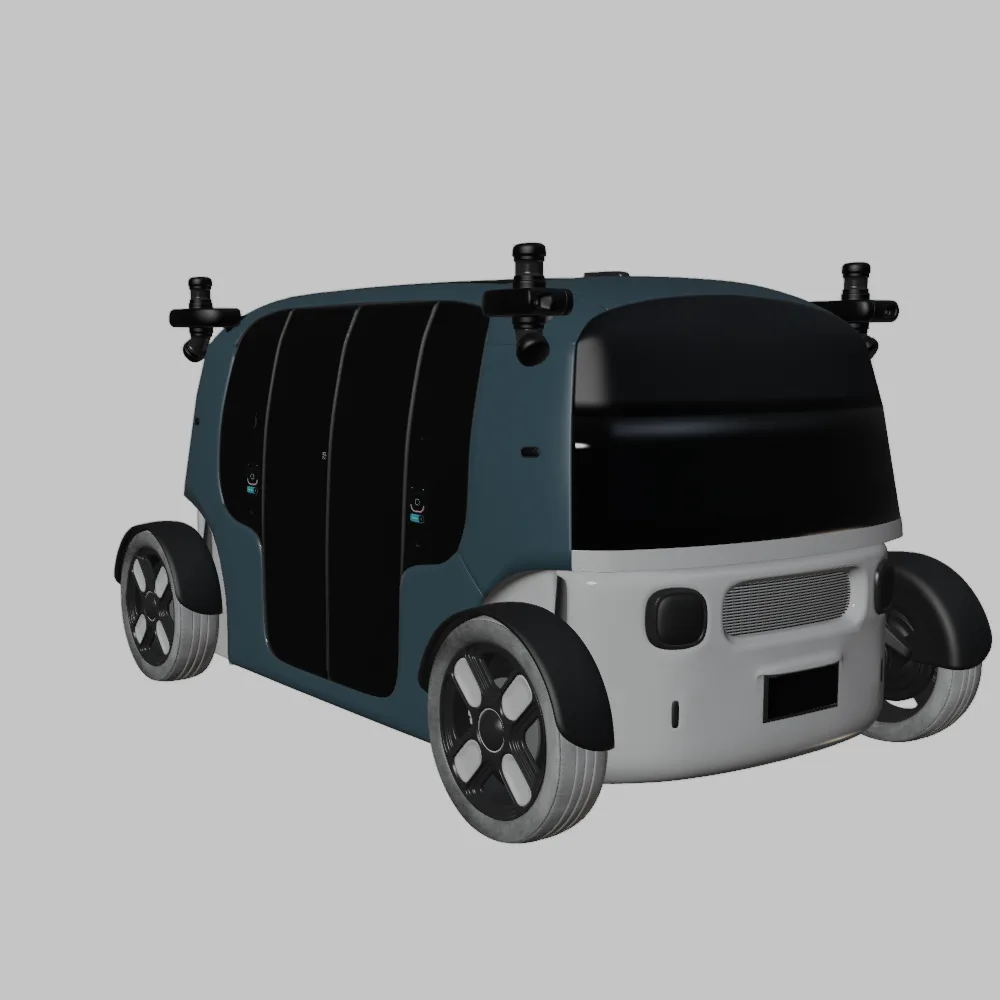
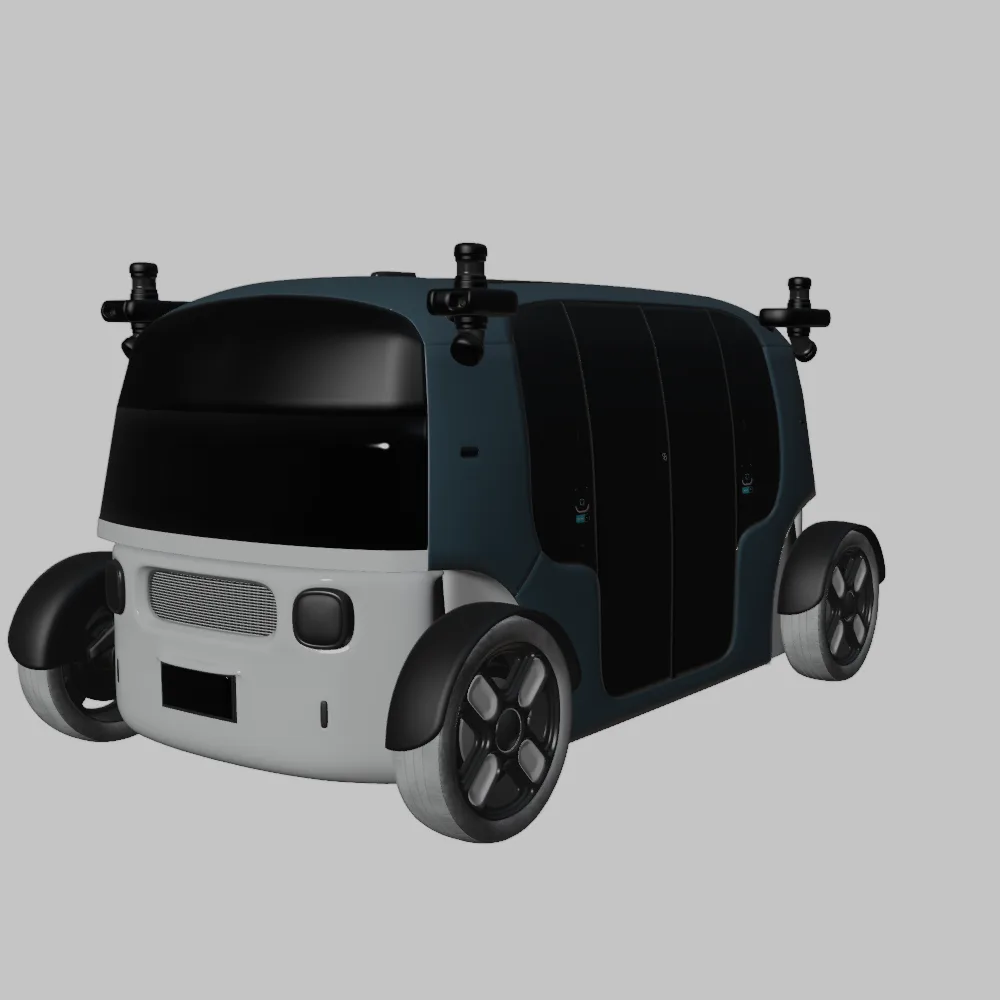
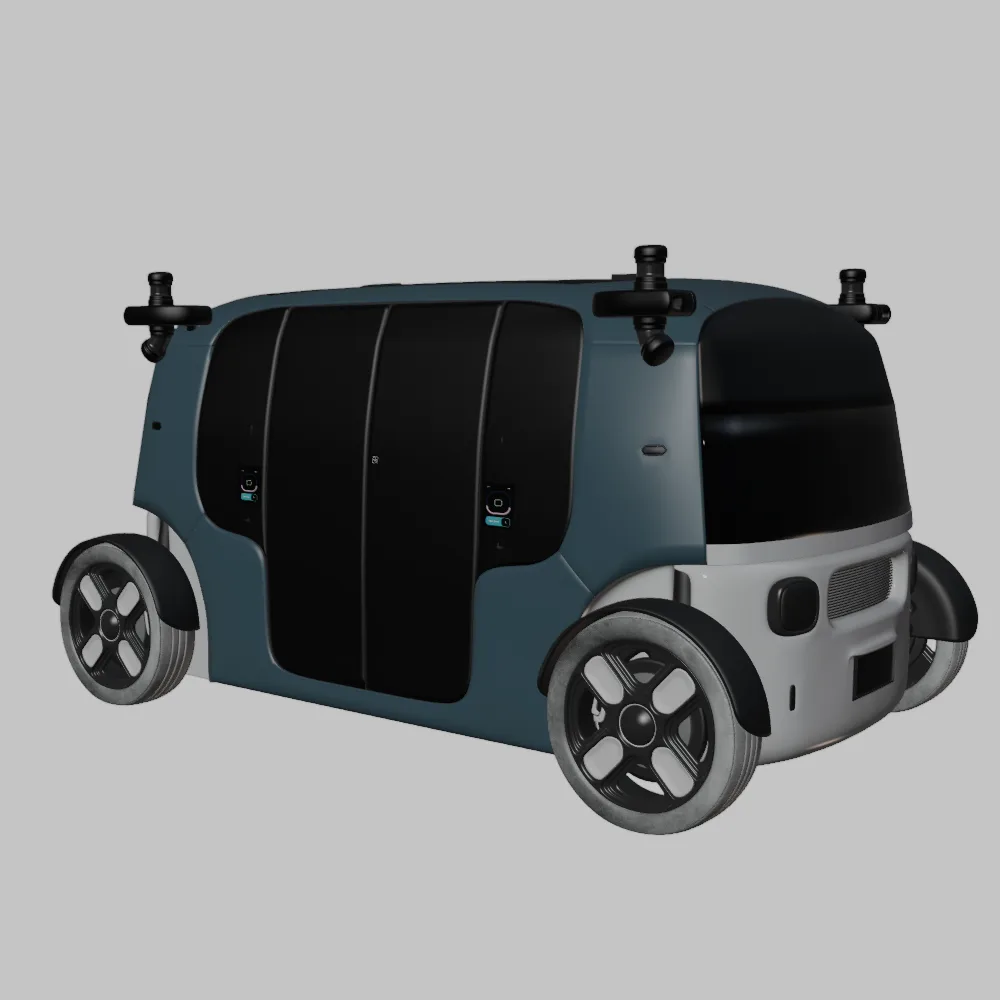
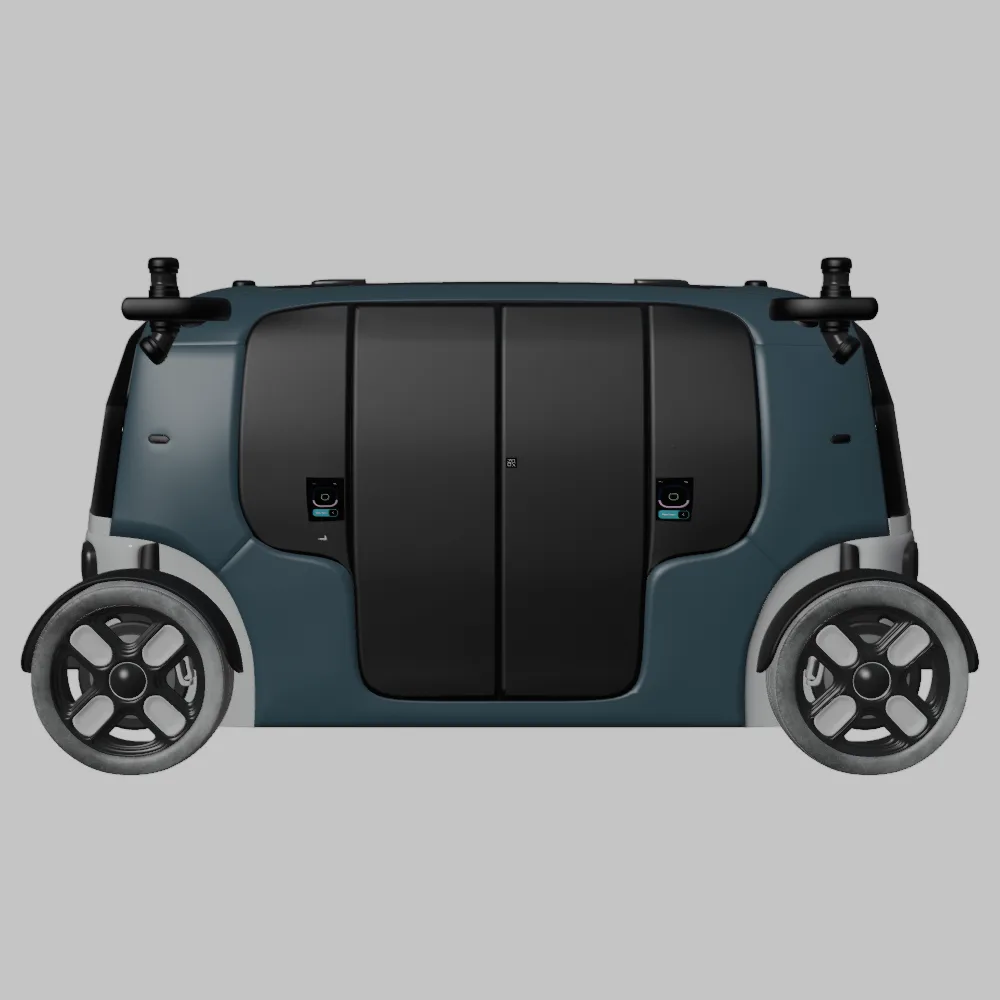
* **Zoox Robotaxi:** The symmetrical and bi-directional design of the Zoox Robotaxi makes it relatively easy to print, but the numerous details benefit from the higher resolution of resin printing.
Before sending the STL files to your printer, you need to prepare them using slicing software. This involves setting the appropriate parameters for your printer and material, as well as adding supports if necessary.
The Elite Future Mobility Bundle is designed at a real-world scale (metric system). For 3D printing, it is recommended to scale the models to 1:24, 1:32, or 1:43 scales. Choose the scale that best suits your printer’s build volume and desired level of detail. Scaling can be easily done within your slicing software.
* **Body:** Print the body angled to minimize the visibility of layer lines and to avoid the need for excessive supports on the top surfaces. Experiment with different angles to find the optimal orientation for your printer.
* **Wheels:** Print the wheels separately for better detail and easier post-processing. A vertical orientation is usually best.
* **Supports:** Supports are essential for overhangs, such as side mirrors, wheel arches, and the rear roof spoiler. In slicing software, manually place supports to ensure proper adhesion and prevent warping. Use a lower density support structure to make removal easier.
* **Layer Height:** As mentioned earlier, use a layer height of 0.1-0.2mm for FDM and 0.04-0.08mm for resin printing.
* **Wall Thickness:** A wall thickness of 1.2-2.0mm provides sufficient strength for the models.
* **Infill:** 15-25% infill is adequate for most parts. Increase the infill for areas that require more strength, such as the wheel axles.
* **Print Speed:** Adjust the print speed according to your printer and material. A slower speed generally results in better quality prints.
* **Adhesion:** Use a brim or raft to improve adhesion to the build plate, especially for larger models or those with small contact areas.
Once your model is sliced and the G-code is generated, it’s time to start printing.
Before printing, ensure your 3D printer is properly calibrated. This includes leveling the build plate, setting the correct Z-offset, and calibrating the extruder (for FDM printers). A well-calibrated printer is essential for successful prints.
Keep a close eye on the print during the initial layers to ensure proper adhesion and that the supports are printing correctly. If you notice any issues, such as warping or detachment from the build plate, stop the print and make the necessary adjustments.
Print times vary depending on the size of the model, the printer settings, and the printer’s speed. A single car body at 1:24 scale can take anywhere from 8 to 24 hours to print on an FDM printer, and 4 to 12 hours on a resin printer. Material costs depend on the type of filament or resin used, but are generally low for these size prints.
After the print is complete, you’ll need to perform some post-processing steps to remove supports, smooth the surface, and add color.
Carefully remove the supports using pliers, cutters, or a hobby knife. Take your time to avoid damaging the model. For resin prints, soak the model in warm water to soften the supports for easier removal.
Sanding is essential for removing layer lines and smoothing the surface of the printed model. Start with coarse sandpaper (e.g., 220 grit) and gradually move to finer grits (e.g., 400, 600, 800, 1000) for a smooth finish. Wet sanding can help to minimize dust and improve the smoothness.
Apply a primer to the model to create a uniform surface for painting. Use multiple thin coats for best results. Once the primer is dry, you can paint the model using acrylic paints or spray paint. For a professional finish, consider using an airbrush.
Referencing the original colors of Tesla, Avatr, Li Auto, or Zoox can add authenticity. Consider modern factory colors paired with a gloss black roof.
If you printed the wheels and other parts separately, assemble them using glue or other appropriate fasteners. Ensure all parts fit together properly and are securely attached.
Even with careful preparation, you might encounter some common 3D printing issues.
Warping occurs when the corners of the model lift off the build plate due to uneven cooling. To prevent warping, ensure your build plate is properly heated, use a brim or raft, and avoid drafts.
Stringing occurs when the printer extrudes filament while moving between different parts of the model. To prevent stringing, adjust the retraction settings in your slicing software, reduce the printing temperature, and ensure the filament is dry.
Layer shifting occurs when the printer’s axes shift during the print, resulting in misaligned layers. This can be caused by loose belts, stepper motor issues, or other mechanical problems. Check your printer’s hardware and make sure everything is properly tightened and aligned.
If your supports are failing or difficult to remove, try adjusting the support settings in your slicing software. Increase the support density for better stability, or reduce the support density for easier removal. Experiment with different support patterns and placement to find what works best for your printer and model.
The Elite Future Mobility Bundle from 88cars3d.com provides a solid foundation for a range of creative applications. Beyond simply printing and displaying these models, consider customizing them further. Experiment with different paint schemes, add aftermarket accessories, or even integrate them into dioramas or scale model displays. You can also use these models as prototypes for your own automotive designs or as visual aids for educational purposes. The possibilities are endless.
The Elite Future Mobility Bundle is a curated collection of four groundbreaking vehicles that define the next era of transportation. This pack combines the elegance of high-performance electric sedans, the rugged luxury of next-gen SUVs, and the visionary design of autonomous urban pods.
$99
3d-vehicle-pack
archviz-assets
autonomous-driving
avatr-11
electric-vehicles
ev-bundle
future-cars
futuristic-suv
game-ready-cars
li-l9
luxury-ev
smart-city
tesla-3d-model
zoox-robotaxi