Get 50% OFF All Premium 3D & STL Models!

The Caterpillar CT680 Tractor Truck is a formidable machine, and now you can bring a piece of that industrial might into your home or workspace with a 3D printed model. Thanks to marketplaces like 88cars3d.com, high-quality 3D models of iconic vehicles like this are readily available. This comprehensive guide will walk you through the entire process of 3D printing the Caterpillar CT680 Tractor Truck 2015 3D Model, from selecting the right material and settings to post-processing and finishing techniques. Whether you’re a seasoned 3D printing enthusiast or a newcomer to the world of additive manufacturing, this guide will provide you with the knowledge and confidence to create a stunning replica of this iconic truck.
Before diving into the specifics of printing the Caterpillar CT680, it’s crucial to understand the different file formats commonly used in 3D modeling and their suitability for 3D printing. Choosing the right format and understanding its limitations can significantly impact the final print quality and the ease of the printing process.
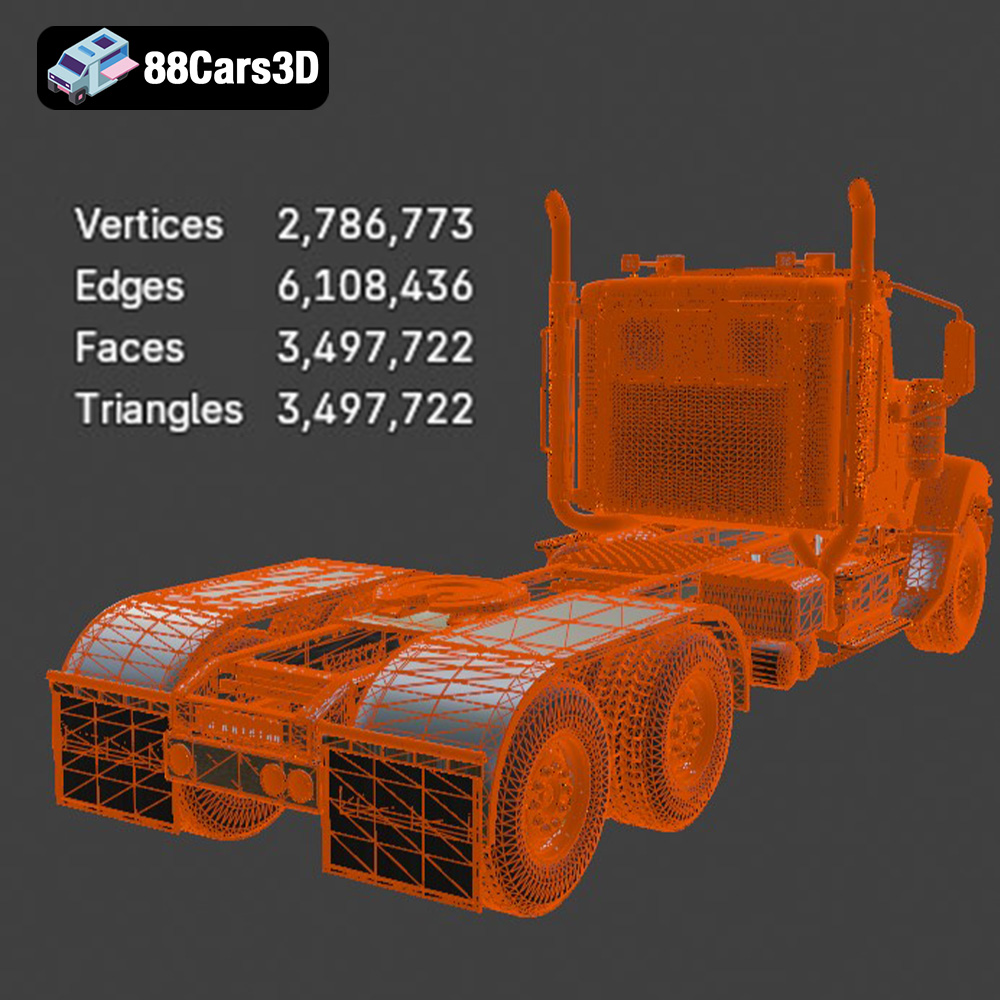
The .stl (Stereolithography) format is the workhorse of 3D printing. It represents the surface geometry of a 3D object as a collection of triangles, essentially creating a mesh. This simplicity makes it universally compatible with virtually all 3D printing software and printers. The resolution of the .stl file, determined by the size and number of triangles, directly affects the smoothness of the printed object. A higher resolution .stl file will result in a smoother surface but will also increase the file size and processing time. For the Caterpillar CT680, the STL format available from 88cars3d.com is optimized for 3D printing, ensuring a balance between detail and printability. Most slicing software are optimized to work with STL file format as it is the most widely accepted.
The .obj (Object) format is another widely used format, known for its ability to store color and texture information in addition to the 3D geometry. While .stl files only describe the shape of the object, .obj files can define how the object should appear visually. This is particularly useful if you want to 3D print a colored model using a multi-material printer or plan to apply textures during post-processing. However, not all 3D printers support color printing directly from .obj files.
The .ply (Polygon File Format) is designed to store 3D data acquired from 3D scanners. It’s capable of capturing highly detailed and accurate mesh data, making it suitable for printing objects with complex geometries or intricate surface details. While .ply can store color information, it’s less widely supported by 3D printing software compared to .stl and .obj.
.blend files are native to Blender, a popular open-source 3D modeling software. These files contain the entire scene, including the 3D model, textures, lighting, and animation data. While you cannot directly 3D print a .blend file, it’s incredibly valuable for customizing the Caterpillar CT680 model before exporting it to a printable format like .stl.
The .fbx (Filmbox) format is a proprietary format developed by Autodesk, commonly used for exchanging 3D data between different software applications, including game engines and 3D modeling programs. It supports complex data such as animations, materials, and textures. While some slicing software can import .fbx files, its primary use is for preparing the model for rendering or animation before 3D printing.
The .glb (GL Transmission Format Binary) format is designed for efficient transmission and loading of 3D models, especially in web and mobile applications. It’s often used for augmented reality (AR) applications, allowing you to preview the 3D model in your physical environment before printing. This can be helpful for visualizing the scale and appearance of the Caterpillar CT680 model in your desired space.
Similar to .blend, .max files are native to 3ds Max, another professional 3D modeling software. These files contain the complete project data and are ideal for making advanced modifications to the Caterpillar CT680 model before exporting it for 3D printing.
When preparing the Caterpillar CT680 Tractor Truck 2015 3D Model for printing, the .stl format is the most suitable option. Ensure that the .stl file has sufficient resolution to capture the details of the truck while remaining manageable for your slicing software and 3D printer. If you intend to add custom colors or textures, consider using the .obj format in conjunction with appropriate post-processing techniques.
Before you even think about hitting the “print” button, careful preparation is key to a successful 3D printing outcome. This involves slicing the model and optimizing it for your specific printer and desired results.
Slicing software is the bridge between your 3D model and your 3D printer. It converts the 3D model into a series of instructions (G-code) that your printer can understand. Popular slicing software options include Cura, Simplify3D, PrusaSlicer, and others. Each slicer has its strengths and weaknesses, so choose one that aligns with your printer and experience level.
For the Caterpillar CT680, start with a layer height of 0.12-0.2mm, as suggested in the product description. Adjust infill between 20-35% for a good balance of strength and printing time. Enable supports, paying close attention to areas like the mirrors, exhaust stacks, and chassis overhangs. Experiment with support settings to minimize material usage and ensure easy removal.
The orientation of your model on the print bed can significantly impact the print quality, support requirements, and overall success of the print. For the Caterpillar CT680, printing the cab upright is generally recommended to preserve details, while the chassis should be printed flat for stability. Wheels should be printed separately to enhance detail.
Strategic use of supports is crucial for this model. Focus on generating supports only where necessary to minimize material waste and post-processing effort. Consider using tree supports or customizable supports for greater control.
The Caterpillar CT680 model may need to be scaled to your desired size. The product description recommends scales of 1:32, 1:24, 1:18, and 1:14. Scale the model uniformly in your slicing software to maintain its proportions. Depending on the size you choose, you may need to split the model into multiple parts for printing, especially if your printer has a smaller build volume. This can be done within Blender or other 3D modeling software before slicing.
The choice of material is another critical factor in the 3D printing process. Different materials offer different properties in terms of strength, flexibility, heat resistance, and appearance.
PLA (Polylactic Acid) is a biodegradable thermoplastic derived from renewable resources. It’s easy to print with, has low warping, and is available in a wide range of colors. PLA is a great option for beginners and for creating visually appealing models. However, it’s not as strong or heat-resistant as other materials, making it less suitable for parts that will be subjected to stress or high temperatures.
PETG (Polyethylene Terephthalate Glycol-modified) offers a good balance of strength, flexibility, and heat resistance. It’s also relatively easy to print with and has good layer adhesion. PETG is a good all-around choice for the Caterpillar CT680, providing sufficient strength for most applications.
Resin printing, using technologies like SLA (Stereolithography) or DLP (Digital Light Processing), offers unparalleled detail and surface finish. If you’re aiming for a highly detailed replica of the Caterpillar CT680, especially at smaller scales, resin printing is the way to go. However, resin printers are generally more expensive, require more post-processing, and use materials that can be more hazardous.
Other materials like ABS (Acrylonitrile Butadiene Styrene) and Nylon offer even greater strength and heat resistance. However, they are more challenging to print with and may require a heated enclosure and specialized print bed adhesion techniques.
For the Caterpillar CT680, PETG is a good starting point for FDM printing, offering a balance of properties. If you prioritize detail and are willing to invest in a resin printer, resin is an excellent choice.
Fine-tuning your 3D printer settings is essential to achieve optimal results. These settings will vary depending on your printer, material, and desired outcome.
The ideal printing temperature will depend on the material you’re using. Refer to the material manufacturer’s recommendations for optimal nozzle and bed temperatures. Print speed also plays a crucial role. A slower print speed generally results in higher quality prints but increases printing time. For the Caterpillar CT680, start with a moderate print speed and adjust as needed.
As mentioned earlier, a layer height of 0.12-0.2mm is a good starting point for the Caterpillar CT680. Adjust infill based on your desired strength and weight. A wall thickness of 2-3mm will provide sufficient structural integrity.
Experiment with different support settings to minimize material usage and ensure easy removal. Use a brim or raft to improve bed adhesion, especially for larger parts or materials that are prone to warping.
Post-processing is the stage where you refine your 3D printed part to achieve the desired appearance and functionality.
Carefully remove supports using pliers, cutters, or other appropriate tools. Sand the surface of the printed part to smooth out any imperfections and layer lines. Use filler primer or putty to fill any gaps or imperfections.
Painting is a crucial step in bringing your 3D printed Caterpillar CT680 to life. Start with a primer coat to improve paint adhesion. Use appropriate paints for your chosen material, and consider using stencils or masking techniques for intricate details. The product description suggests modern Volvo factory colors paired with a gloss black roof for a realistic finish.
If you printed the model in multiple parts, assemble them carefully using glue or other fasteners. Add any final details, such as decals or weathering effects, to complete your replica.
3D printing can be challenging, and it’s not uncommon to encounter issues during the printing process.
Warping occurs when the printed part lifts off the print bed due to uneven cooling. Improve bed adhesion by using a brim or raft, cleaning the print bed with isopropyl alcohol, or using a bed adhesive. Layer delamination occurs when layers of the printed part separate due to poor adhesion. Increase printing temperature, decrease print speed, or improve cooling to address this issue.
Stringing occurs when filament oozes from the nozzle during travel moves. Retract the filament more aggressively, decrease printing temperature, or increase travel speed to resolve this. Blobs and zits are caused by inconsistent extrusion. Calibrate your extruder, clean your nozzle, or adjust retraction settings to address this.
If supports are difficult to remove or leave excessive marks, adjust support settings to minimize contact area and improve removal ease. For overhangs, ensure that you’re using sufficient supports and adjust cooling settings to prevent sagging.
By following these guidelines and carefully preparing your model, materials, and printer settings, you can successfully 3D print a stunning replica of the Caterpillar CT680 Tractor Truck 2015. Remember to consult online resources and communities for additional tips and troubleshooting advice. And don’t forget to explore the vast selection of 3D models available at 88cars3d.com for your next project!
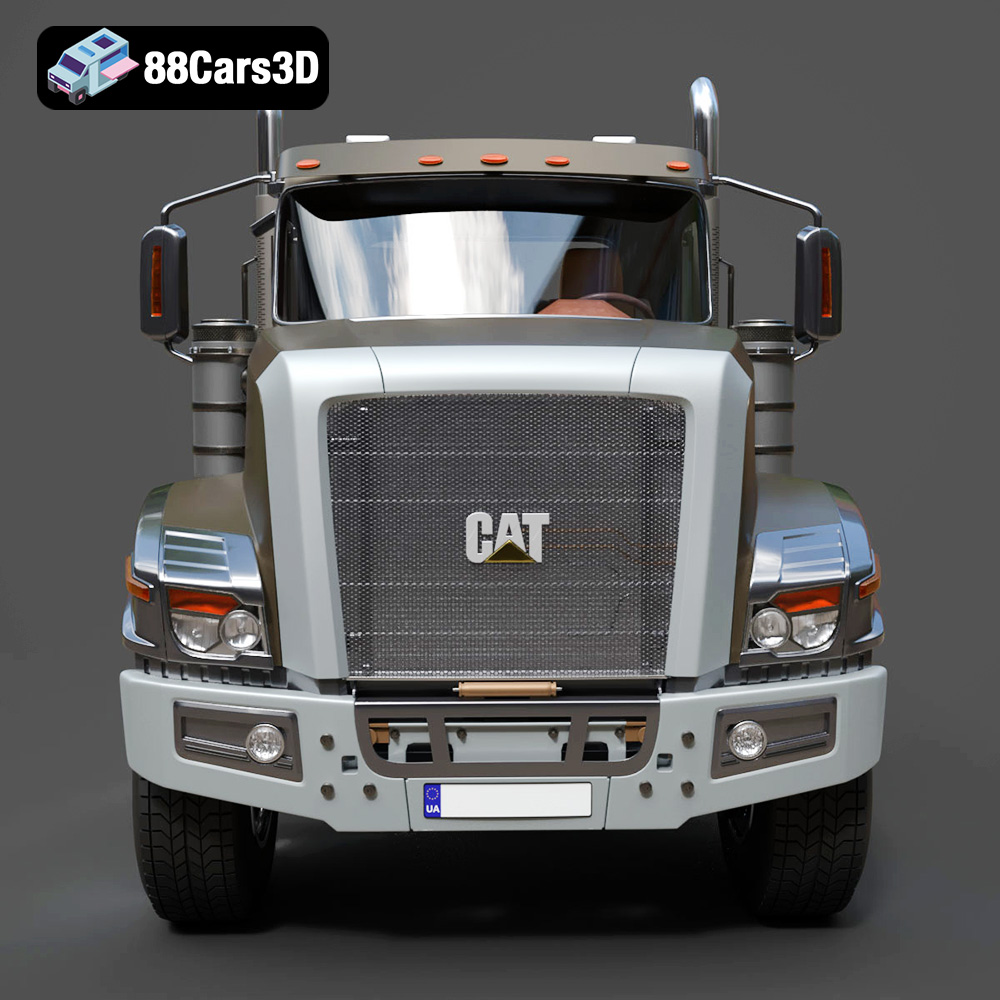
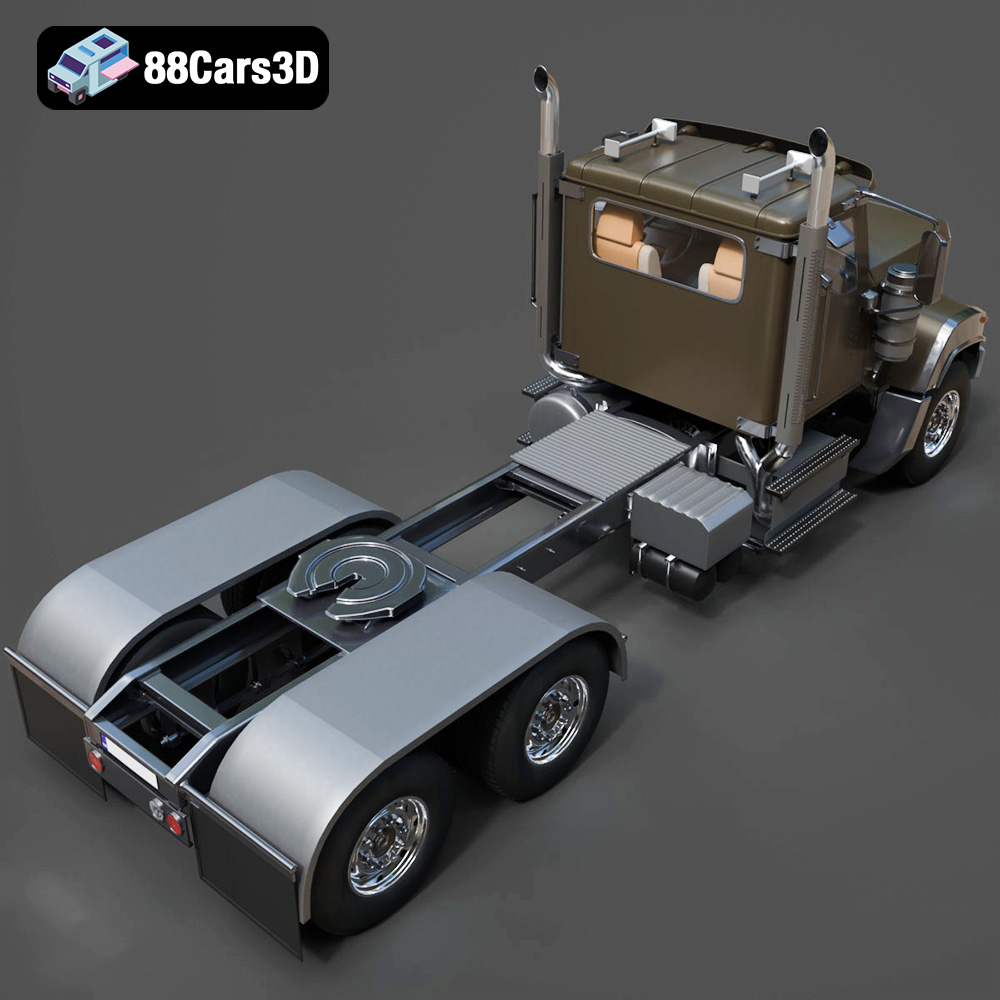
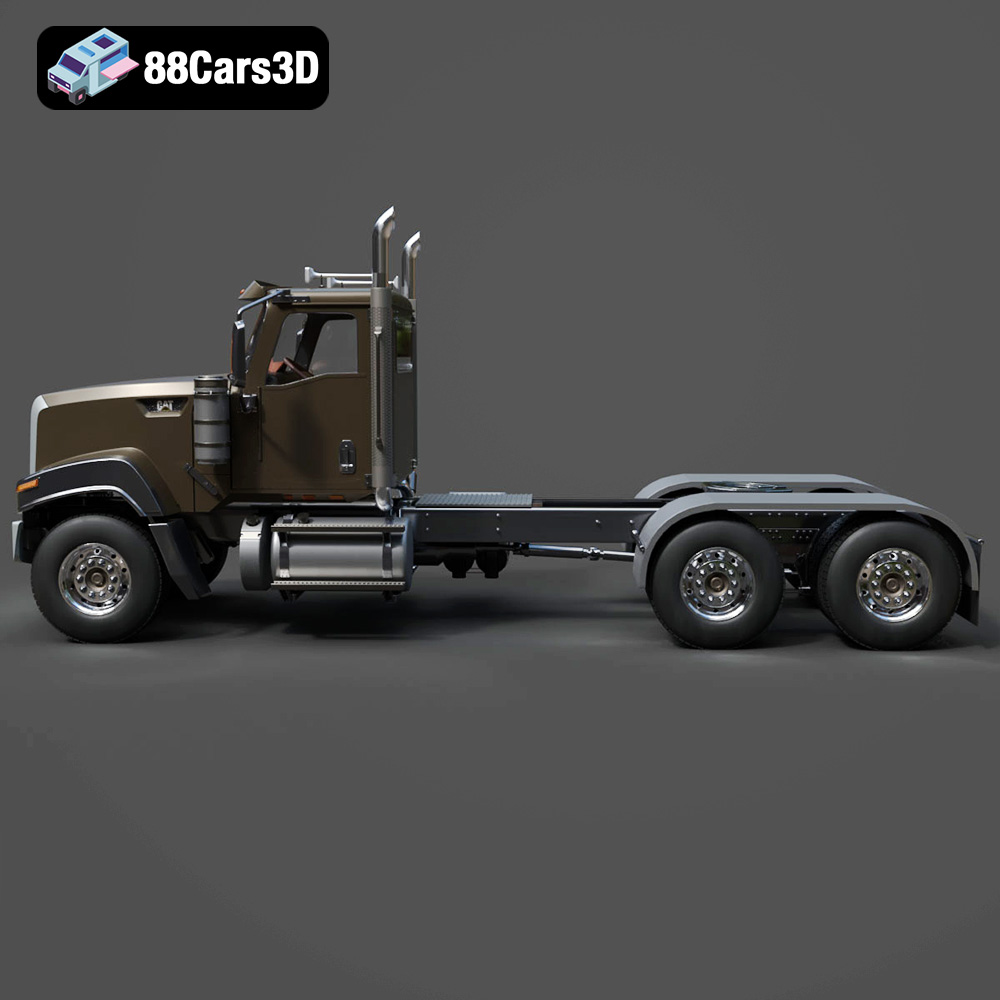
The Caterpillar CT680 Tractor Truck 2015 3D Model is a high-detail digital recreation of the heavy-duty vocational tractor developed by Caterpillar Inc. Built for durability and on-highway performance, the CT680 combines industrial strength with aerodynamic efficiency, making it a popular choice for logistics, construction, and long-haul transport operations.
$9.99
.arvr
.blend
.caterpillar
.ct680
.fbx
.gameasset
.glb
.heavydutytruck
.industrialvehicle
.logisticsvehicle
.max
.obj
.ply
.rendering
.simulation
.stl
.tractortruck
.truck3dmodel
.unreal