Get 50% OFF All Premium 3D & STL Models!

“`html
Unreal Engine offers a powerful suite of post-process effects that can dramatically elevate the visual quality of your automotive visualizations. Whether you’re aiming for photorealistic renders, stylized aesthetics, or interactive configurators, mastering post-processing is essential. This article dives deep into how to leverage these tools to create stunning cinematic experiences with 3D car models, particularly those sourced from platforms like 88cars3d.com, optimized for Unreal Engine workflows.
We’ll explore everything from basic color correction and tone mapping to advanced techniques like bloom, depth of field, and motion blur. You’ll learn how to fine-tune these effects to achieve your desired look and feel, while also considering performance implications and optimization strategies. By the end of this guide, you’ll be equipped with the knowledge and skills to transform your Unreal Engine projects into visually captivating showcases.
Before diving into post-processing, it’s crucial to have a properly configured Unreal Engine project. This includes setting up the correct project settings, importing your 3D car model (preferably one optimized for Unreal Engine from a source like 88cars3d.com), and establishing a basic lighting setup.
Optimizing your project settings is the first step towards a smooth and efficient workflow. Unreal Engine’s scalability settings allow you to adjust the rendering quality based on your hardware. Navigate to Edit > Project Settings > Rendering to configure these settings. Consider the following:
Importing your 3D car model is a straightforward process. However, proper preparation can save you significant time and effort later on. When sourcing automotive assets from marketplaces such as 88cars3d.com, you typically receive a file in FBX or USD format. Follow these steps:
The Post-Process Volume is the central hub for managing post-process effects in Unreal Engine. It allows you to define and control how these effects are applied to your scene. You can have multiple Post-Process Volumes in your scene, each with different settings. By default, Unreal Engine has a Global Post-Process Volume already in the level.
To add a Post-Process Volume, simply drag one from the “Volumes” category in the “Modes” panel into your scene. To make the volume global (affecting the entire scene), ensure that the “Unbound” property is checked within the Post-Process Volume’s details panel.
The Post-Process Volume’s details panel contains a wealth of settings that control various aspects of the post-processing pipeline. Some of the most important categories include:
Color grading and tone mapping are fundamental to achieving a cinematic look. These techniques allow you to adjust the colors and contrast of your scene, creating a specific mood and atmosphere. Unreal Engine provides a comprehensive set of tools for both color grading and tone mapping within the Post-Process Volume.
Unreal Engine’s color grading settings are divided into several categories, each targeting different aspects of the image:
Tone mapping is the process of converting high dynamic range (HDR) values to a lower dynamic range suitable for display on a monitor. Unreal Engine offers several tone mapping operators, each with its own characteristics:
Experiment with different tone mapping operators to find the one that best suits your artistic vision. Additionally, adjust the “White Point” and “Black Point” settings to control the overall brightness and contrast of the image.
Bloom and ambient occlusion are two essential post-process effects that can significantly enhance the realism and visual appeal of your automotive visualizations. Bloom simulates the scattering of light around bright objects, while ambient occlusion adds subtle shading to corners and crevices, grounding objects in the scene.
Bloom can create a sense of atmosphere and highlight the specular reflections on your car model. To enable bloom, navigate to the “Lens” category within the Post-Process Volume’s details panel. Adjust the following settings:
Ambient occlusion (AO) adds subtle shading to areas where light is occluded, such as corners, crevices, and the underside of objects. This helps to ground objects in the scene and adds a sense of depth and realism. Unreal Engine offers several AO methods, each with its own performance characteristics:
To enable AO, navigate to the “Ambient Occlusion” category within the Post-Process Volume’s details panel. Choose the AO method that best suits your needs and adjust the “Intensity” and “Radius” settings to fine-tune the effect.
Depth of field (DOF) and motion blur are two powerful post-process effects that can add a sense of cinematic realism and visual interest to your automotive visualizations. DOF simulates the focusing behavior of a real-world camera, blurring objects that are out of focus, while motion blur simulates the blurring effect of fast-moving objects.
DOF can be used to draw the viewer’s attention to specific areas of the scene, creating a sense of depth and scale. To enable DOF, navigate to the “Lens” category within the Post-Process Volume’s details panel. Unreal Engine offers several DOF methods:
Adjust the “Focal Distance” to set the distance at which objects will be in focus. The “Aperture” setting controls the amount of blur, with lower values resulting in more blur. You can also use the “Sensor Width” setting to simulate different camera sensor sizes, which affects the overall look of the DOF effect.
Motion blur can add a sense of speed and dynamism to your automotive visualizations. To enable motion blur, navigate to the “Motion Blur” category within the Post-Process Volume’s details panel. Adjust the following settings:
Post-process effects can significantly impact performance, especially in complex scenes with high-poly models and detailed materials. It’s crucial to optimize your post-process settings to maintain a smooth and responsive frame rate. This is especially true when targeting real-time applications like interactive configurators or VR experiences. Leveraging features like Nanite can also improve performance with high-poly models, and many models available through resources such as 88cars3d.com are already optimized for use with Nanite.
Unreal Engine’s scalability settings allow you to adjust the rendering quality based on your hardware. You can use these settings to automatically disable or reduce the intensity of post-process effects on lower-end hardware. Level of Detail (LOD) management is also critical. Reduce polygon counts on objects further from the camera to save on processing power. Some key strategies include:
Unreal Engine provides several tools for profiling and optimizing performance. The Unreal Engine profiler is an invaluable resource for identifying performance bottlenecks. Use the profiler to identify which post-process effects are consuming the most resources and adjust their settings accordingly. Some optimization techniques include:
Mastering post-process effects in Unreal Engine is crucial for creating visually stunning and cinematic automotive visualizations. By understanding the various post-process settings and optimization techniques, you can transform your 3D car models into captivating showcases. Remember to experiment with different settings, profile your performance, and leverage Unreal Engine’s scalability features to achieve the best possible results.
Start by experimenting with the color grading and tone mapping settings to establish the overall mood and atmosphere of your scene. Then, add depth and realism with bloom and ambient occlusion. Finally, use depth of field and motion blur to create a sense of cinematic focus and dynamism. As you become more comfortable with these techniques, you can explore more advanced effects and create truly unique and visually compelling automotive visualizations. Remember to leverage resources like 88cars3d.com for high-quality, optimized 3D car models to expedite your workflow.
“`
Texture: Yes
Material: Yes
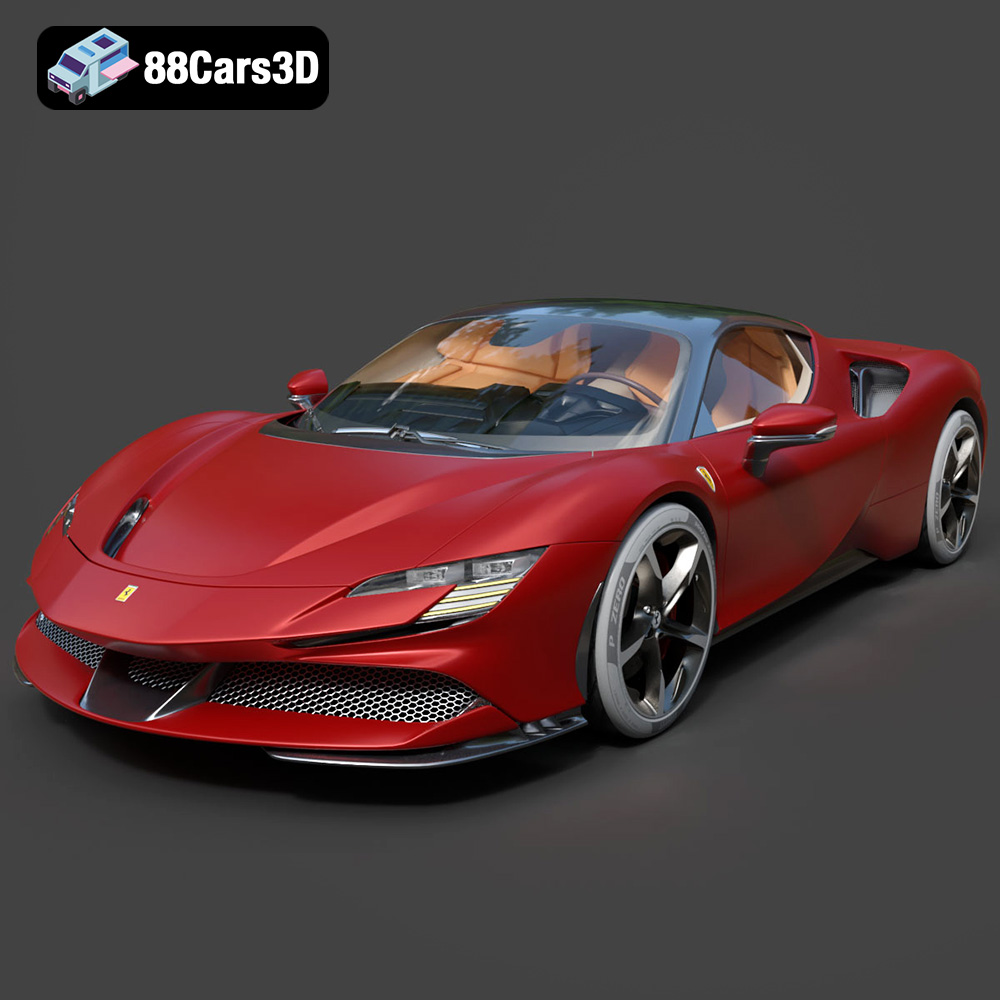
Download the Ferrari SF90 Stradale 3D Model featuring clean geometry, realistic detailing, and a fully modeled interior. Includes .blend, .fbx, .obj, .glb, .stl, .ply, .unreal, and .max formats for rendering, simulation, and game development.
Price: $19.99

Texture: Yes
Material: Yes
Download the Harley Davidson F 1946 3D Model featuring clean geometry, realistic detailing, and a fully modeled interior. Includes .blend, .fbx, .obj, .glb, .stl, .ply, .unreal, and .max formats for rendering, simulation, and game development.
Price: $19.99

Texture: Yes
Material: Yes
Download the Land Rover Defender Works V8 3D Model featuring clean geometry, realistic detailing, and a fully modeled interior. Includes .blend, .fbx, .obj, .glb, .stl, .ply, .unreal, and .max formats for rendering, simulation, and game development.
Price: $19.99

Texture: Yes
Material: Yes
Download the Dodge RAM 2019 3D Model featuring clean geometry, realistic detailing, and a fully modeled interior. Includes .blend, .fbx, .obj, .glb, .stl, .ply, .unreal, and .max formats for rendering, simulation, and game development.
Price: $19.99

Texture: Yes | Material: Yes Download the ultra-high-detail Ford F-150 Raptor 2021 3D Model (8.73M Triangles). Features uncompromised widebody styling, fully modeled Fox Live Valve suspension, 37-inch tires, and interior. Perfect for premium VFX, cinematic rendering, and ArchViz. Includes .blend, .fbx, .obj, .glb, .stl, and .max formats.
Price: $29.99

Texture: Yes | Material: Yes Download the ultra-high-detail BMW 3 Series Limousine (2022) 3D Model (4.16M Triangles). Features the modernized G20 LCI exterior, the all-new BMW Curved Display interior, and ultra-dense topology. Perfect for ArchViz, VFX, and cinematic rendering. Includes .blend, .fbx, .obj, .glb, .stl, and .max formats.
Price: $19.99

Texture: Yes | Material: Yes Download the ultra-high-detail BMW i7 (2023) 3D Model (4.14M Triangles). Features the illuminated kidney grille, split crystal headlights, fully modeled Theatre Screen interior, and monolithic luxury styling. Perfect for ArchViz, VFX, and cinematic rendering. Includes .blend, .fbx, .obj, .glb, .stl, and .max formats.
Price: $19.99

Texture: Yes | Material: Yes Download the highly detailed CAT Manual Loader & Warehouse Carts Kit 3D Model (2.4M Triangles). Features a macro-detailed hydraulic pallet jack, heavy-duty forks, and transport carts. Perfect for industrial ArchViz, factory rendering, and logistics simulations. Includes .blend, .fbx, .obj, .glb, .stl, and .max formats.
Price: $19.99

Texture: Yes | Material: Yes
Download the highly optimized Mazda CX-5 2014 3D Model (294k Triangles). Features the dynamic Kodo design language, signature grille, and a clean interior. Perfectly balanced for ArchViz, background traffic, and game development. Includes .blend, .fbx, .obj, .glb, .stl, and .max formats.
Price: $19.99

Texture: Yes | Material: Yes Download the ultra-high-detail Bentley Flying Spur Mulliner 2022 3D Model (2.94M Triangles). Features the bespoke Double Diamond grille, a fully modeled diamond-quilted interior, and exquisite luxury styling. Perfect for high-end ArchViz, VFX, and cinematic rendering. Includes .blend, .fbx, .obj, .glb, .stl, and .max formats.
Price: $19.90

