Get 50% OFF All Premium 3D & STL Models!

“`html
The allure of owning a meticulously 3D printed car model is undeniable, especially when the details are sharp and the scale is impressive. But what happens when your dream car, downloaded as a single STL file, exceeds the build volume of your 3D printer? Fear not! This comprehensive guide delves into the technical intricacies of splitting large 3D car models into manageable parts for printing. We’ll explore various software solutions, techniques for creating clean seams, optimizing print settings, and ensuring a seamless final assembly. Whether you’re using FDM or resin printing, this article equips you with the knowledge to tackle even the most ambitious car model projects. We’ll cover everything from basic slicing techniques to advanced mesh editing, ensuring your finished model looks as stunning as the original design. This includes understanding STL file structure, manipulating meshes in Blender and Meshmixer, and optimizing your slicing parameters in Cura or PrusaSlicer. So, buckle up and prepare to transform those oversized STL files into breathtaking, print-ready components.
Before diving into the splitting process, it’s crucial to grasp the fundamental structure of STL files. STL (stereolithography) is the most common file format for 3D printing, representing a 3D object’s surface as a collection of triangles. A well-formed STL file is crucial for successful 3D printing. The quality of the mesh topology directly impacts the print quality and the ease of splitting the model.
Mesh topology refers to the arrangement of vertices, edges, and faces that make up the surface of a 3D model. A “clean” topology minimizes long, thin triangles, avoids overlapping faces, and ensures that the mesh is manifold (watertight). Non-manifold geometry (edges shared by more than two faces, holes in the mesh) can cause significant problems during slicing and printing. Platforms like 88cars3d.com often provide models with clean, optimized meshes.
Before splitting, always inspect your STL file for errors. Software like MeshLab, Netfabb, or even the built-in repair tools in PrusaSlicer can identify and automatically fix common issues. Look for:
Repairing these issues before splitting will save you headaches later.
Large, highly detailed models can result in massive STL files. While detail is desirable, excessively high triangle counts can strain your computer’s resources during slicing and printing. Consider using mesh simplification tools (available in Blender or MeshLab) to reduce the polygon count without significantly sacrificing detail. A good balance between file size and visual fidelity is key. Aim for the lowest possible polygon count that still captures the essential details of the car model.
Several software options are available for splitting 3D models, each with its strengths and weaknesses. The best choice depends on your technical skill level and the complexity of the model. Free options like Meshmixer are excellent for basic splitting and mesh editing. More advanced users might prefer Blender, which offers powerful sculpting and modeling tools. For industrial applications, commercial software like Netfabb provides comprehensive repair and optimization features.
Meshmixer, a free software from Autodesk, is a popular choice for its intuitive interface and ease of use. It allows you to easily cut, separate, and smooth mesh surfaces. Its “Plane Cut” tool is perfect for creating clean, flat splitting surfaces. Use the “Separate Shells” function if your model contains multiple disconnected parts.
Workflow in Meshmixer:
Blender, a free and open-source 3D creation suite, provides a vast array of tools for manipulating meshes. Its sculpting tools allow for more organic and complex splitting, creating interlocking parts or separating body panels along existing seams. Requires a steeper learning curve but offers unmatched flexibility. When downloading models from marketplaces such as 88cars3d.com, you may find that higher-quality models benefit from the more advanced splitting capabilities of Blender.
Workflow in Blender:
Netfabb is a commercial software renowned for its powerful mesh repair, optimization, and splitting capabilities. It’s often used in professional 3D printing workflows for its robustness and advanced features like lattice structures and support generation. Offers automated mesh repair and sophisticated splitting algorithms.
The key to a successful split is creating clean, well-defined seams that minimize visual artifacts and ensure a strong bond during assembly. Avoid creating splits in areas with intricate details or high stress. Consider the final assembly process and design the splits to facilitate easy alignment and gluing. Think about how the seams will be oriented during printing, as this affects support placement and surface finish.
Before making any cuts, carefully analyze the model and identify optimal split locations. Look for natural breaks in the design, such as panel lines or changes in geometry. Splitting along these lines will make the seams less noticeable. Consider the printing orientation – splitting the model along the Z-axis (vertical) often results in easier printing with fewer supports. Also, think about where the seams will be most hidden after assembly. For example, splitting the roof of a car model where it meets the side panels might be less visible than splitting it across the middle of the roof.
To simplify the assembly process, incorporate alignment features into your split design. These features can be simple pegs and holes or more complex interlocking shapes. Alignment features ensure that the parts fit together precisely and prevent misalignment during gluing. Consider adding small, discreet pins and holes on the inside surfaces of the parts. Ensure these features are easily printable and don’t require excessive support material.
For added strength and stability, consider creating interlocking parts. These parts feature overlapping or interlocking geometries that create a mechanical bond in addition to the adhesive bond. This technique is particularly useful for larger models or parts that will be subjected to stress. You can achieve this using boolean operations in Blender or by manually sculpting interlocking features into the mesh.
Once you have split your model into individual parts, optimizing the slicing parameters is critical for achieving high-quality prints. Each part may require different settings depending on its size, geometry, and orientation. Pay close attention to layer height, infill density, support placement, and bed adhesion. Remember that the goal is to minimize print time while maintaining sufficient strength and detail.
Layer height directly affects the print resolution and surface finish. Lower layer heights (e.g., 0.1mm) produce smoother surfaces and capture finer details but increase print time. Higher layer heights (e.g., 0.2mm) print faster but result in more visible layer lines. Find a balance between speed and quality that suits your needs. For car models, a layer height between 0.1mm and 0.15mm typically provides a good compromise. Consider using adaptive layer height settings in your slicer to automatically adjust the layer height based on the geometry, focusing on finer details with thinner layers.
Support structures are essential for printing overhangs and complex geometries. However, support removal can sometimes damage the surface, especially near the seams. Carefully consider support placement to minimize its impact on visible surfaces. Use support blockers in your slicer to prevent supports from generating in critical areas. Experiment with different support types, such as tree supports, which are easier to remove and leave fewer marks. Also, optimize support density and interface settings for easier removal and cleaner surface finish. A lower support density can make removal easier but may compromise support strength. Experiment to find the optimal balance.
Infill density affects the strength and weight of the printed parts. Higher infill densities (e.g., 50%) result in stronger but heavier prints. Lower infill densities (e.g., 15%) print faster and use less material but may compromise structural integrity. For car models, an infill density between 20% and 30% is often sufficient. Consider using different infill patterns, such as gyroid or honeycomb, which offer good strength-to-weight ratios. Also, focus on increasing the wall thickness to improve the overall strength of the parts, especially near the seams.
The choice of printing material and proper printer calibration significantly influence the final outcome. Different materials offer varying levels of strength, flexibility, and aesthetic appeal. Calibrating your printer ensures accurate dimensions, consistent extrusion, and proper bed adhesion. This involves fine-tuning settings like nozzle temperature, bed temperature, print speed, and flow rate. Consistent results are only achievable with a well-calibrated printer.
FDM (Fused Deposition Modeling) and resin printing are the two most common 3D printing technologies. FDM printing uses thermoplastic filaments, such as PLA, PETG, or ABS. It’s relatively affordable and produces strong, durable parts. Resin printing, on the other hand, uses liquid photopolymers that are cured by UV light. It offers higher resolution and smoother surfaces but is generally more expensive and requires post-processing. For larger car models, FDM printing is often preferred for its strength and affordability. For smaller, highly detailed models, resin printing can capture finer features. When considering printable car models available on websites such as 88cars3d.com, the intended printing method should be considered before purchase.
Each material has its unique properties that affect its suitability for printing car models. PLA is easy to print and biodegradable but has low heat resistance. PETG is stronger and more heat-resistant than PLA but can be more challenging to print. ABS is a durable and heat-resistant material but requires a heated bed and good ventilation. Choose a material that matches the desired properties of your finished model. Consider factors like impact resistance, temperature resistance, and UV resistance. Also, experiment with different brands of filament or resin to find the best quality and consistency.
Proper printer calibration is crucial for achieving accurate dimensions and consistent print quality. This involves calibrating the extruder steps, bed leveling, and temperature settings. Use calibration prints, such as XYZ cubes or first-layer test prints, to fine-tune your printer settings. Regularly check and adjust your printer calibration to compensate for wear and tear. A well-calibrated printer will produce parts that fit together perfectly and require minimal post-processing.
After printing all the individual parts, the final step is to assemble, finish, and bring your 3D printed car model to life. This involves removing support structures, sanding surfaces, gluing parts together, and applying paint or other finishes. The goal is to create a seamless and visually appealing model that looks as good as a professionally manufactured product.
Carefully remove support structures using pliers, cutters, or specialized support removal tools. Be gentle to avoid damaging the surface of the parts. Once the supports are removed, sand the surfaces to smooth out any imperfections and layer lines. Start with coarse sandpaper (e.g., 220 grit) and gradually move to finer grits (e.g., 400, 600, 800 grit) for a smooth finish. Wet sanding can help to minimize dust and create an even smoother surface. Pay special attention to the seams between parts, ensuring they are flush and seamless.
Use a high-quality adhesive, such as cyanoacrylate (super glue) or epoxy, to bond the parts together. Apply the adhesive sparingly and carefully align the parts before clamping them in place. Use clamps, rubber bands, or weights to hold the parts together while the adhesive cures. Wipe away any excess adhesive with a clean cloth. For added strength, consider using two-part epoxy, which provides a stronger and more durable bond than super glue. Allow the adhesive to fully cure before proceeding to the next step.
Once the parts are assembled, apply paint or other finishes to give your car model a professional look. Prime the model with a suitable primer to create a smooth and even surface for painting. Apply multiple thin coats of paint, allowing each coat to dry completely before applying the next. Use masking tape to create clean lines and details. Consider using an airbrush for a smoother and more consistent finish. After painting, apply a clear coat to protect the paint and add shine. You can also add details such as decals, chrome trim, and interior components to enhance the realism of your model.
Splitting large 3D car models for printing can seem daunting at first, but with the right tools, techniques, and a bit of patience, it’s entirely achievable. By understanding STL file structure, choosing appropriate software, creating clean seams, optimizing slicing parameters, selecting the right materials, and mastering post-processing techniques, you can transform oversized STL files into stunning, print-ready components. The key takeaways are strategic split placement, optimized printer settings, and careful attention to detail during assembly and finishing. Don’t be afraid to experiment and iterate to find the best workflow for your specific needs and printer setup. Now, go forth and conquer those colossal car models, bringing your dream machines to life, one carefully split and printed part at a time! Remember to inspect the model for errors before splitting and consider platforms like 88cars3d.com which offer print-ready STL files to help ensure a smooth printing experience.
“`
Texture: Yes
Material: Yes
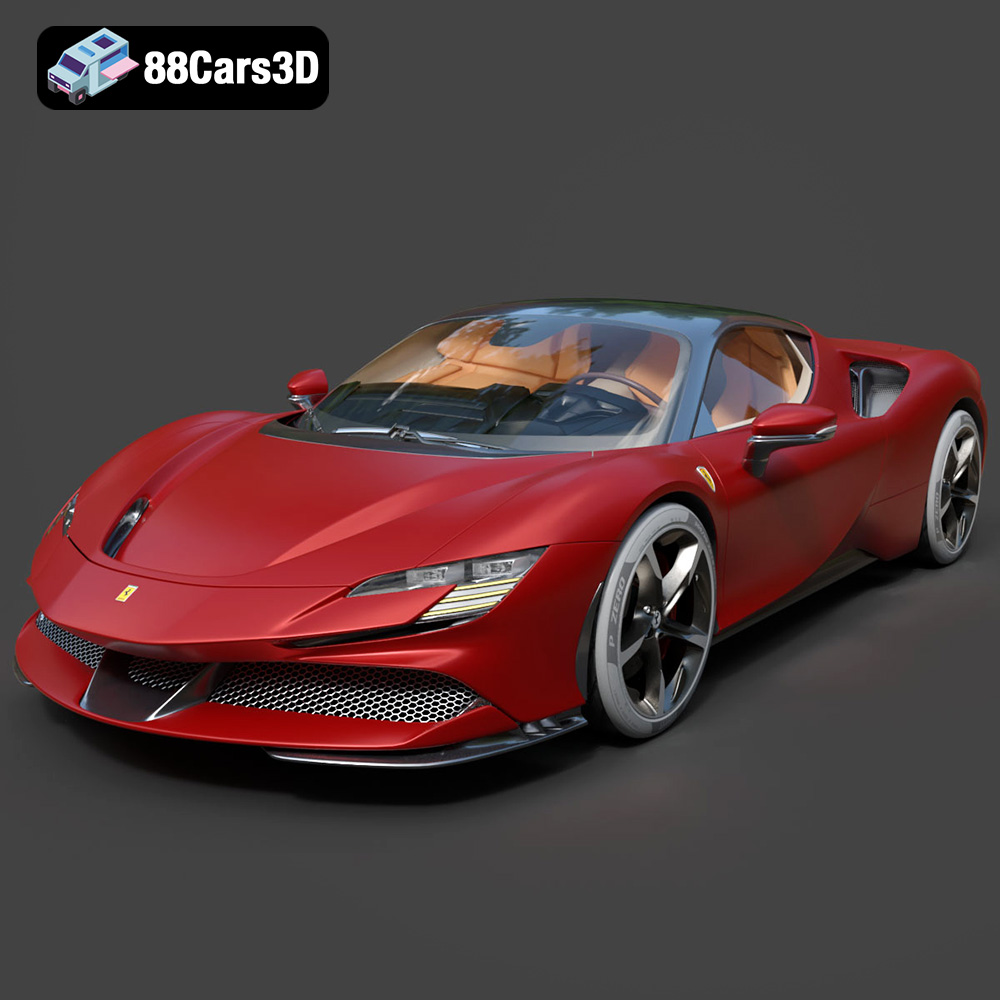
Download the Ferrari SF90 Stradale 3D Model featuring clean geometry, realistic detailing, and a fully modeled interior. Includes .blend, .fbx, .obj, .glb, .stl, .ply, .unreal, and .max formats for rendering, simulation, and game development.
Price: $19.99

Texture: Yes
Material: Yes
Download the Harley Davidson F 1946 3D Model featuring clean geometry, realistic detailing, and a fully modeled interior. Includes .blend, .fbx, .obj, .glb, .stl, .ply, .unreal, and .max formats for rendering, simulation, and game development.
Price: $19.99

Texture: Yes
Material: Yes
Download the Land Rover Defender Works V8 3D Model featuring clean geometry, realistic detailing, and a fully modeled interior. Includes .blend, .fbx, .obj, .glb, .stl, .ply, .unreal, and .max formats for rendering, simulation, and game development.
Price: $19.99

Texture: Yes
Material: Yes
Download the Dodge RAM 2019 3D Model featuring clean geometry, realistic detailing, and a fully modeled interior. Includes .blend, .fbx, .obj, .glb, .stl, .ply, .unreal, and .max formats for rendering, simulation, and game development.
Price: $19.99

Texture: Yes | Material: Yes Download the ultra-high-detail Ford F-150 Raptor 2021 3D Model (8.73M Triangles). Features uncompromised widebody styling, fully modeled Fox Live Valve suspension, 37-inch tires, and interior. Perfect for premium VFX, cinematic rendering, and ArchViz. Includes .blend, .fbx, .obj, .glb, .stl, and .max formats.
Price: $29.99

Texture: Yes | Material: Yes Download the ultra-high-detail BMW 3 Series Limousine (2022) 3D Model (4.16M Triangles). Features the modernized G20 LCI exterior, the all-new BMW Curved Display interior, and ultra-dense topology. Perfect for ArchViz, VFX, and cinematic rendering. Includes .blend, .fbx, .obj, .glb, .stl, and .max formats.
Price: $19.99

Texture: Yes | Material: Yes Download the ultra-high-detail BMW i7 (2023) 3D Model (4.14M Triangles). Features the illuminated kidney grille, split crystal headlights, fully modeled Theatre Screen interior, and monolithic luxury styling. Perfect for ArchViz, VFX, and cinematic rendering. Includes .blend, .fbx, .obj, .glb, .stl, and .max formats.
Price: $19.99

Texture: Yes | Material: Yes Download the highly detailed CAT Manual Loader & Warehouse Carts Kit 3D Model (2.4M Triangles). Features a macro-detailed hydraulic pallet jack, heavy-duty forks, and transport carts. Perfect for industrial ArchViz, factory rendering, and logistics simulations. Includes .blend, .fbx, .obj, .glb, .stl, and .max formats.
Price: $19.99

Texture: Yes | Material: Yes
Download the highly optimized Mazda CX-5 2014 3D Model (294k Triangles). Features the dynamic Kodo design language, signature grille, and a clean interior. Perfectly balanced for ArchViz, background traffic, and game development. Includes .blend, .fbx, .obj, .glb, .stl, and .max formats.
Price: $19.99

Texture: Yes | Material: Yes Download the ultra-high-detail Bentley Flying Spur Mulliner 2022 3D Model (2.94M Triangles). Features the bespoke Double Diamond grille, a fully modeled diamond-quilted interior, and exquisite luxury styling. Perfect for high-end ArchViz, VFX, and cinematic rendering. Includes .blend, .fbx, .obj, .glb, .stl, and .max formats.
Price: $19.90

