Get 50% OFF All Premium 3D & STL Models!

“`html
The realism of automotive visualization hinges significantly on the environment. Static scenes can quickly become stale, but dynamic weather systems breathe life into virtual worlds, adding depth, immersion, and visual appeal. In this article, we’ll dive deep into creating dynamic weather systems in Unreal Engine, focusing on techniques applicable to automotive visualization, game development, and virtual production. We’ll cover everything from setting up a base project to implementing advanced effects like rain, snow, and dynamic lighting changes. We will also explore performance considerations crucial when dealing with real-time rendering, especially when showcasing high-fidelity 3D car models.
You’ll learn how to use Unreal Engine’s built-in tools like Material Editor, Niagara, and Blueprint to craft compelling weather effects. We’ll discuss optimization techniques for maintaining smooth frame rates, even with complex weather systems. Whether you are working on a virtual car configurator, a realistic driving simulator, or cinematic automotive content, understanding these techniques will elevate the visual impact of your projects. Remember that leveraging pre-built, optimized assets from platforms like 88cars3d.com can significantly speed up your development process, allowing you to focus more on the environment and weather integration.
The foundation for any dynamic weather system lies in a well-structured Unreal Engine project. This involves creating a suitable environment, importing necessary assets, and configuring basic settings. Here’s a step-by-step guide:
Begin by creating a new Unreal Engine project. Select the “Games” category and the “Blank” template for maximum control. Choose a descriptive name for your project, such as “AutomotiveWeatherDemo.” Enable ray tracing for enhanced visual fidelity if your hardware supports it. If you’re targeting lower-end hardware, stick with traditional rendering methods initially, optimizing for performance as you add weather effects.
Consider enabling starter content, as this gives you some base assets (foliage, rocks, etc) to work with for testing.
Import a suitable environment for your automotive scene. This could be a landscape, a city street, or a racing track. You can create your own using Unreal Engine’s landscape tools, or import a pre-made environment from a marketplace or 3D modeling software. When sourcing automotive assets from marketplaces such as 88cars3d.com, ensure they are optimized for Unreal Engine with clean topology and proper UV mapping. You want your environment to support the high fidelity of the car models you will be showcasing.
Adjust the scale and placement of all assets to create a believable environment. Add collision where needed for realistic vehicle interaction.
Rain is a common and visually impactful weather effect. Implementing it effectively requires a combination of particle systems, materials, and sound effects. Unreal Engine’s Niagara system provides powerful tools for creating realistic rain.
Create a new Niagara particle system. Choose the “Fountain” template as a starting point. Modify the particle spawn rate, velocity, and lifetime to simulate raindrops. Use a simple elongated mesh for the raindrops, and apply a translucent material with subtle motion blur.
To create a more realistic effect:
Add a collision module to the Niagara system to make the raindrops interact with the environment. This will create splashes when the raindrops hit surfaces.
Create separate Niagara systems for rain splashes and puddles. Rain splashes can be small, short-lived particle effects emitted when raindrops collide with surfaces. Puddles can be simulated using translucent materials with ripple effects or by using decal actors that dynamically appear on surfaces when it rains. Material parameter collections can drive the wetness of surfaces globally.
For realistic puddles:
Link the visibility of the puddle decals to the rain intensity, so they only appear when it’s raining. This can be done via Blueprints. The official Unreal Engine documentation (https://dev.epicgames.com/community/unreal-engine/learning) is a great resource for learning more about Niagara and Blueprint scripting.
Creating a convincing snow effect requires a different approach compared to rain. Snowflakes are lighter and have a different visual characteristic. Additionally, the accumulation of snow on surfaces is crucial for a realistic winter environment.
Similar to rain, use Niagara to generate snowflakes. However, use smaller particles with a slower fall speed. Instead of elongated meshes, use textures of snowflakes for the particles. Add a slight wind force to make the snowflakes drift realistically.
Key adjustments for snowflakes:
Simulating snow accumulation can be achieved through several techniques: material blending, dynamic snow meshes, or vertex displacement. Material blending is the most common approach, where you gradually blend a snow texture onto existing surfaces based on a snow accumulation parameter. Dynamic snow meshes are pre-made snow layers that conform to the underlying geometry. Vertex displacement involves offsetting the vertices of the existing mesh to create a snow layer.
For realistic snow accumulation:
Use a material parameter collection to control the overall snow accumulation amount. This allows you to easily adjust the snow level across the entire scene.
Lighting plays a critical role in conveying the mood of a weather system. Unreal Engine’s Lumen global illumination and reflections system provides a powerful solution for dynamic lighting scenarios. Combined with atmospheric effects, Lumen can create stunningly realistic weather conditions.
Enable Lumen in your project settings. Adjust the Lumen scene lighting quality based on your target hardware. Lumen dynamically calculates global illumination and reflections, adapting to changes in the environment, such as weather conditions. This results in more realistic lighting, especially during overcast or rainy conditions.
Use the Exponential Height Fog actor to simulate atmospheric fog. Adjust the density, color, and height falloff to create different weather moods. Combine this with a Sky Atmosphere actor to create realistic sky conditions. You can dynamically change the properties of these actors using Blueprints to simulate changes in weather over time. Add clouds by using a cloud layer, which is part of the sky atmosphere system. Configure wind direction and speed to animate the clouds, adding more realism. The cloud shadows can also dynamically affect the lighting of the scene.
Blueprint visual scripting allows you to control and automate the weather system dynamically. You can create scripts to change weather conditions over time, trigger weather events based on player input, and interact with the environment in response to weather changes.
Create a new Blueprint actor called “WeatherController.” In this Blueprint, create variables to control various weather parameters, such as rain intensity, snow accumulation, wind speed, and cloud density. Use a timeline component to smoothly transition between different weather states. For example, you can create a timeline that gradually increases rain intensity over a period of time.
Essential weather parameters:
Use Blueprint scripting to trigger weather events based on player input or environmental conditions. For example, you can create a button that toggles rain on or off, or trigger a lightning strike when certain conditions are met. You can also create interactions where the environment responds to the weather; for example, turning on windshield wipers on a car when it starts raining.
Example interactive events:
Maintaining smooth frame rates is crucial for real-time rendering, especially when dealing with complex weather systems. Optimizing performance involves reducing polygon counts, optimizing materials, using level of detail (LOD) models, and employing various rendering techniques. When showcasing high-quality 3D car models, performance optimization is vital to ensure a smooth and immersive experience. Pre-optimized models from sources like 88cars3d.com can significantly help in this regard.
Reduce the polygon count of your environment assets where possible. Use LOD (Level of Detail) models to reduce the complexity of distant objects. Unreal Engine automatically switches to lower-resolution LODs as objects move further away from the camera, improving performance without sacrificing visual quality.
Performance optimization tips:
Optimize your materials by reducing the number of textures, using simpler shading models, and avoiding overly complex calculations. Use texture compression and mipmapping to reduce texture memory usage. Experiment with different rendering techniques, such as forward rendering or deferred rendering, to find the best balance between visual quality and performance. Consider using Nanite virtualized geometry for exceptionally high-poly assets, but be mindful of its impact on memory and GPU performance. Nanite renders micropolygons, but needs sufficient memory to do so.
Optimizing rendering:
By implementing these techniques, you can create a dynamic and visually stunning weather system in Unreal Engine while maintaining smooth frame rates and ensuring a compelling experience for users.
Creating dynamic weather systems in Unreal Engine offers a powerful way to enhance the realism and immersion of automotive visualization projects. By combining particle systems, material effects, dynamic lighting, and Blueprint scripting, you can create a wide range of weather conditions that respond to player interaction and environmental changes. Remember to optimize your project for performance, ensuring smooth frame rates even with complex weather effects. Consider the starting point. Assets from sites such as 88cars3d.com can get you quickly up to speed when building your scene.
As a next step, experiment with different weather parameters, lighting scenarios, and interactive elements to create unique and compelling experiences. Dive deeper into Niagara’s capabilities to craft custom particle effects. Explore Lumen’s lighting features to achieve realistic global illumination. And don’t forget to continuously optimize your project for performance, ensuring a seamless and engaging experience for your users. Continue to reference the official Unreal Engine documentation as you explore these features.
“`
Texture: Yes
Material: Yes
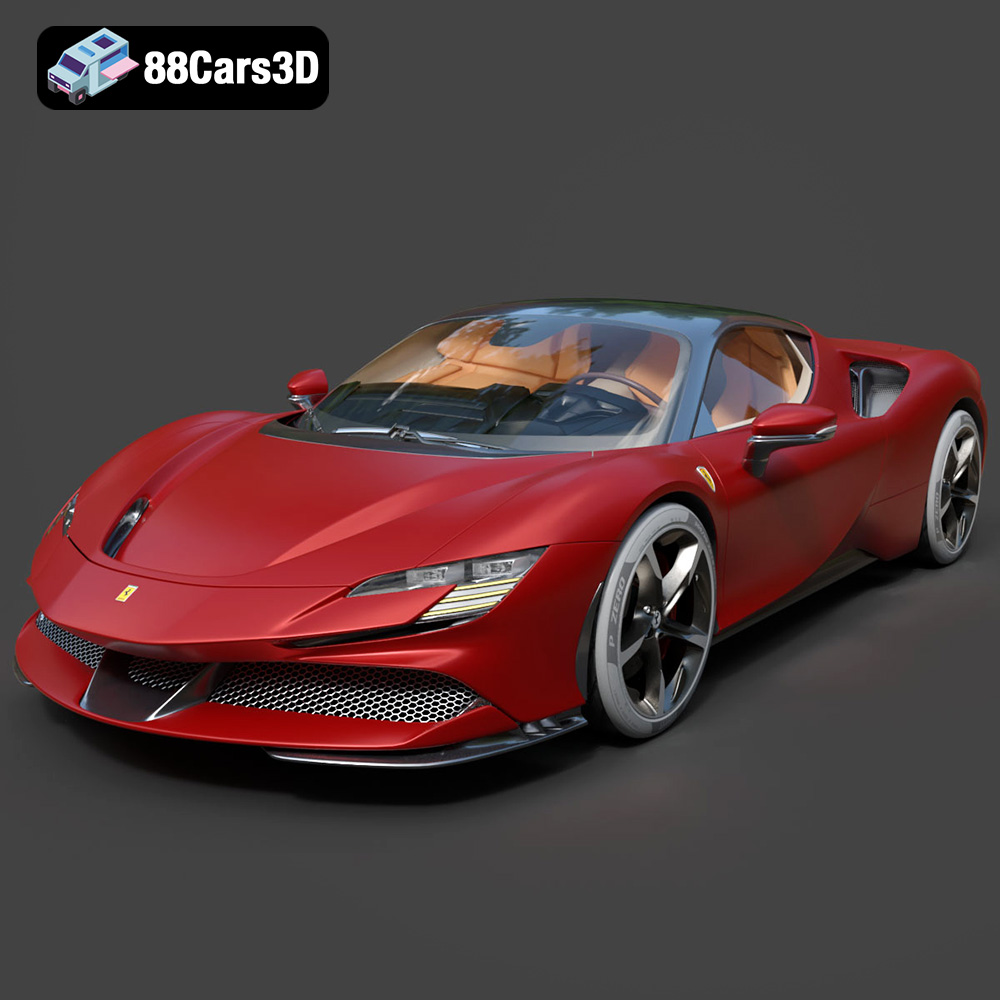
Download the Ferrari SF90 Stradale 3D Model featuring clean geometry, realistic detailing, and a fully modeled interior. Includes .blend, .fbx, .obj, .glb, .stl, .ply, .unreal, and .max formats for rendering, simulation, and game development.
Price: $19.99

Texture: Yes
Material: Yes
Download the Harley Davidson F 1946 3D Model featuring clean geometry, realistic detailing, and a fully modeled interior. Includes .blend, .fbx, .obj, .glb, .stl, .ply, .unreal, and .max formats for rendering, simulation, and game development.
Price: $19.99

Texture: Yes
Material: Yes
Download the Land Rover Defender Works V8 3D Model featuring clean geometry, realistic detailing, and a fully modeled interior. Includes .blend, .fbx, .obj, .glb, .stl, .ply, .unreal, and .max formats for rendering, simulation, and game development.
Price: $19.99

Texture: Yes
Material: Yes
Download the Dodge RAM 2019 3D Model featuring clean geometry, realistic detailing, and a fully modeled interior. Includes .blend, .fbx, .obj, .glb, .stl, .ply, .unreal, and .max formats for rendering, simulation, and game development.
Price: $19.99

Texture: Yes | Material: Yes Download the ultra-high-detail Ford F-150 Raptor 2021 3D Model (8.73M Triangles). Features uncompromised widebody styling, fully modeled Fox Live Valve suspension, 37-inch tires, and interior. Perfect for premium VFX, cinematic rendering, and ArchViz. Includes .blend, .fbx, .obj, .glb, .stl, and .max formats.
Price: $29.99

Texture: Yes | Material: Yes Download the ultra-high-detail BMW 3 Series Limousine (2022) 3D Model (4.16M Triangles). Features the modernized G20 LCI exterior, the all-new BMW Curved Display interior, and ultra-dense topology. Perfect for ArchViz, VFX, and cinematic rendering. Includes .blend, .fbx, .obj, .glb, .stl, and .max formats.
Price: $19.99

Texture: Yes | Material: Yes Download the ultra-high-detail BMW i7 (2023) 3D Model (4.14M Triangles). Features the illuminated kidney grille, split crystal headlights, fully modeled Theatre Screen interior, and monolithic luxury styling. Perfect for ArchViz, VFX, and cinematic rendering. Includes .blend, .fbx, .obj, .glb, .stl, and .max formats.
Price: $19.99

Texture: Yes | Material: Yes Download the highly detailed CAT Manual Loader & Warehouse Carts Kit 3D Model (2.4M Triangles). Features a macro-detailed hydraulic pallet jack, heavy-duty forks, and transport carts. Perfect for industrial ArchViz, factory rendering, and logistics simulations. Includes .blend, .fbx, .obj, .glb, .stl, and .max formats.
Price: $19.99

Texture: Yes | Material: Yes
Download the highly optimized Mazda CX-5 2014 3D Model (294k Triangles). Features the dynamic Kodo design language, signature grille, and a clean interior. Perfectly balanced for ArchViz, background traffic, and game development. Includes .blend, .fbx, .obj, .glb, .stl, and .max formats.
Price: $19.99

Texture: Yes | Material: Yes Download the ultra-high-detail Bentley Flying Spur Mulliner 2022 3D Model (2.94M Triangles). Features the bespoke Double Diamond grille, a fully modeled diamond-quilted interior, and exquisite luxury styling. Perfect for high-end ArchViz, VFX, and cinematic rendering. Includes .blend, .fbx, .obj, .glb, .stl, and .max formats.
Price: $19.90

