Get 50% OFF All Premium 3D & STL Models!

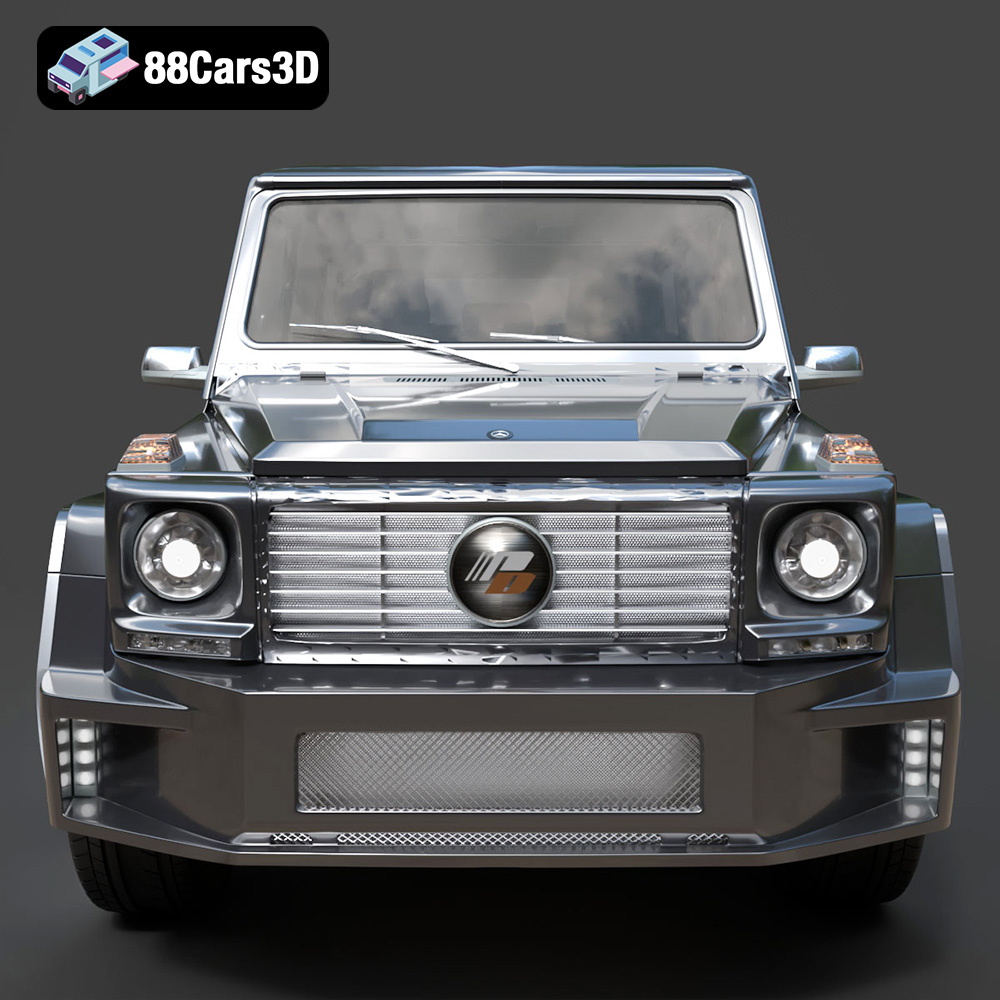
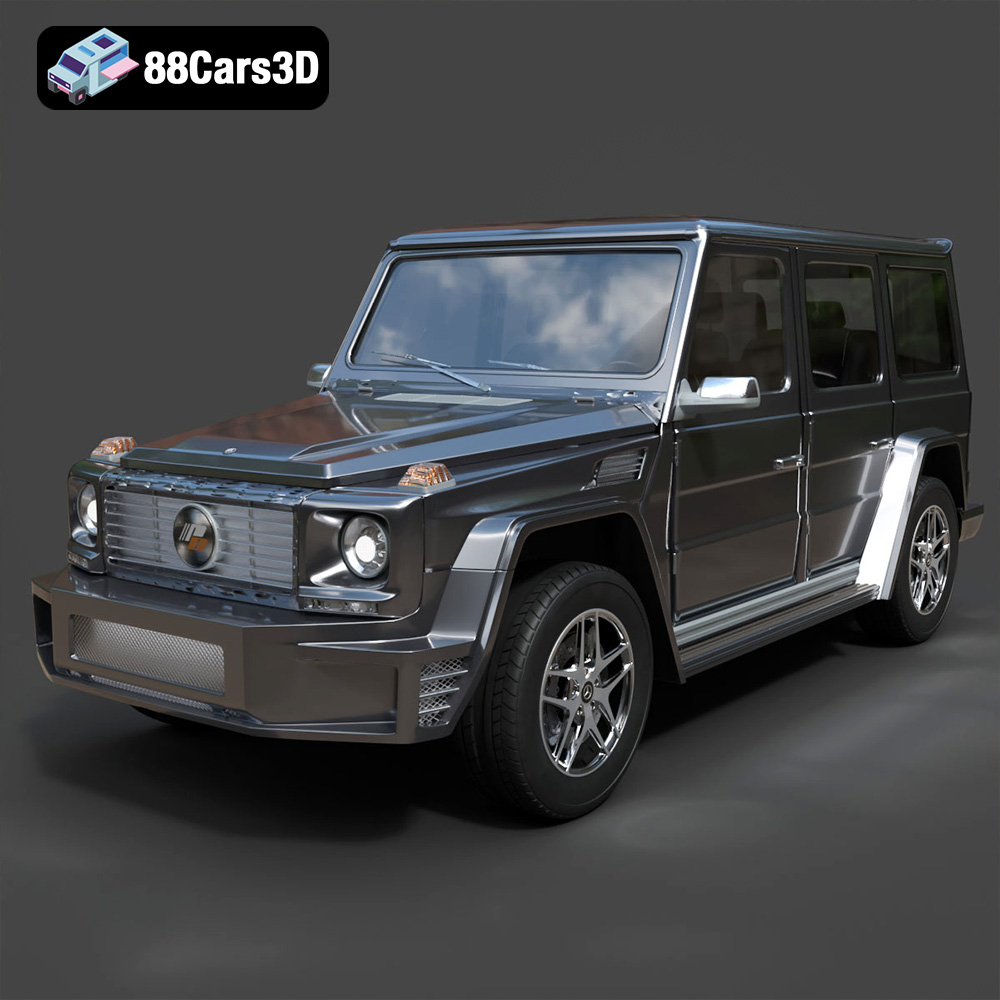
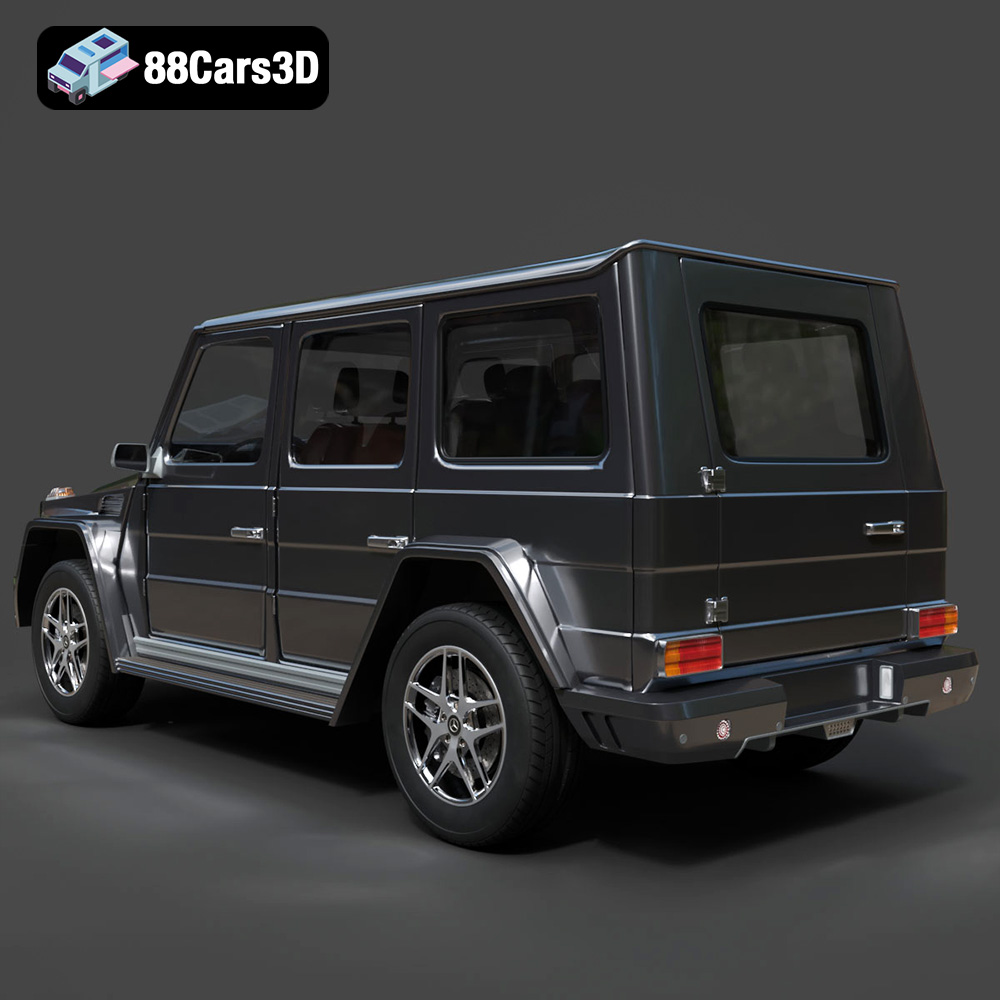
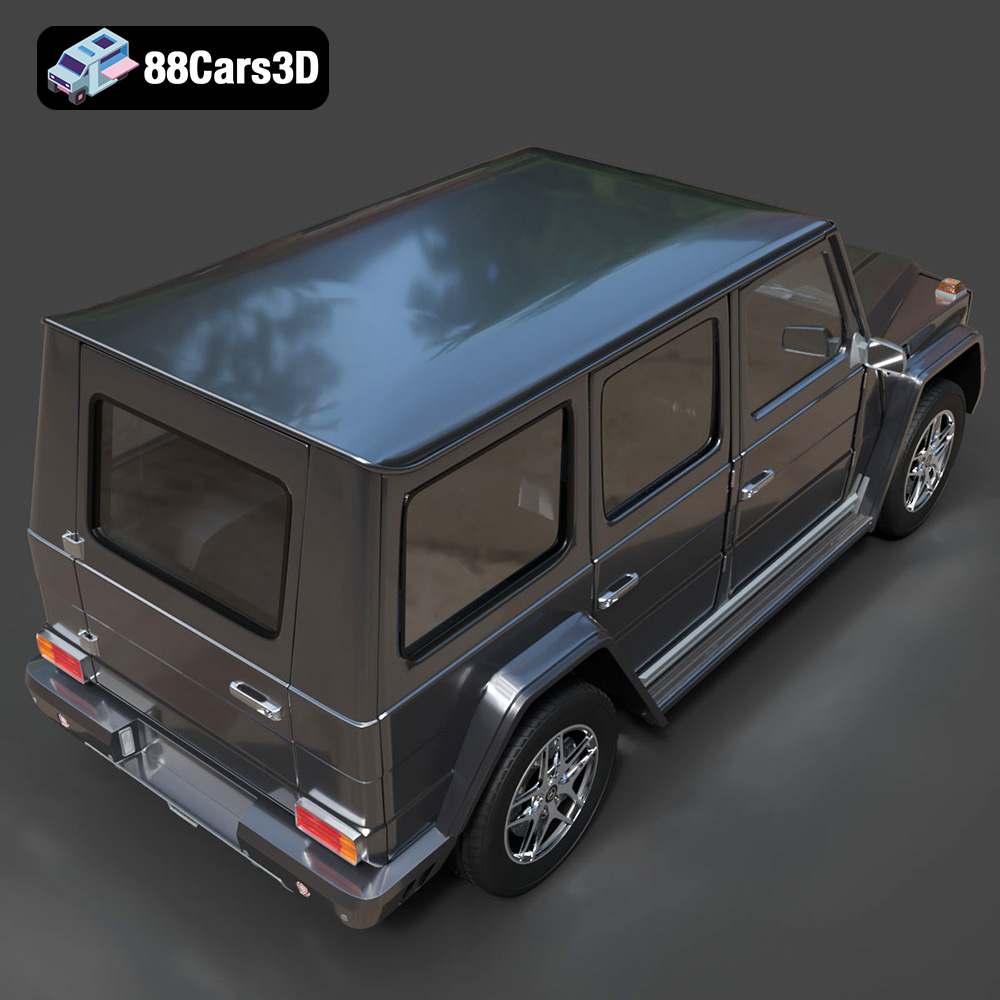
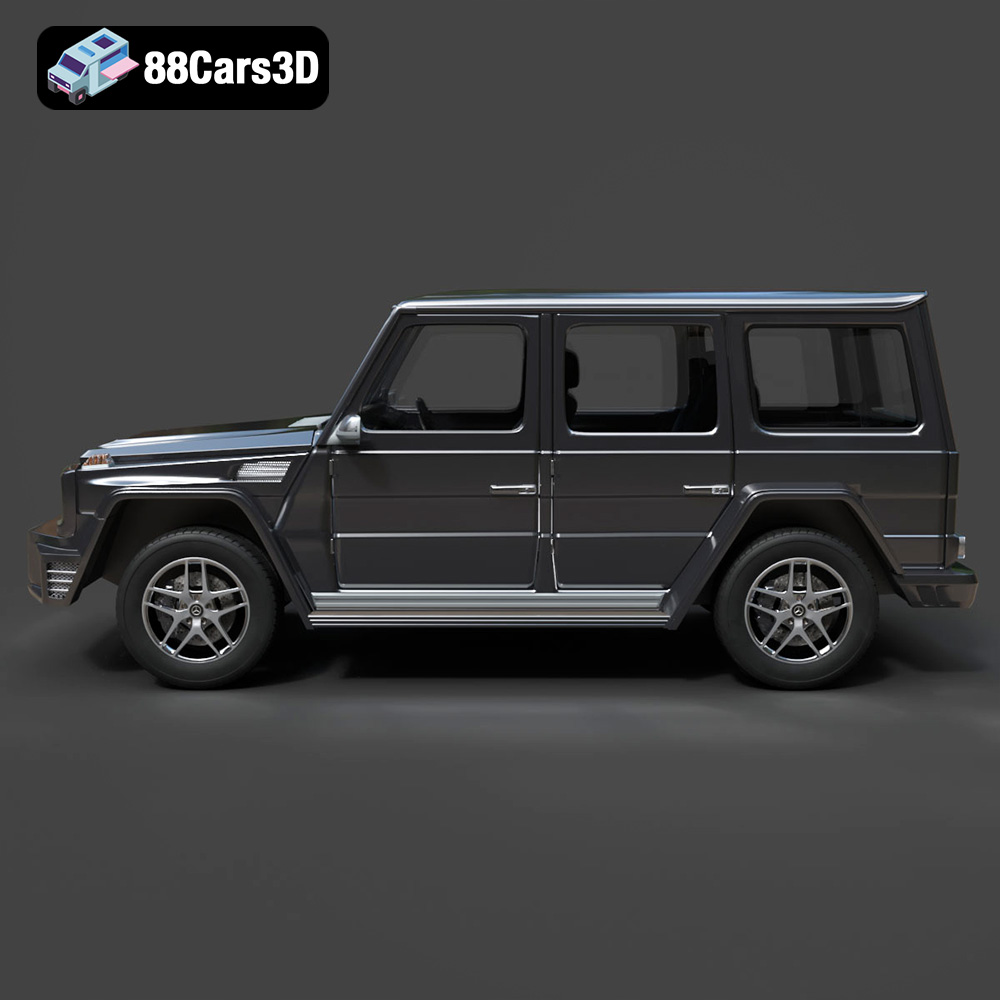
The Mercedes-Benz G Class, often affectionately called the G-Wagen, is a vehicle that needs no introduction. Its boxy silhouette and rugged character have made it an icon. Now, thanks to 88cars3d.com, you can bring this legendary SUV to life with the Mercedes-Benz G Class 2013 3D Model 3D Printable STL. This article serves as your comprehensive guide to successfully 3D printing this model, covering everything from preparation to post-processing. We’ll explore optimal settings, material choices, and troubleshooting tips to ensure you achieve a stunning replica.
Before you even think about hitting the print button, careful preparation is crucial. This stage determines the success and quality of your final 3D printed model.
* **Why it matters:** STL files, while standard for 3D printing, can sometimes contain errors like non-manifold edges, holes, or inverted normals. These flaws can cause issues during slicing and printing, leading to failed prints or inaccurate results.
* **Tools of the trade:** Use software like MeshLab, Netfabb Basic (Autodesk), or online services like MakePrintable to inspect the STL file. These tools can identify and automatically repair many common errors.
* **Specific to the G-Class:** Pay special attention to areas like the intricate front grille, the rear-mounted spare tire, and the complex underbody details. These areas are more prone to errors and require careful inspection.
* **The sweet spot:** The product description suggests scales of 1:32, 1:24, 1:18, and 1:14. Your choice depends on your printer’s build volume and the level of detail you want to capture.
* **Considerations:** Smaller scales (1:32, 1:43) are faster to print and use less material but sacrifice fine details. Larger scales (1:18, 1:14) allow for more intricate details and easier post-processing but require more time and material.
* **Recommended starting point:** A scale of 1:24 offers a good balance between detail and printability for the Mercedes-Benz G Class 2013 3D Model.
Choosing the right file format is paramount for a successful 3D printing experience. Different formats offer varying levels of compatibility, detail retention, and ease of use. Let’s explore some common formats and their suitability for 3D printing, particularly with the Mercedes-Benz G Class 2013 3D Model.
* **What it is:** STL (Stereolithography) is the most widely used file format in 3D printing. It represents the surface geometry of a 3D object as a collection of triangles. STL files are simple, platform-independent, and supported by virtually all slicing software.
* **Why it’s essential:** STL focuses solely on the shape of the object, discarding color, texture, and material information. This makes it ideal for 3D printing, where the primary concern is creating the physical form accurately.
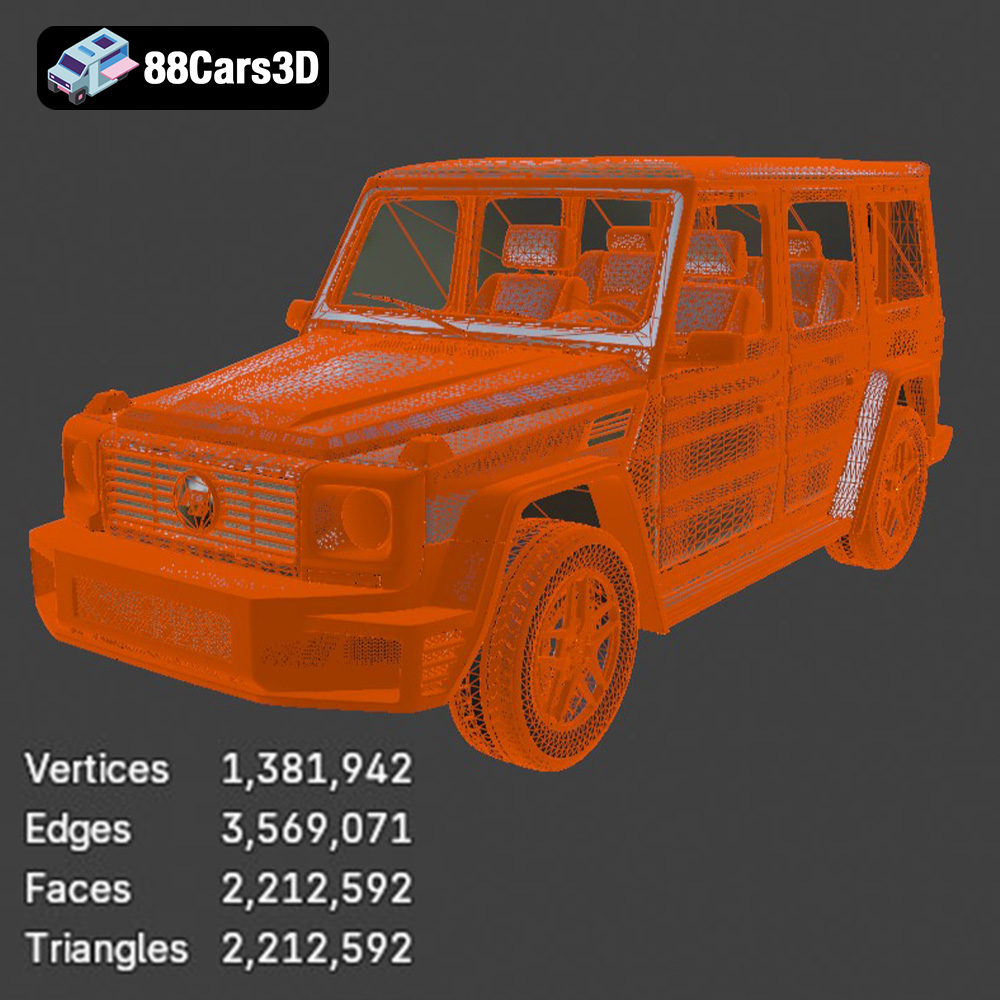
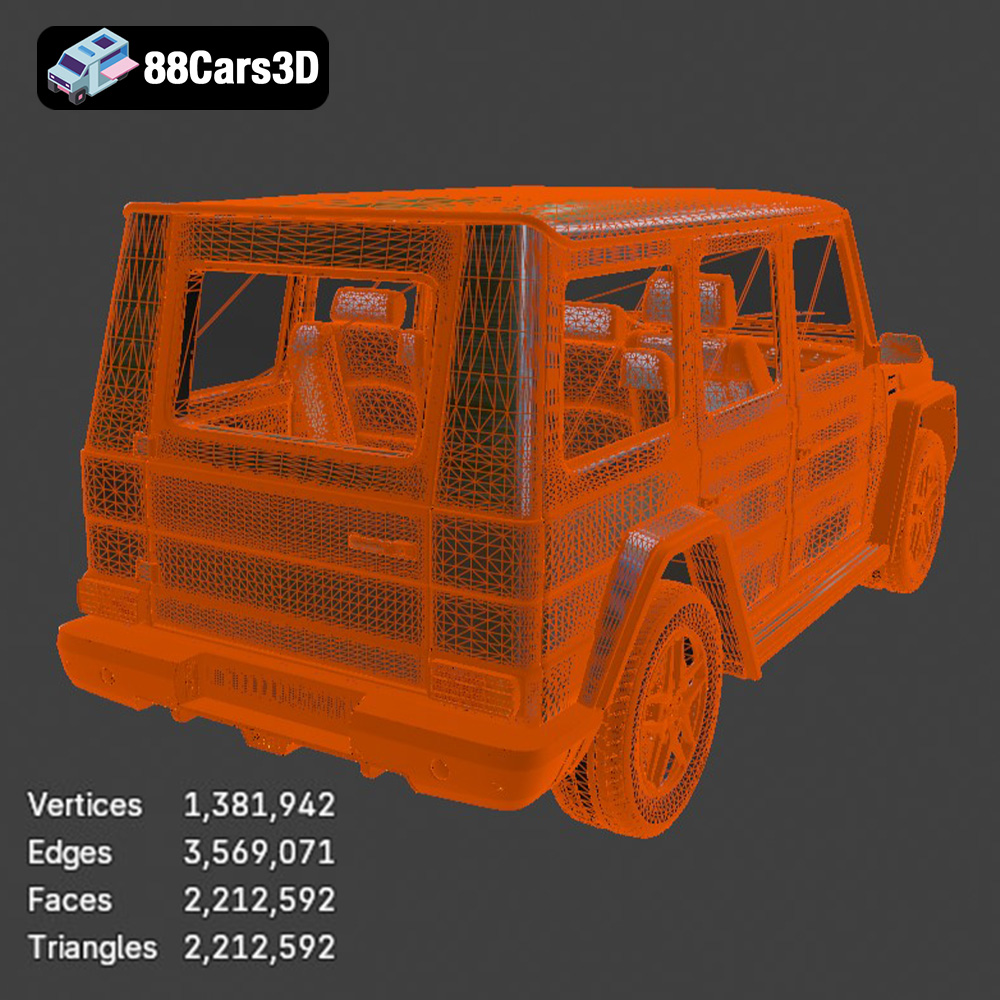
* **Mesh Quality:** The density of the triangle mesh directly impacts the smoothness and accuracy of the printed object. Higher-resolution meshes result in smoother surfaces but increase file size and processing time. When preparing the Mercedes-Benz G Class 2013 3D Model, ensure the STL mesh is sufficiently dense, especially in curved areas like the wheel arches and roof. However, avoid excessively high resolutions, as they can overwhelm your slicer and printer. A balanced approach is key.
* **Slicing Software Compatibility:** STL files are universally compatible with all major slicing programs like Cura, Simplify3D, PrusaSlicer, and others. Simply import the STL file into your chosen slicer, adjust the settings according to your printer and material, and generate the G-code for printing.
* **STL as the Primary Format:** Given its simplicity, widespread support, and focus on geometric data, STL is generally the best choice for 3D printing the Mercedes-Benz G Class 2013 3D Model. If you have the model in another format, exporting it as an STL is often the recommended first step.
* **Capabilities:** OBJ files support both geometric data and color/texture information. While less common for standard 3D printing, they are useful if you plan to print the G-Class in multiple colors using a multi-material printer or if you want to apply textures during post-processing.
* **High Fidelity:** PLY files can store more detailed mesh data compared to STL, making them suitable for printing models with intricate details. However, not all slicing software fully supports PLY, so compatibility can be a concern.
* **Source File:** .blend is the native file format for Blender, a popular open-source 3D modeling software. Having the model in .blend format allows you to modify and customize it before exporting it as an STL for printing.
* **Game Engine Friendly:** FBX is primarily used for game development and animation. While it can store material information, it’s not typically the best choice for 3D printing unless you’re using a specialized printer that can handle multi-material prints directly from FBX data.
* **Augmented Reality:** GLB files are designed for AR/VR applications and are optimized for real-time rendering. They are not directly used in 3D printing but can be helpful for previewing the model in a virtual environment before you commit to printing it.
* **Professional Modeling:** Similar to .blend, .max is the native file format for 3ds Max, a professional 3D modeling software. Having the model in .max format enables advanced customization before exporting to a printable format.
Selecting the appropriate 3D printing technology and material is critical for achieving the desired outcome for your Mercedes-Benz G Class 2013 3D Model.
* **Pros:** Affordable, widely accessible, good for larger models.
* **Cons:** Layer lines are visible, lower detail resolution compared to resin printing.
* **Material Recommendations:**
* **PLA:** Easiest to print, biodegradable, good for beginners.
* **PETG:** Stronger and more heat-resistant than PLA, slightly more challenging to print.
* **ABS:** Durable and heat-resistant, but requires a heated bed and enclosure to prevent warping.
* **For the G-Class:** PLA or PETG are recommended for FDM printing the Mercedes-Benz G Class 2013 3D Model. Use a layer height of 0.1-0.2mm for a balance between print time and detail.
* **Pros:** High detail resolution, smooth surfaces, ideal for intricate parts.
* **Cons:** More expensive, smaller build volume, requires post-processing (washing and curing).
* **Material Recommendations:**
* **Standard Resin:** Good for general-purpose printing, offers a balance of strength and detail.
* **Tough Resin:** More durable and impact-resistant, suitable for parts that need to withstand stress.
* **Flexible Resin:** Allows for flexible or rubber-like parts, useful for tires or other deformable components.
* **For the G-Class:** Resin printing is highly recommended for the Mercedes-Benz G Class 2013 3D Model, especially for smaller scales where fine details are crucial. Use a layer height of 0.025-0.05mm for maximum detail.
Slicer settings are the key to translating your 3D model into instructions that your printer can understand. Here’s how to optimize them for the G-Class.
* **Body Orientation:** Angling the body of the G-Class during printing can significantly improve surface finish. A 45-degree angle, with the front of the vehicle slightly elevated, is often a good starting point. This minimizes the number of supports needed on visible surfaces.
* **Support Strategies:** Use supports sparingly, focusing on areas like the mirrors, spare wheel housing, and the underside of the vehicle. Tree supports or light supports are preferable to minimize scarring during removal.
* **Wheel Printing:** Print the wheels separately, oriented vertically for optimal roundness and minimal support requirements.
* **Infill for Strength:** An infill density of 15-25% is generally sufficient for a display model. For FDM printing, a rectilinear or gyroid infill pattern provides a good balance of strength and print time.
* **Infill for Resin:** With resin printing, the infill is less critical for strength. A low-density infill (5-10%) can reduce resin consumption and print time without compromising the model’s integrity.
* **FDM Speed:** Start with a printing speed of 40-60mm/s for optimal quality. Adjust the speed based on your printer and material capabilities.
* **FDM Temperature:** Follow the manufacturer’s recommended temperature settings for your chosen filament.
* **Resin Exposure Time:** Calibrate the exposure time for your resin based on your printer and resin type. Insufficient exposure leads to weak parts, while overexposure can cause loss of detail.
Post-processing is where you transform a raw 3D print into a polished masterpiece.
* **Careful Removal:** Gently remove supports using pliers or a sharp knife. Take your time to avoid damaging the model.
* **Sanding:** Start with coarse sandpaper (220 grit) to remove support marks and imperfections. Gradually move to finer grits (400, 600, 800) for a smooth finish. Wet sanding can help to minimize dust.
* **Priming:** Apply a thin coat of primer to prepare the surface for painting. Primer fills in small imperfections and provides a better surface for the paint to adhere to.
* **Painting:** Use acrylic or enamel paints for the best results. Apply multiple thin coats, allowing each coat to dry completely before applying the next.
* **Detailing:** Use fine brushes and masking tape to add details like window trim, lights, and emblems.
* **Clear Coat:** Apply a clear coat to protect the paint and give the model a glossy or matte finish.
* **Assembly:** Carefully assemble the printed parts using glue or adhesive.
* **Chrome Detailing:** Consider adding chrome accents using chrome paint or adhesive chrome trim.
* **Display Base:** Create a custom display base to showcase your finished Mercedes-Benz G Class 2013 3D Model.
Even with careful preparation, you may encounter challenges during the 3D printing process. Here are some common issues and their solutions.
* **Cause:** Uneven cooling of the plastic, causing it to lift from the build plate.
* **Solution:** Use a heated bed, increase bed adhesion (glue stick, hairspray), reduce printing speed, use an enclosure.
* **Cause:** Excess plastic oozing from the nozzle during travel moves.
* **Solution:** Increase retraction distance, decrease printing temperature, increase travel speed.
* **Cause:** Poor layer adhesion due to insufficient temperature or improper cooling.
* **Solution:** Increase printing temperature, decrease printing speed, ensure proper cooling.
* **Cause:** Insufficient exposure time, improper support placement, contaminated resin.
* **Solution:** Calibrate exposure time, increase support density, filter resin.
3D printing the Mercedes-Benz G Class 2013 3D Model is a rewarding project that combines technical skill with creative expression. By following the steps outlined in this guide, you can create a stunning replica of this iconic SUV. Remember to experiment with different materials, settings, and post-processing techniques to achieve your desired results. For more high-quality 3D car models optimized for printing, visit 88cars3d.com.
The Mercedes-Benz G Class 2013 3D Model is a high-detail digital recreation of the iconic luxury off-road SUV known for its boxy design, rugged capability, and premium craftsmanship. The 2013 G-Class blends military-inspired durability with refined interior comfort, making it a timeless symbol of performance and prestige. Convertible to .stl format for collectible SUV scale models and display miniatures.
$9.99