Get 50% OFF All Premium 3D & STL Models!

“`html
3D printing has revolutionized the way we prototype, manufacture, and even enjoy hobbies. But the one constant complaint? Print time. A beautiful, intricate model can take days to materialize, testing the patience of even the most dedicated enthusiast. Fortunately, there are several powerful techniques you can employ to dramatically reduce print times without sacrificing quality. This guide will delve into the art of scaling, hollowing, and optimizing STL files, specifically tailored for printing car models and other intricate designs. We’ll explore the best software tools, settings, and strategies to unlock faster, more efficient 3D printing workflows. Whether you’re printing a detailed car model from platforms like 88cars3d.com or a custom-designed masterpiece, these techniques will help you bring your ideas to life in record time.
In this article, you’ll learn:
The size of your 3D print directly impacts print time and material usage. Scaling allows you to adjust the dimensions of your STL model to suit your specific needs. Want a keychain-sized replica of your dream car? Scale it down. Need a large-scale prototype for engineering analysis? Scale it up. The key is to understand the implications of scaling and how to maintain detail and structural integrity.
Most slicing software provides straightforward scaling tools. In Cura, for instance, you can find the scaling options under the “Scale” settings. You can scale uniformly by adjusting the X, Y, and Z dimensions proportionally or scale non-uniformly to stretch or compress the model in a specific direction. Ensure that you maintain the aspect ratio if you want to avoid distorting the original design. PrusaSlicer offers similar scaling capabilities, often integrated with measurement tools that allow you to scale to a specific dimension.
Scaling down a model can lead to a loss of fine details, especially on FDM printers. The nozzle size limits the resolution of small features. If you’re scaling down significantly, consider using a smaller nozzle (e.g., 0.25mm instead of 0.4mm) and reducing layer height to preserve detail. Conversely, scaling up a model can reveal imperfections in the original STL file. Ensure your model has sufficient resolution to avoid a faceted or blocky appearance at larger scales. When downloading models from marketplaces such as 88cars3d.com, check the intended scale and resolution before adjusting it drastically.
Hollowing is a game-changer for reducing print time and material consumption, especially for large or solid models. By creating an empty interior, you drastically decrease the amount of material needed and the time it takes to fill that volume. However, hollowing requires careful planning and execution to maintain structural integrity and prevent print failures.
Meshmixer is a free and powerful tool for hollowing STL models. To hollow a model in Meshmixer, import the STL file and use the “Edit” -> “Hollow” function. You can specify the wall thickness (typically between 2-3mm for PLA and PETG) and the infill density for the interior. Crucially, you need to create drainage holes to allow resin or excess material to escape during printing. Strategically place these holes in inconspicuous areas, ensuring they are large enough to prevent clogging (at least 3mm diameter). When hollowing, aim for uniform wall thickness to prevent warping or uneven shrinkage during printing.
Drainage holes are absolutely essential for resin printing. Trapped resin can cause the model to crack or explode during curing. For FDM printing, drainage holes can also act as ventilation to prevent pressure buildup inside the model during printing, which can lead to layer separation. Position the holes strategically to allow complete drainage of the hollowed cavity. Consider the orientation of the print when placing drainage holes, ensuring that gravity will assist the drainage process.
While hollowing significantly reduces material, adding a small amount of infill provides structural support and prevents the outer walls from collapsing. For PLA and PETG, a low infill density (5-10%) is usually sufficient. Consider using a honeycomb or gyroid infill pattern for optimal strength-to-weight ratio. For resin printing, you might not need any infill at all, depending on the wall thickness and the size of the model.
STL files can often contain errors, such as non-manifold edges, holes, and intersecting faces. These errors can lead to print failures or artifacts in the final model. Mesh repair and simplification are essential steps in preparing STL files for optimal printing.
Software like Netfabb and Meshmixer can automatically detect and repair common mesh errors. Netfabb offers more advanced repair capabilities, including closing holes, stitching edges, and removing self-intersections. Meshmixer provides a simpler, more user-friendly interface for basic mesh repair. Before printing, always run your STL file through a mesh repair tool to ensure it is watertight and error-free. Look for warnings about “non-manifold edges” or “inverted normals” – these indicate potential problems.
High-resolution STL files can be unnecessarily large, slowing down slicing and printing. Mesh simplification reduces the number of triangles in the mesh without significantly affecting the visual quality of the model. Meshmixer’s “Reduce” tool allows you to specify a target triangle count or a percentage reduction. Be careful not to over-simplify the mesh, as this can lead to a loss of detail and a faceted appearance. Experiment with different simplification settings to find the optimal balance between file size and visual fidelity.
Clean topology is crucial for successful 3D printing. Avoid long, thin triangles and excessive detail in areas that are not visually important. Remeshing tools can help to create a more uniform and well-distributed mesh. Consider using Blender’s sculpting tools to smooth out surfaces and refine the mesh topology before exporting the STL file. Proper mesh topology not only improves print quality but also reduces the likelihood of errors during slicing.
Slicing software is the bridge between your STL model and your 3D printer. Choosing the right slicing parameters can dramatically impact print time, material usage, and print quality. Let’s explore some key slicing strategies for maximizing print speed.
Layer height is one of the most significant factors affecting print time. A larger layer height results in fewer layers and faster printing, but it can also reduce the resolution of fine details. Conversely, a smaller layer height increases print time but produces smoother surfaces. Finding the optimal layer height is a balancing act. For PLA and PETG, a layer height between 0.2mm and 0.3mm is a good starting point. For resin printing, layer heights typically range from 0.025mm to 0.05mm. Experiment with different layer heights to find the best compromise between speed and quality for your specific model and printer.
Infill density directly impacts print time and material usage. Lowering the infill density can significantly reduce print time, especially for large models. For non-structural parts, an infill density of 10-15% is often sufficient. For parts that require more strength, consider increasing the infill density to 20-30%. The choice of infill pattern also affects print time and strength. Gyroid infill offers a good balance of strength and speed, while rectilinear infill is faster but less strong. Concentric infill is a good choice for parts with curved surfaces.
Travel moves, the movements of the print head between printing areas, can contribute significantly to print time. Optimize travel speed to reduce the time spent on these non-printing movements. Retraction settings are also crucial for preventing stringing and blobs, but excessive retraction can slow down printing. Adjust retraction distance and speed to minimize stringing without sacrificing print speed. Enable “Avoid Printed Parts When Traveling” in your slicing software to prevent the nozzle from colliding with the model during travel moves. Additionally, consider using “Combing Mode” set to “Within Infill” to further reduce travel moves across open space.
Support structures are often necessary to print overhanging features, but they can also add significant print time and material usage. Optimizing support generation and removal is crucial for efficient 3D printing.
Automatic support generation is convenient, but it can often generate unnecessary supports in areas where they are not needed. Manual support placement gives you more control over the support structures, allowing you to minimize material usage and print time. Software like Meshmixer allows you to manually add and customize support structures. Analyze your model carefully and identify the areas that require support. Place supports strategically to provide adequate support without overdoing it.
Support density affects the strength and stability of the support structures. A lower support density reduces print time and material usage but may not provide enough support for overhanging features. A higher support density provides more stability but increases print time and material usage. Experiment with different support densities to find the optimal balance. Interface layers are thin layers between the support structure and the model that make it easier to remove the supports. Adjust the interface layer density and thickness to optimize support removal without damaging the model’s surface.
The orientation of your model on the build plate significantly affects the amount of support needed. Choose an orientation that minimizes the number of overhanging features and reduces the need for support structures. Consider tilting the model at an angle to reduce the size of the overhangs. Experiment with different orientations to find the one that requires the least amount of support. When generating supports, consider using “tree supports” which are more efficient and easier to remove than traditional linear supports. They use less material and provide better support for complex geometries.
The choice of material and the proper calibration of your 3D printer are foundational elements for achieving fast and reliable prints. Different materials have different printing characteristics, and a well-calibrated printer ensures consistent and accurate results.
PLA is a popular choice for beginners due to its ease of printing and biodegradability. PETG offers improved strength and heat resistance compared to PLA. ABS is a stronger and more durable material but requires a heated bed and enclosure to prevent warping. Resin printing offers high resolution and detail but is more expensive and requires post-processing. Consider the specific requirements of your project when choosing the right material. For car models designed for display, PLA or PETG are often suitable. For functional prototypes, ABS or nylon might be a better choice.
Proper printer calibration is essential for achieving consistent and accurate prints. This includes leveling the bed, calibrating the extruder, and setting the correct temperature for the chosen material. A poorly calibrated printer can lead to adhesion problems, warping, and dimensional inaccuracies. Regularly calibrate your printer to ensure optimal performance. Use calibration prints like temperature towers and retraction tests to fine-tune your settings.
Each material has its own optimal print settings. Refer to the manufacturer’s recommendations for temperature, print speed, and retraction settings. Experiment with different settings to find the best combination for your specific printer and material. Pay attention to the first layer settings, as this is crucial for adhesion. Adjust the bed temperature and initial layer height to ensure proper adhesion. For example, printing ABS often requires a higher bed temperature (100-110°C) and an enclosed build volume to prevent warping.
Post-processing is the final step in the 3D printing process, and it involves cleaning, sanding, painting, and assembling the printed parts. These techniques can significantly enhance the appearance and functionality of your 3D prints.
Carefully remove support structures using pliers, cutters, or a sharp knife. Be careful not to damage the model’s surface. Sand the surface of the model to remove any imperfections or layer lines. Start with a coarse grit sandpaper (e.g., 220 grit) and gradually move to finer grits (e.g., 400 grit, 600 grit, 800 grit) for a smooth finish. For resin prints, soaking the model in warm water can help to soften the supports and make them easier to remove. Consider using chemical smoothing techniques (e.g., vapor smoothing with acetone for ABS) to achieve a very smooth surface.
Prime the model with a thin layer of primer to create a smooth and uniform surface for painting. Apply multiple thin coats of paint rather than one thick coat to prevent drips and runs. Use masking tape to create clean lines and sharp edges. Consider using airbrushing for a professional finish. Apply a clear coat to protect the paint and add a glossy or matte finish. For automotive models, consider using automotive-grade paints and clear coats for a durable and realistic finish.
Assemble the printed parts using glue, screws, or other fasteners. Pay attention to the alignment of the parts and ensure a secure fit. Add details such as decals, badges, and lights to enhance the realism of the model. Consider using weathering techniques (e.g., dry brushing, washes) to add depth and character to the model. Apply a final clear coat to protect the finished model.
Optimizing STL models for faster printing is a crucial skill for any 3D printing enthusiast. By mastering scaling, hollowing, mesh repair, slicing strategies, and support optimization, you can dramatically reduce print times without sacrificing quality. Remember to carefully consider material selection, printer calibration, and post-processing techniques to achieve professional results. Platforms like 88cars3d.com offer a wealth of high-quality, printable car models that can benefit from these optimization techniques, allowing you to bring your automotive dreams to life faster and more efficiently.
Here are some actionable next steps:
“`
Texture: Yes
Material: Yes
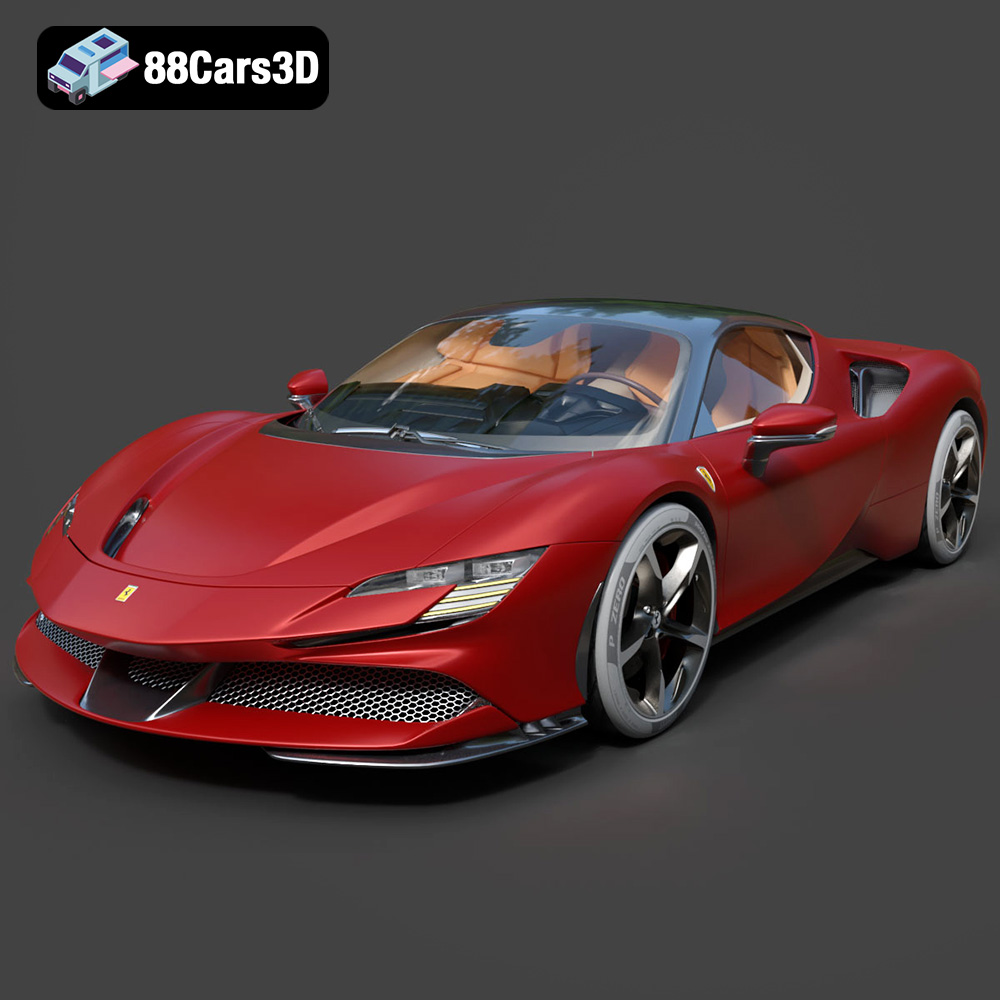
Download the Ferrari SF90 Stradale 3D Model featuring clean geometry, realistic detailing, and a fully modeled interior. Includes .blend, .fbx, .obj, .glb, .stl, .ply, .unreal, and .max formats for rendering, simulation, and game development.
Price: $19.99

Texture: Yes
Material: Yes
Download the Harley Davidson F 1946 3D Model featuring clean geometry, realistic detailing, and a fully modeled interior. Includes .blend, .fbx, .obj, .glb, .stl, .ply, .unreal, and .max formats for rendering, simulation, and game development.
Price: $19.99

Texture: Yes
Material: Yes
Download the Land Rover Defender Works V8 3D Model featuring clean geometry, realistic detailing, and a fully modeled interior. Includes .blend, .fbx, .obj, .glb, .stl, .ply, .unreal, and .max formats for rendering, simulation, and game development.
Price: $19.99

Texture: Yes
Material: Yes
Download the Dodge RAM 2019 3D Model featuring clean geometry, realistic detailing, and a fully modeled interior. Includes .blend, .fbx, .obj, .glb, .stl, .ply, .unreal, and .max formats for rendering, simulation, and game development.
Price: $19.99

Texture: Yes | Material: Yes Download the ultra-high-detail Ford F-150 Raptor 2021 3D Model (8.73M Triangles). Features uncompromised widebody styling, fully modeled Fox Live Valve suspension, 37-inch tires, and interior. Perfect for premium VFX, cinematic rendering, and ArchViz. Includes .blend, .fbx, .obj, .glb, .stl, and .max formats.
Price: $29.99

Texture: Yes | Material: Yes Download the ultra-high-detail BMW 3 Series Limousine (2022) 3D Model (4.16M Triangles). Features the modernized G20 LCI exterior, the all-new BMW Curved Display interior, and ultra-dense topology. Perfect for ArchViz, VFX, and cinematic rendering. Includes .blend, .fbx, .obj, .glb, .stl, and .max formats.
Price: $19.99

Texture: Yes | Material: Yes Download the ultra-high-detail BMW i7 (2023) 3D Model (4.14M Triangles). Features the illuminated kidney grille, split crystal headlights, fully modeled Theatre Screen interior, and monolithic luxury styling. Perfect for ArchViz, VFX, and cinematic rendering. Includes .blend, .fbx, .obj, .glb, .stl, and .max formats.
Price: $19.99

Texture: Yes | Material: Yes Download the highly detailed CAT Manual Loader & Warehouse Carts Kit 3D Model (2.4M Triangles). Features a macro-detailed hydraulic pallet jack, heavy-duty forks, and transport carts. Perfect for industrial ArchViz, factory rendering, and logistics simulations. Includes .blend, .fbx, .obj, .glb, .stl, and .max formats.
Price: $19.99

Texture: Yes | Material: Yes
Download the highly optimized Mazda CX-5 2014 3D Model (294k Triangles). Features the dynamic Kodo design language, signature grille, and a clean interior. Perfectly balanced for ArchViz, background traffic, and game development. Includes .blend, .fbx, .obj, .glb, .stl, and .max formats.
Price: $19.99

Texture: Yes | Material: Yes Download the ultra-high-detail Bentley Flying Spur Mulliner 2022 3D Model (2.94M Triangles). Features the bespoke Double Diamond grille, a fully modeled diamond-quilted interior, and exquisite luxury styling. Perfect for high-end ArchViz, VFX, and cinematic rendering. Includes .blend, .fbx, .obj, .glb, .stl, and .max formats.
Price: $19.90

