Get 50% OFF All Premium 3D & STL Models!

In the high-stakes world of 3D game development and real-time visualization, stunning visuals often come at a significant performance cost. Automotive models, with their sleek curves, intricate details, and reflective surfaces, are particularly challenging to optimize. This is where texture baking emerges as an indispensable technique, bridging the gap between high-fidelity source assets and efficient, game-ready models. For 3D artists, game developers, and visualization professionals alike, mastering texture baking is not just a skill – it’s a necessity.
Imagine a meticulously sculpted 3D car model, boasting millions of polygons and complex material setups, rendered perfectly in a high-end offline renderer. Now, consider that same model needing to perform flawlessly at 60 frames per second on a game console or a mobile AR/VR application. The raw, high-poly data would simply grind the system to a halt. Texture baking allows us to capture the visual richness of that high-resolution model and translate it into a set of optimized 2D image textures that a game engine can process with incredible speed, retaining much of the original detail without the heavy polygon count. This comprehensive guide will delve deep into the technical intricacies of texture baking specifically for automotive assets, covering essential map types, popular software workflows, optimization strategies, and common pitfalls.
Texture baking is the process of transferring surface details from one 3D model (typically a high-polygon, richly detailed source mesh) to the UV map of another 3D model (usually a low-polygon, optimized target mesh). This technique is fundamental for creating game assets, particularly complex ones like 3D car models, where visual quality cannot be sacrificed for performance. The goal is to achieve the appearance of high geometric complexity and sophisticated shading using relatively simple, low-polygon geometry and efficiently rendered textures.
The core advantage lies in performance. High-polygon models, often millions of triangles, are too demanding for real-time engines. By baking details like fine surface imperfections, panel gaps, and even ambient occlusion directly into 2D textures, the GPU no longer needs to calculate these complex lighting interactions or render a vast number of polygons per frame. Instead, it simply samples a texture. This drastically reduces draw calls, memory footprint, and overall rendering time, making your automotive designs performant across diverse platforms, from high-end PCs to mobile devices for AR/VR experiences. It also standardizes the look of complex materials like car paint, reducing shader complexity in-engine. Furthermore, pre-calculated lighting information baked into textures ensures consistent illumination, regardless of the target engine’s lighting model, which is crucial for achieving photorealistic automotive rendering.
The process typically starts with two distinct models: a
high-poly mesh
and a
low-poly mesh
. The high-poly model, also known as the source or sculpt mesh, is where all the intricate details, sharp edges, and nuanced curvatures reside. This could be a CAD model, a ZBrush sculpt, or a subdivided mesh from software like 3ds Max or Blender. Its polygon count can easily range from several hundred thousand to many millions. The low-poly model, or target/game mesh, is a simplified version with a significantly reduced polygon count, often in the range of 10,000 to 150,000 triangles for a detailed car model, depending on the target platform and LOD requirements. The low-poly model must have clean topology and a well-optimized UV mapping layout, ensuring that all surfaces are unwrapped without overlapping and with consistent texel density. Texture baking then projects the visual information from the high-poly mesh onto the UVs of the low-poly mesh, capturing details like normal direction, occlusion, and even base color variations, creating a performant yet visually rich game asset.
For game-ready 3D car models, a suite of carefully baked texture maps is crucial for achieving photorealistic PBR (Physically Based Rendering) materials. Each map serves a specific function, contributing to the final visual fidelity while maintaining optimal performance.
Normal maps are arguably the most critical baked texture for game assets. They store directional information about the surface normals of the high-poly model, tricking the rendering engine into believing that the low-poly mesh has far more geometric detail than it actually possesses. For a car, this means intricate panel lines, subtle surface imperfections, and precise curvature can be represented without adding a single polygon. Normal maps are typically baked in tangent space, meaning the normal information is relative to the UV space, allowing the map to be reusable across instances of the same model, even if rotated. However, baking from very different high-poly and low-poly surface angles can lead to artifacts. Proper
cage baking
(an inflated version of the low-poly mesh that encompasses the high-poly details) is essential to avoid projection errors. A common resolution for a main car body normal map might be 4096×4096 pixels, with smaller details like emblems or interior components at 2048×2048 or 1024×1024.
Ambient Occlusion maps capture the soft, diffuse shadows that occur where surfaces are close together, simulating the blocking of ambient light. For a car, this is vital for grounding components like wheels within wheel wells, defining the edges of door seams, and adding depth to intricate vents or grilles. Baking AO maps pre-calculates these shadows, saving real-time computation and enhancing visual realism. These maps are typically grayscale and are often multiplied over the albedo (base color) in the shader. When baking, the ray distance and number of samples are crucial parameters; too high and bake times increase, too low and the result can be noisy. Aim for a resolution consistent with your normal maps for optimal results.
Modern game engines and renderers rely heavily on PBR materials, which accurately simulate how light interacts with surfaces based on physical properties. Texture baking plays a key role in generating these maps:
Albedo (Base Color) Map: This map defines the base color of the surface, stripped of any lighting or shadowing information. While often painted manually, certain details like paint chips or subtle color variations from the high-poly model can be baked. It’s critical that the albedo map is flatly lit to avoid double-occlusion or baked-in highlights.
Metalness Map: A grayscale map (0-1, non-metallic to metallic) that dictates which parts of the surface behave like metal. For a car, this is essential for differentiating painted body panels (non-metallic) from chrome trim or polished metal parts (metallic).
Roughness Map: Another grayscale map that controls the micro-surface detail, determining how blurry or sharp reflections appear. A low roughness value indicates a smooth, reflective surface (like polished car paint), while a high value suggests a rough, diffuse surface (like matte plastic). Achieving realistic automotive rendering relies heavily on accurate roughness values.
Curvature Maps: These maps identify convex and concave areas of the mesh, often used to procedurally generate edge wear (on convex areas) or dirt accumulation (in concave crevices) in a shader. While not always directly PBR, they are invaluable for procedural texturing within a PBR pipeline.
Thickness (Subsurface Scattering) Maps: Sometimes called a Bent Normal map, this grayscale map can be used for subtle subsurface scattering effects, where light penetrates the surface and diffuses beneath it, such as on car lights or translucent plastic components. It can also enhance the appearance of ambient occlusion by simulating light absorption within the mesh’s volume.
Each of these maps requires specific baking settings to ensure accuracy and visual integrity. The interplay between them is what ultimately defines the realistic appearance of the final 3D car model in a game engine.
The texture baking process, while conceptually similar across software, involves distinct steps and considerations depending on the 3D application you choose. We’ll explore workflows in Blender, 3ds Max, and Substance Painter, three prominent tools in the game asset development pipeline.
Blender has evolved into a powerful tool for 3D modeling and baking, particularly with its Cycles render engine. The baking process requires careful setup of your high and low-poly meshes, as well as an understanding of the various bake types.
Prepare Your Meshes: Ensure your high-poly model (source) and low-poly model (target) are in the same scene and ideally overlapping as closely as possible. The low-poly mesh should have a clean, non-overlapping UV layout. Apply all transforms (rotation, scale, location) to both meshes by selecting them and pressing
Ctrl+A
>
All Transforms
.
Shade Smooth and Auto Smooth: For the low-poly mesh, enable
Shade Smooth
(right-click object in object mode) and then go to Object Data Properties > Normals > enable
Auto Smooth
with an appropriate angle (e.g., 30-60 degrees) to define hard edges. This is crucial for how normal maps are interpreted.
Create an Image Texture: In the Shader Editor, select your low-poly object and create a new material (if it doesn’t have one). Add an
Image Texture
node (Shift+A > Texture > Image Texture) and click
New
. Define the desired resolution (e.g., 4096×4096), name (e.g., “CarBody_Normal”), and ensure
32-bit Float
is enabled for normal maps to prevent banding, and alpha is disabled for most maps. This empty image is where the baked data will be stored. Do NOT connect this node to any part of the shader network yet.
Blender’s Cycles renderer offers robust baking capabilities. You can find detailed information on the official Blender 4.4 documentation regarding rendering and baking in Cycles at https://docs.blender.org/manual/en/4.4/render/cycles/baking.html.
Select Meshes: Select the high-poly mesh FIRST, then Shift-select the low-poly mesh SECOND (making the low-poly the active object).
Renderer Settings: Switch your scene’s renderer to
Cycles
in the Render Properties tab.
Bake Settings: Scroll down to the
Bake
panel in Render Properties:
Bake Type: Choose the map you want to bake (e.g.,
Normal
,
Ambient Occlusion
,
Diffuse
(for albedo),
Glossy
(for roughness/metalness after appropriate node setup), etc.).
Selected to Active: Enable this crucial option. This tells Blender to bake from the selected (high-poly) to the active (low-poly) object.
Extrusion/Cage: Adjust
Max Ray Distance
(previously Extrusion) or enable
Cage
and select a custom cage object (a slightly inflated duplicate of your low-poly mesh) to control how far rays are cast from the low-poly surface to find the high-poly detail. This is vital for complex automotive topology to prevent artifacts. A value of 0.01 to 0.05 meters is a good starting point for ray distance, depending on mesh size.
Influence: For Normal maps, ensure
Tangent Space
is selected. For AO, ensure
Direct
and
Indirect
are unchecked if you want pure, unlit contact shadows.
Bake: Click the
Bake
button. Once finished, save your newly baked image from the Image Editor (Image > Save As…).
Autodesk’s 3ds Max and Maya offer robust “Render to Texture” (3ds Max) and “Transfer Maps” (Maya) functionalities, often utilizing their native renderers like Arnold or external ones like V-Ray.
Setup: Position your high and low-poly meshes. Ensure the low-poly has clean UVs. Assign a simple material to the low-poly with an
Unwrap UVW
modifier.
Open Render To Texture: Go to
Rendering
>
Render To Texture
.
Object Selection: Add your low-poly object to the “Objects to Bake” list. Add your high-poly object to the “Projection Mapping” group as the “Source Object.”
Projection Cage: Enable
Projection Mapping
and click
Pick
for the high-poly. Then, click
Ray Miss Check
and adjust the
Amount
and
Padding
values to ensure the projection cage (a visual representation of the ray cast envelope) fully encloses the high-poly mesh without intersecting the low-poly itself. This is critical for accurate normal maps and AO. Max’s cage functionality is powerful for defining ray projection boundaries.
Output Maps: Under “Output,” add the desired maps (e.g.,
NormalsMap
,
Ambient Occlusion (MR)
,
DiffuseMap
,
Specular Map
for roughness/metalness). Set resolutions (e.g., 4096×4046), file types (PNG for normals, EXR for height/displacement if needed, JPG for albedo if smaller size is critical), and output paths.
Render: Click
Render
to generate the textures.
Setup: Lay out your UVs for the low-poly mesh. Place high and low-poly models in proximity.
Open Transfer Maps: Go to
Rendering
menu set >
Lighting/Shading
>
Transfer Maps
(or Texture/Transfer Maps).
Source/Target: Assign your high-poly mesh as the “Source Meshes” and your low-poly mesh as the “Target Meshes.”
Map Types: Select the output maps you need (e.g., Normal, Ambient Occlusion, Diffuse, Specular). Configure their settings, such as resolution, file format, and anti-aliasing. Maya offers fine control over the ray casting, including
Search Envelope
to define the projection distance, similar to a cage in other software.
Bake: Click
Bake
to generate the textures.
Substance Painter and Designer are industry-leading tools for PBR texturing, and their baking capabilities are extremely powerful and user-friendly. They excel at generating a full suite of PBR maps simultaneously.
Import Meshes: Import your low-poly 3D car model (FBX, OBJ, GLB are common file formats). Substance Painter will use this as the primary mesh.
Bake Mesh Maps: Go to
Texture Set Settings
>
Bake Mesh Maps
.
High Definition Meshes: In the baker settings, load your high-poly mesh(es) into the
High Definition Meshes
slot. Ensure consistent naming conventions (e.g.,
_high
and
_low
suffixes) if baking by mesh name, which helps prevent projection errors on complex objects with many parts, such as an automotive body with separate doors and hood.
Common Maps: Select the maps to bake: Normal, World Space Normals, ID, Ambient Occlusion, Curvature, Position, Thickness, and any other desired PBR channels (e.g., Metalness, Roughness if baking from high-poly material data).
Ray Distance & Settings: Adjust
Max Frontal Distance
and
Max Rear Distance
for ray projection, effectively creating an automatic cage. Set
Output Size
(e.g., 4096×4096),
Anti-aliasing
, and ensure
Dilation
(padding) is adequate to prevent texture seams. Substance Painter also offers specific settings for
Normal Map Format
(OpenGL vs. DirectX, important for engine compatibility) and
Ambient Occlusion
parameters.
Bake: Click
Bake selected textures
. Once baked, these maps populate the texture set, ready for painting and further refinement.
Regardless of the software, the principle remains: transfer the visual information from a detailed source to an optimized target, making your 3D car models perfectly suited for game development, AR/VR, and other real-time visualization.
Baking textures is only half the battle; ensuring these textures are optimally configured for real-time environments like Unity, Unreal Engine, and AR/VR platforms is equally crucial. Efficient textures reduce memory usage, load times, and improve overall frame rates.
Choosing the correct texture resolution is a balancing act between visual fidelity and performance. While a 4096×4096 texture provides incredible detail, it consumes significantly more memory and bandwidth than a 1024×1024 texture. For automotive game assets, a common strategy is to use higher resolutions for critical, frequently viewed parts (e.g., the car body, wheels) and lower resolutions for less prominent or distant components (e.g., undercarriage, engine bay details that are rarely seen up close). All texture resolutions should typically be powers of two (e.g., 256, 512, 1024, 2048, 4096) for optimal GPU processing and mipmap generation. Consistency in
texel density
across different parts of your model’s UV mapping is vital; a uniform pixel-to-surface area ratio ensures that no part of the model looks blurry or overly pixelated compared to another.
Tip: Use a checkerboard pattern texture during UV unwrapping to visually inspect texel density. Areas with stretched or compressed checker patterns indicate poor texel density and potential visual artifacts.
Texture atlasing involves combining multiple smaller textures into a single, larger texture. For a complex 3D car model with many parts (body, wheels, interior, lights, etc.), each using its own material and set of textures, this can lead to numerous draw calls. A draw call is an instruction from the CPU to the GPU to draw an object, and minimizing them is critical for game performance. By consolidating textures into an atlas, multiple parts of the car can share the same material and therefore be rendered in fewer draw calls. This is especially important for game optimization. For example, all the interior components could share one texture atlas, while exterior details share another.
Workflow: Unpack all UVs onto a single UV space for the atlas. In 3D software or dedicated texture packing tools, arrange UV islands from different mesh parts efficiently within the atlas. Bake all necessary maps (Normal, Albedo, Roughness, etc.) onto this single, combined UV layout.
Level of Detail (LOD) systems automatically swap out higher-detail models and textures for lower-detail versions as an object moves further from the camera. This is a cornerstone of game asset development optimization. Baked textures are instrumental here:
LOD0 (Highest Detail): Uses the full-resolution baked textures (e.g., 4096×4096) on a moderately optimized low-poly mesh (e.g., 80k-150k polygons).
LOD1 (Medium Detail): May use half-resolution textures (e.g., 2048×2048) on a further simplified mesh (e.g., 30k-60k polygons).
LOD2 (Lower Detail): Might use 1024×1024 or even 512×512 textures on a very low-poly mesh (e.g., 10k-20k polygons).
LOD3 (Very Low/Billboard): Can be a very basic mesh with extremely low-resolution textures, or even a 2D billboard image in the far distance, using 256×256 or less.
Each LOD requires its own set of baked textures to ensure the visual integrity is maintained even with reduced geometry. This systematic approach ensures that the GPU only renders the necessary detail, dramatically improving performance for large open-world environments with many vehicles.
Texture files, especially at high resolutions, can consume significant memory.
Compression
is essential for managing this. Game engines automatically apply compression based on the platform, but understanding the options is beneficial:
DXT/BC Formats (PC/Console): These are common lossy compression formats (e.g., DXT1, DXT5, BC7) that balance quality and file size. DXT1 is good for opaque textures, DXT5 for textures with alpha. BC7 offers higher quality at similar file sizes.
ETC/PVRTC (Mobile/AR/VR): Mobile platforms utilize different compression algorithms, such as ETC1, ETC2, and PVRTC, which are optimized for mobile GPUs. Understanding these for AR/VR optimization techniques is key, as mobile devices have much stricter memory limits.
Quality vs. Size: Compression is often lossy, meaning some image quality is sacrificed. It’s important to preview compressed textures in-engine to ensure artifacts are not noticeable, especially on prominent 3D car models.
Effective texture optimization ensures that your automotive assets look fantastic without bogging down the rendering pipeline, a critical consideration for any successful real-time project.
While the fundamentals of texture baking are straightforward, achieving flawless results, especially for complex automotive models, often requires advanced techniques and diligent troubleshooting. Even sourcing high-quality 3D car models from platforms like 88cars3d.com benefits from understanding these nuances, as you might need to re-bake or adjust textures for specific project requirements.
The “cage” is a crucial element in texture baking, defining the maximum distance and direction that rays are cast from the low-poly mesh to capture details from the high-poly mesh. A properly configured cage prevents many common baking artifacts.
Manual Cage Creation: While some software (like Substance Painter) can generate an automatic cage based on ray distance, creating a manual cage offers the most control. This involves duplicating your low-poly mesh, scaling it up slightly, and then carefully adjusting its vertices to encompass all parts of the high-poly mesh, especially in crevices and tight corners, without intersecting the low-poly mesh itself. Think of it as a transparent “bubble” around your low-poly that snugly fits over the high-poly’s details.
Common Artifacts:
Skewing/Warping: Often caused by an inadequate cage or misaligned normals between high and low-poly meshes. Ensure your low-poly mesh has consistent smoothing groups or proper hard/soft edge definitions, and that the cage isn’t too large, causing rays to hit unintended high-poly surfaces.
Explosion Artifacts: Occur when the high-poly mesh has overlapping geometry that causes rays to hit multiple surfaces, resulting in chaotic normal map data. This is particularly prevalent in automotive topology with many separate, close-fitting parts. Baking by mesh name or material (where only high-poly parts with matching names/materials affect their low-poly counterparts) is the primary solution.
Seams: Can appear if UV islands are too close together in the UV space, lacking sufficient
padding
(a small border of duplicated pixels around each UV island). Increasing padding (often called dilation or bleed) during baking is vital.
Black Spots: Often indicate rays failing to hit the high-poly mesh. This can be due to too small a cage, holes in the high-poly, or incorrect high-poly normals. Ensure all high-poly faces have consistent normals pointing outwards.
The quality of your UV mapping directly impacts baking results. A well-prepared UV layout is:
Non-overlapping: Essential for accurate baking, as overlapping UVs will cause baked information from one part to overwrite another.
Seam-optimized: Place seams in less visible areas to minimize their impact. For car bodies, seams often run along natural panel lines or hidden edges.
Consistent Texel Density: As discussed, ensure all UV islands have a similar ratio of pixels per unit of surface area. This prevents stretching or blurring in different areas of the model.
Padded: Sufficient padding between UV islands (at least 8-16 pixels for typical game resolutions) is critical to prevent color bleeding or black lines from appearing at UV seams due to mipmapping and texture filtering.
Most complex 3D car models consist of multiple distinct objects (body, wheels, interior, lights, etc.). Baking these efficiently is key:
Baking by Mesh Name: In Substance Painter, a common practice is to give high-poly meshes a
_high
suffix (e.g.,
CarBody_high
) and corresponding low-poly meshes a
_low
suffix (
CarBody_low
). The baker then only projects details from
CarBody_high
to
CarBody_low
, preventing unwanted projections between separate parts (e.g., the tire impacting the rim’s normal map).
Material IDs: You can bake an
ID map
where each material on the high-poly mesh is assigned a unique color. This map can then be used in texturing software to quickly apply masks and materials to different parts of your low-poly model.
Batch Baking: Tools like Substance Painter allow you to set up multiple baking jobs with different settings, which is highly efficient for managing numerous textures and objects within a project.
When baking maps like Ambient Occlusion or specific lighting information (though less common for game assets), the scene’s lighting environment is crucial. For AO, no direct lighting should be present, only indirect ambient light. For other maps that capture surface properties, a neutral, evenly lit environment is preferred to avoid baking in unwanted shadows or highlights. HDRIs (High Dynamic Range Images) are often used for general scene illumination to provide realistic, diffuse lighting during high-poly sculpting and rendering stages.
By understanding and applying these advanced techniques, artists can ensure their 3D car models are not only visually compelling but also technically robust and performant for any real-time application.
Texture baking is an art and a science, a critical skill for any 3D artist working with automotive models for real-time applications. It empowers us to create breathtakingly detailed vehicles that perform smoothly in game engines, AR/VR experiences, and interactive visualization projects. By effectively transferring the rich geometric information from high-polygon models into optimized PBR texture maps, we achieve a balance of visual fidelity and computational efficiency that is paramount in today’s demanding digital landscape.
From understanding the role of various maps like normal, ambient occlusion, and PBR property maps, to navigating the specific workflows in powerful software such as Blender 4.4, 3ds Max, Maya, and Substance Painter, mastering this technique will elevate your asset creation to a professional standard. Remember the importance of meticulous UV layouts, effective cage management, strategic texture atlasing, and the implementation of LODs to truly optimize your game assets for peak performance. The journey to creating realistic and efficient 3D car models is iterative, involving careful planning, execution, and troubleshooting. Whether you’re building a hyper-realistic racing simulator or a next-generation automotive configurator, the principles of texture baking will be your guide.
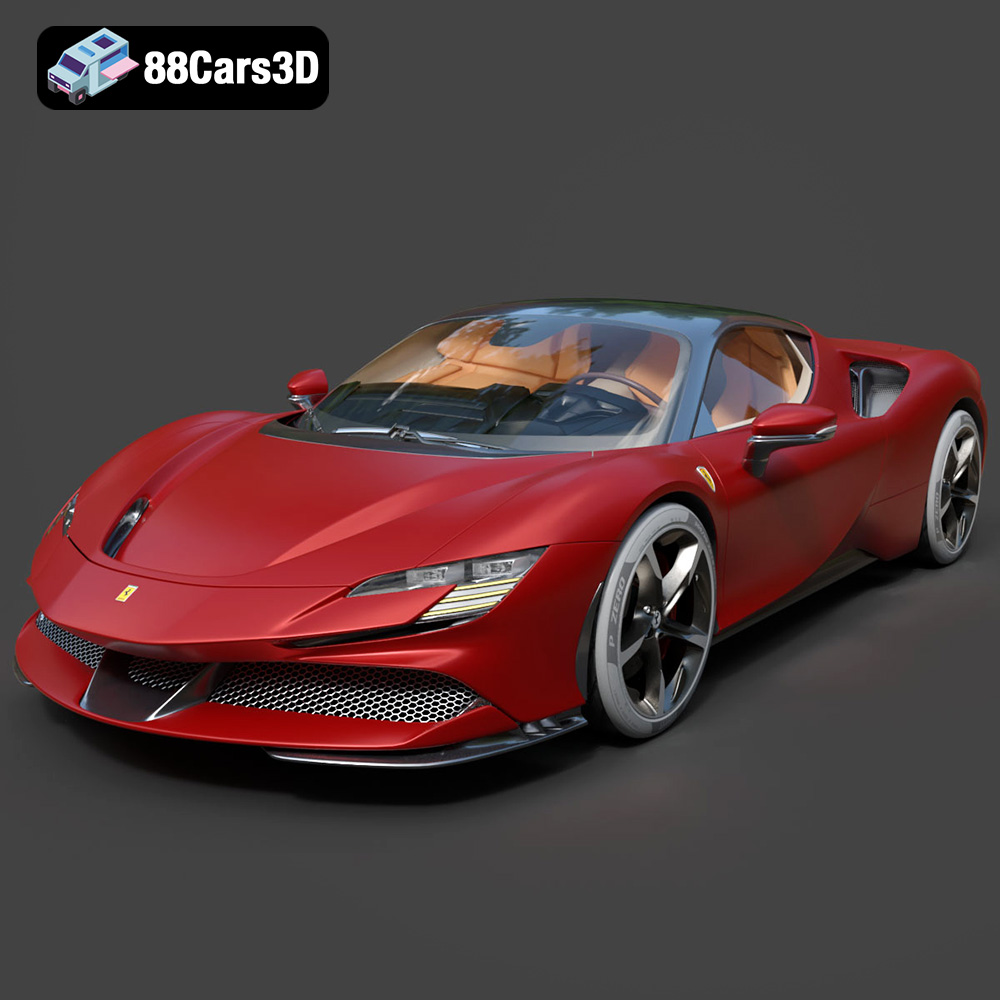
Texture: Yes
Material: Yes
Download the Ferrari SF90 Stradale 3D Model featuring clean geometry, realistic detailing, and a fully modeled interior. Includes .blend, .fbx, .obj, .glb, .stl, .ply, .unreal, and .max formats for rendering, simulation, and game development.
Price: $19.99

Texture: Yes
Material: Yes
Download the Harley Davidson F 1946 3D Model featuring clean geometry, realistic detailing, and a fully modeled interior. Includes .blend, .fbx, .obj, .glb, .stl, .ply, .unreal, and .max formats for rendering, simulation, and game development.
Price: $19.99

Texture: Yes
Material: Yes
Download the Land Rover Defender Works V8 3D Model featuring clean geometry, realistic detailing, and a fully modeled interior. Includes .blend, .fbx, .obj, .glb, .stl, .ply, .unreal, and .max formats for rendering, simulation, and game development.
Price: $19.99

Texture: Yes
Material: Yes
Download the Dodge RAM 2019 3D Model featuring clean geometry, realistic detailing, and a fully modeled interior. Includes .blend, .fbx, .obj, .glb, .stl, .ply, .unreal, and .max formats for rendering, simulation, and game development.
Price: $19.99

Texture: Yes | Material: Yes Download the ultra-high-detail Ford F-150 Raptor 2021 3D Model (8.73M Triangles). Features uncompromised widebody styling, fully modeled Fox Live Valve suspension, 37-inch tires, and interior. Perfect for premium VFX, cinematic rendering, and ArchViz. Includes .blend, .fbx, .obj, .glb, .stl, and .max formats.
Price: $29.99

Texture: Yes | Material: Yes Download the ultra-high-detail BMW 3 Series Limousine (2022) 3D Model (4.16M Triangles). Features the modernized G20 LCI exterior, the all-new BMW Curved Display interior, and ultra-dense topology. Perfect for ArchViz, VFX, and cinematic rendering. Includes .blend, .fbx, .obj, .glb, .stl, and .max formats.
Price: $19.99

Texture: Yes | Material: Yes Download the ultra-high-detail BMW i7 (2023) 3D Model (4.14M Triangles). Features the illuminated kidney grille, split crystal headlights, fully modeled Theatre Screen interior, and monolithic luxury styling. Perfect for ArchViz, VFX, and cinematic rendering. Includes .blend, .fbx, .obj, .glb, .stl, and .max formats.
Price: $19.99

Texture: Yes | Material: Yes Download the highly detailed CAT Manual Loader & Warehouse Carts Kit 3D Model (2.4M Triangles). Features a macro-detailed hydraulic pallet jack, heavy-duty forks, and transport carts. Perfect for industrial ArchViz, factory rendering, and logistics simulations. Includes .blend, .fbx, .obj, .glb, .stl, and .max formats.
Price: $19.99

Texture: Yes | Material: Yes
Download the highly optimized Mazda CX-5 2014 3D Model (294k Triangles). Features the dynamic Kodo design language, signature grille, and a clean interior. Perfectly balanced for ArchViz, background traffic, and game development. Includes .blend, .fbx, .obj, .glb, .stl, and .max formats.
Price: $19.99

Texture: Yes | Material: Yes Download the ultra-high-detail Bentley Flying Spur Mulliner 2022 3D Model (2.94M Triangles). Features the bespoke Double Diamond grille, a fully modeled diamond-quilted interior, and exquisite luxury styling. Perfect for high-end ArchViz, VFX, and cinematic rendering. Includes .blend, .fbx, .obj, .glb, .stl, and .max formats.
Price: $19.90

