Get 50% OFF All Premium 3D & STL Models!

“`html
The Unreal Engine Gameplay Ability System (GAS) is a powerful framework for creating flexible and scalable gameplay mechanics, especially when it comes to complex combat systems. Moving beyond simple hitscan attacks, GAS allows developers to build intricate abilities, manage character attributes, and handle complex interactions with unparalleled control. Whether you’re building a fast-paced action game, a strategic RPG, or even an interactive automotive experience, GAS provides the tools necessary to create compelling and engaging gameplay. In this comprehensive guide, we’ll dive deep into advanced combat mechanics using GAS, covering everything from projectile-based attacks and combo systems to status effects and AI integration. We’ll explore practical examples, best practices, and optimization techniques to help you harness the full potential of this robust system.
Before diving into advanced combat mechanics, it’s essential to have a solid understanding of GAS’s core components: Abilities, Attributes, and Effects. These three elements work together to define what a character can do, what their characteristics are, and how those characteristics can be modified.
Abilities represent actions a character can perform, such as attacking, dodging, or using a special skill. In GAS, abilities are represented by the UGameplayAbility class. Each ability defines its activation conditions, cost (e.g., stamina or mana), and execution logic. When sourcing automotive assets from marketplaces such as 88cars3d.com, consider integrating abilities like “nitro boost” or “emergency brake” to add a layer of gameplay to your visualizations.
Attributes represent the characteristics of a character, such as health, strength, agility, or speed. In GAS, attributes are managed by the UAttributeSet class. Attributes can be modified by Gameplay Effects, and their values can be used to determine the outcome of abilities.
Gameplay Effects (GEs) are used to modify attributes and apply buffs or debuffs to characters. GEs can be applied instantly or over time, and they can have complex conditions that determine when and how they are applied. A stun effect after a car crash or speed boost could be represented by Gameplay Effects. When working with automotive visualizations, consider using effects like “tire grip” or “engine power” to create a more realistic driving experience.
Projectile-based attacks are a staple of many combat systems, and GAS provides a flexible way to implement them. This involves creating an ability that spawns a projectile, applies damage on impact, and handles collision detection. The official Unreal Engine documentation at https://dev.epicgames.com/community/unreal-engine/learning offers comprehensive guidance on projectile implementation and customization within GAS.
First, create a new Actor class that represents the projectile. This actor should include a projectile movement component, a collision component, and a mechanism for applying damage on impact.
UGameplayStatics::ApplyPointDamage or UGameplayStatics::ApplyRadialDamage functions.Next, create a UGameplayAbility that spawns the projectile when activated. This ability should handle the cost of the attack (e.g., mana) and the animation playback.
SpawnActor task is commonly used for this purpose.PlayMontageAndWait task to wait for the animation to complete before proceeding.When the projectile hits an enemy, apply a Gameplay Effect to deal damage and potentially apply other effects like knockback or stun. The damage value could be an attribute on the ability itself and modified by buffs. GAS makes this process extremely flexible.
OnHit event to detect collisions with other actors.K2_ApplyGameplayEffectToActor function.Combo systems add depth and complexity to combat by allowing players to chain together multiple attacks in a sequence. GAS provides a powerful way to implement combo systems using ability tags and input buffering.
Use ability tags to identify different attacks in the combo sequence. Input buffering allows players to queue up inputs during the animation of the previous attack, making the combo system feel more responsive.
Define combo windows during the animation of each attack. If the player performs the correct input during the combo window, activate the next attack in the sequence.
Implement logic to reset the combo sequence if the player fails to perform the correct input within the combo window. This adds challenge and ensures the player is deliberate in their timing.
Status effects (e.g., stun, poison, bleed) add another layer of tactical depth to combat. GAS provides a natural framework for implementing these effects using Gameplay Effects and Gameplay Cues. Status effects are particularly important for creating compelling gameplay. Imagine creating a game based on vehicles sourced from platforms like 88cars3d.com, where status effects like “damaged engine” (reducing speed and acceleration) or “flat tire” (affecting handling) could dramatically impact the gameplay experience.
Create Gameplay Effects that apply the desired modifications to the character’s attributes. For example, a stun effect might disable movement and input, while a poison effect might deal damage over time.
Apply the status effect Gameplay Effects when an ability hits an enemy. This can be done directly in the ability’s execution logic or as a result of a projectile impact.
K2_ApplyGameplayEffectToActor function to apply the Gameplay Effect to the target actor.Provide clear visual and audio feedback to the player when a status effect is applied. This helps the player understand the current state of the game and make informed decisions.
Integrating AI with GAS allows you to create intelligent and responsive enemies that can use abilities, react to player actions, and adapt their behavior based on the game’s state. This integration is essential for creating challenging and engaging gameplay experiences.
Ensure that your AI characters have an Ability System Component (ASC) and an AIController. The AIController will be responsible for making decisions about which abilities to activate.
GiveAbility function on the ASC.Use Behavior Trees to define the AI’s decision-making process. Behavior Trees can be used to select abilities based on the game’s state, the player’s position, and other factors.
Establish a communication channel between the AIController and the ASC. This allows the AIController to request abilities and receive feedback from the ASC.
Optimizing your GAS combat system is crucial for ensuring smooth performance, especially in large-scale games with many actors and complex abilities. Consider that even high-quality 3D car models sourced from platforms like 88cars3d.com can impact performance if not properly optimized within your Unreal Engine project. Here are some key optimization techniques:
Use Gameplay Event Triggers to efficiently handle events and avoid unnecessary calculations. Filter events to only process relevant ones, reducing overhead.
Optimize attribute calculations to minimize the number of calculations performed per frame. Replicate attributes selectively to reduce network traffic.
Optimize Gameplay Cues to reduce the impact of visual and audio effects on performance. Use LODs, particle pooling, and audio attenuation to improve performance.
The Unreal Engine Gameplay Ability System provides a robust and flexible framework for creating advanced combat mechanics. By understanding the core concepts of Abilities, Attributes, and Effects, and by implementing techniques like projectile attacks, combo systems, status effects, and AI integration, you can create compelling and engaging combat experiences. Remember to optimize your GAS combat system to ensure smooth performance, especially in large-scale games. Whether you’re developing a fast-paced action game or a strategic RPG, GAS empowers you to build intricate and scalable gameplay mechanics that will captivate your audience. Experiment with the different features and techniques discussed in this guide to unlock the full potential of GAS and create truly unique and memorable combat experiences. Take advantage of resources like the Unreal Engine documentation and community forums to deepen your understanding and overcome any challenges you may encounter.
“`
Texture: Yes
Material: Yes
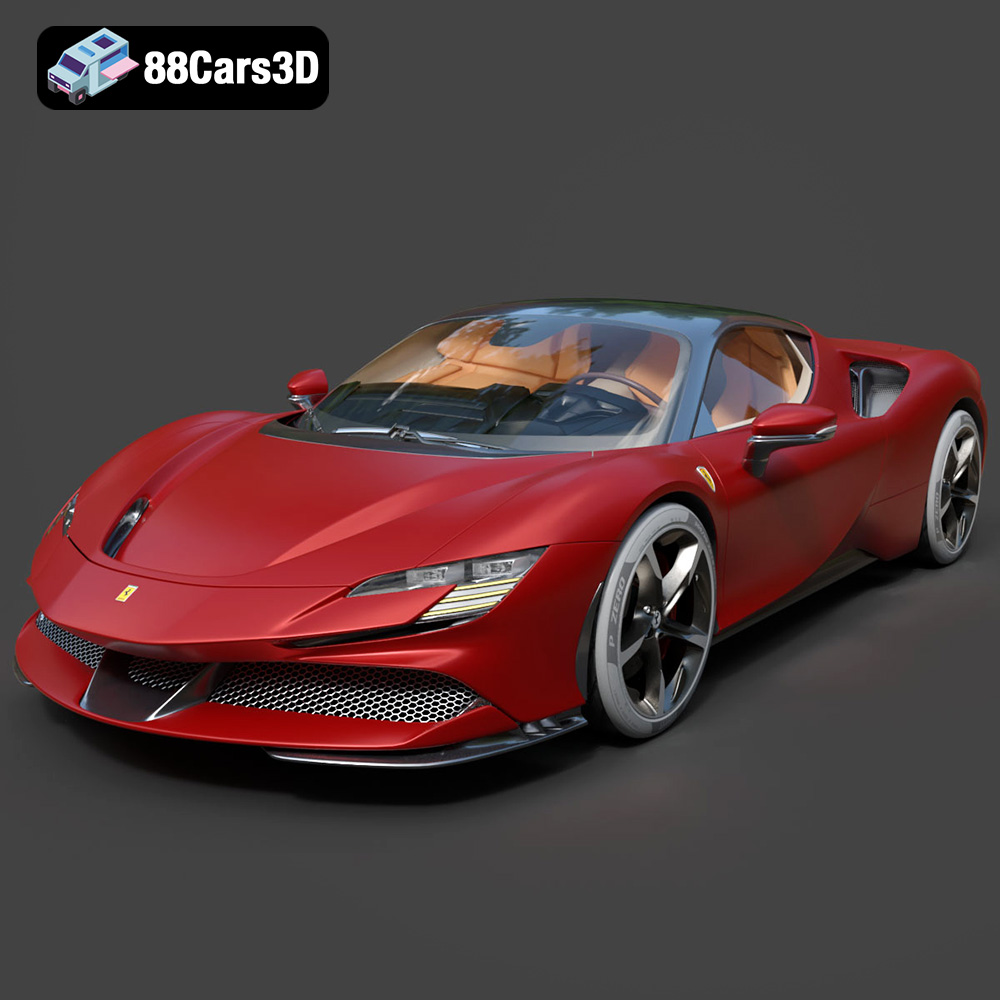
Download the Ferrari SF90 Stradale 3D Model featuring clean geometry, realistic detailing, and a fully modeled interior. Includes .blend, .fbx, .obj, .glb, .stl, .ply, .unreal, and .max formats for rendering, simulation, and game development.
Price: $19.99

Texture: Yes
Material: Yes
Download the Harley Davidson F 1946 3D Model featuring clean geometry, realistic detailing, and a fully modeled interior. Includes .blend, .fbx, .obj, .glb, .stl, .ply, .unreal, and .max formats for rendering, simulation, and game development.
Price: $19.99

Texture: Yes
Material: Yes
Download the Land Rover Defender Works V8 3D Model featuring clean geometry, realistic detailing, and a fully modeled interior. Includes .blend, .fbx, .obj, .glb, .stl, .ply, .unreal, and .max formats for rendering, simulation, and game development.
Price: $19.99

Texture: Yes
Material: Yes
Download the Dodge RAM 2019 3D Model featuring clean geometry, realistic detailing, and a fully modeled interior. Includes .blend, .fbx, .obj, .glb, .stl, .ply, .unreal, and .max formats for rendering, simulation, and game development.
Price: $19.99

Texture: Yes | Material: Yes Download the ultra-high-detail Ford F-150 Raptor 2021 3D Model (8.73M Triangles). Features uncompromised widebody styling, fully modeled Fox Live Valve suspension, 37-inch tires, and interior. Perfect for premium VFX, cinematic rendering, and ArchViz. Includes .blend, .fbx, .obj, .glb, .stl, and .max formats.
Price: $29.99

Texture: Yes | Material: Yes Download the ultra-high-detail BMW 3 Series Limousine (2022) 3D Model (4.16M Triangles). Features the modernized G20 LCI exterior, the all-new BMW Curved Display interior, and ultra-dense topology. Perfect for ArchViz, VFX, and cinematic rendering. Includes .blend, .fbx, .obj, .glb, .stl, and .max formats.
Price: $19.99

Texture: Yes | Material: Yes Download the ultra-high-detail BMW i7 (2023) 3D Model (4.14M Triangles). Features the illuminated kidney grille, split crystal headlights, fully modeled Theatre Screen interior, and monolithic luxury styling. Perfect for ArchViz, VFX, and cinematic rendering. Includes .blend, .fbx, .obj, .glb, .stl, and .max formats.
Price: $19.99

Texture: Yes | Material: Yes Download the highly detailed CAT Manual Loader & Warehouse Carts Kit 3D Model (2.4M Triangles). Features a macro-detailed hydraulic pallet jack, heavy-duty forks, and transport carts. Perfect for industrial ArchViz, factory rendering, and logistics simulations. Includes .blend, .fbx, .obj, .glb, .stl, and .max formats.
Price: $19.99

Texture: Yes | Material: Yes
Download the highly optimized Mazda CX-5 2014 3D Model (294k Triangles). Features the dynamic Kodo design language, signature grille, and a clean interior. Perfectly balanced for ArchViz, background traffic, and game development. Includes .blend, .fbx, .obj, .glb, .stl, and .max formats.
Price: $19.99

Texture: Yes | Material: Yes Download the ultra-high-detail Bentley Flying Spur Mulliner 2022 3D Model (2.94M Triangles). Features the bespoke Double Diamond grille, a fully modeled diamond-quilted interior, and exquisite luxury styling. Perfect for high-end ArchViz, VFX, and cinematic rendering. Includes .blend, .fbx, .obj, .glb, .stl, and .max formats.
Price: $19.90

