“`html
Mastering 3D Car Model Optimization for Seamless Web-Based Configurators
The automotive industry is rapidly embracing digital transformation, with web-based 3D car configurators leading the charge in engaging customers and streamlining sales processes. These interactive tools allow users to explore vehicles in stunning detail, customize options, and visualize their dream car from any angle. However, delivering such rich, real-time experiences directly in a web browser presents significant technical challenges. The key lies in meticulous 3D model optimization. Without it, even the most beautifully crafted 3D car models can grind a web configurator to a halt, leading to frustrated users and lost opportunities.
This comprehensive guide delves deep into the strategies and techniques essential for optimizing 3D car models for web configurators. We’ll cover everything from foundational modeling principles like topology and UV mapping to advanced rendering techniques, PBR materials, and crucial game engine optimization. Whether you’re a seasoned 3D artist, an automotive designer, or a developer aiming to create a lightning-fast interactive experience, understanding these principles is paramount. By the end of this article, you’ll be equipped with the knowledge to transform high-fidelity 3D assets into performant, visually impressive components ready for any online configurator. Platforms like 88cars3d.com specialize in providing exactly these types of high-quality, pre-optimized 3D car models, giving artists a head start in their projects.
The Foundation: Optimized 3D Modeling Topology for Automotive Surfaces
Good topology is the bedrock of any high-performing 3D model, especially for complex automotive surfaces. For web-based configurators, where every polygon counts, clean and efficient mesh construction is not just an aesthetic choice but a technical necessity. Automotive models demand smooth, flowing curves and crisp panel lines, which are heavily reliant on a well-structured mesh. Poor topology can lead to rendering artifacts, difficult UV unwrapping, and inefficient deformation, ultimately hindering performance.
Clean Quad-Based Topology for Automotive Surfaces
The industry standard for organic and deformable models, including car bodies, is a quad-dominant mesh. Quads (four-sided polygons) subdivide predictably, allowing for smooth surfaces without pinching or distortion when using subdivision surface modifiers. This is crucial for capturing the sleek, aerodynamic contours of a car. When modeling, prioritize consistent edge flow that follows the natural curves and creases of the vehicle. Avoid N-gons (polygons with more than four sides) and triangles in areas intended for smooth deformation, as they can cause unpredictable shading and tessellation issues in real-time engines. For sharp edges and panel gaps, use supporting edge loops to hold the form, ensuring that when subdivision modifiers are applied, the desired crispness is maintained without excessive poly count in other areas. Tools in software like Blender (refer to Blender 4.4 Manual for mesh editing specifics) offer excellent capabilities for managing and refining mesh topology.
Polygon Budgeting and Progressive Detail (LODs)
One of the most critical aspects of 3D model optimization for web is managing polygon counts. A high-detail model suitable for cinematic renders might have millions of polygons, which is entirely unsuitable for real-time web display. You need a strategic approach to polygon budgeting. This involves creating multiple versions of your model at varying levels of detail (LODs).
- LOD0 (High Detail): Typically used when the model is viewed up close, such as in an interior view or a focused customization area. For a car, this might be around 80,000 to 150,000 triangles for the main body, with wheels, interior, and other components adding another 100,000-200,000 triangles, totaling around 200,000-350,000 triangles.
- LOD1 (Medium Detail): For medium viewing distances, this version would be a significant reduction, perhaps 30-50% fewer polygons than LOD0. This often involves collapsing edge loops that don’t critically define the silhouette. For a car body, this could be 40,000-80,000 triangles.
- LOD2+ (Low Detail): Used when the car is further away. These models can be drastically simplified, sometimes as low as a few thousand triangles for the entire vehicle, relying heavily on normal maps for perceived detail. For instance, a basic exterior might be 15,000-30,000 triangles.
Implementing LODs ensures that the configurator renders only the necessary level of detail, significantly reducing the processing load on the user’s device. Most modern game engines (Unity, Unreal Engine) and web frameworks (Three.js, Babylon.js) have built-in support for LOD systems.
Efficient UV Mapping Strategies for Web Configurators
Beyond geometry, efficient UV mapping is critical for optimal performance and visual quality in web-based 3D configurators. UV maps define how textures are applied to your 3D model. Poor UV layouts can lead to distorted textures, wasted texture space, and increased memory usage, all of which are detrimental to a smooth web experience.
Strategic UV Unwrapping for Complex Car Parts
For automotive models, the complexity of curved surfaces, intricate panel lines, and distinct material zones (e.g., paint, glass, rubber, chrome) necessitates a strategic approach to UV unwrapping. The goal is to create UV islands that are as large and contiguous as possible to minimize texture seams, while also ensuring minimal distortion. This means carefully placing UV seams in less visible areas, such as along natural breaks in the geometry or where different materials meet. For instance, car body panels might be unwrapped individually, with seams hidden under trim or along sharp edges. Wheels can often be cylindrical projections, while interiors require more careful, often planar, unwrapping for components like seats and dashboards. Tools in 3ds Max, Maya, and Blender (the Blender UV Editor provides extensive features for this) offer various unwrapping methods like projection, pelting, and LSCM (Least Squares Conformal Mapping) to achieve clean, non-overlapping UVs. Ensure that UV islands have consistent texel density, meaning textures appear equally sharp across all parts of the model.
UV Atlasing for Performance
A significant bottleneck in real-time 3D applications, including web configurators, is the number of draw calls. Each material and texture typically generates at least one draw call. For a complex car model with many separate material assignments (e.g., paint, glass, plastic, metal, tire, caliper), this can quickly add up, severely impacting performance. UV atlasing is a powerful optimization technique that addresses this by combining multiple texture maps from different parts of the model into a single, larger texture atlas. All the UV islands from various parts of the car (e.g., dashboard, seats, door panels) are arranged within a single UV space (0-1 range) on a larger texture.
This approach has several benefits:
- Reduced Draw Calls: By sharing a single material and texture atlas across many parts, the number of draw calls is drastically reduced, leading to smoother performance.
- Efficient Memory Usage: While the atlas might be larger in resolution (e.g., 4096×4096 or 8192×8192), it can often be more memory-efficient than loading many smaller, individual textures, especially if those individual textures have redundant data or inefficient packing.
- Faster Loading Times: Fewer texture files mean fewer HTTP requests, resulting in quicker load times for the configurator.
The process involves consolidating PBR texture maps (Albedo, Metallic, Roughness, Normal) from different materials into their respective channels on a single atlas. Software like Substance Painter is excellent for managing and baking texture atlases. When sourcing models from marketplaces such as 88cars3d.com, look for models that already incorporate efficient UV atlasing or are structured in a way that allows for easy atlasing.
Physically Based Rendering (PBR) Materials and Shader Networks
Achieving photorealistic results in a web configurator demands the use of Physically Based Rendering (PBR) materials. PBR provides a more realistic and consistent way to describe how light interacts with surfaces, making your automotive rendering appear convincing under various lighting conditions. However, PBR materials can also be computationally intensive, so optimization is key.
Crafting Realistic PBR Materials for Automotive Finishes
For a realistic 3D car model, several key PBR texture maps are essential:
- Albedo/Base Color Map: Defines the base color of the surface, stripped of any lighting information. For car paint, this would be the raw color. For tires, a dark grey. Resolution typically ranges from 1024×1024 to 4096×4096, depending on the detail required and distance from the camera.
- Metallic Map: A grayscale map indicating which parts of the surface are metallic (white) and which are dielectric (black). Car bodies, chrome accents, and wheel rims will be white or near-white.
- Roughness Map: A grayscale map controlling the microsurface detail, determining how blurry or sharp reflections appear. Low values (dark) mean smooth, glossy surfaces (like clear coat on paint), while high values (bright) indicate rough, matte surfaces (like unpolished plastic).
- Normal Map: A crucial map that fakes high-detail geometry using normal information, significantly reducing polygon counts while retaining visual fidelity. This is vital for details like subtle panel indents, brake caliper details, or tire tread.
- Ambient Occlusion (AO) Map: This map simulates soft shadows where ambient light is occluded, adding depth and realism. It’s often baked into the model and can be multiplied with the Base Color.
When creating these, always aim for consistency in workflow. Software like Substance Painter or Mari excels at generating these maps. For car paint, consider a layered approach: a base color, then a metallic layer, and finally a clear coat effect controlled by roughness and normal maps. Glass requires specific transparency and refraction shaders, often simplified for web to improve performance.
Streamlining Shader Networks
Complex shader networks, while powerful for high-end rendering, can be performance killers in real-time web environments. The goal is to simplify these networks without sacrificing too much visual quality. Here are some strategies:
- Consolidate Materials: As discussed with UV atlasing, combine materials where possible to reduce the number of unique shaders the engine has to process.
- Bake Complex Procedural Textures: If you’re using procedural textures or complex node setups for effects like grunge, scratches, or wear in Blender (refer to the Cycles Render Baking section of the Blender manual), bake them down into standard image texture maps. This eliminates real-time calculations.
- Minimize Node Count: Review your shader graphs and eliminate redundant nodes or overly complex setups. Each node adds computation.
- Use Optimized Shader Models: Most web-oriented 3D frameworks and game engines (e.g., glTF’s PBR workflow) have highly optimized standard PBR shaders. Leverage these instead of custom, complex solutions unless absolutely necessary.
- Texture Resolution Management: Use appropriate texture resolutions. The body paint might need a 4K texture, but an internal, rarely seen component might be fine with a 512×512 texture. Implement texture streaming where large textures are loaded only when needed.
For automotive designs, consider creating master materials or shader instances that allow for color and roughness variations through parameters, rather than creating entirely new materials for every customizable option. This significantly reduces asset duplication and improves load times.
Game Engine Optimization Techniques for Web
While web configurators don’t always run on traditional game engines, the underlying optimization principles are largely the same. Frameworks like Three.js and Babylon.js, or direct integration with lightweight versions of Unity/Unreal Engine, benefit immensely from strategies honed in game development. The goal is to minimize draw calls, polygon count, and texture memory, ensuring a smooth, interactive experience on a wide range of devices.
Implementing Levels of Detail (LODs)
A well-executed LOD system is perhaps the most impactful optimization for complex 3D models in real-time applications. For 3D car models in a web configurator, you should have at least three, and ideally four, distinct LOD levels:
- LOD0 (Highest Detail): This is your primary model, intended for close-up views. It should have all necessary detail for reflections, material accuracy, and shape. For a modern car model, this could range from 150,000 to 300,000 triangles for the entire vehicle, with highly detailed components like the engine, interior, or intricate wheel designs possibly pushing it higher.
- LOD1 (Mid-Detail): When the camera pulls back slightly, this version takes over. It’s typically 50-70% of the polygon count of LOD0. You would strategically remove less critical edge loops and combine small, separate meshes. For example, bolts on a wheel might be removed, or the underside of the car simplified significantly. This might mean a poly count of 75,000 to 150,000 triangles.
- LOD2 (Low Detail): For medium-distance views, this model reduces the poly count further, often to 20-30% of LOD0. Minor details are removed, and some curves might appear slightly less smooth. This could be in the range of 30,000 to 60,000 triangles.
- LOD3 (Very Low Detail/Proxy): Used for distant views or when multiple cars are displayed simultaneously (e.g., in a showroom environment). This can be a highly simplified mesh, perhaps 5,000 to 15,000 triangles, relying heavily on baked normal maps for perceived form.
Creating LODs can be done manually in DCC software like 3ds Max or Blender (using the Decimate Modifier), or using automated tools within game engines. The transitions between LODs should be imperceptible to the user.
Draw Call Reduction Techniques
Beyond polygon count, the number of draw calls is a major performance factor. Each time the GPU has to switch states (e.g., change material, texture, or shader), it incurs a draw call. Reducing these can dramatically improve frame rates.
- Texture Atlasing: As discussed, combining multiple textures into a single atlas allows multiple objects to share one material, reducing draw calls.
- Material Sharing: Ensure that identical materials (e.g., the same black plastic used on multiple interior components) are instanced and shared across all relevant meshes, rather than creating new material instances.
- Mesh Instancing: If your configurator features multiple identical components (e.g., all four wheels of the same design), ensure they are rendered using hardware instancing. This means the GPU renders the geometry once and then reuses it with different transform data, drastically saving on draw calls.
- Static Batching / Dynamic Batching: Game engines like Unity and Unreal offer automatic batching systems that combine multiple small meshes into a single larger mesh to reduce draw calls. Understand how these systems work in your chosen framework and structure your models accordingly. For instance, small, non-moving parts can often be statically batched.
Occlusion Culling and Frustum Culling
These are fundamental culling techniques employed by real-time rendering engines:
- Frustum Culling: This is a basic optimization where objects entirely outside the camera’s view frustum (the visible pyramid of space) are not rendered. This is usually handled automatically by the rendering engine, but a well-organized scene hierarchy can aid it.
- Occlusion Culling: This more advanced technique prevents objects from being rendered if they are hidden behind other opaque objects, even if they are within the camera’s frustum. For a car configurator, parts of the interior that are obscured by the car body when viewed from the exterior should be culled. This often requires baking occlusion data into the scene or carefully setting up occlusion volumes in the engine. This is particularly important for models with detailed interiors, like the high-quality 3D car models found on 88cars3d.com, which can feature extensive internal components.
By implementing these game engine optimization techniques, you can ensure your web configurator delivers a smooth, high-performance experience, regardless of the device or browser.
File Format Selection and Compatibility
Choosing the right file format is paramount for web-based 3D applications. The format needs to be efficient, universally supported, and capable of faithfully representing PBR materials and complex model hierarchies. While many traditional 3D formats exist, a few stand out for their web optimization capabilities.
The Power of glTF and USDZ for Web and AR/VR
For modern web-based 3D configurators and interactive experiences, two formats have emerged as industry leaders:
- glTF (GL Transmission Format): Often dubbed the “JPEG of 3D,” glTF is an open-standard, royalty-free format designed for efficient transmission and loading of 3D scenes and models by applications. It directly supports PBR materials (Metallic-Roughness workflow), animations, hierarchical scene graphs, and instancing. This makes it ideal for showcasing 3D car models. Its binary version, .glb, consolidates all data (geometry, textures, animations) into a single file, simplifying distribution. Many web-based 3D viewers and frameworks natively support glTF, ensuring broad compatibility and excellent performance. It’s the go-to format for interactive web experiences.
- USDZ: Developed by Apple in collaboration with Pixar, USDZ is a proprietary, uncompressed, and unencrypted file format for 3D content, optimized for augmented reality (AR) experiences on Apple devices (iOS, iPadOS). It’s built upon Pixar’s Universal Scene Description (USD) format. While more niche than glTF for general web configurators, it’s indispensable for AR/VR applications that might be integrated with a web configurator (e.g., “view this car in your driveway”). USDZ also supports PBR materials and object hierarchies.
When preparing models, targeting these formats directly can save a lot of conversion headaches. They are built for the modern real-time rendering pipeline and web delivery.
Conversion Workflows and Data Integrity
Often, your primary 3D car models will be created in high-end DCC (Digital Content Creation) software like 3ds Max, Blender, or Maya, and saved in formats like .FBX or .OBJ. These formats, while robust, are often not optimized for direct web delivery due to their verbosity and potential for containing unnecessary data.
The workflow for conversion typically involves:
- Clean-up in DCC Software: Before export, ensure your model is fully optimized:
- Apply all transforms and modifiers (e.g., subdivision surfaces can be baked down to a specific LOD).
- Delete hidden or unnecessary geometry.
- Consolidate materials where possible.
- Ensure clean UVs and correctly assigned PBR texture maps.
- Export to glTF/USDZ: Most modern DCC software has direct export options for glTF. For example, Blender 4.4 offers robust glTF 2.0 export capabilities (see its glTF 2.0 exporter documentation). When exporting, pay close attention to settings for:
- Meshes: Ensure normals are correctly handled (tangents, binormals), and apply instancing for duplicate objects.
- Materials: Verify that PBR material properties (Base Color, Metallic, Roughness, Normal, Emissive, Occlusion) are mapped correctly to the glTF PBR Metallic-Roughness shader.
- Textures: Specify desired texture resolutions and ensure images are embedded or linked correctly.
- Scene: Check that the scene hierarchy is clean and any animations (if applicable for a configurator, e.g., door opening) are exported properly.
- Validation and Testing: After export, validate your glTF/USDZ file using tools like glTF Validator or by viewing it in a web-based viewer. Test the model in your target web configurator environment across different devices to ensure visual fidelity and performance.
Maintaining data integrity throughout this pipeline is crucial. Every component, from the meticulously designed wheel to the perfectly shaded body, must translate accurately to the web-optimized format.
Interactive Lighting and Environment Setup
Realistic lighting and environment play a pivotal role in the perceived quality of automotive rendering within a web configurator. Even with perfectly optimized models and PBR materials, poor lighting can make a car look flat or unappealing. However, achieving interactive, high-quality lighting in a web browser requires careful optimization.
Real-time Lighting Strategies
Achieving dynamic and visually rich lighting on the web often involves a combination of techniques:
- Image-Based Lighting (IBL) with HDRIs: This is arguably the most effective technique for realistic real-time reflections and ambient lighting. An HDR (High Dynamic Range) image of an environment (e.g., a studio, an outdoor scene) is used to simulate complex lighting. The HDRI provides both the environment for reflections and the ambient light source. For web, you’ll want to optimize your HDRIs:
- Resolution: Use appropriately sized HDRIs. While a 4K or 8K HDRI provides excellent detail, smaller, optimized versions (e.g., 1K or 2K for ambient, higher for reflections) might be necessary for performance.
- Prefiltered Environment Maps: Modern real-time renderers use prefiltered environment maps (often in a .basis or .ktx2 format) to efficiently calculate reflections with varying roughness, providing correct PBR reflections.
- Simple Real-time Lights: While full global illumination is too heavy for most web scenarios, you can sparingly use a few dynamic lights (e.g., a key light, fill light, and rim light) to highlight key features of the car. Use directional lights for sunlight, and point or spot lights for specific accents. Keep the number of real-time lights to a minimum (typically 2-4) to maintain performance. Bake complex shadow maps where possible to avoid expensive real-time shadow calculations.
- Baked Lighting: For static elements in the scene (e.g., the showroom floor or a backdrop), baking lighting information directly into textures (lightmaps) is a highly efficient technique. This preprocesses complex lighting calculations, storing them as texture data, which the GPU can render quickly. This is less applicable to the car itself if it’s meant to be dynamically lit or customizable, but crucial for its environment.
Balancing these techniques allows you to achieve stunning visual realism without overwhelming the client’s browser. When working in Blender, for example, the Cycles engine can bake various types of lighting information, which can then be used in a real-time web environment.
Environment Optimization for Web Configurators
The environment surrounding the 3D car model can significantly impact performance. A common pitfall is creating overly complex environments with high polygon counts, even for elements that are mostly static background. Here are efficient strategies:
- Skyboxes and Skydomes: Instead of modeling a complex 3D environment, use a panoramic image (often generated from the same HDRI used for IBL) wrapped around a simple sphere or cube. This provides an immersive background with minimal geometry.
- Simplified Backdrop Models: If interactive elements are needed in the background (e.g., a changing showroom or a garage), keep their geometry extremely simple. Use strategically placed planes with textures for distant objects, and rely on normal maps for surface details.
- Parallax Mapping / Height Maps: For subtle depth on flat surfaces like a wall texture or a simple road, parallax mapping can create the illusion of depth without adding actual geometry.
- Strategic Occlusion: Design your environments such that less important or distant details are naturally occluded by foreground elements, reducing the amount the engine needs to draw.
By optimizing both the interactive lighting and the environment, your web configurator can maintain a high visual standard while offering a fluid user experience.
Advanced Optimization for AR/VR and 3D Printing Prep
Web-based 3D configurators are increasingly extending into AR/VR and 3D printing applications. Each of these platforms demands unique optimization considerations beyond standard web display, ensuring your 3D car models are versatile enough for multiple use cases.
AR/VR Optimization Techniques
Augmented and Virtual Reality experiences demand even stricter performance budgets than standard web configurators. Frame rate is paramount to prevent motion sickness and ensure immersion. Here are key AR/VR optimization techniques:
- Extreme LOD Aggressiveness: While LODs are important for web, they are critical for AR/VR. For AR experiences on mobile, LODs might need to transition much more aggressively, and the lowest LOD (LOD3 or LOD4) might be a heavily simplified proxy model with minimal geometry, relying almost entirely on baked textures for visual information. A mobile AR experience might target under 50,000 polygons for an entire car, including wheels and simplified interior.
- Baked Lighting and Shadows: Real-time shadows and complex lighting are performance heavy. In AR/VR, especially mobile AR, baking lightmaps and ambient occlusion into the textures or vertex colors is highly recommended. This pre-computes the lighting, making rendering much faster.
- Texture Atlasing and Power-of-Two Resolutions: Continue to use UV atlasing to reduce draw calls. For optimal performance on most mobile GPUs and rendering APIs (like WebGL/WebGPU), ensure all texture resolutions are powers of two (e.g., 512, 1024, 2048, 4096).
- Minimal Transparency and Refraction: Transparent and refractive materials (like car glass) are expensive to render, especially with multiple layers. For AR/VR, consider simplifying glass shaders to simple masked transparency or using opaque materials with baked reflections if realism allows.
- Occlusion Culling and Frustum Culling: These are even more critical in AR/VR to ensure that only visible geometry is rendered.
- Object Instancing: For any repeated elements (like wheel bolts or tire treads), use instancing to reduce memory and draw calls.
The goal is to provide a smooth 60fps (or higher for VR) experience, which requires a highly disciplined approach to asset creation and optimization. Platforms that leverage AR/VR visualization often have their own specific guidelines for asset preparation.
3D Printing Preparation and Mesh Repair
While fundamentally different from real-time rendering, preparing 3D car models for 3D printing involves its own set of optimization and repair challenges. Models from 88cars3d.com are typically clean, but adaptations may be needed.
- Manifold Geometry: For 3D printing, your model must be “water-tight” or manifold. This means every edge must be shared by exactly two faces. There should be no open edges, inverted normals, or disconnected geometry. This ensures the model has a clearly defined inside and outside.
- Mesh Repair: Tools like Blender’s 3D Print Toolbox add-on (which can be enabled via Preferences > Add-ons) or dedicated software like Meshmixer are invaluable for checking and repairing non-manifold geometry, filling holes, and correcting inverted normals.
- Wall Thickness: Ensure all parts of the model have sufficient wall thickness to be printable. Thin features may break during printing or handling.
- Decimation for Print Resolution: While web optimization often focuses on reducing polygons for performance, 3D printing requires sufficient detail for the chosen print resolution. You might need to decimate high-resolution sculpts to a manageable poly count for the printer without losing critical surface detail. Conversely, low-poly game assets might need subdivision.
- Boolean Operations: If your car model has intricate interlocking parts or you need to cut out sections, use boolean operations carefully. Post-boolean cleanup is often necessary to fix resulting non-manifold geometry.
- File Formats for 3D Printing: The most common formats for 3D printing are STL (Stereolithography) and OBJ. Ensure your exported file maintains accurate scale and units.
Adapting a model from a web configurator to 3D printing involves a shift in focus from visual performance to physical integrity and manufacturability. Understanding these distinct requirements is key to broadening the utility of your 3D assets.
Conclusion
Optimizing 3D car models for web-based configurators is a multifaceted discipline that marries artistic precision with technical acumen. From the initial stages of modeling with clean, quad-based topology and strategic UV mapping, to the sophisticated realm of PBR materials and efficient shader networks, every step directly impacts the performance and visual fidelity of your interactive experience. Implementing smart game engine optimization techniques like LODs, draw call reduction, and various culling methods ensures your configurator remains responsive and engaging across diverse user devices. Furthermore, selecting the right file formats, such as glTF and USDZ, is crucial for seamless web and AR/VR integration, preserving data integrity throughout the conversion workflow.
By adhering to these best practices, 3D artists and developers can create truly immersive and high-performing automotive configurators. The demand for realistic and interactive automotive rendering is only growing, driving the need for expertly optimized 3D car models. Whether you’re building from scratch or leveraging pre-made assets, a disciplined optimization workflow is your greatest asset. For those seeking high-quality, production-ready 3D car models designed with these principles in mind, platforms like 88cars3d.com offer an extensive library that can significantly accelerate your development cycle and ensure your projects meet the rigorous demands of modern web visualization. Embrace these techniques, and unlock the full potential of interactive 3D on the web.
“`
Featured 3D Car Models
Texture: Yes
Material: Yes
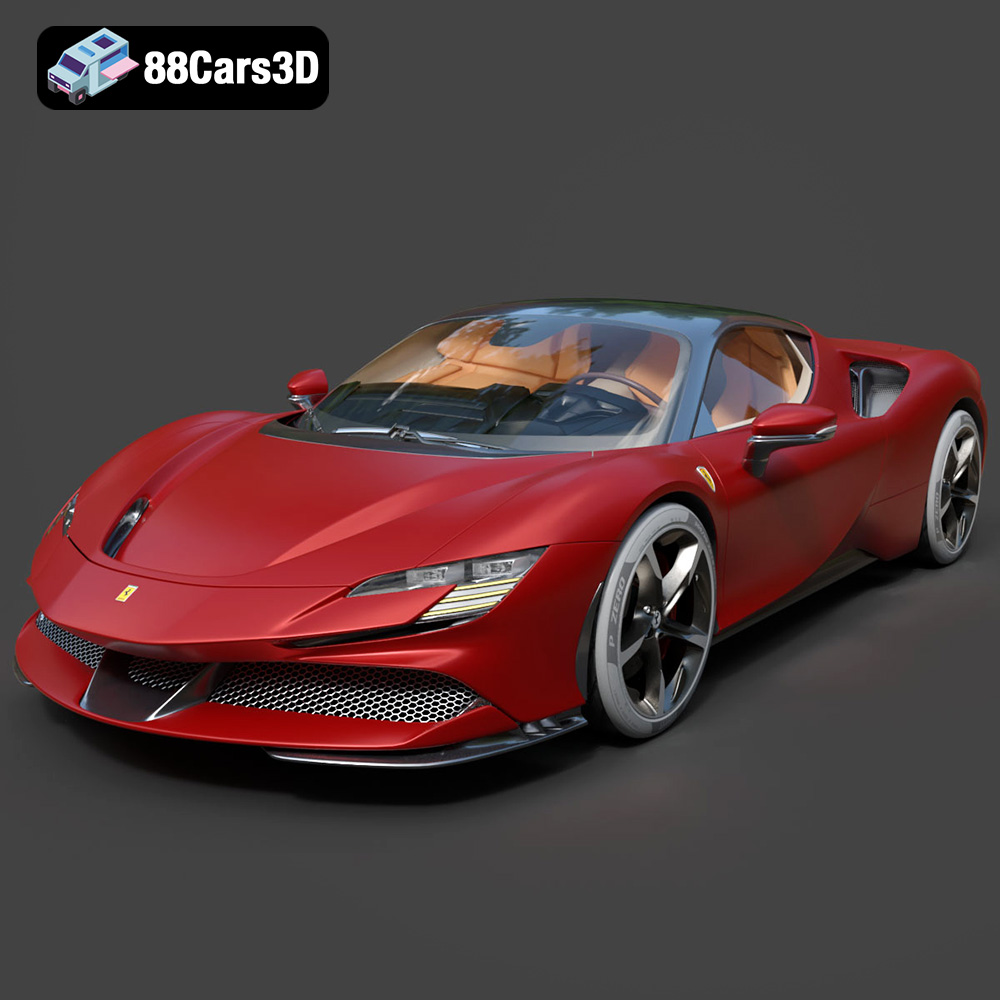
Download the Ferrari SF90 Stradale 3D Model featuring clean geometry, realistic detailing, and a fully modeled interior. Includes .blend, .fbx, .obj, .glb, .stl, .ply, .unreal, and .max formats for rendering, simulation, and game development.
Price: $19.99
View Product

Texture: Yes
Material: Yes
Download the Harley Davidson F 1946 3D Model featuring clean geometry, realistic detailing, and a fully modeled interior. Includes .blend, .fbx, .obj, .glb, .stl, .ply, .unreal, and .max formats for rendering, simulation, and game development.
Price: $19.99
View Product

Texture: Yes
Material: Yes
Download the Land Rover Defender Works V8 3D Model featuring clean geometry, realistic detailing, and a fully modeled interior. Includes .blend, .fbx, .obj, .glb, .stl, .ply, .unreal, and .max formats for rendering, simulation, and game development.
Price: $19.99
View Product

Texture: Yes
Material: Yes
Download the Dodge RAM 2019 3D Model featuring clean geometry, realistic detailing, and a fully modeled interior. Includes .blend, .fbx, .obj, .glb, .stl, .ply, .unreal, and .max formats for rendering, simulation, and game development.
Price: $19.99
View Product

Texture: Yes | Material: Yes Download the ultra-high-detail Ford F-150 Raptor 2021 3D Model (8.73M Triangles). Features uncompromised widebody styling, fully modeled Fox Live Valve suspension, 37-inch tires, and interior. Perfect for premium VFX, cinematic rendering, and ArchViz. Includes .blend, .fbx, .obj, .glb, .stl, and .max formats.
Price: $29.99
View Product

Texture: Yes | Material: Yes Download the ultra-high-detail BMW 3 Series Limousine (2022) 3D Model (4.16M Triangles). Features the modernized G20 LCI exterior, the all-new BMW Curved Display interior, and ultra-dense topology. Perfect for ArchViz, VFX, and cinematic rendering. Includes .blend, .fbx, .obj, .glb, .stl, and .max formats.
Price: $19.99
View Product

Texture: Yes | Material: Yes Download the ultra-high-detail BMW i7 (2023) 3D Model (4.14M Triangles). Features the illuminated kidney grille, split crystal headlights, fully modeled Theatre Screen interior, and monolithic luxury styling. Perfect for ArchViz, VFX, and cinematic rendering. Includes .blend, .fbx, .obj, .glb, .stl, and .max formats.
Price: $19.99
View Product

Texture: Yes | Material: Yes Download the highly detailed CAT Manual Loader & Warehouse Carts Kit 3D Model (2.4M Triangles). Features a macro-detailed hydraulic pallet jack, heavy-duty forks, and transport carts. Perfect for industrial ArchViz, factory rendering, and logistics simulations. Includes .blend, .fbx, .obj, .glb, .stl, and .max formats.
Price: $19.99
View Product

Texture: Yes | Material: Yes
Download the highly optimized Mazda CX-5 2014 3D Model (294k Triangles). Features the dynamic Kodo design language, signature grille, and a clean interior. Perfectly balanced for ArchViz, background traffic, and game development. Includes .blend, .fbx, .obj, .glb, .stl, and .max formats.
Price: $19.99
View Product

Texture: Yes | Material: Yes Download the ultra-high-detail Bentley Flying Spur Mulliner 2022 3D Model (2.94M Triangles). Features the bespoke Double Diamond grille, a fully modeled diamond-quilted interior, and exquisite luxury styling. Perfect for high-end ArchViz, VFX, and cinematic rendering. Includes .blend, .fbx, .obj, .glb, .stl, and .max formats.
Price: $19.90
View Product


