Get 50% OFF All Premium 3D & STL Models!

“`html
Animation Blueprints are a cornerstone of interactive experiences in Unreal Engine, especially when dealing with complex assets like high-fidelity 3D car models. Whether you’re building a realistic driving simulator, an interactive product configurator, or a stunning automotive visualization, mastering Animation Blueprints is crucial. This article will delve into the essential techniques and workflows for leveraging Animation Blueprints, guiding you from basic setup to advanced animation control. You’ll learn how to create state machines, blend spaces, and utilize advanced features like layered blend per bone to bring your 3D car models to life. Get ready to unlock the full potential of your automotive assets and create immersive, engaging experiences.
Animation Blueprints are visual scripting graphs that control the animation of Skeletal Meshes in Unreal Engine. They allow you to blend between different animations, react to gameplay events, and create complex, dynamic movements. Understanding the core components of an Animation Blueprint is the first step towards creating believable and interactive animations for your 3D car models.
Before diving into Animation Blueprints, it’s essential to understand the relationship between Skeletal Meshes and Animation Assets. The Skeletal Mesh is the 3D model with a bone structure, while Animation Assets contain the actual movement data (e.g., idle animation, driving animation). Animation Blueprints act as the bridge, connecting these two elements and orchestrating the animation playback. When sourcing automotive assets from marketplaces such as 88cars3d.com, ensure they include both the Skeletal Mesh and a set of relevant Animation Assets.
An Animation Blueprint consists of two main graphs: the Animation Graph and the Event Graph. The Animation Graph is where you define the animation logic, such as state machines and blend spaces. The Event Graph handles events and variables that drive the animation. For example, you might use the Event Graph to update a variable that controls the car’s speed, which in turn affects the blend between idle and driving animations in the Animation Graph. The official Unreal Engine documentation at https://dev.epicgames.com/community/unreal-engine/learning offers in-depth tutorials on navigating these graphs.
To create an Animation Blueprint, right-click in the Content Browser and select Animation > Animation Blueprint. Choose the target Skeletal Mesh (your car model) and give the Blueprint a meaningful name. Double-click the Blueprint to open the editor. Inside, you’ll find the two graphs mentioned earlier. A simple setup involves connecting a single Animation Asset (e.g., an idle animation) to the Output Pose node in the Animation Graph. This will play the animation continuously. However, the real power of Animation Blueprints lies in their ability to blend and transition between multiple animations.
State Machines are a powerful tool within Animation Blueprints for managing complex animation logic. They allow you to define different animation states (e.g., “Idle,” “Driving,” “Braking”) and the rules that govern transitions between them. This is particularly useful for automotive visualizations, where the car’s animation needs to react to various driving conditions and user inputs.
To create a State Machine, right-click in the Animation Graph and select “Add New State Machine.” Inside the State Machine, you can add individual states by right-clicking and selecting “Add New State.” Each state represents a specific animation or set of animations. For example, you might have an “Idle” state that plays the car’s idle animation, and a “Driving” state that plays a driving animation. You can then connect Animation Assets (or more complex blend spaces) to each state’s entry point.
The key to a functional State Machine lies in the transition rules. These rules define the conditions under which the animation should switch from one state to another. Transitions are created by dragging from one state to another. Clicking on the transition arrow opens the transition rule editor, where you can define the conditions using boolean variables, comparisons, and other logical operations. For instance, you might create a transition from “Idle” to “Driving” when the “IsDriving” variable is set to true. Remember to connect these variables to your game logic in the Event Graph or through Blueprint communication.
Here’s a simplified example for a car:
Blend Spaces are another essential tool for creating realistic animations in Unreal Engine. They allow you to blend between multiple animations based on one or more input parameters. This is particularly useful for creating smooth transitions between different driving speeds or steering angles for your 3D car models.
Unreal Engine offers two types of Blend Spaces: 1D and 2D. A 1D Blend Space blends between animations based on a single input parameter, such as speed. A 2D Blend Space blends based on two input parameters, such as speed and steering angle. Choose the type that best suits the complexity of your animation requirements. A 1D Blend Space might be sufficient for simple acceleration, while a 2D Blend Space is ideal for nuanced vehicle control.
To create a Blend Space, right-click in the Content Browser and select Animation > Blend Space 1D or Blend Space. Open the Blend Space editor and define the input parameter (e.g., “Speed”). Then, add animation samples to the Blend Space by dragging Animation Assets from the Content Browser onto the grid. Each sample represents a specific animation at a particular input value. For example, in a 1D Blend Space for speed, you might have an idle animation at Speed = 0, a slow driving animation at Speed = 50, and a fast driving animation at Speed = 100.
Once you’ve created a Blend Space, you can integrate it into your State Machine. Simply drag the Blend Space from the Content Browser into the Animation Graph and connect it to a state’s entry point. You’ll need to connect the Blend Space’s input parameter to a variable in the Animation Blueprint. This variable will then drive the animation blending based on the game’s logic. Platforms like 88cars3d.com offer optimized models with pre-built animations that can easily integrate with blend spaces for realistic movement.
Beyond State Machines and Blend Spaces, Unreal Engine offers advanced animation techniques that can further enhance the realism and interactivity of your automotive visualizations. Layered blending and Inverse Kinematics (IK) are two powerful tools that can add a layer of polish to your projects.
Layered Blend Per Bone allows you to blend different animations on specific bones of the Skeletal Mesh. This is useful for creating complex animations where only certain parts of the model need to be animated. For example, you could use Layered Blend Per Bone to animate the steering wheel and driver’s hands independently of the car’s overall movement. To use this feature, add a “Layered Blend Per Bone” node to your animation graph. Define which bones should be affected and specify the blend weights for each bone. This node allows blending a secondary animation on top of the base pose. The Blend Mask defines which bones are affected by the blend.
Inverse Kinematics (IK) is a technique that allows you to control the position of a bone in the skeleton by specifying the desired position of its end effector (e.g., the hand or foot). This is particularly useful for ensuring that the driver’s hands are always correctly positioned on the steering wheel, regardless of the car’s orientation. Unreal Engine provides various IK nodes, such as “Two Bone IK” and “CCD IK,” that you can use in your Animation Blueprint. Setting up IK involves defining the target position for the end effector and specifying the bones that should be adjusted to reach that position. Remember to account for joint limits to maintain realism.
These techniques can be combined for even more realistic results. For example, you can use Layered Blend Per Bone to blend in a driving animation, while using IK to ensure the driver’s hands are correctly positioned on the steering wheel during the drive cycle. Remember that complex setups require careful planning and debugging, but the results can significantly enhance the visual fidelity of your automotive visualizations. When implementing these advanced techniques, keep an eye on performance. Complex calculations can impact frame rates, especially on lower-end hardware.
Performance is paramount in real-time rendering, especially when working with complex 3D car models. Optimizing your Animation Blueprints and animation assets is crucial for maintaining a smooth and responsive experience. Here are some key strategies for optimizing performance.
Animation compression reduces the size of your Animation Assets, which can significantly improve loading times and memory usage. Unreal Engine offers several compression methods, such as “Remove Redundant Keys” and “Bitwise Compression.” Experiment with different compression settings to find the optimal balance between file size and animation quality. Generally, animations for vehicles don’t require extremely high precision, so aggressive compression can often be applied without noticeable quality loss.
Level of Detail (LOD) is a technique that allows you to use simpler animations for objects that are further away from the camera. This reduces the computational cost of animation processing. You can create different LOD levels for your animations and configure the engine to automatically switch between them based on distance. This technique is particularly effective for large open-world environments where the car may be viewed from a significant distance.
The efficiency of your Animation Blueprint graph also affects performance. Avoid complex calculations and unnecessary branching. Use “Event Tick” sparingly and consider using timers or custom events to update variables less frequently. Profile your Animation Blueprint to identify performance bottlenecks and optimize accordingly. Caching frequently accessed values in local variables can also improve performance. Using the “IsValid” node to check object validity before accessing their properties can prevent errors and improve stability. The Unreal Insights tool can be invaluable for pinpointing performance issues within your Blueprint code.
Animation Blueprints are a fundamental component of many real-world automotive applications, from interactive configurators to virtual showrooms. By mastering Animation Blueprints, you can create compelling and engaging experiences that showcase the features and capabilities of your 3D car models.
Interactive car configurators allow customers to customize their dream car by selecting different options, such as paint colors, wheels, and interior trims. Animation Blueprints can be used to animate these changes in real-time, providing visual feedback to the user. For example, you can use Animation Blueprints to switch between different wheel models or to open and close the car’s doors. These configurators are powerful marketing tools, and many automotive companies use Unreal Engine to develop cutting-edge experiences.
Virtual showrooms allow customers to explore a car in a realistic 3D environment from the comfort of their own homes. Animation Blueprints can be used to create interactive product demonstrations, such as showcasing the car’s safety features or demonstrating its performance capabilities. Imagine a virtual demonstration of advanced driver-assistance systems, where the car automatically brakes to avoid a collision. Animation Blueprints would be essential to orchestrate these events.
For driving simulators and games, integrating Animation Blueprints with vehicle physics simulations is crucial. The Animation Blueprint should respond to the physics engine’s output, such as speed, steering angle, and suspension compression. This creates a realistic and immersive driving experience. For instance, the car’s body should lean into turns based on the calculated centrifugal force, and the suspension should compress when driving over bumps. This tight integration between animation and physics is key to achieving realism.
Animation Blueprints are an indispensable tool for creating dynamic and interactive automotive visualizations in Unreal Engine. By understanding the core concepts of State Machines, Blend Spaces, and advanced techniques like Layered Blending and IK, you can bring your 3D car models to life and create immersive experiences for your audience. Remember to optimize your animations for performance to ensure a smooth and responsive experience. Platforms like 88cars3d.com offer a wide range of high-quality 3D car models that are ready to be animated with Animation Blueprints.
Start experimenting with Animation Blueprints today. Begin with simple animations and gradually increase the complexity as you gain confidence. Explore the Unreal Engine documentation and online tutorials to learn more about advanced techniques. With practice and dedication, you’ll be able to create stunning automotive visualizations that showcase the full potential of your 3D car models. Consider these actionable next steps:
“`
Texture: Yes
Material: Yes
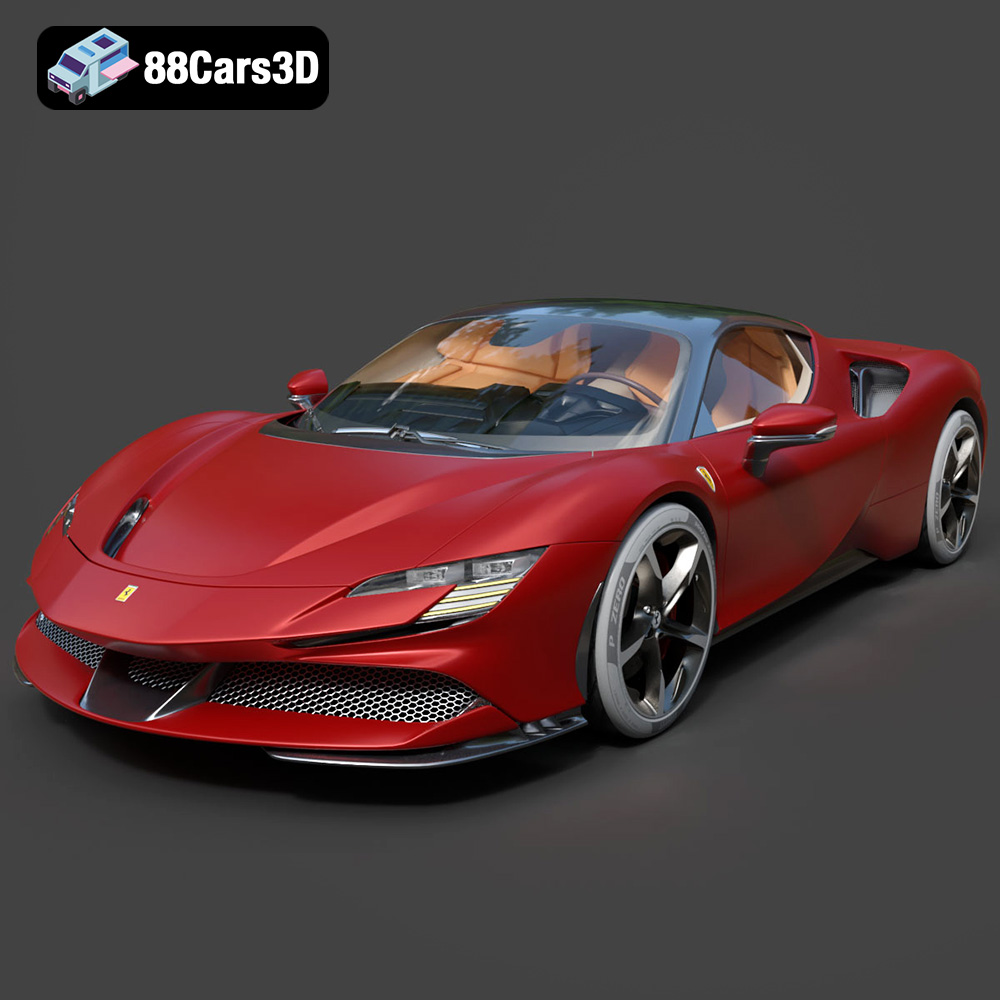
Download the Ferrari SF90 Stradale 3D Model featuring clean geometry, realistic detailing, and a fully modeled interior. Includes .blend, .fbx, .obj, .glb, .stl, .ply, .unreal, and .max formats for rendering, simulation, and game development.
Price: $19.99

Texture: Yes
Material: Yes
Download the Harley Davidson F 1946 3D Model featuring clean geometry, realistic detailing, and a fully modeled interior. Includes .blend, .fbx, .obj, .glb, .stl, .ply, .unreal, and .max formats for rendering, simulation, and game development.
Price: $19.99

Texture: Yes
Material: Yes
Download the Land Rover Defender Works V8 3D Model featuring clean geometry, realistic detailing, and a fully modeled interior. Includes .blend, .fbx, .obj, .glb, .stl, .ply, .unreal, and .max formats for rendering, simulation, and game development.
Price: $19.99

Texture: Yes
Material: Yes
Download the Dodge RAM 2019 3D Model featuring clean geometry, realistic detailing, and a fully modeled interior. Includes .blend, .fbx, .obj, .glb, .stl, .ply, .unreal, and .max formats for rendering, simulation, and game development.
Price: $19.99

Texture: Yes | Material: Yes Download the ultra-high-detail Ford F-150 Raptor 2021 3D Model (8.73M Triangles). Features uncompromised widebody styling, fully modeled Fox Live Valve suspension, 37-inch tires, and interior. Perfect for premium VFX, cinematic rendering, and ArchViz. Includes .blend, .fbx, .obj, .glb, .stl, and .max formats.
Price: $29.99

Texture: Yes | Material: Yes Download the ultra-high-detail BMW 3 Series Limousine (2022) 3D Model (4.16M Triangles). Features the modernized G20 LCI exterior, the all-new BMW Curved Display interior, and ultra-dense topology. Perfect for ArchViz, VFX, and cinematic rendering. Includes .blend, .fbx, .obj, .glb, .stl, and .max formats.
Price: $19.99

Texture: Yes | Material: Yes Download the ultra-high-detail BMW i7 (2023) 3D Model (4.14M Triangles). Features the illuminated kidney grille, split crystal headlights, fully modeled Theatre Screen interior, and monolithic luxury styling. Perfect for ArchViz, VFX, and cinematic rendering. Includes .blend, .fbx, .obj, .glb, .stl, and .max formats.
Price: $19.99

Texture: Yes | Material: Yes Download the highly detailed CAT Manual Loader & Warehouse Carts Kit 3D Model (2.4M Triangles). Features a macro-detailed hydraulic pallet jack, heavy-duty forks, and transport carts. Perfect for industrial ArchViz, factory rendering, and logistics simulations. Includes .blend, .fbx, .obj, .glb, .stl, and .max formats.
Price: $19.99

Texture: Yes | Material: Yes
Download the highly optimized Mazda CX-5 2014 3D Model (294k Triangles). Features the dynamic Kodo design language, signature grille, and a clean interior. Perfectly balanced for ArchViz, background traffic, and game development. Includes .blend, .fbx, .obj, .glb, .stl, and .max formats.
Price: $19.99

Texture: Yes | Material: Yes Download the ultra-high-detail Bentley Flying Spur Mulliner 2022 3D Model (2.94M Triangles). Features the bespoke Double Diamond grille, a fully modeled diamond-quilted interior, and exquisite luxury styling. Perfect for high-end ArchViz, VFX, and cinematic rendering. Includes .blend, .fbx, .obj, .glb, .stl, and .max formats.
Price: $19.90

