Get 50% OFF All Premium 3D & STL Models!

“`html
If you’re diving into the world of 3D printing, especially when it comes to detailed projects like printable car models from platforms like 88cars3d.com, understanding STL files is absolutely crucial. STL, which stands for Stereolithography or Standard Tessellation Language, is the most common file format used in 3D printing. But what exactly is an STL file, and why is it so important? This guide will break down the intricacies of STL files, covering everything from their structure to how to optimize them for 3D printing, ensuring you get the best possible results from your 3D printer. We’ll explore the technical aspects in detail, including mesh topology, slicing parameters, support structure generation, and common troubleshooting tips. Whether you’re a beginner or have some experience, this comprehensive guide will equip you with the knowledge to confidently work with STL files and create stunning 3D printed car models.
At its core, an STL file represents the surface geometry of a 3D object using a collection of triangles. This method of representation is known as tessellation. Instead of storing information about curves or complex surfaces, an STL file approximates the shape with a mesh of interconnected triangles. The denser the mesh (i.e., the more triangles used), the more accurate the representation of the original object. However, a denser mesh also means a larger file size, which can impact slicing and printing performance. It’s a balancing act between detail and efficiency.
STL files come in two main flavors: ASCII and binary. ASCII STL files are human-readable, containing a textual description of each triangle’s vertices and normal vector. While easy to inspect, ASCII files are significantly larger than their binary counterparts. Binary STL files, on the other hand, store the same information in a compressed, binary format, making them smaller and faster to process. Regardless of the format, each triangle is defined by its three vertices (coordinates in 3D space) and a normal vector (a vector perpendicular to the triangle’s surface, indicating its orientation). This information is crucial for slicing software to correctly interpret the model’s shape and generate printing instructions.
The quality of an STL file heavily relies on its mesh topology. A “watertight” mesh, meaning a mesh without any holes or gaps, is essential for successful 3D printing. Non-manifold geometry, where edges are shared by more than two triangles or surfaces intersect themselves, can cause significant problems during slicing. Surface normals are equally important. They determine the “inside” and “outside” of the object. Incorrectly oriented normals can lead to printing errors or even cause the slicer to misinterpret the model’s geometry. Specialized software like Netfabb or Meshmixer can be used to repair and optimize mesh topology, ensuring a clean and printable STL file. Platforms like 88cars3d.com prioritize providing models with clean geometry and properly oriented normals to minimize these issues.
Before you can print your 3D model, the STL file needs to be properly prepared. This involves several crucial steps, including importing the file into a slicing software, orienting the model, generating supports, and configuring printing parameters. A well-prepared STL file is the foundation of a successful print, especially for intricate designs like printable car models. Skipping or rushing through these steps can lead to warping, failed prints, and wasted filament or resin.
The first step is to import the STL file into your preferred slicing software (e.g., Cura, PrusaSlicer, Simplify3D). Once imported, carefully consider the model’s orientation. The orientation significantly impacts print time, support material usage, and surface finish. Generally, orient the model to minimize the need for support structures, especially on visible surfaces. For car models, orienting the body with the roof facing down might reduce the amount of support needed on the visible exterior. Experiment with different orientations and use the slicer’s preview function to visualize the support structures. A good rule of thumb is to orient the model so that the largest flat surface is on the build plate for maximum adhesion.
Support structures are essential for printing overhangs and bridging gaps in your 3D model. Slicing software offers various support generation options, including tree supports, linear supports, and hybrid approaches. Choose the support type that best suits your model’s geometry. For detailed models, consider using tree supports, which are less intrusive and easier to remove. A raft, a flat layer printed beneath the model, can improve bed adhesion, especially for materials like ABS that are prone to warping. Adjust the raft’s thickness and width based on the model’s size and material properties. Remember that excessive support structures can mar the surface finish and increase post-processing time, so optimize their placement and density carefully. When downloading models from marketplaces such as 88cars3d.com, some files may come pre-supported which simplifies this step.
Slicing parameters are the settings that control how the 3D printer builds your model, layer by layer. Optimizing these parameters is crucial for achieving the desired print quality, strength, and speed. Key parameters include layer height, infill density, print speed, and temperature settings. The optimal values depend on the material being used, the printer’s capabilities, and the specific requirements of the model.
Layer height directly affects the print resolution and the smoothness of the surface finish. Lower layer heights (e.g., 0.1mm) result in finer details and smoother surfaces but increase print time. Higher layer heights (e.g., 0.3mm) print faster but produce more visible layer lines. For car models with intricate details, a layer height of 0.1mm to 0.2mm is generally recommended. Experiment with different layer heights to find the sweet spot between quality and speed. Adaptive layer height, a feature available in some slicers, automatically adjusts the layer height based on the model’s geometry, optimizing both detail and print time. A common strategy is to use thinner layers for curved surfaces and thicker layers for flat areas.
Infill is the internal structure of the 3D printed object. Infill density determines the amount of material used inside the model, affecting its strength and weight. Higher infill densities (e.g., 50-100%) result in stronger but heavier models, while lower infill densities (e.g., 10-20%) are lighter and faster to print. Common infill patterns include rectilinear, grid, gyroid, and honeycomb. Gyroid infill offers a good balance of strength and material usage. For models that require high strength, such as structural components, consider using a higher infill density and a robust infill pattern. For purely aesthetic models, a lower infill density is often sufficient. For car models, around 20-25% infill density with a gyroid pattern strikes a good balance for display purposes.
The choice of material and printing technology (FDM vs resin) significantly impacts the final result. FDM (Fused Deposition Modeling) uses thermoplastic filaments, while resin printing (SLA/DLP) uses liquid resins cured by light. Each technology has its advantages and disadvantages, and the best choice depends on the specific requirements of your project.
FDM printing is the most common 3D printing technology. PLA (Polylactic Acid) is a biodegradable thermoplastic known for its ease of use and low printing temperature. It’s a great choice for beginners and for printing models that don’t require high heat resistance. PETG (Polyethylene Terephthalate Glycol) is another popular filament that offers improved strength and temperature resistance compared to PLA. ABS (Acrylonitrile Butadiene Styrene) is a stronger and more heat-resistant material, but it requires higher printing temperatures and a heated bed to prevent warping. When printing with FDM, optimize the nozzle temperature, bed temperature, and print speed according to the material manufacturer’s recommendations. For PLA, typical settings are 200-220°C nozzle temperature and 60°C bed temperature. For ABS, you’ll need a nozzle temperature of 230-250°C and a bed temperature of 80-110°C. Enclosing the printer is highly recommended when printing with ABS to maintain a stable temperature and reduce warping.
Resin printing offers higher resolution and smoother surface finishes compared to FDM. SLA (Stereolithography) uses a laser to cure the resin, while DLP (Digital Light Processing) uses a projector. Resin printers are ideal for printing highly detailed models, such as miniature car components. However, resin printing can be more expensive than FDM, and the resins themselves can be toxic and require careful handling. When printing with resin, key parameters include layer exposure time, lift speed, and bottom layer exposure time. Optimize these settings based on the resin type and the printer’s specifications. Proper ventilation and the use of personal protective equipment (gloves and eye protection) are essential when working with resin. Post-processing, including washing the printed parts in isopropyl alcohol (IPA) and curing them under UV light, is necessary to fully harden the resin.
Even with careful preparation and optimized settings, 3D printing can sometimes present challenges. Common issues include warping, layer adhesion problems, stringing, and elephant’s foot. Understanding the causes of these issues and knowing how to address them is crucial for successful 3D printing.
Warping, where the corners of the print lift off the bed, is a common issue, especially with materials like ABS. Poor bed adhesion is often the culprit. Ensure the bed is properly leveled and clean. Applying an adhesive like glue stick or hairspray can improve bed adhesion. A heated bed is essential for preventing warping with materials like ABS. Enclosing the printer to maintain a stable temperature can also help. Increasing the raft size or using a brim (a single-layer outline around the model) can further improve adhesion. Additionally, reducing the initial layer print speed can allow the first layer to adhere better to the bed.
Layer adhesion problems, where the layers of the print don’t properly bond together, can result in weak and fragile prints. This can be caused by low printing temperature, insufficient cooling, or incorrect layer height. Increase the printing temperature to improve layer bonding. Ensure proper cooling to prevent overheating and sagging. Adjust the layer height to optimize adhesion. Stringing, where thin strands of filament are left between different parts of the print, is often caused by excessive retraction distance, high printing temperature, or wet filament. Increase the retraction distance, lower the printing temperature, and ensure the filament is dry. Storing filament in a dry environment or using a filament dryer can prevent moisture absorption. You can also adjust travel speed settings in your slicing software to minimize the time the nozzle spends traveling between printed parts.
Once the 3D print is complete, post-processing can enhance its appearance and functionality. Common post-processing techniques include sanding, painting, and assembly. These steps can transform a raw 3D print into a polished and professional-looking product, especially for projects like 3D printed car models.
Sanding is used to smooth the surface of the 3D print, removing layer lines and imperfections. Start with coarse sandpaper (e.g., 220 grit) and gradually move to finer grits (e.g., 400, 600, 800 grit). Wet sanding, using water to lubricate the sandpaper, can help prevent clogging and produce a smoother finish. For hard-to-reach areas, use small pieces of sandpaper or flexible sanding tools. After sanding, consider using a primer to fill in any remaining imperfections and create a smooth base for painting. Automotive primers work exceptionally well for car models.
Painting can add color, detail, and realism to your 3D printed model. Use acrylic paints or spray paints designed for plastics. Apply thin, even coats to avoid drips and runs. Masking tape can be used to create sharp lines and define different color areas. For intricate details, use fine-tipped brushes. Clear coats can protect the paint and add a glossy or matte finish. Consider using weathering techniques, such as dry brushing or washes, to add a realistic worn look to your car model. Multiple thin layers of paint are always preferable to a single thick layer to avoid drips and uneven coverage. Pay close attention to drying times between coats.
Understanding STL files is fundamental to successful 3D printing, especially when creating detailed and intricate models like printable car models. From understanding the file structure and mesh topology to optimizing slicing parameters and troubleshooting common issues, each step plays a crucial role in the final outcome. By mastering the techniques discussed in this guide, you’ll be well-equipped to confidently work with STL files and achieve exceptional results with your 3D printer. Remember to always prioritize clean geometry, proper support structures, and optimized print settings. Platforms like 88cars3d.com provide a great starting point with high-quality, print-ready STL files. So, take the knowledge you’ve gained, experiment with different settings, and unleash your creativity in the world of 3D printing. The possibilities are truly endless!
“`
Texture: Yes
Material: Yes
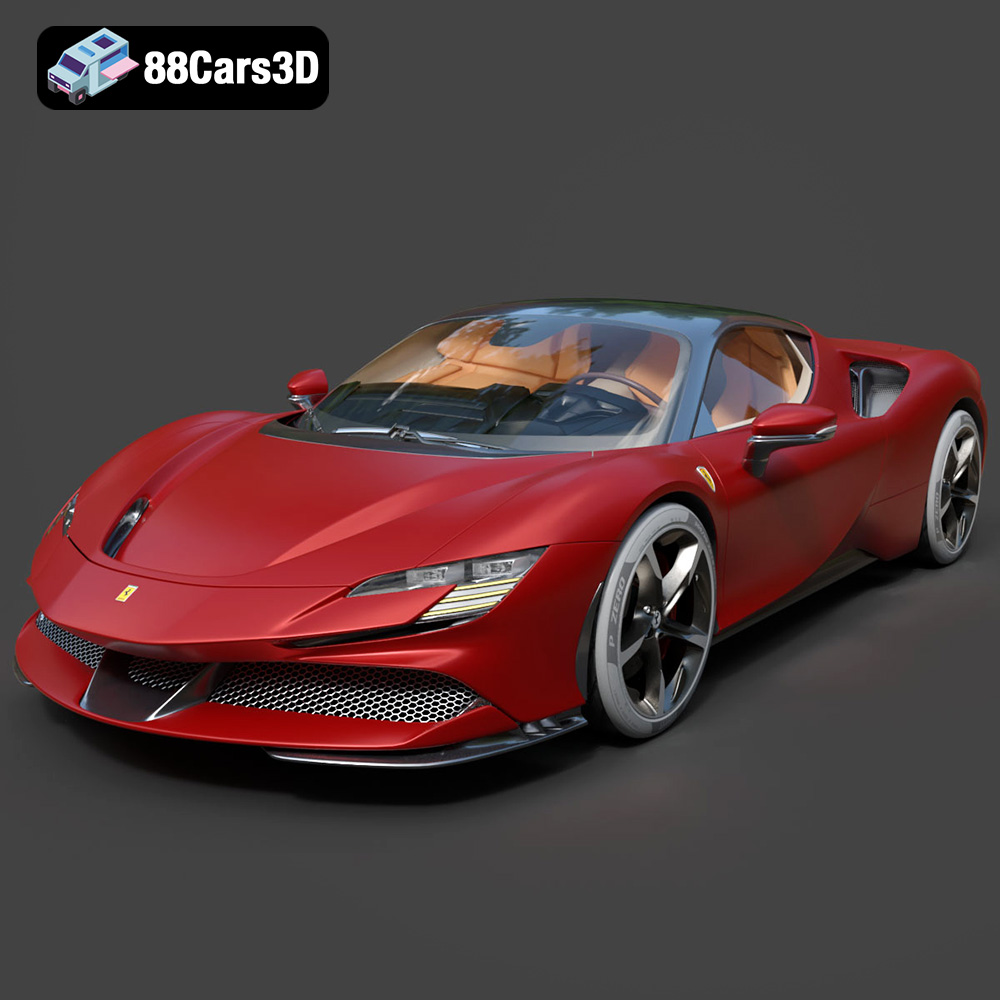
Download the Ferrari SF90 Stradale 3D Model featuring clean geometry, realistic detailing, and a fully modeled interior. Includes .blend, .fbx, .obj, .glb, .stl, .ply, .unreal, and .max formats for rendering, simulation, and game development.
Price: $19.99

Texture: Yes
Material: Yes
Download the Harley Davidson F 1946 3D Model featuring clean geometry, realistic detailing, and a fully modeled interior. Includes .blend, .fbx, .obj, .glb, .stl, .ply, .unreal, and .max formats for rendering, simulation, and game development.
Price: $19.99

Texture: Yes
Material: Yes
Download the Land Rover Defender Works V8 3D Model featuring clean geometry, realistic detailing, and a fully modeled interior. Includes .blend, .fbx, .obj, .glb, .stl, .ply, .unreal, and .max formats for rendering, simulation, and game development.
Price: $19.99

Texture: Yes
Material: Yes
Download the Dodge RAM 2019 3D Model featuring clean geometry, realistic detailing, and a fully modeled interior. Includes .blend, .fbx, .obj, .glb, .stl, .ply, .unreal, and .max formats for rendering, simulation, and game development.
Price: $19.99

Texture: Yes | Material: Yes Download the ultra-high-detail Ford F-150 Raptor 2021 3D Model (8.73M Triangles). Features uncompromised widebody styling, fully modeled Fox Live Valve suspension, 37-inch tires, and interior. Perfect for premium VFX, cinematic rendering, and ArchViz. Includes .blend, .fbx, .obj, .glb, .stl, and .max formats.
Price: $29.99

Texture: Yes | Material: Yes Download the ultra-high-detail BMW 3 Series Limousine (2022) 3D Model (4.16M Triangles). Features the modernized G20 LCI exterior, the all-new BMW Curved Display interior, and ultra-dense topology. Perfect for ArchViz, VFX, and cinematic rendering. Includes .blend, .fbx, .obj, .glb, .stl, and .max formats.
Price: $19.99

Texture: Yes | Material: Yes Download the ultra-high-detail BMW i7 (2023) 3D Model (4.14M Triangles). Features the illuminated kidney grille, split crystal headlights, fully modeled Theatre Screen interior, and monolithic luxury styling. Perfect for ArchViz, VFX, and cinematic rendering. Includes .blend, .fbx, .obj, .glb, .stl, and .max formats.
Price: $19.99

Texture: Yes | Material: Yes Download the highly detailed CAT Manual Loader & Warehouse Carts Kit 3D Model (2.4M Triangles). Features a macro-detailed hydraulic pallet jack, heavy-duty forks, and transport carts. Perfect for industrial ArchViz, factory rendering, and logistics simulations. Includes .blend, .fbx, .obj, .glb, .stl, and .max formats.
Price: $19.99

Texture: Yes | Material: Yes
Download the highly optimized Mazda CX-5 2014 3D Model (294k Triangles). Features the dynamic Kodo design language, signature grille, and a clean interior. Perfectly balanced for ArchViz, background traffic, and game development. Includes .blend, .fbx, .obj, .glb, .stl, and .max formats.
Price: $19.99

Texture: Yes | Material: Yes Download the ultra-high-detail Bentley Flying Spur Mulliner 2022 3D Model (2.94M Triangles). Features the bespoke Double Diamond grille, a fully modeled diamond-quilted interior, and exquisite luxury styling. Perfect for high-end ArchViz, VFX, and cinematic rendering. Includes .blend, .fbx, .obj, .glb, .stl, and .max formats.
Price: $19.90

