Get 50% OFF All Premium 3D & STL Models!

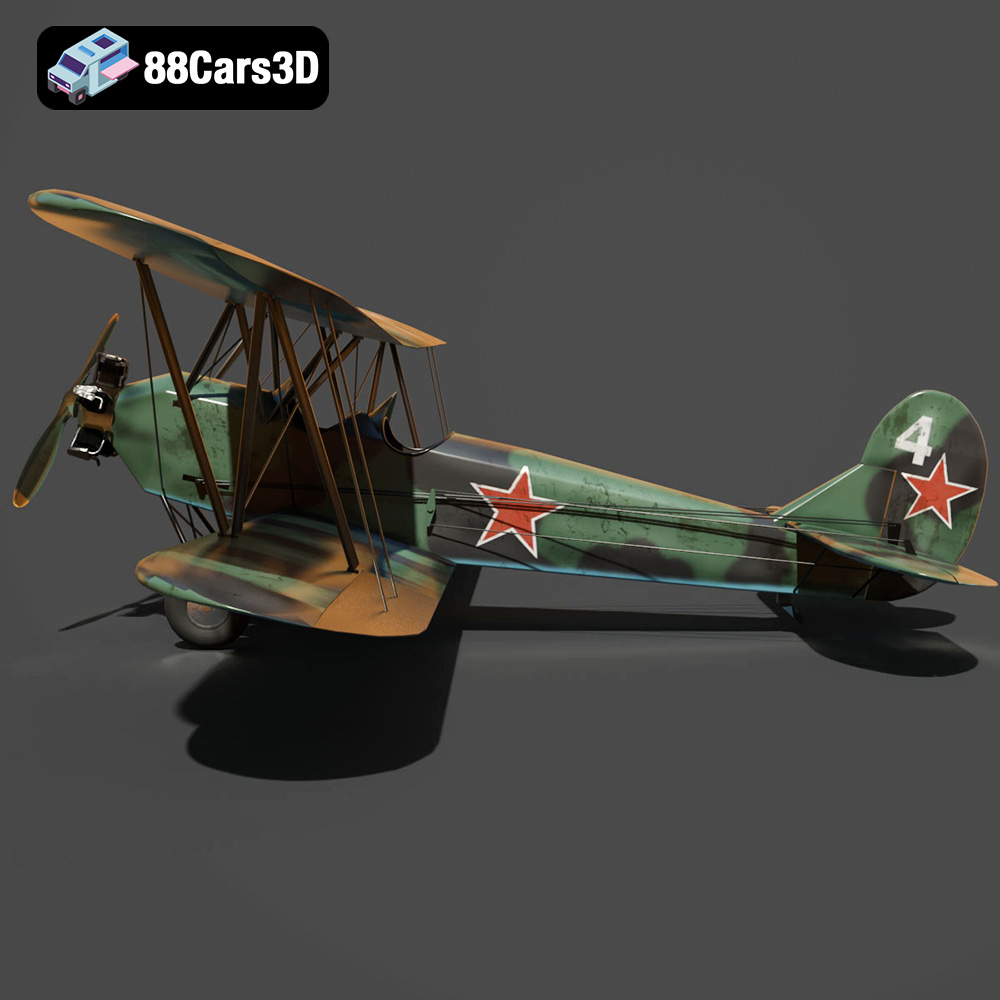
The Polikarpov Po-2, a legendary Soviet biplane, holds a significant place in aviation history. Its simple design, reliability, and versatility made it a workhorse for training, reconnaissance, and even light attack roles. Now, thanks to advancements in 3D printing, you can own a detailed scale model of this iconic aircraft. This article will guide you through the process of 3D printing the Polikarpov Po-2 3D model, ensuring a successful and rewarding project. From selecting the right materials and printer settings to mastering post-processing techniques, we’ll cover everything you need to know to create a stunning replica of this historical aircraft. Many high-quality 3D models, optimized for 3D printing, can be found online, including at 88cars3d.com.
Before diving into the specifics of 3D printing the Polikarpov Po-2, it’s crucial to understand the various file formats used in 3D modeling and their compatibility with 3D printing. Different formats offer different capabilities, and choosing the right one can significantly impact the final result.
The .stl (Stereolithography) file format is the workhorse of 3D printing. It represents the surface geometry of a 3D object as a collection of triangles. This simplicity makes it universally compatible with slicing software and 3D printers. However, .stl files only store information about the shape of the object, not its color or texture. For the Polikarpov Po-2 model, the .stl format is the primary choice for 3D printing due to its widespread support and ease of use. When exporting to .stl, ensure the mesh resolution is high enough to capture the details of the aircraft, but not so high that it creates excessively large files or strains your printer.
.obj (Wavefront Object) files are another common format, offering a step up from .stl by including support for color and texture information. This is particularly useful if you plan to apply textures or paint schemes to your 3D printed Polikarpov Po-2. However, .obj files can be larger and more complex than .stl files, potentially impacting slicing and printing performance. While the Po-2 model at 88cars3d.com includes .obj, for the initial 3D printing process, focusing on the .stl is advisable.
The .ply (Polygon File Format) offers a higher level of precision compared to .stl, making it suitable for models with intricate details. This format can store information about each vertex, including color, normals, and other properties. While .ply can be beneficial for capturing fine details of the Polikarpov Po-2, its complexity might not be necessary for all 3D printing setups. It is best used if the model has very fine surface details and your 3D printer is capable of reproducing them.
The .blend file format is specific to Blender, a popular open-source 3D modeling software. This format allows you to directly access and modify the 3D model within Blender before exporting it for 3D printing. With the .blend file, you can make adjustments to the Po-2 model, such as scaling, adding details, or optimizing it for printing. This is a great option for advanced users who want to customize the model to their specific requirements before creating an .stl.
.fbx (Filmbox) is a proprietary file format developed by Autodesk. It is commonly used for exchanging 3D models between different software applications, including those used in game development and animation. It supports the transfer of geometry, materials, textures, and animation data. While not the primary format for 3D printing, .fbx can be useful for importing the Polikarpov Po-2 model into slicing software if you want to preserve material assignments or other metadata.
The .glb (Binary glTF) is a file format designed for efficient delivery and loading of 3D models, particularly in web-based applications and augmented reality (AR) environments. It is a binary version of the glTF (Graphics Language Transmission Format) and includes all the necessary data, such as geometry, textures, and animations, within a single file. This is perfect to preview the model in AR using the 88cars3d.com website before even starting printing.
The .max format is the native file format for Autodesk 3ds Max, a professional 3D modeling, animation, and rendering software package. Similar to the .blend format, having the .max file gives you the greatest control over the model. You can modify every aspect of the Polikarpov Po-2 before exporting it for 3D printing.
Ultimately, for 3D printing the Polikarpov Po-2, the .stl format is the most practical choice due to its compatibility and simplicity. Ensure that the .stl file is properly prepared, with correct scaling, orientation, and mesh quality, before importing it into your slicing software.
Before you even load the STL file into your slicing software, some crucial preparation steps will significantly improve your chances of a successful print. These steps involve inspecting the model, making necessary repairs, and considering scaling options.
Not all STL files are created equal. Sometimes, models can contain errors such as non-manifold geometry, holes, or flipped normals. These errors can cause problems during slicing and printing, leading to failed prints or defects in the final model. Use software like MeshMixer or Netfabb Basic (both free) to inspect the Polikarpov Po-2 STL file for these issues. These programs can automatically identify and repair many common errors, ensuring a clean and printable model. Check for intersecting faces as well; these can occur in complex areas such as the cockpit.
The original product description recommends scales of 1:72, 1:48, 1:32, and 1:24. The scale you choose will depend on your printer’s capabilities and the level of detail you want to achieve. Smaller scales (like 1:72) will be more challenging to print due to the fine details of the aircraft, such as the wing struts and landing gear. Larger scales (like 1:24) will be easier to print but will require more material and a larger build volume. Start with a mid-range scale like 1:48 if you’re new to 3D printing aircraft models.
The orientation of your model on the build plate significantly impacts print quality and the need for supports. For the Polikarpov Po-2, printing the fuselage horizontally will minimize the need for supports on the curved surfaces. The wings should be printed separately, ideally with the leading edge facing down, which typically results in a smoother finish. Critical areas like the wing struts, landing gear, and propeller will require supports. Use your slicing software to carefully plan the placement of supports, minimizing their contact area with the model to make removal easier and reduce the risk of damaging the surface.
The material you choose will significantly affect the final look, feel, and durability of your 3D printed Polikarpov Po-2. The two most common 3D printing technologies, FDM (Fused Deposition Modeling) and SLA (Stereolithography), utilize different materials.
For FDM printing, PLA (Polylactic Acid) is a popular choice due to its ease of use, biodegradability, and wide availability. PLA is relatively inexpensive and produces good results for models with moderate detail. However, it is not as strong or heat-resistant as other materials. PETG (Polyethylene Terephthalate Glycol-modified) is a stronger and more heat-resistant alternative to PLA. It is also more flexible, making it less prone to cracking. PETG can be slightly more challenging to print than PLA, requiring higher temperatures and careful bed adhesion. For the Polikarpov Po-2, consider PETG for parts that need to be strong, such as the landing gear and wing struts, and PLA for the fuselage and wings.
If you have access to an SLA (Stereolithography) or resin printer, you can achieve a much higher level of detail and smoother surfaces than with FDM printing. Resin printing is ideal for small-scale models with intricate features. Standard resin is a good starting point, offering a balance of detail and durability. However, it can be brittle, so handle printed parts with care. Tough resin is a more durable option that can withstand more stress. For the Polikarpov Po-2, resin printing is highly recommended if you want to capture all the fine details of the aircraft, especially at smaller scales.
Regardless of the material you choose, consider how well it will accept paint and other finishing treatments. PLA and PETG can be easily painted with acrylic paints after priming. Resin prints also require priming before painting. Choose a material that is compatible with the paints and finishes you plan to use.
Once you’ve prepared the model and selected your material, it’s time to dial in your printer settings. These settings will vary depending on your printer, material, and desired print quality. The product description provided some recommended settings, which are a great starting point.
Layer height is one of the most critical settings for 3D printing. Lower layer heights (e.g., 0.08mm) result in smoother surfaces and finer details, but they also increase print time. Higher layer heights (e.g., 0.16mm) print faster but sacrifice surface quality. For the Polikarpov Po-2, aim for a layer height of 0.1mm for FDM printing and 0.05mm or lower for resin printing to capture the intricate details.
Infill density affects the strength and weight of your print. Higher infill densities (e.g., 25%) result in stronger but heavier prints. Lower infill densities (e.g., 15%) save material and print faster but can make the model more fragile. For the Polikarpov Po-2, an infill density of 20% is generally sufficient for most parts. Experiment with different infill patterns, such as gyroid or honeycomb, to optimize strength and weight.
Print speed and temperature are closely related and depend on the material you’re using. Slower print speeds generally result in better print quality, but they also increase print time. Consult your material manufacturer’s recommendations for optimal print temperatures. For PLA, a temperature of 200-220°C is typically recommended, while PETG requires a slightly higher temperature of 220-240°C. Resin printing does not involve temperature settings, but exposure time is crucial. Calibrate your resin printer to determine the optimal exposure time for your resin.
As mentioned earlier, supports are essential for printing overhanging features. Use your slicing software to generate supports that are strong enough to support the model but easy to remove without damaging the surface. Experiment with different support settings, such as support density, support pattern, and support interface, to find what works best for your printer and material.
Once the printing is complete, the real fun begins. Post-processing is where you transform a raw 3D print into a finished model. This process involves removing supports, sanding surfaces, and applying paint and decals.
Carefully remove the supports from your 3D printed parts. Use pliers or a sharp knife to gently separate the supports from the model. Be patient and avoid applying excessive force, which can damage the surface. After removing the supports, use sandpaper or a file to smooth out any rough edges or imperfections.
Sanding is crucial for achieving a smooth surface finish. Start with coarse sandpaper (e.g., 220 grit) and gradually move to finer grits (e.g., 400, 600, 800 grit) to remove layer lines and smooth out the surface. After sanding, apply a primer to prepare the model for painting. Primer helps the paint adhere better and fills in any remaining imperfections.
Painting is where you bring your Polikarpov Po-2 to life. Research the historical paint schemes of the Po-2 and choose a scheme that you like. Use acrylic paints and an airbrush for best results. Apply multiple thin coats of paint, allowing each coat to dry completely before applying the next. After painting, apply decals to add historical markings and details. Seal the paint and decals with a clear coat to protect them from damage.
Finally, assemble the various parts of your Polikarpov Po-2. Use glue or epoxy to attach the wings, landing gear, and propeller to the fuselage. Add any final touches, such as weathering or details, to complete your model. Consider using photo etched parts from model shops to add some more realism to the model.
3D printing is not always a smooth process. You may encounter various issues, such as warping, stringing, or layer adhesion problems. Here are some tips for troubleshooting common 3D printing issues:
Warping occurs when the corners of your print lift off the build plate. This is often caused by poor bed adhesion or uneven heating. To prevent warping, ensure your build plate is clean and level. Use a bed adhesive, such as glue stick or hairspray, to improve adhesion. Enclose your printer to maintain a consistent temperature.
Stringing occurs when thin strands of filament are left between different parts of your print. This is usually caused by excessive retraction or high printing temperatures. To reduce stringing, decrease your printing temperature, increase your retraction distance, and decrease your retraction speed.
Layer adhesion problems occur when the layers of your print do not stick together properly. This can be caused by low printing temperatures, insufficient cooling, or poor bed adhesion. To improve layer adhesion, increase your printing temperature, decrease your cooling fan speed, and ensure your bed is properly leveled and clean.
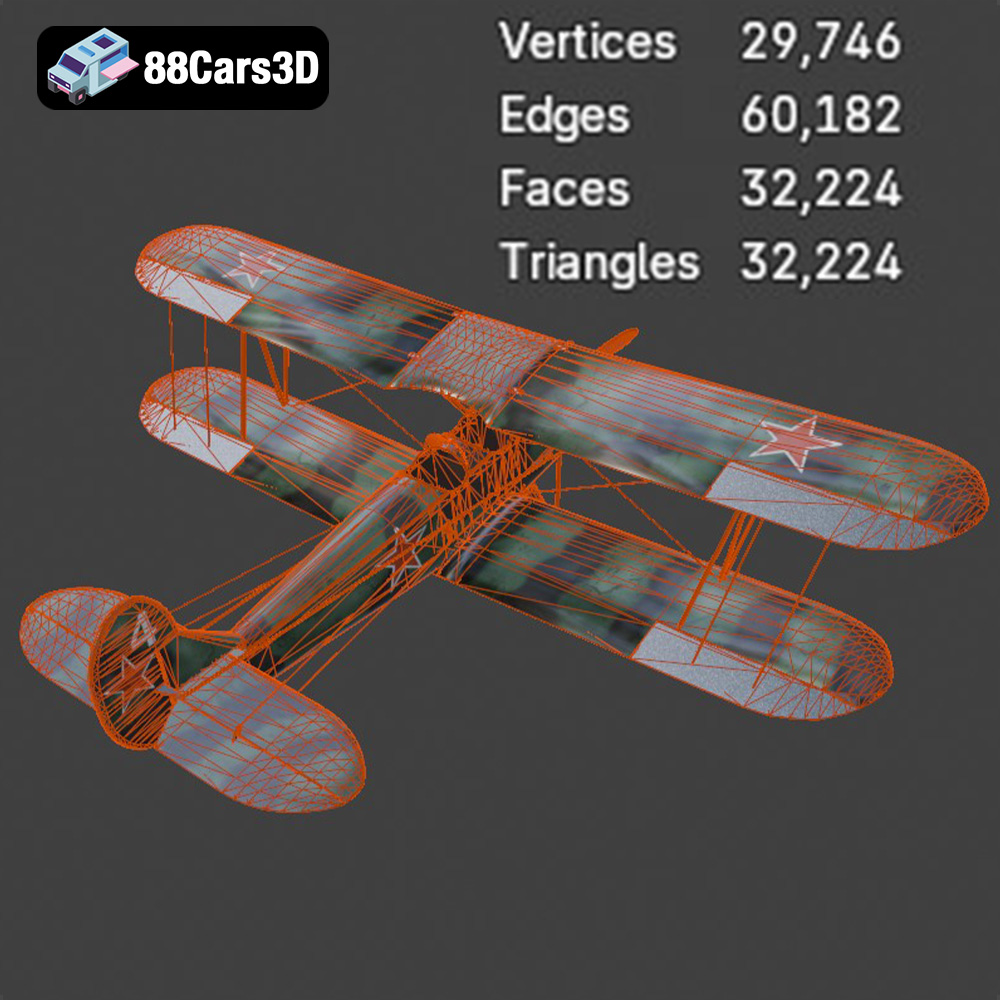
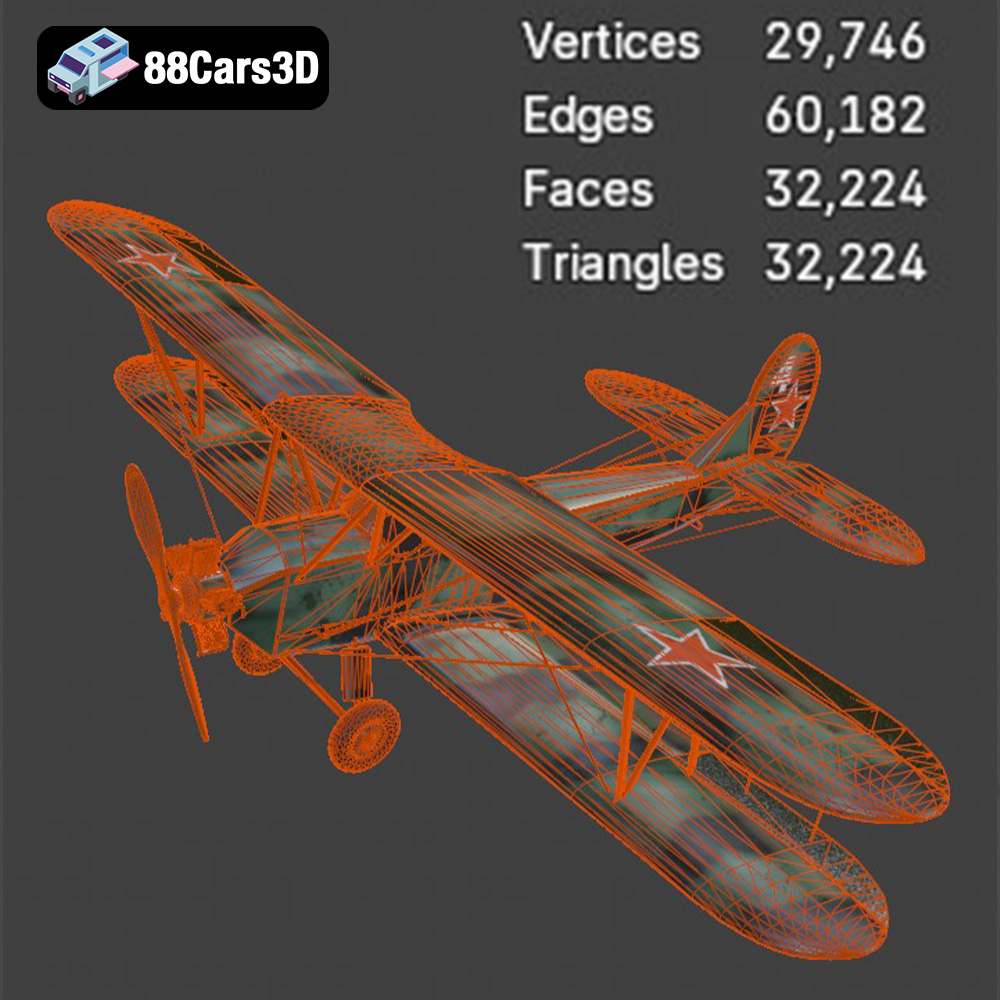
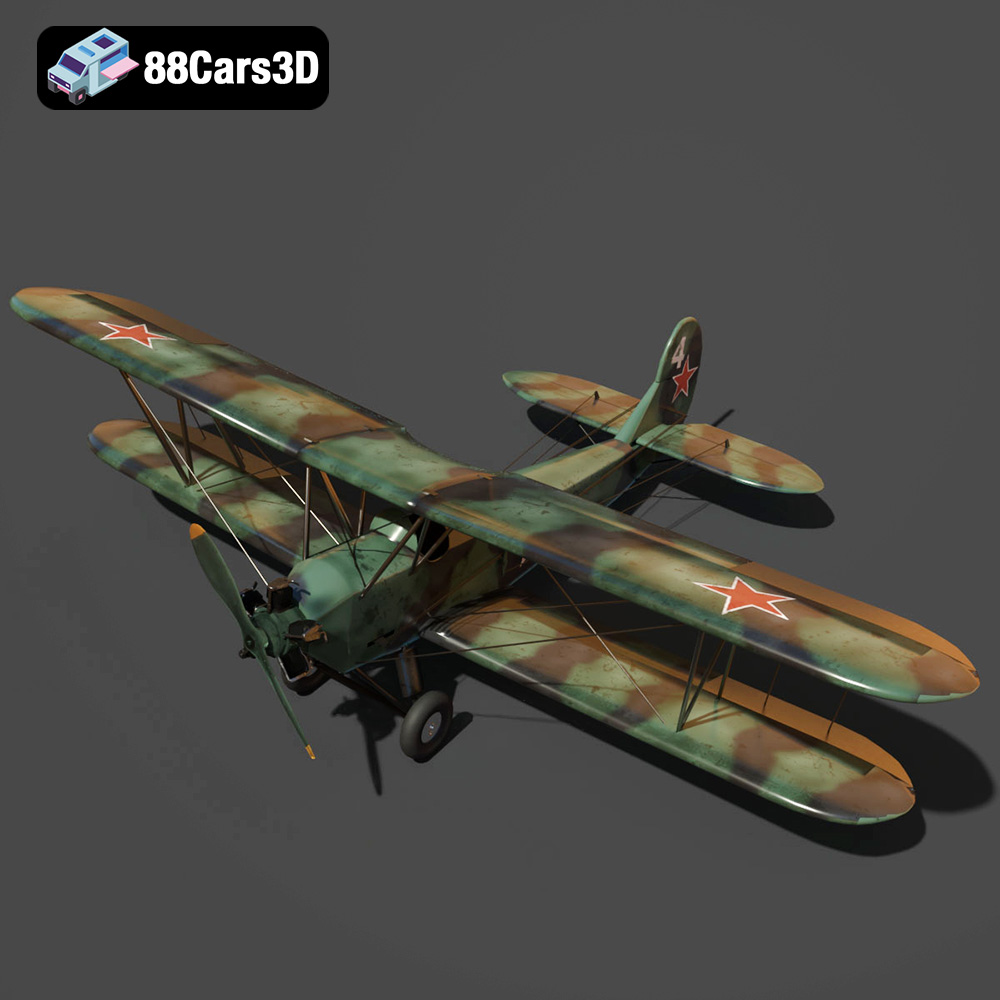
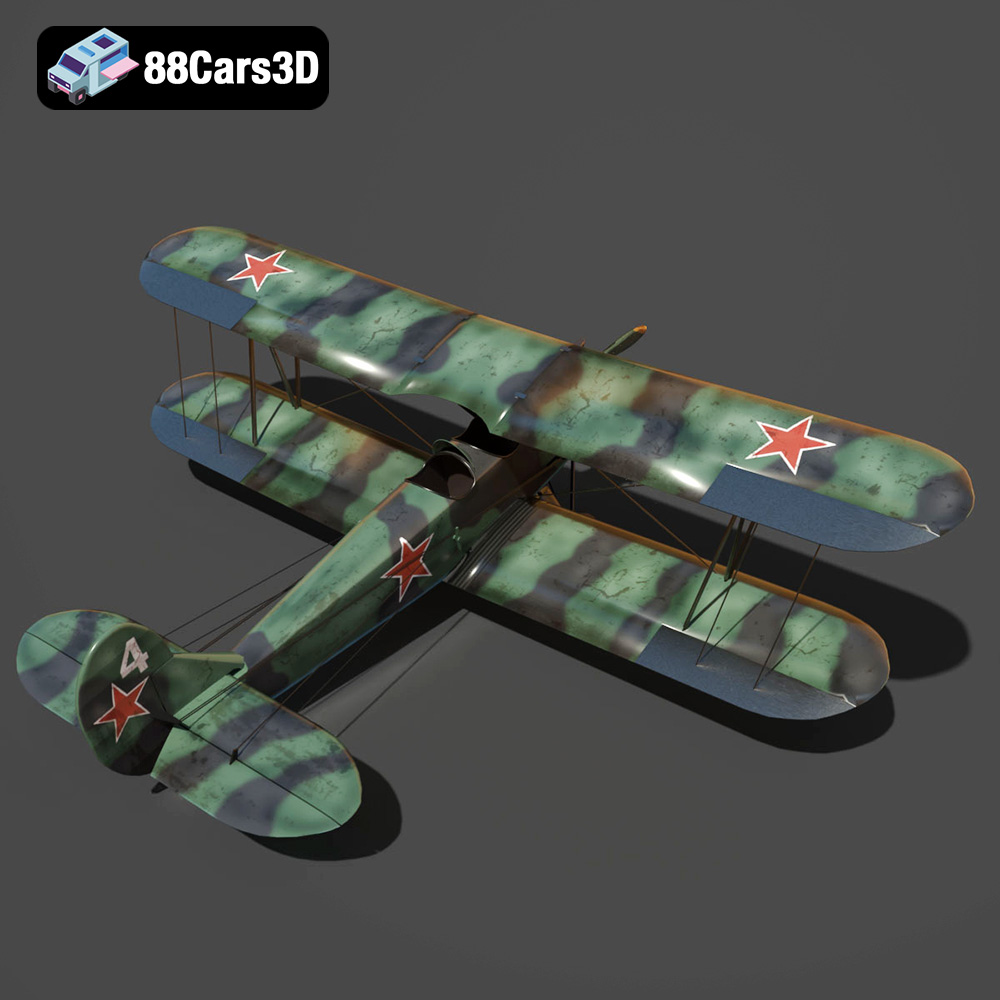
The Polikarpov Po-2 3D Model is a high-detail digital recreation of the legendary Soviet multi-role biplane widely used for training, reconnaissance, and light bombing missions during the mid-20th century. Known for its lightweight wooden structure and fabric-covered wings, the Po-2 became one of the most produced biplanes in aviation history.
$9.99
3D printing the Polikarpov Po-2 model is a rewarding project that combines historical appreciation with technical skill. By carefully preparing the model, selecting the right materials and printer settings, and mastering post-processing techniques, you can create a stunning replica of this iconic aircraft. Remember to inspect the STL files for errors, choose a suitable scale for your printer, and plan the orientation and supports carefully. Don’t be afraid to experiment with different settings and materials to find what works best for you. With a little patience and practice, you’ll be able to produce a 3D printed Polikarpov Po-2 model that you can be proud of. Consider checking out 88cars3d.com for more amazing 3D printed models.
.aircraft3dmodel
.arvr
.aviation
.biplane
.blend
.fbx
.flightsimulator
.gameasset
.glb
.historicalaircraft
.max
.obj
.ply
.po2
.polikarpov
.rendering
.simulation
.stl
.unreal
.wwiiaircraft