Get 50% OFF All Premium 3D & STL Models!

“`html
If you’re diving into the world of 3D printing, especially if you’re interested in creating your own models or downloading printable car models from platforms like 88cars3d.com, you’ll inevitably encounter STL files. STL, short for Stereolithography, is the go-to file format for 3D printing. But what exactly is an STL file, and why is it so crucial? This comprehensive guide will demystify the STL format, covering everything from its basic structure to advanced techniques for preparing STL files for optimal printing. Whether you’re a complete novice or have some experience with 3D modeling, this guide will equip you with the knowledge you need to confidently work with STL files and achieve high-quality 3D prints. We’ll explore the inner workings of the format, discuss how slicing software interprets STL data, and provide practical tips to avoid common printing pitfalls.
At its core, an STL file describes the surface geometry of a 3D object using a collection of interconnected triangles. Imagine taking a 3D model and covering it with thousands of tiny triangles. Each triangle is defined by its three vertices (corner points) and a normal vector (a vector pointing perpendicularly outward from the triangle’s surface). The STL file stores the coordinates of these vertices and the direction of the normal vector for each triangle. It’s important to note that STL files only represent the surface of an object; they don’t contain information about color, texture, or internal structure. Think of it like the outer shell of a car model, without any engine or interior details.
STL files come in two flavors: ASCII and Binary. ASCII STL files are human-readable and store the triangle data as text. This makes them easy to inspect and edit manually, but they tend to be larger in file size. Binary STL files, on the other hand, store the data in a more compact, binary format, resulting in smaller file sizes and faster processing. For example, a complex car model might have an ASCII STL file size of 50MB, while its binary equivalent could be around 20MB. While ASCII is readable, binary is the standard for most applications due to its efficiency.
Normal vectors are crucial for defining the orientation of each triangle and ensuring that the 3D printer correctly interprets the object’s surface. The normal vector indicates which side of the triangle faces outward, defining what’s considered the “inside” and “outside” of the model. If the normal vectors are inconsistent (pointing inwards on some triangles), it can lead to printing errors and unexpected results. Slicing software relies on these normal vectors to determine how to fill the volume and where to place support structures. Problems with normal vectors are often a source of non-manifold geometry, a common issue in STL files that requires repair.
Once you have your STL file, whether it’s a model you’ve created yourself or one downloaded from a marketplace such as 88cars3d.com, the next step is to prepare it for 3D printing. This involves several key steps, including checking the file for errors, orienting it correctly on the print bed, and generating support structures.
One of the most common issues with STL files is non-manifold geometry. This refers to errors in the mesh where the surface is not properly closed or connected. Examples of non-manifold issues include holes in the mesh, edges that are not connected to two faces, and faces that intersect each other. These errors can prevent the slicing software from correctly interpreting the model and can lead to failed prints. Software like MeshMixer, Netfabb, and online services such as MakePrintable are invaluable for repairing STL files and ensuring they are manifold (watertight). MeshMixer, for instance, offers an “Inspector” tool that automatically identifies and fixes many common mesh errors.
The orientation of your model on the print bed can significantly impact print quality, support requirements, and printing time. For example, printing a car model lying flat on its side might minimize the need for supports on the body, but it could lead to a less aesthetically pleasing surface finish due to layer lines being more visible on the curved surfaces. Consider the following factors when choosing an orientation:
Before slicing, ensure your model is scaled to the desired size. Most slicing software allows you to scale the model uniformly or non-uniformly along each axis. Double-check the units (millimeters or inches) to avoid accidental scaling errors. For example, a car model designed to be 1:24 scale might need to be scaled up or down depending on the intended application. Always measure key dimensions to ensure the final printed part meets your requirements.
Slicing is the process of converting the STL file into a set of instructions (G-code) that the 3D printer can understand. The slicing software divides the 3D model into thin layers and generates a toolpath for the printer’s nozzle or laser to follow for each layer. Many slicing parameters influence the print’s outcome. Understanding these settings is key to achieving the desired print quality, strength, and speed.
Layer height is the thickness of each layer in the print. Lower layer heights (e.g., 0.1mm) result in finer details and smoother surfaces, but they also increase the printing time significantly. Higher layer heights (e.g., 0.3mm) print faster but sacrifice some detail. A good starting point for most FDM prints is 0.2mm, but for detailed models like scale cars where surface finish is paramount, consider experimenting with 0.1mm or even 0.05mm. For resin printing, layer heights are typically much smaller, ranging from 0.025mm to 0.05mm, providing exceptional detail.
Infill refers to the internal structure of the printed part. The infill density determines how solid the interior is. Higher infill densities (e.g., 50% or more) result in stronger parts but also consume more material and increase print time. Lower infill densities (e.g., 15-20%) are suitable for purely aesthetic models where strength is not a concern. The infill pattern also affects the part’s strength and weight. Common infill patterns include:
For car models that require some structural integrity, consider using a honeycomb or gyroid infill pattern with a density of 20-30%.
Print speed and temperature are closely related and significantly influence print quality. Printing too fast can lead to poor layer adhesion, warping, and dimensional inaccuracies. Printing too slow can cause overheating and stringing. The optimal temperature depends on the material being used. PLA typically prints between 190-220°C, while ABS requires higher temperatures of 230-260°C. Experiment with print speed settings in your slicer. A good starting point is 50mm/s, and then adjust based on your printer and material. Ensure proper cooling fan settings to prevent overheating, especially for PLA.
Support structures are temporary structures that are printed to support overhanging features of a 3D model during printing. Without supports, these features would collapse due to gravity. Generating and removing support structures is a critical aspect of 3D printing, especially for complex models with intricate overhangs.
There are several types of support structures, each with its own advantages and disadvantages:
Tree supports are often a good choice for car models because they can be placed strategically to support specific overhangs without creating excessive contact points.
The placement and density of support structures can greatly affect the ease of removal and the surface finish of the printed part. Reduce the support density in areas where strength is not critical to make removal easier. Use a small support interface layer height to minimize the contact area between the support and the model, making removal cleaner. Experiment with different support angles to find the optimal balance between support strength and ease of removal. Slicing software like PrusaSlicer allows for manual placement of supports, giving you precise control over where they are generated.
Removing support structures can be challenging, especially for intricate models. Here are some tips for successful support removal:
After removing supports, use sandpaper or files to smooth any remaining blemishes on the surface of the model.
The choice of material significantly impacts the properties and appearance of your 3D printed parts. Different materials have different strengths, weaknesses, and printing requirements. Understanding these differences is crucial for selecting the right material for your project. For printable car models, several materials are popular, each offering a unique set of characteristics.
PLA (Polylactic Acid) is a biodegradable thermoplastic derived from renewable resources like corn starch or sugarcane. It’s easy to print with, has low warping, and produces parts with a smooth surface finish. PLA is a good choice for aesthetic models and prototypes where strength is not a primary concern. However, PLA is not very heat-resistant and can soften or deform at higher temperatures (above 60°C). Therefore, it might not be ideal for car models that will be exposed to direct sunlight or high temperatures.
PETG (Polyethylene Terephthalate Glycol-modified) combines the ease of printing of PLA with improved strength and heat resistance. It is more durable than PLA and offers better chemical resistance. PETG is a good all-around choice for a wide range of applications, including functional parts and models that require some degree of durability. It offers good layer adhesion and is relatively easy to print with, though it may require slightly higher printing temperatures than PLA (around 220-250°C). PETG is a popular choice for car models that need to withstand some wear and tear.
ABS (Acrylonitrile Butadiene Styrene) is a strong, heat-resistant thermoplastic commonly used in automotive and consumer products. It has excellent impact resistance and can withstand high temperatures. However, ABS is more challenging to print with than PLA or PETG, as it is prone to warping and requires a heated bed and an enclosed build chamber. ABS also emits fumes during printing, so proper ventilation is necessary. If you need a car model that is extremely durable and heat-resistant, ABS might be a good choice, but be prepared for a more challenging printing process.
For exceptionally detailed models, resin printing offers superior results compared to FDM. Resin printers use a liquid resin that is cured by UV light, producing parts with extremely fine details and smooth surfaces. Resin printing is ideal for intricate car models with complex features. However, resin printers can be more expensive, and the printing process can be messier than FDM. Resin also requires post-processing, including washing and curing, and the fumes can be harmful, so proper ventilation is essential. Different resin types offer varying properties like toughness, flexibility, and heat resistance.
Once your 3D print is complete, post-processing techniques can enhance its appearance and functionality. Post-processing involves various steps, such as removing support structures, sanding, painting, and assembling multiple parts.
Sanding is used to remove layer lines and imperfections from the surface of the printed part. Start with coarse sandpaper (e.g., 200-grit) to remove larger imperfections, and then gradually move to finer grits (e.g., 400-grit, 600-grit, 800-grit) to achieve a smooth finish. Wet sanding can help prevent the sandpaper from clogging and produce an even smoother surface. Pay close attention to areas where support structures were removed to ensure a seamless transition.
Priming is an essential step before painting, as it helps to create a uniform surface and improve paint adhesion. Apply a thin, even coat of primer using a spray can or airbrush. Once the primer is dry, you can begin painting. Use high-quality paints designed for plastic models. Apply multiple thin coats of paint rather than one thick coat to avoid runs and drips. Allow each coat to dry completely before applying the next. For car models, consider using automotive-grade paints for a realistic finish. Remember to use proper safety equipment, including a respirator, when working with paints and primers.
Many car models consist of multiple parts that need to be assembled after printing. Use adhesives like super glue or epoxy to join the parts together. Ensure that the parts are aligned correctly before the glue sets. Clamps or tape can be used to hold the parts in place while the glue dries. For complex assemblies, consider using interlocking features or screws to provide additional strength and stability. Always test the fit of the parts before applying glue to avoid mistakes.
Mastering STL files and 3D printing techniques opens a world of possibilities for creating custom objects, from intricate scale models to functional prototypes. Understanding the structure of STL files, preparing them for printing, optimizing slicing parameters, and selecting the right materials are all crucial steps in the 3D printing process. By following the tips and techniques outlined in this guide, you’ll be well-equipped to tackle your own 3D printing projects and achieve high-quality results. Remember to experiment with different settings and materials to find what works best for your specific printer and application. And don’t hesitate to explore online resources and communities for further inspiration and guidance. Whether you’re downloading printable car models from 88cars3d.com or designing your own creations, the knowledge you’ve gained here will empower you to bring your ideas to life through the magic of 3D printing. Now, go forth and print!
“`

Texture: Yes
Material: Yes
Download the JCB Excavator-001 3D Model featuring clean geometry, realistic detailing, and a fully modeled interior. Includes .blend, .fbx, .obj, .glb, .stl, .ply, .unreal, and .max formats for rendering, simulation, and game development.
Price: $19.99
Texture: Yes
Material: Yes
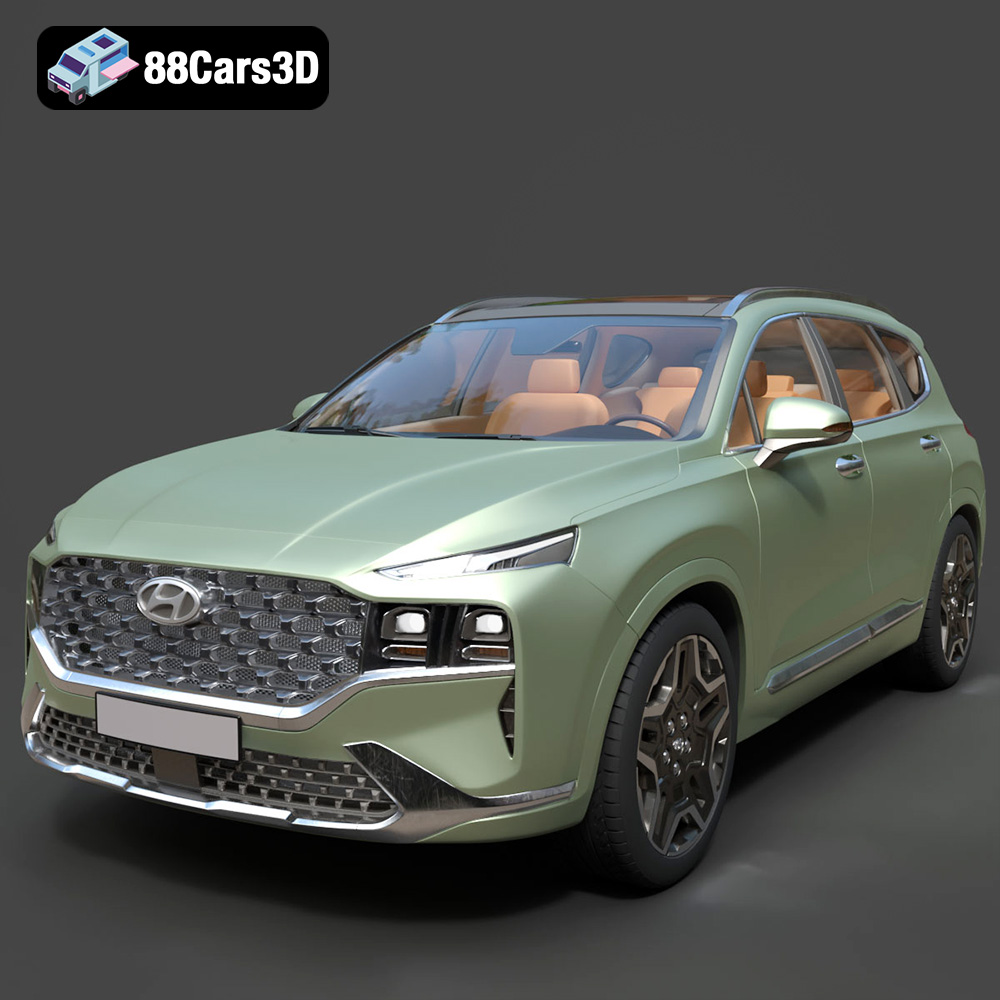
Download the Hyundai Santa Fe 2021 3D Model featuring clean geometry, realistic detailing, and a fully modeled interior. Includes .blend, .fbx, .obj, .glb, .stl, .ply, .unreal, and .max formats for rendering, simulation, and game development.
Price: $19.99
Texture: Yes
Material: Yes
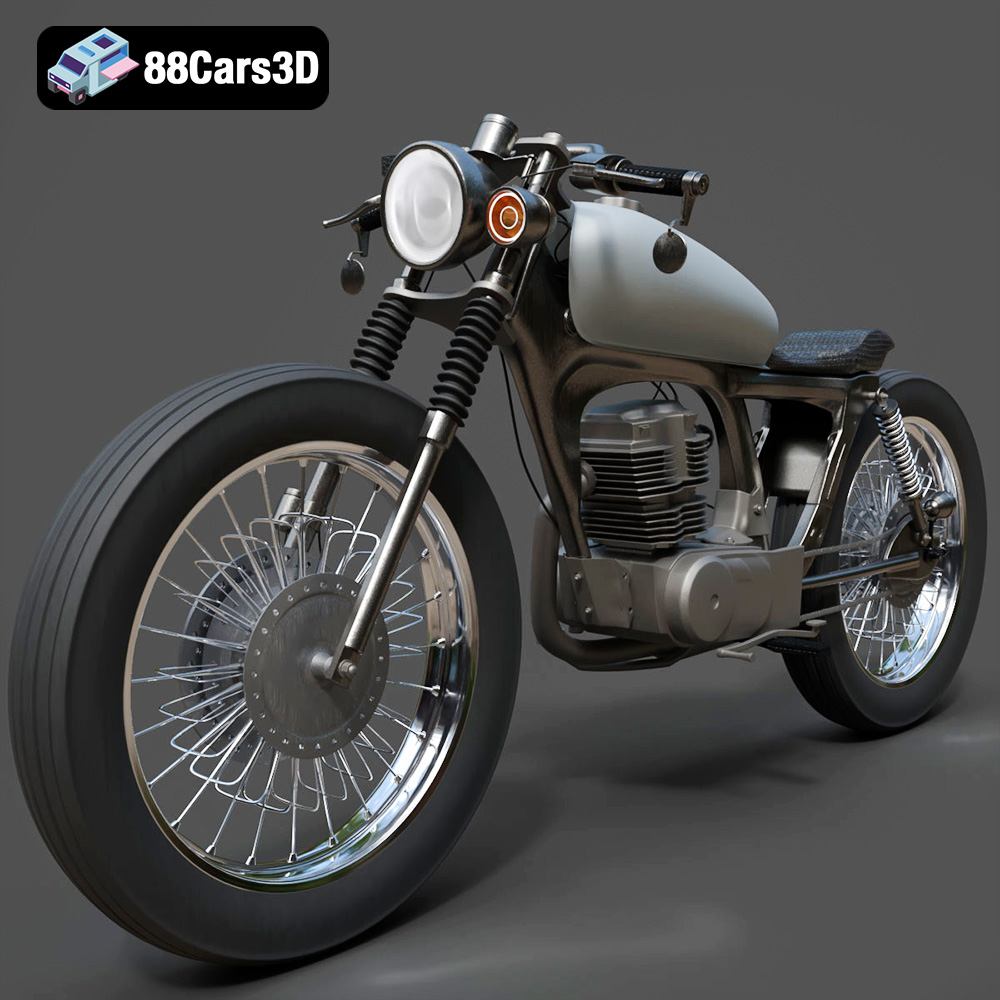
Download the Honda CG125 Motorcycle 3D Model featuring clean geometry, realistic detailing, and a fully modeled interior. Includes .blend, .fbx, .obj, .glb, .stl, .ply, .unreal, and .max formats for rendering, simulation, and game development.
Price: $19.99
Texture: Yes
Material: Yes
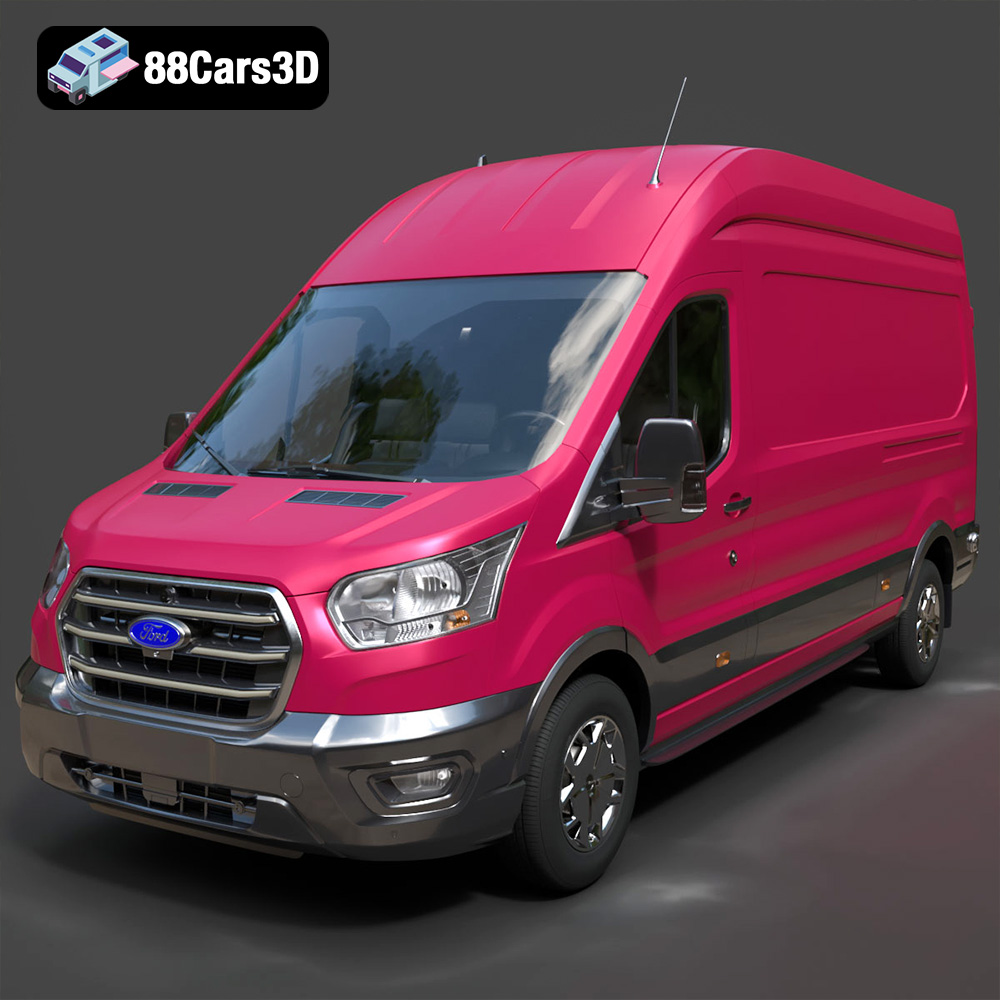
Download the Ford Transit Van L3H3 Trend 2021 3D Model featuring clean geometry, realistic detailing, and a fully modeled interior. Includes .blend, .fbx, .obj, .glb, .stl, .ply, .unreal, and .max formats for rendering, simulation, and game development.
Price: $19.99
Texture: Yes
Material: Yes
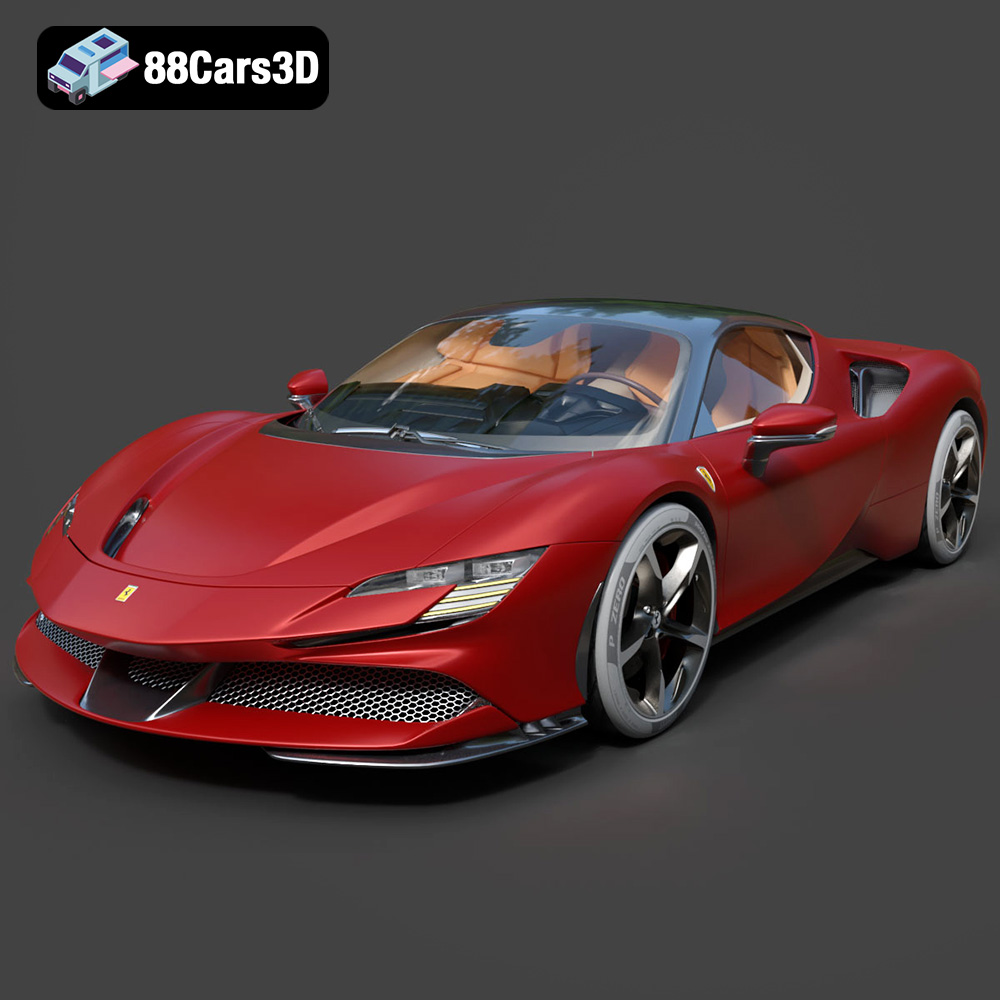
Download the Ferrari SF90 Stradale 3D Model featuring clean geometry, realistic detailing, and a fully modeled interior. Includes .blend, .fbx, .obj, .glb, .stl, .ply, .unreal, and .max formats for rendering, simulation, and game development.
Price: $19.99

Texture: Yes
Material: Yes
Download the Harley Davidson F 1946 3D Model featuring clean geometry, realistic detailing, and a fully modeled interior. Includes .blend, .fbx, .obj, .glb, .stl, .ply, .unreal, and .max formats for rendering, simulation, and game development.
Price: $19.99

Texture: Yes
Material: Yes
Download the Land Rover Defender Works V8 3D Model featuring clean geometry, realistic detailing, and a fully modeled interior. Includes .blend, .fbx, .obj, .glb, .stl, .ply, .unreal, and .max formats for rendering, simulation, and game development.
Price: $19.99

Texture: Yes
Material: Yes
Download the Dodge RAM 2019 3D Model featuring clean geometry, realistic detailing, and a fully modeled interior. Includes .blend, .fbx, .obj, .glb, .stl, .ply, .unreal, and .max formats for rendering, simulation, and game development.
Price: $19.99

Texture: Yes | Material: Yes Download the ultra-high-detail Ford F-150 Raptor 2021 3D Model (8.73M Triangles). Features uncompromised widebody styling, fully modeled Fox Live Valve suspension, 37-inch tires, and interior. Perfect for premium VFX, cinematic rendering, and ArchViz. Includes .blend, .fbx, .obj, .glb, .stl, and .max formats.
Price: $29.99

Texture: Yes | Material: Yes Download the ultra-high-detail BMW 3 Series Limousine (2022) 3D Model (4.16M Triangles). Features the modernized G20 LCI exterior, the all-new BMW Curved Display interior, and ultra-dense topology. Perfect for ArchViz, VFX, and cinematic rendering. Includes .blend, .fbx, .obj, .glb, .stl, and .max formats.
Price: $19.99

