Get 50% OFF All Premium 3D & STL Models!

“`html
If you’re diving into the exciting world of 3D printing, especially for detailed projects like printable car models, you’ll inevitably encounter the STL file format. STL, which stands for Stereolithography, is the most common file type used to represent 3D models for 3D printing. It’s essentially the language your 3D printer understands. But what exactly *is* an STL file, and how does it work? This comprehensive guide will break down everything you need to know about STL files, from their basic structure to advanced techniques for optimizing them for printing. We’ll explore how STL files are used in platforms like 88cars3d.com, and how to ensure your models print perfectly. You’ll learn about mesh topology, slicing parameters, support structures, and even troubleshooting common issues. Whether you’re a beginner or an experienced maker, this guide will equip you with the knowledge to master the STL file format and achieve exceptional 3D printing results.
At its core, an STL file represents the surface geometry of a 3D object using a collection of triangles. Imagine taking a complex curved surface and approximating it with many small, flat triangles. The more triangles you use, the more accurate the representation will be. However, more triangles also mean a larger file size and potentially longer processing times. The STL file stores the coordinates of the vertices of each triangle, as well as the normal vector (a vector perpendicular to the surface of the triangle), which indicates the triangle’s orientation. This information is crucial for the 3D printer to understand how to build the object layer by layer.
STL files come in two main formats: ASCII and Binary. ASCII STL files are human-readable text files, where each triangle’s data is listed explicitly. This makes them easy to inspect and edit manually, but they are significantly larger than binary files. Binary STL files, on the other hand, store the same information in a more compact, machine-readable format. This results in smaller file sizes and faster processing. Most modern 3D printing software defaults to using binary STL files for efficiency. For instance, a complex printable car model from 88cars3d.com will often be provided in binary STL format to ensure fast download and slicing times.
The “mesh topology” refers to the arrangement and connectivity of the triangles that make up the STL file. A good mesh topology is essential for a successful 3D print. Ideally, the triangles should be evenly distributed, with consistent edge lengths. Areas with fine details or curves require a higher density of triangles for accurate representation. However, excessively high triangle counts can lead to extremely large file sizes and slow down your slicing software. Finding the right balance between detail and file size is a key skill in 3D printing. Many CAD programs allow you to control the mesh resolution when exporting to STL format. Experiment with different settings to find the optimal compromise for your specific model and printer.
Once you have your STL file, whether it’s a printable car model from 88cars3d.com or a design you created yourself, it’s crucial to prepare it properly before sending it to the 3D printer. This preparation typically involves several steps, including checking for errors, repairing the mesh, and orienting the model for optimal printing. Skipping these steps can lead to failed prints, poor surface finish, or even damage to your 3D printer.
STL files are often prone to errors, especially if they were generated from complex CAD models or converted from other file formats. Common errors include non-manifold edges (edges shared by more than two triangles), holes in the mesh (where triangles are missing), and inverted normals (where the triangle’s orientation is pointing in the wrong direction). These errors can confuse the slicer software and prevent it from generating a valid toolpath. Fortunately, several software tools are available to automatically repair these errors. Netfabb Basic is a popular free option, while Meshmixer and Blender offer more advanced repair capabilities. Aim to get the mesh as ‘watertight’ (completely closed) as possible, i.e., without any holes or non-manifold edges. When downloading models from marketplaces such as 88cars3d.com, ensure they are pre-checked for these errors. However, it’s always a good practice to run a quick repair check before printing.
The orientation of your model on the build plate significantly affects print quality, support requirements, and printing time. Consider factors such as overhangs, surface finish, and structural integrity when choosing the orientation. Minimizing overhangs reduces the need for support structures, which can be time-consuming to remove and may leave blemishes on the surface. Orienting the model to expose the most critical surfaces directly to the build plate often results in a smoother finish on those surfaces. For example, when printing a car body, you might want to orient it with the roof facing downwards to ensure a smooth, support-free roof surface. Software such as PrusaSlicer offers advanced orientation optimization tools that can automatically suggest the best orientation based on your criteria.
The next crucial step is slicing the STL file. Slicing software takes the 3D model and converts it into a series of 2D layers, each representing a cross-section of the object. It then generates G-code, a language that tells the 3D printer exactly how to move the print head, extrude material, and control the temperature. The slicing process involves setting various parameters, such as layer height, infill density, print speed, and support settings. These parameters determine the final quality, strength, and printing time of the object.
Layer height is one of the most important slicing parameters. It determines the thickness of each layer of plastic that the printer deposits. A smaller layer height results in a smoother surface finish and higher resolution, but it also increases the printing time. Conversely, a larger layer height reduces the printing time but sacrifices surface quality. For detailed models like printable car models, a layer height of 0.1mm to 0.2mm is generally recommended. For faster prototypes or less critical parts, you can increase the layer height to 0.3mm or even 0.4mm. Experiment with different layer heights to find the optimal balance between speed and quality for your specific printer and material. For example, using a 0.1mm layer height on a model from 88cars3d.com might reveal minute design details that are lost at higher layer heights.
Infill refers to the internal structure of the 3D printed object. Instead of printing the object solid, slicer software can fill the interior with a lightweight pattern, reducing material consumption and printing time. Infill density is the percentage of the interior that is filled with the pattern. A higher infill density results in a stronger and heavier object, while a lower infill density results in a weaker and lighter object. The optimal infill density depends on the application. For purely aesthetic models, an infill density of 10-15% is often sufficient. For functional parts that need to withstand stress, an infill density of 25-50% or higher may be necessary. There are also different infill patterns available, such as grid, honeycomb, and gyroid, each offering different strength-to-weight ratios. Gyroid infill, for example, is known for its excellent strength in all directions.
Support structures are temporary structures that are printed to support overhanging parts of the model. Without supports, overhanging features would simply collapse during printing. Slicing software automatically generates support structures based on the model’s geometry and the chosen print orientation. There are various types of support structures, each with its own advantages and disadvantages. The key is to choose a support structure that is strong enough to support the overhang but easy to remove after printing.
Two common types of support structures are tree supports and linear supports. Linear supports are simple vertical structures that provide support directly underneath the overhang. They are easy to generate and print, but they can be difficult to remove and may leave noticeable marks on the surface. Tree supports, on the other hand, are more complex and branch-like structures that originate from the build plate and extend upwards to support the overhang. They use less material and are easier to remove than linear supports, but they can be more challenging to generate and may require more precise printer calibration. Slicing software like Cura allows you to choose between different support types and customize their parameters, such as support density and overhang angle.
Removing support structures can be a delicate process. The goal is to remove the supports cleanly without damaging the model. Start by using pliers or cutters to carefully break away the bulk of the supports. For more stubborn supports, you can use a sharp knife or scraper to gently pry them off. Be careful not to scratch or gouge the surface of the model. For models printed with dissolvable support material (e.g., HIPS for ABS), you can simply dissolve the supports in a chemical bath. After removing the supports, you may need to sand or file the surface to remove any remaining blemishes. Experiment with different support removal techniques to find what works best for your printer, material, and model.
The choice of material and the corresponding printer settings are critical for achieving successful 3D prints. Different materials have different properties, such as strength, flexibility, temperature resistance, and surface finish. Each material also requires specific printer settings, such as nozzle temperature, bed temperature, print speed, and cooling fan settings. Using the wrong material or incorrect settings can lead to warping, delamination, or other print failures.
There are two primary 3D printing technologies: Fused Deposition Modeling (FDM) and Resin printing (Stereolithography or SLA/DLP/LCD). FDM printing uses a thermoplastic filament that is melted and extruded through a nozzle. It’s a versatile and cost-effective technology suitable for a wide range of applications. Common FDM materials include PLA, PETG, and ABS. Resin printing, on the other hand, uses a liquid resin that is cured by UV light. It produces parts with much higher resolution and smoother surface finish than FDM printing, making it ideal for detailed models like jewelry or miniatures. However, resin printing is generally more expensive and requires more post-processing than FDM printing. For printable car models, both FDM and resin printing can be used, depending on the desired level of detail and budget. Platforms like 88cars3d.com often cater to both FDM and Resin printing enthusiasts.
Each material has its own optimal printing settings. PLA, for example, is easy to print and requires relatively low temperatures (typically 190-220°C nozzle temperature and 60°C bed temperature). PETG is stronger and more heat-resistant than PLA but requires slightly higher temperatures (220-250°C nozzle temperature and 70-80°C bed temperature). ABS is a strong and durable material that is ideal for functional parts, but it requires high temperatures (230-260°C nozzle temperature and 90-110°C bed temperature) and an enclosed build chamber to prevent warping. Resin materials also have specific settings, such as exposure time and lift speed, which must be optimized for each resin type and printer. Always consult the material manufacturer’s recommendations and experiment with different settings to find what works best for your specific printer and material.
Even with careful preparation and optimized settings, 3D printing can sometimes be unpredictable. Common issues include warping, delamination, stringing, and elephant’s foot. Understanding the causes of these issues and how to troubleshoot them is essential for achieving consistent and reliable print results.
Warping occurs when the corners or edges of the print lift off the build plate during printing. This is often caused by uneven cooling, which creates stress in the material. To prevent warping, ensure that the bed is properly leveled and heated to the recommended temperature for the material. Use a bed adhesive, such as hairspray or glue stick, to improve adhesion. For materials like ABS, printing in an enclosed build chamber can help to maintain a consistent temperature and prevent warping. “Rafts” can also improve bed adhesion, but add to print time and material usage.
Stringing occurs when thin strands of plastic are left between different parts of the model. This is often caused by excessive nozzle temperature, retraction settings, or travel speed. Lowering the nozzle temperature, increasing the retraction distance and speed, and increasing the travel speed can help to reduce stringing. Excessive material extrusion can lead to various problems, such as blobs, zits, and poor surface finish. Calibrating the extruder’s E-steps (steps per millimeter of filament) is essential for accurate material extrusion. You can also adjust the flow rate in your slicing software to fine-tune the amount of material being extruded.
The STL file format is the foundation of 3D printing, and mastering it is essential for achieving exceptional results. This guide has provided a comprehensive overview of STL files, from their basic structure to advanced techniques for preparing, slicing, and printing them. We’ve covered topics such as mesh topology, error repair, orientation, support structures, material selection, and troubleshooting common issues. By understanding these concepts and applying the techniques outlined in this guide, you’ll be well-equipped to tackle even the most challenging 3D printing projects. So, dive in, experiment, and start bringing your digital designs to life! And remember, platforms like 88cars3d.com offer a fantastic range of high-quality, print-ready STL files to fuel your creativity and passion for 3D printing.
“`

Texture: Yes
Material: Yes
Download the Volvo C40 Recharge 3D Model featuring clean geometry, realistic detailing, and a fully modeled interior. Includes .blend, .fbx, .obj, .glb, .stl, .ply, .unreal, and .max formats for rendering, simulation, and game development.
Price: $19.99

Texture: Yes
Material: Yes
Download the Volkswagen Tiguan 2021 3D Model featuring clean geometry, realistic detailing, and a fully modeled interior. Includes .blend, .fbx, .obj, .glb, .stl, .ply, .unreal, and .max formats for rendering, simulation, and game development.
Price: $19.99

Texture: Yes
Material: Yes
Download the Volkswagen ID6 CROZZ 2022 3D Model featuring clean geometry, realistic detailing, and a fully modeled interior. Includes .blend, .fbx, .obj, .glb, .stl, .ply, .unreal, and .max formats for rendering, simulation, and game development.
Price: $19.99

Texture: Yes
Material: Yes
Download the Volkswagen ID4 2021 3D Model featuring clean geometry, realistic detailing, and a fully modeled interior. Includes .blend, .fbx, .obj, .glb, .stl, .ply, .unreal, and .max formats for rendering, simulation, and game development.
Price: $19.99
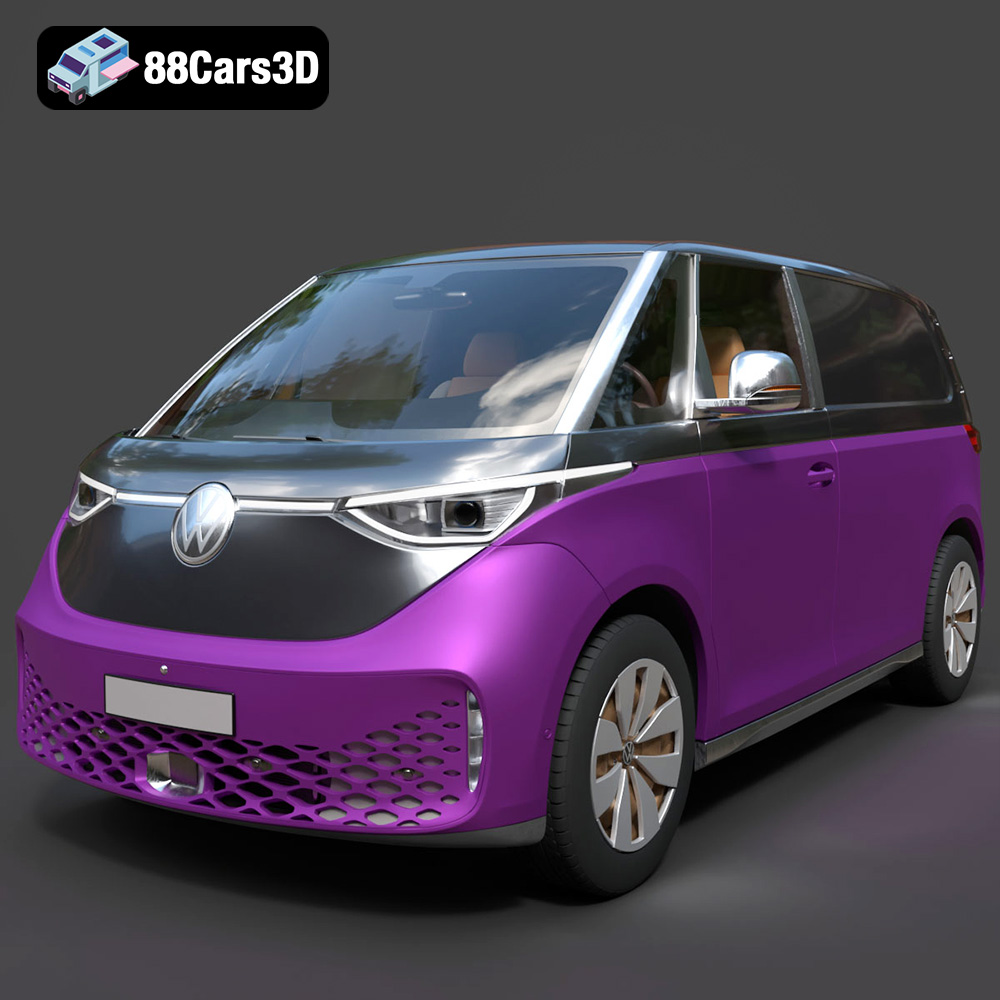
Texture: Yes
Material: Yes
Download the Volkswagen ID. Buzz Cargo 2023 3D Model featuring clean geometry, realistic detailing, and a fully modeled interior. Includes .blend, .fbx, .obj, .glb, .stl, .ply, .unreal, and .max formats for rendering, simulation, and game development.
Price: $19.99

Texture: Yes
Material: Yes
Download the Volkswagen ID. Buzz 2023 3D Model featuring clean geometry, realistic detailing, and a fully modeled interior. Includes .blend, .fbx, .obj, .glb, .stl, .ply, .unreal, and .max formats for rendering, simulation, and game development.
Price: $19.99
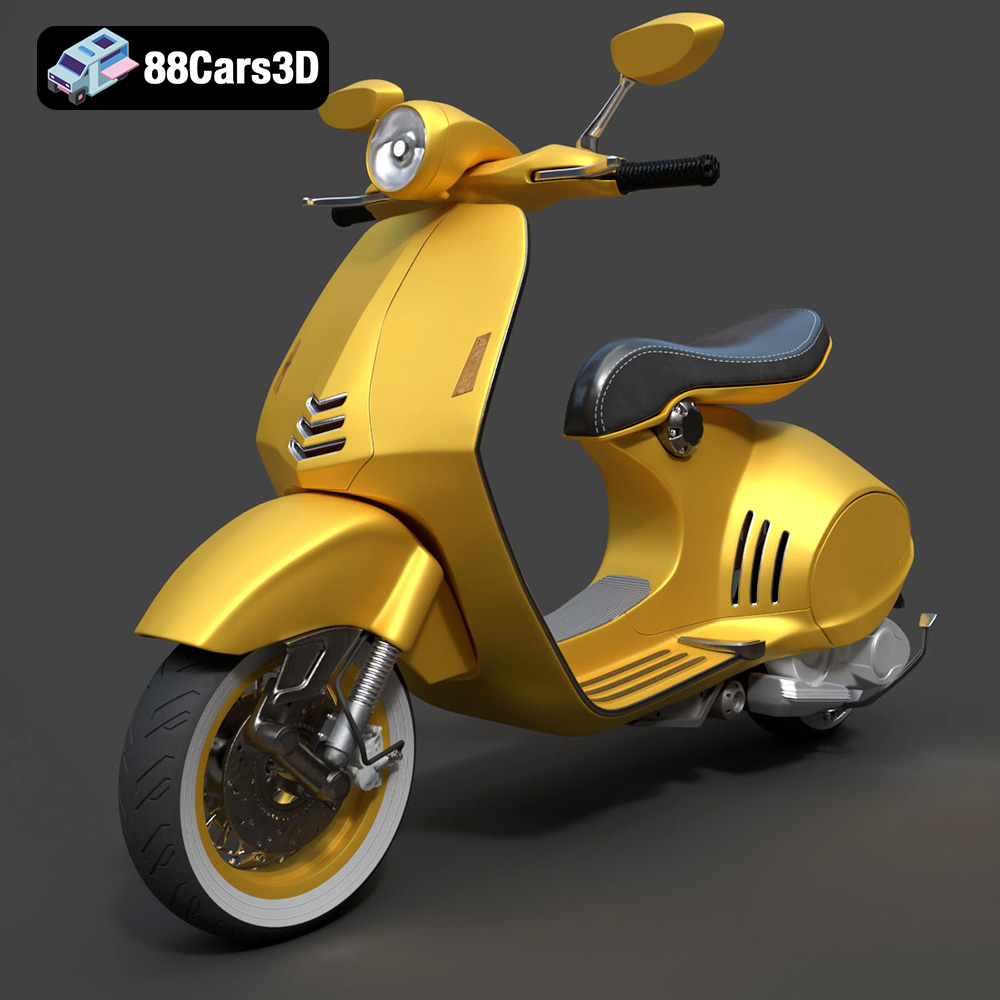
Texture: Yes
Material: Yes
Download the Vespa 946 3D Model featuring clean geometry, realistic detailing, and a fully modeled interior. Includes .blend, .fbx, .obj, .glb, .stl, .ply, .unreal, and .max formats for rendering, simulation, and game development.
Price: $19.99

Texture: Yes
Material: Yes
Download the Toyota Yaris Cross 3D Model featuring clean geometry, realistic detailing, and a fully modeled interior. Includes .blend, .fbx, .obj, .glb, .stl, .ply, .unreal, and .max formats for rendering, simulation, and game development.
Price: $19.99

Texture: Yes
Material: Yes
Download the Volkswagen Amarok 2019 3D Model featuring clean geometry, realistic detailing, and a fully modeled interior. Includes .blend, .fbx, .obj, .glb, .stl, .ply, .unreal, and .max formats for rendering, simulation, and game development.
Price: $19.99

Texture: Yes
Material: Yes
Download the Tesla Model S Plaid 2023 3D Model featuring clean geometry, realistic detailing, and a fully modeled interior. Includes .blend, .fbx, .obj, .glb, .stl, .ply, .unreal, and .max formats for rendering, simulation, and game development.
Price: $19.99

