Get 50% OFF All Premium 3D & STL Models!

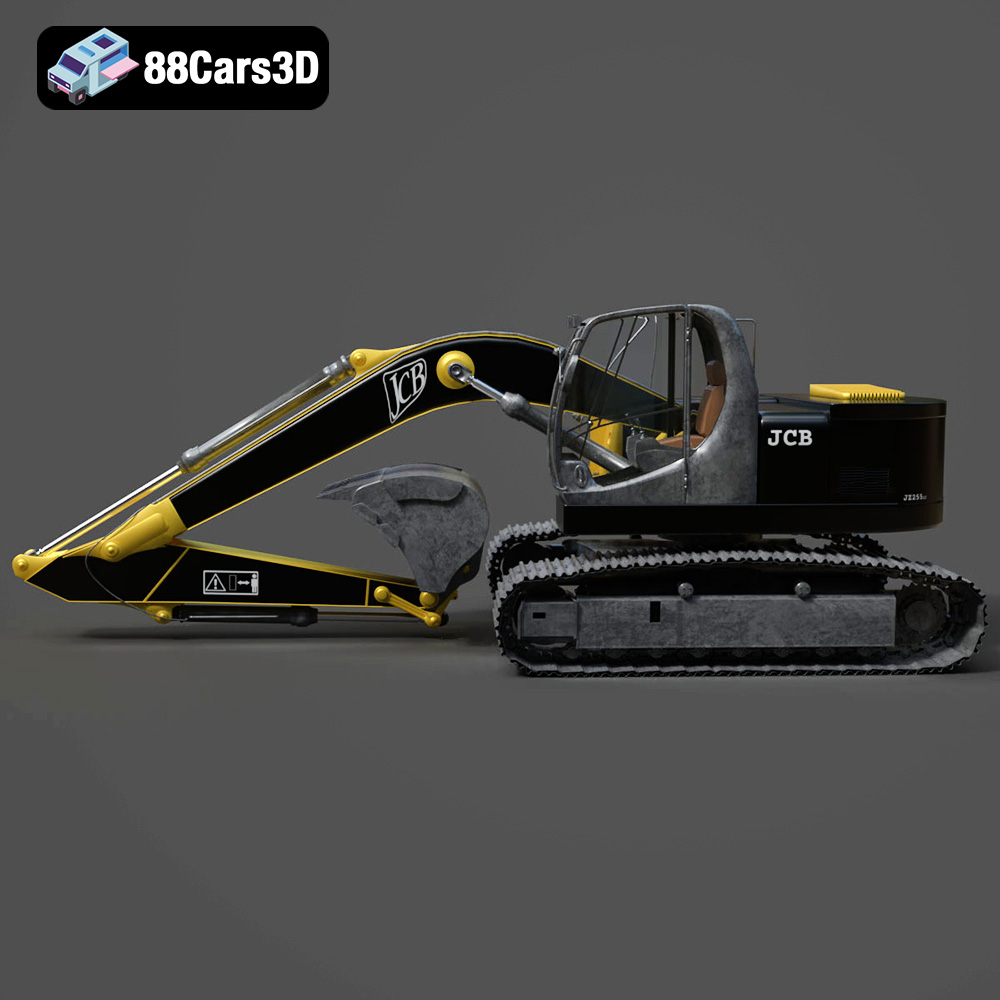
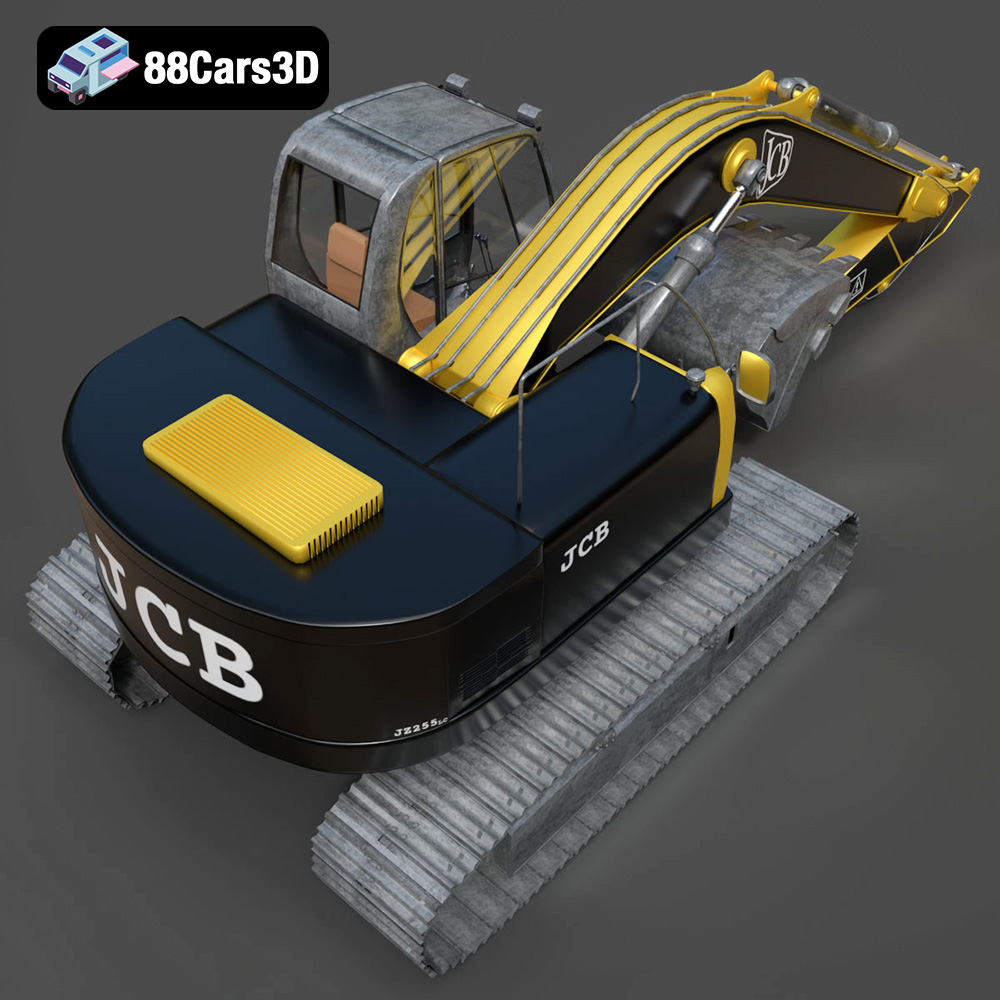
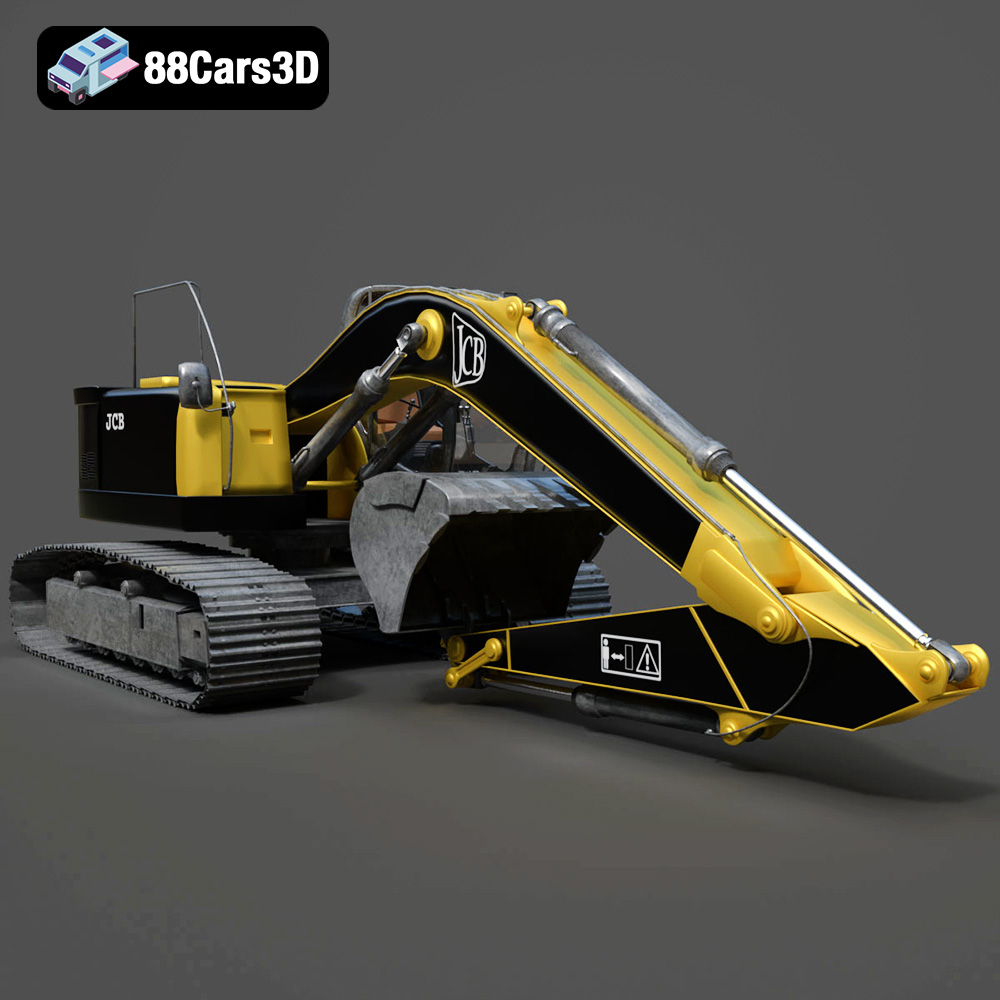
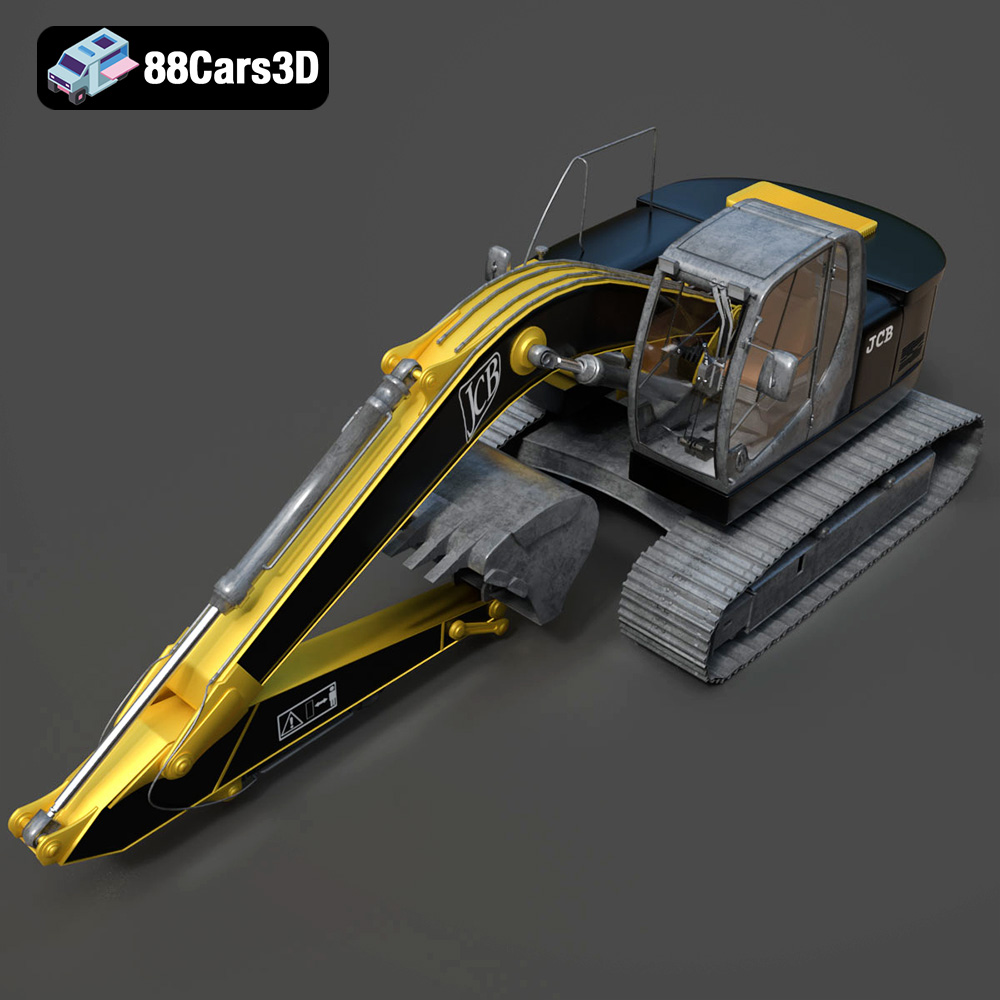
The JCB Excavator-001 3D model from 88cars3d.com is an impressive digital recreation of a powerful piece of construction equipment. Whether you’re a hobbyist, a professional model maker, or someone simply fascinated by engineering, 3D printing this model presents an exciting challenge. This guide will walk you through the entire process, from preparing the STL files to post-processing the final print, ensuring you create a stunning replica of the JCB Excavator-001.
Selecting the appropriate 3D printing technology is crucial for achieving the desired level of detail and structural integrity for the JCB Excavator-001. Two primary options stand out: Fused Deposition Modeling (FDM) and Stereolithography (SLA) or resin printing.
FDM is a widely accessible and cost-effective method. It involves melting and extruding thermoplastic filaments, such as PLA or PETG, layer by layer, to build the model. For the JCB Excavator-001, FDM printing offers a good balance between detail and cost. However, intricate details may require careful consideration of layer height and support structures.
SLA printing utilizes liquid resin that is cured by a UV light source, resulting in highly detailed and accurate prints. This method is ideal for capturing the complex geometry of the JCB Excavator-001, especially smaller parts and intricate features. However, resin printing typically involves a higher initial investment and requires more careful handling of materials and post-processing.
Before diving into the 3D printing process, it’s crucial to understand the different file formats available and their suitability for additive manufacturing. The JCB Excavator-001 is available in various formats, but some are better suited for 3D printing than others.
The STL (Stereolithography) file format is the most widely used and accepted format in the 3D printing world. It represents the 3D model’s surface geometry as a collection of triangles, defining the shape without any color, texture, or material information. This simplicity makes it universally compatible with slicing software and 3D printers.
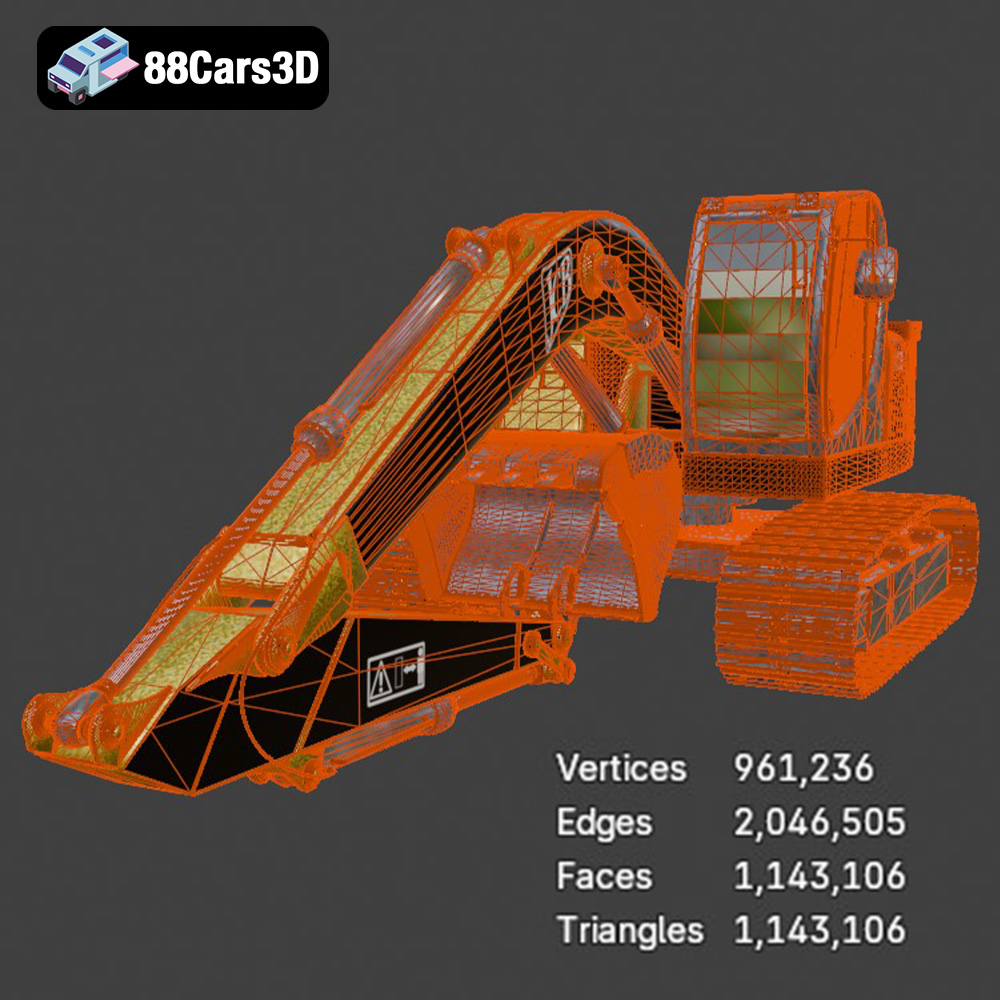
For the JCB Excavator-001, the STL file is the primary choice for 3D printing. Slicing software interprets the triangular mesh and generates the toolpaths needed to build the model layer by layer. A higher density of triangles (higher resolution STL) will result in a smoother surface finish, but it also increases the file size and processing time. It’s important to find a balance between resolution and practicality. Because STL files only contain mesh data, you’ll need to assign materials and colors during post-processing if you desire a colorful, realistic model.
* **.obj:** A more universal format than STL, OBJ files can store color and texture information. While compatible with some slicing software, it’s not as universally supported as STL.
* **.ply:** A precision mesh format primarily used for storing data acquired from 3D scanners. It allows for capturing high-detail information, but it might be overkill for most 3D printing applications and can result in large file sizes.
* **.blend:** The native file format for Blender. It’s useful for making modifications to the model before exporting it to a 3D printable format like STL. You cannot directly print a .blend file.
* **.fbx:** Commonly used in game development, FBX files can contain materials and animations. While not ideal for direct 3D printing, you can import the model into a 3D modeling software and export it as an STL.
* **.glb:** GLB files are designed for AR/VR and web-based visualization. They contain 3D model data, textures, and animations in a single file. Not directly printable, but useful for previews.
* **.max:** The native file format for 3ds Max. Similar to .blend, it allows for extensive editing before exporting to a printable format.
For successful 3D printing of the JCB Excavator-001, prioritize using the STL file. If you need to make modifications to the model, use the .blend or .max files in Blender or 3ds Max, respectively, and then export the modified model as an STL file. Ensure the mesh quality is sufficient for the desired level of detail by adjusting the export settings. In slicing software, you may need to repair the mesh if errors are reported, as a non-manifold mesh can cause printing issues.
Once you’ve chosen your printing technology and confirmed you have the STL file, the next step is pre-print preparation. This involves using slicing software to convert the 3D model into a series of instructions that your 3D printer can understand.
Popular slicing software options include Cura, Simplify3D, PrusaSlicer, and Chitubox (for resin printers). These programs allow you to adjust various settings to optimize the printing process. Key settings to consider include:
* **Layer Height:** Determines the resolution of the print. Lower layer heights (e.g., 0.1mm) produce smoother surfaces but increase print time.
* **Infill Density:** Controls the internal structure of the model. Higher infill provides greater strength but uses more material. For the JCB Excavator-001, a moderate infill (15-25%) is usually sufficient for most parts.
* **Support Structures:** Necessary for overhanging features. Choose appropriate support placement and density to minimize material usage and simplify removal.
* **Print Speed:** Affects the quality and speed of the print. Slower speeds generally result in better quality.
* **Bed Adhesion:** Settings like brims or rafts can improve adhesion to the build plate and prevent warping, especially for larger parts.
Proper model orientation is crucial for minimizing support structures and maximizing print quality. Experiment with different orientations in your slicing software to find the optimal position for each part of the JCB Excavator-001. Consider the following:
* Minimize the number of overhanging features that require support.
* Orient parts with the largest flat surface facing down to improve bed adhesion.
* Conceal support marks on less visible areas of the model.
For complex parts, automatic support generation can be helpful, but manually editing the support placement can often result in a cleaner print.
The choice of material significantly impacts the final appearance, strength, and durability of the 3D printed JCB Excavator-001. Different materials require specific printer settings for optimal results.
* **PLA (Polylactic Acid):** An excellent choice for beginners due to its ease of printing and biodegradability. PLA is suitable for parts that don’t require high heat resistance or flexibility.
* Nozzle Temperature: 200-220°C
* Bed Temperature: 50-60°C
* **PETG (Polyethylene Terephthalate Glycol):** Offers better strength and heat resistance than PLA. PETG is a good option for parts that may experience some stress or outdoor exposure.
* Nozzle Temperature: 220-250°C
* Bed Temperature: 70-80°C
* **ABS (Acrylonitrile Butadiene Styrene):** Known for its high strength and durability, but requires a heated enclosure to prevent warping. ABS is suitable for functional parts that need to withstand high temperatures. (Generally not recommended for beginners)
* Nozzle Temperature: 230-260°C
* Bed Temperature: 80-110°C
* **Resin:** Offers the highest detail and surface finish, ideal for small, intricate parts. However, resin prints require post-curing and careful handling due to the material’s toxicity.
Once you’ve selected your material, adjust the printer settings accordingly. Pay attention to:
* **Layer Height:** For detailed parts, use a layer height of 0.1mm or lower. For larger, less detailed parts, you can increase the layer height to 0.2mm or 0.3mm.
* **Print Speed:** Start with a moderate print speed (40-60mm/s) and adjust as needed. Slower speeds generally improve quality but increase print time.
* **Retraction Settings:** Adjust retraction distance and speed to minimize stringing and oozing.
* **Cooling:** Ensure adequate cooling for PLA to prevent warping and improve overhang quality.
Post-processing is essential for achieving a professional-looking finish on your 3D printed JCB Excavator-001. This involves removing support structures, sanding, and potentially painting the model.
Carefully remove support structures using pliers or cutters. Take your time to avoid damaging the model. Use a sharp knife or scraper to remove any remaining support material.
Sanding is crucial for removing layer lines and creating a smooth surface. Start with coarse sandpaper (e.g., 220 grit) and gradually move to finer grits (e.g., 400, 600, 800 grit) to achieve a polished finish. Wet sanding can help prevent clogging the sandpaper and produce a smoother surface.
Painting can significantly enhance the realism of the JCB Excavator-001. Use primer to prepare the surface for paint. Apply multiple thin coats of paint for a smooth, even finish. Consider using stencils or masking tape to create accurate details and markings. Weathering effects, such as dry brushing or washes, can add realism and depth to the model.
The JCB Excavator-001 may consist of multiple parts that need to be assembled. Use glue or screws to join the parts together. Ensure proper alignment and allow the adhesive to dry completely before handling the assembled model.
Even with careful preparation, you may encounter some common 3D printing issues. Here are some troubleshooting tips:
Warping occurs when the corners of the print lift off the build plate. To prevent warping:
* Ensure the build plate is clean and level.
* Use a brim or raft to improve bed adhesion.
* Increase the bed temperature.
* Use an enclosure to maintain a consistent temperature.
Stringing is caused by excess material oozing from the nozzle during travel moves. To reduce stringing:
* Increase retraction distance and speed.
* Lower the nozzle temperature.
* Increase travel speed.
Layer separation occurs when the layers of the print do not adhere properly. To fix layer separation:
* Increase the nozzle temperature.
* Decrease print speed.
* Ensure proper bed adhesion.
The print time and material cost for the JCB Excavator-001 will vary depending on the size of the model, the printing settings, and the material used. As a rough estimate, a moderately sized print with PLA could take anywhere from 10 to 30 hours and cost between $5 and $20 in materials. Larger, more detailed prints with resin could take longer and cost more. Using slicing software like Cura can give more accurate estimates once you’ve adjusted the settings.
The high-quality JCB Excavator-001 3D model featured in this guide is available for purchase on 88cars3d.com. Downloading the STL files from a reputable source like 88cars3d.com ensures that you are working with a well-designed and optimized model, increasing your chances of a successful 3D printing experience.
Immerse yourself in the intricate detailing of the JCB Excavator-001 3D model. This meticulously crafted model delivers unparalleled realism, capturing every aspect of the iconic construction equipment with precision. Perfect for game development, architectural visualization, high-resolution rendering, augmented reality (AR), virtual reality (VR), and simulation projects.
$19.99
.arvr
.blend
.car3dmodel
.constructionequipment
.excavator
.excavator001
.fbx
.gameasset
.glb
.jcb
.max
.obj
.ply
.rendering
.simulation
.stl
.unreal