Get 50% OFF All Premium 3D & STL Models!

“`html
So, you’ve discovered the exciting world of 3D printing and have your eye on some incredible printable car models from platforms like 88cars3d.com. You’ve got your printer, some filament, and a burning desire to bring these digital designs to life. However, the journey from digital STL file to physical masterpiece can be fraught with challenges, especially for beginners. Many first-time 3D printers stumble into common pitfalls that result in failed prints, wasted material, and a whole lot of frustration. This comprehensive guide will walk you through the top 10 mistakes beginners make when printing STL files, providing detailed insights and practical solutions to ensure your prints are a success. We’ll cover everything from proper STL file preparation to advanced slicing techniques, ensuring you’re well-equipped to tackle any 3D printing project, especially those stunning automotive models.
One of the most frequent mistakes is diving straight into printing without properly preparing the STL file. STL files, while widely used, aren’t always perfect right off the bat. They can contain errors that will translate into print failures. This is particularly crucial when working with intricate models like those found on 88cars3d.com, where fine details can be easily compromised.
STL files represent 3D models as a collection of triangles. Sometimes, these triangles have gaps, overlaps, or incorrect normals (the direction the triangle is facing). These errors, known as non-manifold geometry, will confuse your slicer and lead to missing parts, incorrect infill, or outright print failure. Use software like Meshmixer, Netfabb Basic (if you can still find it!), or even the built-in repair functions in your slicer (PrusaSlicer’s auto-repair is quite good) to fix these issues. A healthy mesh is the foundation for a successful print. Imagine trying to build a car out of warped and broken panels – that’s what an un-repaired STL file is like for your 3D printer.
Always, *always* double-check the scale of your STL file before slicing. A model designed to be 1/24 scale might accidentally load as 1/1 scale, which would be enormous (and likely exceed your printer’s build volume). Alternatively, it might load as a minuscule fraction of the intended size, rendering the print impossible. Most slicers display the dimensions of the model in millimeters (mm). Verify these dimensions against the intended scale or size of the model. If the scale is incorrect, adjust it within your slicer or use a 3D modeling program like Blender to rescale the STL before importing it into your slicer.
Bed adhesion is the foundation of any successful 3D print. If your first layer doesn’t stick properly to the build plate, the rest of the print is doomed. This is even more critical for large or complex models, where warping can easily occur. A poor first layer can manifest as the print detaching mid-print, warping corners, or a tangled mess of filament.
An unlevelled print bed is a prime culprit for poor bed adhesion. Even if your printer has auto-bed leveling, it’s still crucial to ensure your bed is reasonably level. Use the paper test (sliding a piece of paper between the nozzle and the bed) to manually adjust the bed leveling knobs until you feel slight friction. Many printers also have bed leveling wizards to assist in this process. Regularly check and adjust your bed leveling, especially if you move your printer or change materials.
A clean and properly prepared print surface is essential. For PLA, a clean glass bed with a light application of glue stick or hairspray often works wonders. For ABS, a heated bed with a slurry of ABS dissolved in acetone (use caution and proper ventilation!) is a common solution. PEI sheets are a popular and versatile option, offering excellent adhesion for a wide range of materials. Ensure your build plate is free of grease, dust, and fingerprints, as these contaminants can interfere with adhesion. Isopropyl alcohol is your friend here. A quick wipe-down before each print can make a significant difference.
The slicer is the software that translates your 3D model into instructions (G-code) for your printer. Ignoring or misconfiguring slicer settings is a surefire way to produce poor-quality prints. Understanding and adjusting these settings is key to achieving the desired results, especially when printing detailed car models.
Using the wrong nozzle or bed temperature can lead to a variety of problems. If the nozzle temperature is too low, the filament may not melt properly, resulting in poor layer adhesion and under-extrusion. If the temperature is too high, you might experience stringing, warping, or even heat creep (where the filament softens too high up in the hot end). Consult your filament manufacturer’s recommendations for temperature ranges. Experiment within those ranges to find the optimal settings for your printer and environment. For PLA, a nozzle temperature of 200-220°C and a bed temperature of 60°C are generally good starting points. ABS typically requires a nozzle temperature of 230-250°C and a bed temperature of 80-110°C.
Layer height dictates the resolution and print time. Lower layer heights (e.g., 0.1mm) result in finer details and smoother surfaces but significantly increase print time. Higher layer heights (e.g., 0.3mm) print faster but sacrifice detail. Finding the right balance is crucial. For detailed car models, a layer height of 0.15-0.2mm is often a good compromise between detail and print speed. Consider using adaptive layer height features in your slicer, which automatically adjusts the layer height based on the curvature of the model. This allows you to achieve high detail in intricate areas while maintaining faster print speeds in simpler sections.
Many 3D models, particularly those with overhangs or intricate details, require support structures to prevent them from collapsing during printing. Neglecting to generate adequate support structures is a common cause of print failure. Think of supports as scaffolding that holds up parts of the model while they are being printed.
The density of support structures determines how well they support the overhanging features. Too little density, and the overhangs may sag or droop. Too much density, and the supports become difficult to remove and can leave unsightly marks on the finished print. Experiment with different support densities to find the optimal balance for your model and material. Cura offers a “Support Density” setting, while PrusaSlicer has a “Support Material Interface Density” setting. Generally, a density of 15-25% is a good starting point. Also, ensure the supports are properly anchored to both the build plate and the model.
Where you place your supports is just as important as how dense they are. Think about the angle of overhangs and the areas that need the most support. Manually placing supports can often yield better results than relying solely on automatic support generation. Many slicers allow you to add, remove, and customize support structures. Focus on supporting areas with overhangs greater than 45 degrees. Also, consider using tree supports, which are more efficient and easier to remove than traditional linear supports.
The orientation of your model on the print bed can dramatically affect print time, support requirements, and the overall quality of the finished print. Choosing the wrong orientation can lead to excessive support material, weak points, and a less aesthetically pleasing result.
Orient your model in a way that minimizes the amount of support material needed. Look for orientations that reduce the number and size of overhangs. Rotating a car body to print with the roof facing down, for example, would require a massive amount of support material inside the car. Printing it with the roof facing up minimizes the supports needed for the windows and other details. Experiment with different orientations in your slicer to visualize the support structures generated.
Consider the structural integrity and aesthetic appearance of the final print when choosing your orientation. Printing a car chassis flat on the bed might be the easiest way to minimize supports, but it could result in weaker layers along the Z-axis. Orienting the chassis vertically could improve strength but require more supports. Carefully consider which surfaces are most visible and orient them to minimize layer lines and maximize smoothness.
Infill is the internal structure of your 3D print. It provides strength and rigidity while saving on material. Ignoring infill settings can result in prints that are either too weak or unnecessarily heavy and time-consuming to print.
Infill density determines how much material is used inside the model. A higher density (e.g., 50-100%) results in a stronger but heavier and longer print. A lower density (e.g., 10-20%) saves material and time but sacrifices strength. For decorative car models from 88cars3d.com, a density of 15-25% is often sufficient. For functional parts or models that will be subjected to stress, a higher density may be necessary. Experiment with different densities to find the optimal balance for your needs.
The infill pattern affects the strength and print time. Common patterns include grid, lines, triangles, and gyroid. Gyroid infill is known for its excellent strength-to-weight ratio but can be slower to print. Grid and line patterns are faster but less strong. Triangle infill offers a good compromise between speed and strength. Consider the specific requirements of your model when choosing an infill pattern.
A poorly calibrated or maintained 3D printer will produce inconsistent and unreliable results. Regular maintenance and calibration are essential for ensuring optimal print quality. This is especially true when printing detailed models where precision is key.
Extruder calibration ensures that your printer is extruding the correct amount of filament. An under-extruded print will have gaps and weak layers, while an over-extruded print will have blobs and imperfections. Calibrate your extruder by measuring the amount of filament that is actually extruded when your printer is instructed to extrude a specific length (e.g., 100mm). Adjust the E-steps value in your printer’s firmware until the actual extrusion matches the commanded extrusion.
The Z-offset is the distance between the nozzle and the build plate. If the Z-offset is too high, the first layer will not adhere properly. If it’s too low, the nozzle may scrape against the bed or clog. Fine-tune your Z-offset until you achieve a smooth and consistent first layer. Many printers have a live Z-offset adjustment feature that allows you to make adjustments during the first layer.
Filament is hygroscopic, meaning it absorbs moisture from the air. Moist filament can lead to a variety of printing problems, including stringing, popping, and poor layer adhesion. Proper filament storage is crucial for maintaining print quality.
Store your filament in airtight containers with desiccant packs to keep it dry. Dry boxes are specifically designed for filament storage and often include features like humidity sensors and filament feedthroughs. Consider investing in a dry box, especially if you live in a humid environment or print with moisture-sensitive materials like nylon.
If your filament has already absorbed moisture, you can dry it using a filament dryer or a conventional oven. Follow the filament manufacturer’s recommendations for drying temperatures and times. Be careful not to overheat the filament, as this can damage it. A food dehydrator can also be used for drying filament at low temperatures.
Different filament types have different properties and are suitable for different applications. Using the wrong filament type can lead to poor print quality, weak parts, or even damage to your printer.
PLA is a biodegradable thermoplastic that is easy to print and suitable for decorative models. ABS is a stronger and more heat-resistant plastic but requires a heated bed and good ventilation. PETG offers a good compromise between PLA and ABS, with good strength, heat resistance, and ease of printing. Choose the filament type that best suits the requirements of your project. For car models from 88cars3d.com intended for display, PLA is often a good choice. For functional parts or models that will be exposed to high temperatures, ABS or PETG may be more suitable.
Explore specialty filaments like carbon fiber-reinforced, flexible TPU, or wood-filled filaments to create unique and functional prints. Be aware that some specialty filaments may require specific printer settings or hardware upgrades, such as a hardened steel nozzle.
Post-processing is the final step in the 3D printing process and involves cleaning up, finishing, and assembling your print. Rushing this stage can detract from the overall quality and appearance of your finished product.
Carefully remove support structures using pliers, cutters, or a deburring tool. Sand the surface of your print to remove any blemishes or layer lines. Start with a coarse grit sandpaper and gradually work your way up to finer grits for a smooth finish. Wet sanding can help to reduce dust and improve the finish quality.
Paint your 3D printed car model to bring it to life. Use primer to prepare the surface for paint and apply multiple thin coats for a smooth and even finish. Assemble any separate parts using glue or fasteners. Consider using automotive paints and clear coats for a professional-looking finish. Remember, patience is key to achieving a high-quality result.
By avoiding these common pitfalls and embracing a methodical approach to 3D printing, you’ll be well on your way to creating stunning, high-quality prints of your favorite car models from 88cars3d.com. Remember to experiment, learn from your mistakes, and most importantly, have fun!
Mastering the art of 3D printing, particularly for intricate models like the ones available on 88cars3d.com, is a journey of continuous learning and refinement. We’ve explored the top 10 mistakes that often plague beginners, ranging from neglecting proper STL file preparation and bed adhesion to overlooking crucial slicer settings and post-processing techniques. The key takeaway is that meticulous attention to detail, combined with a willingness to experiment and learn from both successes and failures, is paramount. By addressing mesh errors, optimizing print orientation, calibrating your printer, and storing your filament properly, you’ll drastically improve your print quality and reduce the likelihood of frustrating setbacks. So, take these lessons to heart, apply them to your next 3D printing project, and watch your digital designs come to life with stunning accuracy and detail. Happy printing!
“`

Texture: Yes
Material: Yes
Download the Volvo Trucks Benz GT-001 3D Model featuring clean geometry, realistic detailing, and a fully modeled interior. Includes .blend, .fbx, .obj, .glb, .stl, .ply, .unreal, and .max formats for rendering, simulation, and game development.
Price: $29.99

Texture: Yes
Material: Yes
Download the Volvo C40 Recharge 3D Model featuring clean geometry, realistic detailing, and a fully modeled interior. Includes .blend, .fbx, .obj, .glb, .stl, .ply, .unreal, and .max formats for rendering, simulation, and game development.
Price: $19.99

Texture: Yes
Material: Yes
Download the Volkswagen Tiguan 2021 3D Model featuring clean geometry, realistic detailing, and a fully modeled interior. Includes .blend, .fbx, .obj, .glb, .stl, .ply, .unreal, and .max formats for rendering, simulation, and game development.
Price: $19.99
Texture: Yes
Material: Yes
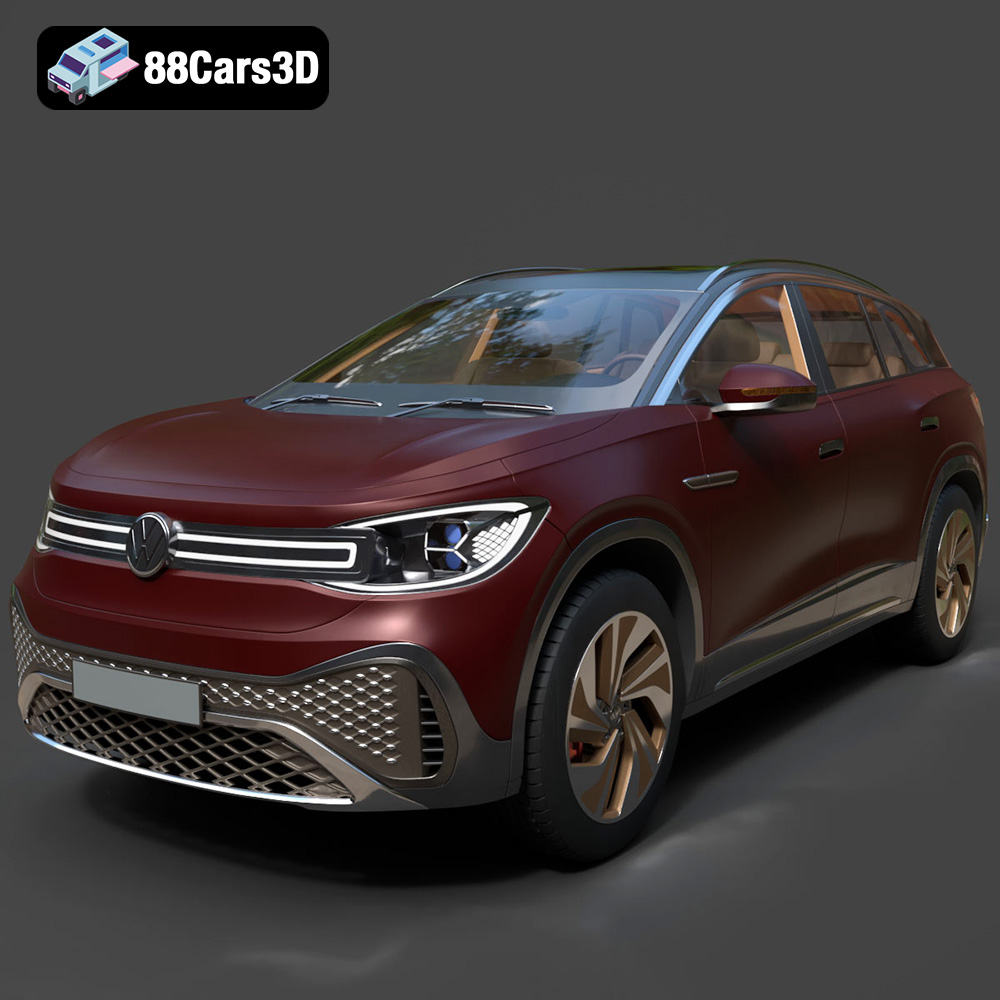
Download the Volkswagen ID6 CROZZ 2022 3D Model featuring clean geometry, realistic detailing, and a fully modeled interior. Includes .blend, .fbx, .obj, .glb, .stl, .ply, .unreal, and .max formats for rendering, simulation, and game development.
Price: $19.99

Texture: Yes
Material: Yes
Download the Volkswagen ID4 2021 3D Model featuring clean geometry, realistic detailing, and a fully modeled interior. Includes .blend, .fbx, .obj, .glb, .stl, .ply, .unreal, and .max formats for rendering, simulation, and game development.
Price: $19.99
Texture: Yes
Material: Yes
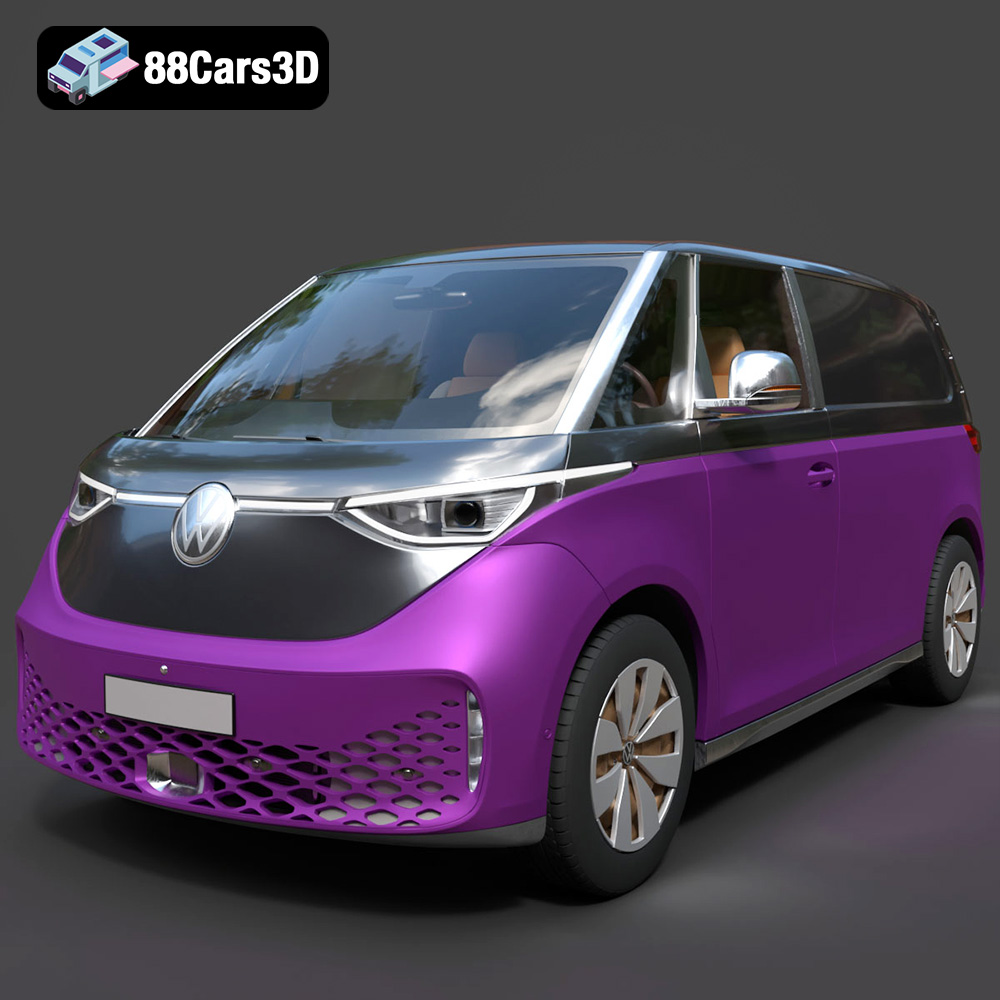
Download the Volkswagen ID. Buzz Cargo 2023 3D Model featuring clean geometry, realistic detailing, and a fully modeled interior. Includes .blend, .fbx, .obj, .glb, .stl, .ply, .unreal, and .max formats for rendering, simulation, and game development.
Price: $19.99
Texture: Yes
Material: Yes
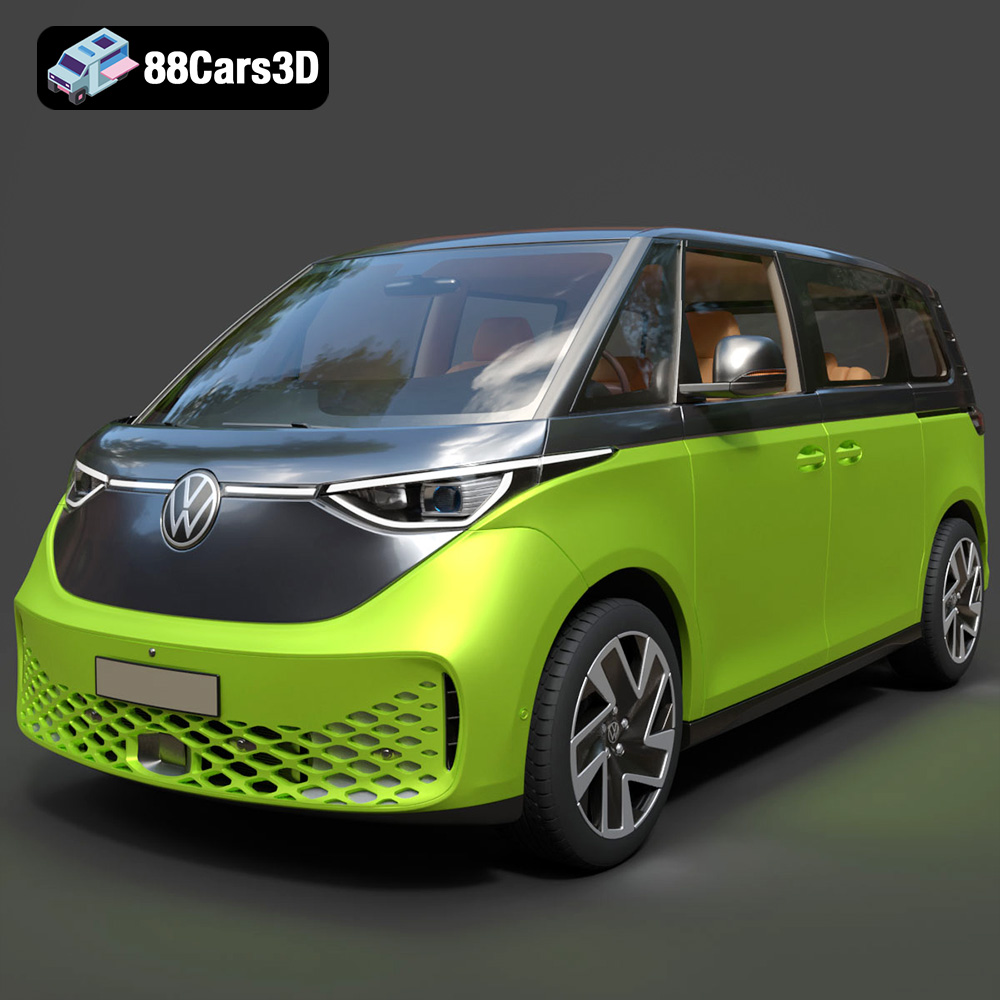
Download the Volkswagen ID. Buzz 2023 3D Model featuring clean geometry, realistic detailing, and a fully modeled interior. Includes .blend, .fbx, .obj, .glb, .stl, .ply, .unreal, and .max formats for rendering, simulation, and game development.
Price: $19.99
Texture: Yes
Material: Yes
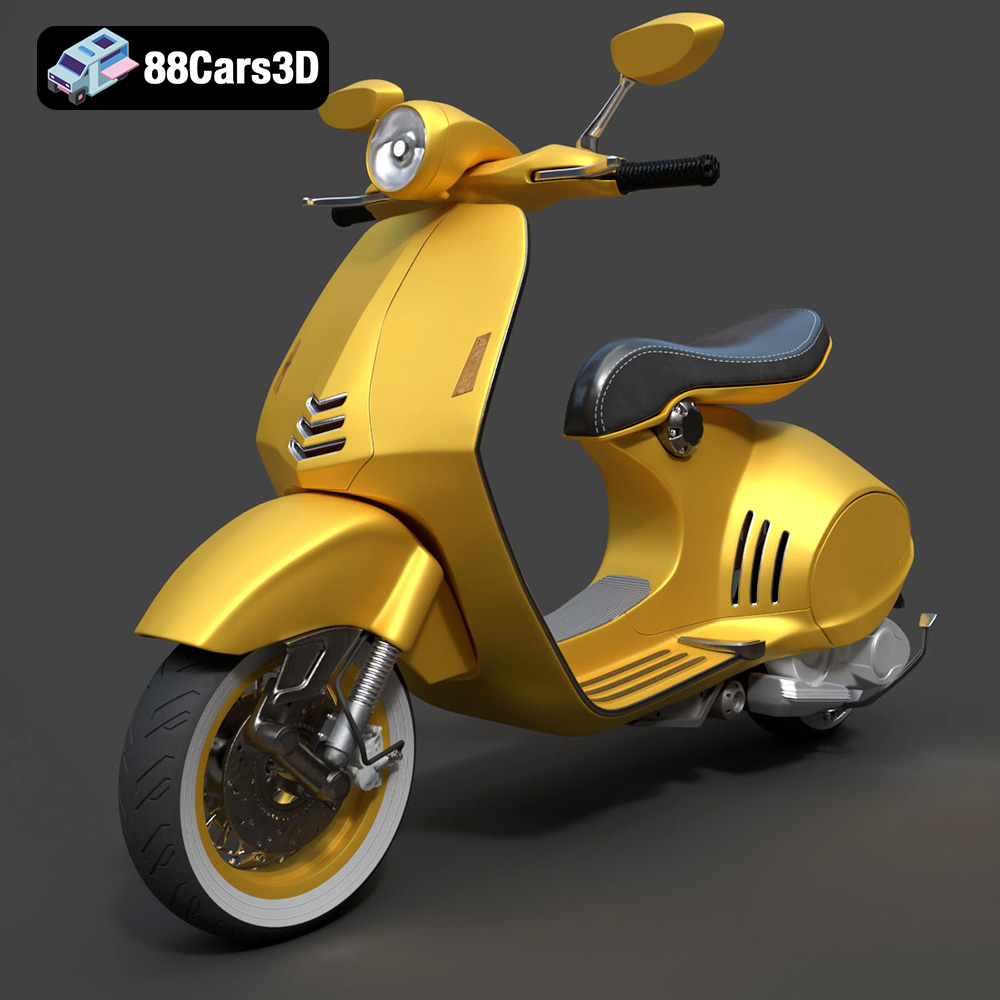
Download the Vespa 946 3D Model featuring clean geometry, realistic detailing, and a fully modeled interior. Includes .blend, .fbx, .obj, .glb, .stl, .ply, .unreal, and .max formats for rendering, simulation, and game development.
Price: $19.99

Texture: Yes
Material: Yes
Download the Toyota Yaris Cross 3D Model featuring clean geometry, realistic detailing, and a fully modeled interior. Includes .blend, .fbx, .obj, .glb, .stl, .ply, .unreal, and .max formats for rendering, simulation, and game development.
Price: $19.99

Texture: Yes
Material: Yes
Download the Volkswagen Amarok 2019 3D Model featuring clean geometry, realistic detailing, and a fully modeled interior. Includes .blend, .fbx, .obj, .glb, .stl, .ply, .unreal, and .max formats for rendering, simulation, and game development.
Price: $19.99

