Get 50% OFF All Premium 3D & STL Models!

“`html
The world of 3D printing offers incredible possibilities, especially for automotive enthusiasts looking to bring their dream cars to life. Platforms like 88cars3d.com provide a fantastic resource for high-quality 3D printable car models in STL format. However, before you hit that print button, it’s crucial to ensure your STL file is clean and ready for the printing process. Often, downloaded STL files, while visually appealing, can contain imperfections that lead to print failures or subpar results. This is where Blender, a powerful and free 3D modeling software, comes in. This comprehensive guide will walk you through the process of cleaning up STL files using Blender, covering everything from importing and inspecting the mesh to fixing common issues and preparing your model for successful 3D printing. Whether you’re aiming to print a scale model for your collection or a prototype part, mastering these techniques will significantly improve your 3D printing outcomes.
Even STL files from reputable sources can have imperfections. These imperfections can manifest as non-manifold geometry (holes, self-intersections), inverted normals, overlapping faces, or simply excessive triangles that strain your 3D printer and slicing software. These issues can lead to print failures, weak points in the printed model, or a rough surface finish. Cleaning up your STL file ensures a smoother, more reliable 3D printing experience and a higher-quality finished product.
The first step is to bring your STL file into Blender and thoroughly inspect it for any potential problems. This initial assessment is critical to identifying areas that need attention and planning your cleanup strategy.
Open Blender and navigate to File > Import > STL (.stl). Select your STL file and click “Import STL”. Once imported, the model might appear small or large depending on the scale it was designed in. You can use the mouse wheel to zoom in and out, and hold down the middle mouse button to rotate the view. To focus on the model, select it by right-clicking on it in the viewport and then press the period key (.) on your numpad. This will center the view on the selected object.
Begin with a visual inspection of the model in Object Mode. Look for obvious holes, gaps, or distorted areas. Switch to Edit Mode by selecting the object and pressing the Tab key. In Edit Mode, you can examine the individual vertices, edges, and faces that make up the mesh. Turn on Wireframe mode (Z key, then select “Wireframe”) to see the mesh structure more clearly. Check for areas with unusually dense or sparse triangles, which can indicate potential issues.
Blender offers several helpful overlays to identify mesh problems. In the top right corner of the 3D Viewport, you’ll find a dropdown menu labeled Overlays. Enable the following options:
Non-manifold geometry is a common issue in STL files, especially those created through complex modeling processes or conversions. It refers to situations where the mesh has edges connected to more than two faces, or faces that don’t form a closed volume. These errors can confuse slicing software and lead to print failures.
Imagine trying to create a watertight container with paper. If you have gaps or overlapping pieces, the container isn’t “manifold.” Similarly, in 3D models, non-manifold geometry includes:
Blender has a built-in tool to help you identify non-manifold geometry. In Edit Mode, go to Select > Select All by Trait > Non Manifold. This will highlight all the non-manifold edges in your mesh. Once selected, you can then investigate the area to determine the best approach to fix the problem.
The method for fixing non-manifold geometry depends on the specific issue. Here are some common approaches:
Normals are vectors that define the direction a face is pointing. If a face has its normal pointing inwards, it’s considered “inverted.” Inverted normals can cause a variety of issues, including rendering errors and problems with boolean operations. More importantly for 3D printing, the slicer might not recognize the inside of the model correctly, leading to incorrect toolpath generation or even missing sections in the print.
Imagine painting a surface. The normal indicates which side you should apply the paint. In 3D modeling, the normal determines which side of the face is considered the “outside” of the object. If the normal is pointing in the wrong direction, the face is effectively “inside out.”
As mentioned earlier, enabling Face Orientation in the Overlays menu will highlight faces with inverted normals in red. This makes it easy to visually identify problem areas.
To correct inverted normals, select the faces with incorrect orientation in Edit Mode. Then, go to Mesh > Normals > Flip. This will reverse the direction of the normals, effectively turning the face “right side out.” Sometimes, you may need to select all faces (A) and then go to Mesh > Normals > Recalculate Outside. This automatically recalculates the normals for the entire mesh, attempting to orient them correctly based on the surrounding geometry.
While high-resolution models look great, excessive polygon counts can be detrimental to 3D printing. They increase slicing time, strain your printer’s processing power, and may not even be fully reproducible by the printer, especially on intricate models or using smaller nozzles. Reducing the polygon count, while preserving essential details, is an important optimization step.
A high polygon count means more data for the slicer to process, leading to longer slicing times and larger G-code files. It can also lead to uneven layer adhesion and a rougher surface finish if the printer struggles to handle the intricate movements required by the detailed mesh.
Blender’s Decimate modifier is a powerful tool for reducing polygon count. Select the object in Object Mode and go to the Modifiers tab (the wrench icon in the Properties panel). Click “Add Modifier” and choose “Decimate.” There are several decimation methods available:
Experiment with different methods and values to find the best balance between polygon reduction and detail preservation. It’s crucial to apply the modifier (click “Apply” in the Modifier tab) once you’re satisfied with the result. Remember to make a backup of your original file before applying the Decimate modifier, in case you need to revert to the original higher-resolution mesh.
In some cases, you may want to preserve detail in certain areas of the model while simplifying others. You can achieve this by using vertex groups in conjunction with the Decimate modifier. Create a vertex group encompassing the areas you want to protect, and then assign a vertex group to the “Vertex Group” option in the Decimate modifier. This will apply the decimation only to the vertices *not* in the selected vertex group, preserving the detail in your chosen areas.
For many 3D printed car models, especially those with overhangs or intricate details, support structures are necessary to ensure successful printing. While slicing software can automatically generate supports, sometimes you need more control over their placement and design. Blender can be used to manually add and optimize support structures for better print results and easier removal.
Supports provide a temporary foundation for parts of the model that would otherwise be printing in mid-air. Without supports, these sections would likely droop or collapse during printing.
In Blender, you can create manual support structures using various modeling techniques. A common approach is to add simple geometric shapes, such as cylinders or cones, and position them strategically to support overhangs. You can then join these support structures to the main model using boolean operations (Modifier > Boolean, set to “Union”). Be mindful of the contact points between the supports and the model; smaller contact points are easier to remove but might not provide sufficient support.
Consider the following factors when placing and designing supports:
After cleaning and optimizing your STL file in Blender, the final step is to export it in a format suitable for your slicing software. Ensuring correct export settings is crucial for a seamless transition to the 3D printing stage. The models available on platforms such as 88cars3d.com are designed to print effectively when properly prepared.
Go to File > Export > STL (.stl). In the export settings, make sure the following options are selected:
Choose a filename and location, and click “Export STL”.
Before slicing, it’s a good idea to re-import the exported STL file back into Blender to verify that the changes you made were correctly applied and that the mesh is still intact. This can help catch any unexpected issues before you start printing.
Cleaning up STL files in Blender is an essential step in the 3D printing workflow, especially when working with downloaded models or those created through complex processes. By following the techniques outlined in this guide, you can identify and correct common issues such as non-manifold geometry, inverted normals, and excessive polygon counts. Optimizing your mesh and adding appropriate support structures ensures a smoother printing experience and a higher-quality finished product. Remember that the key is to strike a balance between detail preservation, printability, and material usage. Download a car model from 88cars3d.com, practice these techniques, and elevate the quality of your 3D printed automotive masterpieces!
Actionable Next Steps:
“`

Texture: Yes
Material: Yes
Download the Volvo Trucks Benz GT-001 3D Model featuring clean geometry, realistic detailing, and a fully modeled interior. Includes .blend, .fbx, .obj, .glb, .stl, .ply, .unreal, and .max formats for rendering, simulation, and game development.
Price: $29.99
Texture: Yes
Material: Yes
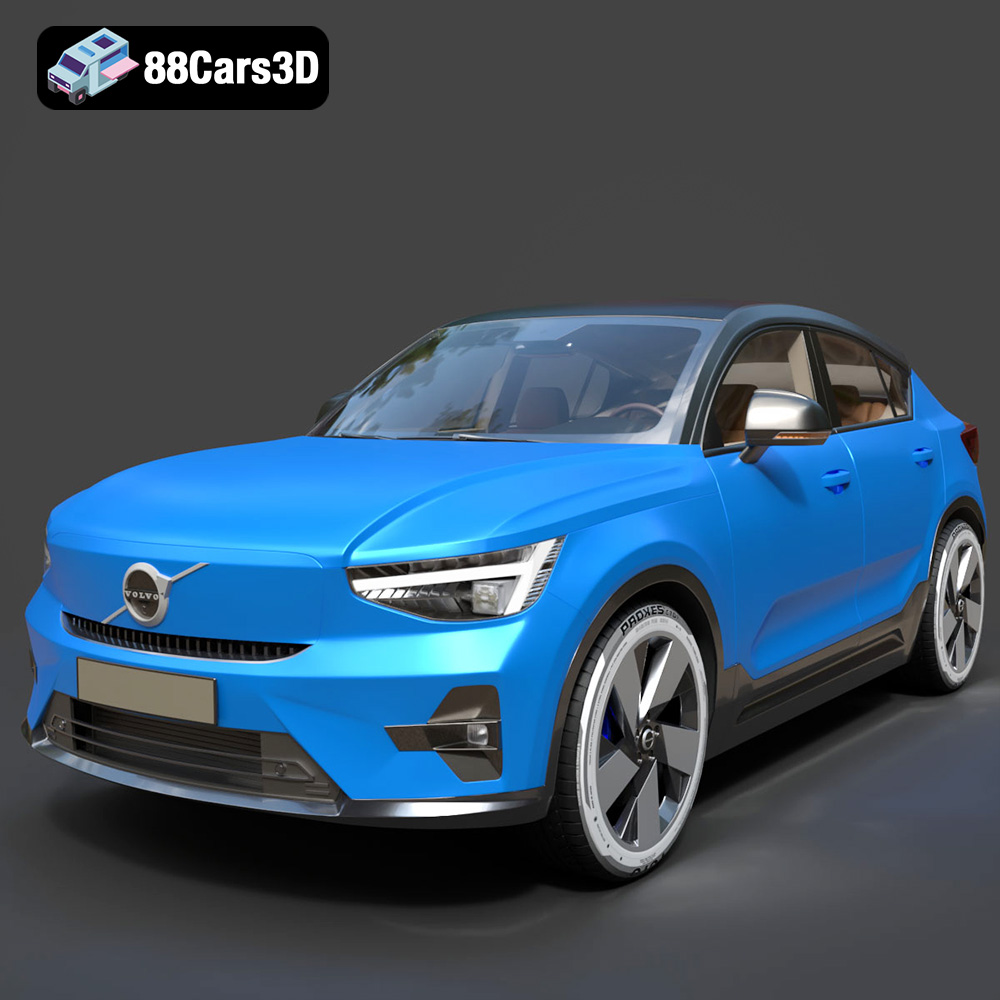
Download the Volvo C40 Recharge 3D Model featuring clean geometry, realistic detailing, and a fully modeled interior. Includes .blend, .fbx, .obj, .glb, .stl, .ply, .unreal, and .max formats for rendering, simulation, and game development.
Price: $19.99
Texture: Yes
Material: Yes
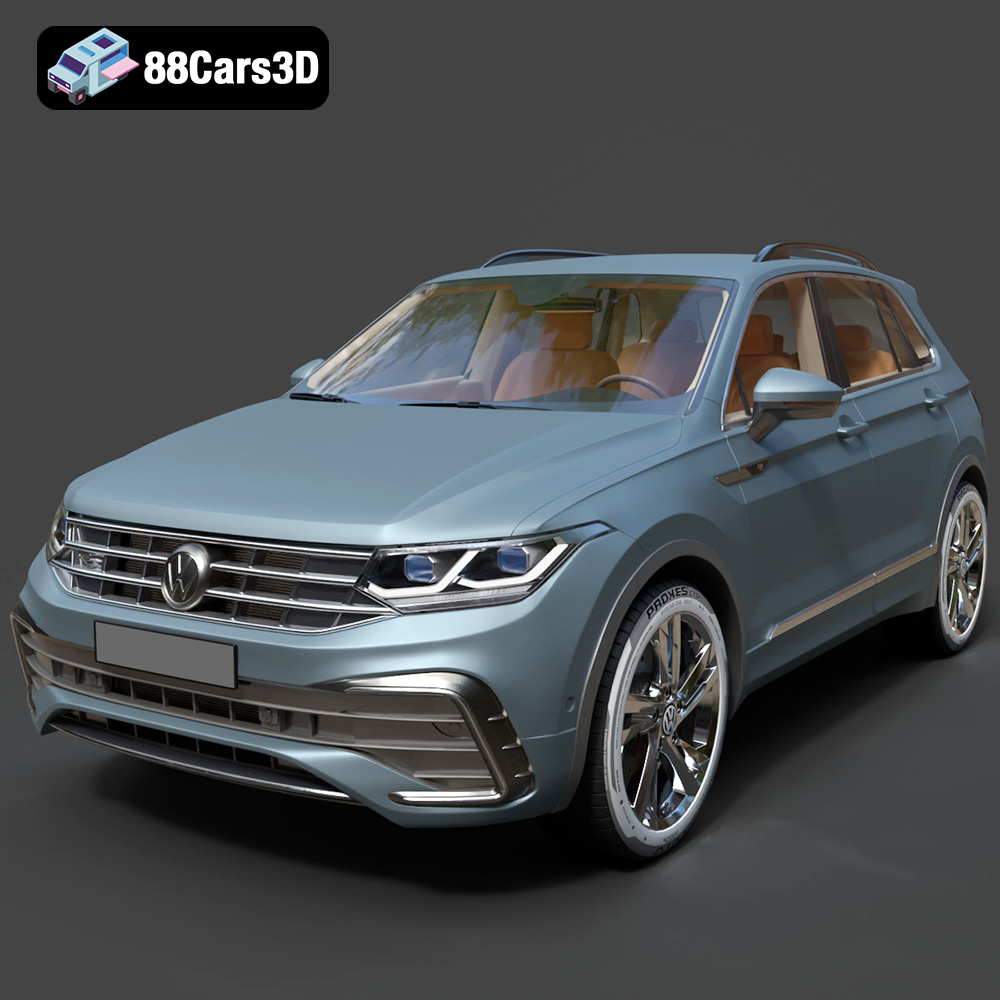
Download the Volkswagen Tiguan 2021 3D Model featuring clean geometry, realistic detailing, and a fully modeled interior. Includes .blend, .fbx, .obj, .glb, .stl, .ply, .unreal, and .max formats for rendering, simulation, and game development.
Price: $19.99

Texture: Yes
Material: Yes
Download the Volkswagen ID6 CROZZ 2022 3D Model featuring clean geometry, realistic detailing, and a fully modeled interior. Includes .blend, .fbx, .obj, .glb, .stl, .ply, .unreal, and .max formats for rendering, simulation, and game development.
Price: $19.99

Texture: Yes
Material: Yes
Download the Volkswagen ID4 2021 3D Model featuring clean geometry, realistic detailing, and a fully modeled interior. Includes .blend, .fbx, .obj, .glb, .stl, .ply, .unreal, and .max formats for rendering, simulation, and game development.
Price: $19.99
Texture: Yes
Material: Yes
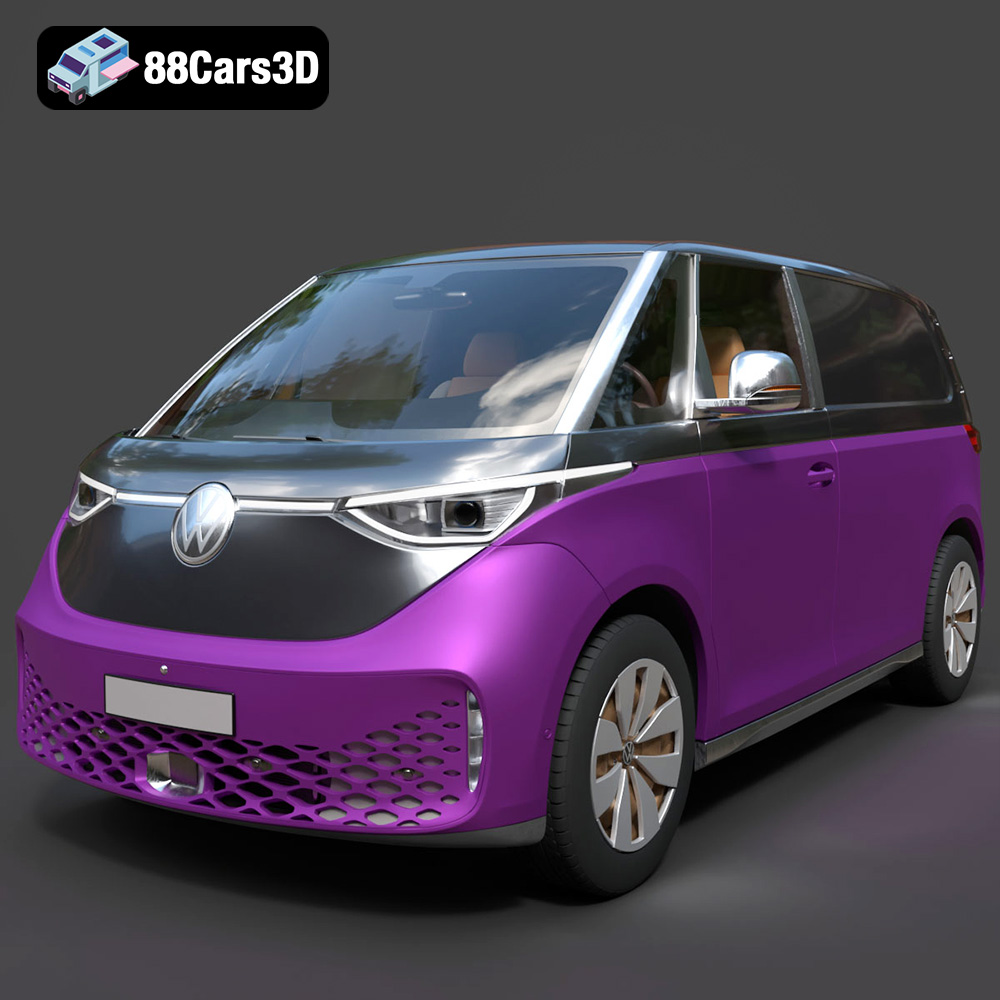
Download the Volkswagen ID. Buzz Cargo 2023 3D Model featuring clean geometry, realistic detailing, and a fully modeled interior. Includes .blend, .fbx, .obj, .glb, .stl, .ply, .unreal, and .max formats for rendering, simulation, and game development.
Price: $19.99
Texture: Yes
Material: Yes
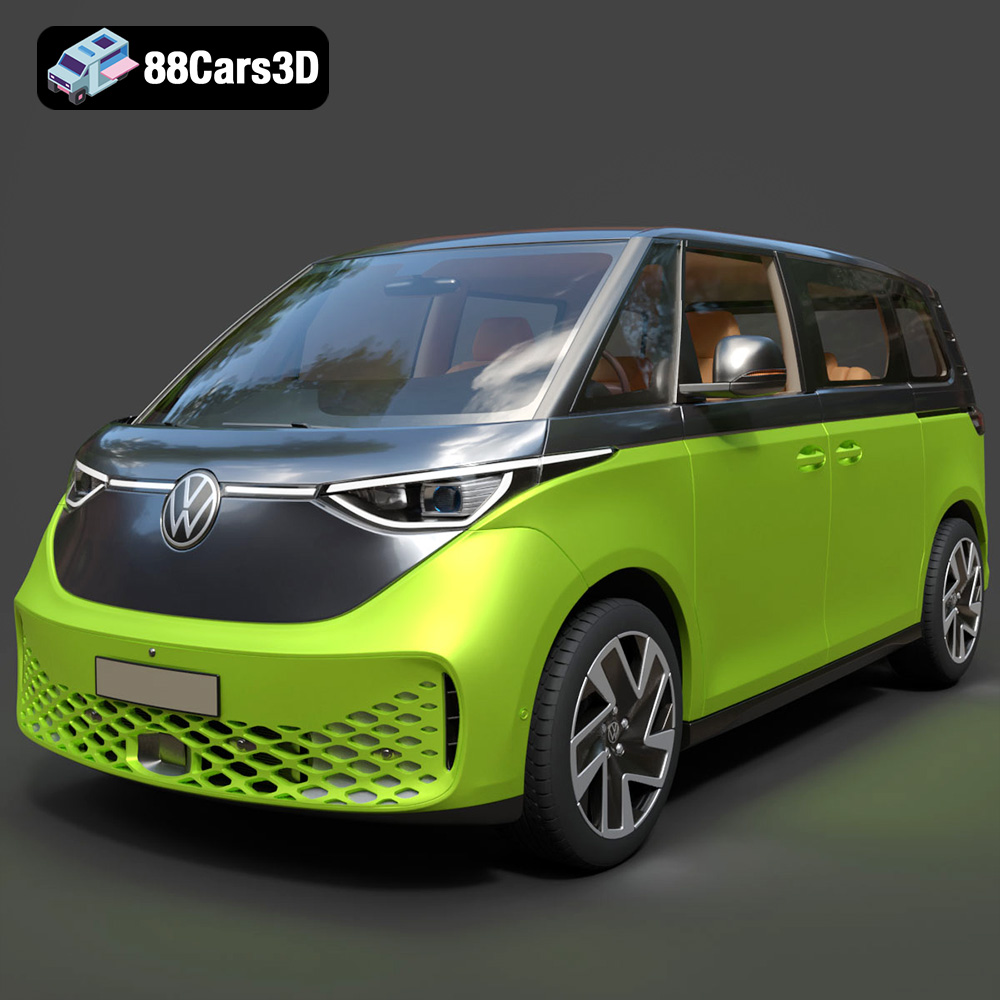
Download the Volkswagen ID. Buzz 2023 3D Model featuring clean geometry, realistic detailing, and a fully modeled interior. Includes .blend, .fbx, .obj, .glb, .stl, .ply, .unreal, and .max formats for rendering, simulation, and game development.
Price: $19.99
Texture: Yes
Material: Yes
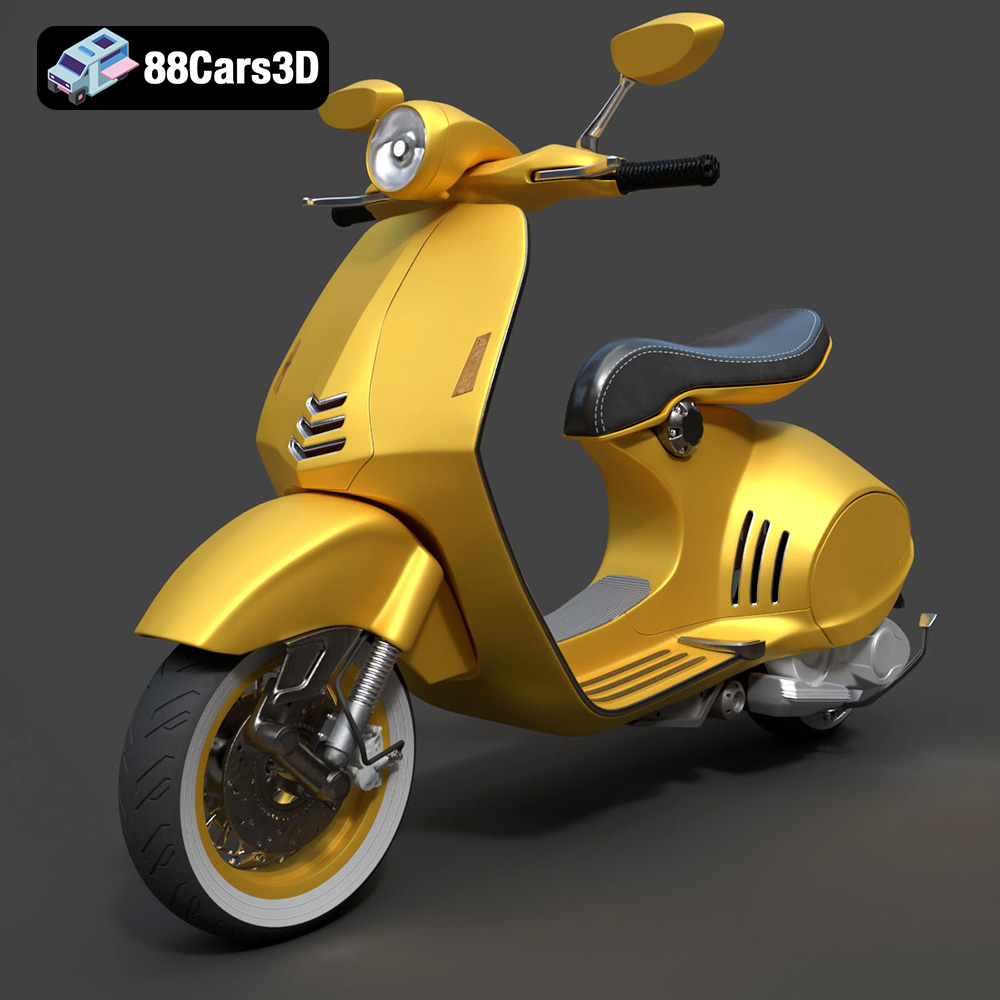
Download the Vespa 946 3D Model featuring clean geometry, realistic detailing, and a fully modeled interior. Includes .blend, .fbx, .obj, .glb, .stl, .ply, .unreal, and .max formats for rendering, simulation, and game development.
Price: $19.99

Texture: Yes
Material: Yes
Download the Toyota Yaris Cross 3D Model featuring clean geometry, realistic detailing, and a fully modeled interior. Includes .blend, .fbx, .obj, .glb, .stl, .ply, .unreal, and .max formats for rendering, simulation, and game development.
Price: $19.99

Texture: Yes
Material: Yes
Download the Volkswagen Amarok 2019 3D Model featuring clean geometry, realistic detailing, and a fully modeled interior. Includes .blend, .fbx, .obj, .glb, .stl, .ply, .unreal, and .max formats for rendering, simulation, and game development.
Price: $19.99

