Get 50% OFF All Premium 3D & STL Models!

“`html
The world of 3D printing offers incredible opportunities for hobbyists, engineers, and automotive enthusiasts alike. Platforms like 88cars3d.com provide a treasure trove of printable car models in STL format, ready to be brought to life. However, sometimes these files, or any STL file for that matter, might contain errors that prevent successful printing. These errors can range from simple holes and gaps to more complex issues like non-manifold geometry. This guide will walk you through the process of identifying and repairing these errors using two industry-standard software packages: Autodesk Meshmixer and Autodesk Netfabb. We’ll cover everything from understanding STL file structure to applying advanced repair techniques, ensuring your 3D printed car models are flawless.
In this guide, you’ll learn:
Before diving into the repair process, it’s crucial to understand the fundamental structure of STL files and the types of errors that can occur. An STL (Stereolithography) file represents a 3D object as a collection of connected triangles. Each triangle is defined by its three vertices and a normal vector indicating its outward-facing direction. These triangles form the surface mesh of the 3D model. When downloading models from marketplaces such as 88cars3d.com, or creating your own, imperfections can creep in during the modeling or conversion process.
An STL file is essentially a list of triangles. Each triangle is defined by three vertices, each with three coordinates (x, y, z). The order of these vertices determines the normal vector’s direction. A properly oriented normal vector points outwards from the surface of the model. This is crucial for slicing software to correctly interpret the inside and outside of the object. If the normals are flipped, the slicer may attempt to fill the outside with infill and leave the inside hollow, leading to a failed print.
Several types of errors can plague STL files, making them unsuitable for 3D printing. Here are some of the most common:
Autodesk Meshmixer is a free and powerful software for working with 3D meshes. It offers a range of tools for repairing, sculpting, and modifying STL files, making it an excellent choice for preparing your 3D printable car models. Let’s walk through the process of repairing broken meshes using Meshmixer.
First, download and install Meshmixer from the Autodesk website. Once installed, launch the program and import your STL file by clicking “Import” on the left-hand menu. After importing, it’s essential to analyze the mesh for errors. Meshmixer provides a built-in tool for this purpose. Go to “Analysis” -> “Inspector.” Meshmixer will highlight any detected errors with different colored markers: pink for small holes, blue for non-manifold edges, and yellow for disconnected components. Hovering over a marker will provide more information about the specific error.
Meshmixer’s “Make Solid” function is a quick and effective way to automatically repair many common mesh errors. Select your mesh, then navigate to “Edit” -> “Make Solid.” This tool remeshes the entire model, filling holes, fixing non-manifold geometry, and optimizing the mesh for 3D printing. Experiment with the “Solid Type” settings. “Accurate” preserves the original detail but may struggle with complex errors. “Robust” is more aggressive at repairing errors but can simplify the model and lose fine details. A value of 256 for “Mesh Density” is often a good starting point, but increase it for more detailed models. For car models with intricate details, consider starting with “Accurate” and increasing “Mesh Density”, then if that fails, try “Robust” with a slightly lower density.
For more precise control, or when automatic repair fails, you can use Meshmixer’s manual repair tools. To close holes, select the “Edit” -> “Close Crack” tool. You can then select the edges of the hole to create a bridge, or Meshmixer can attempt to automatically fill the gap. For filling larger gaps or creating new geometry, the “Sculpt” tools can be helpful. The “Brushes” such as “Draw” and “Smooth” allow you to directly manipulate the mesh, adding or smoothing out surfaces. Remember to use a low brush size and strength for precise control, especially when working on detailed areas of the car model. A layer height of 0.1mm to 0.2mm and a nozzle size of 0.4mm are common starting points for FDM printing car models.
Autodesk Netfabb is a professional-grade software suite designed for additive manufacturing. While it’s a paid software, it offers a free trial and significantly more advanced repair tools compared to Meshmixer. Netfabb provides a more comprehensive solution for complex mesh issues, giving you granular control over the repair process.
After installing Netfabb, import your STL file. Netfabb automatically performs a basic diagnosis upon import, highlighting potential issues with red markers. To perform a more detailed analysis, navigate to the “Analysis” tab and click “New Analysis.” In the analysis settings, you can customize the checks performed, such as identifying self-intersections, inverted normals, and shell errors. After running the analysis, Netfabb provides a detailed report of all detected errors, categorized by type and severity.
Netfabb’s automatic repair script is a powerful tool for resolving a wide range of mesh issues. To access it, right-click on the part in the project tree and select “Repair.” The repair dialog offers various options, including “Close All Holes,” “Remove Degenerate Faces,” “Fix Mesh Orientation,” and “Separate Disjoint Shells.” The “Automatic Repair” button attempts to resolve all detected errors using a predefined set of rules. You can customize these rules by adjusting the repair parameters in the settings panel. This allows you to fine-tune the repair process based on the specific characteristics of your model. For example, you can increase the “Hole Filling Max Edge Length” to fill larger gaps or reduce the “Triangle Edge Length” to preserve finer details during remeshing.
For complex issues that the automatic repair script cannot resolve, Netfabb offers a suite of manual repair tools. The “Cutting” tool allows you to split the mesh into separate parts, which can be useful for isolating problematic areas or simplifying the model for repair. The “Stitching” tool enables you to manually connect open edges, closing holes and creating a watertight mesh. The “Remesh” tool provides advanced control over the mesh topology, allowing you to refine the triangle distribution, reduce polygon count, and optimize the mesh for 3D printing. When remeshing, experiment with different parameters such as “Target Edge Length” and “Adaptivity” to balance detail preservation and mesh simplification. For example, using a smaller “Target Edge Length” will result in a denser mesh with more detail, while a higher “Adaptivity” will allow the remesher to preserve sharp features and edges.
Once the STL file is repaired and free of errors, the next step is to prepare it for 3D printing using a slicing software like Cura or PrusaSlicer. These programs convert the 3D model into a series of layers that the printer can understand. Optimizing your slicer settings is crucial for achieving the best possible print quality and minimizing printing time.
The choice of slicing software depends on your printer and personal preferences. Cura is a popular, open-source option with a user-friendly interface and a wide range of customizable settings. PrusaSlicer is another excellent choice, known for its advanced features and accurate print estimations. Both programs offer pre-configured profiles for various printers, making it easy to get started. However, it’s essential to fine-tune these profiles based on your specific printer, filament, and desired print quality. For example, if you are using a Creality Ender 3 with PLA filament, you would select the corresponding profile in Cura and then adjust settings such as print temperature, speed, and layer height to optimize for that specific setup.
Several key slicer settings significantly impact the quality of your 3D printed car models:
Even with careful preparation and optimization, you may encounter issues during the mesh repair or printing process. Understanding common problems and their solutions is crucial for achieving successful results.
Here are some common mesh repair errors and their solutions:
Here are some common printing issues and their solutions:
Repairing broken STL meshes is an essential skill for anyone involved in 3D printing. By understanding the structure of STL files and utilizing tools like Meshmixer and Netfabb, you can effectively address common mesh errors and prepare your 3D models for successful printing. This guide has provided you with a comprehensive overview of the mesh repair process, from identifying errors to applying advanced repair techniques. Remember to experiment with different settings and approaches to find what works best for your specific models and printer. With practice and patience, you can master the art of mesh repair and unlock the full potential of 3D printing. Now you’re ready to download those amazing 3D printable car models from 88cars3d.com and bring them to life!
Next steps:
“`

Texture: Yes
Material: Yes
Download the Volvo Trucks Benz GT-001 3D Model featuring clean geometry, realistic detailing, and a fully modeled interior. Includes .blend, .fbx, .obj, .glb, .stl, .ply, .unreal, and .max formats for rendering, simulation, and game development.
Price: $29.99

Texture: Yes
Material: Yes
Download the Volvo C40 Recharge 3D Model featuring clean geometry, realistic detailing, and a fully modeled interior. Includes .blend, .fbx, .obj, .glb, .stl, .ply, .unreal, and .max formats for rendering, simulation, and game development.
Price: $19.99
Texture: Yes
Material: Yes
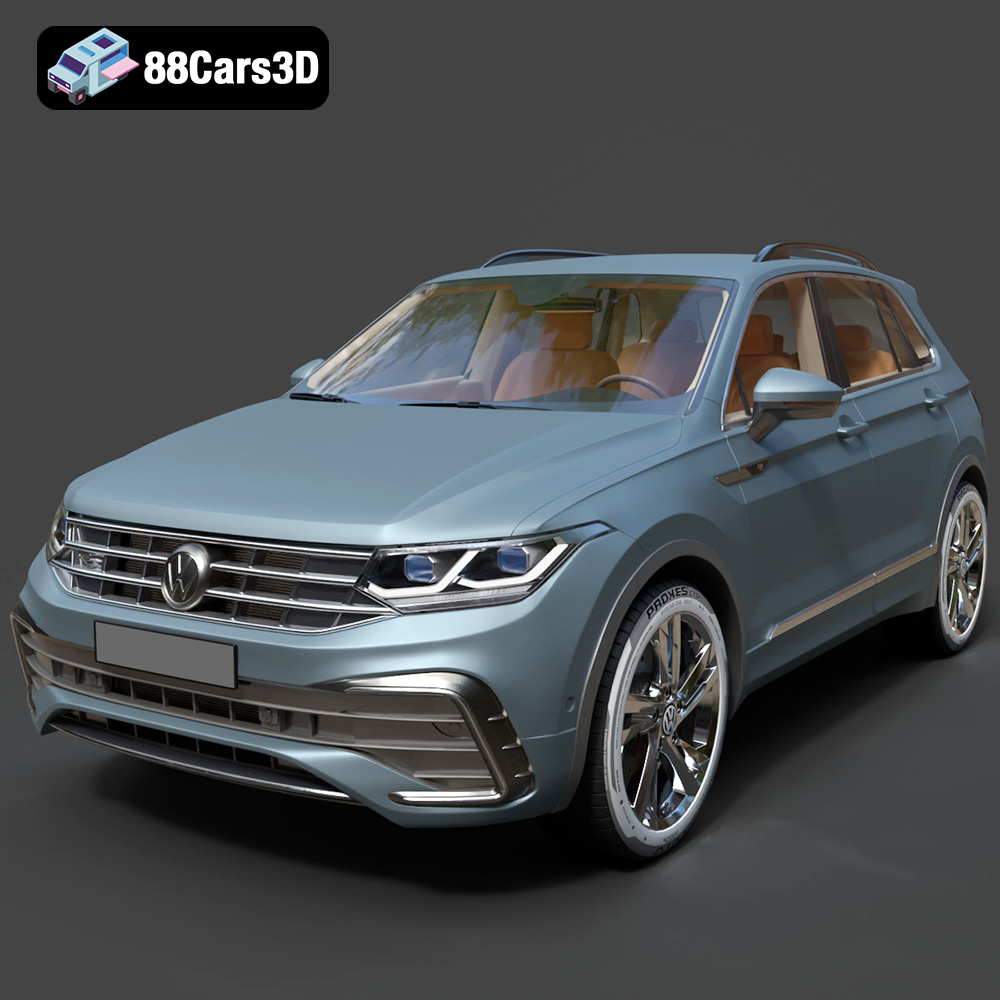
Download the Volkswagen Tiguan 2021 3D Model featuring clean geometry, realistic detailing, and a fully modeled interior. Includes .blend, .fbx, .obj, .glb, .stl, .ply, .unreal, and .max formats for rendering, simulation, and game development.
Price: $19.99

Texture: Yes
Material: Yes
Download the Volkswagen ID6 CROZZ 2022 3D Model featuring clean geometry, realistic detailing, and a fully modeled interior. Includes .blend, .fbx, .obj, .glb, .stl, .ply, .unreal, and .max formats for rendering, simulation, and game development.
Price: $19.99

Texture: Yes
Material: Yes
Download the Volkswagen ID4 2021 3D Model featuring clean geometry, realistic detailing, and a fully modeled interior. Includes .blend, .fbx, .obj, .glb, .stl, .ply, .unreal, and .max formats for rendering, simulation, and game development.
Price: $19.99
Texture: Yes
Material: Yes
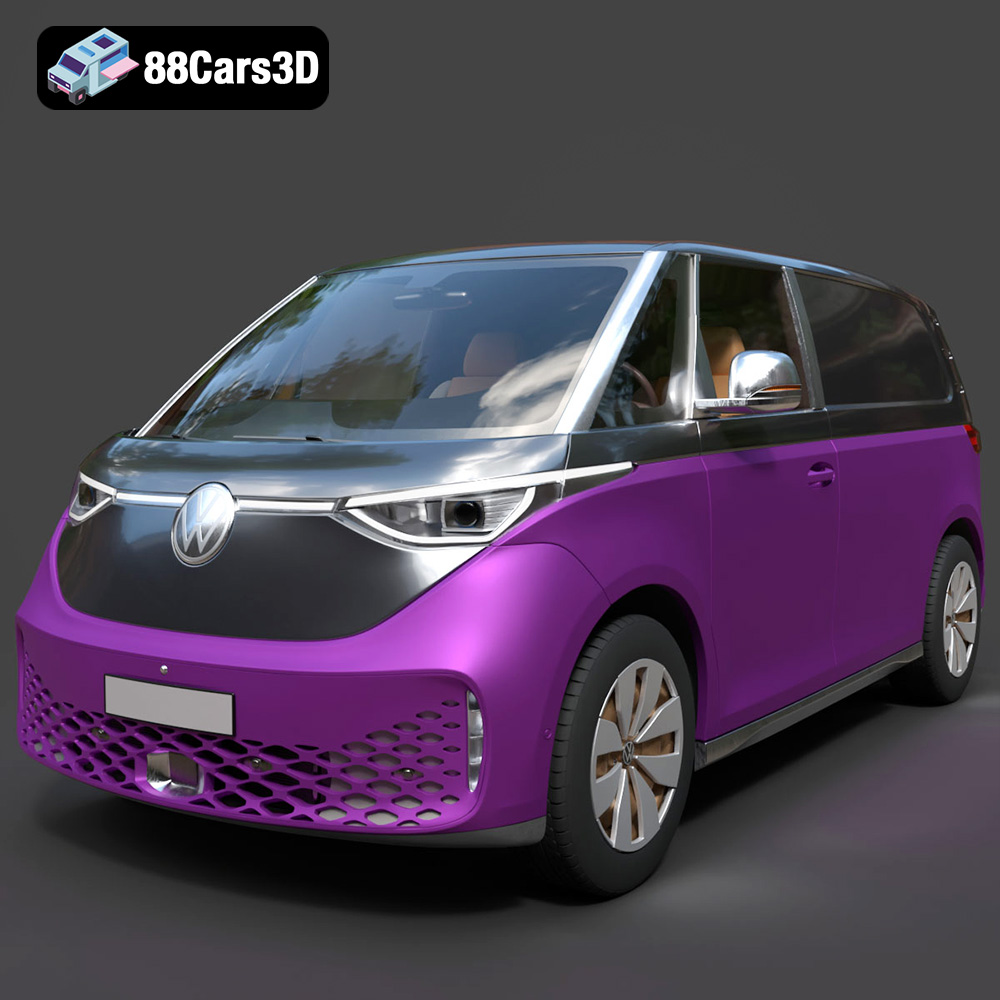
Download the Volkswagen ID. Buzz Cargo 2023 3D Model featuring clean geometry, realistic detailing, and a fully modeled interior. Includes .blend, .fbx, .obj, .glb, .stl, .ply, .unreal, and .max formats for rendering, simulation, and game development.
Price: $19.99
Texture: Yes
Material: Yes
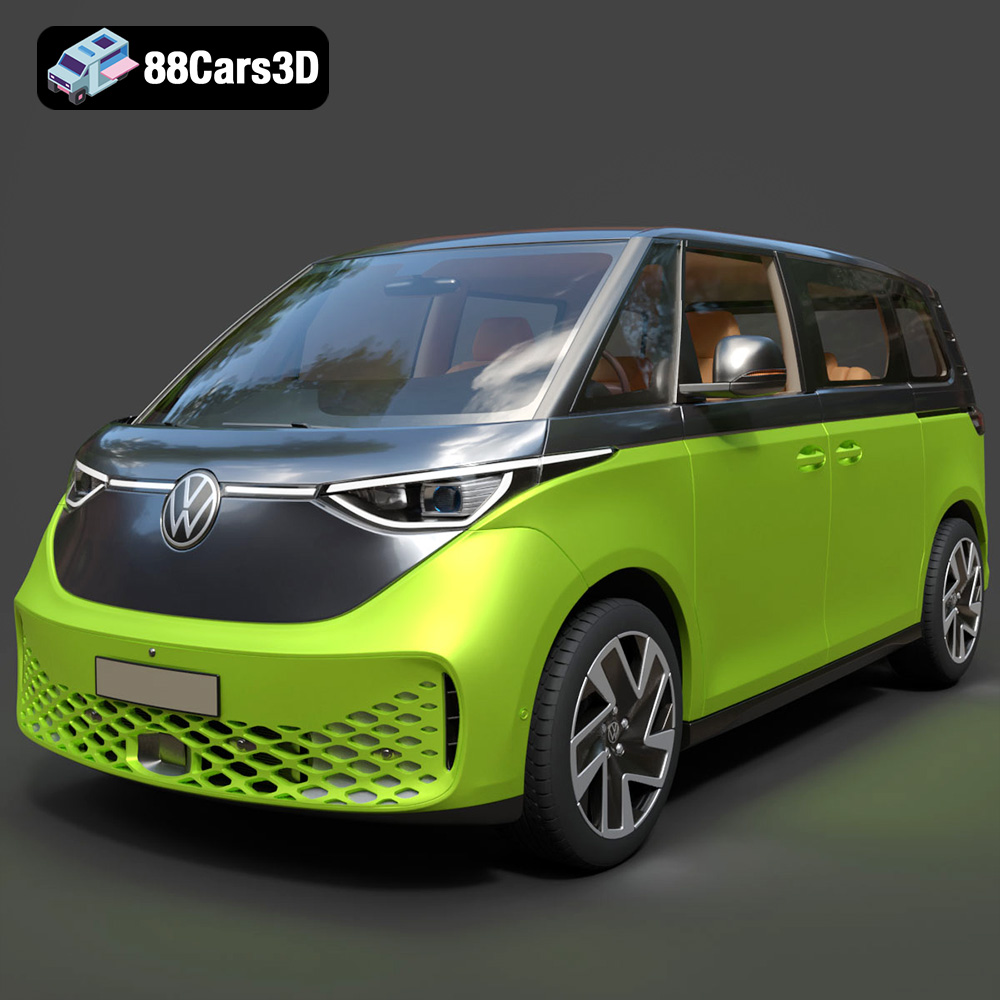
Download the Volkswagen ID. Buzz 2023 3D Model featuring clean geometry, realistic detailing, and a fully modeled interior. Includes .blend, .fbx, .obj, .glb, .stl, .ply, .unreal, and .max formats for rendering, simulation, and game development.
Price: $19.99
Texture: Yes
Material: Yes
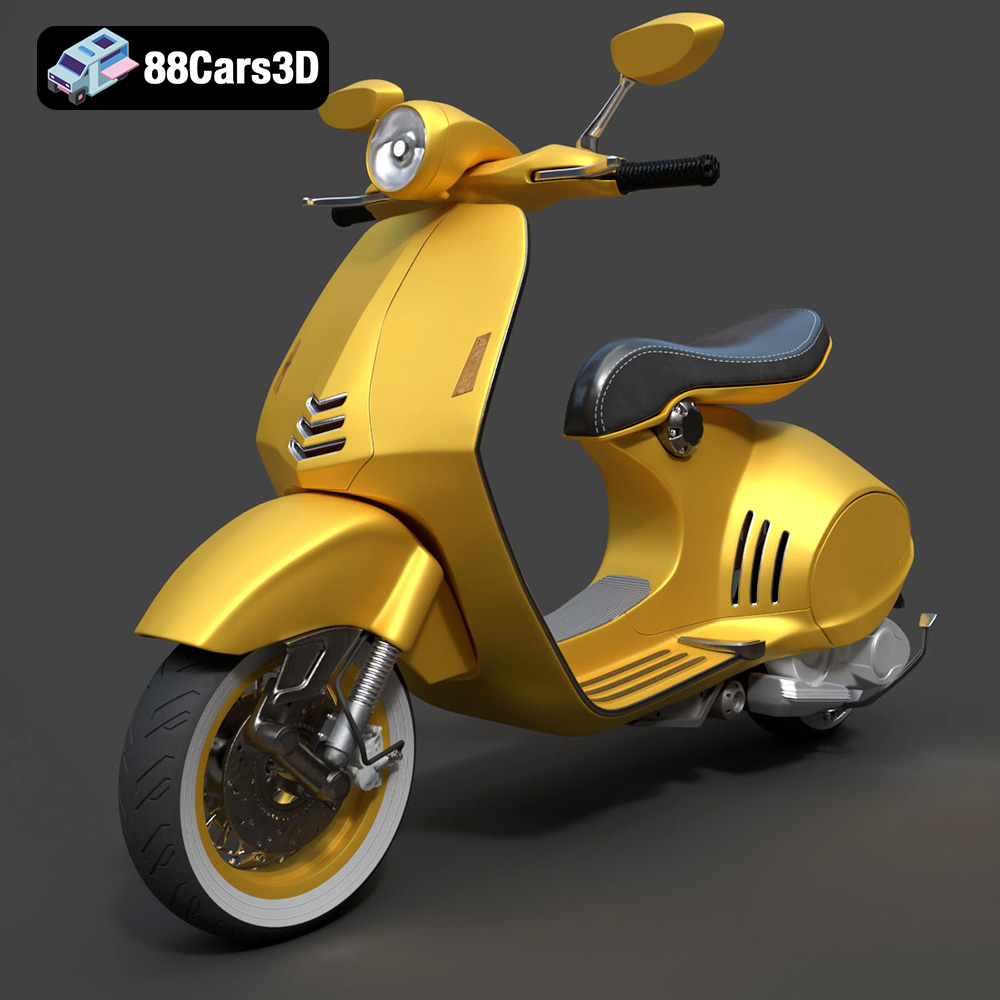
Download the Vespa 946 3D Model featuring clean geometry, realistic detailing, and a fully modeled interior. Includes .blend, .fbx, .obj, .glb, .stl, .ply, .unreal, and .max formats for rendering, simulation, and game development.
Price: $19.99

Texture: Yes
Material: Yes
Download the Toyota Yaris Cross 3D Model featuring clean geometry, realistic detailing, and a fully modeled interior. Includes .blend, .fbx, .obj, .glb, .stl, .ply, .unreal, and .max formats for rendering, simulation, and game development.
Price: $19.99

Texture: Yes
Material: Yes
Download the Volkswagen Amarok 2019 3D Model featuring clean geometry, realistic detailing, and a fully modeled interior. Includes .blend, .fbx, .obj, .glb, .stl, .ply, .unreal, and .max formats for rendering, simulation, and game development.
Price: $19.99

