Get 50% OFF All Premium 3D & STL Models!

“`html
The journey from a digital 3D model to a tangible object hinges on one crucial process: slicing. Slicing software acts as the bridge between your design and your 3D printer, translating the complex geometry of an STL file into a series of layered instructions that the printer can understand and execute. Mastering slicing is paramount to achieving high-quality prints, especially when working with intricate designs like printable car models. This comprehensive guide will delve into the intricacies of slicing, covering essential parameters, software-specific techniques, and best practices to ensure your 3D prints are nothing short of exceptional. We’ll explore everything from basic slicing concepts to advanced optimization strategies, empowering you to unlock the full potential of your 3D printer and STL files.
In this guide, you’ll learn about:
The STL (stereolithography) file format is the de facto standard for 3D printing. It represents a 3D object’s surface as a collection of interconnected triangles. The density and arrangement of these triangles directly impact the resolution and accuracy of your final print. A poorly designed or corrupted STL file can lead to slicing errors and ultimately, a failed print.
The more triangles used to represent a curved surface, the smoother the printed result will be. However, increasing the triangle count also increases the file size and processing time. Finding a balance between detail and efficiency is key. When downloading models from marketplaces such as 88cars3d.com, you can usually find models with optimized triangle counts that offer a good balance between detail and printability. Aim for a maximum deviation (the distance between the ideal curve and the triangle mesh) of under 0.05mm for high-quality results, especially when printing models like car bodies with smooth curves.
A “manifold” mesh is one that is watertight and has no holes or self-intersections. 3D printers can only accurately print manifold models. Non-manifold geometry, on the other hand, contains errors that can confuse the slicer and lead to unexpected results. Common errors include:
Before slicing, it’s crucial to repair any non-manifold errors. Software like Meshmixer and Netfabb are excellent for this purpose. Netfabb, in particular, offers powerful automatic repair tools that can often fix complex mesh issues with a single click.
Slicing software offers a plethora of parameters that control how your 3D model is translated into machine-readable instructions. Understanding these parameters and their impact on print quality, speed, and material usage is crucial for achieving optimal results.
Layer height is the thickness of each individual layer printed by the 3D printer. Smaller layer heights (e.g., 0.1mm) result in smoother surfaces and finer details, but they also increase print time significantly. Larger layer heights (e.g., 0.3mm) print faster but produce more visible layer lines. A good starting point for FDM printing is 0.2mm, adjusting up or down based on the desired level of detail and print time constraints. For resin printing, layer heights are typically much smaller, often in the range of 0.025mm to 0.05mm, allowing for incredibly detailed prints.
Infill refers to the internal structure of the 3D print. It’s typically a percentage representing the amount of material used to fill the interior. Higher infill densities (e.g., 50%) result in stronger, heavier prints, while lower densities (e.g., 15%) save material and reduce print time. The infill pattern also plays a role. Common patterns include:
For models like printable car models where aesthetics are important, consider using a lower infill density (15-20%) and focusing on optimizing the shell thickness. For functional parts that require strength, increase the infill density to 30-50% and choose a stronger infill pattern like honeycomb or gyroid.
Print speed and temperature are closely related and must be carefully balanced for optimal results. Printing too fast can lead to poor layer adhesion, warping, and other defects. Printing too slow can waste time and potentially cause heat creep issues. Recommended print speeds typically range from 40-60mm/s for FDM printers. Temperature settings depend on the material being used. PLA typically prints at 190-220°C, while ABS requires higher temperatures of 230-260°C. Incorrect temperature settings can lead to under-extrusion (too cold) or stringing and warping (too hot). Consult your filament manufacturer’s recommendations for optimal temperature ranges.
Support structures are temporary structures that are printed to support overhanging features and prevent them from collapsing during the printing process. Generating effective support structures is crucial for printing complex geometries, especially those with significant overhangs or bridges. Incorrectly placed or insufficient support can lead to print failures and poor surface quality.
There are two main types of support structures: tree supports and linear supports. Tree supports are more efficient in terms of material usage and can be easier to remove, but they may not be suitable for all geometries. Linear supports are more reliable and provide stronger support, but they use more material and can be more difficult to remove. Cura offers excellent tree support generation, while PrusaSlicer provides robust linear support options. Experiment with both types to determine which works best for your specific model and printer.
The placement and density of support structures are critical for achieving a good balance between support and surface finish. Place supports strategically under all overhanging features, ensuring that they are strong enough to prevent sagging but not so dense that they are difficult to remove or leave behind excessive scarring. Increasing the support density increases the strength but can also make removal more challenging. Reduce the support density in areas where surface finish is less critical. A support overhang angle of 45-60 degrees is generally a good starting point, adjusting based on the specific material and printer.
Removing support structures can be a delicate process, and it’s important to use the right techniques to minimize damage to the model. Start by carefully breaking away the bulk of the support material by hand. Then, use tools like pliers, a hobby knife, or sandpaper to remove any remaining support material. For soluble support materials like PVA, simply dissolve the supports in water. Consider using a heated bed to soften the support structures before removal, making the process easier and reducing the risk of damage. Platforms like 88cars3d.com offer print-ready STL files that are designed with optimized support structures in mind, making the removal process simpler.
Cura and PrusaSlicer are two of the most popular and powerful slicing software options available. While they share many similarities, they also have distinct features and workflows that can impact print quality and efficiency. Choosing the right software and mastering its specific techniques is essential for achieving optimal results.
Cura is known for its user-friendly interface and extensive range of advanced features. It offers a wide variety of customizable settings, including dynamic layer heights, adaptive layer heights, and experimental features like ironing and fuzzy skin. Cura also has excellent support for tree supports and offers powerful plugin support. To optimize for printable car models in Cura, consider using the “Arachne” engine for variable line width, which enhances curved surfaces. Setting the “Top/Bottom Pattern” to “Concentric” can also improve the smoothness of top surfaces.
PrusaSlicer is renowned for its precision and fine-tuning capabilities. It offers a wide range of advanced settings, including variable layer heights, seam hiding, and advanced bridging settings. PrusaSlicer also has excellent support for multi-material printing and allows for very granular control over print parameters. PrusaSlicer excels in generating strong and reliable support structures. Leverage the “Paint-on supports” feature for precise placement on complex car model geometries. Utilizing modifiers for specific areas of the model (e.g., increasing infill only in the chassis) can significantly optimize strength and weight.
Ultimately, the best slicing software for you will depend on your specific needs and preferences. If you value ease of use and a wide range of features, Cura is an excellent choice. If you require maximum precision and control over your print parameters, PrusaSlicer may be a better fit. Experiment with both software options to determine which one works best for your workflow.
Even with the best slicing software and settings, printing issues can still arise. Understanding common problems and how to troubleshoot them is essential for achieving consistent and high-quality prints.
Warping occurs when the corners of the print lift off the build plate during printing. This is often caused by poor bed adhesion or temperature fluctuations. To prevent warping, ensure that your build plate is clean and level. Use a bed adhesion aid like glue stick, hairspray, or painter’s tape. Increase the bed temperature and use a brim or raft to provide a larger surface area for adhesion. Enclosing the printer can also help to maintain a more stable temperature and prevent warping.
Stringing and oozing occur when molten filament leaks from the nozzle during travel moves. This can be caused by excessive retraction distance, high printing temperature, or a loose nozzle. To prevent stringing, increase the retraction distance, decrease the printing temperature, and ensure that your nozzle is properly tightened. Adjusting the “Travel speed” can also help. Experiment with different retraction speeds to find the optimal setting for your filament.
Layer shifting and missed steps occur when the printer’s motors lose position during printing. This can be caused by loose belts, insufficient motor current, or obstructions on the rails. To prevent layer shifting, tighten your belts, increase the motor current, and ensure that the printer’s rails are clean and lubricated. Reduce the print speed and acceleration to reduce the load on the motors. If the problem persists, consider upgrading your motors or stepper drivers.
Slicing is a critical step in the 3D printing process, and mastering it is essential for achieving high-quality prints. By understanding the STL file format, optimizing slicing parameters, generating effective support structures, and troubleshooting common issues, you can unlock the full potential of your 3D printer. Remember to experiment with different settings and techniques to find what works best for your specific printer, material, and model. This guide provides a solid foundation for your 3D printing journey, but continuous learning and experimentation are key to becoming a true slicing master. Remember to explore platforms like 88cars3d.com for high-quality printable car models to put your newfound slicing skills to the test!
Next steps:
“`

Texture: Yes
Material: Yes
Download the Volvo Trucks Benz GT-001 3D Model featuring clean geometry, realistic detailing, and a fully modeled interior. Includes .blend, .fbx, .obj, .glb, .stl, .ply, .unreal, and .max formats for rendering, simulation, and game development.
Price: $29.99

Texture: Yes
Material: Yes
Download the Volvo C40 Recharge 3D Model featuring clean geometry, realistic detailing, and a fully modeled interior. Includes .blend, .fbx, .obj, .glb, .stl, .ply, .unreal, and .max formats for rendering, simulation, and game development.
Price: $19.99

Texture: Yes
Material: Yes
Download the Volkswagen Tiguan 2021 3D Model featuring clean geometry, realistic detailing, and a fully modeled interior. Includes .blend, .fbx, .obj, .glb, .stl, .ply, .unreal, and .max formats for rendering, simulation, and game development.
Price: $19.99

Texture: Yes
Material: Yes
Download the Volkswagen ID6 CROZZ 2022 3D Model featuring clean geometry, realistic detailing, and a fully modeled interior. Includes .blend, .fbx, .obj, .glb, .stl, .ply, .unreal, and .max formats for rendering, simulation, and game development.
Price: $19.99

Texture: Yes
Material: Yes
Download the Volkswagen ID4 2021 3D Model featuring clean geometry, realistic detailing, and a fully modeled interior. Includes .blend, .fbx, .obj, .glb, .stl, .ply, .unreal, and .max formats for rendering, simulation, and game development.
Price: $19.99
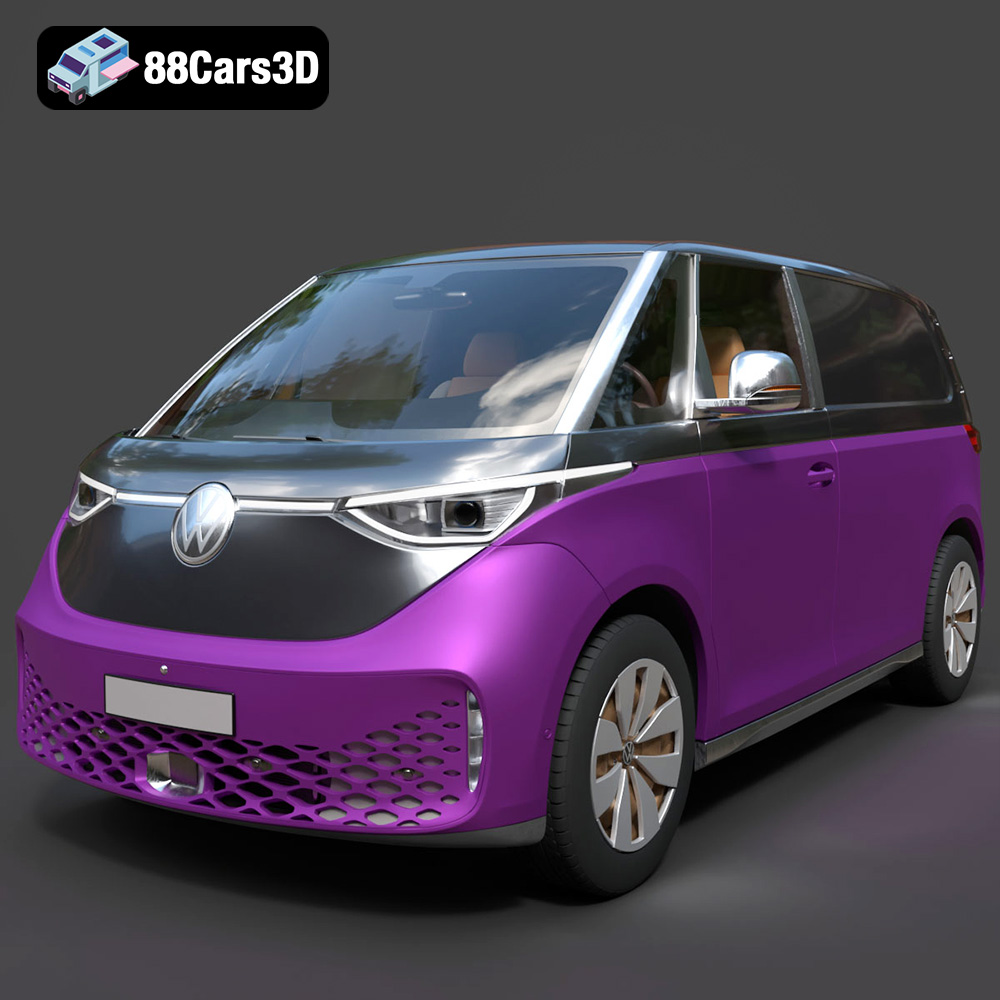
Texture: Yes
Material: Yes
Download the Volkswagen ID. Buzz Cargo 2023 3D Model featuring clean geometry, realistic detailing, and a fully modeled interior. Includes .blend, .fbx, .obj, .glb, .stl, .ply, .unreal, and .max formats for rendering, simulation, and game development.
Price: $19.99
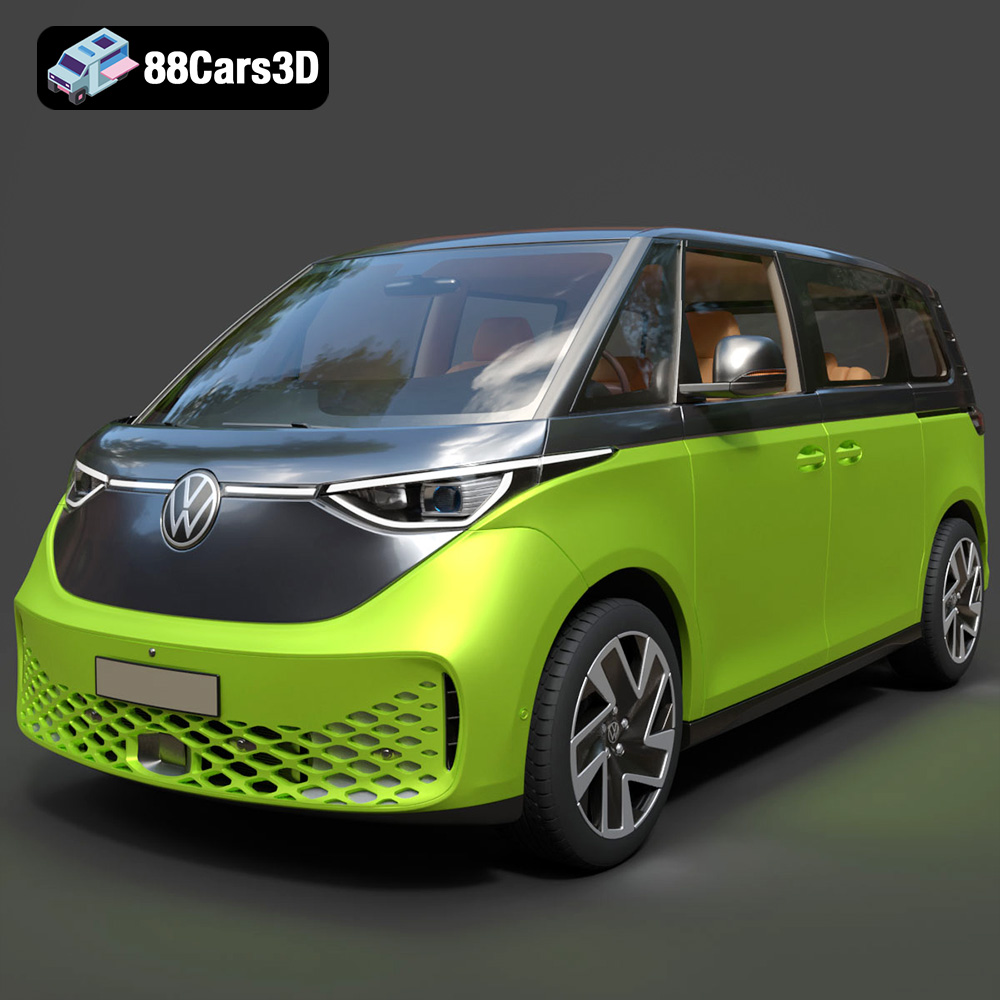
Texture: Yes
Material: Yes
Download the Volkswagen ID. Buzz 2023 3D Model featuring clean geometry, realistic detailing, and a fully modeled interior. Includes .blend, .fbx, .obj, .glb, .stl, .ply, .unreal, and .max formats for rendering, simulation, and game development.
Price: $19.99
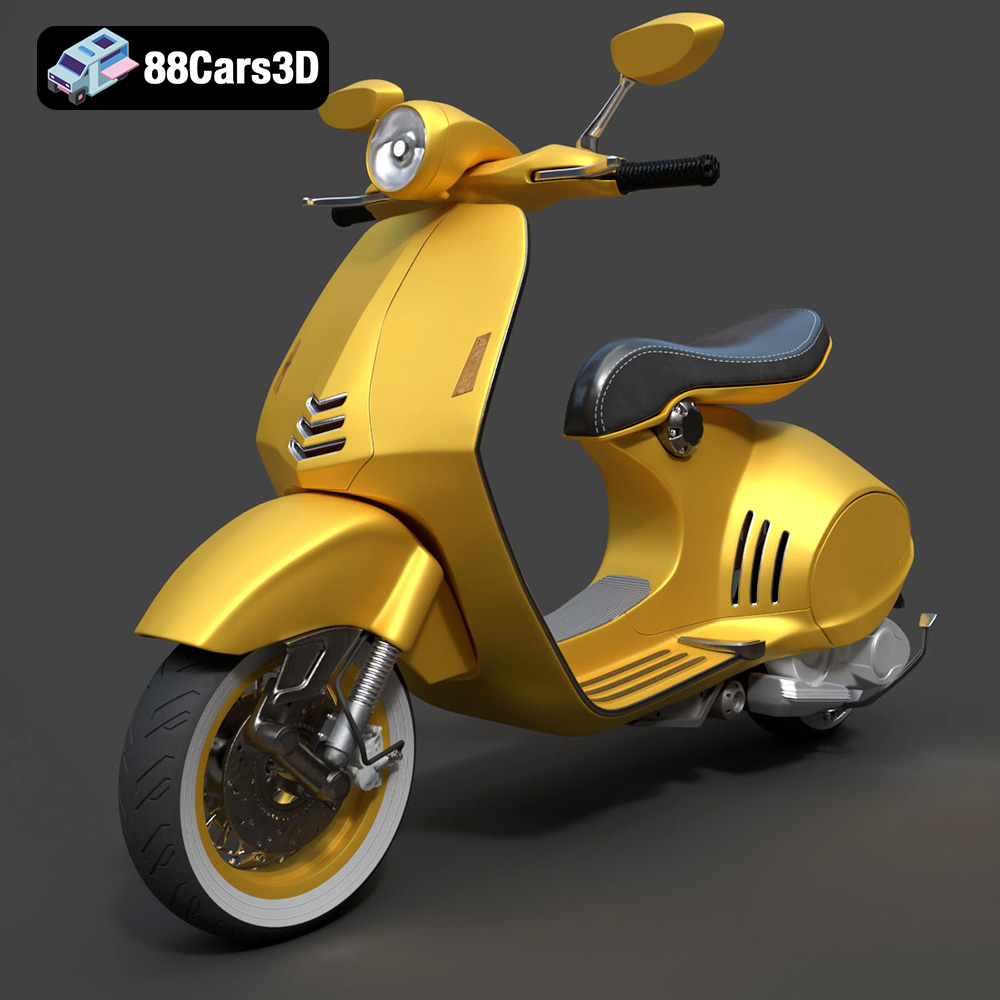
Texture: Yes
Material: Yes
Download the Vespa 946 3D Model featuring clean geometry, realistic detailing, and a fully modeled interior. Includes .blend, .fbx, .obj, .glb, .stl, .ply, .unreal, and .max formats for rendering, simulation, and game development.
Price: $19.99

Texture: Yes
Material: Yes
Download the Toyota Yaris Cross 3D Model featuring clean geometry, realistic detailing, and a fully modeled interior. Includes .blend, .fbx, .obj, .glb, .stl, .ply, .unreal, and .max formats for rendering, simulation, and game development.
Price: $19.99

Texture: Yes
Material: Yes
Download the Volkswagen Amarok 2019 3D Model featuring clean geometry, realistic detailing, and a fully modeled interior. Includes .blend, .fbx, .obj, .glb, .stl, .ply, .unreal, and .max formats for rendering, simulation, and game development.
Price: $19.99

