Get 50% OFF All Premium 3D & STL Models!

“`html
If you’re diving into the exciting world of 3D printing, especially when it comes to printable car models, understanding STL files is absolutely crucial. STL, which stands for Stereolithography, is the go-to file format for storing 3D model data. Think of it as the blueprint your 3D printer uses to bring virtual designs into the real world. This guide will walk you through everything you need to know about STL files, from their structure and uses to how to prepare them for successful 3D printing. We’ll explore the intricacies of mesh topology, slicing parameters, support structures, and even touch on common issues and troubleshooting techniques. Whether you’re a hobbyist looking to print your dream car from platforms like 88cars3d.com or an engineer prototyping a new design, mastering STL files is the first step to achieving incredible results. By the end of this article, you’ll have a solid understanding of STL files and be well-equipped to optimize your 3D printing workflow.
At its core, an STL file represents a 3D object’s surface geometry using a collection of triangles. The more triangles, the more detailed and smoother the object appears. However, a higher triangle count also means a larger file size and potentially longer processing times during slicing. It’s a delicate balancing act to find the sweet spot between detail and efficiency. While other file formats like OBJ and FBX can store color and texture information, STL files are solely focused on the shape of the object. This simplicity makes them incredibly versatile and compatible with virtually all 3D printers and slicing software.
The fundamental building block of an STL file is the triangle. Each triangle is defined by three vertices (points in 3D space) and a normal vector, which indicates the direction the triangle is facing. The normal vector is crucial because it tells the printer which side of the triangle is the “outside” and which is the “inside.” This is how the software understands the shape and volume of the object. Poorly defined or missing normal vectors can lead to printing errors, so ensuring the mesh is properly oriented is vital. The density of these triangles dictates the resolution and smoothness of the final printed object. A higher density means more triangles, which results in a smoother surface but also increases file size and processing time.
STL files come in two main formats: ASCII and Binary. ASCII STL files are human-readable text files that list the coordinates of each triangle. This makes them easy to inspect and edit manually, but they are significantly larger than their binary counterparts. Binary STL files store the triangle data in a compact, machine-readable format, resulting in much smaller file sizes. For large, complex models, the size difference can be substantial. While ASCII files are useful for debugging or making minor edits, binary STL files are generally preferred for their efficiency and are the standard for most 3D printing applications. Most slicing software will automatically handle both types of files, but it’s good to be aware of the difference.
Once you have your STL file, whether it’s a meticulously crafted printable car model or a simple prototype, it needs to be prepared for the 3D printing process. This involves using slicing software to convert the 3D model into a series of instructions that the printer can understand. The slicing software divides the model into thin horizontal layers and generates a toolpath that dictates how the printer will deposit material to create each layer. Careful consideration must be given to parameters such as layer height, infill density, support structures, and printing speed to achieve optimal results.
Slicing software is the heart of the 3D printing process. Popular options include Cura, PrusaSlicer, Simplify3D, and IdeaMaker. These programs allow you to import your STL file, orient it on the virtual build plate, and configure various printing parameters. Layer height, measured in microns (µm), determines the resolution of the print. Lower layer heights (e.g., 0.1mm or 100µm) result in smoother surfaces but increase print time. Infill density controls how much material is used inside the model. Higher infill densities (e.g., 50% or 100%) increase strength but also increase material consumption and print time. Support structures are necessary for overhanging features that would otherwise collapse during printing. The type and placement of supports can significantly impact the final print quality and ease of post-processing.
The orientation of your model on the build plate is a critical factor in determining print success. Consider the geometry of the model and try to minimize the need for support structures. Orienting the model so that flat surfaces are in contact with the build plate can improve bed adhesion and reduce warping. Bed adhesion can be further enhanced by using a heated bed, applying adhesive solutions like glue stick or hairspray, or using specialized build plate surfaces like PEI or glass. A raft or brim can also be added to increase the surface area in contact with the bed and prevent warping, especially with materials like ABS that are prone to shrinkage.
Achieving high-quality 3D prints from STL files requires careful calibration and optimization of your 3D printer settings. The optimal settings will vary depending on the type of printer (FDM or resin), the material being used, and the desired print quality. Key settings to consider include printing temperature, print speed, retraction settings, and cooling fan speeds. Experimentation and iterative adjustments are often necessary to find the perfect combination of settings for a specific model and material.
FDM (Fused Deposition Modeling) printers use a nozzle to extrude molten plastic layer by layer. Common materials include PLA, PETG, and ABS. Key settings for FDM printing include nozzle temperature (typically 200-230°C for PLA), bed temperature (typically 60-70°C for PLA), and print speed (typically 40-60 mm/s). Resin printers, on the other hand, use a UV light source to cure liquid resin layer by layer. Common resin types include standard resin, tough resin, and flexible resin. Key settings for resin printing include layer exposure time (typically 2-10 seconds), bottom layer exposure time (typically 20-60 seconds), and lift speed. Resin printing generally produces higher resolution and more detailed prints than FDM printing, but it also requires more post-processing and careful handling of chemicals.
The choice of material is crucial for the success of your 3D printing project. PLA (Polylactic Acid) is a biodegradable thermoplastic that is easy to print and ideal for general-purpose applications. PETG (Polyethylene Terephthalate Glycol) is a stronger and more heat-resistant alternative to PLA. ABS (Acrylonitrile Butadiene Styrene) is a durable and impact-resistant plastic often used for functional parts, but it requires a heated bed and good ventilation due to its tendency to warp. For resin printing, standard resin is a good starting point for general-purpose models. Tough resin is more durable and impact-resistant, while flexible resin is ideal for parts that need to bend or compress. Experimenting with different materials can greatly expand the possibilities of your 3D printing projects.
Support structures are temporary structures that are printed alongside your model to support overhanging features and prevent them from collapsing during printing. They are essential for printing complex geometries with significant overhangs. Choosing the right type of support structure and optimizing its placement can significantly impact the print quality and ease of post-processing. Improperly designed or placed supports can be difficult to remove and can leave behind unsightly marks on the finished print.
There are several different types of support structures, each with its own advantages and disadvantages. Linear supports are the most common type and consist of vertical columns that extend from the build plate to the overhanging feature. Tree supports are more efficient and use less material by branching out from the build plate like a tree. Hybrid supports combine the best features of both linear and tree supports to provide optimal support with minimal material usage. The choice of support structure depends on the geometry of the model and the desired print quality. For delicate models, tree supports are often preferred because they are easier to remove and leave behind fewer marks. For strong and stable support, linear supports may be more appropriate.
Removing support structures can be a delicate process. Start by using pliers or cutters to carefully break away the bulk of the support material. For finer details, use a sharp knife or scraper to remove the remaining support material. Be careful not to damage the surface of the model. Heating the supports with a heat gun or hairdryer can sometimes make them easier to remove. Soluble support materials, such as PVA (Polyvinyl Alcohol), can be dissolved in water for effortless removal. Proper support design and placement can minimize the amount of support material needed and make the removal process much easier. Platforms like 88cars3d.com often optimize their STL files with pre-generated, easy-to-remove support structures for a hassle-free printing experience.
Even with careful preparation and optimized settings, 3D printing can sometimes present challenges. Common issues include warping, stringing, layer adhesion problems, and print failures. Understanding the causes of these issues and knowing how to troubleshoot them is essential for achieving consistent and high-quality prints. Often, the issue stems from the STL file itself or how it interacts with the chosen settings.
Warping occurs when the corners of the print lift off the build plate, often due to uneven cooling and shrinkage of the material. To prevent warping, ensure that the build plate is properly leveled and heated. Use a bed adhesive like glue stick or hairspray to improve bed adhesion. Enclosing the printer in a chamber can help to maintain a consistent temperature and reduce warping. For materials like ABS, a brim or raft can be added to increase the surface area in contact with the bed and prevent lifting. Adjusting the printing temperature and fan speeds can also help to minimize warping. Experimenting with different settings and bed adhesion techniques is often necessary to find the best solution for a particular material and model.
Sometimes, STL files contain errors such as non-manifold geometries, holes, or overlapping faces. These errors can cause problems during slicing and printing. Mesh repair software like Meshmixer, Netfabb, or Blender can be used to fix these errors and ensure that the mesh is watertight and printable. These tools can automatically detect and repair common mesh issues, such as flipped normals, degenerate faces, and boundary edges. Regularly inspecting and repairing STL files before printing can save you time and frustration. For instance, if you are printing a car model and the STL file has issues, the resulting print might have gaps or missing sections. Repairing the mesh ensures a complete and accurate print. Many online services also offer free mesh repair tools.
Once your 3D print is complete, post-processing techniques can be used to improve its appearance and functionality. Common post-processing steps include removing support structures, sanding, filling gaps, and painting. The specific techniques used will depend on the material, the desired finish, and the intended use of the part. A well-executed post-processing workflow can transform a raw 3D print into a polished and professional-looking product.
Sanding is used to remove layer lines and smooth the surface of the print. Start with coarse sandpaper (e.g., 220 grit) and gradually move to finer grits (e.g., 400 grit, 600 grit, 800 grit) to achieve a smooth finish. Wet sanding can help to reduce dust and improve the smoothness of the surface. For hard-to-reach areas, use small sanding blocks or rotary tools with sanding attachments. After sanding, a filler primer can be applied to fill any remaining gaps or imperfections. The primer can then be sanded smooth before painting.
Painting is used to add color and protect the surface of the print. Use a primer to prepare the surface for paint and ensure good adhesion. Apply thin, even coats of paint using a spray gun or brush. Allow each coat to dry completely before applying the next. Clear coats can be used to protect the paint and add a glossy or matte finish. For multi-part models, assembly may be required. Use glue or fasteners to join the parts together. Ensure that the parts are properly aligned before bonding them together. For example, after printing a car model from 88cars3d.com, you might want to paint it with automotive-grade paint and assemble the wheels and axles for a realistic finish.
Mastering STL files is paramount to unlocking the full potential of 3D printing, especially when bringing intricate designs like printable car models to life. This comprehensive guide has covered the fundamental aspects of STL files, from their structure and preparation to optimizing printer settings and troubleshooting common issues. We explored the nuances of slicing software, the importance of support structures, and the transformative power of post-processing techniques. By understanding these concepts and applying the practical tips outlined in this guide, you’ll be well-equipped to achieve consistent and high-quality prints. Remember to experiment with different settings, materials, and techniques to discover what works best for your specific projects. Now, take your newfound knowledge and start printing! Head over to platforms like 88cars3d.com to explore a wide selection of ready-to-print STL files and embark on your next 3D printing adventure. Your journey into the world of additive manufacturing starts now, armed with the knowledge to make your virtual designs a tangible reality.
“`

Texture: Yes
Material: Yes
Download the BMW X7 G07 2019 3D Model featuring clean geometry, realistic detailing, and a fully modeled interior. Includes .blend, .fbx, .obj, .glb, .stl, .ply, .unreal, and .max formats for rendering, simulation, and game development.
Price: $19.99

Texture: Yes
Material: Yes
Download the BMW 8-Series M850i G15 Coupe 2019 3D Model featuring clean geometry, realistic detailing, and a fully modeled interior. Includes .blend, .fbx, .obj, .glb, .stl, .ply, .unreal, and .max formats for rendering, simulation, and game development.
Price: $19.99

Texture: Yes
Material: Yes
Download the BMW Z4 Mk3 G29 Roadster M40i 2019 3D Model featuring clean geometry, realistic detailing, and a fully modeled interior. Includes .blend, .fbx, .obj, .glb, .stl, .ply, .unreal, and .max formats for rendering, simulation, and game development.
Price: $19.99

Texture: Yes
Material: Yes
Download the BMW X6 (Mk3) (G06) M Sport 2020 3D Model featuring clean geometry, realistic detailing, and a fully modeled interior. Includes .blend, .fbx, .obj, .glb, .stl, .ply, .unreal, and .max formats for rendering, simulation, and game development.
Price: $19.99

Texture: Yes
Material: Yes
Download the BMW 8-Series G14 Convertible M850i 2019 3D Model featuring clean geometry, realistic detailing, and a fully modeled interior. Includes .blend, .fbx, .obj, .glb, .stl, .ply, .unreal, and .max formats for rendering, simulation, and game development.
Price: $19.99

Texture: Yes
Material: Yes
Download the BMW 8 Series M850i Coupe 2019 3D Model featuring clean geometry, realistic detailing, and a fully modeled interior. Includes .blend, .fbx, .obj, .glb, .stl, .ply, .unreal, and .max formats for rendering, simulation, and game development.
Price: $19.99

Texture: Yes
Material: Yes
Download the BMW 3 Series M-Sport Sedan 2019 3D Model featuring clean geometry, realistic detailing, and a fully modeled interior. Includes .blend, .fbx, .obj, .glb, .stl, .ply, .unreal, and .max formats for rendering, simulation, and game development.
Price: $19.99
Texture: Yes
Material: Yes
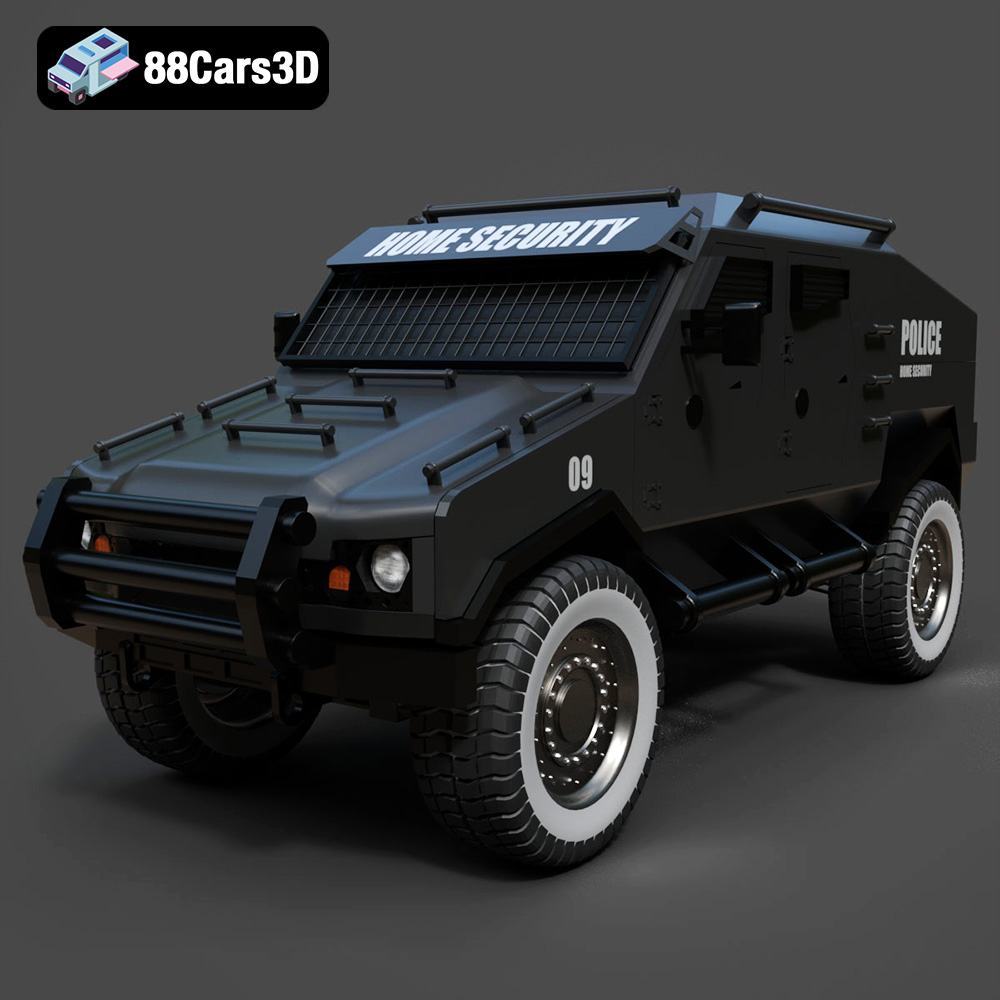
Download the Armoured Vehicle 001 3D Model featuring clean geometry, realistic detailing, and a fully modeled interior. Includes .blend, .fbx, .obj, .glb, .stl, .ply, .unreal, and .max formats for rendering, simulation, and game development.
Price: $19.99
Texture: Yes
Material: Yes
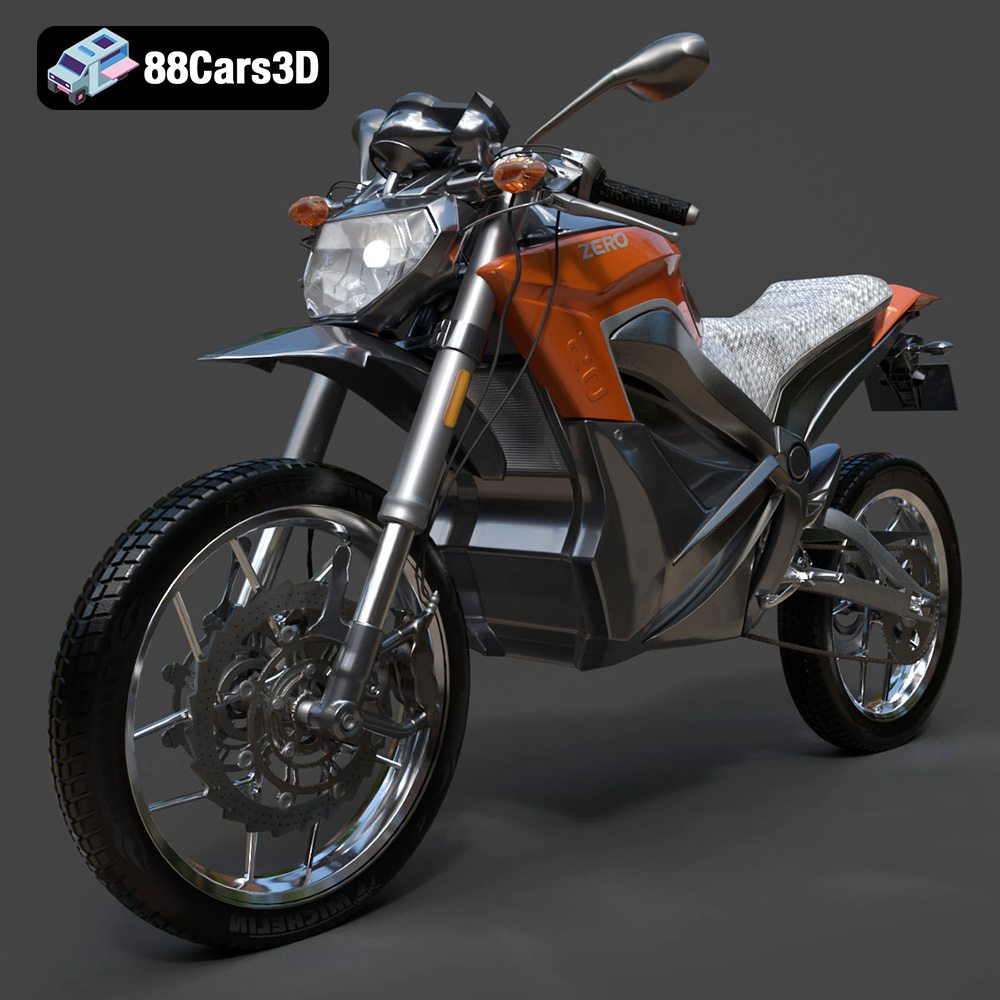
Download the Zero Motorcycles S ZF8.5 3D Model featuring clean geometry, realistic detailing, and a fully modeled interior. Includes .blend, .fbx, .obj, .glb, .stl, .ply, .unreal, and .max formats for rendering, simulation, and game development.
Price: $19.99

Texture: Yes
Material: Yes
Download the Zeekr 001 3D Model featuring clean geometry, realistic detailing, and a fully modeled interior. Includes .blend, .fbx, .obj, .glb, .stl, .ply, .unreal, and .max formats for rendering, simulation, and game development.
Price: $19.99

