Get 50% OFF All Premium 3D & STL Models!

“`html
So, you’ve got your hands on a fantastic STL file of a classic car, ready to bring it to life on your 3D printer. Maybe you sourced it from a marketplace like 88cars3d.com, or perhaps you created it yourself. But before you hit that print button, it’s crucial to ensure your STL file is clean, optimized, and ready for the printing process. Poorly prepared files can lead to failed prints, wasted filament, and a whole lot of frustration. This guide will walk you through the process of cleaning up STL files using Blender, a powerful and free open-source 3D modeling software. We’ll cover everything from identifying common issues to using Blender’s tools to repair and optimize your models, so you can achieve stunning results with your 3D printed car models.
In this comprehensive guide, you will learn how to inspect your STL files for errors, correct non-manifold geometry, close gaps, remove unwanted elements, reduce polygon count for improved performance, and orient your model for optimal printing. Whether you’re a beginner or an experienced 3D printing enthusiast, this guide will provide you with the knowledge and skills to prepare your STL files for success.
The STL (Stereolithography) file format is the de facto standard for 3D printing. It represents a 3D object as a collection of triangles, describing only the surface geometry without color or texture information. While simple, this format is prone to certain issues that can negatively impact print quality.
An STL file consists of a mesh, which is essentially a network of interconnected triangles. Each triangle is defined by three vertices and a normal vector (indicating the triangle’s orientation). The quality of the mesh topology is crucial. Overlapping triangles, gaps between triangles, and incorrect normal orientations can all lead to problems during slicing and printing. Good mesh topology means having a clean, closed surface without self-intersections or non-manifold edges. Think of it like a perfectly sealed balloon – no holes, no leaks.
One of the most common issues with STL files is non-manifold geometry. A manifold mesh is one where every edge is shared by exactly two triangles, forming a closed surface. Non-manifold geometry occurs when edges are shared by more or fewer than two triangles, creating holes, self-intersections, or edges that lead to nowhere. This is a HUGE problem for slicers. They rely on a closed, watertight model to generate toolpaths correctly. Blender offers several tools to identify and correct these issues, which we will explore later. Imagine a knitted sweater with holes and loose threads – that’s non-manifold geometry.
Slicing software interprets the STL file and generates instructions for your 3D printer. If the STL file contains errors, the slicer may misinterpret the geometry, leading to missing layers, incorrect infill patterns, or even a complete print failure. Repairing your STL file before slicing is therefore essential to ensure a successful and high-quality print. Many online marketplaces such as 88cars3d.com often provide models that have been pre-checked for these issues, however, it is always good practice to perform your own checks before printing. The investment of time in cleaning and repairing your STL file upfront will save you time, filament, and frustration in the long run.
Blender provides a user-friendly interface and powerful tools for importing and inspecting STL files. Once imported, you can visually examine the mesh for potential issues and use Blender’s analysis tools to identify specific errors.
Open Blender and go to File > Import > STL (.stl). Navigate to your STL file and click “Import STL”. Blender will load the model into the 3D viewport. You might need to adjust the scale depending on the units used when the file was created. To do this, select the object and press ‘S’ to scale, then enter the desired scaling factor. It’s often a good idea to import the model centered at the origin (0,0,0) to make subsequent operations easier. You can achieve this by ensuring the “Align to World Origin” checkbox is ticked during the import process.
Blender offers several overlays that can help you visually inspect the mesh. Enable Face Orientation under the Viewport Overlays menu (the two overlapping circles icon at the top right of the 3D viewport). This will color the faces of your model either blue or red. Blue indicates that the face normals are pointing outwards (which is what you want), while red indicates that they are pointing inwards. Inverted normals can cause issues during slicing, so you’ll need to flip them (more on that later). Another helpful overlay is Statistics, which shows the number of vertices, edges, and faces in your model. This can give you an idea of the model’s complexity.
Blender’s Mesh Analysis tool is incredibly useful for identifying non-manifold geometry. To use it, go to Edit Mode (Tab key) and select the entire mesh (A key). Then, go to Mesh > Clean Up > Make Manifold. This command attempts to automatically fix non-manifold geometry. After running this command, enable the Mesh Analysis overlay. This overlay highlights problematic areas in different colors. For example, it can highlight edges that are shared by more than two faces (non-manifold edges) or faces with zero area. Pay close attention to these highlighted areas, as they will likely require further attention.
Once you’ve identified areas of non-manifold geometry or gaps in your mesh, you can use Blender’s modeling tools to correct them. This often involves manually connecting vertices, creating new faces, or deleting problematic geometry.
The Fill tool is a simple yet effective way to close small gaps and holes in your mesh. In Edit Mode, select the edges surrounding the gap you want to fill. Then, press F to create a new face that fills the gap. If the Fill tool doesn’t work, it usually means the edges you selected don’t form a closed loop. In this case, you may need to manually connect the vertices using the Vertex > Connect Path tool (Ctrl+Shift+J). Remember to ensure the newly created faces have the correct orientation by checking the Face Orientation overlay.
For larger gaps or holes, the Bridge Edge Loops tool can be a lifesaver. Select two edge loops (two sets of connected edges) that you want to connect. Then, go to Edge > Bridge Edge Loops. Blender will create new faces that bridge the gap between the edge loops. You can adjust the number of cuts and other parameters to control the density and shape of the bridging geometry. This tool is particularly useful for repairing complex surfaces where the Fill tool would be impractical.
In some cases, you may need to manually create new faces and edges using the Knife tool (K key). This tool allows you to cut new edges across faces, creating new vertices and faces. You can also manually move vertices and edges using the Grab tool (G key). This is often necessary for cleaning up complex non-manifold geometry or for precisely shaping the mesh. When using these tools, make sure to enable snapping (the magnet icon at the top of the 3D viewport) to ensure that vertices snap together accurately. Pay close attention to the Face Orientation overlay as you create new geometry, and flip any inverted faces using the Mesh > Normals > Flip command.
High-resolution models with a large number of polygons can be computationally expensive to process, both in Blender and in your slicing software. Reducing the polygon count can improve performance and reduce file size without significantly impacting print quality.
The Decimate modifier is a powerful tool for reducing polygon count while preserving the overall shape of your model. Add a Decimate modifier to your object (Modifier Properties panel). The Ratio parameter controls the percentage of faces to be removed. A lower ratio results in a greater reduction in polygon count. The Collapse mode simply removes faces, while the Unsubdivide mode attempts to simplify the mesh by merging coplanar faces. Experiment with different settings to find a balance between polygon count and detail preservation. Be careful not to over-decimate the model, as this can result in a loss of important details and artifacts in the printed model.
The Remesh modifier can be used to create a more uniform mesh topology, which can be beneficial for certain types of models. The Voxel Size parameter controls the size of the voxels used to reconstruct the mesh. A smaller voxel size results in a higher-resolution mesh. The Remesh modifier can also be used to convert non-manifold geometry into manifold geometry, although it may not always produce the desired results. This can be useful for quickly cleaning up complex models, but it may also smooth out fine details.
When reducing polygon count, it’s important to consider the level of detail required for your 3D printed car model. Areas with fine details, such as grilles, emblems, or intricate body lines, should be preserved, while areas with flat surfaces can be more aggressively decimated. You can also use the Vertex Group option in the Decimate modifier to selectively reduce polygon count in specific areas of the model. Start with a small reduction in polygon count and gradually increase it until you achieve the desired balance between detail and performance. Remember to always save a backup of your original high-resolution model before applying any destructive modifiers.
The final step is to orient your model for optimal printing and export it as an STL file with the correct settings. Proper orientation can significantly impact print time, support structure requirements, and overall print quality.
The orientation of your model on the print bed can have a significant impact on the success of your print. Consider the following factors when choosing the optimal orientation:
For car models, printing with the wheels down and the body angled slightly upwards is often a good compromise between minimizing support structures and maximizing surface finish.
Before exporting, make sure to apply all transformations (location, rotation, and scale) to your model. Select the object and press Ctrl+A, then choose All Transforms. This will reset the object’s transformations to their default values, ensuring that the model is exported with the correct size and orientation. Double-check the dimensions of your model to ensure they are correct for your intended print size. Scaling the model in Blender is generally preferable to scaling it in the slicer, as the latter can sometimes introduce rounding errors.
To export the STL file, go to File > Export > STL (.stl). Choose a location to save the file and set the following settings:
Click “Export STL” to save the file. Your file is now ready to be loaded into your slicing software and prepared for 3D printing. Models from platforms such as 88cars3d.com are often supplied with recommended orientations, however, you can always adjust the settings for your individual printer and desired results.
Even with careful preparation, you may still encounter issues during the printing process. Here are some common problems and how to troubleshoot them.
Warping occurs when the corners of your print lift off the print bed. This is often caused by poor bed adhesion, temperature fluctuations, or incorrect print settings. To improve bed adhesion:
Layer separation occurs when layers don’t adhere properly to each other, resulting in weak prints. This can be caused by:
Stringing occurs when the nozzle oozes filament while traveling between parts of the print. Blobs are small accumulations of excess filament on the surface of the print. To reduce stringing and blobs:
By understanding these common issues and implementing the troubleshooting steps outlined above, you can significantly improve the quality and reliability of your 3D prints.
Preparing STL files for 3D printing is a critical step in achieving high-quality results. Using Blender, you can effectively clean up, repair, and optimize your models, ensuring they are ready for the slicing process. From understanding STL file structure and identifying common issues to correcting non-manifold geometry, optimizing mesh density, and choosing the optimal print orientation, this guide has provided you with the knowledge and skills you need to succeed. Remember to experiment with different settings and techniques to find what works best for your printer and your specific models.
Take the time to practice these techniques with various STL files, especially those of complex car models from sources like 88cars3d.com, to hone your skills. By mastering STL file preparation, you’ll be well-equipped to create stunning 3D printed car models that you can be proud of. Now, go forth and unleash your creativity!
“`

Texture: Yes
Material: Yes
Download the Honda Civic Si Sedan 2017 3D Model featuring clean geometry, realistic detailing, and a fully modeled interior. Includes .blend, .fbx, .obj, .glb, .stl, .ply, .unreal, and .max formats for rendering, simulation, and game development.
Price: $19.99

Texture: Yes
Material: Yes
Download the Helicopter UH-40 3D Model featuring clean geometry, realistic detailing, and a fully modeled interior. Includes .blend, .fbx, .obj, .glb, .stl, .ply, .unreal, and .max formats for rendering, simulation, and game development.
Price: $19.99

Texture: Yes
Material: Yes
Download the BMW X7 G07 2019 3D Model featuring clean geometry, realistic detailing, and a fully modeled interior. Includes .blend, .fbx, .obj, .glb, .stl, .ply, .unreal, and .max formats for rendering, simulation, and game development.
Price: $19.99

Texture: Yes
Material: Yes
Download the BMW 8-Series M850i G15 Coupe 2019 3D Model featuring clean geometry, realistic detailing, and a fully modeled interior. Includes .blend, .fbx, .obj, .glb, .stl, .ply, .unreal, and .max formats for rendering, simulation, and game development.
Price: $19.99

Texture: Yes
Material: Yes
Download the BMW Z4 Mk3 G29 Roadster M40i 2019 3D Model featuring clean geometry, realistic detailing, and a fully modeled interior. Includes .blend, .fbx, .obj, .glb, .stl, .ply, .unreal, and .max formats for rendering, simulation, and game development.
Price: $19.99

Texture: Yes
Material: Yes
Download the BMW X6 (Mk3) (G06) M Sport 2020 3D Model featuring clean geometry, realistic detailing, and a fully modeled interior. Includes .blend, .fbx, .obj, .glb, .stl, .ply, .unreal, and .max formats for rendering, simulation, and game development.
Price: $19.99

Texture: Yes
Material: Yes
Download the BMW 8-Series G14 Convertible M850i 2019 3D Model featuring clean geometry, realistic detailing, and a fully modeled interior. Includes .blend, .fbx, .obj, .glb, .stl, .ply, .unreal, and .max formats for rendering, simulation, and game development.
Price: $19.99

Texture: Yes
Material: Yes
Download the BMW 8 Series M850i Coupe 2019 3D Model featuring clean geometry, realistic detailing, and a fully modeled interior. Includes .blend, .fbx, .obj, .glb, .stl, .ply, .unreal, and .max formats for rendering, simulation, and game development.
Price: $19.99

Texture: Yes
Material: Yes
Download the BMW 3 Series M-Sport Sedan 2019 3D Model featuring clean geometry, realistic detailing, and a fully modeled interior. Includes .blend, .fbx, .obj, .glb, .stl, .ply, .unreal, and .max formats for rendering, simulation, and game development.
Price: $19.99
Texture: Yes
Material: Yes
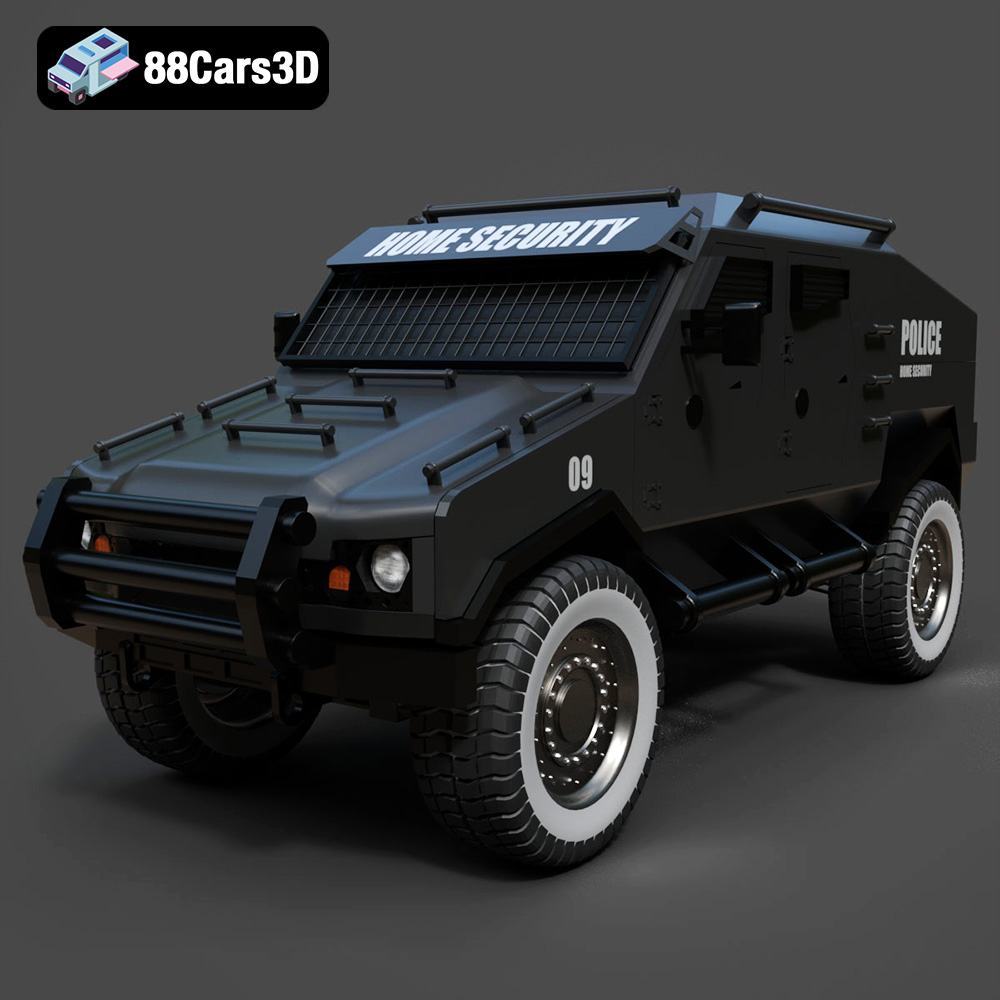
Download the Armoured Vehicle 001 3D Model featuring clean geometry, realistic detailing, and a fully modeled interior. Includes .blend, .fbx, .obj, .glb, .stl, .ply, .unreal, and .max formats for rendering, simulation, and game development.
Price: $19.99

