Get 50% OFF All Premium 3D & STL Models!

“`html
3D printing has revolutionized the world of prototyping, model making, and even end-part production. Whether you’re a seasoned engineer or a hobbyist just starting out, understanding how to properly prepare your STL files is crucial for achieving high-quality prints in a timely manner. One of the key strategies for accelerating the 3D printing process, especially for larger models like those you might find on platforms like 88cars3d.com, is to strategically scale, hollow, and optimize your STL files. This blog post will delve deep into the technical aspects of each of these steps, providing you with the knowledge and tools to maximize your print speed without sacrificing structural integrity or aesthetic appeal. We’ll cover everything from understanding STL file structure to advanced slicing techniques, empowering you to create impressive 3D printed car models and more, efficiently and effectively. Get ready to dive into the world of 3D printing optimization!
The STL (Stereolithography) file format is the de facto standard for 3D printing. It represents a 3D object as a collection of triangles, forming a mesh that approximates the surface geometry. The density of this triangle mesh directly impacts the file size and the level of detail in the final print. A higher triangle count results in a smoother surface but also increases the computational load during slicing and the print time itself.
Finding the right balance between triangle density and level of detail is crucial. For car models with intricate curves and sharp edges, a higher triangle count may be necessary to accurately represent these features. However, for simpler geometries or areas that are less visually prominent, reducing the triangle count can significantly decrease file size and print time. Software like MeshLab or Blender allows you to selectively reduce the polygon count of specific areas of your model, optimizing the mesh for efficient printing.
A crucial aspect of STL files is that they should be “manifold.” This means the mesh must be closed, without any holes or self-intersections. Non-manifold meshes can cause serious issues during slicing, leading to print failures. Fortunately, several software tools are available to automatically repair these errors. Netfabb Basic and Meshmixer are excellent choices for identifying and fixing common mesh problems such as holes, flipped normals, and overlapping triangles. Before slicing any STL file, especially when downloading models from marketplaces such as 88cars3d.com, it’s always a good practice to run it through a mesh repair tool to ensure it’s manifold and error-free.
Scaling your STL model is often the first step in the 3D printing workflow. Whether you’re creating a miniature replica or a larger-than-life prototype, accurate scaling is essential for achieving the desired dimensions. However, it’s not just about entering a scaling factor; it’s about understanding the implications of scaling on the model’s structural integrity and printability.
Uniform scaling scales the model proportionally in all three axes (X, Y, and Z), preserving the original aspect ratio. This is the most common type of scaling and is suitable for most applications. Non-uniform scaling, on the other hand, allows you to scale each axis independently. While this can be useful for correcting minor dimensional inaccuracies or creating specific effects, it can also distort the model and potentially compromise its structural integrity. Be cautious when using non-uniform scaling, especially for complex geometries.
When scaling down a model, it’s crucial to consider the impact on feature size and wall thickness. If the wall thickness becomes too thin, the model may become fragile and prone to breakage. Similarly, small details may become too small to be accurately printed by your 3D printer. A general rule of thumb is to ensure that the minimum wall thickness is at least twice the nozzle diameter for FDM printing. For resin printing, the minimum wall thickness can be slightly lower, but it’s still important to consider the resin’s mechanical properties. Consider the material constraints – ABS and PETG are stronger than PLA, and therefore can be printed thinner. Before printing, carefully inspect the scaled model in your slicer software to identify any areas with excessively thin walls or small features.
Hollowing a 3D model involves removing the interior material, leaving only a thin shell. This technique significantly reduces material consumption and print time, especially for large models. However, it’s crucial to implement hollowing strategically to maintain structural integrity and prevent print failures. This is very important when printing something large, like a car model from 88cars3d.com.
Several software tools offer hollowing capabilities, including Meshmixer, Cura, and Simplify3D. Meshmixer is a popular choice due to its user-friendly interface and powerful hollowing algorithms. Cura, while primarily a slicer, also offers basic hollowing functionality. The best software will depend on your specific needs and preferences. Experiment with different tools to find the one that works best for you.
After hollowing, it’s essential to specify the appropriate wall thickness. A thicker wall will provide greater strength but will also increase material usage and print time. A general guideline is to use a wall thickness of at least 1.5mm for FDM printing and 1mm for resin printing. Infill can be added to the hollow interior to provide additional support and prevent warping, but this defeats the purpose of saving material. For FDM printing, 5-10% infill is usually sufficient. Internal support structures are critical to prevent the roof of the hollowed object from collapsing during printing. These supports can be generated automatically by the slicing software and should be carefully placed to provide adequate support without being too difficult to remove after printing. Think about using tree supports, which will save on material and time. Also, think about where to place holes to allow for resin to drain out of a hollowed resin print.
The slicing process converts the STL file into a series of instructions for your 3D printer. The slicing parameters you choose have a significant impact on print speed, quality, and material usage. Optimizing these parameters is crucial for achieving the best possible results.
Layer height is one of the most critical slicing parameters. A thinner layer height results in a smoother surface finish but also increases print time. A thicker layer height, on the other hand, reduces print time but sacrifices surface quality. Finding the optimal layer height involves a trade-off between speed and quality. For most applications, a layer height of 0.2mm is a good starting point. For faster prints, you can increase the layer height to 0.3mm or even 0.4mm, but be prepared for a reduction in surface quality. For detailed models, a layer height of 0.1mm or even 0.05mm may be necessary.
Infill density determines the amount of material used to fill the interior of the printed object. A higher infill density provides greater strength but also increases material usage and print time. The infill pattern also affects the strength and print speed. Common infill patterns include grid, honeycomb, and gyroid. Gyroid infill is known for its excellent strength-to-weight ratio, while grid infill is faster to print but less strong. For most applications, an infill density of 15-20% is sufficient. For parts that require high strength, you can increase the infill density to 50% or higher. Solid infill (100%) is only necessary for parts that need to be completely solid, such as watertight containers. Consider adaptive infill, where the infill density increases in areas with high stress. This can be configured in PrusaSlicer.
Support structures are temporary structures that are printed to support overhanging features and prevent them from collapsing during printing. Generating and optimizing support structures is a crucial step in the 3D printing workflow, especially for complex models with intricate geometries.
There are two main types of support structures: linear and tree-like. Linear supports are simple vertical columns that provide support directly beneath the overhanging features. Tree-like supports, also known as branching supports, are more complex structures that resemble a tree. Tree supports are more efficient in terms of material usage and are easier to remove than linear supports. However, they can be more difficult to generate and may require more fine-tuning. In general, tree supports are a better choice for complex models with delicate features, while linear supports are suitable for simpler geometries.
Proper support placement is essential for ensuring that all overhanging features are adequately supported without adding unnecessary material. Most slicing software programs offer automatic support generation, but it’s often necessary to manually adjust the support placement to optimize the support structure. Pay close attention to areas with steep overhangs, small features, and delicate geometries. Consider the angle of the overhang and adjust the support density accordingly. After printing, carefully remove the support structures using pliers, a sharp knife, or other specialized tools. Be careful not to damage the printed part during support removal. For easier removal, you can adjust the support settings in your slicer to create a small gap between the support and the part.
The choice of material has a significant impact on print speed, strength, and overall print quality. Different materials require different printing temperatures, speeds, and settings. Understanding the properties of different materials is essential for achieving optimal results.
PLA (Polylactic Acid) is a biodegradable thermoplastic that is easy to print and has a relatively low printing temperature (around 200°C). PLA is a good choice for beginners and for models that don’t require high strength or heat resistance. PETG (Polyethylene Terephthalate Glycol) is a stronger and more durable material than PLA and has a higher heat resistance. PETG is also more flexible than PLA, making it less prone to cracking. ABS (Acrylonitrile Butadiene Styrene) is a strong and heat-resistant material that is commonly used for automotive parts and other demanding applications. However, ABS is more difficult to print than PLA and PETG and requires a heated bed and an enclosed printer to prevent warping. For faster printing, PLA is generally the best choice due to its lower printing temperature and easier printability. However, for models that require greater strength or heat resistance, PETG or ABS may be necessary, even if it means sacrificing some print speed.
Resin printing, also known as stereolithography (SLA) or digital light processing (DLP), uses a liquid resin that is cured by UV light to create 3D objects. Resin printing typically produces higher-resolution prints than FDM printing but is generally slower. However, there are several techniques you can use to speed up resin printing. These include increasing the layer height, reducing the exposure time, and using a faster resin. However, be careful not to reduce the exposure time too much, as this can result in under-cured parts. Also, hollowing is CRITICAL for resin printing, as uncured resin trapped inside the model will create issues. Platforms like 88cars3d.com often specify recommended materials for their printable car models, ensuring optimal results.
Post-processing involves a series of techniques used to improve the appearance and functionality of 3D printed parts after they have been printed. These techniques can include sanding, painting, assembly, and other finishing processes.
Sanding is used to remove layer lines and other imperfections from the surface of the printed part. Start with coarse sandpaper (e.g., 120 grit) and gradually move to finer grits (e.g., 400 grit, 600 grit, 800 grit) to achieve a smooth finish. After sanding, apply a primer to the part to create a uniform surface for painting. Choose a primer that is compatible with the material you used to print the part. Finally, paint the part using your desired colors and techniques. Consider using multiple thin coats of paint instead of one thick coat to avoid drips and runs. Use masking tape to create clean lines and protect areas that you don’t want to paint. Clear coating can be used to add a final layer of protection and gloss.
Many 3D printed models consist of multiple parts that need to be assembled after printing. Use glue, screws, or other fasteners to join the parts together. Pay close attention to the alignment of the parts and ensure that they are securely fastened. After assembly, add any finishing touches, such as decals, labels, or other decorative elements. For car models, consider adding realistic details such as mirrors, lights, and tires. Experiment with different techniques and materials to create a truly unique and personalized model.
Optimizing STL models for print speed requires a multifaceted approach that encompasses scaling, hollowing, slicing parameter adjustments, support structure optimization, material selection, and post-processing techniques. By understanding the technical aspects of each of these steps, you can significantly reduce print time without sacrificing print quality or structural integrity. Remember to always prioritize manifold meshes and proper wall thicknesses, and to experiment with different slicing parameters to find the optimal settings for your specific printer and material. Whether you are printing intricate car models from 88cars3d.com or prototyping complex mechanical parts, these techniques will empower you to achieve faster, more efficient, and more satisfying 3D printing results. Now, go forth and optimize your prints!
“`
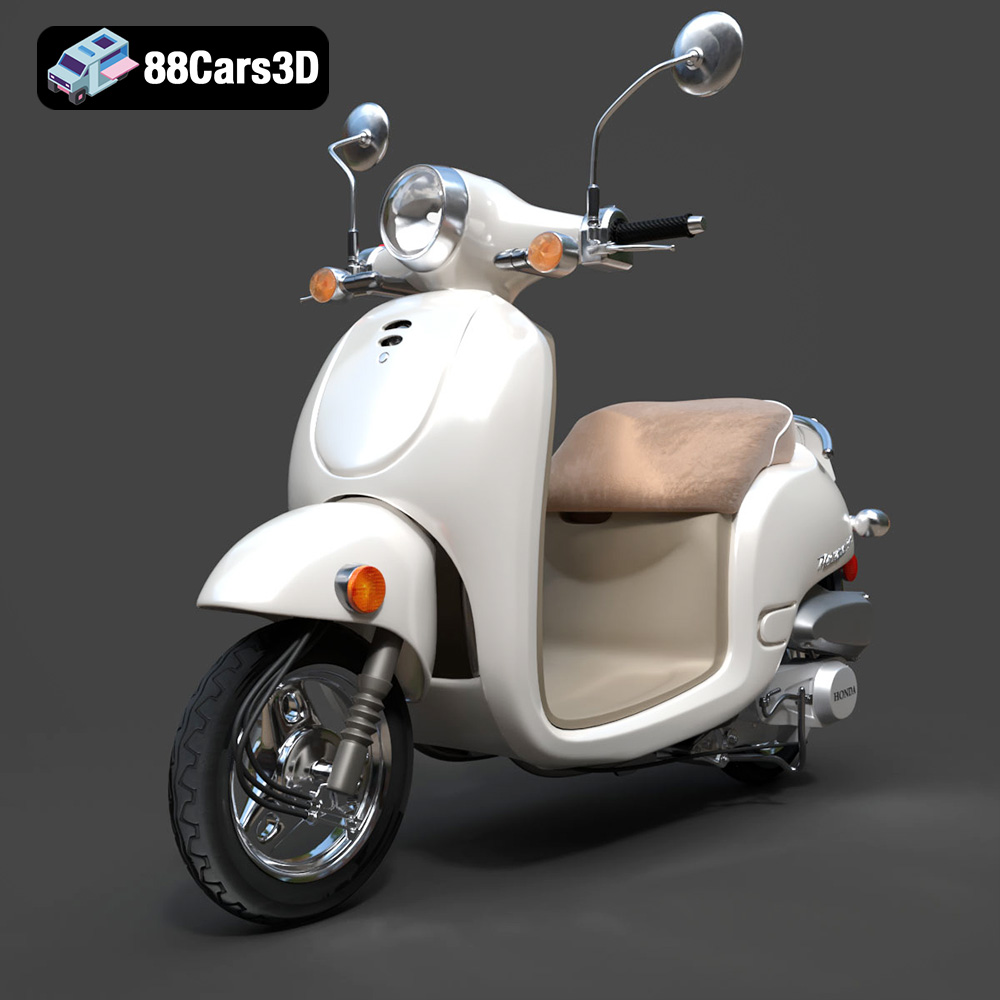
Texture: Yes
Material: Yes
Download the Honda Metropolitan 2013 3D Model featuring clean geometry, realistic detailing, and a fully modeled interior. Includes .blend, .fbx, .obj, .glb, .stl, .ply, .unreal, and .max formats for rendering, simulation, and game development.
Price: $19.99

Texture: Yes
Material: Yes
Download the Honda Civic Si Sedan 2017 3D Model featuring clean geometry, realistic detailing, and a fully modeled interior. Includes .blend, .fbx, .obj, .glb, .stl, .ply, .unreal, and .max formats for rendering, simulation, and game development.
Price: $19.99

Texture: Yes
Material: Yes
Download the Helicopter UH-40 3D Model featuring clean geometry, realistic detailing, and a fully modeled interior. Includes .blend, .fbx, .obj, .glb, .stl, .ply, .unreal, and .max formats for rendering, simulation, and game development.
Price: $19.99

Texture: Yes
Material: Yes
Download the BMW X7 G07 2019 3D Model featuring clean geometry, realistic detailing, and a fully modeled interior. Includes .blend, .fbx, .obj, .glb, .stl, .ply, .unreal, and .max formats for rendering, simulation, and game development.
Price: $19.99

Texture: Yes
Material: Yes
Download the BMW 8-Series M850i G15 Coupe 2019 3D Model featuring clean geometry, realistic detailing, and a fully modeled interior. Includes .blend, .fbx, .obj, .glb, .stl, .ply, .unreal, and .max formats for rendering, simulation, and game development.
Price: $19.99

Texture: Yes
Material: Yes
Download the BMW Z4 Mk3 G29 Roadster M40i 2019 3D Model featuring clean geometry, realistic detailing, and a fully modeled interior. Includes .blend, .fbx, .obj, .glb, .stl, .ply, .unreal, and .max formats for rendering, simulation, and game development.
Price: $19.99

Texture: Yes
Material: Yes
Download the BMW X6 (Mk3) (G06) M Sport 2020 3D Model featuring clean geometry, realistic detailing, and a fully modeled interior. Includes .blend, .fbx, .obj, .glb, .stl, .ply, .unreal, and .max formats for rendering, simulation, and game development.
Price: $19.99

Texture: Yes
Material: Yes
Download the BMW 8-Series G14 Convertible M850i 2019 3D Model featuring clean geometry, realistic detailing, and a fully modeled interior. Includes .blend, .fbx, .obj, .glb, .stl, .ply, .unreal, and .max formats for rendering, simulation, and game development.
Price: $19.99

Texture: Yes
Material: Yes
Download the BMW 8 Series M850i Coupe 2019 3D Model featuring clean geometry, realistic detailing, and a fully modeled interior. Includes .blend, .fbx, .obj, .glb, .stl, .ply, .unreal, and .max formats for rendering, simulation, and game development.
Price: $19.99

Texture: Yes
Material: Yes
Download the BMW 3 Series M-Sport Sedan 2019 3D Model featuring clean geometry, realistic detailing, and a fully modeled interior. Includes .blend, .fbx, .obj, .glb, .stl, .ply, .unreal, and .max formats for rendering, simulation, and game development.
Price: $19.99

