Get 50% OFF All Premium 3D & STL Models!

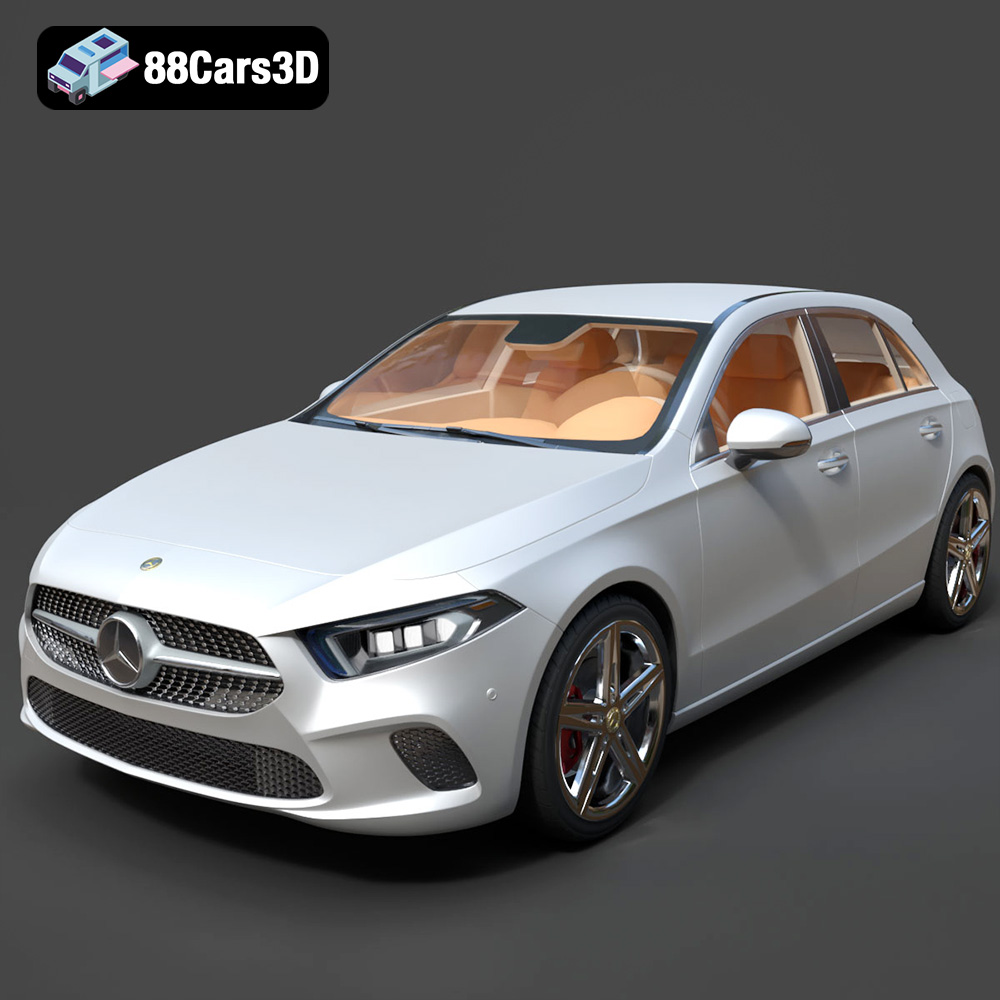
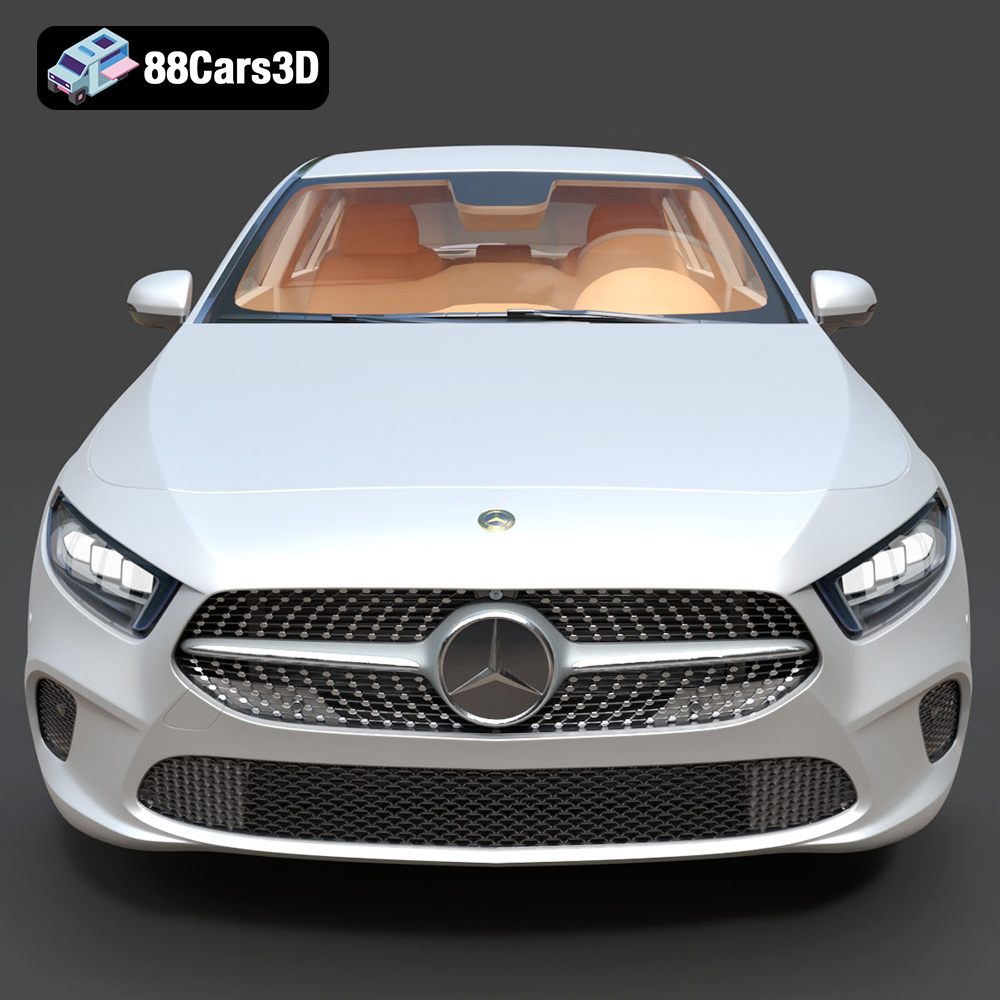
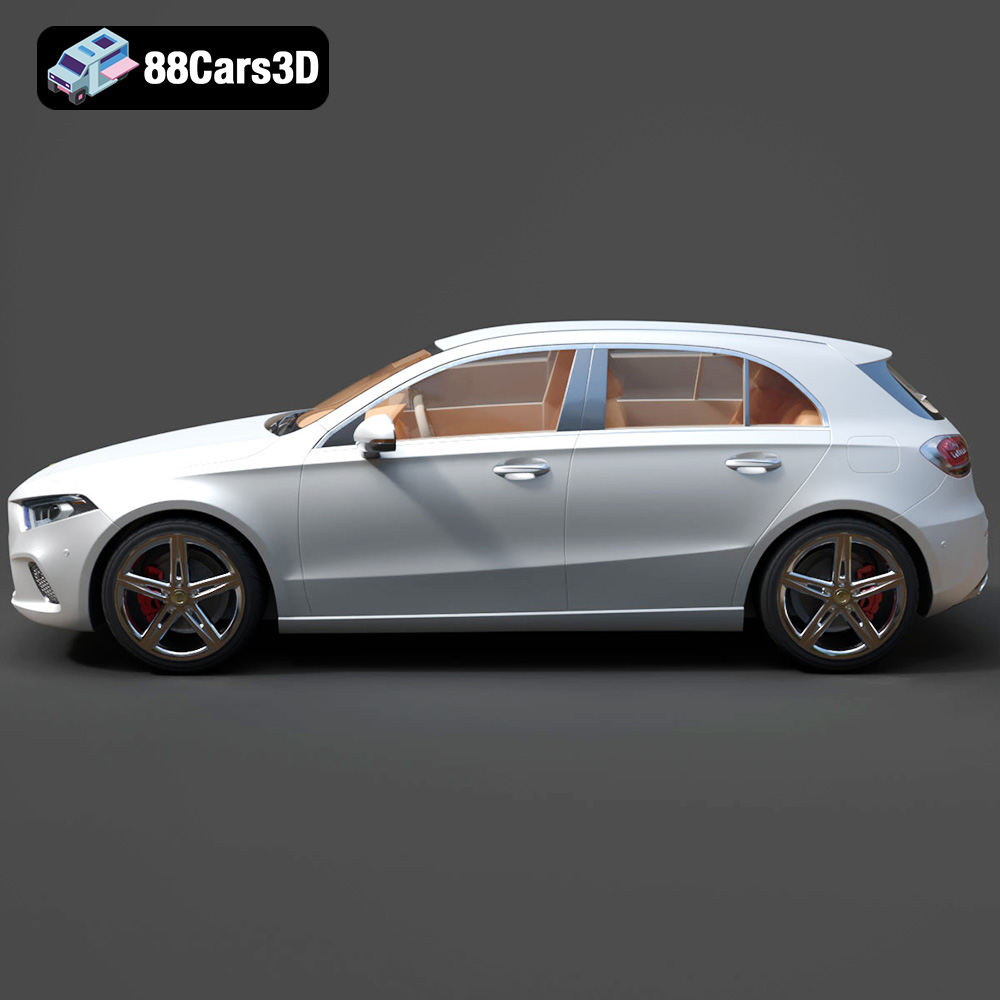
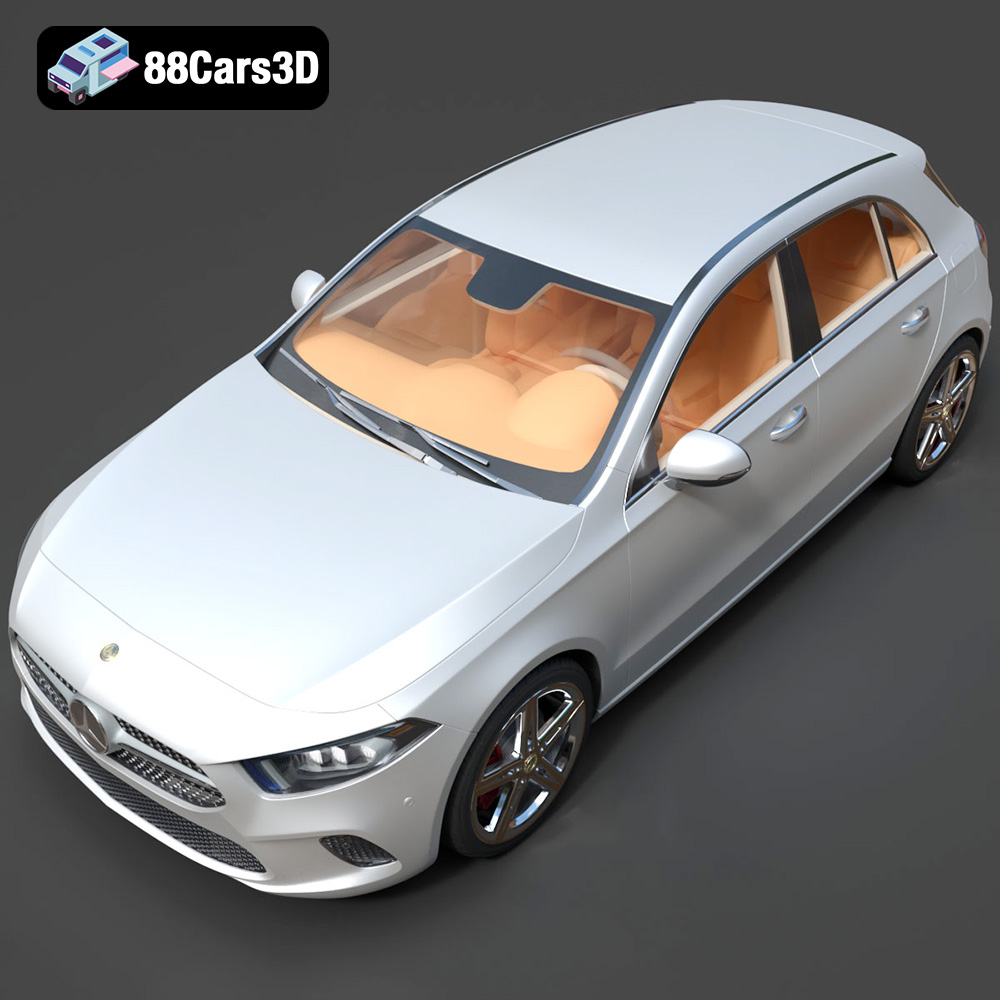
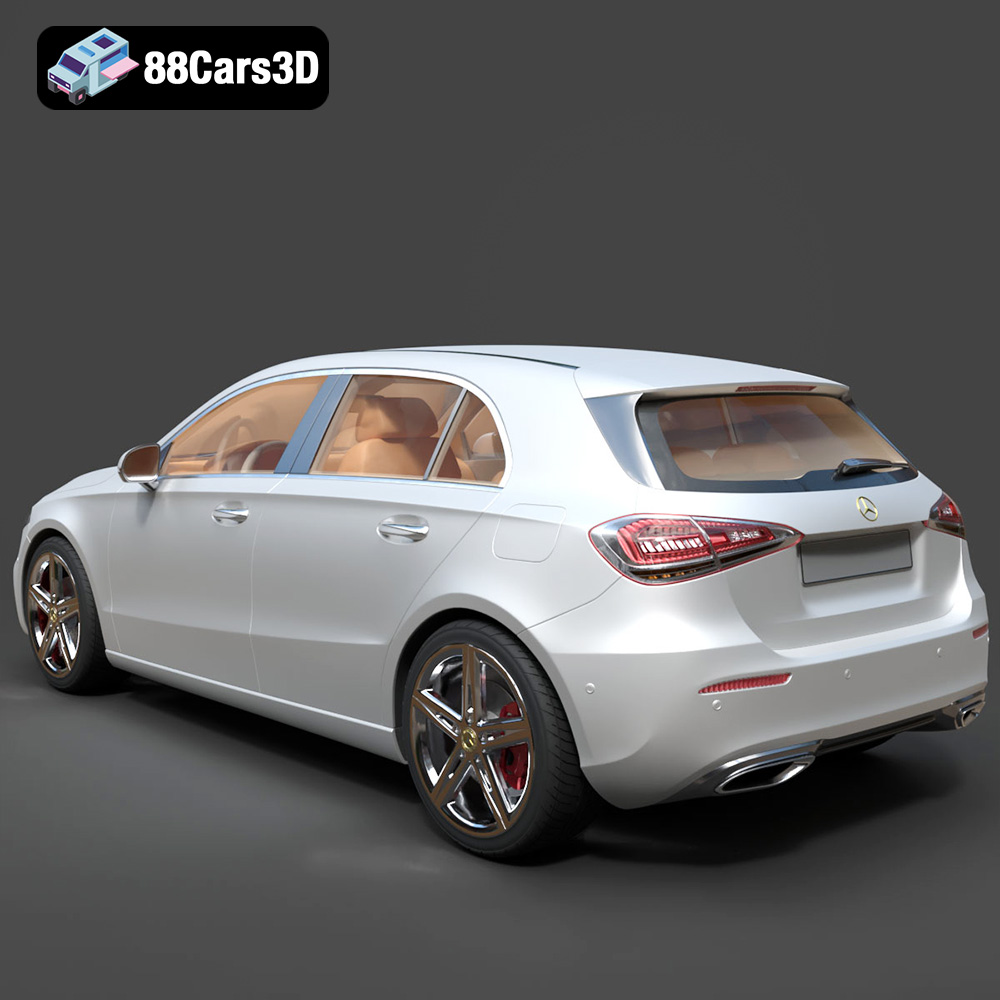
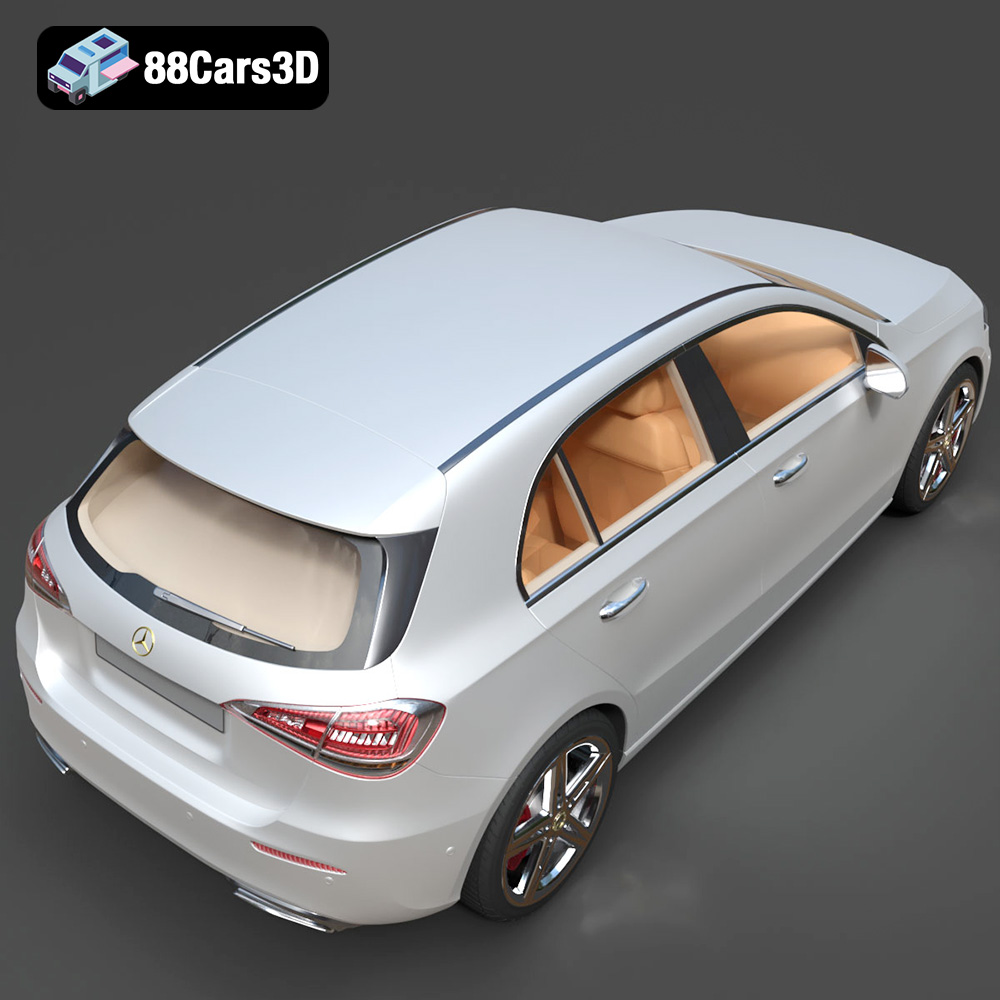
The Mercedes-Benz A-Class (W177) redefined the premium compact segment, blending aggressive styling with luxurious technology. Now, you can bring this iconic vehicle to life in miniature form through the power of 3D printing. This article provides a comprehensive guide to successfully 3D printing the highly detailed Mercedes-Benz A-Class (W177) 3D model, available on 88cars3d.com. We’ll cover everything from selecting the right materials and printer settings to post-processing techniques that will elevate your finished print to showroom quality. Get ready to embark on a rewarding additive manufacturing journey!
Before diving into the specifics of printing the Mercedes-Benz A-Class (W177), it’s crucial to understand the various file formats available and their suitability for 3D printing. Choosing the right format can significantly impact the final print quality and your overall workflow.
The .stl (Stereolithography) file format is the workhorse of 3D printing. It represents a 3D model’s surface geometry as a collection of triangles, forming a mesh. Its simplicity and widespread compatibility make it the most common choice for transferring models to slicing software.
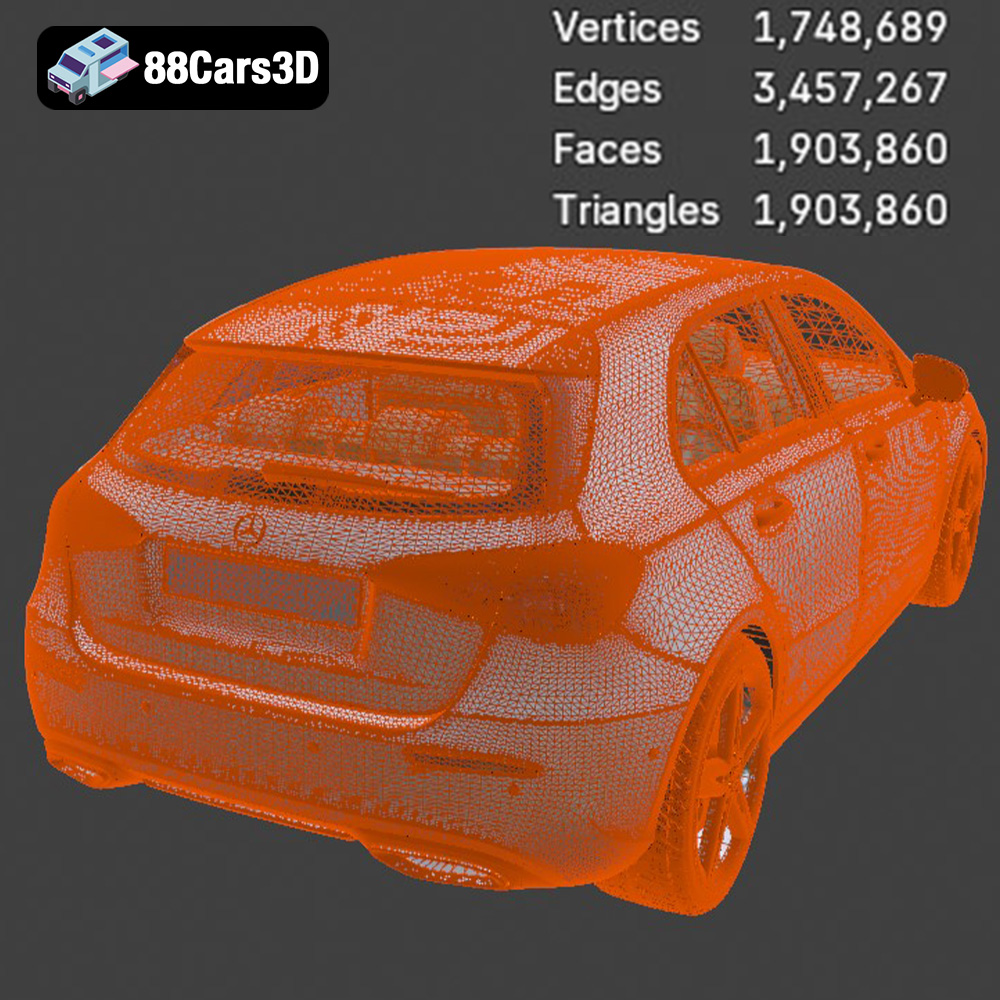
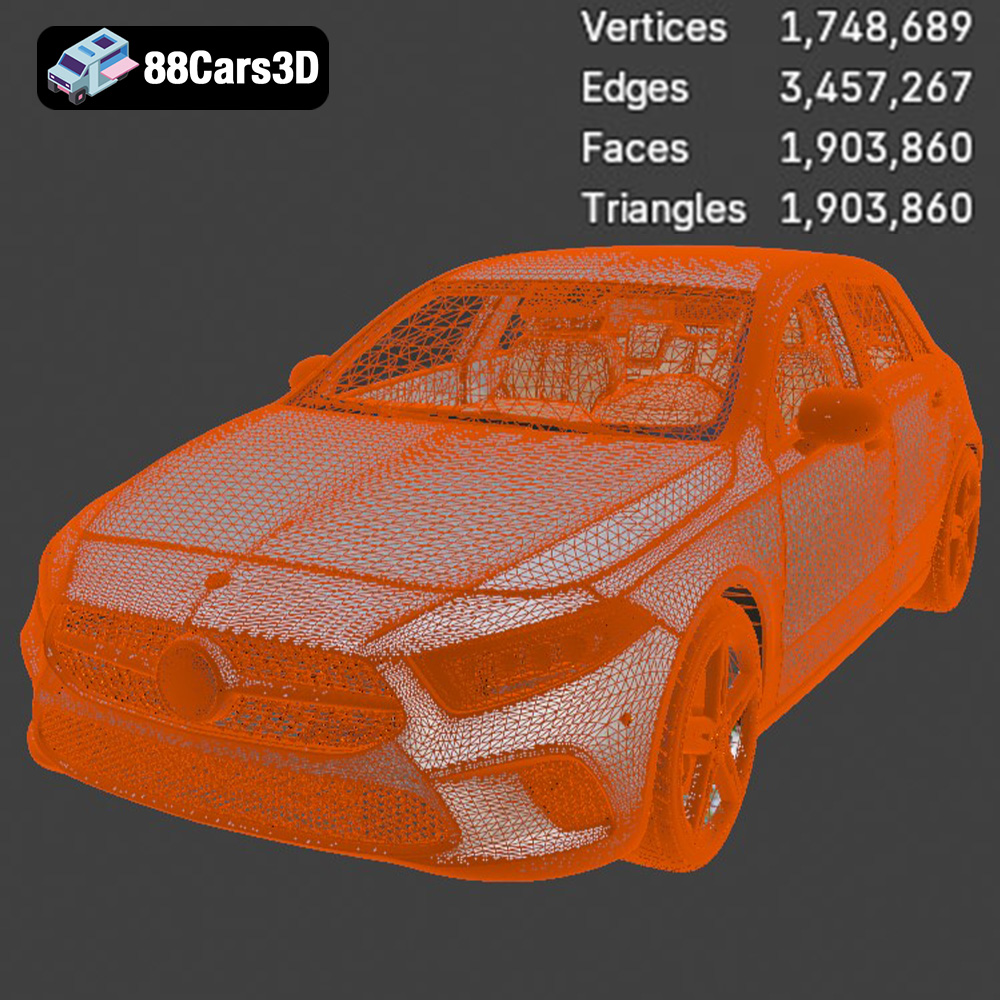
For the Mercedes-Benz A-Class (W177) 3D model, the .stl format will be your primary file for printing. When preparing your model, ensure the STL file is properly exported with sufficient resolution. Low resolution STL files can result in faceted surfaces on the final print, particularly on curved areas like the car’s body. Most slicing software allows you to adjust the export resolution to balance file size and detail. The high-poly topology of the A-Class model (1.9 million triangles) means you shouldn’t need to increase the resolution too dramatically, as it’s already very detailed.
The .obj (Wavefront Object) format is another popular option, particularly when dealing with models that incorporate color or textures. Unlike .stl, .obj files can store information about the model’s color, material properties, and texture coordinates.
While the Mercedes-Benz A-Class (W177) model from 88cars3d.com may include .obj files, remember that many 3D printers do not support multi-material or color printing directly. If you intend to add color during post-processing (painting), the .stl format will be sufficient. However, .obj files can be useful if you plan to use a full-color 3D printer or want to explore virtual texturing before printing.
The .ply (Polygon File Format) is designed for storing 3D data acquired from 3D scanners. It’s known for its ability to represent complex geometry with high precision, making it suitable for models with intricate details. While .ply files can be used for 3D printing, they are not as widely supported as .stl or .obj. The Mercedes-Benz A-Class’s complex grille and intricate interior details might benefit from the precision of a .ply file, but compatibility with your slicer should be verified.
.blend files are native to Blender, a free and open-source 3D creation suite. This format contains the entire Blender scene, including the model’s geometry, materials, textures, and lighting. If you’re familiar with Blender, the .blend file offers maximum flexibility for customizing the Mercedes-Benz A-Class (W177) 3D model before printing.
You can use Blender to modify the model’s design, simplify the geometry for easier printing (though given the level of detail, this might be undesirable), or split the model into separate parts for printing in different orientations or with different materials. After making your modifications, export the model as an .stl file for 3D printing.
The .fbx (Filmbox) format is primarily used for exchanging 3D data between different software applications. It supports a wide range of data, including geometry, animation, materials, and textures. While some slicing software can import .fbx files, the primary use case is for transferring the model with its material definitions. It may be useful for visualizing the model in a slicer environment, but typically you’ll want to export an STL for the actual print preparation.
The .glb (GL Transmission Format Binary) is designed for efficient delivery of 3D models, particularly for web-based applications and augmented reality (AR). It’s a compact format that can contain geometry, textures, and animations. Before printing the Mercedes-Benz A-Class (W177) model, you could use the .glb file to preview it in AR, allowing you to visualize its size and appearance in your real-world environment. This can help you determine the optimal scale for your 3D print.
.max files are native to 3ds Max, a professional 3D modeling, animation, and rendering software. Similar to .blend files for Blender, .max files contain the complete project setup, allowing for extensive modifications. If you are a 3ds Max user, you can use this file to adjust the model before exporting it as an .stl for printing.
Once you’ve chosen your file format (ideally .stl), you’ll need to prepare the Mercedes-Benz A-Class (W177) model for 3D printing using slicing software. This software converts the 3D model into a series of layers that the 3D printer can understand.
Numerous slicing software options are available, including Cura, PrusaSlicer, Simplify3D, and others. Each offers a range of settings that can be adjusted to optimize print quality, speed, and material usage.
Given the high level of detail in the Mercedes-Benz A-Class (W177) model, it’s crucial to use appropriate slicing settings. Key settings include:
* **Layer Height:** A smaller layer height (e.g., 0.04-0.08mm, as recommended in the product description) will produce smoother surfaces and capture finer details, especially important for the intricate diamond grille and turbine air vents.
* **Infill Density:** This controls the internal structure of the print. For a model car, a moderate infill density (15-25%) provides sufficient strength without adding excessive weight or material.
* **Wall Thickness:** The wall thickness affects the model’s strength and appearance. A thicker wall (1.5-2.5mm) provides better structural integrity and a more solid feel.
* **Supports:** Support structures are necessary for overhanging features like the side mirrors, wheels, and front bumper. Carefully consider support placement to minimize their impact on the finished print and ease removal.
* **Print Speed:** A slower print speed generally results in higher quality prints, particularly for intricate details. Experiment with different speeds to find the optimal balance between quality and print time.
The orientation of the model on the print bed significantly affects the print quality and the need for supports. For the Mercedes-Benz A-Class (W177) model, consider the following:
* **Body:** Printing the body at an angle can reduce the need for supports on the curved surfaces and improve the overall surface finish. Experiment with different angles to find the best compromise between support usage and surface quality.
* **Wheels:** Print the wheels separately to allow for easier support removal and potentially different material choices.
* **Supports:** Use automatic support generation features in your slicing software but manually review and adjust the support placement to minimize their impact on visible surfaces. Consider using support blockers in areas where you want to avoid supports altogether.
* **Raft/Brim:** Consider using a raft or brim to improve adhesion to the print bed, especially for larger prints.
The Mercedes-Benz A-Class (W177) 3D model can be scaled to different sizes depending on your preferences and the capabilities of your 3D printer. Common scales for model cars include 1:18, 1:24, and 1:43. Ensure that the model is scaled uniformly to maintain accurate proportions.
Before slicing, it’s also essential to check the model for any errors or imperfections. Use the repair tools in your slicing software or dedicated mesh repair software like MeshMixer or Netfabb to fix any issues. The high-poly nature of the model means that you may encounter some mesh issues during slicing, so checking it beforehand is good practice.
The choice of material significantly impacts the appearance, strength, and durability of your 3D printed Mercedes-Benz A-Class (W177) model.
If you’re using an FDM (Fused Deposition Modeling) 3D printer, consider the following filament options:
* **PLA (Polylactic Acid):** PLA is a biodegradable thermoplastic known for its ease of printing and relatively low cost. It’s a good option for beginners and for models that don’t require high heat resistance.
* **PETG (Polyethylene Terephthalate Glycol-modified):** PETG offers improved strength, flexibility, and heat resistance compared to PLA. It’s a good all-around choice for model cars that may be exposed to higher temperatures.
* **ABS (Acrylonitrile Butadiene Styrene):** ABS is a strong and durable thermoplastic commonly used in automotive parts. It offers excellent heat resistance and impact resistance but requires higher printing temperatures and a heated bed. ABS can be more challenging to print due to its tendency to warp.
Resin printing (SLA/DLP/LCD) is highly recommended for capturing the intricate details of the Mercedes-Benz A-Class (W177) model, particularly the diamond grille and turbine air vents. Resin printers use liquid photopolymer resins that are cured by UV light.
* **Standard Resin:** Standard resins are a good starting point for resin printing. They offer good detail and relatively low cost.
* **Tough Resin:** Tough resins are formulated to provide increased strength and impact resistance, making them suitable for models that may be handled frequently.
* **High-Detail Resin:** High-detail resins are specifically designed to capture the finest details, making them ideal for intricate models like the Mercedes-Benz A-Class (W177).
Achieving a high-quality 3D print of the Mercedes-Benz A-Class (W177) requires careful attention to printing parameters. The recommended parameters from the product description are a great starting point, but experimentation is often necessary to optimize for your specific printer and material.
* **Layer Height:** 0.04-0.08 mm (Resin printing is strictly recommended to capture the intricate diamond grille and turbine air vents)
* **Wall Thickness:** 1.5-2.5 mm
* **Infill:** 15-25%
* **Supports:** Required for the side mirrors, wheels, and front bumper overhangs
* **Print Orientation:** Body printed angled for a smooth surface finish; wheels printed separately
**FDM (Filament)**
* **Temperature:** Adjust the nozzle and bed temperature according to the filament manufacturer’s recommendations.
* **Cooling:** Ensure adequate cooling to prevent warping and improve surface finish, especially for PLA.
* **Retraction:** Optimize retraction settings to minimize stringing and improve print quality.
**Resin**
* **Exposure Time:** Adjust the exposure time based on the resin manufacturer’s recommendations and your printer’s specifications. Insufficient exposure can lead to weak prints, while overexposure can result in loss of detail.
* **Lift Speed:** Optimize the lift speed to prevent print failures and improve surface finish.
* **Support Settings:** Carefully adjust support settings to ensure adequate support without being too difficult to remove.
Before starting the print, estimate the print time and material cost using your slicing software. This will help you plan your printing schedule and budget your materials. The Mercedes-Benz A-Class (W177) model is relatively large and detailed, so expect a longer print time and higher material consumption compared to simpler models.
Once the 3D printing is complete, the post-processing stage is crucial for achieving a professional-looking finished product.
Carefully remove the support structures using appropriate tools. For FDM prints, use pliers or cutters to snip away the supports. For resin prints, gently peel or snap off the supports. Be careful not to damage the model during support removal.
After support removal, sand the surface to remove any imperfections and smooth out the layer lines. Start with a coarser grit sandpaper (e.g., 220 grit) and gradually move to finer grits (e.g., 400, 600, 800 grit) for a smooth finish. For resin prints, you can also use wet sanding for a smoother surface.
Apply a primer coat to the model to create a uniform surface for painting. Use a spray primer specifically designed for plastics. Allow the primer to dry completely before sanding lightly with fine-grit sandpaper.
Apply multiple thin coats of paint, allowing each coat to dry before applying the next. Use automotive-grade paints for a durable and realistic finish. The product description suggests modern Mercedes-Benz paint finishes such as Jupiter Red, Mountain Grey, or Polar White.
Assemble the separate parts of the model (e.g., body, wheels, mirrors) using glue or fasteners. Pay attention to alignment and ensure a secure bond.
Add final details such as decals, window tint, and other accessories to enhance the realism of the model.
Even with careful preparation, you may encounter some challenges during the 3D printing process. Here are some common issues and their solutions:
* **Warping:** Warping occurs when the print detaches from the print bed due to uneven cooling. Ensure proper bed adhesion using a raft or brim, and adjust the printing temperature and cooling settings.
* **Stringing:** Stringing is caused by molten filament oozing from the nozzle during travel moves. Optimize retraction settings and reduce printing temperature.
* **Layer Separation:** Layer separation occurs when the layers of the print don’t adhere properly. Increase the printing temperature, reduce the layer height, and ensure proper bed adhesion.
* **Support Failure:** Support failure can occur due to insufficient support density or improper support placement. Increase the support density and review the support placement to ensure adequate support for overhanging features.
* **Resin Print Failures:** Check the FEP film for damage, recalibrate the build plate, increase exposure time.
The Mercedes-Benz A-Class (W177) 3D model offers numerous opportunities for customization and advanced techniques to enhance your print.
* **AMG Line Body Kit:** Apply the sporty AMG Line body kit styling for a more aggressive look.
* **Night Package Styling:** Black out the window trim, mirror caps, and front splitter for a sleek Night Package aesthetic.
* **Custom Interior Lighting:** Add LED lights to the interior to simulate the ambient lighting of the MBUX system.
* **Detailed Interior Features:** Paint and detail the interior components, such as the dashboard, seats, and steering wheel, for added realism.
With careful planning, meticulous execution, and a touch of creativity, you can create a stunning 3D printed replica of the Mercedes-Benz A-Class (W177) that will be the envy of any automotive enthusiast. And remember, high-quality models like this one are available on 88cars3d.com, so your dream print is just a download away.
The Mercedes-Benz A-Class (W177) 3D Model is a highly accurate, premium digital recreation of the fourth-generation luxury compact hatchback. Showcasing the brand’s “Sensual Purity” design language, the W177 redefined the premium compact segment by combining a fiercely aggressive exterior with an incredibly luxurious, tech-forward interior previously reserved for the flagship S-Class.
$19.99
.archviz
.automotive
.blend
.fbx
.hatchback
.mercedes
.obj
.rendering
a-class
car-3d-model
hero-car
high poly
luxury car
mercedes-benz
premium-compact
vfx
w177