Get 50% OFF All Premium 3D & STL Models!

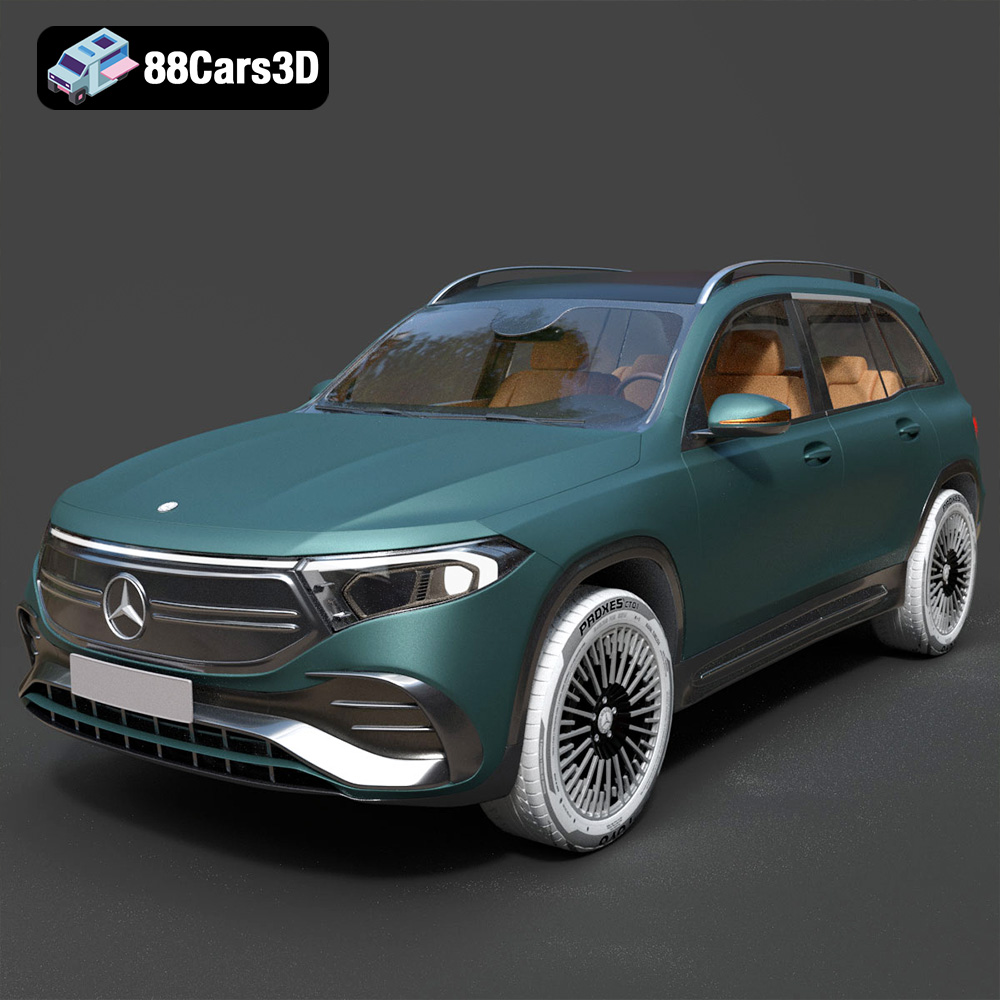
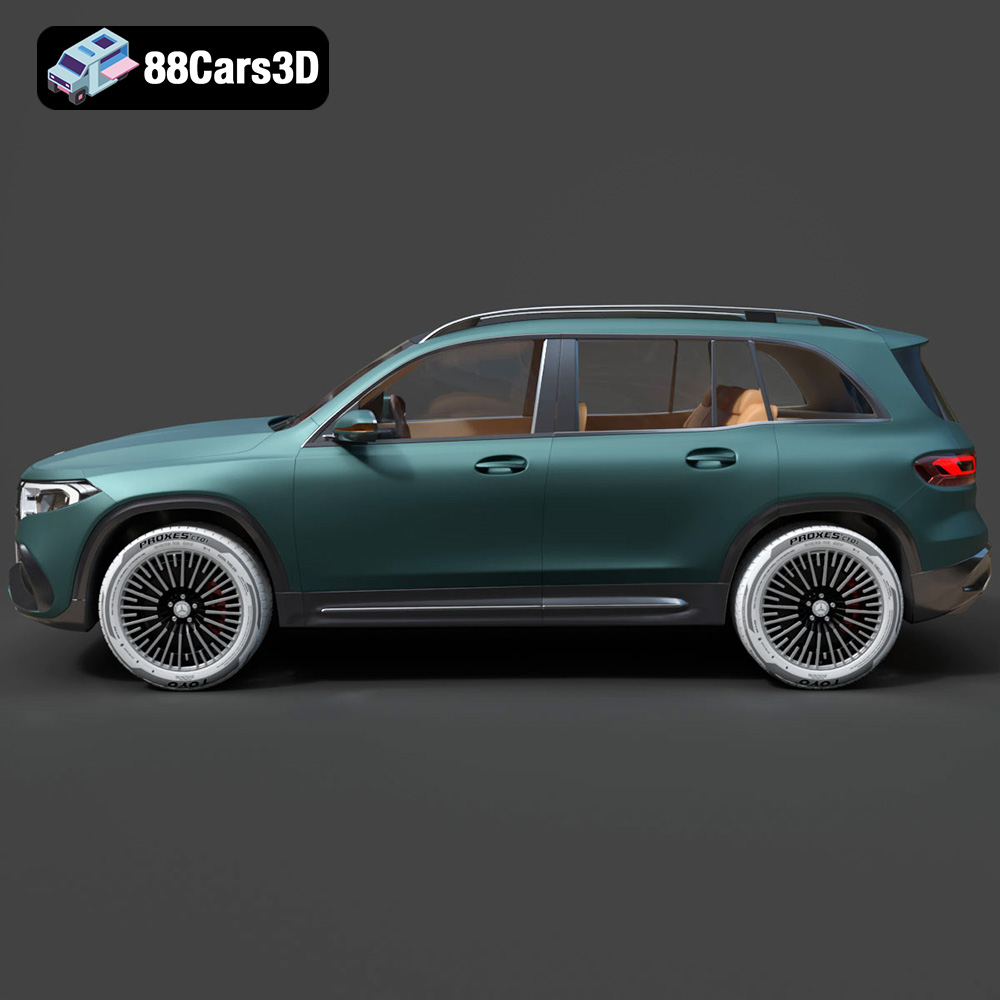
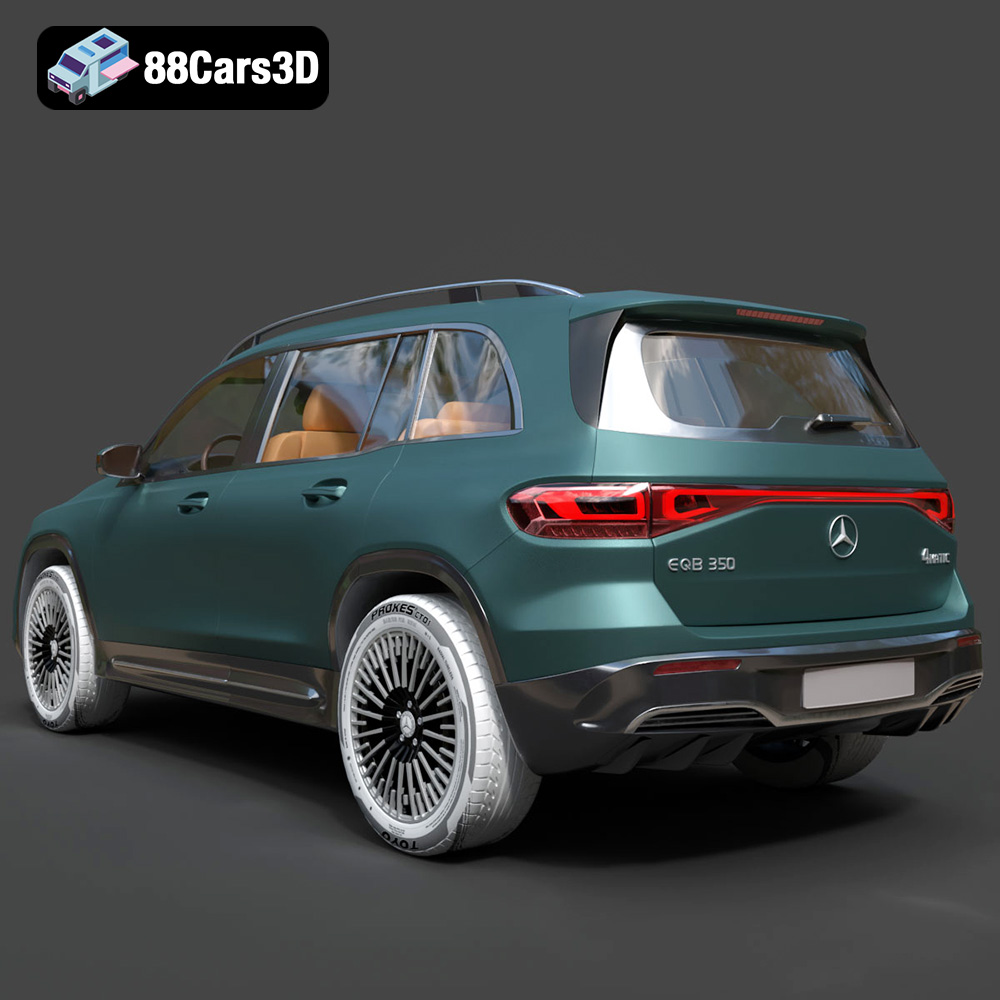
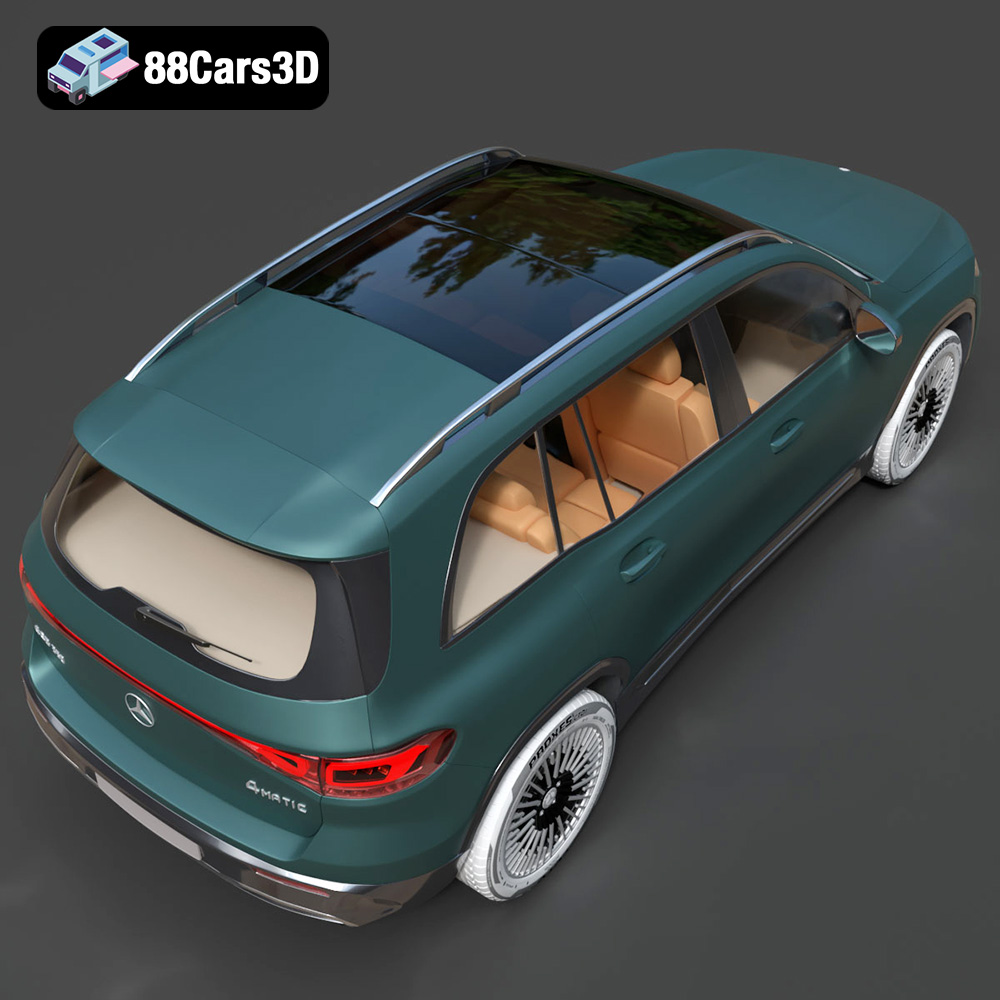
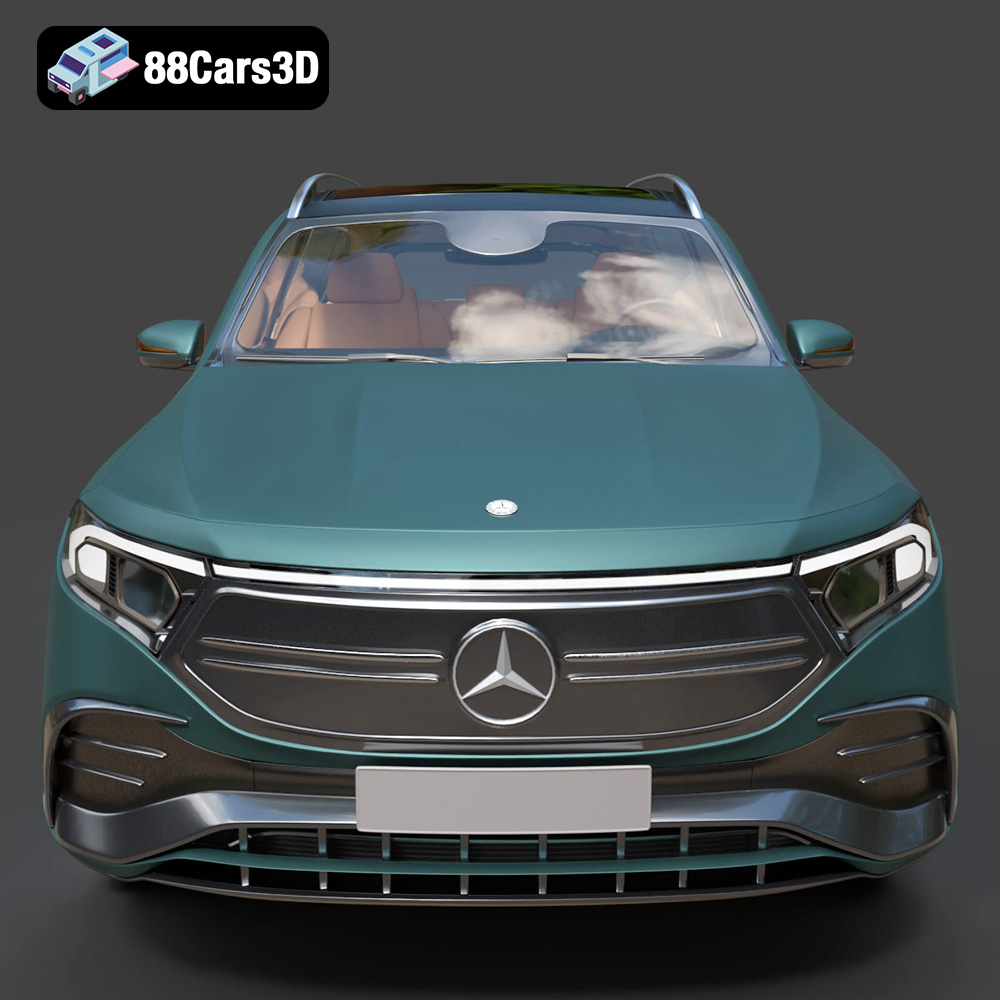
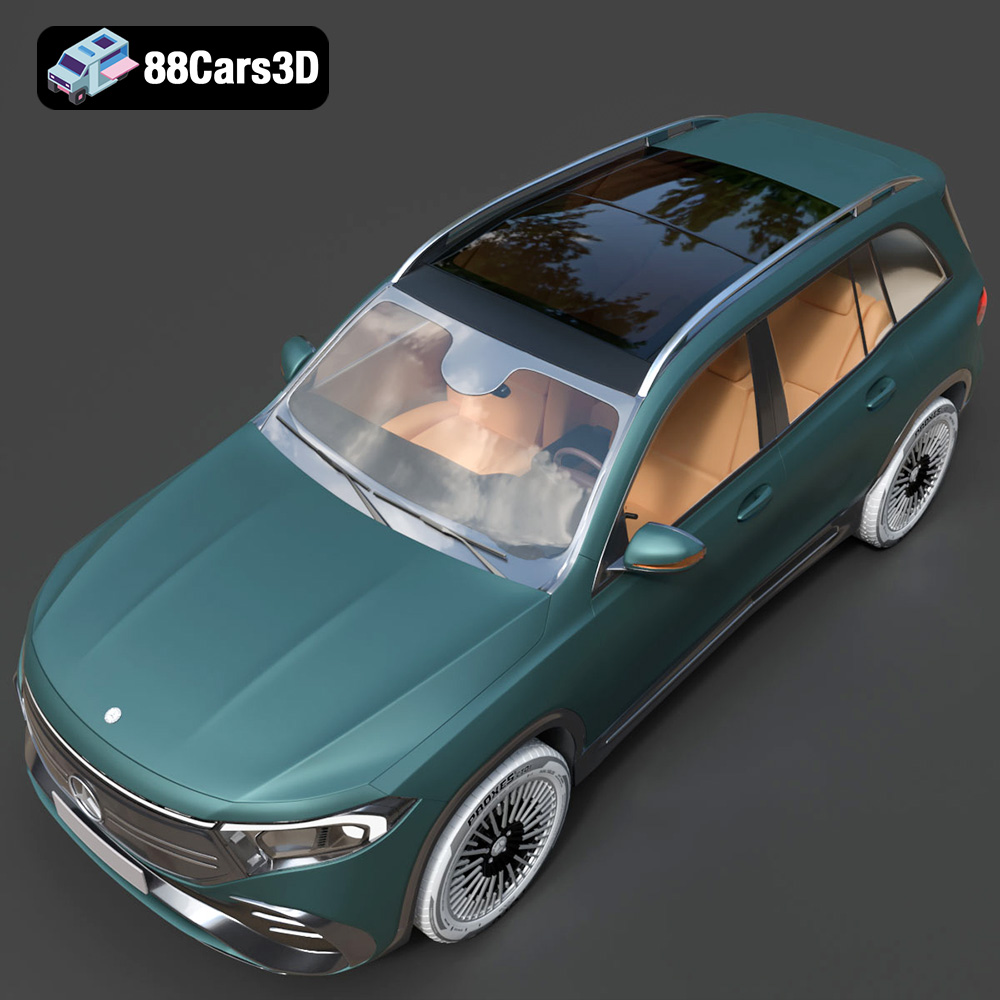
The Mercedes-Benz EQB-001, a modern electric SUV, embodies sleek design and technological innovation. Now, thanks to 88cars3d.com, you can bring this sophisticated vehicle to life on your 3D printer. This comprehensive guide provides detailed instructions and tips for successfully 3D printing the Mercedes-Benz EQB-001 3D model, covering everything from pre-print preparation to post-processing techniques. Whether you’re a seasoned 3D printing enthusiast or a beginner, this article will equip you with the knowledge to create a stunning replica of this iconic car. We will delve into material selection, optimal printer settings, and crucial steps to overcome potential challenges.
The success of any 3D print hinges on proper preparation. For the Mercedes-Benz EQB-001, this involves several critical steps to ensure the model is print-ready.
Before slicing, thoroughly inspect the STL file for any errors. This could include non-manifold edges, holes, or intersecting faces. Software like MeshMixer or Netfabb can be used to automatically detect and repair these issues. Repairing these errors is crucial because they can cause printing failures, such as missing layers or incorrect geometry. A clean, watertight mesh is essential for optimal 3D printing. Check the model’s scale and ensure it fits within your printer’s build volume. Adjust the scale as needed in your slicing software.
Choosing the correct printing orientation is paramount. For the EQB-001, consider printing the body at a slight angle to minimize the need for supports on visible surfaces. Experiment with different orientations in your slicing software to see how support structures are generated and choose the option that provides the cleanest print with the least support material.
When supports are needed, strategically place them to support overhangs and delicate features. Avoid placing supports on surfaces that will be visible in the final model, as removing them can leave unsightly marks. Use support blockers in your slicing software to prevent supports from generating in unwanted areas. Simplify complex support structures wherever possible to reduce printing time and material usage.
Choosing the right file format is critical for successful 3D printing. While the Mercedes-Benz EQB-001 model is available in various formats, some are better suited for 3D printing than others. Here’s a detailed overview:
The STL (Stereolithography) format is the de facto standard for 3D printing. It represents a 3D object’s surface geometry as a collection of triangles. STL files are widely compatible with all 3D printing slicing software, making them the go-to choice for most printing applications. However, STL files only store the mesh data of the object; they do not contain information about color, texture, or materials.
For the Mercedes-Benz EQB-001, the STL file will provide a solid geometric representation suitable for most 3D printing purposes. When exporting to STL, ensure that you select a high resolution to capture finer details of the model. Higher resolution STL files will result in smoother surfaces on the final print, but they also increase file size. You can adjust the resolution settings in your 3D modeling software before exporting. Slicing software relies heavily on the quality of the STL file, so ensure it is free of errors and has sufficient detail to represent the car’s complex curves and features accurately.
* **.obj:** This is a more universal format that supports color and texture information. While primarily used for rendering and visualization, it can be used for multicolor 3D printing if your printer supports it.
* **.ply:** This format is known for storing high-detail mesh data, often generated from 3D scanning. It’s suitable for 3D printing very detailed models, but the large file sizes can be a challenge.
* **.blend:** The native file format for Blender, this contains the entire scene, including the model, materials, textures, and lighting. It’s useful for making modifications to the model before exporting to STL.
* **.fbx:** Commonly used for game development, this format supports animations and materials. It is generally not directly used for 3D printing but can be imported into 3D modeling software to extract the mesh data.
* **.glb:** Designed for AR/VR applications, this format is optimized for real-time rendering and often contains compressed texture data. Like FBX, it can be useful for visualization but needs to be converted to STL for 3D printing.
* **.max:** The native file format for 3ds Max, similar to .blend, contains the entire project scene. Again, it requires exporting to STL for 3D printing after any modifications.
In summary, for the Mercedes-Benz EQB-001, the **STL file format is the most suitable for 3D printing**. It offers broad compatibility, ease of use, and sufficient geometric detail for creating a high-quality 3D printed model. Ensure your STL file is properly prepared, free of errors, and has a resolution that balances detail and file size for optimal printing results.
Choosing the right material is critical for achieving the desired look and functionality.
PLA (Polylactic Acid) is a popular choice for 3D printing due to its ease of use and biodegradability. It’s an excellent option for beginners printing the Mercedes-Benz EQB-001 due to its low printing temperature and minimal warping. However, PLA is not as durable or heat-resistant as other materials, making it more suitable for static display models. PLA comes in a wide range of colors, allowing for creative customization. Consider using a high-quality PLA filament for better print results.
PETG (Polyethylene Terephthalate Glycol-modified) offers a good balance of strength, durability, and ease of printing. It’s more heat-resistant and flexible than PLA, making it a better choice for parts that may experience some stress. PETG can be slightly more challenging to print than PLA, requiring higher printing temperatures and careful calibration. However, the improved mechanical properties make it a worthwhile choice for a more robust Mercedes-Benz EQB-001 model.
For those seeking the highest level of detail, resin printing is an excellent option. Resin printers use liquid photopolymer resins that are cured by UV light, resulting in incredibly fine details and smooth surfaces. The Mercedes-Benz EQB-001 would benefit significantly from resin printing, particularly for intricate features like the grille and headlights. However, resin printing requires more post-processing, including washing and curing, and resins can be more expensive and require careful handling.
Fine-tuning your printer settings is essential for a successful print. These settings will vary based on the printer and material used, but these serve as a starting point.
For PLA and PETG, a layer height of 0.1mm to 0.2mm is recommended for a good balance of detail and print time. For resin printing, layer heights can be even smaller, down to 0.05mm or even 0.025mm for exceptional detail. A print speed of 40-60mm/s is generally suitable for PLA and PETG, while resin printing speed is determined by the exposure time per layer.
An infill density of 15-25% is usually sufficient for a display model like the Mercedes-Benz EQB-001. A gyroid or honeycomb infill pattern provides good strength while minimizing material usage. For parts that require more strength, such as axles or suspension components (if you’re designing a functional model), consider increasing the infill density to 50% or higher.
For PLA, a printing temperature of 200-220°C and a bed temperature of 60°C are generally recommended. PETG typically requires a higher printing temperature of 230-250°C and a bed temperature of 70-80°C. Ensure good bed adhesion by using a heated bed, applying a bed adhesion agent like glue stick or hairspray, or using a brim or raft. For resin printing, follow the resin manufacturer’s recommendations for exposure times and other settings.
Post-processing is crucial for achieving a professional-looking final product.
Carefully remove support structures using pliers or a sharp knife. Take your time to avoid damaging the model. Once the supports are removed, use sandpaper to smooth any rough edges or support marks. Start with a coarser grit sandpaper (e.g., 220 grit) and gradually move to finer grits (e.g., 400, 600, 800 grit) for a smooth finish. Wet sanding can help to reduce dust and improve the smoothness of the surface.
Apply a primer coat to the model to create a uniform surface for painting. Use multiple thin coats of primer instead of one thick coat to avoid drips and runs. Once the primer is dry, sand it lightly with fine-grit sandpaper to remove any imperfections. Then, apply your chosen paint colors using spray paint or an airbrush. Multiple thin coats of paint will result in a smoother, more even finish. Consider using masking tape to create clean lines and separate different colored areas.
If the Mercedes-Benz EQB-001 model consists of multiple parts, carefully assemble them using glue or other fasteners. Ensure that the parts fit together properly before applying glue. Clamps or rubber bands can be used to hold the parts in place while the glue dries. For functional models, consider using screws or bolts for a more secure and durable assembly.
Even with careful preparation, 3D printing can sometimes present challenges. Here are some common issues and their solutions.
Warping occurs when the corners of the print lift off the build plate. This is often caused by poor bed adhesion or temperature fluctuations. To prevent warping, ensure that your bed is properly leveled and heated, use a bed adhesion agent, and avoid drafts in the printing environment.
Stringing is when thin strands of filament are left between different parts of the print. This is usually caused by excessive retraction distance or temperature. Try increasing the retraction distance, decreasing the printing temperature, or increasing the travel speed to minimize stringing.
Layer separation occurs when the layers of the print do not adhere properly to each other. This can be caused by low printing temperature, insufficient cooling, or incorrect layer height. Try increasing the printing temperature, reducing the cooling fan speed, or decreasing the layer height to improve layer adhesion.
Overhangs are areas of the print that are not supported from below. These can sometimes droop or sag if they are too steep. To mitigate overhang issues, use supports, decrease the layer height, or adjust the printing orientation.
The print time and material cost for the Mercedes-Benz EQB-001 3D model will depend on the size of the model, the material used, and the printer settings. A typical PLA print of a 1/24 scale model could take 12-24 hours and use approximately 200-400 grams of filament, costing around $5-$10. A resin print of the same size could take 8-16 hours and use approximately 100-200 ml of resin, costing around $10-$20. These are just estimates, and the actual print time and material cost may vary.
By following these detailed instructions and tips, you’ll be well-equipped to successfully 3D print the Mercedes-Benz EQB-001 model from 88cars3d.com. Remember to take your time, experiment with different settings, and enjoy the process of bringing this iconic vehicle to life!
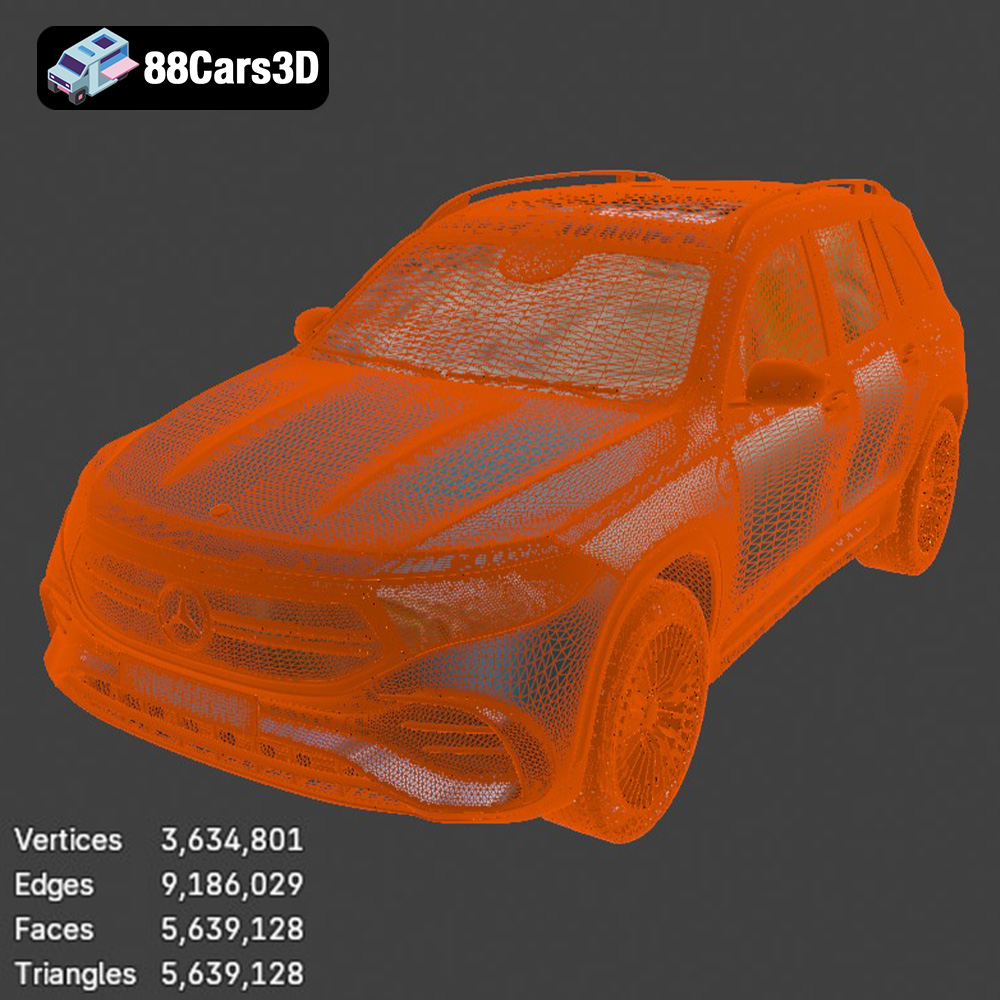
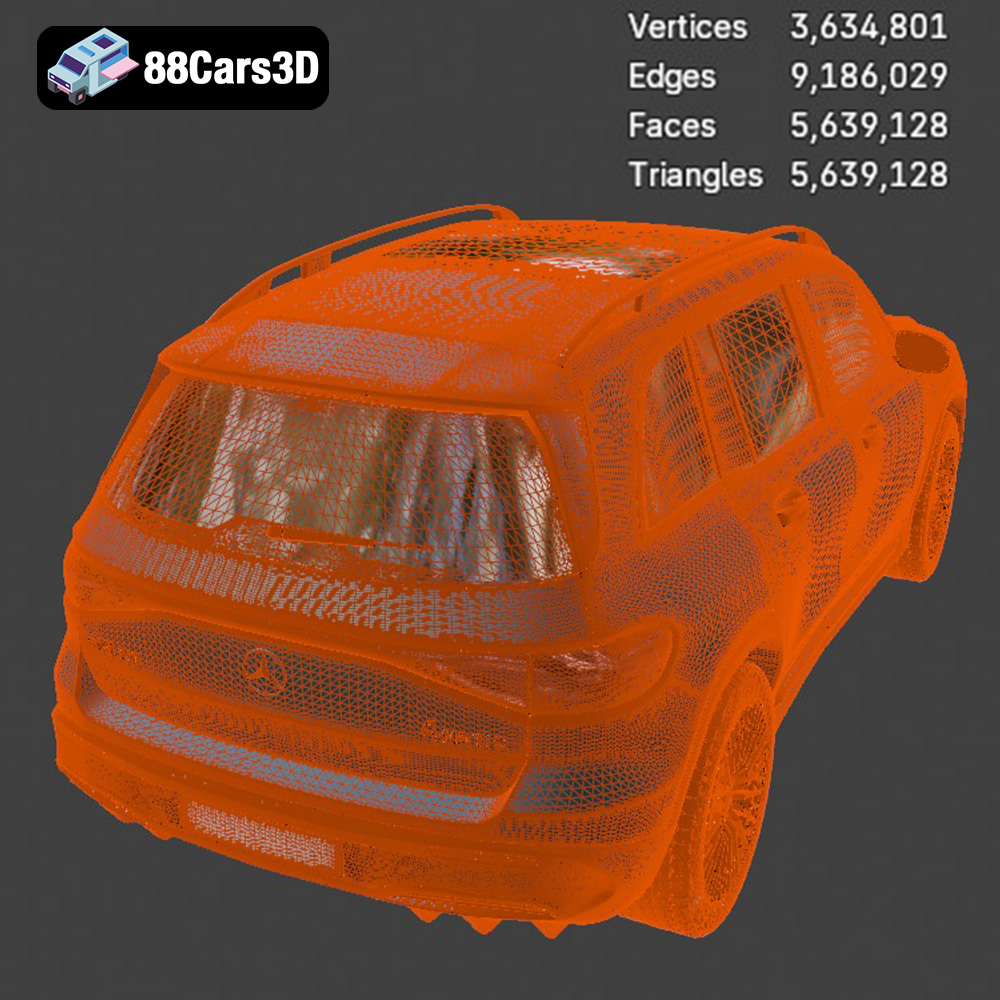
Discover the ultimate level of detail and realism with the Mercedes-Benz EQB-001 3D Model. Carefully crafted to replicate the true design of this modern vehicle, this model ensures precision and authenticity for any digital project. Engineered with professional quality in mind, the 3D model features impeccably clean geometry, seamless mesh flow, and highly realistic materials. Every exterior contour and interior element is precisely detailed to provide an exceptionally immersive visual experience.
$19.99
.arvr
.blend
.car3dmodel
.electriccar
.eqb
.eqb001
.ev
.fbx
.gameasset
.glb
.max
.mercedes
.mercedesbenz
.obj
.ply
.rendering
.simulation
.stl
.unreal
SUV