Get 50% OFF All Premium 3D & STL Models!

“`html
So, you’ve downloaded a fantastic 3D model – perhaps a sleek printable car model from a platform like 88cars3d.com – and you’re ready to bring it to life with your 3D printer. But sometimes, that STL file isn’t quite perfect. Maybe it needs resizing, some minor repairs, or even significant modifications. This is where STL file editing software comes in. Choosing the right tool can be daunting, with options ranging from free and open-source to professional-grade paid software. This comprehensive guide will explore the best free and paid software options for editing STL files, covering everything from basic repairs to advanced modifications, ensuring your 3D prints are flawless.
In this guide, you’ll learn about the strengths and weaknesses of various software packages, understand essential STL editing techniques, and discover how to optimize your models for 3D printing. Whether you’re a hobbyist printing miniature cars or an engineer prototyping complex parts, the right software can make all the difference. We’ll dive into specific workflows, discuss crucial settings, and even touch upon troubleshooting common issues. Let’s get started!
Before diving into software, it’s crucial to understand what an STL file is and why its integrity matters for 3D printing. STL (Stereolithography) is a file format native to the stereolithography CAD software created by 3D Systems. It represents the surface geometry of a 3D object using a collection of triangles. The denser the mesh (the more triangles), the higher the resolution and detail of the model. However, denser meshes also mean larger file sizes and potentially more processing power required for slicing and printing.
STL files describe only the surface of an object, not its color, texture, or internal structure. Each triangle is defined by three vertices (points in 3D space) and a normal vector (indicating the triangle’s orientation). The way these triangles are connected defines the mesh topology. Issues like gaps, overlaps, and non-manifold edges can disrupt the topology and cause problems during slicing and printing. For example, when downloading models from marketplaces such as 88cars3d.com, while efforts are made to ensure quality, minor imperfections can sometimes exist, making basic STL editing knowledge very useful.
A flawed STL file can lead to a variety of 3D printing problems, including:
Therefore, ensuring the STL file is “watertight” (closed and without any holes) and has a clean, manifold mesh is essential for successful 3D printing.
Fortunately, you don’t always need to invest in expensive software to edit STL files. Several free and open-source options provide powerful tools for basic repairs, modifications, and even advanced sculpting. These tools are perfect for hobbyists, students, and anyone on a tight budget.
MeshLab is a powerful open-source system for processing and editing 3D triangular meshes. While its user interface can be intimidating at first, MeshLab offers a wide range of features, including mesh cleaning, simplification, smoothing, and hole filling. It’s particularly useful for repairing damaged STL files and optimizing them for 3D printing. For example, you can use MeshLab to remove duplicate vertices, merge nearly coincident vertices, and fix self-intersections. A common workflow involves importing the STL file, using the “Filters” menu to select “Cleaning and Repairing,” and then applying filters like “Remove Duplicate Vertices,” “Merge Close Vertices,” and “Remove Faces from Non Manifold Edges.” The “Show Non Manifold Edges” tool is invaluable for identifying areas that need repair. Remember to export the corrected file in STL format after making changes.
Blender is a free and open-source 3D creation suite capable of modeling, sculpting, animation, and more. While it’s not specifically designed for STL repair, Blender offers powerful tools for editing mesh geometry and fixing errors. Its sculpting tools allow for organic modifications, while its mesh editing tools can be used to bridge gaps, refine surfaces, and add details. To prepare an STL for printing in Blender, import the file, enter “Edit Mode,” and use tools like “Fill” (to close holes) and “Merge by Distance” (to remove duplicate vertices). The “Remesh” modifier can be used to create a uniform mesh density, which is often beneficial for 3D printing. Remember to check the mesh for non-manifold geometry using the “Select Non Manifold” option in the “Select” menu. Export the corrected file as an STL, making sure the “Apply Modifiers” option is selected to ensure that all changes are applied to the exported mesh.
Meshmixer, formerly offered for free by Autodesk, is a user-friendly tool specifically designed for working with 3D meshes. Although Autodesk no longer actively develops Meshmixer, it’s still available for free download and remains a popular choice for STL editing. It provides a range of tools for repairing, sculpting, and modifying 3D models, including automatic repair functions that can quickly fix common STL errors. Meshmixer excels at tasks like hollowing out models, adding support structures, and creating custom connections. After importing your STL file, use the “Edit” menu and select “Make Solid” to automatically repair most common mesh errors. The “Analysis” menu provides tools for checking mesh integrity and identifying potential printing problems. For more complex modifications, explore the “Sculpt” tools for adding or removing material. The “Supports” tool is particularly useful for generating custom support structures optimized for your specific model and printer.
For users who require more advanced features, specialized tools, or professional-grade performance, several paid software options are available. These programs often offer more precise control over mesh editing, advanced repair capabilities, and seamless integration with CAD/CAM workflows.
Autodesk Netfabb is a comprehensive software package for additive manufacturing, offering a wide range of tools for STL repair, optimization, and build preparation. Netfabb is widely used in professional settings due to its robust features and ability to handle complex models. It includes advanced mesh repair algorithms that can automatically fix a wide range of STL errors, as well as tools for optimizing mesh density, reducing file size, and adding support structures. Netfabb’s simulation capabilities allow you to predict print behavior and optimize your designs for minimal warping and distortion. A typical workflow in Netfabb involves importing the STL, running the automatic repair tool, and then using the “Mesh Edit” tools for manual adjustments. The “Lattice Commander” feature is particularly useful for creating lightweight, strong parts using lattice structures. Netfabb also offers tools for analyzing wall thickness and ensuring that your model meets the minimum requirements for 3D printing.
Geomagic Design X is a powerful reverse engineering software that allows you to create CAD models from 3D scan data or existing STL files. While not strictly an STL editor, Design X offers robust tools for converting mesh data into parametric CAD models, allowing for precise modifications and design changes. It’s particularly useful for reverse engineering existing parts, creating custom modifications, and integrating 3D printed components into larger assemblies. Design X’s “Mesh to CAD” functionality automatically creates solid models from scanned data, which can then be edited using traditional CAD tools. The software also includes advanced surfacing tools for creating smooth, accurate surfaces from mesh data. This is especially useful if you need to modify the model for a specific application that requires CAD integration. The software also includes tolerance analysis and simulation tools, ensuring that your designs meet the required specifications.
ZBrush is a digital sculpting software widely used in the entertainment industry for creating highly detailed 3D models. While it’s not specifically designed for 3D printing, ZBrush offers powerful tools for sculpting, detailing, and refining STL files. Its intuitive interface and advanced sculpting brushes allow you to create organic shapes, add intricate details, and prepare models for 3D printing. ZBrush excels at tasks like adding textures, creating complex surface details, and refining the overall aesthetic of your model. A common workflow involves importing the STL file, using the sculpting brushes to add details, and then using the “Decimation Master” plugin to reduce the polygon count without sacrificing detail. The “ZRemesher” tool can be used to create a cleaner, more uniform mesh that is better suited for 3D printing. Remember to check the mesh for watertightness and ensure that all surfaces are properly closed before exporting the final STL file.
Slicing software is essential for preparing your STL files for 3D printing. It converts the 3D model into a series of layers that the printer can understand, generating the G-code instructions that control the printer’s movements, temperature, and material extrusion. Choosing the right slicing software and optimizing its settings can significantly impact the quality, strength, and speed of your 3D prints.
Cura is a popular free and open-source slicing software developed by Ultimaker. It offers a user-friendly interface, a wide range of customizable settings, and seamless integration with Ultimaker 3D printers. Cura supports a variety of 3D printing technologies, including FDM, SLA, and SLS. Key settings in Cura include layer height (typically between 0.1mm and 0.2mm for FDM), infill density (20-30% for general purpose, higher for structural parts), print speed (40-60mm/s for PLA, slower for ABS), and support structures (enabled for overhanging features). The “Experimental” settings in Cura offer advanced features like adaptive layers and tree supports, which can further optimize print quality and material usage. For printing printable car models from 88cars3d.com, consider using a smaller layer height (0.1mm) and enabling support structures to preserve the fine details.
PrusaSlicer is another excellent free and open-source slicing software known for its advanced features and customizable settings. Developed by Prusa Research, PrusaSlicer offers a wide range of options for optimizing print quality, speed, and material usage. It supports multiple 3D printing technologies and provides detailed control over every aspect of the printing process. PrusaSlicer offers unique features like variable layer height, which allows you to use thinner layers for detailed areas and thicker layers for less critical regions. It also includes advanced support structure algorithms that minimize material usage and improve surface finish. The “Ironing” feature smooths the top surface of the print, creating a more polished look. For achieving high-quality prints with minimal warping, experiment with bed adhesion settings like brims or rafts. For FDM printers, a bed temperature of 60°C for PLA and 100°C for ABS is generally recommended.
Even with the best software and settings, 3D printing can sometimes present challenges. Understanding common STL editing and printing issues and how to troubleshoot them is crucial for achieving successful results.
Non-manifold geometry is a common problem in STL files, characterized by edges or vertices that are connected to more than two faces. This can cause slicing errors and print failures. Use software like MeshLab or Netfabb to identify and repair non-manifold edges. Another common issue is gaps or holes in the mesh, which can be fixed using the “Fill” tool in Blender or the “Make Solid” function in Meshmixer. Overlapping triangles can also cause problems, which can be resolved by merging nearly coincident vertices using the appropriate tools in MeshLab or Netfabb. Always check your STL file for errors before slicing to avoid wasting time and material.
Warping occurs when the printed part detaches from the build plate due to uneven cooling and thermal contraction. To prevent warping, ensure that your build plate is properly leveled and heated. Use a bed adhesive like glue stick or hairspray to improve adhesion. Enclosing the printer can also help to maintain a consistent temperature and prevent warping, especially when printing with materials like ABS. Support failures can occur if the support structures are too weak or not properly attached to the model. Increase the support density and thickness to improve their stability. Experiment with different support patterns and angles to find the optimal configuration for your specific model. Also, ensure that the first layer of the supports adheres properly to the build plate.
Editing STL files is a critical skill for any 3D printing enthusiast or professional. By understanding the structure of STL files, choosing the right software, and mastering essential editing techniques, you can ensure that your 3D prints are flawless and meet your exact specifications. Whether you opt for free tools like MeshLab and Blender or invest in professional software like Netfabb and Geomagic Design X, the key is to practice and experiment to find the methods that work best for you. Remember to always check your STL files for errors before slicing and printing, and don’t be afraid to troubleshoot common issues like warping and support failures.
With the knowledge gained from this guide, you’re well-equipped to tackle any STL editing challenge and bring your 3D printing projects to life. So, go ahead, download those printable car models from 88cars3d.com, unleash your creativity, and enjoy the world of 3D printing!
“`

Texture: Yes
Material: Yes
Download the BMW X7 G07 2019 3D Model featuring clean geometry, realistic detailing, and a fully modeled interior. Includes .blend, .fbx, .obj, .glb, .stl, .ply, .unreal, and .max formats for rendering, simulation, and game development.
Price: $19.99

Texture: Yes
Material: Yes
Download the BMW 8-Series M850i G15 Coupe 2019 3D Model featuring clean geometry, realistic detailing, and a fully modeled interior. Includes .blend, .fbx, .obj, .glb, .stl, .ply, .unreal, and .max formats for rendering, simulation, and game development.
Price: $19.99

Texture: Yes
Material: Yes
Download the BMW Z4 Mk3 G29 Roadster M40i 2019 3D Model featuring clean geometry, realistic detailing, and a fully modeled interior. Includes .blend, .fbx, .obj, .glb, .stl, .ply, .unreal, and .max formats for rendering, simulation, and game development.
Price: $19.99

Texture: Yes
Material: Yes
Download the BMW X6 (Mk3) (G06) M Sport 2020 3D Model featuring clean geometry, realistic detailing, and a fully modeled interior. Includes .blend, .fbx, .obj, .glb, .stl, .ply, .unreal, and .max formats for rendering, simulation, and game development.
Price: $19.99

Texture: Yes
Material: Yes
Download the BMW 8-Series G14 Convertible M850i 2019 3D Model featuring clean geometry, realistic detailing, and a fully modeled interior. Includes .blend, .fbx, .obj, .glb, .stl, .ply, .unreal, and .max formats for rendering, simulation, and game development.
Price: $19.99

Texture: Yes
Material: Yes
Download the BMW 8 Series M850i Coupe 2019 3D Model featuring clean geometry, realistic detailing, and a fully modeled interior. Includes .blend, .fbx, .obj, .glb, .stl, .ply, .unreal, and .max formats for rendering, simulation, and game development.
Price: $19.99

Texture: Yes
Material: Yes
Download the BMW 3 Series M-Sport Sedan 2019 3D Model featuring clean geometry, realistic detailing, and a fully modeled interior. Includes .blend, .fbx, .obj, .glb, .stl, .ply, .unreal, and .max formats for rendering, simulation, and game development.
Price: $19.99
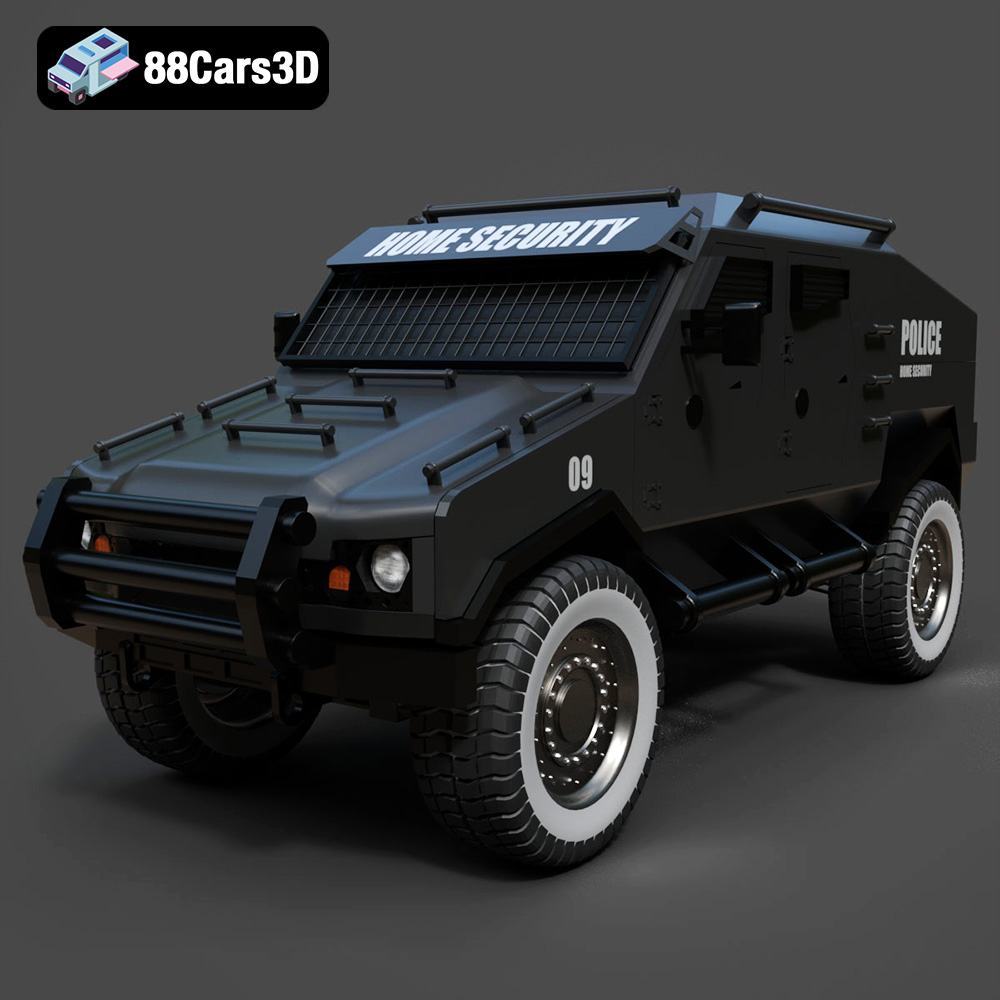
Texture: Yes
Material: Yes
Download the Armoured Vehicle 001 3D Model featuring clean geometry, realistic detailing, and a fully modeled interior. Includes .blend, .fbx, .obj, .glb, .stl, .ply, .unreal, and .max formats for rendering, simulation, and game development.
Price: $19.99
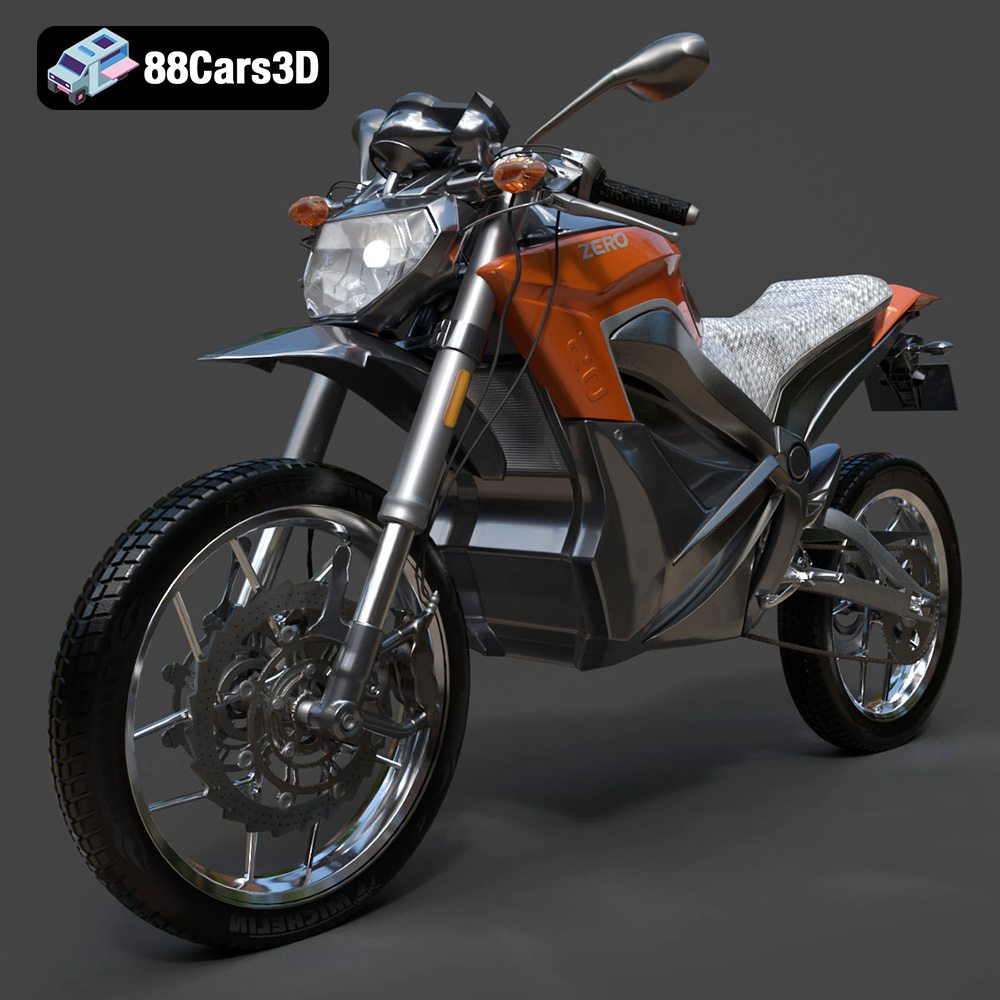
Texture: Yes
Material: Yes
Download the Zero Motorcycles S ZF8.5 3D Model featuring clean geometry, realistic detailing, and a fully modeled interior. Includes .blend, .fbx, .obj, .glb, .stl, .ply, .unreal, and .max formats for rendering, simulation, and game development.
Price: $19.99

Texture: Yes
Material: Yes
Download the Zeekr 001 3D Model featuring clean geometry, realistic detailing, and a fully modeled interior. Includes .blend, .fbx, .obj, .glb, .stl, .ply, .unreal, and .max formats for rendering, simulation, and game development.
Price: $19.99

