Get 50% OFF All Premium 3D & STL Models!

“`html
So, you’ve found the perfect 3D printable car model from a site like 88cars3d.com, downloaded the STL file, and you’re ready to bring it to life with your 3D printer. But sometimes, these files aren’t quite perfect straight out of the box. They might have imperfections like non-manifold geometry, holes, or self-intersections that can wreak havoc on your printing process, leading to failed prints and wasted filament. Fear not! Blender, a powerful and free open-source 3D creation suite, can be your best friend when it comes to cleaning up and preparing STL files for optimal 3D printing. This comprehensive guide will walk you through the essential techniques for using Blender to ensure your models are print-ready, leading to flawless results every time. We’ll cover everything from importing and inspecting your STL file to fixing common mesh errors, optimizing the geometry, and exporting a clean, printable file. Let’s dive in and transform those downloaded STL files into tangible masterpieces.
The first step is to import your STL file into Blender and thoroughly inspect it for any potential issues. A visual inspection is crucial for identifying obvious problems before diving into more complex repairs. Blender offers a variety of tools to help you analyze the mesh and pinpoint areas that need attention.
To import your STL file:
The model will now appear in the Blender viewport. It might be very small or very large, so use the scroll wheel to zoom in and out, and hold the middle mouse button to rotate the view. You can also use the “View Selected” function (NumPad .) to center the view on the imported model.
Once imported, carefully examine the model visually. Look for:
Blender’s overlay options are incredibly helpful for detailed inspection. In the viewport overlays dropdown menu (located in the top right corner of the 3D viewport), enable the following:
Non-manifold geometry is a common issue in STL files that can prevent successful 3D printing. It refers to situations where the mesh has edges connected to more than two faces, or where faces intersect in a way that makes it impossible to define a clear inside and outside. Fortunately, Blender provides tools to identify and correct these errors.
Blender has a built-in tool to automatically select non-manifold edges and faces. To use it:
This will highlight all the non-manifold elements of the mesh. Now you can focus on repairing these specific areas. Common non-manifold issues include:
Once you’ve identified the non-manifold areas, you can use Blender’s editing tools to fix them. Here are a few common techniques:
Holes and gaps in your STL model are prime candidates for print failures. These openings can disrupt the printing process, leading to incomplete layers, structural weaknesses, and overall poor print quality. Blender provides several methods for effectively closing these gaps and creating a watertight mesh suitable for 3D printing.
Before attempting to repair any holes, it’s crucial to accurately identify them. This can be done visually, as described earlier, but Blender also offers a more automated approach:
Alternatively, enable the “Edge Length” overlay and set a small maximum length. Edges shorter than this length are unlikely to be hole boundaries and can be ignored.
Once the holes are identified, you can employ several techniques to close them:
Remember to check the resulting faces for correct orientation (blue facing outwards). If any faces are red, select them and press Alt + N > Flip to invert their normals.
While high-resolution models look great, they can be unnecessarily taxing on your 3D printer and slicer software. Models with excessively high polygon counts lead to larger file sizes, slower slicing times, and potentially jerky print movements. Optimizing the mesh density and reducing the polygon count can significantly improve the printing process without sacrificing too much detail. This is especially relevant when preparing printable car models.
Blender’s Decimate modifier is a powerful tool for reducing the polygon count of a mesh. To use it:
The Decimate modifier offers several methods for reducing the polygon count:
Experiment with different methods and settings to find the best balance between polygon reduction and detail preservation. It’s generally recommended to start with a conservative reduction and gradually increase it until you notice a significant loss of detail.
Sometimes, a model contains small details that are not essential for the overall shape or function and can be safely removed. These details often contribute significantly to the polygon count without adding much value to the final print. Examples include:
Use Blender’s editing tools (e.g., Delete Faces, Merge by Distance) to carefully remove these unnecessary details and reduce the polygon count. Consider using the Limited Dissolve tool (Mesh > Clean Up > Limited Dissolve) to automatically simplify planar regions and remove unnecessary edges.
Many 3D printable car models, especially those with complex overhangs or intricate details, require support structures to ensure successful printing. Supports provide a temporary base for overhanging parts, preventing them from collapsing during the printing process. While slicer software can automatically generate supports, it’s often beneficial to add and optimize supports within Blender for greater control and precision. This can be particularly useful when preparing complex models sourced from platforms like 88cars3d.com.
Adding supports manually allows you to precisely control their placement and minimize their impact on the final print surface. To add supports in Blender:
When placing supports manually, consider the following:
Once you’ve added supports, it’s important to optimize them for efficient printing and easy removal:
Consider using Blender’s sculpting tools to refine the shape and surface of the supports, making them smoother and more aerodynamic. This can improve airflow during printing and reduce the risk of warping.
After cleaning up the mesh, repairing holes, optimizing the polygon count, and adding supports, the final step is to export a clean and print-ready STL file. Proper export settings are crucial for ensuring that the file is compatible with your slicer software and that the model prints correctly.
To export your model as an STL file:
Before sending the STL file to your slicer, it’s a good idea to verify that the export was successful. Import the exported STL file back into Blender or another 3D viewing software and visually inspect it. Check for:
If you notice any issues, go back to Blender, make the necessary corrections, and re-export the STL file. When downloading models from marketplaces such as 88cars3d.com, ensuring a clean and verified STL export is paramount for achieving high-quality 3D prints.
Cleaning up STL files in Blender is an essential skill for any 3D printing enthusiast. By mastering the techniques outlined in this guide, you can ensure that your models are free of errors, optimized for printing, and ready to be transformed into stunning physical objects. From identifying and repairing non-manifold geometry to optimizing mesh density and adding support structures, Blender provides a comprehensive toolkit for preparing STL files for optimal 3D printing results. Platforms like 88cars3d.com offer a wide range of printable car models, but remember that even the best models may require some cleanup and optimization before printing. Take the time to learn these skills, and you’ll be well on your way to creating high-quality 3D prints of your dream cars. Now, go forth, experiment with these techniques, and bring your digital designs to life with confidence!
“`
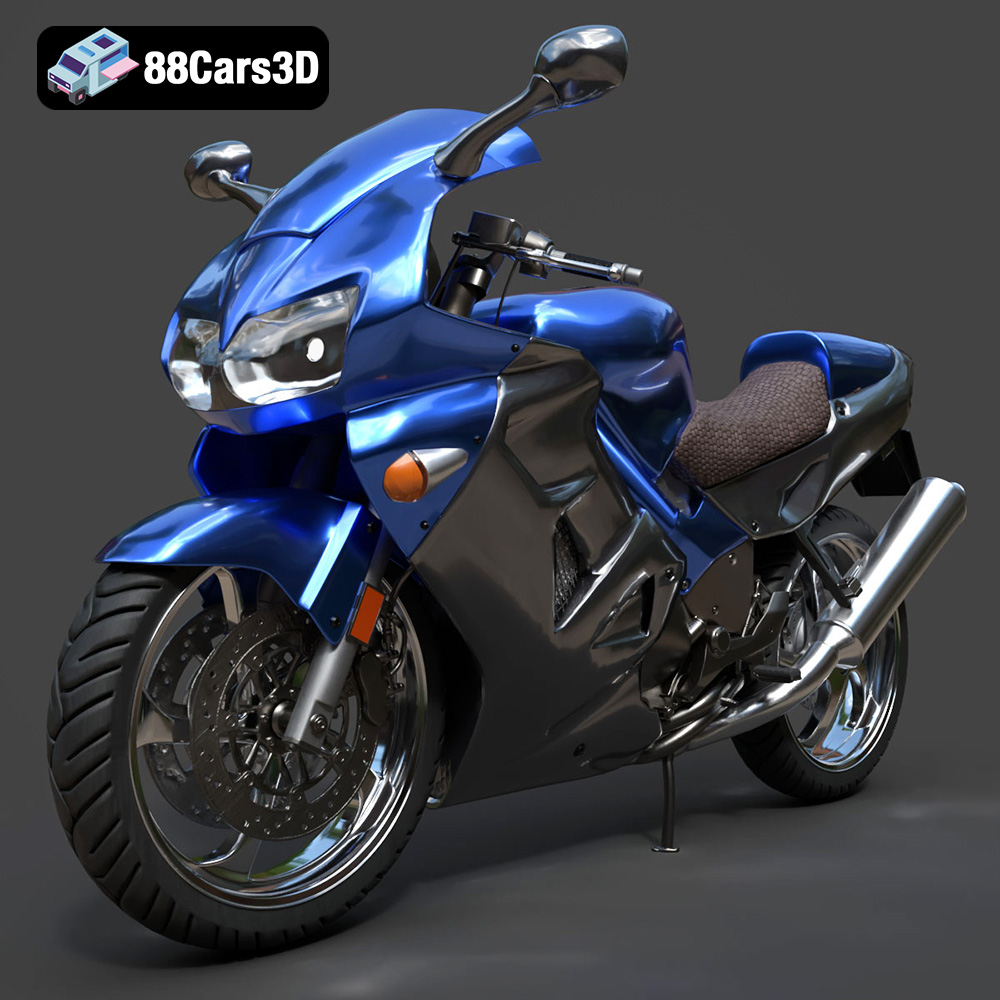
Texture: Yes
Material: Yes
Download the Honda VFR 801-002 3D Model featuring clean geometry, realistic detailing, and a fully modeled interior. Includes .blend, .fbx, .obj, .glb, .stl, .ply, .unreal, and .max formats for rendering, simulation, and game development.
Price: $19.99
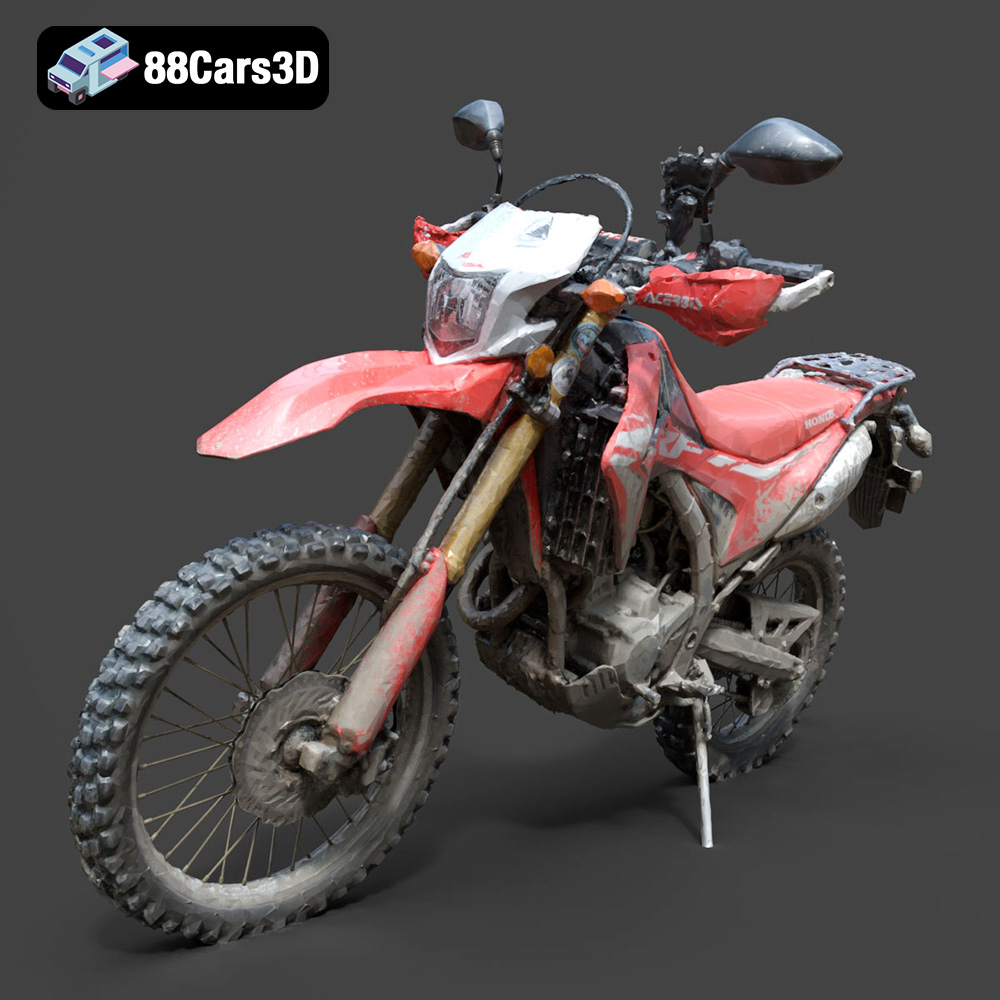
Texture: Yes
Material: Yes
Download the Honda Motorcycle-001 3D Model featuring clean geometry, realistic detailing, and a fully modeled interior. Includes .blend, .fbx, .obj, .glb, .stl, .ply, .unreal, and .max formats for rendering, simulation, and game development.
Price: $19.99

Texture: Yes
Material: Yes
Download the Honda Monkey 125 2019 3D Model featuring clean geometry, realistic detailing, and a fully modeled interior. Includes .blend, .fbx, .obj, .glb, .stl, .ply, .unreal, and .max formats for rendering, simulation, and game development.
Price: $19.99
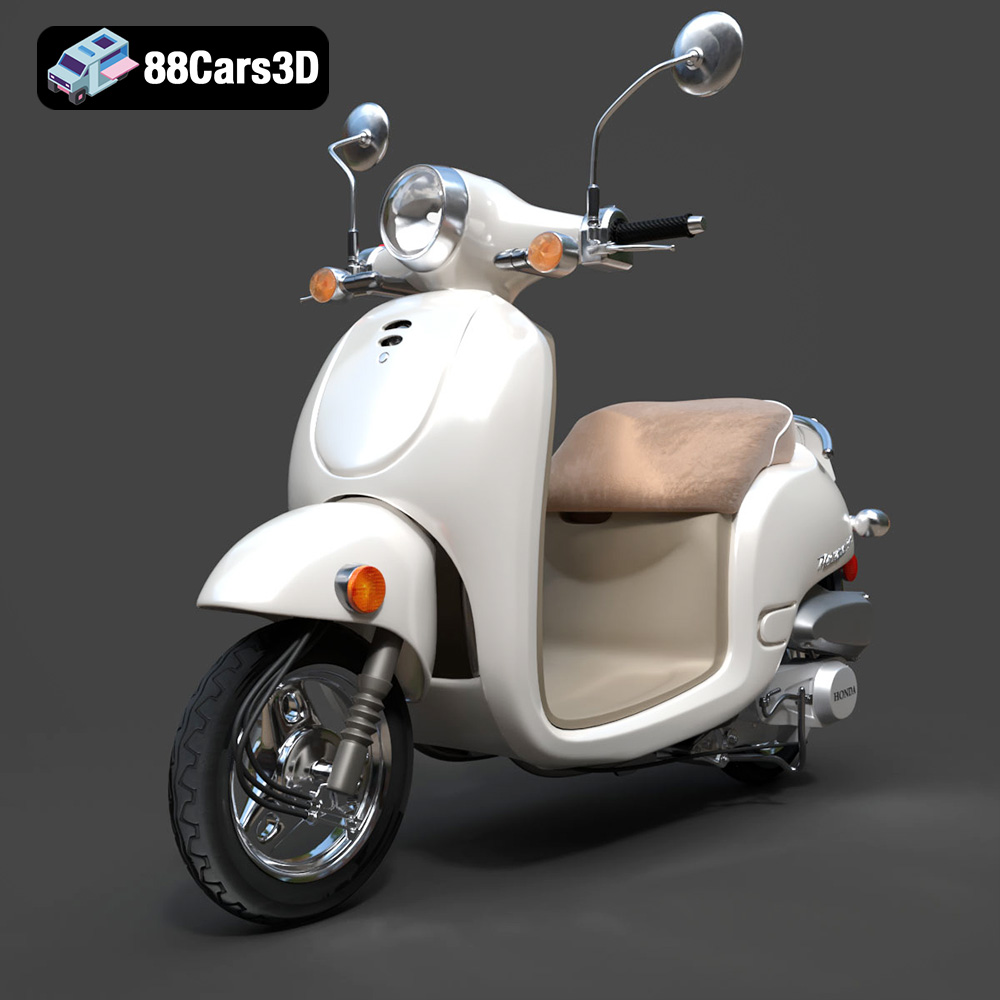
Texture: Yes
Material: Yes
Download the Honda Metropolitan 2013 3D Model featuring clean geometry, realistic detailing, and a fully modeled interior. Includes .blend, .fbx, .obj, .glb, .stl, .ply, .unreal, and .max formats for rendering, simulation, and game development.
Price: $19.99

Texture: Yes
Material: Yes
Download the Honda Civic Si Sedan 2017 3D Model featuring clean geometry, realistic detailing, and a fully modeled interior. Includes .blend, .fbx, .obj, .glb, .stl, .ply, .unreal, and .max formats for rendering, simulation, and game development.
Price: $19.99

Texture: Yes
Material: Yes
Download the Helicopter UH-40 3D Model featuring clean geometry, realistic detailing, and a fully modeled interior. Includes .blend, .fbx, .obj, .glb, .stl, .ply, .unreal, and .max formats for rendering, simulation, and game development.
Price: $19.99

Texture: Yes
Material: Yes
Download the BMW X7 G07 2019 3D Model featuring clean geometry, realistic detailing, and a fully modeled interior. Includes .blend, .fbx, .obj, .glb, .stl, .ply, .unreal, and .max formats for rendering, simulation, and game development.
Price: $19.99
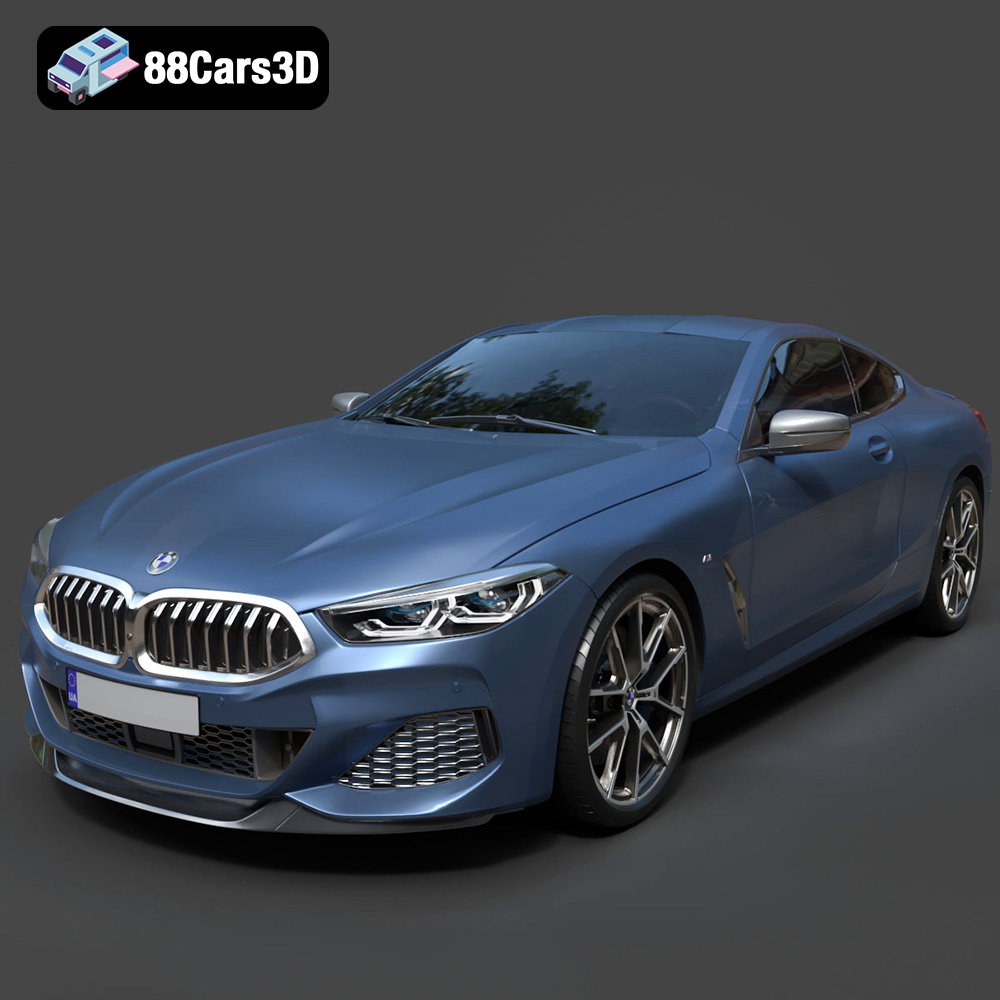
Texture: Yes
Material: Yes
Download the BMW 8-Series M850i G15 Coupe 2019 3D Model featuring clean geometry, realistic detailing, and a fully modeled interior. Includes .blend, .fbx, .obj, .glb, .stl, .ply, .unreal, and .max formats for rendering, simulation, and game development.
Price: $19.99
Texture: Yes
Material: Yes
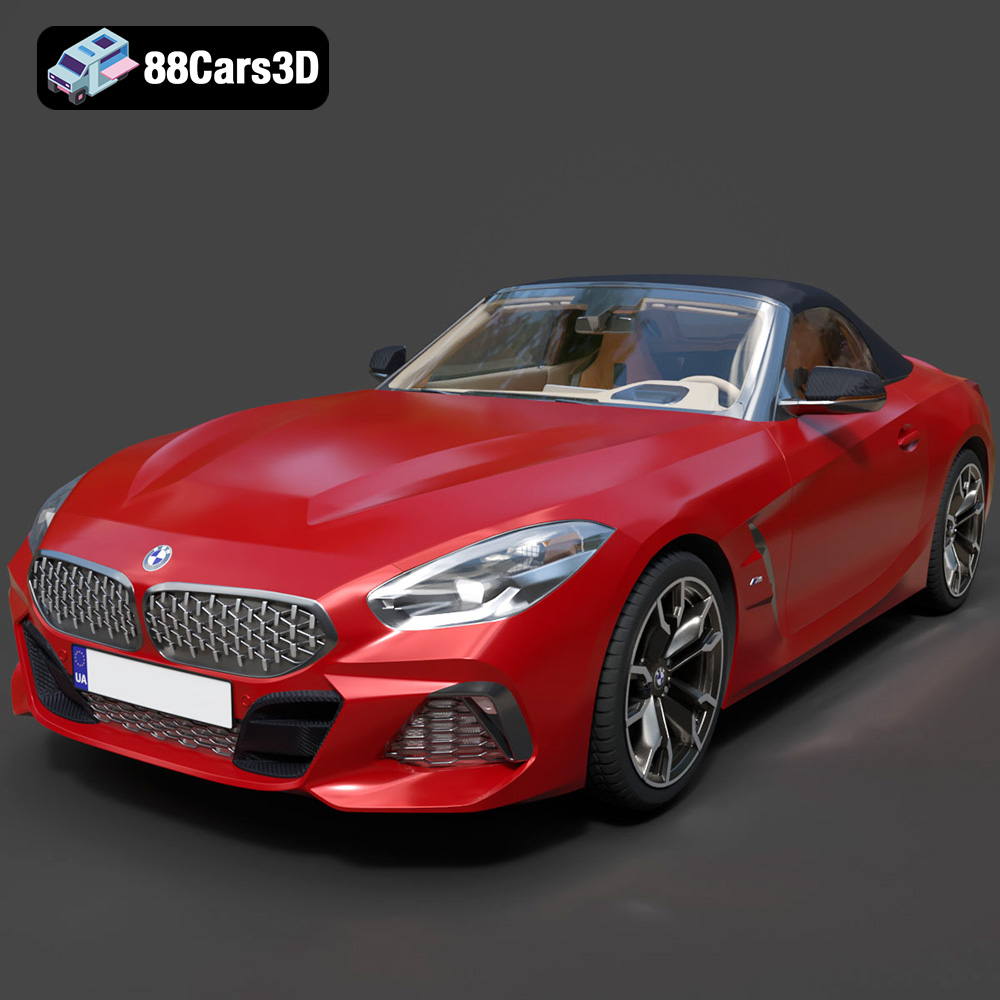
Download the BMW Z4 Mk3 G29 Roadster M40i 2019 3D Model featuring clean geometry, realistic detailing, and a fully modeled interior. Includes .blend, .fbx, .obj, .glb, .stl, .ply, .unreal, and .max formats for rendering, simulation, and game development.
Price: $19.99
Texture: Yes
Material: Yes
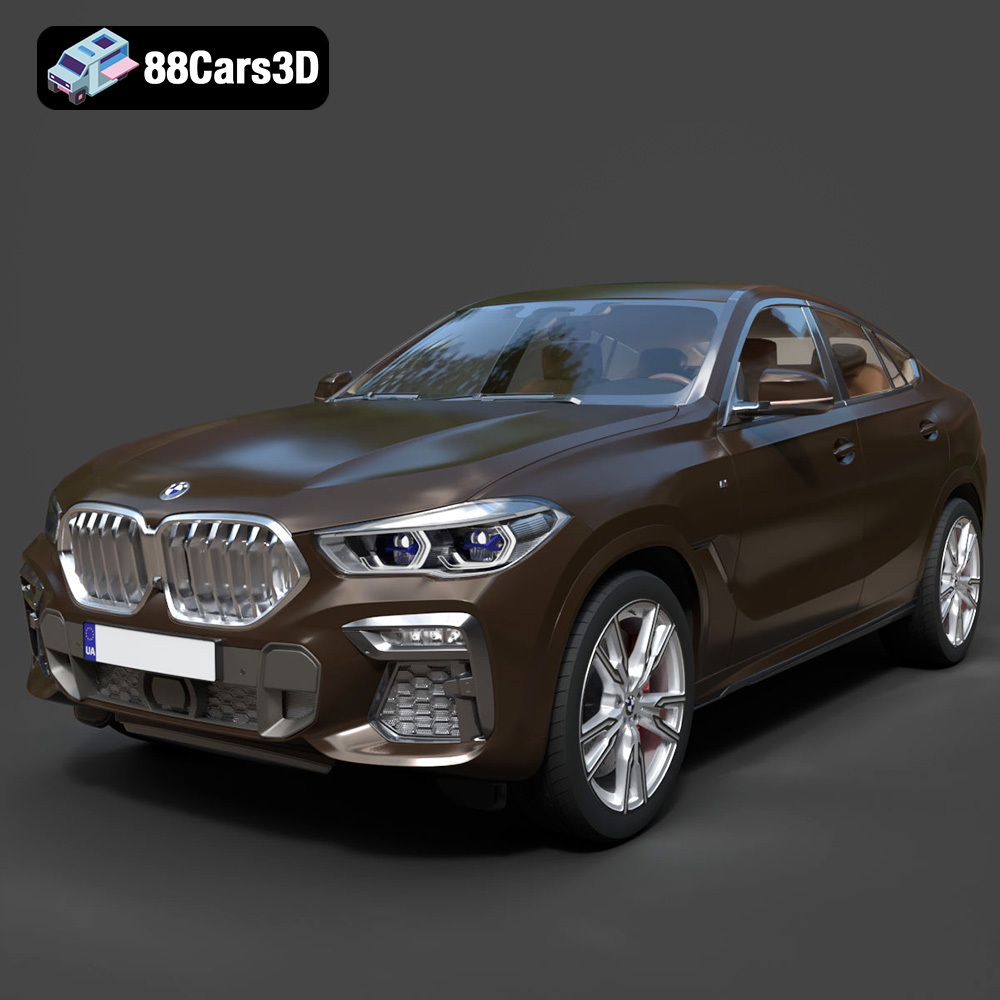
Download the BMW X6 (Mk3) (G06) M Sport 2020 3D Model featuring clean geometry, realistic detailing, and a fully modeled interior. Includes .blend, .fbx, .obj, .glb, .stl, .ply, .unreal, and .max formats for rendering, simulation, and game development.
Price: $19.99

